For security reasons, businesses often need to isolate external access ports from backend application ports. Global Accelerator (GA) port mapping lets you customize the relationship between listener and backend application ports, improving your application's flexibility and security.
Overview
By default, GA forwards traffic to an endpoint group using the protocol and port range specified when you create a listener. Intelligent routing listeners support port mapping, which lets you specify mappings between listener ports and endpoint ports when you configure an endpoint group. After you configure these mappings, GA accepts traffic on the listener ports and forwards it to the corresponding endpoint ports. This enables a more flexible network configuration.
Use cases
Use port mapping when the listener port differs from the endpoint's service port. Common use cases include:
Secure access for enterprise applications: Businesses often need to isolate external access ports from internal application ports to improve security. GA port mapping lets you accept external requests on a standard port, such as TCP 80, and forward them to a different backend port, such as 8080. This prevents direct exposure of your internal service ports.
Port isolation for multi-tenant SaaS applications: In a Software-as-a-Service (SaaS) application, you can use GA port mapping to assign a unique external port to each tenant, such as 8001, 8002, and 8003. Then, map these ports to a common backend port, such as 8080, to ensure tenant isolation and security.
HTTPS acceleration for HTTP websites: A website running on HTTP port 80 can use GA port mapping to accept client requests over HTTPS. For example, you can configure an HTTPS listener on port 443 and map it to the backend HTTP port 80. This provides secure HTTPS acceleration for your HTTP website, improving both speed and security for client access.
Limitations
If you cannot configure port mapping for TCP or UDP listeners on your standard GA instance, your instance version may not support this feature. To use port mapping, contact your account manager to request an instance upgrade.
When you configure Port Mapping, make sure that the Listener Port are included in the port range configured for the listener. The valid range for an Endpoint Port is 1 to 65535.
For TCP and UDP listeners, you can click Add Port Mapping to add multiple port mappings. The Listener Port in each port mapping must be unique. You can add up to 30 port mappings.
For HTTP and HTTPS listeners, you can add up to one port mapping.
For TCP listeners:
You cannot configure port mappings for virtual endpoint groups.
If a virtual endpoint group already exists for the listener, you cannot configure port mappings for the default endpoint group.
If a port mapping is already configured for the default endpoint group, you cannot add a virtual endpoint group.
After you configure a port mapping, the following limits apply to subsequent listener changes:
Listener protocol: You can switch only between the HTTP and HTTPS protocols. Switching between other protocols is not supported.
Listener port: The modified listener port range must include all listener ports that have existing port mappings.
For example, if the listener port range is 80-82 and is mapped to endpoint ports 100-102, the subsequently modified listener port range must include 80-82. You can change it to 80-90, but you cannot narrow it to 80-81.
If your backend service has access control rules, such as a security group, ensure that inbound rules allow traffic to the endpoint ports specified in the port mapping.
For example, if you map listener port 80 to endpoint port 8080, ensure that the security group of the endpoint allows inbound traffic on port 8080.
Examples
Both Layer 4 (TCP and UDP) and Layer 7 (HTTP and HTTPS) listeners in GA support port mapping. This document uses two scenarios to demonstrate GA port mapping.
Layer 4 listeners
A gaming company hosts a massively multiplayer online game on Elastic Compute Service (ECS) instances ECS01 and ECS02, which are added to a Network Load Balancer (NLB) backend server group in the US (Silicon Valley) region. The combat logic module runs on port 8080, and the chat module runs on port 8090. This scenario also demonstrates that Layer 4 listeners support multiple port mappings.
The company faces the following issues:
Players are located in different regions around the world. Unstable public network connections cause issues like high latency, jitter, and packet loss.
The game uses different ports for different logic modules, and traffic must be forwarded to the correct backend module based on the port.
Exposing the real server ports creates security risks and is difficult to manage.
To solve these issues, the company deploys GA. GA allows game requests to connect to the nearest Alibaba Cloud access point and travel over Alibaba Cloud's internal network to reach the game servers. This shortens the public network transmission path and reduces latency, jitter, and packet loss. The company also uses the port mapping feature of GA to accept external requests on TCP ports 80 and 90 and forward them to backend service ports 8080 and 8090. This isolates the service modules and avoids the risks of exposing internal service ports.

Prerequisites
A server group and a listener have been created with full-port forwarding enabled.
ECS01 and ECS02 have been added to the NLB server group, and different service modules are deployed on ECS01 and ECS02 using different ports.
In this example, the Alibaba Cloud Linux 3 operating system and Nginx are used to configure a test service that supports ports 8080 and 8090.
The security groups of ECS01 and ECS02 allow requests to ports 8080 and 8090.
You have configured a CNAME record for your domain name that points to the NLB instance.
If you use a third-party DNS service, see the documentation for your DNS provider.
Procedure
Step 1: Configure basic information about an instance
In this example, a pay-as-you-go standard GA instance is used.
On the page of the GA console, click Create Standard Pay-as-you-go Instance.
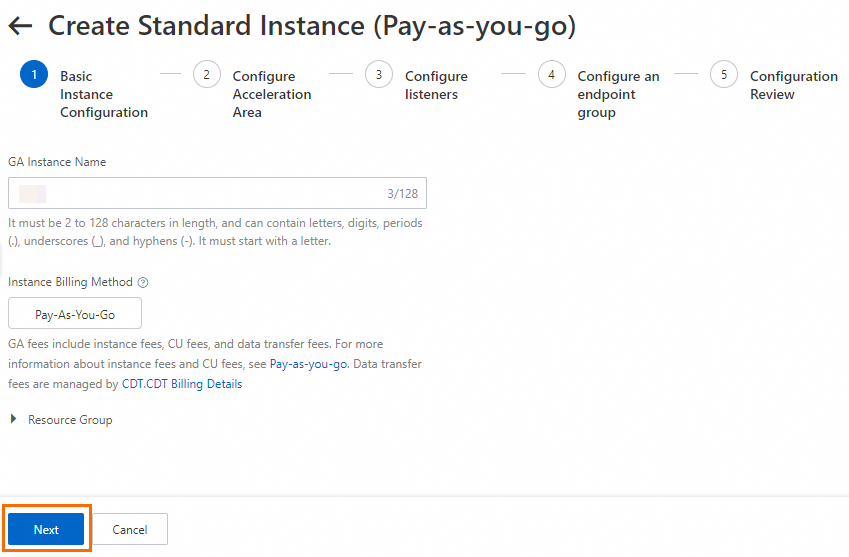
In the Basic Instance Configuration step, configure the basic information and click Next.
Step 2: Configure an acceleration area
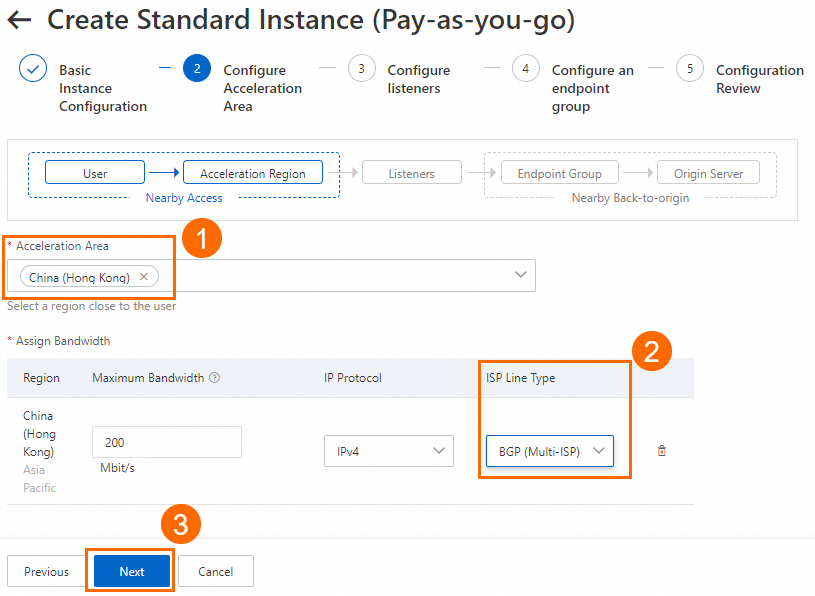
In the Configure Acceleration Area step, add an acceleration region, allocate bandwidth to the region, and then click Next.
In this example, the China (Hong Kong) region is used. The Acceleration Region parameter is set to China (Hong Kong) and the ISP Line Type parameter is set to BGP (Multi-ISP). You can use the default values for other parameters or modify the parameters based on your business requirements. For more information, see Add and manage acceleration areas.
If the acceleration regions include regions in the Chinese mainland, you must apply for an ICP number for the domain name to provide services.
If you specify a small value for the maximum bandwidth, throttling may occur and packets may be dropped. Specify a maximum bandwidth based on your business requirements.
Step 3: Configure a listener
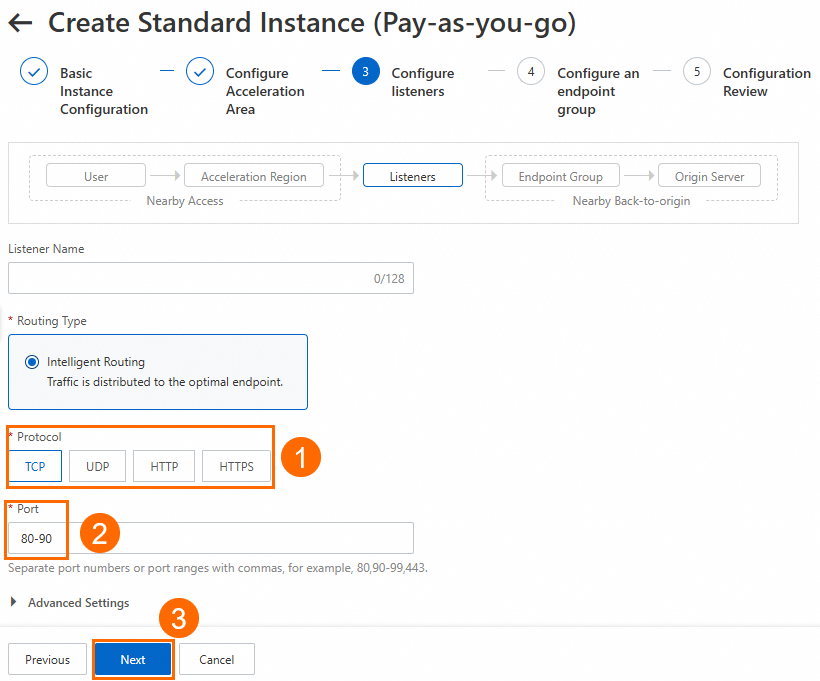
In the Configure listeners step, configure the forwarding protocol and port, and then click Next.
In this example, the Protocol parameter is set to TCP and the Port parameter must include ports 80 and 90. For example, you can enter 80-90. Keep other parameters at their default or modify as needed. For more information about how to configure a listener, see Add and manage intelligent routing listeners.
Step 4: Configure an endpoint group and an endpoint
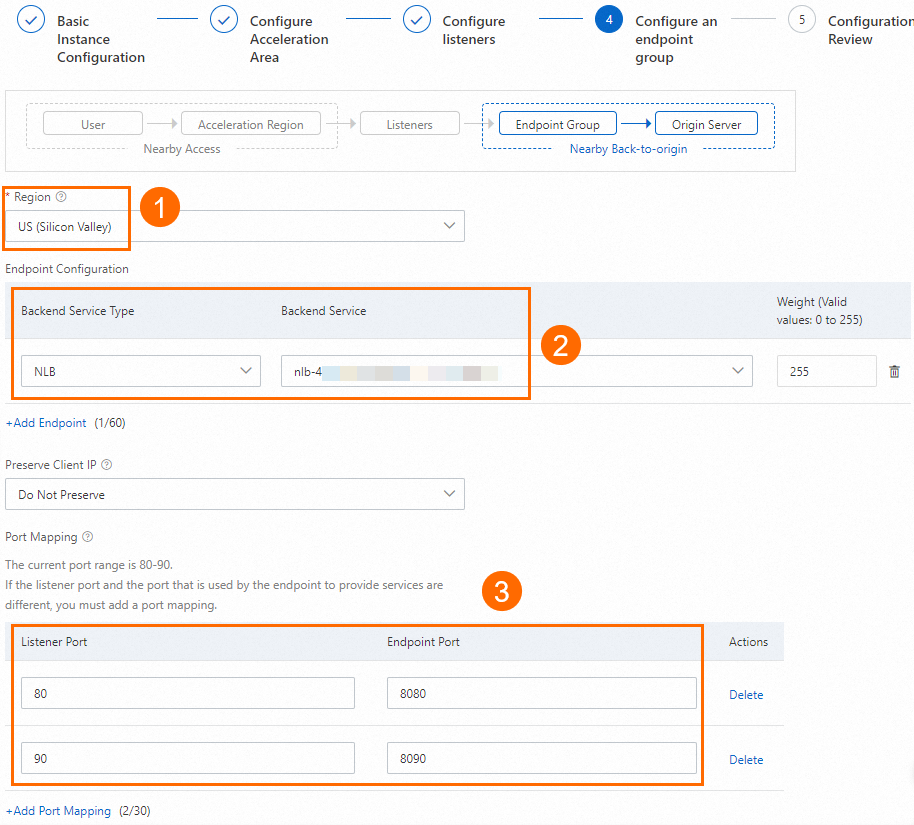
In the Configure an endpoint group step, configure the endpoint group and click Next.
In this example, Region is set to US (Silicon Valley), Backend Service Type is set to NLB, and Backend Service is set to the NLB instance. In the Port Mapping section, configure the mappings between listener port 80 and endpoint port 8080 and between listener port 90 and endpoint port 8090. Then, read and select Compliance Commitments Regarding Cross-border Data Transfers. Use the default values for other parameters or modify them as needed. For more information, see Add and manage endpoint groups of intelligent routing listeners.

In the Configuration Review step, confirm the GA configurations and click Submit.
Step 5: Configure a CNAME record
In actual business scenarios, we recommend that you use a custom domain name. You can create a CNAME record to map the custom domain name to the CNAME assigned by GA. This way, business traffic is switched to GA for accelerated access.
In this example, if you already created an A record that points to the backend server, you can specify the China (Hong Kong) region when you add a CNAME record that points to the GA instance. If the CNAME record works as expected, apply the CNAME record to other regions or retain only the CNAME record that points to the GA instance.
On the Authoritative DNS Resolution page, find the domain name that you want to use and click DNS Settings in the Actions column.
NoteFor a domain name that is not registered with Alibaba Cloud, you must add the domain name to the Alibaba Cloud DNS console before you can configure DNS records.
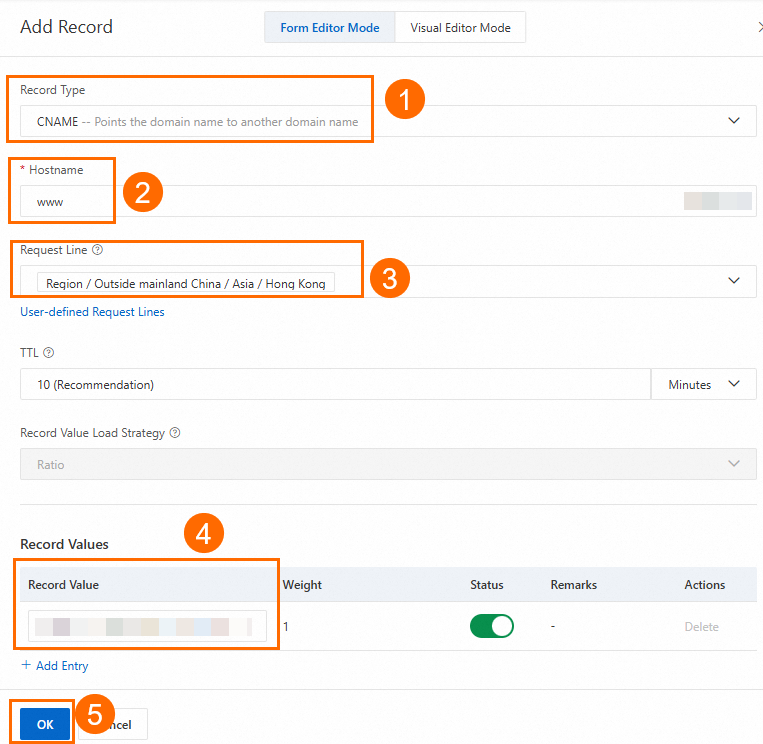
On the DNS Settings page, click Add DNS Record, configure a CNAME record, and then click OK.
In this example, the Record Type parameter is set to CNAME, the Hostname parameter is set to www, the DNS Request Source parameter is set to Asia_Hong Kong, and the Record Value parameter is set to the CNAME of the GA instance. You can use the default values for other parameters or modify the parameters based on your business requirements. For more information, see Add DNS records.
Step 6: Test the results
Verify the port mappings
On a computer in the acceleration area, which is China (Hong Kong) in this example, perform the following operations:
Open a browser and visit
http://<your-domain-name>:80. Refresh the browser several times. The requests should alternate between ECS01 and ECS02, and you should be able to access the service on port 8080 through port 80.

Open a browser and visit
http://<your-domain-name>:90. Refresh the browser several times. The requests should alternate between ECS01 and ECS02, and you should be able to access the service on port 8090 through port 90.

Verify GA acceleration
This example uses one-time detection tool to test the response time for your domain name and port before and after configuring GA to measure latency. For more information, see Use network probe tools.
Enter
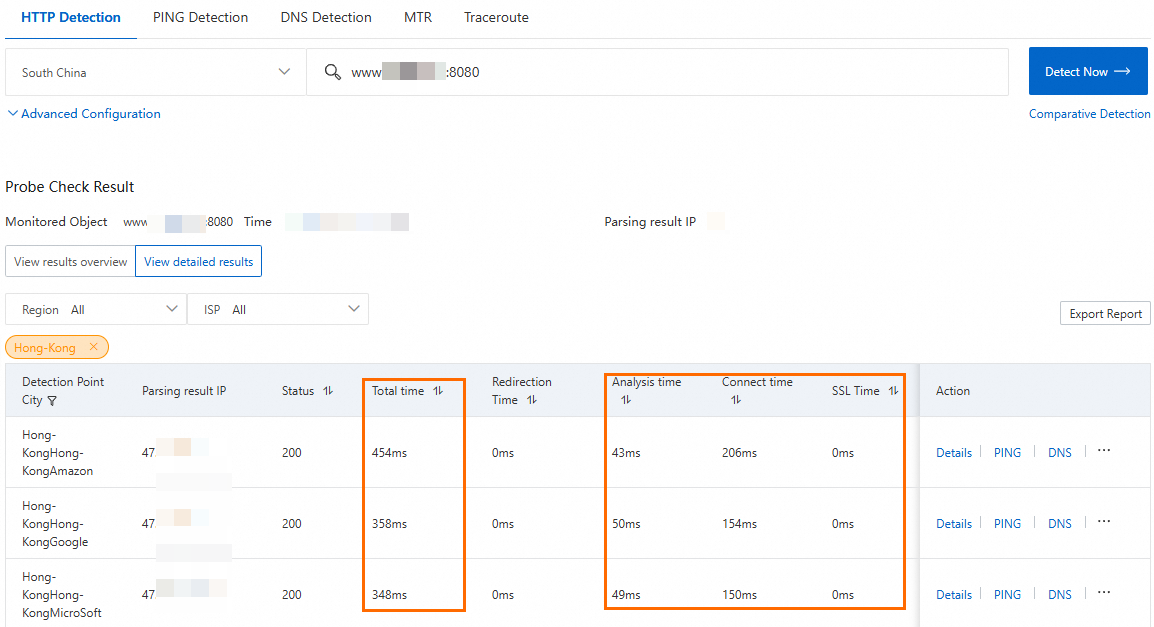
http://<custom domain name>:8080to check the network latency before acceleration.Before running this test, make sure that your DNS resolves to the CNAME of the NLB instance.
You can view information such as the response time. The resolved IP address is the public IP of the NLB instance, indicating that traffic is routed through NLB.
Enter
http://<custom domain name>:80to check the network latency after acceleration.Before running this test, make sure that your DNS record has been switched to the CNAME of the GA instance.
The resolved IP address is the accelerated IP of the GA instance, which indicates that traffic is now accelerated by GA.
After testing, you can see that using GA reduces the latency for clients in China (Hong Kong) accessing the service in US (Silicon Valley). The actual acceleration performance of GA depends on your own tests.
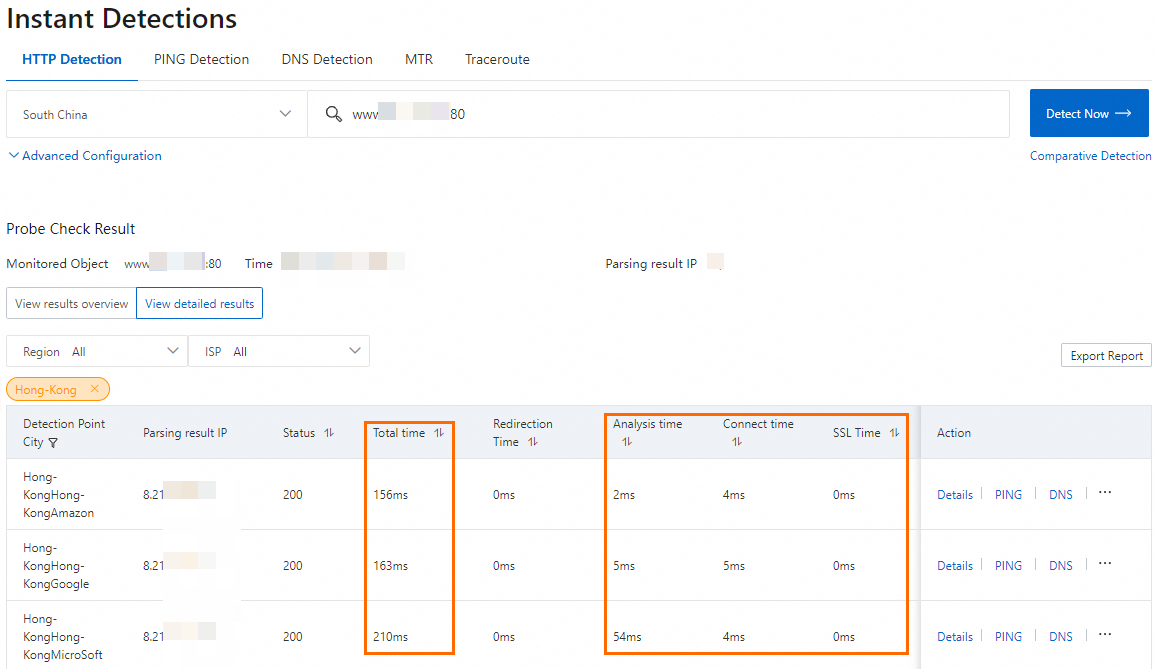
The test results show the data transmission latency from the client in Hong Kong (China) to the service in US (Silicon Valley) is reduced after acceleration
The acceleration performance of GA varies based on your service.
Layer 7 listeners
A business deploys a highly available web service using an Application Load Balancer (ALB) in the US (Silicon Valley) region. The web service runs on HTTP port 8081 and provides services for end users in multiple regions around the world.
It faces the following issues:
Some end users experience high network latency from poor Internet quality.
Data is transmitted in plaintext over HTTP, and requests to the website are not authenticated, causing security risks.
The web service runs on the custom port 8081. End users cannot access the service through the standard HTTPS port 443.
To resolve these issues, the business uses GA and the port mapping feature to receive requests on HTTPS port 443 and forward the requests to the backend HTTP port 8081. This encrypts the requests and makes the service available through the standard port 443.

Prerequisites
You have created a server group and added an HTTP listener to the ALB instance.
ECS01 and ECS02 are added to the server group of the ALB instance, and a service that uses port 8081 is deployed on ECS01 and ECS02.
In this example, the Alibaba Cloud Linux 3 operating system and Nginx are used to configure a test service that supports port 8081.
The security groups of ECS01 and ECS02 allow requests to port 8081.
You have configured a CNAME record for the domain name that points to ALB instance.
If you use a third-party DNS service, see the documentation for your DNS provider.
You have purchased a certificate or uploaded a third-party certificate to SSL. For more information about how to create a certificate, see Enable HTTPS for a website using an official certificate.
Procedure
Step 1: Configure basic information about an instance
In this example, a pay-as-you-go standard GA instance is used.
On the page of the GA console, click Create Standard Pay-as-you-go Instance.
In the Basic Instance Configuration step, configure the basic information and click Next.
Step 2: Configure an acceleration area
In the Configure Acceleration Area step, add an acceleration region, allocate bandwidth to the region, and then click Next.
In this example, the China (Hong Kong) region is used. The Acceleration Region parameter is set to China (Hong Kong) and the ISP Line Type parameter is set to BGP (Multi-ISP). You can use the default values for other parameters or modify the parameters based on your business requirements. For more information, see Add and manage acceleration areas.
If the acceleration regions include regions in the Chinese mainland, you must apply for an ICP number for the domain name to provide services.
If you specify a small value for the maximum bandwidth, throttling may occur and packets may be dropped. Specify a maximum bandwidth based on your business requirements.
Step 3: Configure a listener
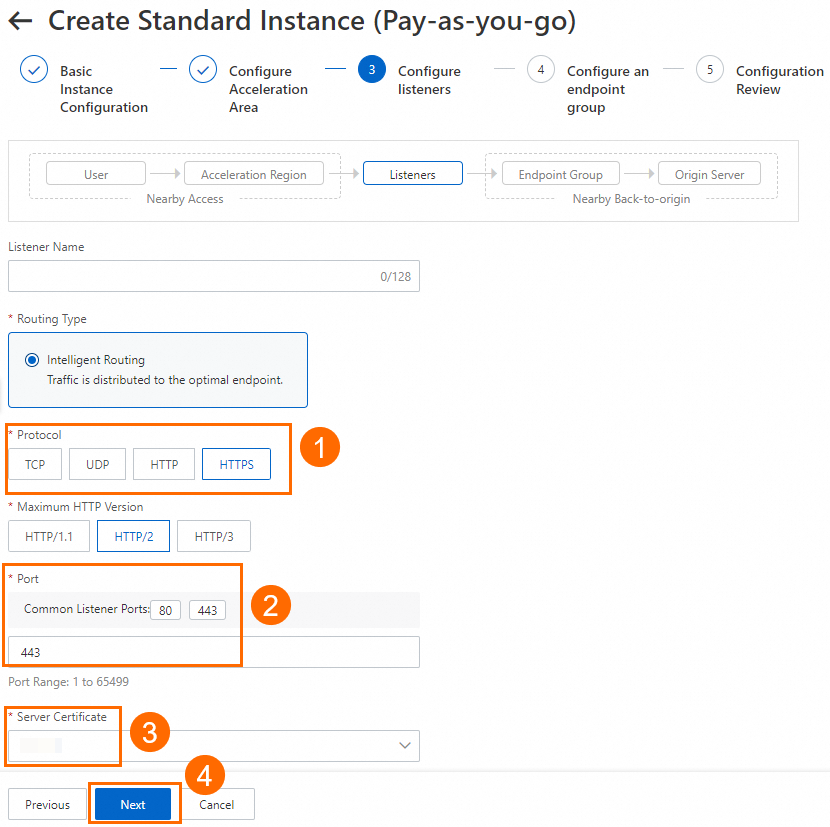
In the Configure listeners step, configure the forwarding protocol and port, and then click Next.
In this example, Protocol is set to HTTPS, Port is set to 443, and the SSL certificate of the domain name is selected from the Server Certificate drop-down list. Use the default values for other parameters or modify them as needed. For more information, see Add and manage intelligent routing listeners.
Step 4: Configure an endpoint group and an endpoint
In the Configure an endpoint group step, configure the endpoint group and click Next.
In this example, Region is set to US (Silicon Valley), Backend Service Type is set to ALB, and Backend Service is set to the ALB instance. In the Port Mapping section, configure the mapping between the listener port 443 and the endpoint port 8081. Then, read and select Compliance Commitments Regarding Cross-border Data Transfers. Use the default values for other parameters or modify them as needed. For more information, see Add and manage endpoint groups of intelligent routing listeners.
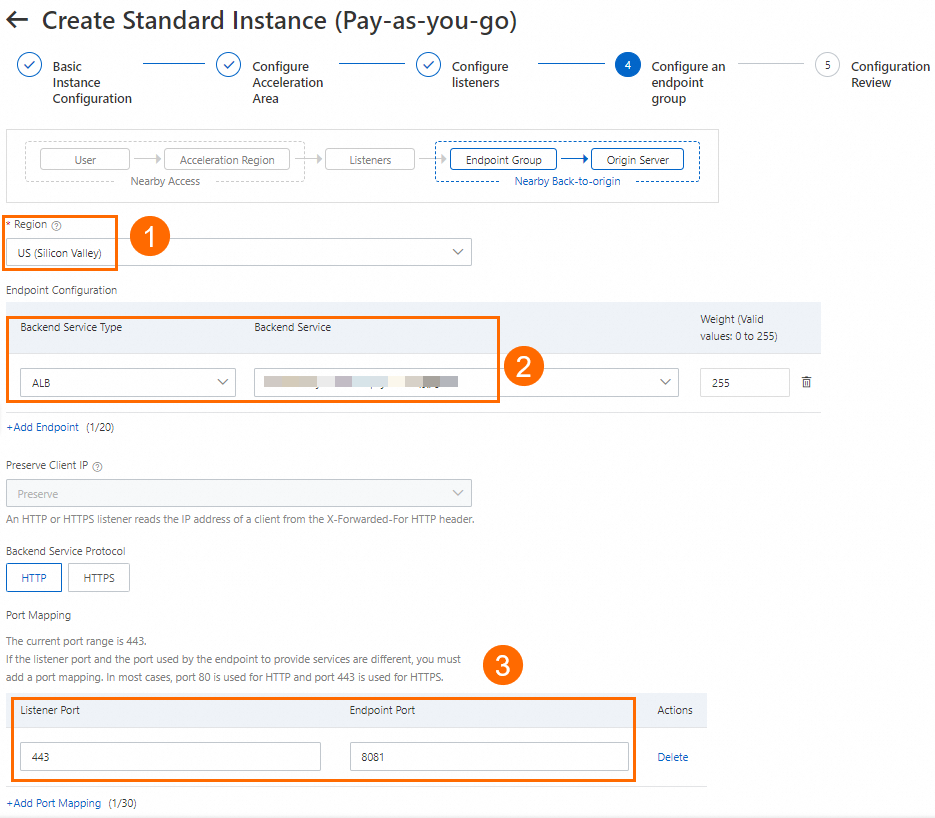
In the Configuration Review step, confirm the GA configurations and click Submit.
Step 5: Configure a CNAME record
In actual business scenarios, we recommend that you use a custom domain name. You can create a CNAME record to map the custom domain name to the CNAME assigned by GA. This way, business traffic is switched to GA for accelerated access.
In this example, if you already created an A record that points to the backend server, you can specify the China (Hong Kong) region when you add a CNAME record that points to the GA instance. If the CNAME record works as expected, apply the CNAME record to other regions or retain only the CNAME record that points to the GA instance.
On the Authoritative DNS Resolution page, find the domain name that you want to use and click DNS Settings in the Actions column.
NoteFor a domain name that is not registered with Alibaba Cloud, you must add the domain name to the Alibaba Cloud DNS console before you can configure DNS records.
On the DNS Settings page, click Add DNS Record, configure a CNAME record, and then click OK.
In this example, the Record Type parameter is set to CNAME, the Hostname parameter is set to www, the DNS Request Source parameter is set to Asia_Hong Kong, and the Record Value parameter is set to the CNAME of the GA instance. You can use the default values for other parameters or modify the parameters based on your business requirements. For more information, see Add DNS records.
Step 6: Test the network connectivity
Verify the port mappings
From a computer in the acceleration region (China (Hong Kong) in this example), open a browser and visit https://<your-domain-name>:443. Refresh the browser several times. The requests should alternate between ECS01 and ECS02, and you should be able to access the service on port 8081 through port 443.


Verify the GA acceleration performance
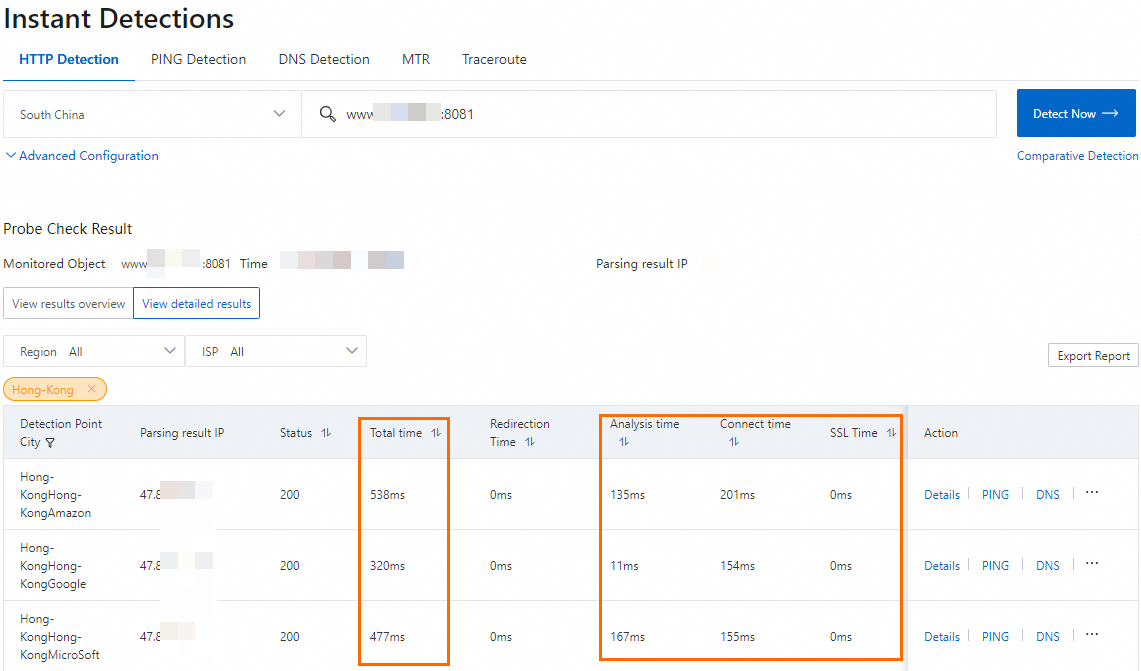
This example uses one-time detection tool to test the response time for your domain name and port before and after configuring GA to measure latency. For more information, see Use network probe tools.
Enter
http://<custom domain name>:8081to check the network latency before accelerationBefore running this test, make sure that your DNS resolves to the CNAME of the ALB instance.
You can view information such as the response time. The resolved IP address is the public IP of the ALB instance, indicating that traffic is routed through ALB.
Enter
https://<custom domain name>:443to check the network latency after acceleration.Before running this test, make sure that your DNS record has been switched to the CNAME of the GA instance.
The resolved IP address is the accelerated IP of the GA instance, indicating that traffic is now accelerated by GA.
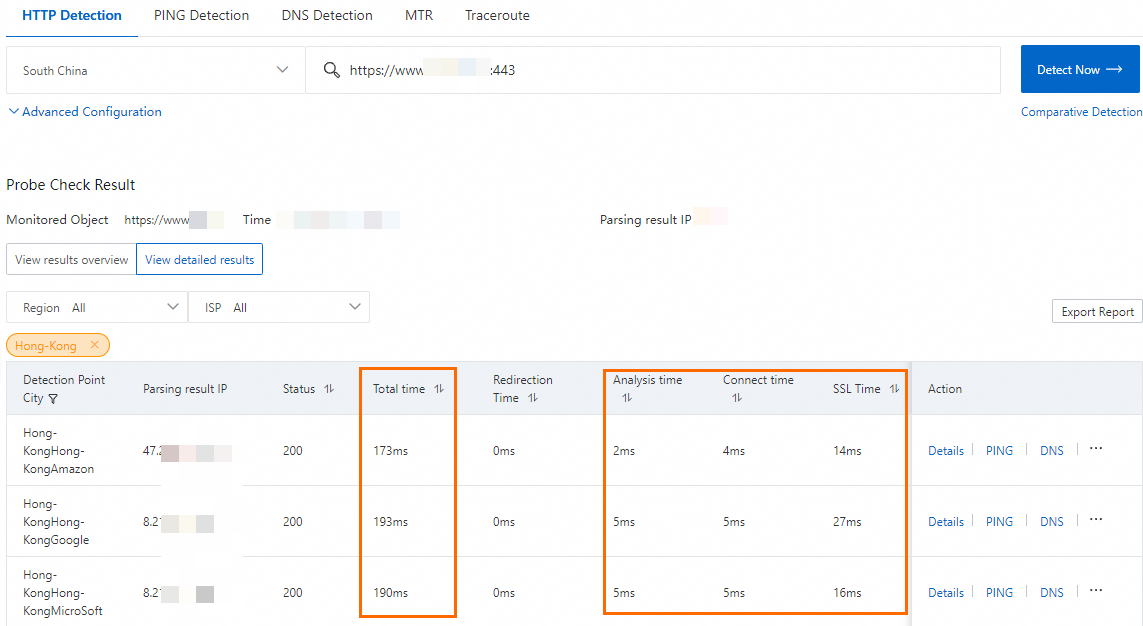
The test results show the data transmission latency rom the client in Hong Kong (China) to the service in US (Silicon Valley) is reduced after acceleration.
The acceleration performance of GA varies based on your service.
References
For more information about how to deploy GA to access an HTTP 80 website deployed in US (Silicon Valley) through HTTPS 443, see Accelerate access to HTTP websites over HTTPS.
ALB is integrated with GA. You can enable GA in the ALB console to simplify GA configurations. For more information, see Integrate ALB with GA to enable application acceleration.
Common issues with GA:
You can use the
PortOverridesparameter in the following API operations to configure mappings between listener ports and endpoint ports: