If you use Kibana to visualize Elasticsearch logs and want to migrate them to Simple Log Service, you can use the Elasticsearch-compatible API from Simple Log Service without modifying your business code.
Alibaba Cloud has proprietary rights to the information in this topic. This topic describes how Alibaba Cloud services interact with third-party services. The names of third-party companies and services may be referenced.
Prerequisites
A project and a Standard logstore are created, and logs are collected. For more information, see Managing Project, Create a logstore, and Data collection overview.
Indexes are created before you query logs. For more information, see Create indexes.
An AccessKey pair is created for the RAM user, and the required permissions to query logs in logstores are granted to the RAM user. For more information, see Grant permissions to a RAM user.
Background information
Kibana is a data visualization and exploration tool for Elasticsearch. It lets you query, analyze, and visualize data. If you use Kibana to query logs and configure visual reports, you can migrate your data to Simple Log Service using its Elasticsearch-compatible API. This enables you to query and analyze Simple Log Service data directly in Kibana.
How it works
You need to deploy Kibana, a proxy, and Elasticsearch in your client environment.
Kibana: Used to query, analyze, and visualize data.
Elasticsearch: Used to store Kibana metadata. The metadata mainly contains configuration information, and the data volume is minimal.
Because Kibana metadata is frequently updated and Simple Log Service does not support update operations, you must deploy an Elasticsearch instance to store the Kibana metadata.
Proxy: Routes API requests from Kibana. The proxy distinguishes between API requests for Kibana metadata and API requests for the Elasticsearch-compatible API of Simple Log Service.

Step 1: Deploy Elasticsearch, Kibana, and a proxy
Use a server with at least 8 GB of memory.
The Docker version must be 1.18 or later.
Deploy using Docker Compose
On your server, run the following commands to create a new directory named
sls-kibanaand a subdirectory nameddatain thesls-kibanadirectory. Then, change the permissions on thedatadirectory to grant the Elasticsearch container read, write, and execute permissions.mkdir sls-kibana cd sls-kibana mkdir data chmod 777 dataCreate a file named
.envin thesls-kibanadirectory. The following sample code shows the content of the file. Modify the parameters based on your actual requirements.ES_PASSWORD=aStrongPassword # Modify the value based on your actual requirements. SLS_ENDPOINT=cn-huhehaote.log.aliyuncs.com SLS_PROJECT=etl-dev-7494ab**** SLS_ACCESS_KEY_ID=xxx SLS_ACCESS_KEY_SECRET=xxx # ECS_ROLE_NAME="" # If you use an ECS instance RAM role to access Simple Log Service, specify the name of the ECS instance RAM role. #SLS_PROJECT_ALIAS=etl-dev # Optional. If the name of the SLS_PROJECT is too long, you can set an alias. #SLS_LOGSTORE_FILTERS="access*" # Optional. Filter the Logstores for which you want to automatically create index patterns. To specify multiple index patterns, separate them with commas (,), for example, "access*,error*". Note that the value must be enclosed in double quotation marks (""). #KIBANA_SPACE=default # Optional. Specify the space in which you want to create the index pattern. If the space does not exist, it is automatically created. # To add more projects, continue to add them. Note that if you add more than six projects, you must also add references in the docker-compose.yml file. #SLS_ENDPOINT2=cn-huhehaote.log.aliyuncs.com #SLS_PROJECT2=etl-dev2 #SLS_ACCESS_KEY_ID2=xxx #SLS_ACCESS_KEY_SECRET2=xxx #SLS_PROJECT_ALIAS2=etl-dev2 # Optional. If the name of the SLS_PROJECT is too long, you can set an alias. #SLS_LOGSTORE_FILTERS2="test*log" # Optional. Filter the Logstores for which you want to automatically create index patterns. To specify multiple patterns, separate them with commas (,), for example, "access*,error*". Note that the value must be enclosed in double quotation marks (""). #KIBANA_SPACE2=default # Optional. Specify the space in which you want to create the index pattern. If the space does not exist, it is automatically created.Parameter
Description
ES_PASSWORD
The password of Elasticsearch. This is also the password for Kibana.
ECS_ROLE_NAME
The instance RAM role. For information about the permissions required for the RAM role, see RAM authorization.
SLS_ENDPOINT
The endpoint of the project. For more information, see Manage projects.
SLS_PROJECT
The name of the Simple Log Service project. For more information, see Manage projects.
SLS_ACCESS_KEY_ID
The AccessKey ID of the RAM user that you created in the "Prerequisites" section. The RAM user must have the permissions to query data in the Logstore. For more information, see RAM authorization.
SLS_ACCESS_KEY_SECRET
The AccessKey secret of the RAM user that you created in the "Prerequisites" section. The RAM user must have the permissions to query data in the Logstore. For more information, see RAM authorization.
SLS_PROJECT_ALIAS
Optional. If the name of the SLS_PROJECT is too long, you can set an alias.
SLS_LOGSTORE_FILTERS
Optional. Filter the Logstores for which you want to automatically create index patterns. To specify multiple index patterns, separate them with commas (,), for example,
"access*,error*". Note that the value must be enclosed in double quotation marks ("").KIBANA_SPACE
Optional. Specify the space in which you want to create the index pattern. If the space does not exist, it is automatically created.
Create a file named
docker-compose.yamlin thesls-kibanadirectory. The following sample code shows the content of the file.services: es: image: sls-registry.cn-hangzhou.cr.aliyuncs.com/kproxy/elasticsearch:7.17.26 #image: sls-registry.cn-hangzhou.cr.aliyuncs.com/kproxy/elasticsearch:7.17.26-arm64 environment: - "discovery.type=single-node" - "ES_JAVA_OPTS=-Xms2G -Xmx2G" - ELASTIC_USERNAME=elastic - ELASTIC_PASSWORD=${ES_PASSWORD} - xpack.security.enabled=true volumes: # TODO: The ./data directory must be created in advance. Make sure that you have run the mkdir data && chmod 777 data command. - ./data:/usr/share/elasticsearch/data kproxy: image: sls-registry.cn-hangzhou.cr.aliyuncs.com/kproxy/kproxy:2.1.5 #image: sls-registry.cn-hangzhou.cr.aliyuncs.com/kproxy/kproxy:2.1.5-arm64 depends_on: - es environment: - ES_ENDPOINT=es:9200 - ECS_ROLE_NAME=${ECS_ROLE_NAME} # The first SLS project - SLS_ENDPOINT=${SLS_ENDPOINT} - SLS_PROJECT=${SLS_PROJECT} - SLS_LOGSTORE_FILTERS=${SLS_LOGSTORE_FILTERS} - KIBANA_SPACE=${KIBANA_SPACE} - SLS_PROJECT_ALIAS=${SLS_PROJECT_ALIAS} - SLS_ACCESS_KEY_ID=${SLS_ACCESS_KEY_ID} - SLS_ACCESS_KEY_SECRET=${SLS_ACCESS_KEY_SECRET} # The second SLS project - SLS_ENDPOINT2=${SLS_ENDPOINT2} - SLS_PROJECT2=${SLS_PROJECT2} - SLS_LOGSTORE_FILTERS2=${SLS_LOGSTORE_FILTERS2} - KIBANA_SPACE2=${KIBANA_SPACE2} - SLS_PROJECT_ALIAS2=${SLS_PROJECT_ALIAS2} - SLS_ACCESS_KEY_ID2=${SLS_ACCESS_KEY_ID2} - SLS_ACCESS_KEY_SECRET2=${SLS_ACCESS_KEY_SECRET2} - SLS_ENDPOINT3=${SLS_ENDPOINT3} - SLS_PROJECT3=${SLS_PROJECT3} - SLS_LOGSTORE_FILTERS3=${SLS_LOGSTORE_FILTERS3} - KIBANA_SPACE3=${KIBANA_SPACE3} - SLS_PROJECT_ALIAS3=${SLS_PROJECT_ALIAS3} - SLS_ACCESS_KEY_ID3=${SLS_ACCESS_KEY_ID3} - SLS_ACCESS_KEY_SECRET3=${SLS_ACCESS_KEY_SECRET3} - SLS_ENDPOINT4=${SLS_ENDPOINT4} - SLS_PROJECT4=${SLS_PROJECT4} - SLS_LOGSTORE_FILTERS4=${SLS_LOGSTORE_FILTERS4} - KIBANA_SPACE4=${KIBANA_SPACE4} - SLS_PROJECT_ALIAS4=${SLS_PROJECT_ALIAS4} - SLS_ACCESS_KEY_ID4=${SLS_ACCESS_KEY_ID4} - SLS_ACCESS_KEY_SECRET4=${SLS_ACCESS_KEY_SECRET4} - SLS_ENDPOINT5=${SLS_ENDPOINT5} - SLS_PROJECT5=${SLS_PROJECT5} - SLS_LOGSTORE_FILTERS5=${SLS_LOGSTORE_FILTERS5} - KIBANA_SPACE5=${KIBANA_SPACE5} - SLS_PROJECT_ALIAS5=${SLS_PROJECT_ALIAS5} - SLS_ACCESS_KEY_ID5=${SLS_ACCESS_KEY_ID5} - SLS_ACCESS_KEY_SECRET5=${SLS_ACCESS_KEY_SECRET5} - SLS_ENDPOINT6=${SLS_ENDPOINT6} - SLS_PROJECT6=${SLS_PROJECT6} - SLS_LOGSTORE_FILTERS6=${SLS_LOGSTORE_FILTERS6} - KIBANA_SPACE6=${KIBANA_SPACE6} - SLS_PROJECT_ALIAS6=${SLS_PROJECT_ALIAS6} - SLS_ACCESS_KEY_ID6=${SLS_ACCESS_KEY_ID6} - SLS_ACCESS_KEY_SECRET6=${SLS_ACCESS_KEY_SECRET6} # To add more projects, continue to add them. You can add a maximum of 255 projects. kibana: image: sls-registry.cn-hangzhou.cr.aliyuncs.com/kproxy/kibana:7.17.26 #image: sls-registry.cn-hangzhou.cr.aliyuncs.com/kproxy/kibana:7.17.26-arm64 depends_on: - kproxy environment: - ELASTICSEARCH_HOSTS=http://kproxy:9201 - ELASTICSEARCH_USERNAME=elastic - ELASTICSEARCH_PASSWORD=${ES_PASSWORD} - XPACK_MONITORING_UI_CONTAINER_ELASTICSEARCH_ENABLED=true ports: - "5601:5601" # This service component is optional. It is used to automatically create Kibana index patterns. index-patterner: image: sls-registry.cn-hangzhou.cr.aliyuncs.com/kproxy/kproxy:2.1.5 #image: sls-registry.cn-hangzhou.cr.aliyuncs.com/kproxy/kproxy:2.1.5-arm64 command: /usr/bin/python3 -u /workspace/create_index_pattern.py depends_on: - kibana environment: - KPROXY_ENDPOINT=http://kproxy:9201 - KIBANA_ENDPOINT=http://kibana:5601 - KIBANA_USER=elastic - KIBANA_PASSWORD=${ES_PASSWORD} - ECS_ROLE_NAME=${ECS_ROLE_NAME} - SLS_PROJECT_ALIAS=${SLS_PROJECT_ALIAS} - SLS_ACCESS_KEY_ID=${SLS_ACCESS_KEY_ID} - SLS_ACCESS_KEY_SECRET=${SLS_ACCESS_KEY_SECRET} - SLS_PROJECT_ALIAS2=${SLS_PROJECT_ALIAS2} - SLS_ACCESS_KEY_ID2=${SLS_ACCESS_KEY_ID2} - SLS_ACCESS_KEY_SECRET2=${SLS_ACCESS_KEY_SECRET2} - SLS_PROJECT_ALIAS3=${SLS_PROJECT_ALIAS3} - SLS_ACCESS_KEY_ID3=${SLS_ACCESS_KEY_ID3} - SLS_ACCESS_KEY_SECRET3=${SLS_ACCESS_KEY_SECRET3} - SLS_PROJECT_ALIAS4=${SLS_PROJECT_ALIAS4} - SLS_ACCESS_KEY_ID4=${SLS_ACCESS_KEY_ID4} - SLS_ACCESS_KEY_SECRET4=${SLS_ACCESS_KEY_SECRET4} - SLS_PROJECT_ALIAS5=${SLS_PROJECT_ALIAS5} - SLS_ACCESS_KEY_ID5=${SLS_ACCESS_KEY_ID5} - SLS_ACCESS_KEY_SECRET5=${SLS_ACCESS_KEY_SECRET5} - SLS_PROJECT_ALIAS6=${SLS_PROJECT_ALIAS6} - SLS_ACCESS_KEY_ID6=${SLS_ACCESS_KEY_ID6} - SLS_ACCESS_KEY_SECRET6=${SLS_ACCESS_KEY_SECRET6} # To add more projects, continue to add them. You can add a maximum of 255 projects.Run the following command to start the service.
docker compose up -dRun the following command to query the status of the service.
docker compose psAfter the deployment is complete, enter
http://${IP address of the server where Kibana is deployed}:5601in a browser to open the Kibana logon page. Then, enter the username and password that you specified for Elasticsearch in Step 2.ImportantYou must add a rule to the security group of the server to allow traffic on port 5601. For more information, see Add a security group rule.
http://${IP address of the server where Kibana is deployed}:5601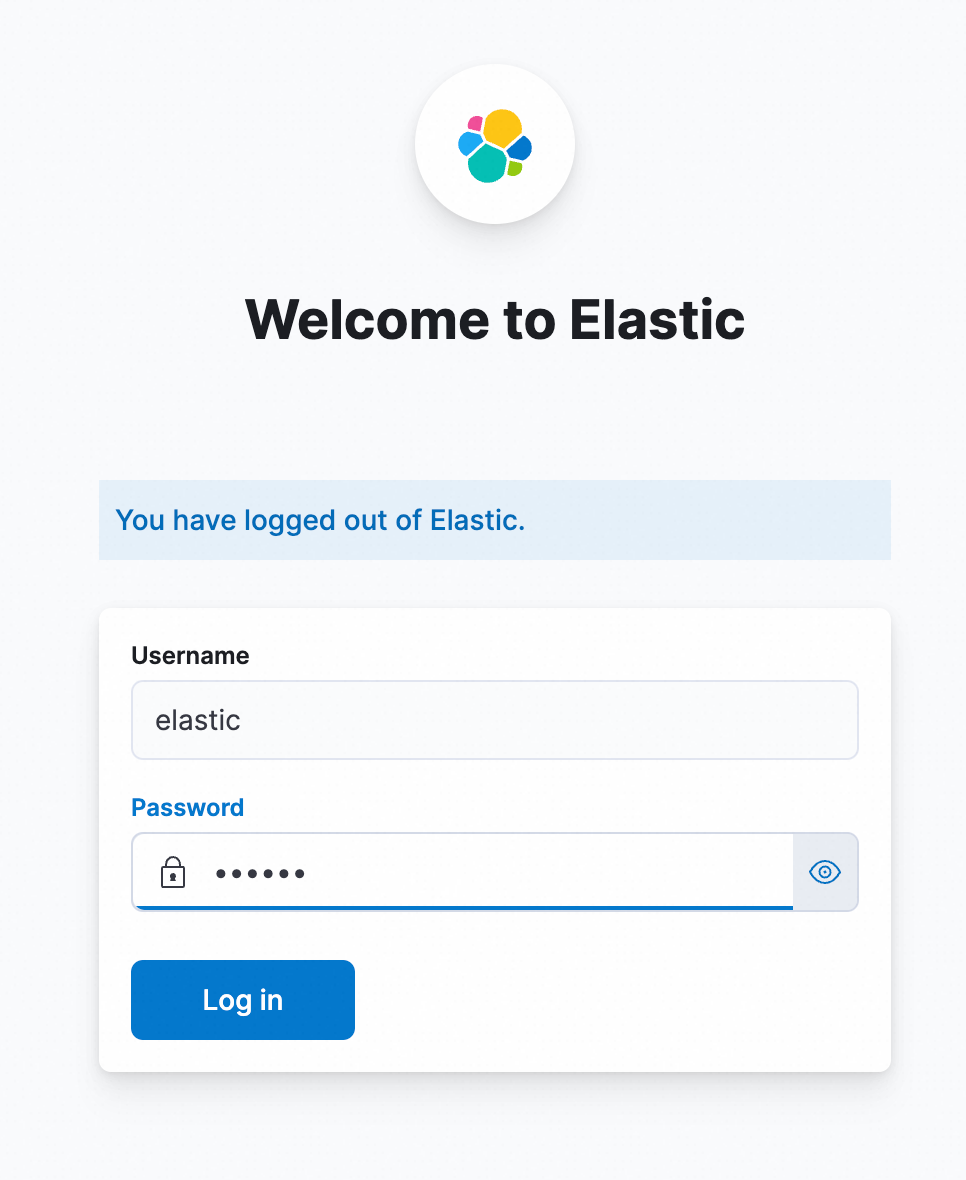
Deploy using Helm
Prerequisites
Make sure that the following components are installed in the Container Service for Kubernetes (ACK) cluster. For more information about how to view installed components, see Manage components.
One of the following Ingress controllers:
Procedure
Create a namespace.
# Create a namespace.
kubectl create namespace sls-kibana
Create and edit the
values.yamlfile. The following sample code shows the content of the file. Modify the parameters based on your actual requirements.kibana: ingressClass: nginx # Modify the value based on the installed Ingress controller. # On the Add-ons page of the ACK cluster, search for Ingress to view the installed Ingress controller and determine the value. # For ALB Ingress Controller, set the value to alb. # For MSE Ingress Controller, set the value to mse. # For Nginx Ingress Controller, set the value to nginx. ingressDomain: # This parameter can be left empty. If you want to access Kibana using a domain name, set this parameter. ingressPath: /kibana/ # Required. The subpath for access. # If ingressDomain is not empty, you can set ingressPath to /. #i18nLocale: en # Set the language of Kibana. The default value is en. If you want to use Chinese, set the value to zh-CN. elasticsearch: password: aStrongPass # Modify the password of Elasticsearch based on your actual requirements. This is also the access password for Kibana. The corresponding account is elastic. #diskZoneId: cn-hongkong-c # Specify the availability zone (AZ) where the disk used by Elasticsearch is located. If you do not set this parameter, the system automatically selects an AZ. repository: region: cn-hangzhou # The region where the image is located. For regions in China, the value is fixed to cn-hangzhou. For regions outside China, the value is fixed to ap-southeast-1. The image is pulled over the Internet. #kproxy: # ecsRoleName: # If you use an ECS role for access, specify the value. #arch: amd64 # amd64 or arm64. The default value is amd64. sls: - project: k8s-log-c5****** # The SLS project. endpoint: cn-huhehaote.log.aliyuncs.com # The endpoint that corresponds to the SLS project. accessKeyId: The AccessKey ID that has the permissions to access SLS. accessKeySecret: The AccessKey secret that has the permissions to access SLS. # alias: etl-logs # Optional. If the project name is too long to be displayed in Kibana, you can set an alias. # kibanaSpace: default # Optional. Specify the space in which you want to create the index pattern. If the space does not exist, it is automatically created. # logstoreFilters: "*" # Optional. Filter the Logstores for which you want to automatically create index patterns. To specify multiple patterns, separate them with commas (,), for example, "access*,error*". Note that the value must be enclosed in double quotation marks (""). # If you have a second project, add it in the same format. #- project: etl-dev2 # The SLS project. # endpoint: cn-huhehaote.log.aliyuncs.com # The endpoint that corresponds to the SLS project. # accessKeyId: The AccessKey ID that has the permissions to access SLS. # accessKeySecret: The AccessKey secret that has the permissions to access SLS. # alias: etl-logs2 # Optional. If the project name is too long to be displayed in Kibana, you can set an alias. # kibanaSpace: default # Optional. Specify the space in which you want to create the index pattern. If the space does not exist, it is automatically created. # logstoreFilters: "*" # Optional. Filter the Logstores for which you want to automatically create index patterns. To specify multiple patterns, separate them with commas (,), for example, "access*,error*". Note that the value must be enclosed in double quotation marks ("").Parameter
Description
kibana.ingressClass
Modify the value based on the installed Ingress controller. For more information about how to view components, see Manage components.
ALB Ingress Controller: Set the value to alb.
MSE Ingress Controller: Set the value to mse.
Nginx Ingress Controller: Set the value to nginx.
kibana.ingressDomain
This parameter can be left empty. If you want to access Kibana using a domain name, you must set this parameter.
repository.region
The region where the image is located. For regions in China, the value is fixed to
cn-hangzhou. For regions outside China, the value is fixed toap-southeast-1. The image is pulled over the Internet.kibana.ingressPath
The subpath for access. If ingressDomain is not empty, you can set ingressPath to
/.elasticsearch.password
Modify the password of Elasticsearch based on your actual requirements. This is also the access password for Kibana. The Elasticsearch account is
elastic.kproxy.ecsRoleName
Use an instance RAM role for access. For information about the permissions required for the RAM role, see RAM authorization.
sls.project
The name of the Simple Log Service project. For more information, see Manage projects.
sls.endpoint
The endpoint of the project. For more information, see Manage projects.
sls.accessKeyId
The AccessKey ID of the RAM user that you created in the "Prerequisites" section. The RAM user must have the permissions to query data in the Logstore. For more information, see RAM authorization.
sls.accessKeySecret
The AccessKey secret of the RAM user that you created in the "Prerequisites" section. The RAM user must have the permissions to query data in the Logstore. For more information, see RAM authorization.
sls.alias
Optional. If the project name is too long to be displayed in Kibana, you can set an alias.
sls.kibanaSpace
Optional. Specify the space in which you want to create the index pattern. If the space does not exist, it is automatically created.
sls.logstoreFilters
Optional. Filter the Logstores for which you want to automatically create index patterns. To specify multiple index patterns, separate them with commas (,), for example,
"access*,error*". Note that the value must be enclosed in double quotation marks ("").Run the following command to deploy using Helm.
helm install sls-kibana https://sls-kproxy.oss-cn-hangzhou.aliyuncs.com/sls-kibana-1.5.7.tgz -f values.yaml --namespace sls-kibanaAfter the deployment is complete, enter
http://${Ingress address}/kibana/in a browser to open the Kibana logon page. Then, enter the username and password that you specified for Elasticsearch in Step 2.http://${Ingress address}/kibana/
Deploy using Docker
Step 1: Deploy Elasticsearch
To deploy using Docker, you must first install and start Docker. For more information, see Install Docker.
On the server, run the following commands to deploy Elasticsearch.
sudo docker pull sls-registry.cn-hangzhou.cr.aliyuncs.com/kproxy/elasticsearch:7.17.26

sudo mkdir /data  # The storage directory for Elasticsearch data. Modify it based on your actual requirements.
sudo chmod 777 /data # Configure permissions.

sudo docker run -d --name es -p 9200:9200 \
           -e "discovery.type=single-node" \
           -e "ES_JAVA_OPTS=-Xms2G -Xmx2G" \
           -e ELASTIC_USERNAME=elastic \
           -e ELASTIC_PASSWORD=passwd \
           -e xpack.security.enabled=true \
           -v /data:/usr/share/elasticsearch/data \
           sls-registry.cn-hangzhou.cr.aliyuncs.com/kproxy/elasticsearch:7.17.26
Parameter
Description
ELASTIC_USERNAMEThe username to log on to Elasticsearch. The value is fixed to elastic.
ELASTIC_PASSWORDThe password to log on to Elasticsearch. The password must be a string.
/dataThe storage location of Elasticsearch data on the physical machine. Modify it based on your actual requirements.
After the deployment is complete, run the following command to verify the deployment. If you use a public IP address, you must add a rule to the security group of the server to allow traffic on port 9200. For more information, see Add a security group rule.
curl http://${IP address of the machine where Elasticsearch is deployed}:9200If the returned result is JSON-formatted data that contains
security_exception, Elasticsearch is successfully deployed.{"error":{"root_cause":[{"type":"security_exception","reason":"missing authentication credentials for REST request [/]","header":{"WWW-Authenticate":"Basic realm=\"security\" charset=\"UTF-8\""}}],"type":"security_exception","reason":"missing authentication credentials for REST request [/]","header":{"WWW-Authenticate":"Basic realm=\"security\" charset=\"UTF-8\""}},"status":401}
Step 2: Deploy a proxy
When you connect Kibana to Simple Log Service, you can connect to one or more projects. You must add information about the projects when you deploy the proxy. The following examples show how to deploy the proxy.
Single project
sudo docker pull sls-registry.cn-hangzhou.cr.aliyuncs.com/kproxy/kproxy:2.1.5

sudo docker run  -d --name proxy \
            -e ES_ENDPOINT=${IP address of the machine where Elasticsearch is deployed}:9200 \
            -e SLS_ENDPOINT=https://prjA.cn-guangzhou.log.aliyuncs.com/es/ \
            -e SLS_PROJECT=prjA \
            -e SLS_ACCESS_KEY_ID=${aliyunAccessId} \
            -e SLS_ACCESS_KEY_SECRET=${aliyunAccessKey} \
            -p 9201:9201 \
            -ti sls-registry.cn-hangzhou.cr.aliyuncs.com/kproxy/kproxy:2.1.5
Multiple projects
You can add a maximum of 32 projects.
SLS_PROJECT, SLS_ENDPOINT, SLS_ACCESS_KEY_ID, and SLS_ACCESS_KEY_SECRET are the variable names for the first project. For subsequent projects, the variable names must have a numeric suffix, such as SLS_PROJECT2 and SLS_ENDPOINT2.
If a subsequent project uses the same values as the first project, you can omit the endpoint and AccessKey pair variables for that project.
sudo docker pull sls-registry.cn-hangzhou.cr.aliyuncs.com/kproxy/kproxy:2.1.5

sudo docker run  -d --name proxy \
            -e ES_ENDPOINT=${IP address of the machine where Elasticsearch is deployed}:9200 \
            -e SLS_ENDPOINT=https://prjA.cn-guangzhou.log.aliyuncs.com/es/ \
            -e SLS_ENDPOINT2=https://prjB.cn-guangzhou.log.aliyuncs.com/es/ \
            -e SLS_PROJECT=prjA \
            -e SLS_PROJECT2=prjB \
            -e SLS_ACCESS_KEY_ID=${aliyunAccessId} \
            -e SLS_ACCESS_KEY_SECRET=${aliyunAccessKey} \
            -e SLS_ACCESS_KEY_ID2=${aliyunAccessId} \ # If the value is the same as that of SLS_ACCESS_KEY_ID, you do not need to configure this parameter.
            -e SLS_ACCESS_KEY_SECRET2=${aliyunAccessKey} \ # If the value is the same as that of SLS_ACCESS_KEY_SECRET, you do not need to configure this parameter.
            -p 9201:9201 \
            -ti sls-registry.cn-hangzhou.cr.aliyuncs.com/kproxy/kproxy:2.1.5
Example 1
Connect to two projects (prjA and prjB) that use the same AccessKey pair. The following code provides an example:
sudo docker pull sls-registry.cn-hangzhou.cr.aliyuncs.com/kproxy/kproxy:2.1.5
sudo docker run  -d --name proxy \
            -e ES_ENDPOINT=${IP address of the machine where Elasticsearch is deployed}:9200 \
            -e SLS_ENDPOINT=https://prjA.cn-guangzhou.log.aliyuncs.com/es/ \
            -e SLS_ENDPOINT2=https://prjB.cn-guangzhou.log.aliyuncs.com/es/ \
            -e SLS_PROJECT=prjA \
            -e SLS_PROJECT2=prjB \
            -e SLS_ACCESS_KEY_ID=${aliyunAccessId} \
            -e SLS_ACCESS_KEY_SECRET=${aliyunAccessKey} \
            -p 9201:9201 \
            -ti sls-registry.cn-hangzhou.cr.aliyuncs.com/kproxy/kproxy:2.1.5
Example 2
Connect to three projects (prjA, prjB, and prjC). prjA and prjC use the same AccessKey pair. The following code provides an example:
sudo docker run  -d --name proxy \
            -e ES_ENDPOINT=${IP address of the machine where Elasticsearch is deployed}:9200 \
            -e SLS_ENDPOINT=https://prjA.cn-guangzhou.log.aliyuncs.com/es/ \
            -e SLS_ENDPOINT2=https://prjB.cn-guangzhou.log.aliyuncs.com/es/ \
            -e SLS_ENDPOINT3=https://prjC.cn-guangzhou.log.aliyuncs.com/es/ \
            -e SLS_PROJECT=prjA \
            -e SLS_PROJECT2=prjB \
            -e SLS_PROJECT3=prjC \
            -e SLS_ACCESS_KEY_ID=${aliyunAccessId} \
            -e SLS_ACCESS_KEY_SECRET=${aliyunAccessKey} \
            -e SLS_ACCESS_KEY_ID2=${aliyunAccessId} \
            -e SLS_ACCESS_KEY_SECRET2=${aliyunAccessKey} \
            -p 9201:9201 \
            -ti sls-registry.cn-hangzhou.cr.aliyuncs.com/kproxy/kproxy:2.1.5
The following table describes the important parameters.
Parameter | Description |
| The endpoint of Elasticsearch. The format is |
| The data endpoint. The format is Important You must use the HTTPS protocol. |
| The name of the Simple Log Service project. For more information, see Manage projects. |
| The AccessKey ID of your Alibaba Cloud account. We recommend that you use the AccessKey pair of a RAM user who has the permissions to query data in Logstores. You can use the permission assistant to configure permissions. For more information, see Configure the permission assistant. For more information about how to obtain an AccessKey pair, see AccessKey pair. |
| The AccessKey secret of your Alibaba Cloud account. We recommend that you use the AccessKey pair of a RAM user who has the permissions to query data in Logstores. You can use the permission assistant to configure permissions. For more information, see Configure the permission assistant. For more information about how to obtain an AccessKey pair, see AccessKey pair. |
After the deployment is complete, you can run the following command to verify the proxy deployment. If you use a public IP address, you must add a rule to the security group of the server to allow traffic on port 9201. For more information, see Add a security group rule.
curl http://${IP address of the machine where the proxy is deployed}:9201If the returned result is JSON-formatted data that contains security_exception, the proxy is successfully deployed.
{"error":{"root_cause":[{"type":"security_exception","reason":"missing authentication credentials for REST request [/]","header":{"WWW-Authenticate":"Basic realm=\"security\" charset=\"UTF-8\""}}],"type":"security_exception","reason":"missing authentication credentials for REST request [/]","header":{"WWW-Authenticate":"Basic realm=\"security\" charset=\"UTF-8\""}},"status":401}Step 3: Deploy Kibana
The following code provides an example of how to deploy Kibana. In this example, Kibana 7.17.26 is used.
sudo docker pull  sls-registry.cn-hangzhou.cr.aliyuncs.com/kproxy/kibana:7.17.26

sudo docker run -d --name kibana \
            -e ELASTICSEARCH_HOSTS=http://${IP address of the machine where the proxy is deployed}:9201 \
            -e ELASTICSEARCH_USERNAME=elastic \
            -e ELASTICSEARCH_PASSWORD=passwd \
            -e XPACK_MONITORING_UI_CONTAINER_ELASTICSEARCH_ENABLED=true \
            -p 5601:5601 \
            sls-registry.cn-hangzhou.cr.aliyuncs.com/kproxy/kibana:7.17.26
Parameter | Description |
| The endpoint of the proxy. The format is |
| The username to log on to Kibana. The username must be the same as the Elasticsearch username that you specified when you deployed Elasticsearch. |
| The password to log on to Kibana. The password must be the same as the Elasticsearch password that you specified when you deployed Elasticsearch. |
After the deployment is complete, enter http://${IP address of the server where Kibana is deployed}:5601 in a browser to open the Kibana logon page. Then, enter the username and password that you specified for Elasticsearch in Step 1.
You must add a rule to the security group of the server to allow traffic on port 5601. For more information, see Add a security group rule.
http://${IP address of the server where Kibana is deployed}:5601
Step 2: Access Kibana
Query and analyze data
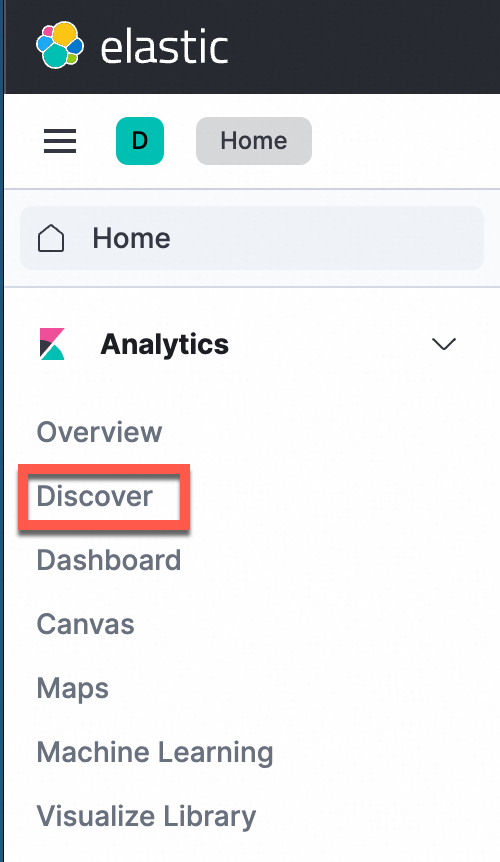
In the navigation pane on the left, choose Analytics>Discover.
ImportantIf you use the Elasticsearch-compatible API to analyze Simple Log Service data in Kibana, you can only use the Discover and Dashboard modules.
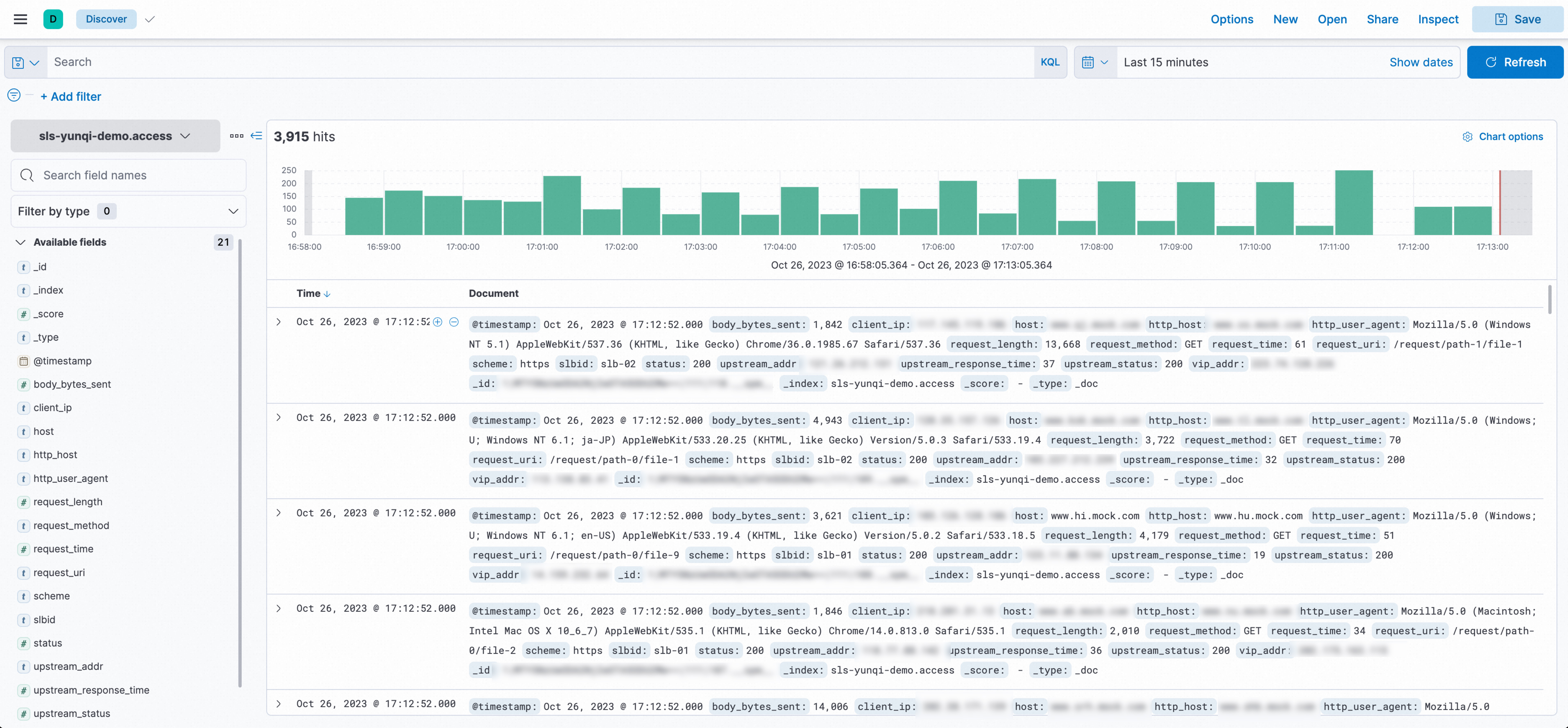
In the upper-left corner of the page, select the destination index. In the upper-right corner of the page, select a time range to query log data.
Manually configure an index pattern (optional)
You do not need to manually create an index pattern if you deploy using Docker Compose or Helm. However, if you deploy using Docker, you must manually create one.
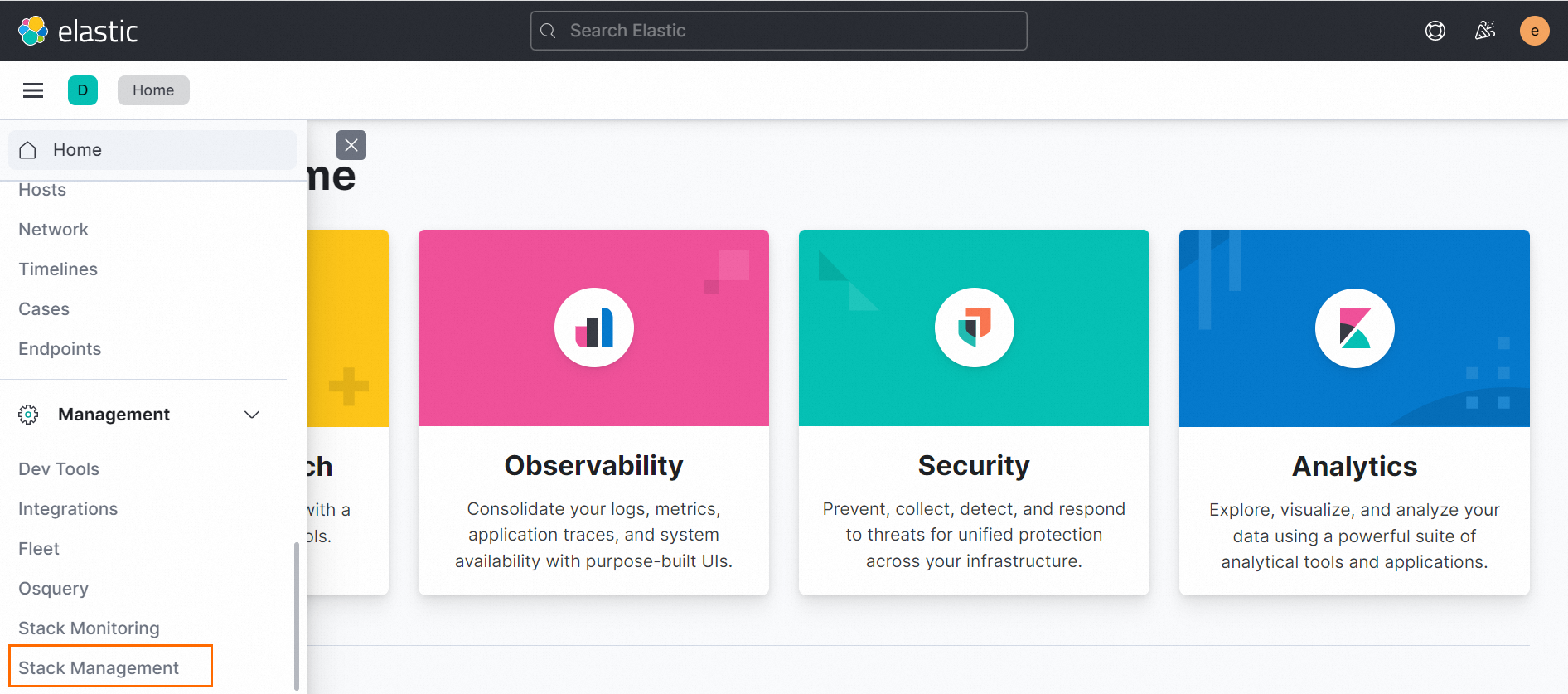
In the navigation pane on the left, choose Management >Stack Management.
In the navigation pane on the left, choose Kibana > Index Patterns.
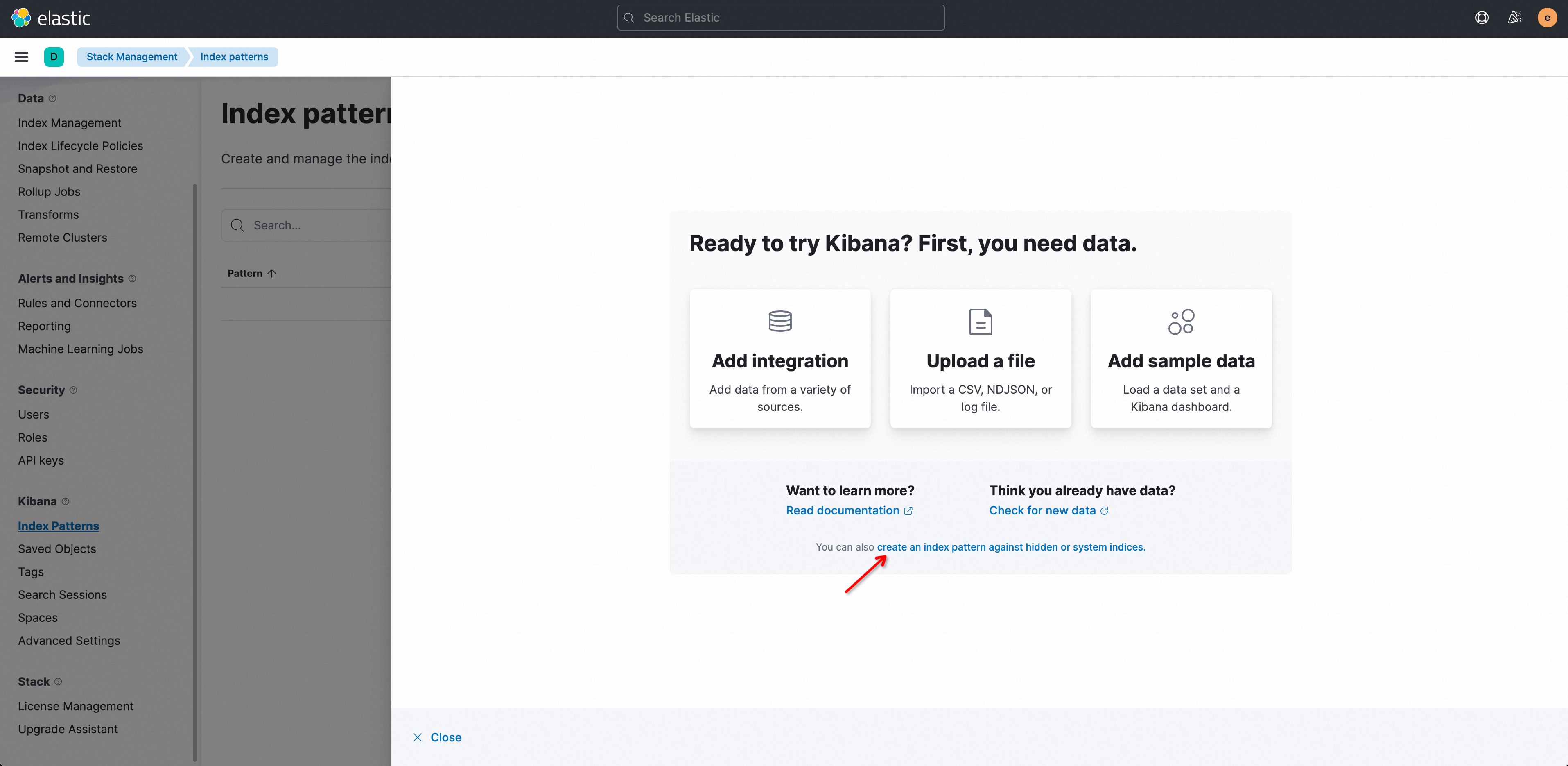
The first time you use Kibana, click create an index pattern against hidden or system indices in the displayed dialog box.
 Note
NoteNo data is displayed in the index pattern list by default. You must manually create index patterns in Kibana and map them to Logstores in Simple Log Service.
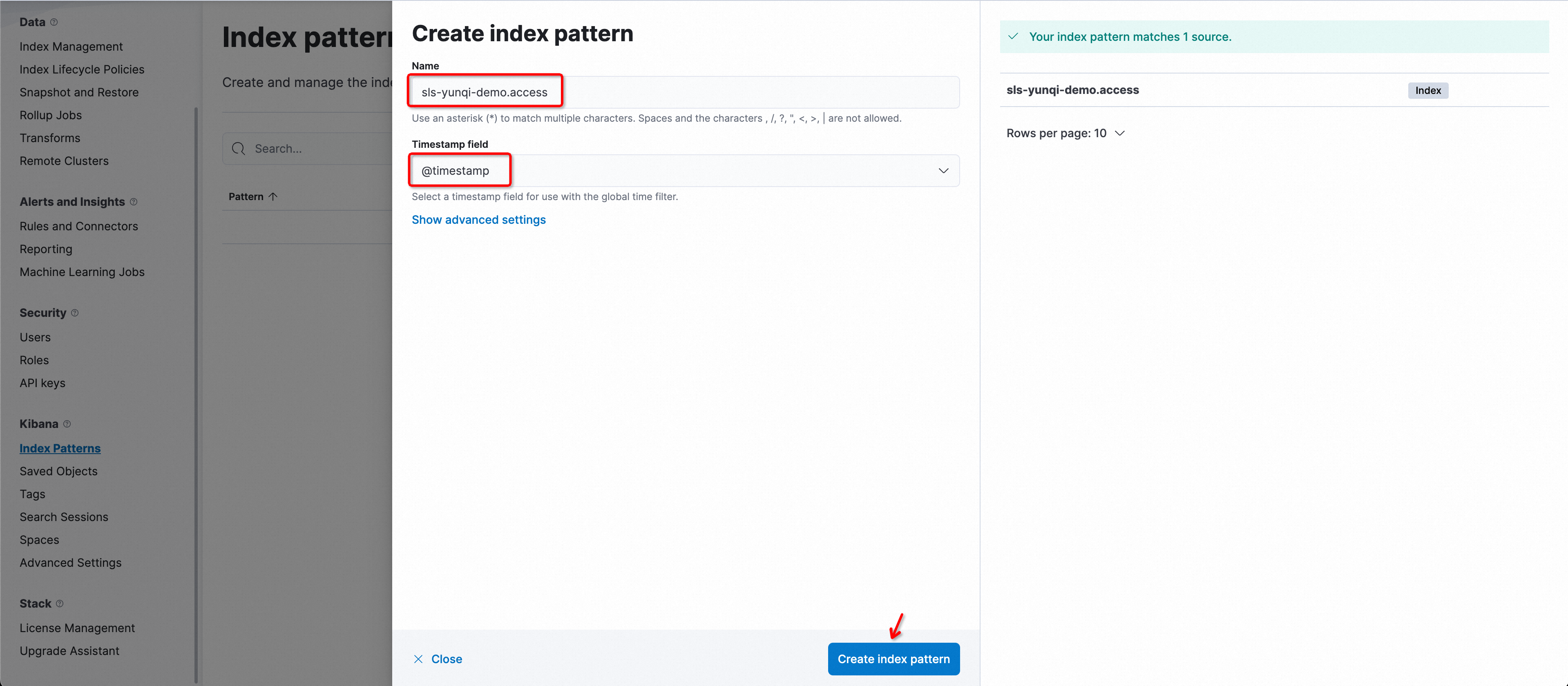
In the Create index pattern window, configure the parameters.
Parameter name
Description
NameThe name of the index. The naming convention is
${Simple Log Service project name}.${Logstore name}.ImportantThe index name supports only exact match. Wildcard characters are not supported. You must enter a complete index name.
For example, if the project name is etl-guangzhou and the Logstore name is es_test22, the index name is
etl-guangzhou.es_test22.Timestamp fieldThe timestamp field. The value is fixed to
@timestamp.Click Create index pattern.
QueryString examples
Queries that specify a field are more efficient than queries that do not.
content: "Hello World"The following query does not specify a field and is inefficient. In some cases, the query may be translated into an SQL field, concatenated, and then matched, which results in low query efficiency.
"Hello World"Exact match queries are more efficient than queries that use a wildcard character (
*).content : "Hello World"The following query uses a wildcard character (
*) and is inefficient because it triggers a full-text scan. If the data volume is large, the response time increases.content : "Hello*"
FAQs
Why am I unable to access Kibana after I deploy it using Docker Compose?
In the
sls-kibanadirectory, run thedocker compose pscommand to check the startup status (STATUS) of the containers. Make sure that all containers are in the UP state.
If all three containers are in the UP state, view the error logs of each container.
docker logs sls-kibana_es_1 # View the startup logs of Elasticsearch.
docker logs sls-kibana_kproxy_1 # View the startup logs of kproxy.
docker logs sls-kibana_kibana_1 # View the startup logs of Kibana.
Why am I unable to access Kibana after I deploy it using Helm?
Log on to the Container Service for Kubernetes console. In the navigation pane on the left, click Clusters.
On the Clusters page, click the name of the destination cluster. In the navigation pane on the left, choose .
In the upper part of the page, select
sls-kibanafrom the Namespace drop-down list. Check that Elasticsearch, Kibana, and kproxy are running. For more information about how to view and edit the status of a StatefulSet or redeploy applications in batches, see Create a StatefulSet.
How do I uninstall Helm?
helm uninstall sls-kibana --namespace sls-kibanaHow do I display high-precision time in Kibana?
Ensure that high-precision time is used for data collection or reporting in Simple Log Service. You can configure nanosecond-precision timestamps to support timestamps that are accurate to the nanosecond.
After you ensure that high-precision time is used for data collection, you must add an index of the
longtype for the__time_ns_part__field. This field represents the nanosecond part of a timestamp. Some queries in Kibana may be converted into SQL statements for execution. Therefore, you must include the high-precision time field in the SQL results.
How do I upgrade a Helm chart?
Upgrading a Helm chart is similar to installing one. You only need to replace the `install` command with the `upgrade` command. You can reuse the `values.yaml` file from the installation.
helm upgrade sls-kibana https://sls-kproxy.oss-cn-hangzhou.aliyuncs.com/sls-kibana-1.5.5.tgz -f values.yaml --namespace sls-kibanaHow do I delete index patterns in batches?
List the index patterns that you want to delete.
Prepare the
kibana_config.jsonfile:{ "url" : "http://xxx:5601", "user" : "elastic", "password" : "", "space" : "default" }Use ptn_list.py to list the existing index patterns and output the result to the
/tmp/ptnlist.txtfile.➜ python ptn_list.py kibana_config.json > /tmp/ptnlist.txtEdit the
/tmp/ptnlist.txtfile and keep only the index patterns that you want to delete.54c0d6c0-****-****-****-15adf26175c7 etl-dev.batch_test52 54266b80-****-****-****-15adf26175c7 etl-dev.batch_test51 52f369c0-****-****-****-15adf26175c7 etl-dev.batch_test49 538ceaa0-****-****-****-15adf26175c7 etl-dev.batch_test50Use ptn_delete.py to delete the index patterns.
NoteAfter an index pattern is deleted, the corresponding dashboards become unavailable. Ensure that the index patterns to be deleted are no longer in use.
# View the /tmp/ptnlist.txt file to confirm that all listed index patterns are to be deleted.
➜  cat /tmp/ptnlist.txt

# Execute the deletion.
➜  python ptn_delete.py kibana_config.json /tmp/ptnlist.txt