Protect Tablestore data tables from accidental loss using Cloud Backup. This guide shows you how to configure flexible backup policies and perform on-demand restores of your data.
Prerequisites
Cloud Backup is activated. Activating Cloud Backup incurs no charge. However, fees are based on the total storage capacity your backups consume. For more information, see Tablestore backup fees.
Usage notes
The first time you use this feature, Cloud Backup automatically creates the
AliyunServiceRoleForHbrOtsBackupservice-linked role to access Tablestore instances in your account. Follow the on-screen instructions to complete the operation. For more information, see Service-linked roles.Cloud Backup automatically loads the Tablestore instances from your account that are in the selected region. You do not need to install a client.
Procedure
After you create a backup plan, the first backup is a full backup. Subsequent backups are incremental by default.
To create a Tablestore backup plan, perform the following steps.
Log on to the Cloud Backup console.
In the left-side navigation pane, choose .
In the top navigation bar, select a region.
In the Actions column for the Tablestore instance you want to back up, click Back Up.
In the Create Backup Plan panel, configure the parameters as described in the following tables and click OK.
Configure the backup content and click Next.
Parameter
Description
Plan Name
Enter a name for the backup plan.
Database Instance
Select the data tables to back up.
Configure the backup plan and click Next.
Backup Type
Parameter
Description
Full Backup
Full Backup
Enable full backups.
Backup Frequency
This parameter is available only when you enable Full Backup. Specify the backup frequency. Valid values: By Day (Periodic), By Week (Periodic), and By Month (Periodic).
Run At
This parameter is available only when you enable Full Backup. Specify the backup start time. The time is accurate to the second.
Time Interval
This parameter is available only when the Backup Frequency is set to By Day (Periodic). Specify the backup interval in days.
Backup Week
This parameter is available only when Backup Frequency is set to By Week (Periodic). Specify the day of the week for the backup.
Backup Month
This parameter is available only when Backup Frequency is set to By Month (Periodic). Specify the months in which the backup is performed.
Backup Day
This parameter is available only when Backup Frequency is set to By Month (Periodic). Specify the days of a month on which the backup is performed.
Incremental Backup
Incremental Backup
Enable incremental backups. Unlike full backups, incremental backups back up only new or changed data. This reduces the backup data size and shortens the backup time.
Backup Frequency
This parameter is available only when you enable Incremental Backup. Specify the backup frequency. Valid values: By Minute, By Hour, and By Day.
Run At
This parameter is available only when you enable Incremental Backup and Backup Frequency is set to By Day. Specify the time when you want to start the backup. The time is accurate to seconds.
Time Interval
This parameter is available only when you enable Incremental Backup. Specify the interval at which the backup is performed. Valid values: 30 minutes, a specific number of hours, or a specific number of days.
Configure the backup options.
Parameter
Description
Backup Vault
Configure the backup vault to store your backups.
Create Backup Vault: Specify a name for the new backup vault. This parameter is optional. If you leave this parameter empty, a name is randomly assigned to the backup vault.
Select Backup Vault: Select an existing backup vault from the drop-down list.
To maximize the redundancy of backup data, the system automatically selects a Vault types based on region support. In regions that support ZRS, a ZRS backup vault is created by default. In other regions, an LRS backup vault is created.
Vault Name
Specify a name for the backup vault.
Vault Resource Group
This parameter is available only when Backup Vault is set to Create Backup Vault. Select a resource group to which the backup vault belongs.
Resource groups help you manage and authorize resources within your Alibaba Cloud account. For more information, see Create a resource group.
Vault Encryption Method
This parameter is available only when Backup Vault is set to Create Backup Vault. Select an encryption method for the backup vault.
Fully managed by Cloud Backup (default): uses the default encryption method of the backup service.
KMS: Uses a custom key from Key Management Service (KMS). You must specify the KMS Key ID.
ImportantThe KMS key cannot be changed after it is configured.
If the KMS key is disabled or deleted, the data cannot be restored from the backup vault.
To encrypt a backup vault using a KMS key, you must create a KMS key in advance. For more information, see Create a key.
Retention Period
Specify the period for which you want to retain the backup. Default value: 2 years. Valid units: Day, Week, Month, and Year.
Enable Bandwidth Throttling
Bandwidth throttling limits backup traffic during peak hours to avoid impacting your production workloads. If you enable this feature, you must specify the Time Range (Hour), enter the Max Bandwidth in MB/s, and then click Add.
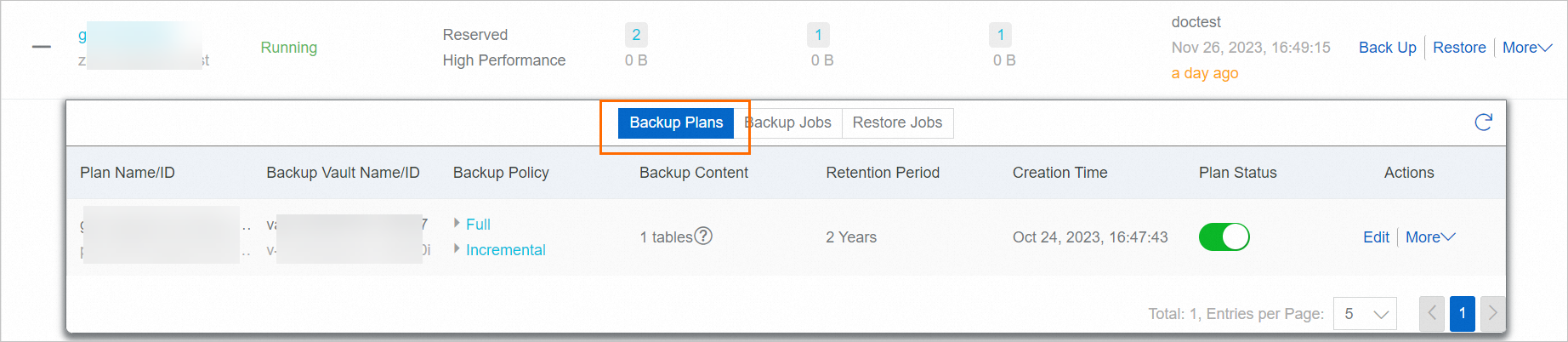
After the backup plan is created, Cloud Backup runs Tablestore backup jobs based on the specified start time and interval. View the created backup plan on the Backup Plans tab.
Successful backups
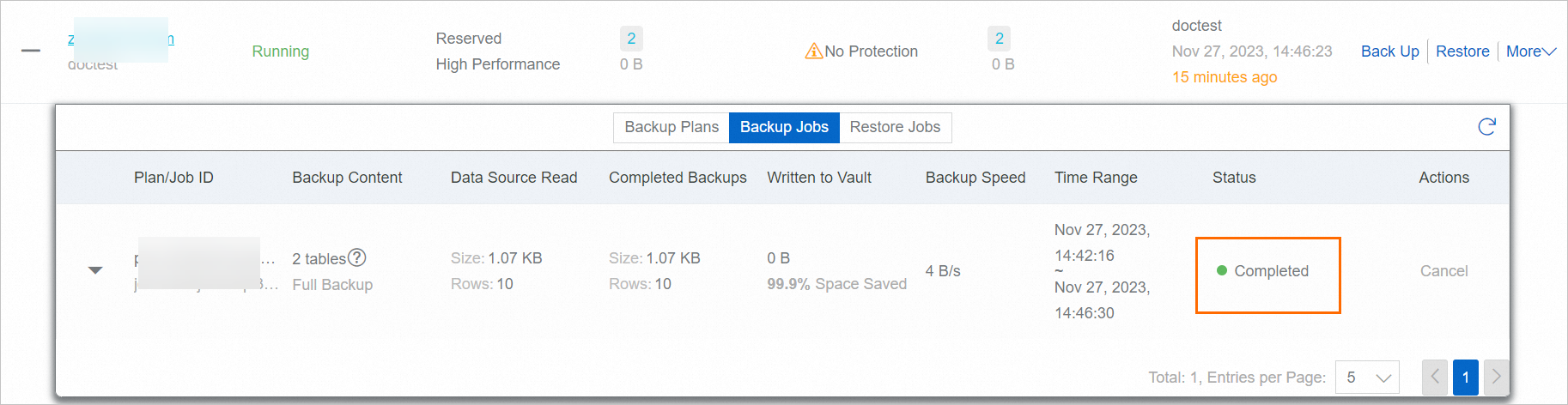
Cloud Backup starts the backup job at the scheduled time. The backup is successful when the job Status changes to Completed.
You can view only the backup jobs from the last six months in the job list. To obtain more data, export an audit report.
Backup vault replication
To mitigate risks to business continuity from regional disasters or account management issues, Cloud Backup supports cross-region and cross-account replication for general backup vaults. Once configured, data from the source vault is automatically synchronized to a replication target vault. This ensures data consistency across both locations and enables on-demand, cross-region data recovery using the target vault.
For general backup vaults storing Tablestore data tables, backup vault replication provides an effective solution for cross-region or cross-account disaster recovery. In addition, Tablestore backup offers a range of enterprise-grade features, including Cross-account backup, KMS-based encryption, Immutable backup, and Tag-based automatic resource association and backup.
Troubleshooting
If the Status of a backup plan or backup job is abnormal, follow these recommendations.
The Status of the backup job is Failed.
Follow the on-screen instructions to verify your configuration.
The Instance Status of the Tablestore instance is Released.
This means the Tablestore instance was deleted.
If the Tablestore instance was intentionally deleted, ignore the status of the backup job. To avoid additional backup storage fees, go to Storage Vaults in the left-side navigation pane, find the corresponding vault, and delete it.
If the instance was deleted by mistake, create a new Tablestore instance in the same region to use as a restore destination. For more information, see Restore a Tablestore data table.
The Plan Status of the backup plan is Disabled.
This means the backup plan is suspended. When a plan is suspended, Cloud Backup no longer protects the Tablestore instance. Enable the plan as soon as possible.
More operations
After you create a backup plan, the following operations are available.
Operation | Description |
Plan Status | This switch enables or disables the backup plan. A plan is enabled by default. To pause the plan, turn off this switch. |
Edit | Edit a backup plan as needed. |
Perform Full Backup Now | Immediately starts a full backup job. |
Perform Incremental Backup Now | Immediately starts an incremental backup job. |
Alert Settings | Configure an alert rule for the backup job.
To add an alert contact, see Manage alert contacts. |
Delete | Deletes the backup plan. After you delete a backup plan, it stops running, but the existing backup data is retained. |
Next step
References
Cloud Backup provides resource plans for various backup scenarios. Purchase resource plans for greater discounts. For more information, see Resource plan purchase guide.