This topic answers frequently asked questions about DSW.
Instance startup
Q: How can I diagnose and fix DSW instance startup failures?
First, check the Events tab on the instance details page for specific error messages. Common errors and their solutions are listed below.

The following are common errors and their solutions:
Cause: This error indicates your system disk is full. You can check disk usage in the DSW terminal:
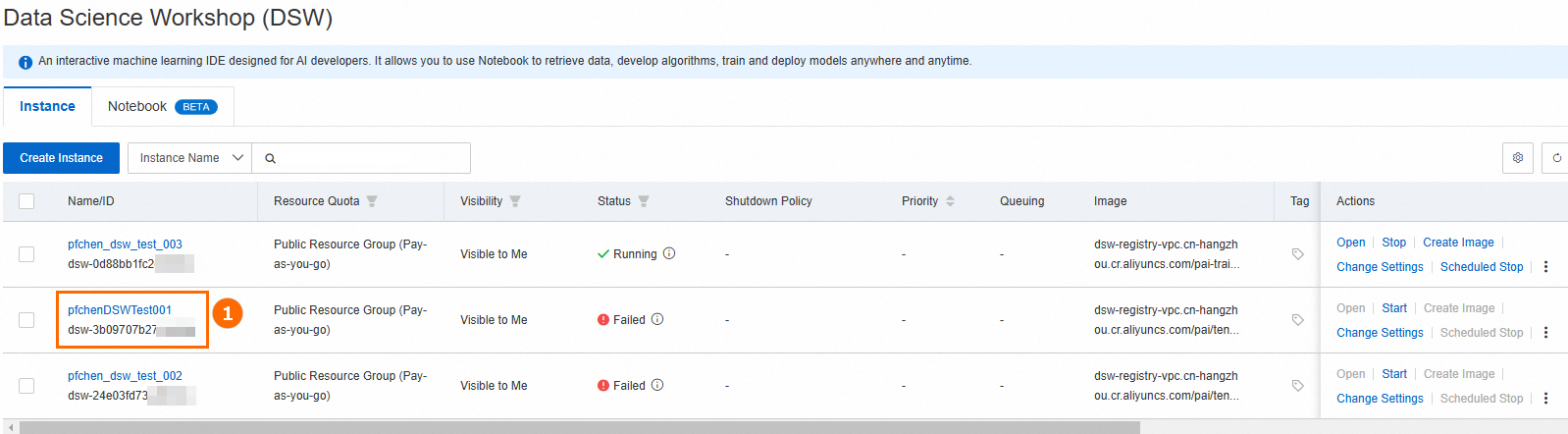
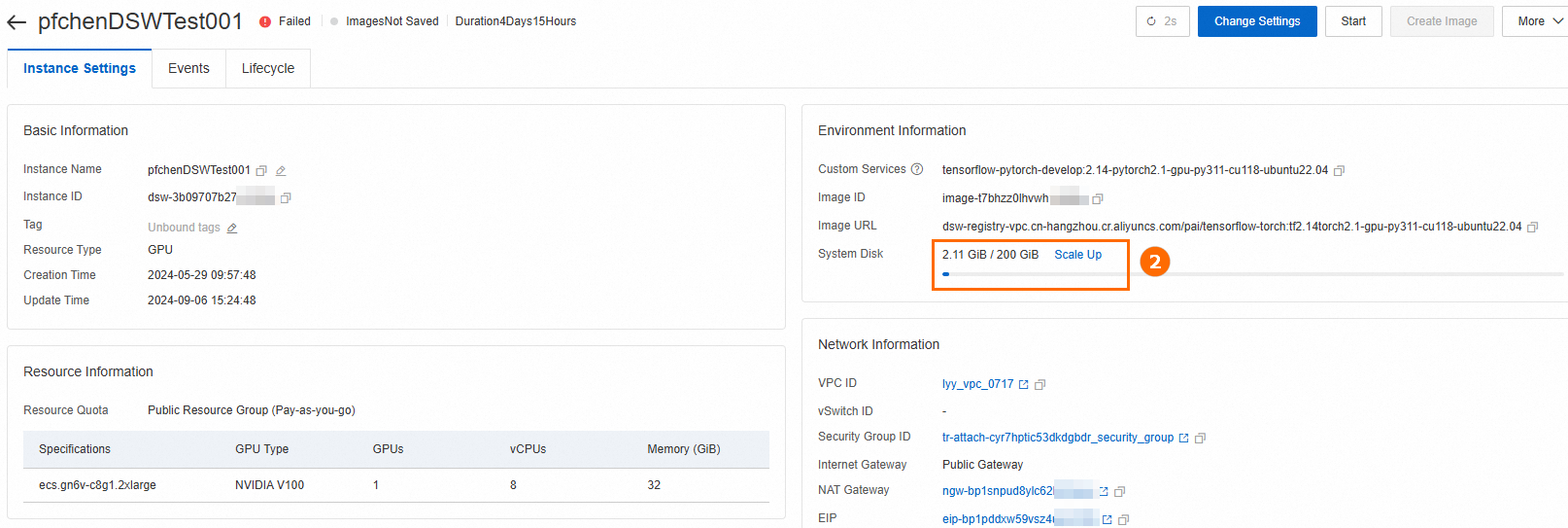
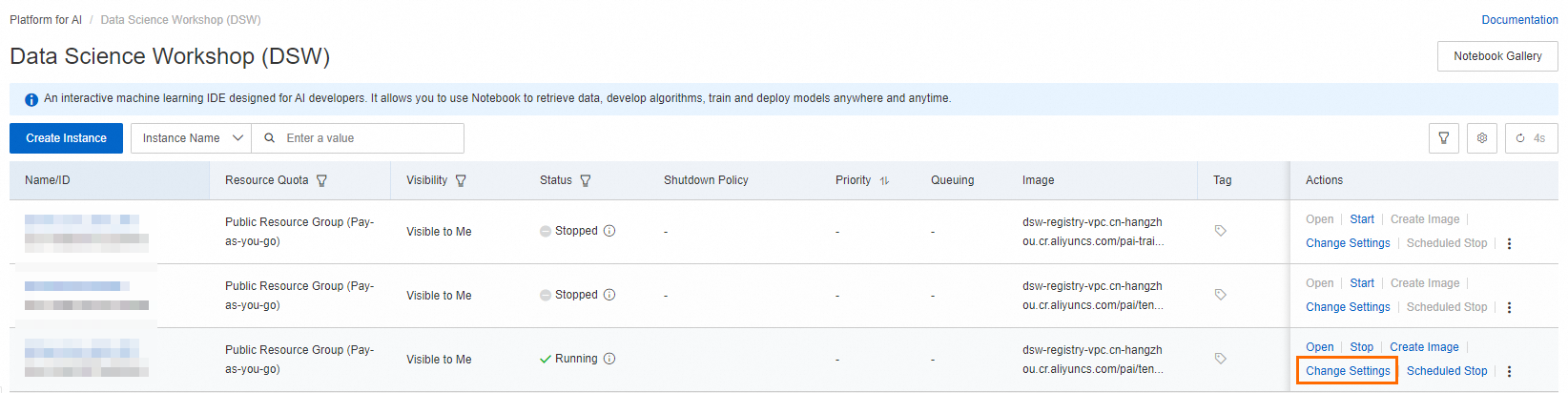
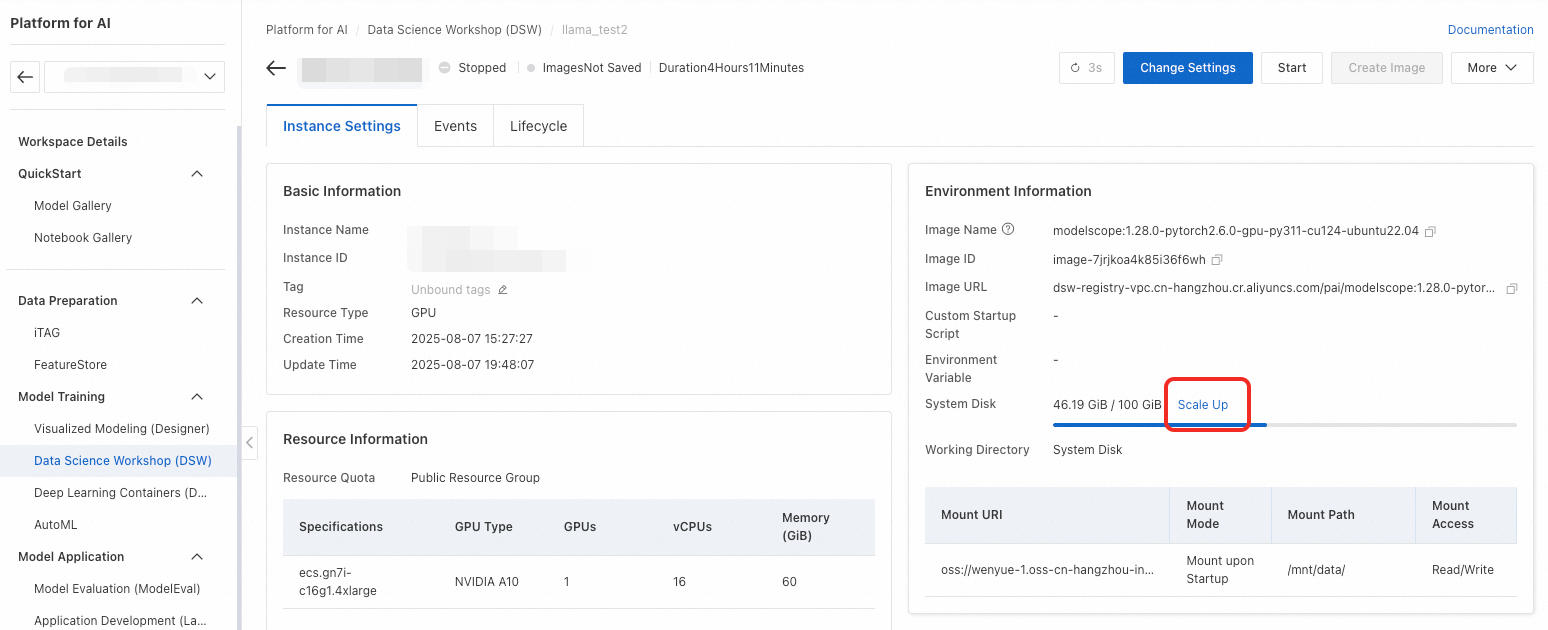
Solution: Expand the system disk. Go to the instance details page and use the Change Configuration feature.
 Important
An expanded system disk is billed continuously, even when the instance is stopped. To stop all billing, you must delete the instance. Before you delete the instance, make sure that you have backed up all necessary data.
Cause: The Image used for the instance is too large for the current system disk size.
Solution: Expand the System Disk via the Change Settings feature on the instance details page. Note that this incurs additional storage charges.
Q: What to do when resources are out of stock or quotas are insufficient?
Common errors:
"Your requested resource type [ecs.******] is currently unavailable" (Out of stock).
"Your resource usage has exceeded the default limitation" (The two-GPU limit per region has been exceeded).
"The cluster resources are fully utilized" (All available computing resources are in use).
Causes:
Insufficient public resource inventory
Public resources are shared among multiple users. The inventory may be low during peak hours.
Specific GPU types, such as high-end GPUs, are more likely to be out of stock.
Each account is limited to two GPUs per region.
Insufficient dedicated resource quota
The purchased dedicated resource quota is exhausted.
Ineffective quota allocation results in an insufficient quota for a workspace.
Solutions:
Change the specification: If the selected GPU type is out of stock, try selecting a different one.
Switch the region: In the upper-left corner of the PAI console, switch to another region and try to create an instance in the new region.
Increase the GPU quota: To use more than two GPUs from public resources, submit a ticket.
Purchase dedicated resources: To guarantee resource availability, purchase a dedicated resource quota. For more information, see Create a dedicated resource group and purchase general computing resources and Manage resource quotas.
Q: Can I run a Python file when a DSW instance starts?
Use the Custom Startup Script option. You can set this when creating a new instance or by modifying an existing one via the Change Settings panel.

The script runs after the instance's underlying resources are ready but before development tools like JupyterLab or WebIDE are started. This is useful for environment customization or initialization tasks.
3-Minute Timeout: The script has a 3-minute timeout. Avoid long-running tasks like downloading large files.
Log Location: After startup, you can find the script's execution logs in the
/var/log/user-command/directory inside the instance.
Q: How do I find my DSW instance if it's not visible in the console?
Your instance may be in a different region or workspace. Use the dropdown menus on the PAI-DSW console page to switch between available regions and workspaces.

Q: Why is my DSW page blank, or why is the Notebook/Terminal unresponsive?
These issues are typically caused by your local browser or network environment. Try the following steps in order:
Clear your browser's cache and cookies, then reload the page.
Open the DSW page in your browser's incognito or private mode.
Switch your network. For example, if you are on a corporate network, try a mobile hotspot to rule out firewall issues.
Try a different browser, such as Chrome or Firefox.
Q: What happens to my data on a DSW instance's Cloud Disk when I stop, restart, or modify the instance?
Data persistence depends on the action taken and whether the instance uses a Cloud Disk or Temporary Storage for its System Disk. This answer applies to instances with a Cloud Disk System Disk.
Stopping the instance: Data may be lost.
If the Cloud Disk was expanded or the instance is stopped for fewer than 15 days, your data is preserved.
If the Cloud Disk was not expanded and the instance remains stopped for more than 15 days, the system permanently erases all data.
Restarting the instance: Data is not lost. All files and installed packages on the System Disk are retained.
Changing the instance specification (CPU/GPU/Memory): Data is not lost.
Changing the instance image: Data on the System Disk may be lost. The system may reset the disk contents. Data on mounted storage (like OSS or NAS) is unaffected. Always back up your System Disk data before changing the image.
For instances using Temporary Storage, all data on the System Disk is permanently deleted upon stopping, restarting, or any configuration change.
Q: How can I recover a DSW instance from a public resource group that was auto-released after 15 days of being stopped?
You can't. An instance created from public resources with an un-expanded Cloud Disk is automatically and permanently deleted if it remains stopped for more than 15 consecutive days. The data cannot be recovered.
Instance stop, deletion, and release
Q: What is the correct way to release a DSW instance and its resources?
On the DSW console, you can either Stop or Delete an instance.
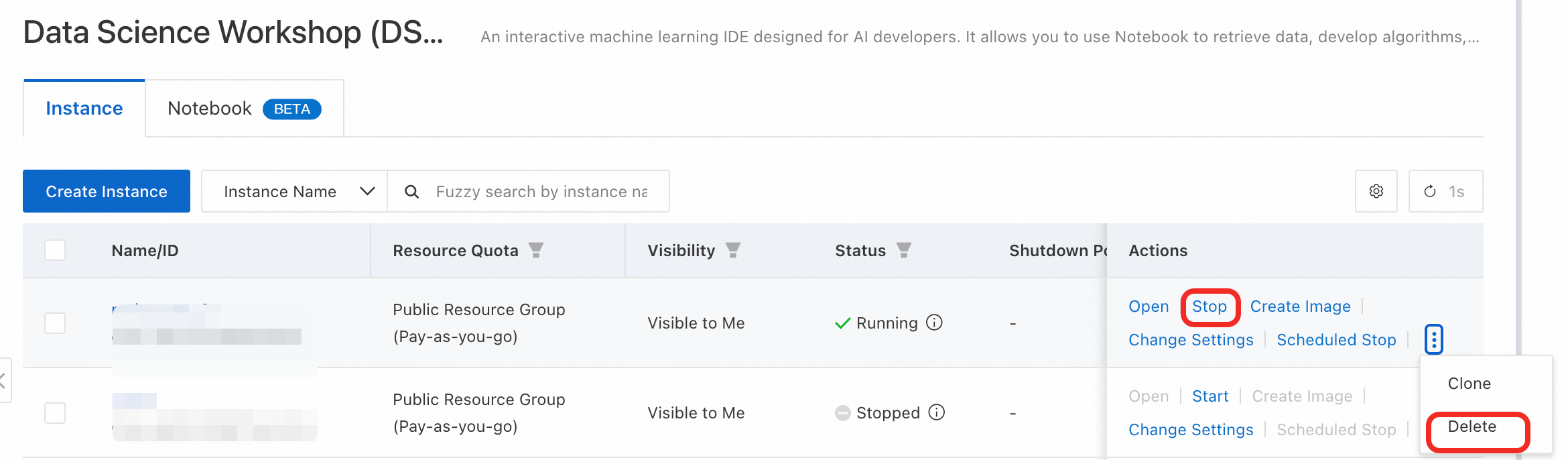
Stop: Halts compute billing but preserves the instance for later use.
Delete: Permanently removes the instance and all its resources, stopping all billing.
Important: If you expanded the System Disk, it continues to incur storage charges even when the instance is stopped. To stop all charges, you must delete the instance.
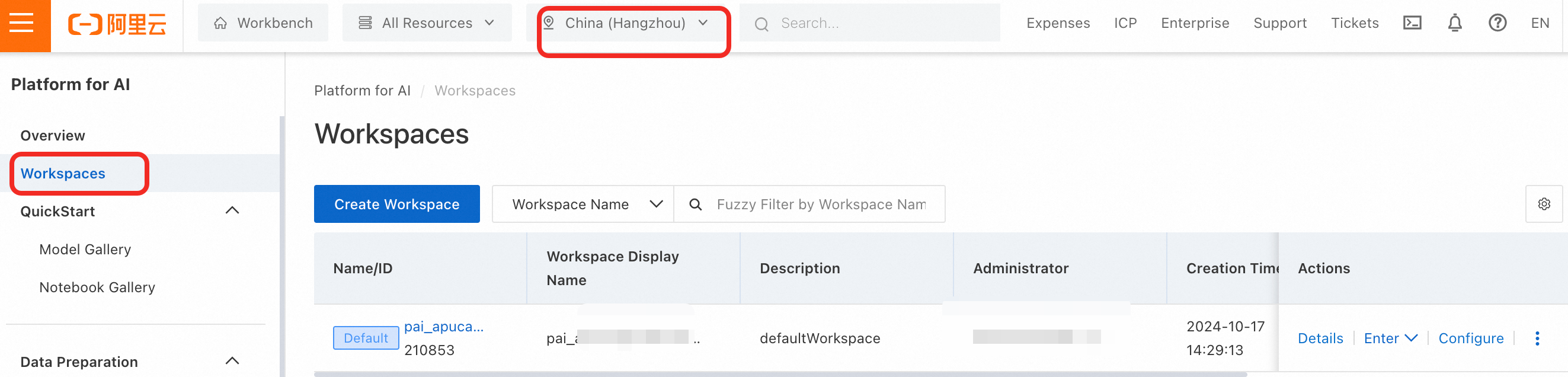
Q: How do I find my DSW instance if it's not visible in the console?
Your instance may be in a different region or workspace. Use the dropdown menus on the PAI-DSW console page to switch between available regions and workspaces.
Q: Do I need to manually release a free trial resource package?
No. Free trial resource packages expire automatically and do not need to be manually stopped or released.
Q: What is the difference between stopping and deleting a DSW instance, and how do I stop all billing?
To completely stop all billing associated with a DSW instance, you must delete it.
Stop: This action releases the compute resources (CPU/GPU) and pauses billing for them. However, if you have expanded the System Disk, storage charges for the disk will continue.
Delete: This action permanently removes the instance and all its resources, including the system disk. All associated billing stops completely.
How to choose:
Use Stop if you plan to use the instance again and want to preserve its environment and data.
Use Delete if you no longer need the instance and want to avoid all future charges. Always back up your data before deleting.
Q: What should I do if my DSW instance is stuck in the 'Stopping' or 'Deleting' state?
This can happen if processes inside the instance are not terminating correctly or if high memory usage prevents the instance from responding.
Solution: Wait a few minutes and refresh the page. The system is designed to eventually terminate the instance safely. The status should update to "Stopped" or the instance will be removed from the list if deleted.
Q: Is my data preserved when I stop or delete a DSW instance?
It depends on the action and the type of system disk your instance uses.
Stopping an instance:
Cloud Disk System Disk: Data is preserved if the disk was expanded or if the instance is stopped for less than 15 days. If the disk was not expanded and the instance remains stopped for more than 15 days, all data is permanently erased.
Temporary Storage System Disk: All data is permanently erased upon stopping.
Deleting an instance:
Regardless of the disk type, all data on the system disk is permanently erased and cannot be recovered.
Recommendation: To ensure data persistence, save your important files to a mounted storage solution like OSS or NAS. Always back up your data before deleting an instance.
Q: Why did my DSW instance shut down automatically while it was running?
Your instance was likely stopped by the Idle Auto-shutdown policy. This feature automatically stops an instance if its CPU and GPU utilization remains below a set threshold for a specified period (e.g., 3 hours). It is enabled by default on free trial instances to conserve resources.
How to disable or modify the policy:
Manual stop: To ensure resource savings, you can manually stop the instance when it is not in use. The auto-shutdown policy is not guaranteed to be triggered every time.
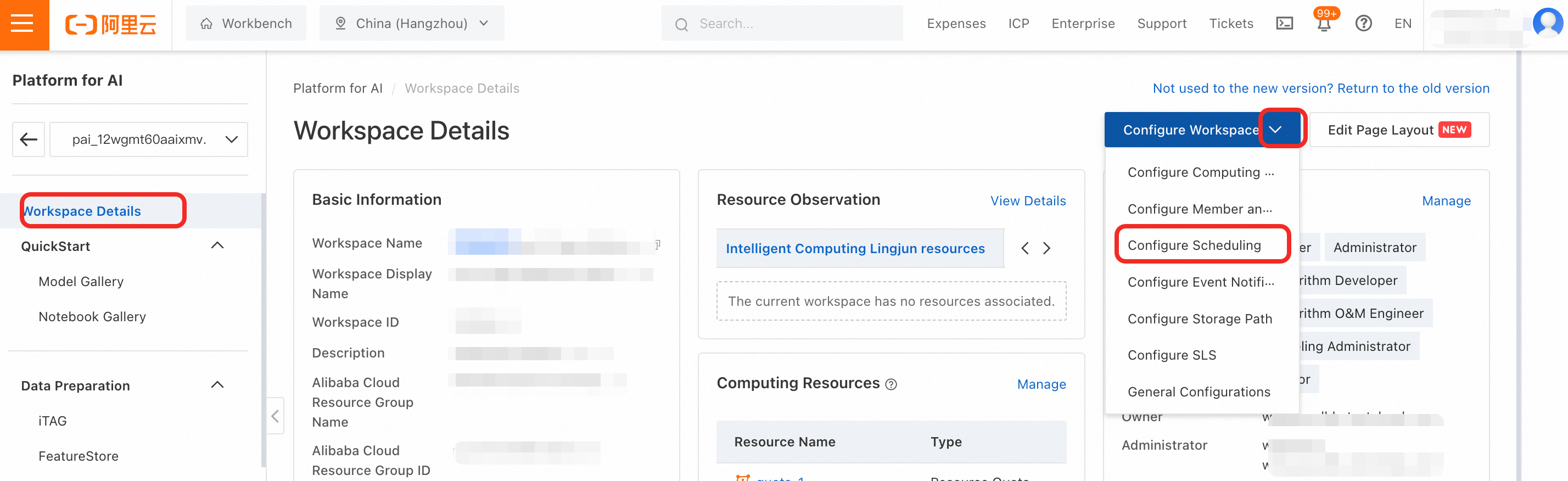
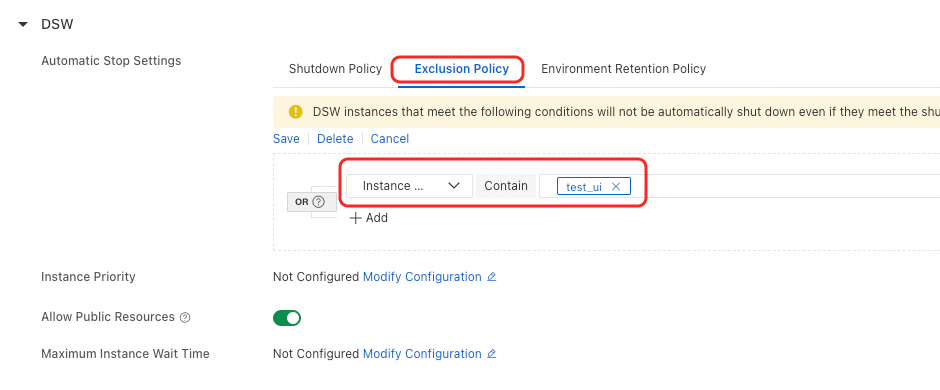
Modify policy: To run long-term tasks, you can modify or disable this policy. The steps are as follows:
Navigate to your workspace details page and go to Configure Workspace > Auto-stop Settings.
In the DSW configuration section, you can modify the shutdown policy or add your instance's name to the exclusion list to prevent it from being automatically stopped.
Q: Why am I still being billed or seeing a 'Running' status after stopping/deleting all my DSW instances?
This usually happens for one of three reasons:
"Running" status refers to a resource package: The "Running" status you see on a billing or free trial page may refer to an active resource package (e.g., "250 compute hours/month"), not an actual DSW instance. The package remains active until it expires.
An expanded system disk is still being billed: Stopping an instance only pauses compute charges. If you expanded the System Disk, you are still being charged for storage. To stop these charges, you must delete the instance.
Billing data has a delay: There is a delay between resource usage and when the bill is generated. The charges you see may be for usage that occurred before you stopped or deleted the instance.
Billing
Q: How is DSW billed, and why am I charged even if my instance is idle?
DSW supports subscription and pay-as-you-go billing methods. You can choose a billing method as needed. For billing details, see DSW billing.
With the Pay-as-you-go model, you are billed for the entire time the instance is in the "Running" state. This is because the instance continuously reserves compute resources (CPU, GPU, memory), regardless of whether you are actively running code or have the WebIDE open. To stop compute charges, you must Stop the instance.
Q: How do I view my DSW bill?
For pay-as-you-go users, you can go to the Expenses and Costs page to view bill details. For more information, see View bill details.
Q: Why am I still being charged after stopping my DSW instance?
This typically happens for two reasons:
Billing delay: The bill you received may be for usage that occurred before you stopped the instance. Pay-as-you-go billing data is processed with a delay.
Expanded system disk: If you expanded the system disk, you are still being charged for storage capacity. These charges continue even when the instance is stopped. An expanded system disk cannot be downsized. To stop these storage charges, you must delete the instance.
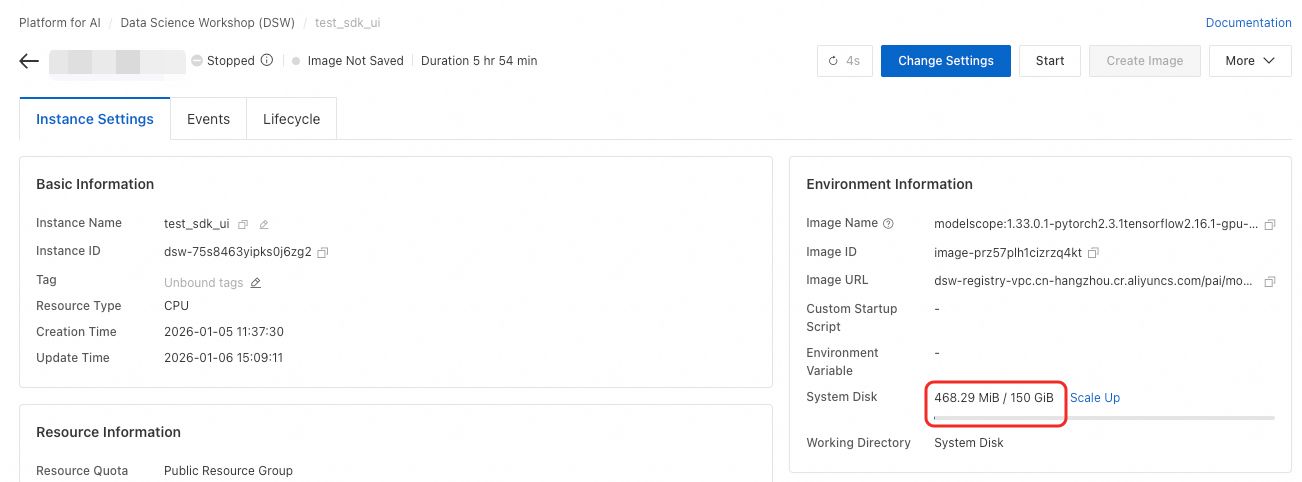
To check if your disk was expanded, view the instance details and see if the system disk capacity is larger than the free quota (e.g., 100 GiB for public resource groups).
Q: How do I completely stop all billing for a DSW instance?
To stop all billing, you must delete the instance. This action is permanent and will erase all data on the instance's system disk.
Click Delete next to the instance in the DSW console.

Be sure to check all regions and workspaces to ensure you have deleted all instances.
Q: How is a pay-as-you-go DSW instance billed if it runs for less than an hour?
Pay-as-you-go instances are billed by the minute. The total cost is calculated as: (Hourly Rate / 60) × Service Duration (in minutes).
Model pulling
Q: Why do I get a "Failed to pull image" error for a private repository in ACR?
When creating a DSW instance with an image from a private Alibaba Cloud Container Registry (ACR) repository, you must provide authentication credentials.
Solution: In the Image URL section, enter the username and password for your private ACR instance.

Image usage
Q: Why do I get an "insufficient capacity of ephemeral storage" error when creating a DSW image?
Cause: This error occurs because the remaining space on the System Disk is less than the size of the new image layer being created.
Solution:
Check disk space: In the DSW Terminal, run
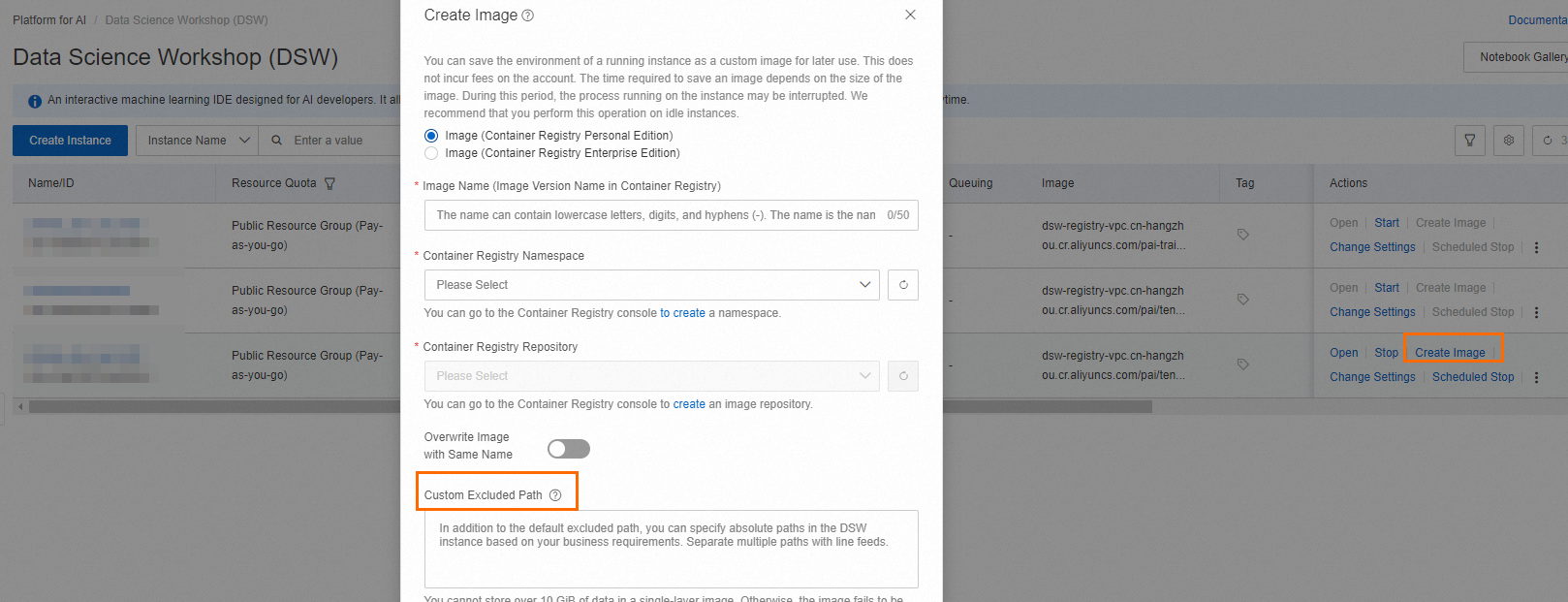
df -hto check the available space on/dev/vda4(the System Disk).Exclude large files: When creating the image, use the Custom Exclusion Path option to exclude large files or directories (like datasets or logs) from the image. This reduces the image size.

Q: How do I use a Docker image in DSW?
There are two main ways to use Docker images with DSW:
Start a DSW instance from a Docker image:
Push your Docker image to an Alibaba Cloud Container Registry (ACR) repository. See Use a Personal Edition instance to push and pull images.
In your PAI workspace, add the ACR image as a Custom images.
Select this custom image when creating a new DSW instance.
Package the current DSW environment as an image:
You can save the current state of your running DSW instance (including installed libraries and files) as a new Docker image. See Create a DSW instance image.Use Docker inside a DSW instance:
This is not supported on public or general-purpose resource instances. It is only supported on instances from Lingjun intelligent computing resources.
Q: Why does creating a DSW image fail or time out?
Common reasons for image creation failure include:
Image size limit exceeded: A single image layer cannot exceed 10 GiB. If your changes are too large, the build will fail. Try to reduce the data being saved into the image.
Region mismatch: The DSW instance and the ACR instance must be in the same Alibaba Cloud Region.
Insufficient System Disk space: The available disk space must be greater than the size of the data being written to the new image layer.
Network instability: Pushing large images to a personal edition of ACR uses the public network and can time out. For better stability, use an enterprise edition of ACR and bind it to the same VPC as your DSW instance to use the internal network.
Q: Why is the "Create Image" button grayed out or my image repository not found?
This usually happens for one of two reasons:
Incorrect instance status: You can only create an image from a DSW instance that is in the Running state. The button will be disabled if the instance is stopped.
ACR not configured correctly:
You must have an ACR instance created in the same Region as your DSW instance.
Within that ACR instance, you must have created a namespace and an image repository.
Q: Why do I get a "Push container failed" error when creating an image?
This error, Push image ... Failed: Push container failed, Container Name: dsw-notebook, often indicates that a single image layer exceeds the 10 GiB size limit.
Solution: Use the Custom Exclusion Path feature when creating the image to exclude large directories (e.g., datasets, logs, temporary files) from being saved into the image. Store large data on a mounted path (like OSS) instead of the System Disk.
System disk expansion
Q: What is the default system disk size, and what should I do if it's full?
The default size and free quota of the System Disk depend on the resource type.
Check free quota and current size:
On the DSW instance list, click Change Settings for your instance.
In the configuration panel, scroll down to the System Disk section to see the available options and current size. Public resource group instances typically offer a 100 GiB free quota.

Check current usage:
On the instance details page, the Environment Information section shows the current System Disk usage.
Expand a full disk:
If your disk is full, you can expand it using the Change Settings feature. For a comparison of when to expand the disk versus mounting external storage, see expand the system disk or mount a dataset.
Q: Does the system disk support scale-in?
No, it does not. The DSW system disk cannot be scaled in after it has been expanded. If you find that the system disk space of a previously created DSW instance is too large, you can back up important information in the instance to OSS by mounting a dataset, OSS, NAS, or CPFS. Then, you can delete the DSW instance to avoid continuous billing and create a new DSW instance with an appropriate system disk space to meet your needs.
Mount configuration
Q: How can I mount an external file system like OSS or NAS to my DSW instance?
You can mount storage services like OSS, NAS, or CPFS when you create a DSW instance. The mounted path will appear as a local directory inside your instance, accessible from the terminal and your code.
The storage service (e.g., OSS bucket, NAS file system) must be in the same region as your DSW instance. The mount is configured during instance creation. For more information, see Create a DSW instance.
Q: Why do I get a "MountTarget is not in VPC" error when starting a DSW instance with a mounted NAS dataset?
Cause: This error occurs if you specified a specific Mount Target when creating the NAS dataset in the PAI console.
Solution: When you create the dataset configuration for your NAS file system, leave the Mount Target field empty. The system will then automatically handle the connection.

Q: Why does the mount command fail with "wrong fs type, bad option, bad superblock" on my ECS instance when connecting to NAS?

Cause: The necessary NFS client utilities are not installed on your ECS instance.
Solution:
Before running the
mountcommand, install thenfs-utilspackage.yum install nfs-utils
Q: What should I do if I get an "Input/output error" when accessing a mounted OSS dataset?
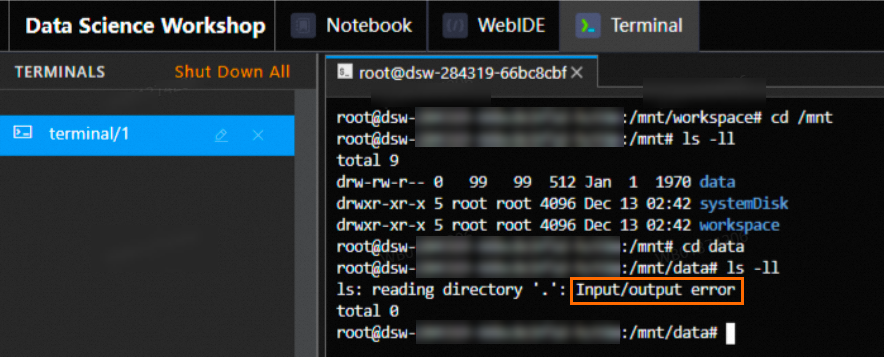
Cause: This error indicates that the service role used by PAI does not have permission to access your OSS bucket.
Solution: You need to grant the AliyunPAIDLCAccessingOSSRole permission to the PAI service account. For specific authorization operations, see PAI service account authorization.
Q: How can I reduce the risk of an Out of Memory (OOM) error when mounting an OSS dataset with JindoFuse?
When working with many small files, the JindoFuse client can consume significant memory, leading to OOM errors.
Method 1: Update JindoFuse Version
Use JindoFuse version 6.8.1 or newer, which includes memory usage optimizations. Specify the version in the advanced mount configuration:{ "fs.jindo.fuse.pod.image.tag":"6.8.1" }

Method 2: Switch to
ossfsand Disablereaddirplus
Using
ossfswith thereaddirplusoptimization disabled can also reduce memory usage. In the advanced mount configuration, specify:{ "mountType": "ossfs", "fs.ossfs.args": "-oreaddirplus=false" }
Q: I successfully mounted OSS, but why can't I see the files in the JupyterLab file browser?
The JupyterLab file browser on the left defaults to showing the /mnt/workspace directory. If you mounted your OSS bucket to a different path (e.g., the default /mnt/data), it won't appear in the default view.
Solutions:
Access via Terminal: Open a Terminal in DSW and navigate to your mount path directly, for example:
cd /mnt/dataand thenls.Access via code: Use the absolute path to your files in your code, e.g.,
df = pd.read_csv('/mnt/data/my_file.csv').Change the mount point: When creating the instance, set the mount path to be a subdirectory of your workspace, such as
/mnt/workspace/my_oss_data. Your OSS files will then appear in the file browser.
Q: Why do I get "Transport endpoint is not connected" or "Input/output error" when accessing a mounted OSS path?
This error means the connection to the OSS mount has been lost. Common causes include:
RAM Role Permission Issue: The RAM role associated with your DSW instance may lack the necessary OSS access permissions (e.g.,
AliyunPAIDLCAccessingOSSRole). Verify the permissions.Mount Process Crash (OOM): High-intensity I/O operations, especially on many small files, can cause the
ossfsorJindoFuseclient process to run out of memory and crash. You can try increasing the memory allocated to the mount client or disabling metadata caching in the advanced mount settings.How to restore the connection:
The simplest way is to restart the DSW instance. The system will automatically re-establish the mount.
Alternatively, you can use the PAI SDK to execute a dynamic mount command to re-mount the path without restarting the instance.
Q: Can I directly mount Alibaba Cloud Drive or MaxCompute tables in DSW?
DSW supports using cloud storage services such as OSS, NAS, and CPFS by creating datasets or directly mounting paths.
Alibaba Cloud Drive: No, DSW does not support directly mounting Alibaba Cloud Drive. The recommended practice is to store your data in Alibaba Cloud OSS.
MaxCompute Tables: No, you cannot "mount" a MaxCompute table like a file system. To access data in MaxCompute, you must use the appropriate SDK (e.g., PyODPS) within your DSW code. For more information, see Read and write MaxCompute tables using PyODPS.
Q: How can I prevent data loss and migrate my work between DSW instances?
The System Disk of a DSW instance should be treated as ephemeral storage. Data on it can be lost when the instance is stopped for long periods or deleted.
For data persistence: The best practice is to save all your important code, data, and models to an externally mounted storage service like OSS or NAS. This ensures your work is safe even if the DSW instance is deleted.
For data migration: To move your work to a new DSW instance, simply mount the same OSS bucket or NAS file system to the new instance. All your files will be immediately available.
Q: I successfully mounted OSS, but why aren't my workspace files visible in the OSS bucket?
The default DSW working directory is /mnt/workspace, while the default OSS mount point is often /mnt/data. These are separate locations. Files saved in your working directory are on the instance's System Disk, not in OSS.
Solution: To save your workspace files to OSS, copy them from the workspace directory to the OSS mount directory using the Terminal:
cp -r /mnt/workspace/. /mnt/data/Data reading, upload, and download
Q: How do I use DSW to read OSS data?
You can use a Python SDK or API to read OSS data. For more information, see Read and write data in Object Storage Service (OSS).
Q: How do I upload and download folders?
Currently, DSW does not support directly uploading and downloading folders. However, you can upload and download folders by packaging them into compressed files. The DSW Terminal provides a Linux environment where you can use standard Linux command-line tools such as tar, gzip, and unzip to decompress files. The following is an example using tar.
Use
tar --versionto check if tar is installed. If not, you can install it using the following commands.# Installation command for Debian-based systems (such as Ubuntu) sudo apt install tar # Installation command for Red Hat-based systems (such as CentOS, Fedora) sudo yum install tarExtract the files.
# Compress a folder, where /path/to/directory is the folder to be compressed
tar -cvf archive_name.tar /path/to/directory

# Decompress a folder
tar -xvf archive_name.tar
Q: How do I transfer and share data between two DSW instances?
You can use the following two methods:
Mount a dataset, OSS, NAS, or CPFS: Both DSW instances mount the same dataset or OSS path, and then store the data in that dataset or storage path to achieve data sharing.
Upload and download files: Download the data to be shared from the source DSW instance, and then upload it to the other DSW instance.
Q: What should I do if there is no response or the download fails after clicking "Download"?
This is usually caused by network congestion or browser issues. You can try the following steps:
Wait a moment. Large files require a longer response time to download.
Change your browser or use your browser's incognito mode to try again.
For larger files (such as those over 200 MB) or in cases of an unstable network, we recommend that you download by mounting OSS.
Q: What should I do if a message indicates that the "File Transfer Station" space is insufficient?
The total capacity of the File Transfer Station is 10 GB. You need to go to the transfer station management page and clear the transfer station files to release space. If the page does not refresh promptly, try refreshing your browser.
Q: Why does it always jump to the "File Transfer Station" when uploading?
This is normal. To ensure upload stability and speed, all files larger than 10 MB are automatically transferred through the File Transfer Station and saved to your instance upon completion.
Q: How do I upload a large local file (such as a model over 5 GB) or a large amount of data to DSW and use it?
The system disk space of a DSW instance is limited and is temporary storage. We do not recommend that you directly upload large files or large amounts of data. You can first upload the data to Alibaba Cloud Object Storage Service (OSS) and then mount it to the DSW instance for use. For more information, see Mount a dataset, OSS, NAS, or CPFS.
Remote connection
Q: When connecting to a DSW instance with ProxyClient, a disconnection error is reported: client_loop: send disconnect: Broken pipe
When you use it to connect to a DSW instance using SSH, if there is no operation for a long time, a disconnection is triggered, and the system may prompt:
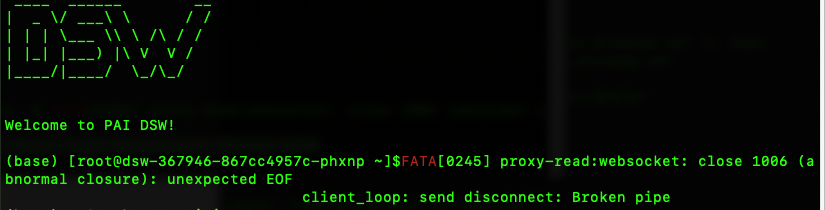
To resolve this problem, we recommend that you use the more stable Remote connection: Direct SSH connection method to connect to the DSW instance.
Q: Failed to open a local folder after remotely connecting to an instance using VSCode
This problem is generally caused by the VSCode client. We recommend that you upload the local file to the DSW in the cloud. For specific operations, see Upload and download files.
Q: SSH direct connection configuration fails with the following error: Failed to update private zone items: Failed to add zone?
The error is caused by the internal DNS resolution service not being enabled. You can enable this service by following the instructions in Enable internal DNS resolution.
Network issues
Q: How to solve slow network download speed?
Because DSW and DLC instances use a shared gateway by default, download speeds for large files may not meet your needs due to bandwidth limitations. To increase the network download speed, you can refer to the following content:
If you are downloading domestic resources: You can create an Internet NAT gateway for the VPC where the instance is located, attach an EIP, and configure an SNAT entry. For detailed operations, see Improve public network access speed through a dedicated gateway.
Note: Before using this method, confirm that the Limit Public Network Access Speed switch is enabled for the workspace. For more information, see Manage a workspace > General Configuration.

If you are downloading overseas resources: You can use GA to pull overseas models or container images.
In addition, you can also download the resource file locally first, and then directly upload it to the DSW instance. Or, you can first upload it to Object Storage Service (OSS) and then mount it to the DSW instance.
Q: Does a DSW instance have a public IP address?
A DSW instance is not assigned a public IP address by default. To access the external network or allow external access to your DSW instance, we recommend that you configure a NAT Gateway or use an EIP. For more information, see Network configuration.
Q: Can the public port be repeated when a DSW instance exposes public access through a NAT gateway?
When you use a DSW custom service to expose an interface, all custom services that share the same NAT Gateway must use unique ports, even if they are in different DSW instances.
Q: Why can't a DSW instance access the public network?
By default, a DSW instance accesses the public network through the Public Gateway. If you cannot access the public network, check the instance configuration page to determine if Dedicated Gateway is selected as the Public Network Access Gateway. If a dedicated gateway is selected, you must configure an EIP and an SNAT entry. For more information, see Improve public network access speed through a dedicated gateway. Alternatively, you can select the public gateway.

Q: Why do I get a "Network is unreachable" error when accessing Hugging Face?
When you pull models from outside China, such as from huggingface.co, to a DSW instance, the request may fail because of cross-domain network issues. To resolve this, create a Global Accelerator (GA) instance. GA provides a global network acceleration service that enables your DSW instance to access cross-domain models and images. For more information, see Pull models and container images from outside China across domains.
Third-party library installation
Q: How do I use third-party libraries in DSW?
DSW supports the installation of third-party libraries. For more information, see Manage third-party libraries.
Q: After I shut down (stop) my DSW instance, will the packages I installed with pip and the code I wrote be lost?
If a disk is used as the system disk, they will not be lost. The instance's disk data (including the environments in /mnt/workspace and /root) is retained. The next time you start the instance, all environments and files are still there. Only deleting the instance completely clears all data.
Q: Why is the installed third-party package not taking effect?
After you install a third-party package using the pip command, if you cannot find the package when you import it using the import command, first try to restart the service or Kernel. If the error persists, check the current environment. By default, DSW installs third-party packages to the Python 3 environment. To install a package in another environment, you must manually switch to the environment first. The following is an example.
Install a third-party library in the Python 2 environment.
source activate python2
pip install --user xxx
Install a third-party library in the TensorFlow 2.0 environment.
source activate tf2
pip install --user xxx
Replace xxx with the name of the third-party package that you want to install.
Q: I failed to install a package in DSW using pip install, and it reported a dependency conflict or version error. What should I do?
This is usually caused by an incompatible environment. You can troubleshoot and resolve it in the following order:
Preferred solution: Replace the image. Stop the current instance, create a new DSW instance, and select a different official image. For example, if the current PyTorch 2.1 image does not work, you can try the PyTorch 2.3 image, or try the
modelscopeseries of images, which usually have better compatibility.Install a specific version. Check the official documentation of the package, find a version that supports your current DSW environment (Python/CUDA version), and then execute
pip install package_name==x.y.z.Change the download source. Try using a domestic mirror such as the Tsinghua source:
pip install -i https://pypi.tuna.tsinghua.edu.cn/simple <yourLibraryName>.
Q: I installed a library in the DSW Terminal, but why can't I import it in Jupyter Notebook?
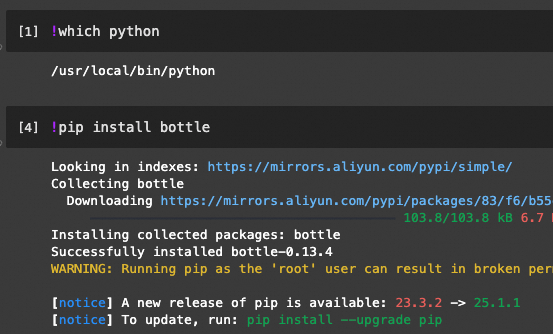
This may be because the Terminal and Jupyter use two different Python environments. You can use the which python command to check which Python environment is active. Alternatively, you can install the required library directly in the Notebook. For example:
Q: The code reports that the CUDA driver version is too low. Do I need to manually upgrade the NVIDIA driver in DSW?
Do not upgrade the driver version. The driver and CUDA in a DSW instance are pre-installed and locked. They cannot and should not be manually modified because this can easily damage the instance and make it unrecoverable. The correct approach is to replace the DSW image. Stop the current instance, create a new instance, and select an official image with a higher version of CUDA and driver.
For example, the official image: modelscope:1.9.4-pytorch2.0.1tensorflow2.13.0-gpu-py38-cu118-ubuntu20.04. Here, cu118 represents CUDA version 11.8.
Q: Can I use Docker in DSW to deploy my application?
To use Docker in Lingjun resources, you can submit a ticket to be added to the whitelist. For DSW instances that are not Lingjun resources, running Docker inside the instance container is not currently supported.
Q: There is no unzip or 7z command in my DSW instance. How do I decompress files?
You can use the apt-get command to install them.
Install
unzip: In the Terminal, runapt-get update && apt-get install -y unzip, and then useunzip your_file.zip.Install
p7zip(for 7z): In the Terminal, runapt-get update && apt-get install -y p7zip-full, and then use7z x your_file.7z.
Q: Why does the installation of a third-party package get stuck or time out?
If the installation of a third-party library gets stuck, times out, or is extremely slow, it is usually due to a network issue. You can troubleshoot and resolve the issue as follows:
Step 1: Check network connectivity
In the terminal, run the ping www.aliyun.com command to test if you can access the Internet. If the network is unreachable, proceed to the next step to check the network configuration.
Step 2: Check the gateway configuration
On the instance configuration page, check the type of the Internet Access Gateway:
Public Gateway: DSW uses the Public Gateway to access the Internet by default. You can confirm the gateway type on the DSW instance configuration page. When using the public gateway, the bandwidth is limited, and the network speed may not meet your needs when downloading large files. In this case, you can choose to use a dedicated gateway.
Dedicated Gateway: A dedicated gateway provides higher network access speed. After selecting a dedicated gateway, you must create an Internet NAT gateway, attach an EIP, and configure an SNAT entry in the VPC. Otherwise, you cannot access the public network. For more information, see Improve public network access speed through a dedicated gateway.
Step 3: Try changing the pip download source
DSW uses the Alibaba Cloud image source by default, but issues may occur during peak hours or due to network fluctuations. We recommend that you try switching to another domestic image source:
# Use the Tsinghua source (recommended)
pip install -i https://pypi.tuna.tsinghua.edu.cn/simple --trusted-host pypi.tuna.tsinghua.edu.cn <yourLibraryName>

# Use the USTC source
pip install -i https://pypi.mirrors.ustc.edu.cn/simple --trusted-host pypi.mirrors.ustc.edu.cn <yourLibraryName>

# Use the Douban source
pip install -i https://pypi.doubanio.com/simple --trusted-host pypi.doubanio.com <yourLibraryName>
To permanently change the default pip source, see View or change the pip source.
Step 4: Use offline installation
If the network is unreachable or very unstable, you can use offline installation:
On your local computer (with a good network connection), download the
.whlformat installation package:# Run on your local computer pip download <yourLibraryName> -d ./packagesUpload the downloaded
.whlfile to the DSW instance. For more information about uploading files, see Upload and download files.Perform an offline installation in DSW:
pip install /path/to/your-package.whl
Q: How do I get root permissions in the DSW WebIDE?
Most of DSW's official images run as the root user by default. When you open the Terminal, if you see the command prompt is root@..., it means you are already root. The warning message "It is not recommended to run as the root user" that appears during pip installation can be safely ignored. If your image does not log on as root, this is a setting of the image itself, and you need to switch to an image that supports root.
Q: How do I start xserver in DSW?
DSW does not support starting xserver.
Model deployment
Q: How do I deploy a model generated by DSW?
Use the EAS model deployment service
After you have finished modeling, you can use PAI-EAS to deploy the model as an online service. For more information, see Deploy a model as an online service.
Download the model for local deployment
You can right-click the model generated by DSW to download it to your local device.
Instance running
Q: When running machine learning code, why does the page prompt for re-login after being idle for a period of time?
For security reasons, the DSW login session is valid for 3 hours. After it expires, you need to log on again, but this does not affect the execution of the task. To run a task for a long time, we recommend that you use the nohup command to run the task in the background in the DSW Terminal.
Q: After closing the browser or shutting down the computer, will the training task running in DSW continue?
Yes, it will. A DSW instance runs in the cloud, and closing your local device does not affect its running state. However, note that some instances, especially free trial instances, may be configured with an idle auto-shutdown policy. If the instance's CPU, GPU, and other resources are continuously below a certain threshold for a period of time, the system may determine it to be idle and automatically stop it, thereby interrupting your task.
Q: Why can't DSW start Docker?
Because DSW itself runs in a container, DSW does not support installing Docker. The corresponding CUDA version is pre-installed on the underlying virtual machine and cannot be changed. You can use nvidia-smi to view the corresponding CUDA version.
Q: Why are there no bash features like tab auto-completion in the Terminal?
Because some images have usage restrictions, you need to manually type bash in the Terminal and press Enter to start bash-related features.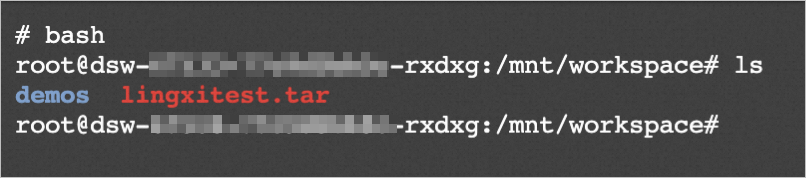
Q: If you find that the DSW instance specifications do not meet the requirements during AI development in DSW, how do you solve it?
You can update the DSW instance specifications by following these steps:
In the DSW instance list, click the instance name to go to the instance details page.
On the Instance Configuration tab, click Change Configuration.
You can update the instance specifications in the Change Instance Configuration panel.
NoteWhen you update the DSW instance specifications, if the instance is running, the update operation immediately restarts the instance. Make sure that you have saved the content in the instance.
Q: My memory usage is high. How can I release it?
 If your memory usage is too high and affects normal use, you can solve it in two ways.
If the command line stops responding because of high memory usage, you can either click Stop Instance in the upper-right corner or return to the DSW console and click the Stop button in the instance's row. Wait for the instance to stop before restarting it.
If you can interact through the command line in the instance, you can enter the
topcommand in the instance's Terminal to view the memory usage information of all current processes.%MEMrepresents the percentage of memory occupied, andPIDrepresents the process ID.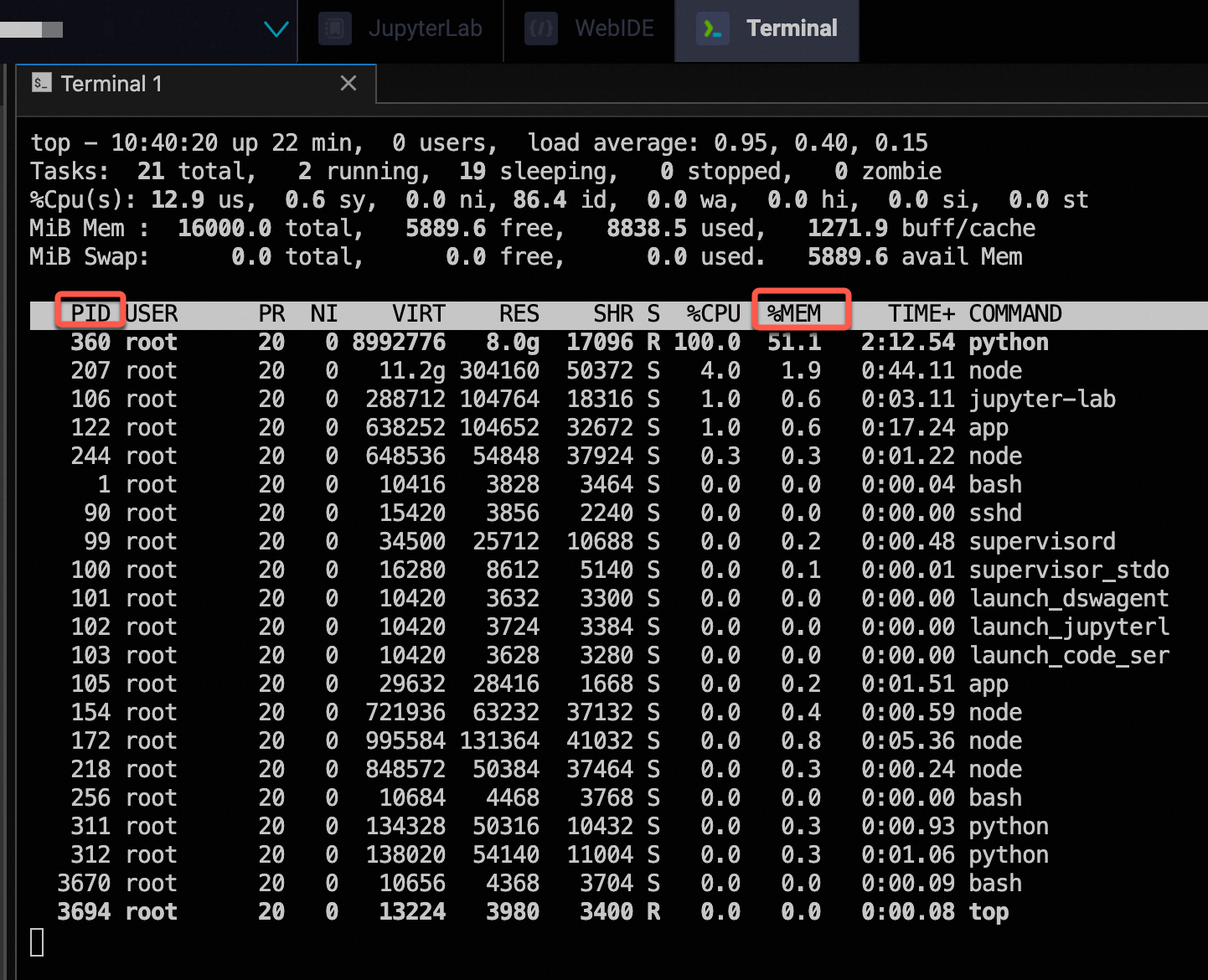
If you want to end a process with high memory usage, enter the following in the command line:
kill PIDYou need to replace PID with the PID of the process you want to end. After you run it, you will see the memory usage decrease.

Q: An error is reported during runtime: RuntimeError: CUDA error: too many resources requested for launch
Cause: When you encounter this error, it indicates that the resources requested by the CUDA kernel exceed the available resources. This error is usually related to the hardware limitations of the GPU.
Solution: You can try restarting the instance and running the program again. If it still does not work, you need to choose a GPU-accelerated instance with higher specifications.
Q: Can a swap space be created to use virtual memory when DSW is out of memory?
As a container, DSW does not support creating or managing swap space.
The reasons are as follows:
Permission restrictions: The kernel permissions of the container are restricted, and it cannot mount a Swap file. Even if you obtain root permissions in the container, you cannot bypass the resource policies of the host.
Platform policy: The platform uniformly schedules and restricts resources to ensure the stability and security of the multitenancy environment.
Recommendation: If memory is insufficient, you can optimize your code or upgrade the instance type.