Data Science Workshop (DSW) provides a cloud-based IDE for AI development. If you are familiar with tools like Jupyter Notebook or Visual Studio Code, you can quickly start developing models. This document shows you how to create a DSW instance and troubleshoot common issues.
Quickly create a basic DSW instance
Log on to the PAI console, select a Region, and in the left-side navigation pane, click Workspaces. Select and enter the target workspace.
In the left-side navigation pane, click Interactive Modeling (DSW) > Create Instance. Configure the following key parameters and leave the others at their default settings. For a complete list of console parameters, see Full list of console parameters.
Parameter
Description
Instance Name
Example:
dsw_test.Resource Type
Select Public Resources. This resource type uses the pay-as-you-go billing method.
Instance Type
Example:
ecs.gn7i-c8g1.2xlarge(1 × A10 GPU, 8 vCPUs, 30 GiB memory).If this instance type is out of stock, try selecting another one from the list.
Image config
Select Alibaba Cloud Image, then search for and select
modelscope:1.31.0-pytorch2.8.0-gpu-py311-cu124-ubuntu22.04(Python 3.11, CUDA 12.4).We recommend using ModelScope images for their broad compatibility and comprehensive set of third-party libraries.
Click OK to create the instance. When the instance status changes to Running, it is ready.
If the instance fails to start, see Start a DSW instance.
On the DSW instance list page, find the instance and click Open in the Actions column to go to the DSW instance and start developing models.
For more information about the features of the DSW instance interface and how to stop, release, or change a DSW instance, see Access and manage DSW instances in the console.
A DSW instance created with public resources starts incurring runtime charges as soon as it enters the running state, even if you do not open the WebIDE or run any code. To avoid unnecessary charges, stop or delete the DSW instance promptly when you no longer need it.
The system disk for the DSW instance created from public in this example is a free cloud disk. If the instance remains stopped for more than 15 consecutive days, the data on the cloud disk is permanently deleted and cannot be recovered. Back up important data in a timely manner, or mount a cloud storage service and transfer your data.
Configure for common use cases
A basic DSW instance might not meet all AI development needs. The following table summarizes configurations for common use cases.
Use case | Need / Pain point | Key configuration | Related documentation |
Persistently store code and data | The system disk of a DSW instance provides temporary storage. Data is deleted when the instance is deleted or remains stopped for an extended period. | Use Dataset Mounting or Mount storage to mount cloud storage, such as Object Storage Service (OSS), to a specified folder on an instance. | Mount a dataset, OSS bucket, NAS file system, or CPFS file system |
Increase public network download speed | DSW instances use a shared gateway by default. Due to bandwidth limitations, download speeds for large files might be insufficient. | In the network information section, configure a VPC and use a Private Gateway. This also requires a NAT Gateway and an Elastic IP Address (EIP) for the VPC. | Use a dedicated gateway to increase the public network access speed |
Develop remotely using SSH | Use local tools like VSCode or PyCharm for development and debugging instead of being limited to a web-based IDE. | In the access configuration, select Enable SSH, enter the SSH Public Key, and select Access over Internet. Associate an existing NAT Gateway and Elastic IP Address (EIP). | |
Access web services within the instance | Publish a web application running inside the instance to the public internet so it can be accessed or shared via a URL. | In the access configuration, add a Custom Services, configure the service port, and enable public network access. Add an inbound rule to the security group to allow traffic on that port. |
Full list of console parameters
Basic information
Parameter | Description |
Instance Name | Enter a unique, descriptive name for the instance. |
Tag | Add tags to the instance based on business needs to facilitate multi-dimensional search, location, batch operations, and billing. |
Resource information
Parameter | Description |
Resource Type |
|
Environment information
Parameter | Description |
Image Configuration | The following image types are supported:
|
System Disk | Used to store files during development. When you set Resource Type to Public Resources, or when you set Resource Quota to subscription general computing resources (CPU cores ≥ 2 and memory ≥ 4 GB, or equipped with a GPU), each instance receives a 100 GiB free disk as a system disk. You can expand the disk. The expansion price is subject to the console interface. Warning
To use permanent storage, configure Dataset Mounting or Mount storage. |
Dataset Mounting | Stores datasets for reading or persists files created during development. The following two dataset types are supported:
Mount Path: The path where the dataset is mounted in the DSW instance, for example, Note
For more information about mounting, see Mount a dataset, OSS bucket, NAS file system, or CPFS file system. |
Mount storage | Use storage mounting to access datasets or persist files.
For more information about mounting, see Mount a dataset, OSS bucket, NAS file system, or CPFS file system. |
Working Directory | The startup directory for JupyterLab and the Web IDE. The default is |
Network information
Parameter | Description |
VPC Settings | This parameter is available only when Resource Type is set to Public Resources. To use a DSW instance within a Virtual Private Cloud (VPC), create a VPC in the same region as the DSW instance and configure this parameter. You also need to configure a vSwitch and a Security Group. For details on configuration policies for different scenarios, see Network configuration. |
vSwitch | This parameter can be configured when a VPC is configured. A vSwitch is a subnet within a VPC. Your DSW instance and other cloud resources connect to the vSwitch. |
Security Group | This parameter is required when a VPC is configured. A security group is a virtual firewall for a DSW instance. It controls all inbound and outbound network traffic. |
Internet Access Gateway | The following configuration methods are supported:
The following parameters are available only when a CPFS dataset is mounted:
Note If a CPFS dataset is mounted, you must configure a VPC, and the selected VPC must be the same as the one used by CPFS. |
Extended CIDR Block | This parameter can be configured after you configure a vSwitch. If the number of available IP addresses in the VPC is insufficient for your growing business, or if the initial network planning resulted in an address shortage, you can use an extended CIDR block to expand the VPC address space. For more information, see Use a secondary CIDR block. |
Access configuration
Parameter | Description |
Enable SSH | For remote connection to the instance. This option is available only after you select a VPC. When enabled, a Custom Services named SSH appears. If you use a custom image, ensure that |
SSH Public Key | You can configure this parameter after turning on the SSH Configuration switch. Note To support both VPC and public network login, add public keys from multiple clients. Add each public key on a new line. You can add up to 10 public keys. |
Custom Services | Used to configure SSH remote access or access services in an instance over the Internet.
|
Create Private Zone in VPC | Creates an internal authoritative domain (PrivateZone). Use this domain within the VPC to access the instance's SSH service or other custom services, which avoids the inconvenience of a changing instance IP address. Creating a PrivateZone domain incurs charges. For more information, see Alibaba Cloud DNS Product Billing. |
NAT Gateway | When accessing a service in the instance from the public network, this gateway maps public requests ( |
EIP | Provides a public IP address for accessing services in the instance from the public network. |
Roles and permissions
Parameter | Description |
Visibility | Choose Visible to the Instance Owner or Visible to Current Workspace. |
Instance Owner | Only the workspace administrator can change the instance owner. |
FAQ
Start a DSW instance
Q: How can I diagnose and fix DSW instance startup failures?
First, check the Events tab on the instance details page for specific error messages. Common errors and their solutions are listed below.

The following are common errors and their solutions:
Cause: This error indicates your system disk is full. You can check disk usage in the DSW terminal:
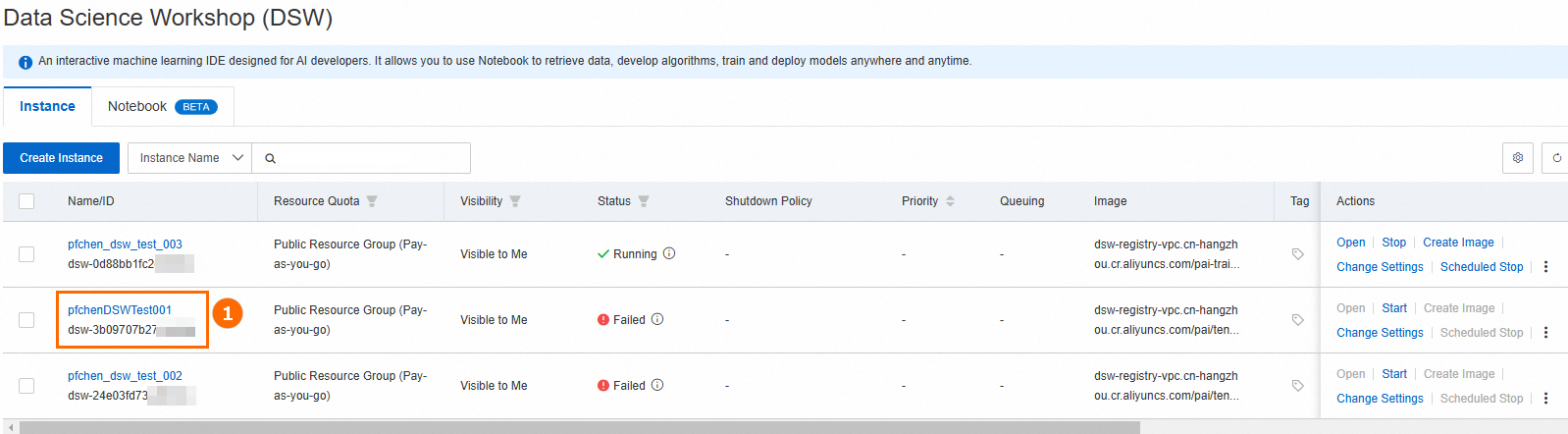
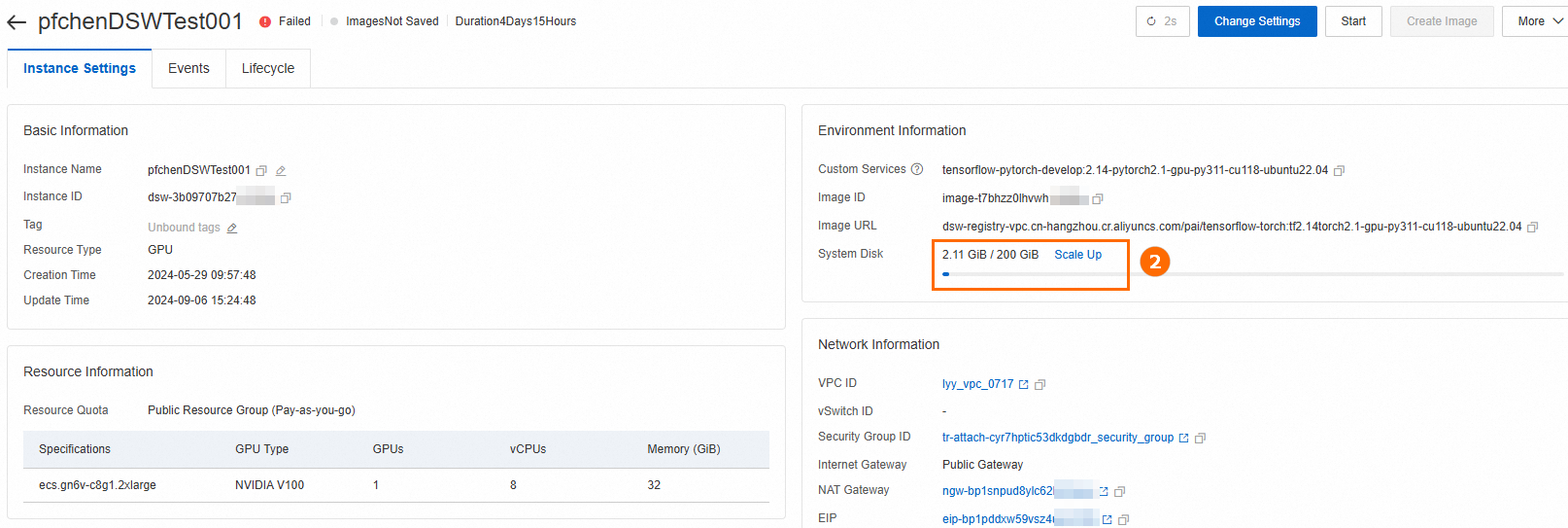
Solution: Expand the system disk. Go to the instance details page and use the Change Configuration feature.
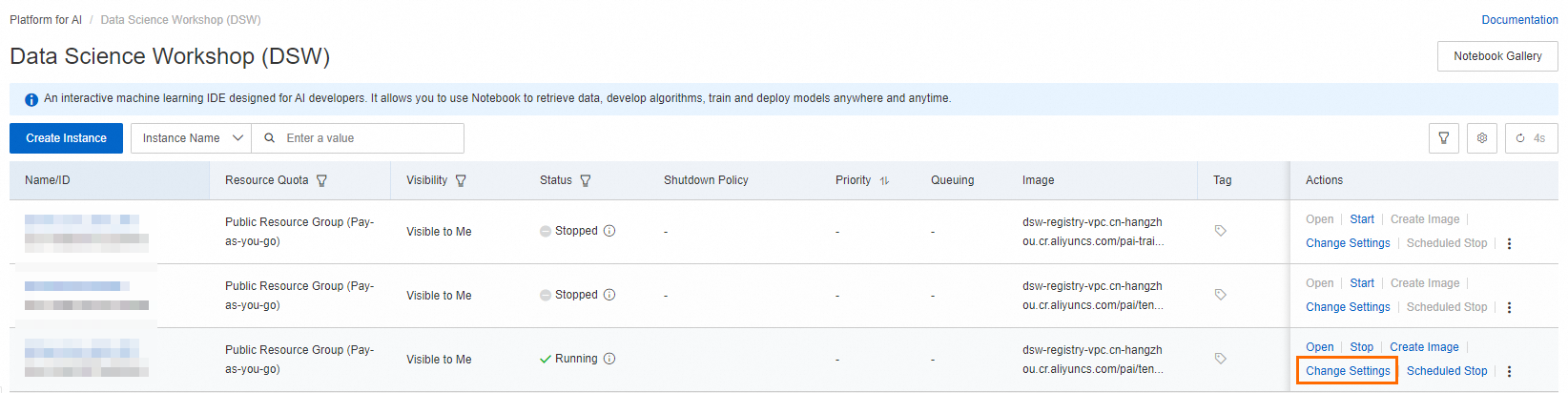 Important
An expanded system disk is billed continuously, even when the instance is stopped. To stop all billing, you must delete the instance. Before you delete the instance, make sure that you have backed up all necessary data.
Cause: If you configured a VPC at creation, the associated vSwitch locks the resource search to a single availability zone, which may have a resource shortage.
Solution: Change the configuration of the DSW instance and set the VPC to empty. This allows the system to search for resources across all AZs in the region.
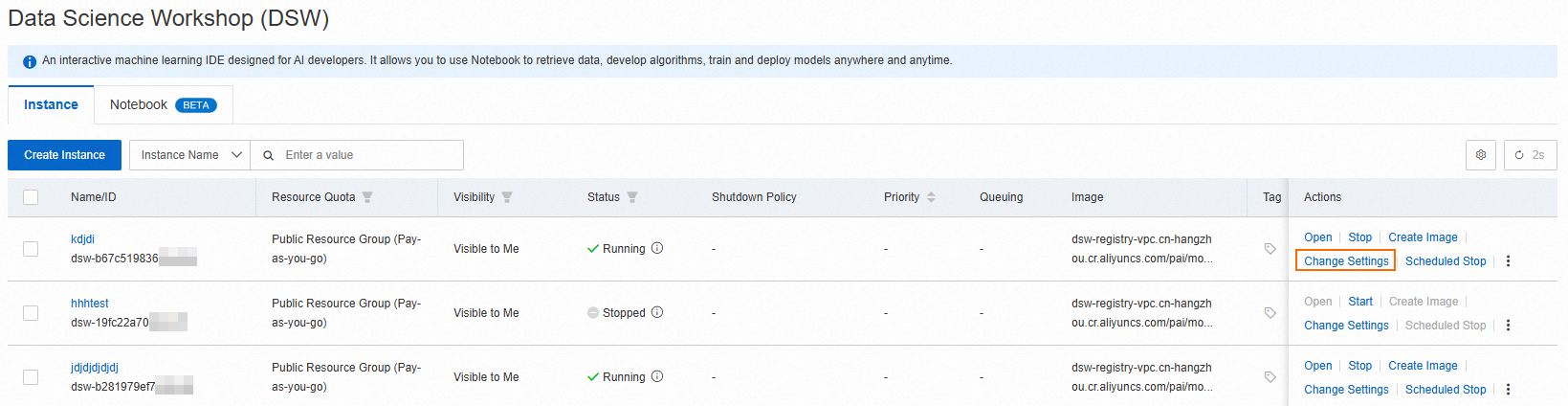 Note
NoteTo use a VPC, we recommend that you switch to another zone and create a new vSwitch and DSW instance. This expands the range of available resources and prevents shortages caused by a limited resource scope.
Cause: The Image used for the instance is too large for the current system disk size.
Solution: Expand the System Disk via the Change Settings feature on the instance details page. Note that this incurs additional storage charges.
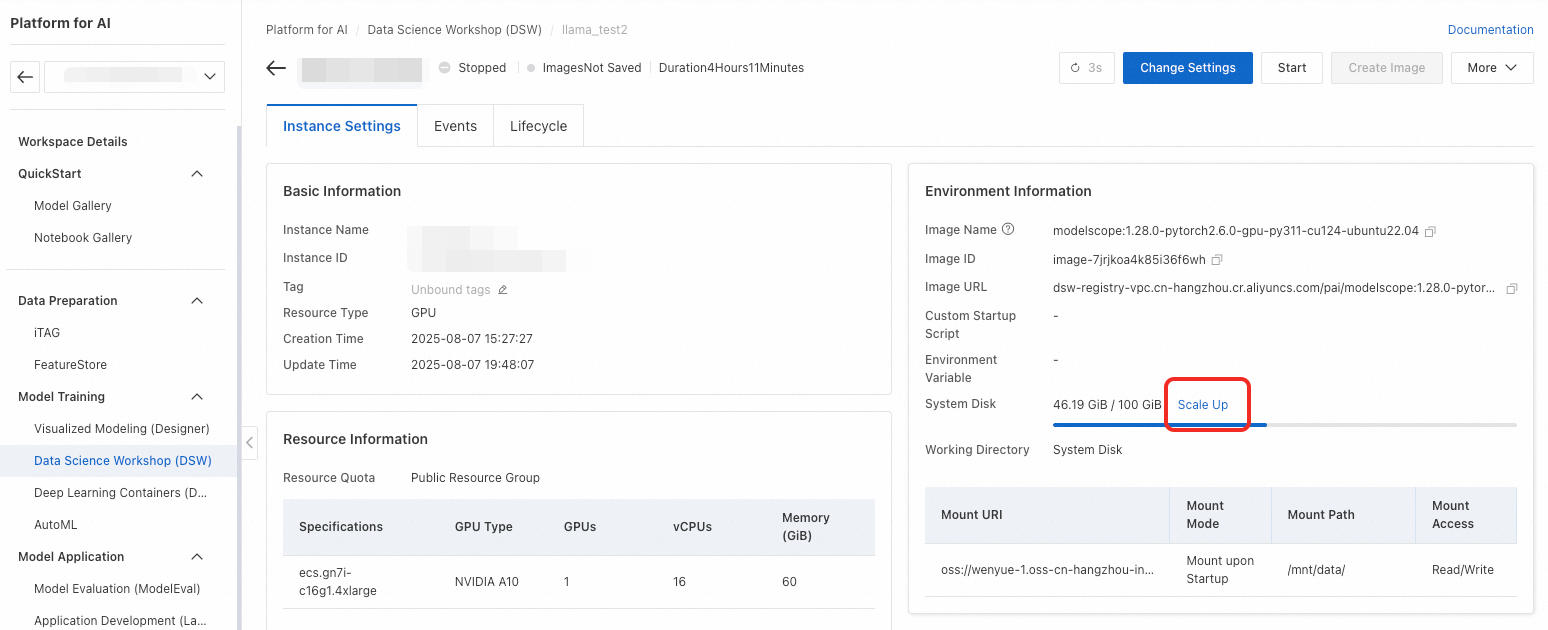
Q: Can I run a Python file when a DSW instance starts?
Use the Custom Startup Script option. You can set this when creating a new instance or by modifying an existing one via the Change Settings panel.

The script runs after the instance's underlying resources are ready but before development tools like JupyterLab or WebIDE are started. This is useful for environment customization or initialization tasks.
3-Minute Timeout: The script has a 3-minute timeout. Avoid long-running tasks like downloading large files.
Log Location: After startup, you can find the script's execution logs in the
/var/log/user-command/directory inside the instance.
Q: How do I find my DSW instance if it's not visible in the console?
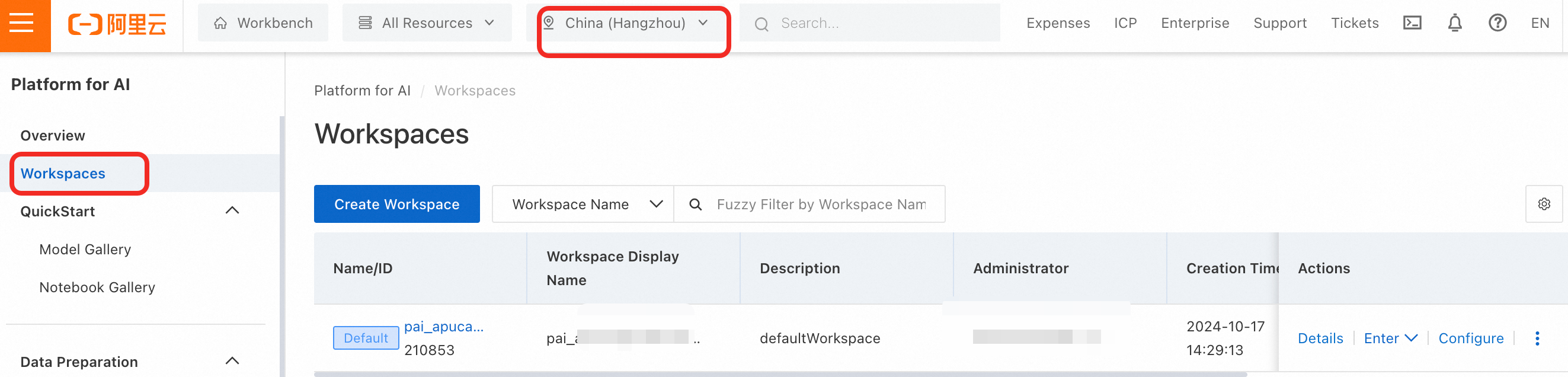
Your instance may be in a different region or workspace. Use the dropdown menus on the PAI-DSW console page to switch between available regions and workspaces.

Q: Why is my DSW page blank, or why is the Notebook/Terminal unresponsive?
These issues are typically caused by your local browser or network environment. Try the following steps in order:
Clear your browser's cache and cookies, then reload the page.
Open the DSW page in your browser's incognito or private mode.
Switch your network. For example, if you are on a corporate network, try a mobile hotspot to rule out firewall issues.
Try a different browser, such as Chrome or Firefox.
Q: What happens to my data on a DSW instance's Cloud Disk when I stop, restart, or modify the instance?
Data persistence depends on the action taken and whether the instance uses a Cloud Disk or Temporary Storage for its System Disk. This answer applies to instances with a Cloud Disk System Disk.
Stopping the instance: Data may be lost.
If the Cloud Disk was expanded or the instance is stopped for fewer than 15 days, your data is preserved.
If the Cloud Disk was not expanded and the instance remains stopped for more than 15 days, the system permanently erases all data.
Restarting the instance: Data is not lost. All files and installed packages on the System Disk are retained.
Changing the instance specification (CPU/GPU/Memory): Data is not lost.
Changing the instance image: Data on the System Disk may be lost. The system may reset the disk contents. Data on mounted storage (like OSS or NAS) is unaffected. Always back up your System Disk data before changing the image.
For instances using Temporary Storage, all data on the System Disk is permanently deleted upon stopping, restarting, or any configuration change.
Q: How can I recover a DSW instance from a public resource group that was auto-released after 15 days of being stopped?
You can't. An instance created from public resources with an un-expanded Cloud Disk is automatically and permanently deleted if it remains stopped for more than 15 consecutive days. The data cannot be recovered.
Stop or release a DSW instance
Q: What is the correct way to release a DSW instance and its resources?
On the DSW console, you can either Stop or Delete an instance.
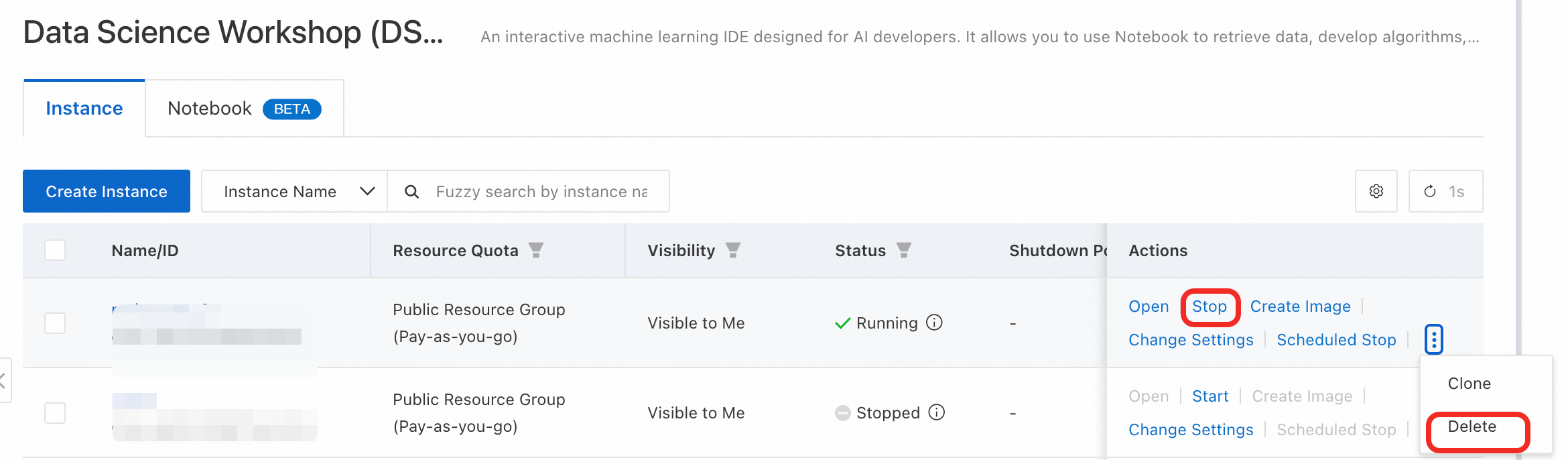
Stop: Halts compute billing but preserves the instance for later use.
Delete: Permanently removes the instance and all its resources, stopping all billing.
Important: If you expanded the System Disk, it continues to incur storage charges even when the instance is stopped. To stop all charges, you must delete the instance.
Q: How do I find my DSW instance if it's not visible in the console?
Your instance may be in a different region or workspace. Use the dropdown menus on the PAI-DSW console page to switch between available regions and workspaces.
Q: Do I need to manually release a free trial resource package?
No. Free trial resource packages expire automatically and do not need to be manually stopped or released.
Q: What is the difference between stopping and deleting a DSW instance, and how do I stop all billing?
To completely stop all billing associated with a DSW instance, you must delete it.
Stop: This action releases the compute resources (CPU/GPU) and pauses billing for them. However, if you have expanded the System Disk, storage charges for the disk will continue.
Delete: This action permanently removes the instance and all its resources, including the system disk. All associated billing stops completely.
How to choose:
Use Stop if you plan to use the instance again and want to preserve its environment and data.
Use Delete if you no longer need the instance and want to avoid all future charges. Always back up your data before deleting.
Q: What should I do if my DSW instance is stuck in the 'Stopping' or 'Deleting' state?
This can happen if processes inside the instance are not terminating correctly or if high memory usage prevents the instance from responding.
Solution: Wait a few minutes and refresh the page. The system is designed to eventually terminate the instance safely. The status should update to "Stopped" or the instance will be removed from the list if deleted.
Q: Is my data preserved when I stop or delete a DSW instance?
It depends on the action and the type of system disk your instance uses.
Stopping an instance:
Cloud Disk System Disk: Data is preserved if the disk was expanded or if the instance is stopped for less than 15 days. If the disk was not expanded and the instance remains stopped for more than 15 days, all data is permanently erased.
Temporary Storage System Disk: All data is permanently erased upon stopping.
Deleting an instance:
Regardless of the disk type, all data on the system disk is permanently erased and cannot be recovered.
Recommendation: To ensure data persistence, save your important files to a mounted storage solution like OSS or NAS. Always back up your data before deleting an instance.
Q: Why did my DSW instance shut down automatically while it was running?
Your instance was likely stopped by the Idle Auto-shutdown policy. This feature automatically stops an instance if its CPU and GPU utilization remains below a set threshold for a specified period (e.g., 3 hours). It is enabled by default on free trial instances to conserve resources.
How to disable or modify the policy:
Manual stop: To ensure resource savings, you can manually stop the instance when it is not in use. The auto-shutdown policy is not guaranteed to be triggered every time.
Modify policy: To run long-term tasks, you can modify or disable this policy. The steps are as follows:
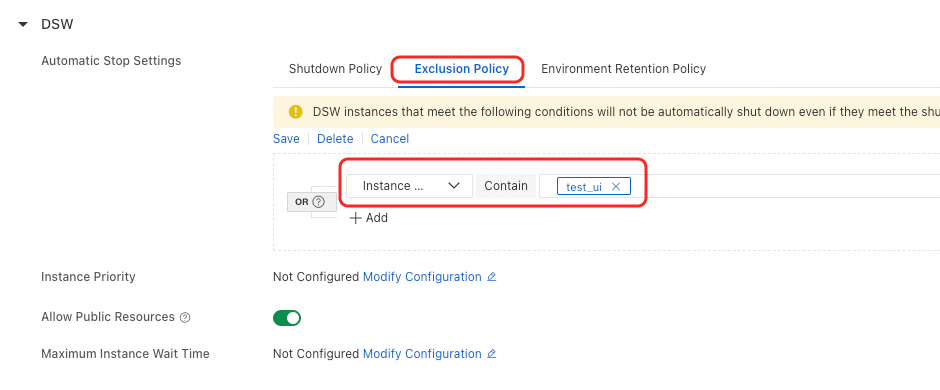
Navigate to your workspace details page and go to Configure Workspace > Auto-stop Settings.
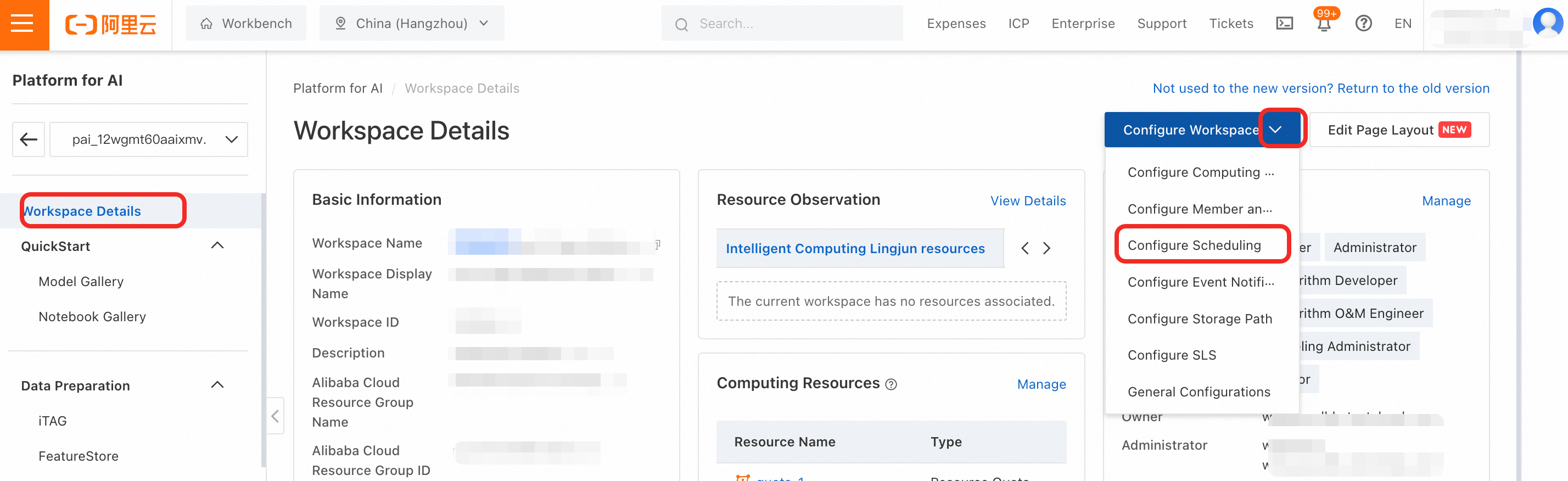
In the DSW configuration section, you can modify the shutdown policy or add your instance's name to the exclusion list to prevent it from being automatically stopped.
Q: Why am I still being billed or seeing a 'Running' status after stopping/deleting all my DSW instances?
This usually happens for one of three reasons:
"Running" status refers to a resource package: The "Running" status you see on a billing or free trial page may refer to an active resource package (e.g., "250 compute hours/month"), not an actual DSW instance. The package remains active until it expires.
An expanded system disk is still being billed: Stopping an instance only pauses compute charges. If you expanded the System Disk, you are still being charged for storage. To stop these charges, you must delete the instance.
Billing data has a delay: There is a delay between resource usage and when the bill is generated. The charges you see may be for usage that occurred before you stopped or deleted the instance.