Data synchronization keeps data consistent between the source and the target and maintains real-time exchange of critical business data. This topic describes how to use the data synchronization feature to synchronize data from an OceanBase database to a Kafka instance.
Prerequisites
Before you start synchronizing data, make sure that the following conditions are met:
The data transmission service has the privilege to access cloud resources. For more information, see Grant privileges to roles for data transmission.
You have created a dedicated database user for data synchronization in the source OceanBase database and granted corresponding privileges to the user. For more information, see Create a database user.
Procedure
This topic describes how to use the data transmission service to synchronize data from an OceanBase database to a Kafka instance. For more information, see Data synchronization.
Log on to the ApsaraDB for OceanBase console and purchase a data synchronization task.
For more information, see Purchase a data synchronization task.
Choose Data Transmission > Data Synchronization. On the page that appears, click Configuration for the data synchronization task.

If you want to reference the configurations of an existing task, click Reference Configuration. For more information, see Reference and clear the configuration of a data synchronization task.
On the Select Source and Target page, configure the parameters.
Parameter
Description
Synchronization Task Name
We recommend that you set it to a combination of digits and letters. It must not contain any spaces and cannot exceed 64 characters in length.
Source
If you have created an OceanBase data source, select it from the drop-down list. Otherwise, click New Data Source in the drop-down list and create one in the dialog box that appears on the right. For more information about the parameters, see Create an OceanBase data source.
Target
If you have created a Kafka data source, select it from the drop-down list. Otherwise, click New Data Source in the drop-down list and create one in the dialog box that appears on the right. For more information, see Create a Kafka data source.
Tag (Optional)
Select a target tag from the drop-down list. You can also click Manage Tags to create, modify, and delete tags. For more information, see Use tags to manage data synchronization tasks.
Click Next. On the Select Synchronization Type page, specify the synchronization types for the current data synchronization task.
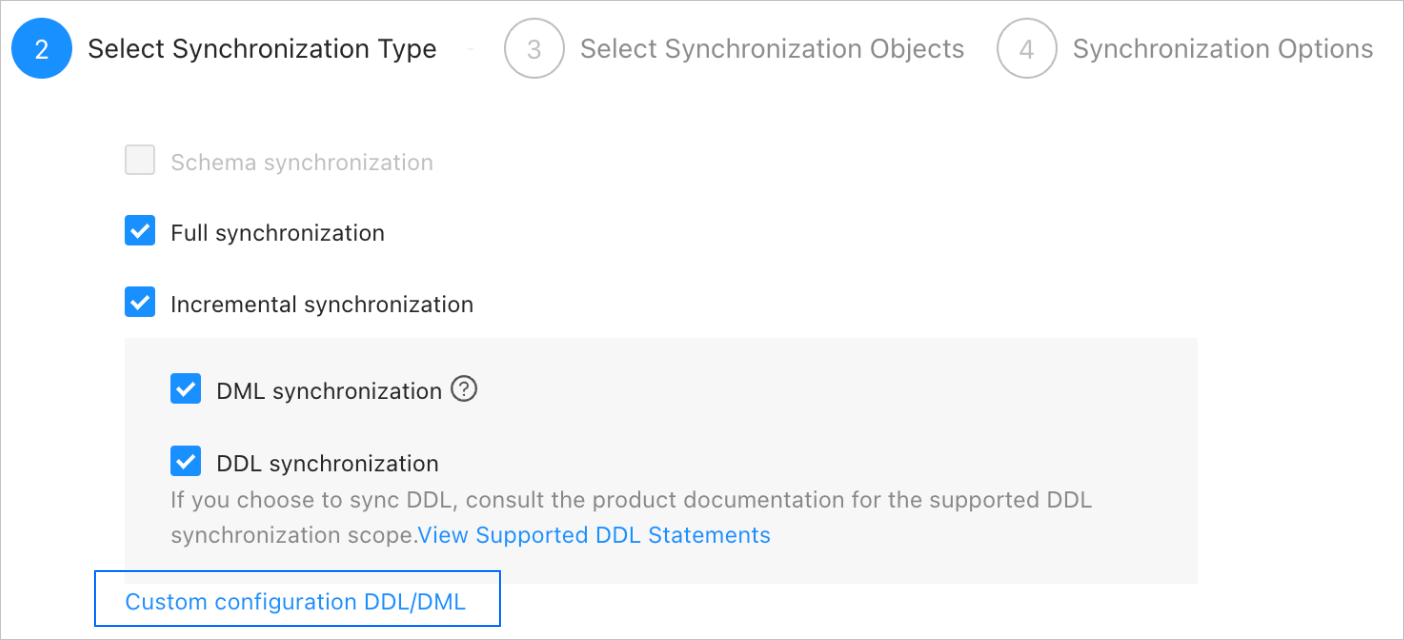
The supported synchronization types are Full Synchronization and Incremental Synchronization. Options for Incremental Synchronization are DML Synchronization and DDL Synchronization. The supported DML operations are
Insert,Delete, andUpdate. You can select operations as needed. For more information, see Configure DDL/DML synchronization.Click Next. On the Select Synchronization Objects page, select the objects to be synchronized in the current data synchronization task.
You can use the Specify Objects or Match Rules option to specify synchronization objects. The following procedure describes how to specify synchronization objects by using the Specify Objects option. For the procedure of configuring matching rules to specify synchronization objects, see the "Configure matching rules for data migration/synchronization from a database to a Message Queue instance" section in the Configure and modify matching rules topic.
NoteIf you selected DDL Synchronization in the Select Synchronization Type step, we recommend that you select synchronization objects by using the Match Rules option. This ensures that all new objects meeting the matching rules are synchronized. If you selected synchronization objects by using the Specify Objects option, new or renamed objects will not be synchronized.
When you synchronize data from an OceanBase database to a Kafka instance, you can synchronize data from multiple tables to multiple topics.
In the left-side pane, select the objects to be synchronized.
Click >.
Click the Existing Topics drop-down list in the Map Object to Topic dialog box and select the target topic.
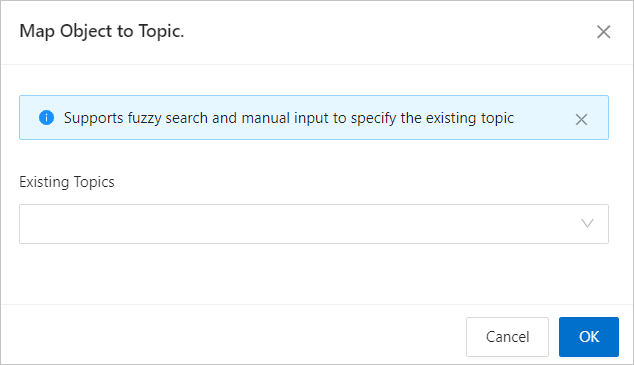
Click OK.
The data transmission service allows you to import objects by using text. It also allows you to change the topics of the objects, set row filters, and remove a single object or all objects. Objects in the target database are listed in the structure of Topic > Database > Table.
NoteWhen you select Match Rules to specify synchronization objects, object renaming is implemented based on the syntax of the specified matching rules. In the operation area, you can only set filtering conditions and select sharding columns and the columns to be synchronized. For more information, see Configure and modify matching rules.
Click Next. On the Synchronization Options page, configure the parameters.
Full synchronization
The following table describes the parameters for full synchronization, which are displayed only if you have selected Full Synchronization on the Select Synchronization Type page.

Parameter
Description
Read Concurrency
The concurrency for reading data from the source during full synchronization. The maximum value is 512. A high concurrency may incur excessive stress on the source, thereby affecting the business.
Write Concurrency
The concurrency for writing data to the target during full synchronization. The maximum value is 512. A high write concurrency may incur excessive stress on the target, affecting the business.
Full Synchronization Rate Limit
You can choose whether to limit the full synchronization rate as needed. If you choose to limit the full synchronization rate, you must specify the records per second (RPS) and bytes per second (BPS). The RPS specifies the maximum number of data rows synchronized to the target per second during full synchronization, and the BPS specifies the maximum amount of data in bytes synchronized to the target per second during full synchronization.
NoteThe RPS and BPS values specified here are only for throttling. The actual full synchronization performance is subject to factors such as the settings of the source and target and the instance specifications.
Incremental synchronization
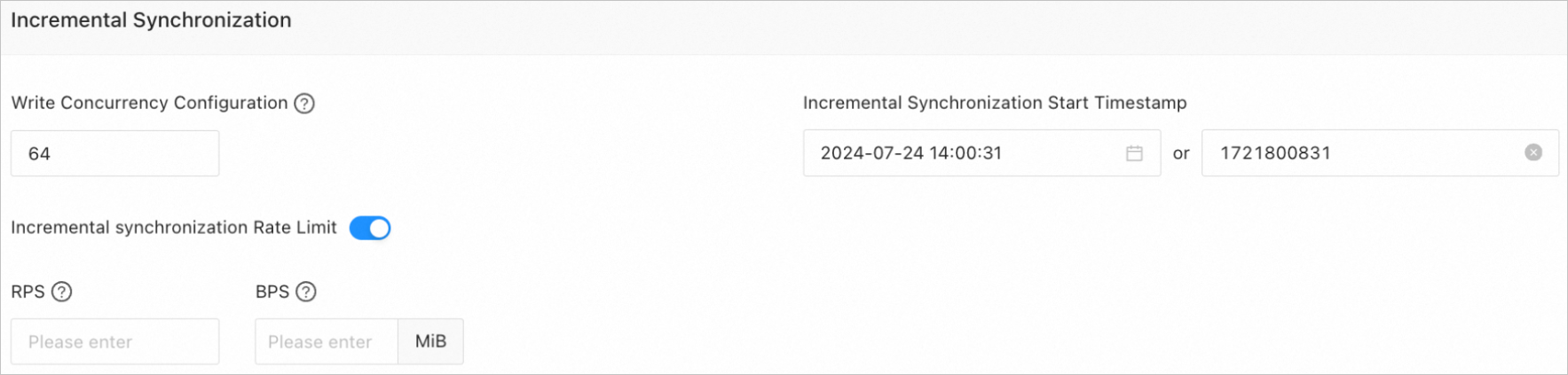
The following table describes the incremental synchronization parameters, which are displayed only when you have selected Incremental Synchronization on the Select Synchronization Type page.
Parameter
Description
Write Concurrency
The concurrency for writing data to the target during incremental synchronization. The maximum value is 512. A high write concurrency may incur excessive stress on the target, affecting the business.
Incremental Synchronization Rate Limit
You can choose whether to limit the incremental synchronization rate as needed. If you choose to limit the incremental synchronization rate, you must specify the records per second (RPS) and bytes per second (BPS). The RPS specifies the maximum number of data rows synchronized to the target per second during incremental synchronization, and the BPS specifies the maximum amount of data in bytes synchronized to the target per second during incremental synchronization.
NoteThe RPS and BPS values specified here are only for throttling. The actual incremental synchronization performance is subject to factors such as the settings of the source and target and the instance specifications.
Incremental Synchronization Start Timestamp
This parameter is unavailable if you have selected Full Synchronization.
If you have selected Incremental Synchronization but not Full Synchronization, specify a point in time after which data is to be synchronized. The default value is the current system time. For more information, see Set an incremental synchronization timestamp.
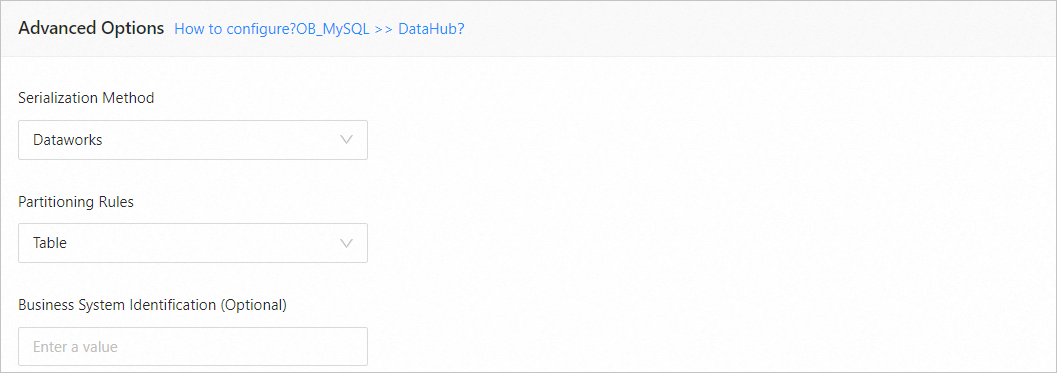
Advanced parameters
Parameter
Description
Serialization Method
The message format for synchronizing data to the target Kafka instance. Valid values are Default, Canal, DataWorks (version 2.0 supported), SharePlex, DefaultExtendColumnType, Debezium, DebeziumFlatten, DebeziumSmt, and Avro. For more information, see Data formats.
ImportantOnly OceanBase databases in MySQL-compatible mode support Debezium, DebeziumFlatten, DebeziumSmt, and Avro.
If the message format is set to DataWorks, DDL operations
COMMENT ON TABLEandALTER TABLE…TRUNCATE PARTITIONcannot be synchronized.
Partitioning Rules
The rule for synchronizing data from an OceanBase database to a Kafka topic. The data transmission service supports Hash, Table, and One.
Hash indicates that the data transmission service uses a hash algorithm to select the partition of a Kafka topic based on the value of the primary key or sharding column.
Table indicates that the data transmission service delivers all data in a table to the same partition and uses the table name as the hash key.
One indicates that JSON messages are delivered to a partition under a topic to ensure ordering.
Business System Identification (Optional)
Identifies the source business system of data. This parameter is displayed only when you select DataWorks for Serialization Method. The business system identifier consists of 1 to 20 characters.
Click Precheck.
During the precheck, the data transmission service detects the connection with the target Kafka instance. If an error is returned during the precheck, you can perform the following operations:
Identify and troubleshoot the problem and then perform the precheck again.
Click Skip in the Actions column of the failed precheck item. In the dialog box that prompts the consequences of the operation, click OK.
After the precheck is passed, click Start Task.
If you do not need to start the task now, click Save. You can manually start the task on the Synchronization Tasks page or by performing batch operations later. For more information about batch operations, see Perform batch operations on data synchronization tasks.
The data transmission service allows you to modify the synchronization objects when a synchronization task is running. For more information, see View and modify synchronization objects and their filter conditions. After the data synchronization task is started, it will be executed based on the selected synchronization types. For more information, see View details of a data synchronization task.