This topic provides answers to some frequently asked questions (FAQ) about Application Load Balancer (ALB).
Instances and specifications
Does ALB have specific instance specifications?
You do not need to select an instance type for ALB. Upgraded ALB instances can use the automatic VIP scaling feature to achieve 1 million QPS for a single instance. For details about the performance of ALB instances, see Instance performance metrics.
Before the upgrade, ALB instance performance varied based on the IP mode (static or dynamic). These instances did not support auto-scaling VIPs. You had to dynamically scale out the number of IP addresses to achieve 1 million QPS for a single instance.
Can I switch an ALB instance from IPv4 to dual-stack or from dual-stack to IPv4?
Not supported.
You can only create new IPv4 or dual-stack instances.
Network and EIPs
Does the VIP of an ALB instance support disabling Ping?
Upgraded ALB instances support managing access traffic through security groups. You can configure inbound deny ICMP rules in the security group associated with the instance.
For non-upgraded ALB instances, you can add their attached EIPs to the Internet firewall and configure an inbound deny ICMP policy.
How do I increase the public bandwidth of an ALB instance?
If an ALB instance is deployed in two zones and is not associated with an Internet Shared Bandwidth instance, the default peak public bandwidth is 400 Mbps.
If you need more bandwidth, purchase an Internet Shared Bandwidth instance and associate the elastic IP addresses (EIPs) attached to the ALB instance with the Internet Shared Bandwidth instance.
For more information about how to purchase an Internet Shared Bandwidth instance, see Create an Internet Shared Bandwidth.
For more information about adding resources to an Internet Shared Bandwidth instance, see Create and manage ALB instances and Adjust the peak bandwidth of a public network instance.
Can I use a Data Transfer Plan to offset the public traffic fees for ALB?
When an ALB instance uses an Elastic IP Address (EIP) to provide Internet access, the Internet traffic generated by the EIP can be offset using a general-purpose data transfer plan.
ALB instances that use Anycast Elastic IP Addresses (Anycast EIPs) to provide services over the Internet cannot use general data transfer plans to offset the Internet traffic generated by the Anycast EIPs.
What types of EIPs can be associated with ALB instances?
ALB supports only pay-as-you-go EIPs. The following table describes the types of EIPs that can be associated with ALB instances.
Billing method | Internet metering method | Line type | Security protection |
Pay-as-you-go | Pay-by-traffic | BGP (Multi-ISP) | Default |
Pay-by-traffic | BGP (Multi-ISP) Pro | Default | |
Pay-by-traffic | BGP (Multi-ISP) | Anti-DDoS Pro/Premium |
When associating EIPs with an ALB instance, take note of the following limits:
The EIPs allocated to different zones of the same ALB instance must be of the same type.
The EIP that you want to associate with an ALB instance cannot be added to an Internet Shared Bandwidth instance. After you associate the EIP with the ALB instance, you can add the EIP to an Internet Shared Bandwidth instance in the Server Load Balancer console. The Internet Shared Bandwidth instance must use the same line type as the EIP. Subscription and pay-as-you-go Internet Shared Bandwidth instances are supported. For more information about how to add an EIP to an Internet Shared Bandwidth instance, see Modify the maximum bandwidth.
You cannot bind subscription EIPs or pay-as-you-go EIPs that use the pay-by-bandwidth billing method.
If you select Purchase EIP or Automatically Assign EIP when assigning an EIP to an ALB instance, the system creates a pay-as-you-go EIP that uses the pay-by-data-transfer metering method. The EIP uses BGP (Multi-ISP) lines and is protected by Anti-DDoS Origin Basic.
Can I associate an EIP with a private ALB instance?
Yes.
To associate an Elastic IP Address with an internal-facing ALB, change the network type of the instance to convert the internal-facing ALB to an Internet-facing ALB. For more information, see Change the network type of an ALB instance.
When you convert a private network to a public network, an Elastic IP Address (EIP) is associated and public network charges will apply. For more information, see Elastic IP Address billing.
How can I change the EIP for my ALB instance to a BGP (Multi-ISP) Pro EIP?
You can replace it by changing the network type of an ALB instance.
Change the network type of the ALB instance from public to private to detach the current EIPs from the instance.
Change the network type of the ALB instance back from private to public. When you perform this operation, select two premium BGP (Multi-ISP) EIPs that you have created.
Why is the traffic load unbalanced across the EIPs bound to ALB?
The cause may be one of the following:
The business domain name is resolved to a single EIP bound to the ALB instance instead of the DNS name of the ALB instance as required.
A Layer 7 proxy, such as WAF or Anti-DDoS Proxy, is deployed in front of the ALB instance. The back-to-origin algorithm of the proxy, such as IP Hash, prevents traffic from being evenly distributed among multiple EIPs.
Some clients cache the A records from DNS resolution, causing many requests to be continuously sent to the same EIP.
What do I need to know about ALB DNS removal?
Upgraded ALB instances support DNS removal and DNS recovery operations by default.
For ALB instances that are not upgraded, only instances in static IP mode support DNS removal and restoration. Instances in dynamic IP mode do not.
After you complete the DNS removal operation, availability probing for the VIP in the zone stops. The VIP or EIP (including IPv4 and IPv6) in the zone is removed from the DNS resolution of the ALB domain name. You cannot remove only the IPv4 or IPv6 VIP address.
Listeners and forwarding
Does ALB support traffic mirroring?
For more information, see Mirror production traffic to a staging environment.
Why does an ALB instance fail to reach the QPS limit specified in a listener's forwarding rule?
How it works: The load balancing system provides services to SLB instances through cluster deployment, evenly distributing all external access requests across backend servers for forwarding. Therefore, the maximum QPS configured in a forwarding rule is evenly allocated to each backend server.
The maximum QPS of each backend server is calculated using the following formula:
Maximum QPS of each backend server = Total QPS/(N-1). N specifies the number of backend servers in server groups. For example, you set the maximum QPS to 1,000 in a forwarding rule in the console. If the number of backend servers is 8, the maximum QPS of each backend server is calculated using the following formula:1000/(8-1) = 142.Cause: In scenarios with a small number of persistent connections, not all backend servers in server groups are allocated persistent connections. As a result, the ALB instance cannot reach the maximum QPS.
Suggestion: To prevent service interruptions, we recommend that you set the maximum QPS in a forwarding rule to a proper value as needed. For more information about how to set the maximum QPS in a forwarding rule for a Server Load Balancer listener, see Add a forwarding rule.
What is the length limit for requests forwarded by ALB? Can it be adjusted?
The maximum length of the URI for a request to ALB is 32 KB, and the maximum length of the request header is 32 KB. These limits cannot be customized. The default length of a custom header in an access log is 1 KB, which can be increased to a maximum of 4 KB. To request an increase, contact your account manager.
If the size of a client request exceeds the limit, an HTTP 400 or 414 status code may be returned. For more information, see ALB error status codes.
If the data volume is large, we recommend that you use the POST method to transmit data. The maximum size of the body in a POST request is 50 GB.
Does ALB processing time include the time spent receiving client data and sending response data?
ALB processing time includes the time required to receive client data and send data.
Time to receive data from the client: This is the value of
read_request_time, which is the total time that the Server Load Balancer takes to read a client request, including the time to receive the HTTP request header (read_header_time) and the request body (read_body_time).Time to send response data: This includes the time spent returning response data to the client.
What is the maximum number of requests supported by a single HTTP persistent connection from a client to ALB?
A single persistent connection supports a maximum of 100 consecutive requests. After this limit is exceeded, the connection is automatically closed.
Only when you use an HTTPS listener and enable HTTP/2 can the maximum number of requests supported by a single persistent connection be increased to 1,000.
What is the length limit for a client's Client Hello packet for an ALB QUIC listener?
When you use a QUIC listener, ALB sets a minimum length limit for the client's Client Hello packet. The length must be at least 1,024 bytes. Otherwise, ALB returns "client hello too small" and closes the connection. You can pad the Client Hello packet with null characters to reach 1,024 bytes to pass the check.
What do I need to know when I use ALB Ingresses?
Typically, you should not manually modify an ALB instance in the console that was created using ALB Ingress. Configurations for the ALB are primarily synchronized from AlbConfig resources. For more information about ALB Ingress, see ALB Ingress management and ALB Ingress operations.
If you manually modify the configuration in the console, the changes are overwritten because the AlbConfig configuration is not modified. This can cause issues such as disabled access logs and deleted routing rules.
FAQ about cross-origin requests
After I configure cross-origin resource sharing (CORS), it does not take effect and the browser reports a preflight request error.
If "Allowed Request Headers" is not set to "*" but to a specific header name, you can set "Allowed Request Headers" to "*" for testing. If this resolves the issue, you can then check whether the header_name included in the Access-Control-Request-Headers of the preflight request is missing from the configuration, which would cause the preflight request to fail.
The preflight request and the actual request enter different forwarding rules.
ALB supports a variety of forwarding rule matching methods. However, due to the special nature of preflight requests in cross-origin scenarios, their headers and methods are inconsistent with those of the actual requests. We recommend that you use domain names to configure forwarding rules when using CORS. This ensures that preflight requests and actual requests do not fall into forwarding rules that are not configured for CORS, which can cause unnecessary issues.
When I configure CORS, how is the Access-Control-Allow-Headers response header generated and returned?
Preflight requests
When a browser initiates a cross-origin request and meets the following conditions, it first sends a preflight request with the
OPTIONSmethod:The request method is
OPTIONS.The request contains the
Access-Control-Request-Methodheader.
In this case, ALB returns the
Access-Control-Allow-Headersresponse header based on the cross-domain forwarding rule that you configure in the console. The value of this response header is the list of allowed request header fields in the rule. For example:DNT,X-CustomHeader,Keep-Alive,User-Agent,X-Requested-With,If-Modified-Since,Cache-Control,Content-Type,AuthorizationNormal cross-origin requests
For non-OPTIONS requests or simple requests that do not meet the preflight conditions, ALB does not return the
Access-Control-Allow-Headersresponse header.
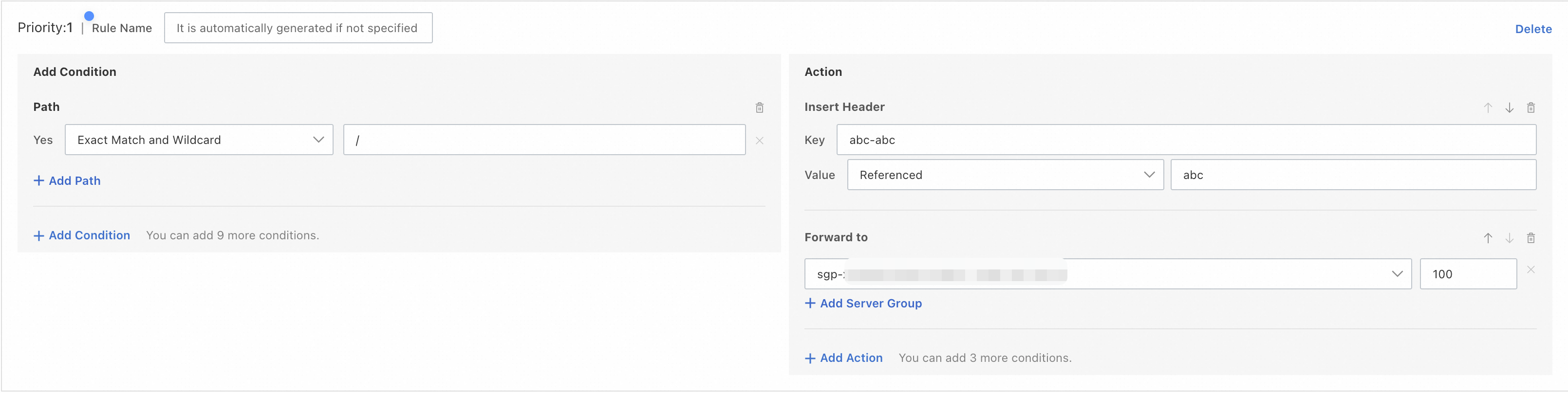
When I configure an ALB listener forwarding rule with the action to write a header, how do I reference the value of the original header?
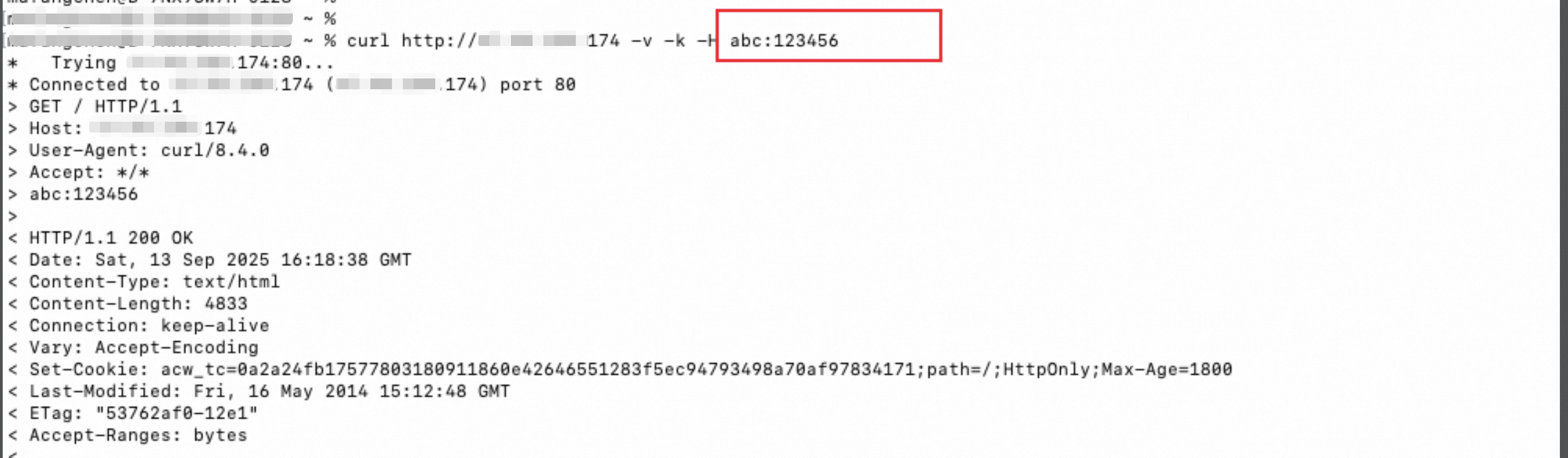
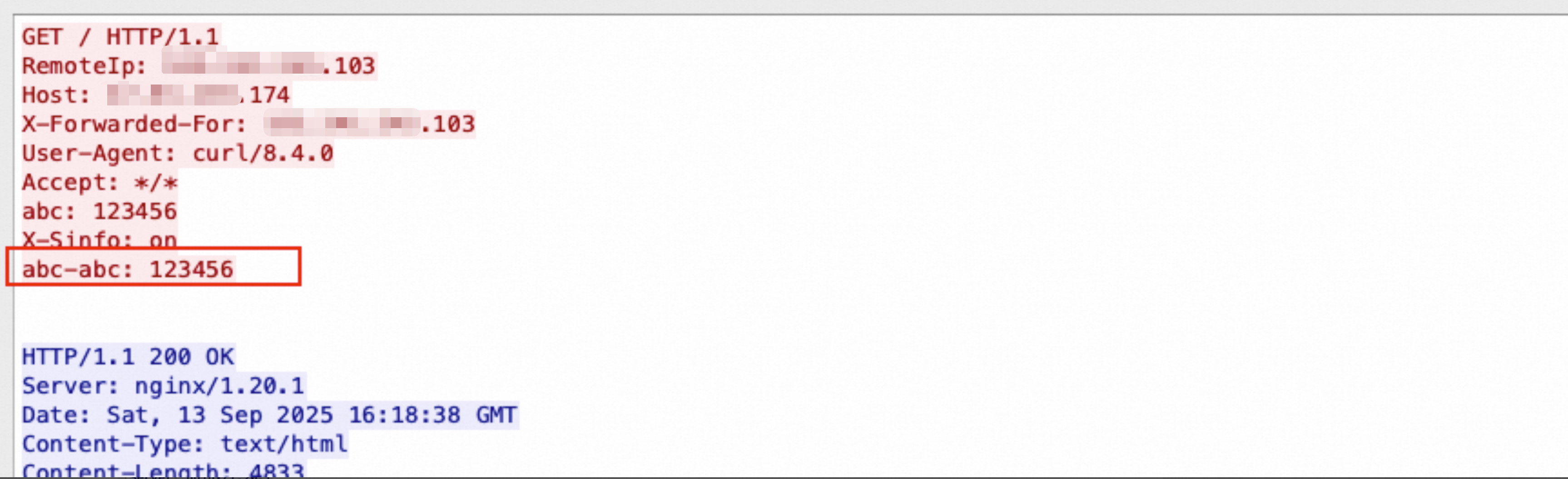
Key the name of the header to write, and Value the reference method you select and the name of the original header whose value you want to reference. For example, you write the header name abc-abc and reference the value of the original header abc. The forwarding rule retrieves the field value from the original header abc and assigns it to the new header abc-abc.
Client
Server-side
Certificates and HTTPS
Does ALB support mutual authentication?
No, basic ALB instances do not. You can enable mutual authentication for the HTTPS listeners of standard or Web Application Firewall (WAF)-enabled ALB instances. To use mutual authentication on a basic ALB instance, you must change its edition.
When you use the mutual authentication feature, you can select CA certificates issued by Alibaba Cloud or by a third party.
When you select a CA certificate issued by Alibaba Cloud, you need to select or purchase a private CA certificate.
If you select a CA certificate that is not issued by Alibaba Cloud, you must either select an existing CA certificate or upload one. To upload a CA certificate, click Upload Self-signed CA Certificate in the Select Default CA Certificate drop-down list. Then, create a repository on the Certificate Repository page with the data source set to Upload CA Certificate, and upload a self-signed root CA or a self-signed subordinate root CA certificate to the certificate application repository.
What rules must be met when an ALB listener uses a wildcard certificate?
When you add an HTTPS listener for an ALB instance, if the selected certificate is a wildcard certificate, note the following rules.
When you select a wildcard certificate, ALB can identify only certificates that contain a single wildcard character (
*) and that place the wildcard character (*) in the leftmost position of the domain name. For example, ALB can identify*.example.comand*test.example.com, but cannot identifytest*.example.com.Wildcard domain name matching rules:
Levels of wildcard domain names: A wildcard domain name can match specific domain names that are of the same level as the wildcard domain name. For example,
*.example.comcan matchtest.example.combut cannot matchtest.test.example.com, which is one level lower than the wildcard domain name.IDNA support:
If the wildcard character is the only character in the leftmost label of a wildcard certificate, IDNA labels can match the wildcard. For example,
xn--fsqu00a.example.commatches*.example.com.If the wildcard character in a wildcard certificate is not the only character in the leftmost label, IDNA labels cannot match this portion of the wildcard. For example,
xn--fsqu00atest.example.comcannot match*test.example.com.
Match scope: The wildcard character (
*) only matches digits 0 through 9, uppercase and lowercase letters, and hyphens (-). For example,*.example.comcan matchtest.example.combut cannot matchtest_test.example.com.
Can I upload certificates in the ALB console?
No, you cannot.
ALB uses certificates directly from SSL Certificate Service. You must upload your certificates to the SSL Certificate Service console instead of the ALB console. For more information, see Upload an SSL certificate.
After I update an ALB certificate, the expiration date of the domain name certificate in the browser does not change.
This issue usually occurs because the ALB instance is connected to WAF 2.0 in transparent proxy mode, and the certificate on the WAF side has not been updated. WAF synchronizes certificates from ALB periodically. To synchronize the certificate immediately, you can disable and then re-enable traffic redirection on the WAF side to force a refresh of the certificate status. Note that this operation causes a transient disconnection of 1 to 2 seconds for your services.
Health checks
How do I modify the health check configuration of a listener?
You can log on to the ALB console.
In the left navigation pane, choose .
On the Server Groups page, find the server group that you want to manage and click its ID.
On the Details tab, in the Health Check section, click Edit Health Check.
In the Edit Health Check dialog box, click Edit to the right of Health Check Configuration, modify the configuration as needed, and then click Save.
For more information, see Health checks.
Why is a 502 status code returned when the health check is normal?
This is typically because the backend servers of the ALB instance are overloaded. When the backend servers of an ALB instance are overloaded, they may fail to respond to access requests even if health checks are successful. For more information, see Troubleshooting high load on Linux instances.
How does ALB forward requests when all backend servers in the same server group fail health checks?
ALB distributes requests based on the scheduling algorithm to maintain service availability. To address the issue, you can check the logs to determine whether the backend servers encounter errors, or check the health check configurations. For more information, see Troubleshoot ALB health check issues.
Troubleshooting
How do I troubleshoot when a service cannot be accessed through ALB?
Follow these steps:
Verify domain name resolution (CNAME): A newly created ALB instance cannot be accessed directly using its DNS name. You must configure CNAME resolution from your custom domain to the ALB instance's DNS name. You can use the
nslookupordigcommand to verify the resolution. For more information, see ALB Instance DNS Name Overview.Confirm the instance network type: A private ALB instance supports only internal VPC access and cannot be accessed directly over the public network. To enable public network access, change the instance network type to public and attach an EIP. For more information, see Change the network type of an ALB instance.
Confirm the listener and forwarding rules: In the ALB console, check whether a listener is created. Confirm that the listener port and protocol are correctly configured, and that the forwarding rules can match the domain name and path of the request.
Confirm the health check status: In the ALB console, view the health check status of the backend servers. If a backend server fails the health check, ALB may not be able to forward requests normally.
Verify that the backend service is functioning properly: Log on directly to the backend server and use
curl -I http://<private network IP address of the backend server>:<port>to verify that the backend service responds normally.Confirm the security group rules: Check the security group rules for the backend server and the ALB instance to confirm that the listener port and the source address CIDR block of the request are allowed.
How do I troubleshoot high latency when accessing through ALB?
As an application-oriented service, ALB forwards requests to backend servers. This results in a slight, but normal, increase in latency compared to direct backend access.
If the latency is significantly high, follow these steps to troubleshoot:
Enable access logs and analyze latency fields: Enable ALB access logs, and focus on the following fields:
request_time: The time interval between when the Server Load Balancer receives the first request message and when it returns an acknowledgement, in seconds.upstream_response_time: The time from when the ALB establishes a connection to the backend server to when it receives all the data and then closes the connection, in seconds.
Identify the source of the latency:
If
upstream_response_timeis high, the source of latency is typically slow processing by the backend server. You can troubleshoot backend application performance, database query efficiency, resource usage such as CPU and memory, or add backend servers to distribute the load.If
request_timeis much greater thanupstream_response_time, the latency is likely due to the network path between the client and ALB. We recommend running continuouspingtests or MTR route tracing from the client to the ALB endpoint to troubleshoot network path issues.
Cross-region access scenarios: If the client and the ALB instance are in different regions, network latency caused by physical distance is unavoidable. We recommend that you use Global Accelerator (GA) to optimize the cross-region access experience.
What do I do when a service cannot be accessed through a domain name via ALB?
You cannot directly access a new ALB instance using its DNS name. You must resolve your custom domain name to the DNS name of the ALB instance using a CNAME record before you can access it. If you have correctly configured the CNAME record but still cannot access the service (returns 403 or connection is reset), the most common reason is that the domain name has not completed its ICP filing.
We recommend that you follow these steps to troubleshoot:
Verify the CNAME resolution configuration: Use the
nslookupordigcommand to verify that the domain name resolves correctly to the DNS name of the ALB instance. For more information, see Configure CNAME Resolution.Confirm the ICP filing status of your domain name: According to relevant regulations, when you use a domain name to access services over the public network in regions in the Chinese mainland, the domain name must have completed ICP filing. Otherwise, access will be blocked. Log on to the Alibaba Cloud ICP Filing System to check the ICP filing status of your domain name. If the domain name has not been filed, complete the ICP filing first. For more information, see ICP filing flow.
Confirm whether you need to add Alibaba Cloud to the ICP filing information: If the domain name has completed its ICP filing with another cloud service provider but is used on Alibaba Cloud for the first time, you also need to add Alibaba Cloud to the ICP filing information as a service provider. Failure to do so may also cause access to be blocked.
Common error status codes and possible causes
500 (Internal Server Error)
The backend server encountered an internal error and could not execute the request.
Backend directly returns 500: Check the access logs. If
upstream_statusis500, ALB likely passed through the upstream status code. Troubleshoot the backend service.Backend server abnormally closed connection: The backend server abnormally closed the connection before sending the complete response. Capture packets on the backend server to troubleshoot the cause of the abnormal connection closure.
502 (Bad Gateway)
After the HTTP or HTTPS listener received the client request, ALB could not properly forward the request to the backend server or could not receive a response from the backend server.
Backend directly returns 502: Check the access logs. If
upstream_statusis502, ALB likely passed through the upstream status code. Troubleshoot the backend service.Backend returns other error status codes: For example,
504or444, but ALB uniformly returns502. Check thestatusandupstream_statusfields in the access logs and troubleshoot based on the upstream status code.TCP communication error between ALB and backend server: Check whether the backend service is running normally, whether the service port is listening properly, or capture packets to check whether the TCP handshake is normal.
Backend server backlog is full: This causes new connection requests to be rejected or dropped. Run
netstat -s | grep -i listenon the backend server to check whether there is adropcount.Client packet length exceeds backend server MTU: This is characterized by normal short packets such as health checks, but abnormal long packets. Capture packets on the backend server to analyze whether the packet length meets requirements.
Backend server response packet format is abnormal or contains illegal HTTP headers: Capture packets on the backend server to analyze whether the response packet format is standard.
Backend server did not process the request in time: Check the backend server logs and view CPU and memory utilization.
503 (Service Temporarily Unavailable)
The server is temporarily unavailable, usually due to traffic exceeded or backend service unavailable.
Backend directly returns 503: Check the access logs. If
upstream_statusis503, ALB likely passed through the upstream status code. Troubleshoot the backend service.Client request triggered ALB throttling:
Check the
Requests per secondmetric through CloudMonitor.CloudMonitor displays minute-level data and may not reflect second-level exceeded situations. Check the access logs. If the value of the
upstream_statusfield is-, the request did not reach the backend server.Check the response packet header. If it contains the
ALB-QPS-Limited:Limitedfield, the request triggered ALB throttling.
Client directly accesses ALB IP or DNS resolution is abnormal when accessing through domain name: This may cause traffic to concentrate on a few IPs and exceed the limit. We recommend that the client access through the ALB domain name (refer to Configure a CNAME record for an ALB instance and ensure that DNS resolution is normal.
Listener has no backend servers configured or the configured backend servers have weight
0
504 (Gateway Time-out)
The backend server response timed out.
Backend directly returns 504: Check the access logs. If
upstream_statusis504, ALB likely passed through the upstream status code. Troubleshoot the backend service.Connection establishment between ALB and backend server timed out: The default timeout is 5 seconds and cannot be modified. Capture packets to troubleshoot why the backend server response timed out.
Backend server response timed out: The connection request timeout defaults to 60 seconds. You can check the
UpstreamResponseTimemetric in CloudMonitor and theupstream_response_timefield in access logs to determine whether the backend server response timed out.
WAF integration
What are the differences between the transparent proxy mode of WAF 2.0 and the service integration mode of WAF 3.0?

The following are the key differences between the two:
Transparent proxy mode of WAF 2.0: Requests are filtered by WAF before they are forwarded to ALB or CLB. In transparent proxy mode, requests pass through two gateways. You must configure the timeout period and certificates for both WAF and Server Load Balancer (SLB).
Service integration mode of WAF 3.0: WAF is deployed in bypass mode and client requests go directly to ALB. Before the requests are forwarded to backend servers, ALB extracts and sends the request content to WAF for filtering. In service integration mode, requests pass through one gateway. This eliminates the need to synchronize certificates and settings between gateways, and prevents synchronization issues.
For more information, see Compare WAF 3.0 and WAF 2.0.
Instructions for using ALB with WAF
We recommend that you use the service-based connection type to enable WAF 3.0 protection for an ALB instance. This method uses a WAF-enhanced ALB instance.
Supported regions:
Area
Region
China
China (Chengdu), China (Qingdao), China (Beijing), China (Guangzhou), China (Hangzhou), China (Ulanqab), China (Shanghai), China (Shenzhen), China (Zhangjiakou), and China (Hong Kong)
Asia Pacific
Philippines (Manila), Indonesia (Jakarta), Japan (Tokyo), Malaysia (Kuala Lumpur), Singapore, Thailand (Bangkok), and South Korea (Seoul)
Europe and Americas
Germany (Frankfurt), US (Virginia), US (Silicon Valley), and Mexico
Middle East
SAU (Riyadh - Partner Region)
WAF version: You must use WAF 3.0. If you have a WAF 2.0 instance in your account, you must first release the WAF 2.0 instance or migrate it to WAF 3.0.
By default, ALB does not enable the
X-Forwarded-Protoheader in requests forwarded to the backend server group. After you terminate a WAF 2.0 instance, accessing the ALB directly may cause service exceptions, such as infinite loop redirection, because the backend service cannot properly identify the protocol (HTTP/HTTPS). To prevent this issue, you must manually enable theX-Forwarded-Protorequest header in the ALB listener configuration.Feature availability: WAF for ALB instances does not support the following features: the data leakage prevention module and the automatic Web SDK integration feature for anti-crawler rules for websites in the bot management module.
To use an existing WAF 2.0 instance in your account, public-facing Basic and Standard ALB instances support transparent proxy mode for WAF 2.0 protection. Supported regions: China (Hangzhou), China (Shanghai), China (Shenzhen), China (Chengdu), China (Beijing), and China (Zhangjiakou). Private ALB instances do not support WAF 2.0 protection.
Do CLB and ALB support WAF 2.0 transparent proxy and WAF 3.0 service integration?
product | WAF 2.0 (transparent proxy mode) | WAF 3.0 (service integration mode) |
CLB | Supported. For more information about how to connect WAF 2.0 to CLB in transparent proxy mode, see the following topics: | Not supported. |
ALB |
| Supported. For more information about the supported regions and related operations, see Enable WAF protection for an ALB instance. |
Why do configuration issues such as unsynchronized timeout and certificates occur with WAF 2.0 transparent proxy?
When you integrate WAF 2.0 in transparent mode, client requests are filtered by WAF before they are forwarded to ALB or CLB. Because requests pass through two gateways, configurations must be synchronized between WAF and Server Load Balancer. Changes to the timeout period or certificates can cause delays in this synchronization.