Workspaces allow you to manage resources in groups. Resources in different workspaces are isolated from each other, and organization administrators can assign separate management permissions for each workspace. This topic describes how to create and manage workspaces.
Prerequisites
You have activated Quick BI Pro or Professional Edition. For more information, see Activate Quick BI.
The organization administrator permission has been granted to the user who creates the workspace.
Limits
Only organization administrators can create and manage workspaces in the Pro or Professional Edition.
Create a Workspace
Log on to the Quick BI console.
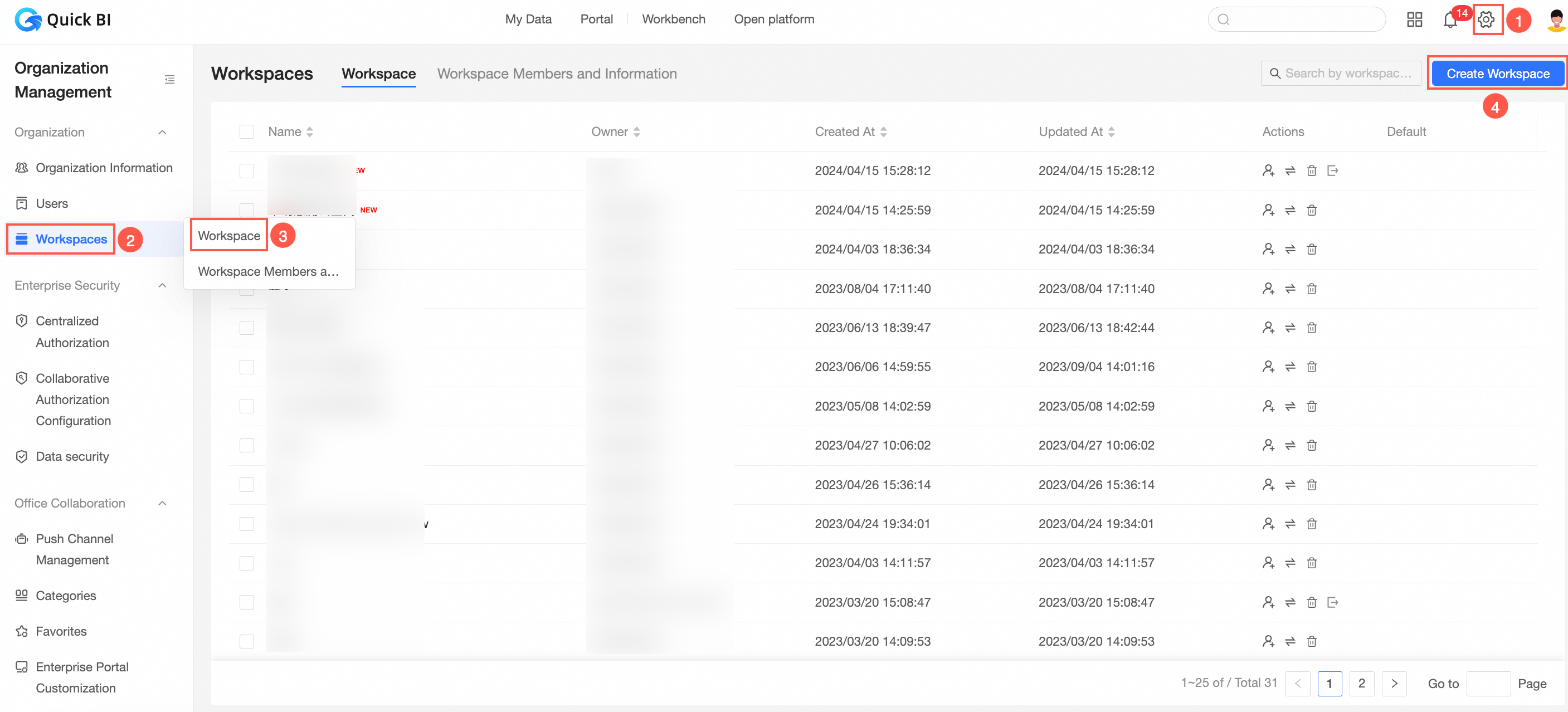
On the Quick BI homepage, follow the instructions in the figure below, click Configuration Panel -> Workspace Management -> Workspace -> Create Workspace.
On the Create Workspace page, configure the parameters.
Configuration item
Description
Workspace Name
The display name in the workspace list.
The name must be 1 to 50 characters in length, and can contain letters, digits, underscores (_), forward slashes (/), backslashes (\), vertical bars (|), parentheses (), and brackets [].
Workspace Description
Additional information about the workspace, such as its purpose.
Owner
You can select the workspace owner from the dropdown list.
Spatial Pattern
Set the visibility scope of works within the workspace. You can select Collaborative Mode or Private Mode.
Select Collaborative Mode: Users can see all works in the workspace.
Select Private Mode: Users can only see works that are related to them (those they have permission to access).
ImportantWorkspace mode is a new feature introduced in v4.1, mainly used to set the visibility scope of the works list. Therefore:
If you created a workspace in version 4.1 or later, you must select a workspace mode when creating it. When modifying workspace information, switching workspace modes may cause changes in work ownership or frequent changes in work visibility. Therefore, it is not recommended to switch workspace modes.
If you created a workspace before version 4.1, you did not need to select a workspace mode when creating it. When modifying workspace information, you can modify the workspace mode as needed.
Feature Permissions
Set the operational permissions for works within the workspace.
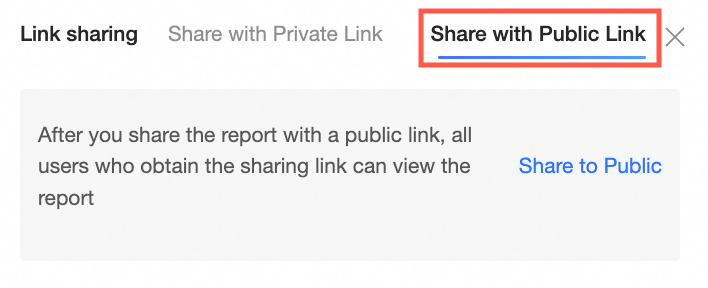
Works Can Be Made Public: Indicates that works in this workspace can be made public.
When selected, anyone can view the work through the link on the Public Link Sharing tab without logging on to an Alibaba Cloud account. If your workspace contains works with sensitive data, clear this option to prevent members from sharing them with public links.
Works Can Be Authorized: Allows works in this workspace to be authorized.
If selected, you can grant collaborative authorization for data works. If your workspace requires strict permission controls and you want to prevent members from re-distributing permissions, clear this option.

Works Are By Default Authorized For All Workspace Members To View: Indicates that works created in the workspace are visible to all members.
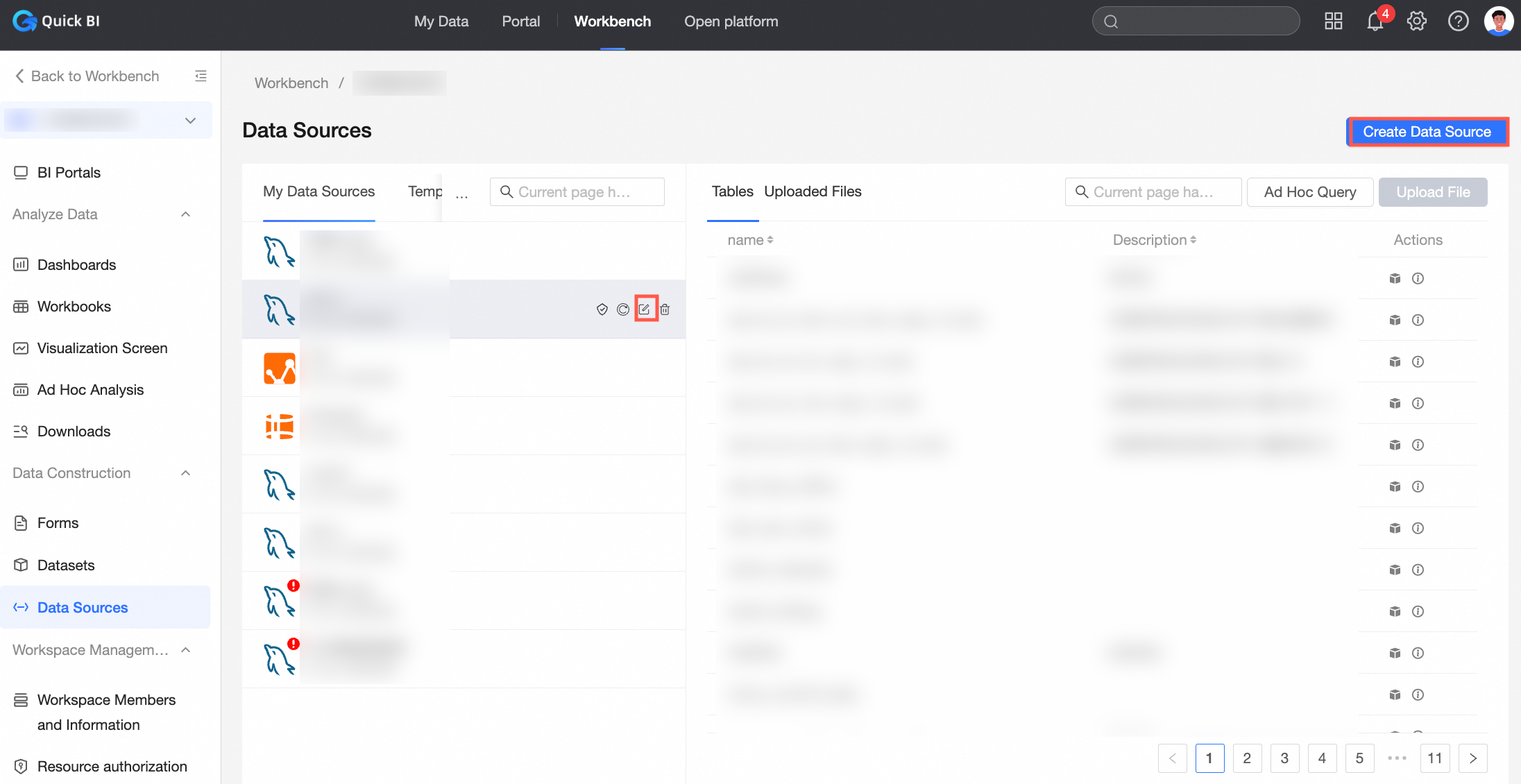
Only Administrators Can Create And Edit Data Sources: Allows only users with workspace management permissions to create and edit data sources in the workspace.
 Note
NoteIf this option is selected, members other than administrators cannot create, edit, replace, or sync data sources. Existing edit permissions for data sources, including inherited permissions, are automatically revoked.
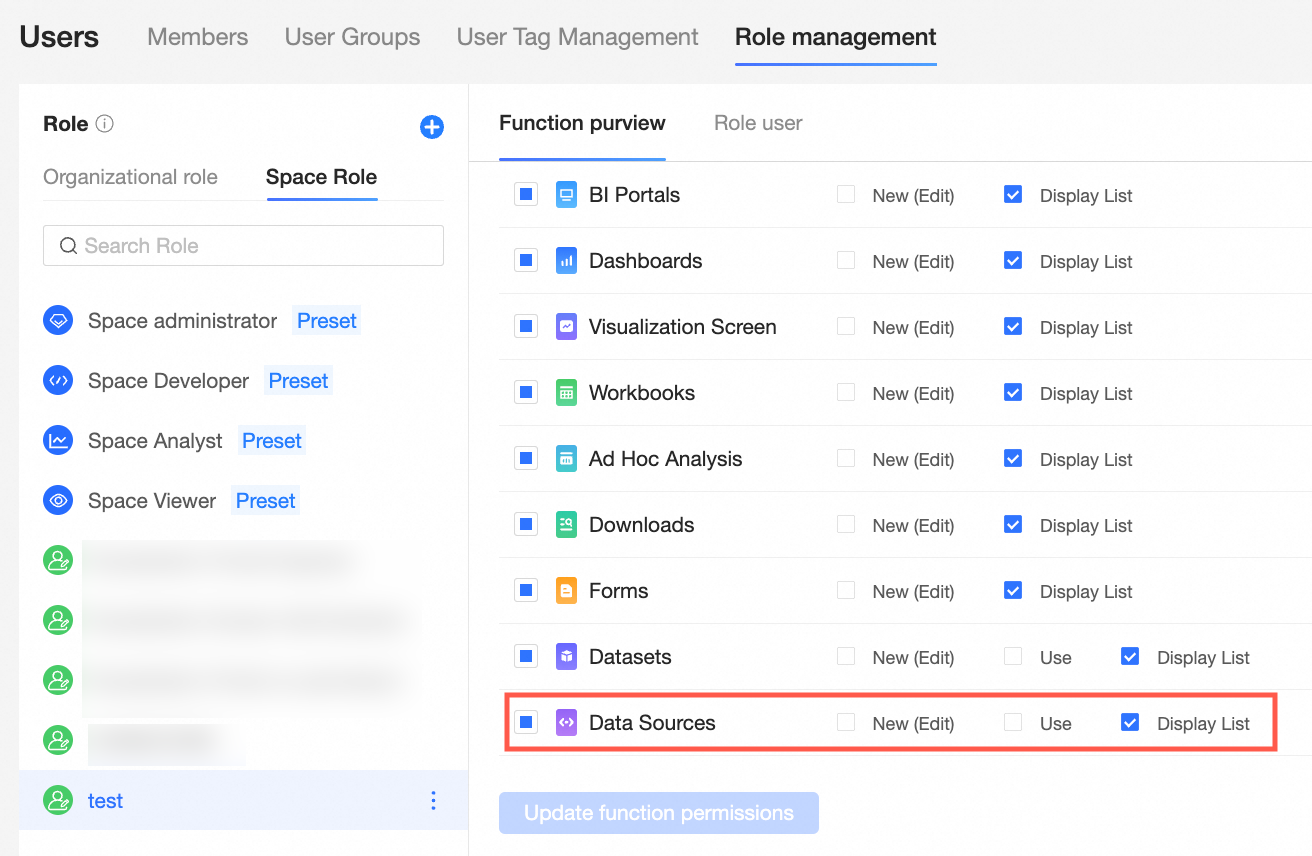
If you need some members to have edit permissions for data sources, create a custom role in Workspace roles. For more information, see Role management.
Approval Settings
Select Publish Works. If this option is selected, every publication of dashboards, workbooks, data dashboards, and ad hoc analyses in the workspace requires approval. This includes new publications and publications after modification.
 Note
NoteThis operation triggers an approval stream. The approver is the workspace administrator. This configuration is invalid if the approval stream is not enabled in Organization Management. To enable the approval stream, see Approval Settings.
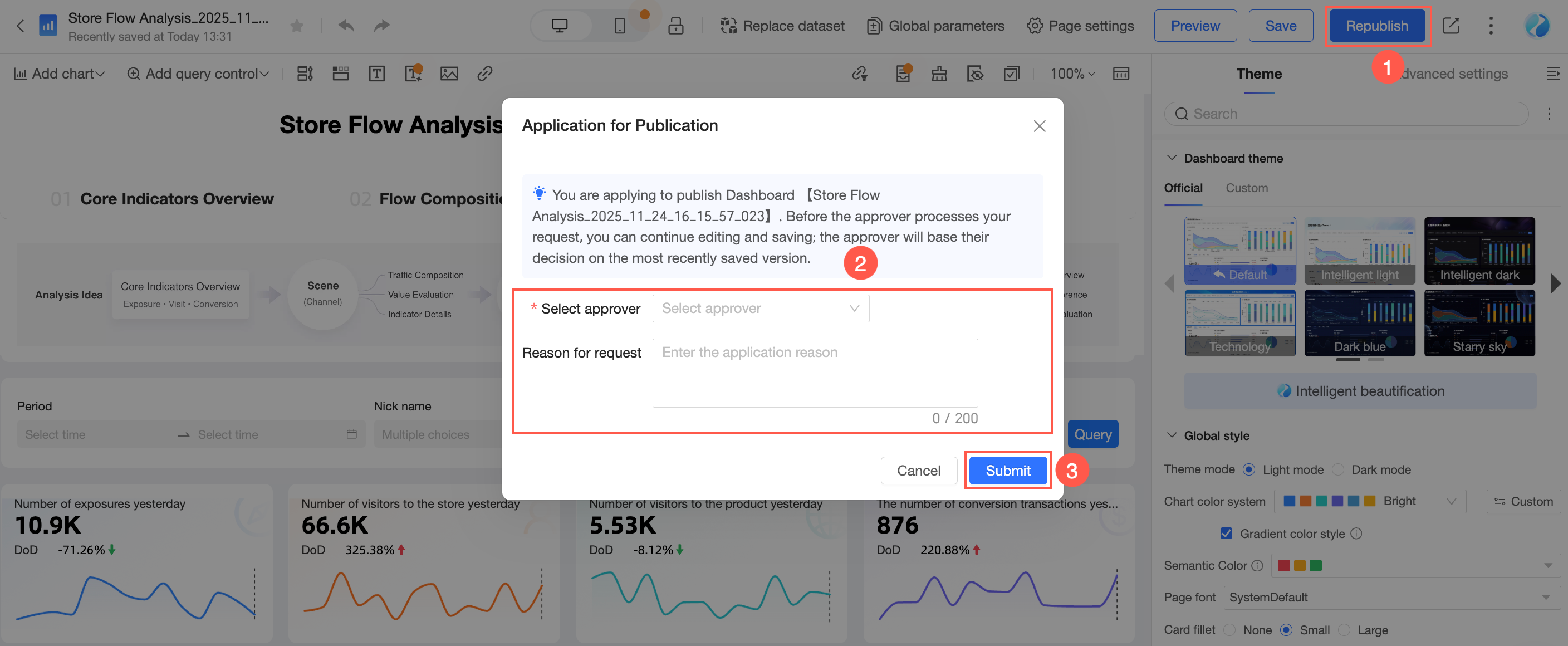
The following example shows how to publish a dashboard:
If this option is selected, you must select an approver, enter a reason for the request as needed, and then click Submit Request when you publish a report.
 Note
NoteYou can continue to edit the report after you submit the publication request. If you save the changes, the version submitted for approval is the last saved version.
Publication by a workspace administrator does not require approval.
After the request is submitted, the approver receives an approval notification in the Message Center.

After the approver clicks Approve, the report is published.
The requester can view the approval status in Message Center > My Requests.

Preference Settings
The presentation method for dataset fields supports Use Physical Field Names As Dimension And Measure Names and Use Field Comments As Dimension And Measure Names.
For example:
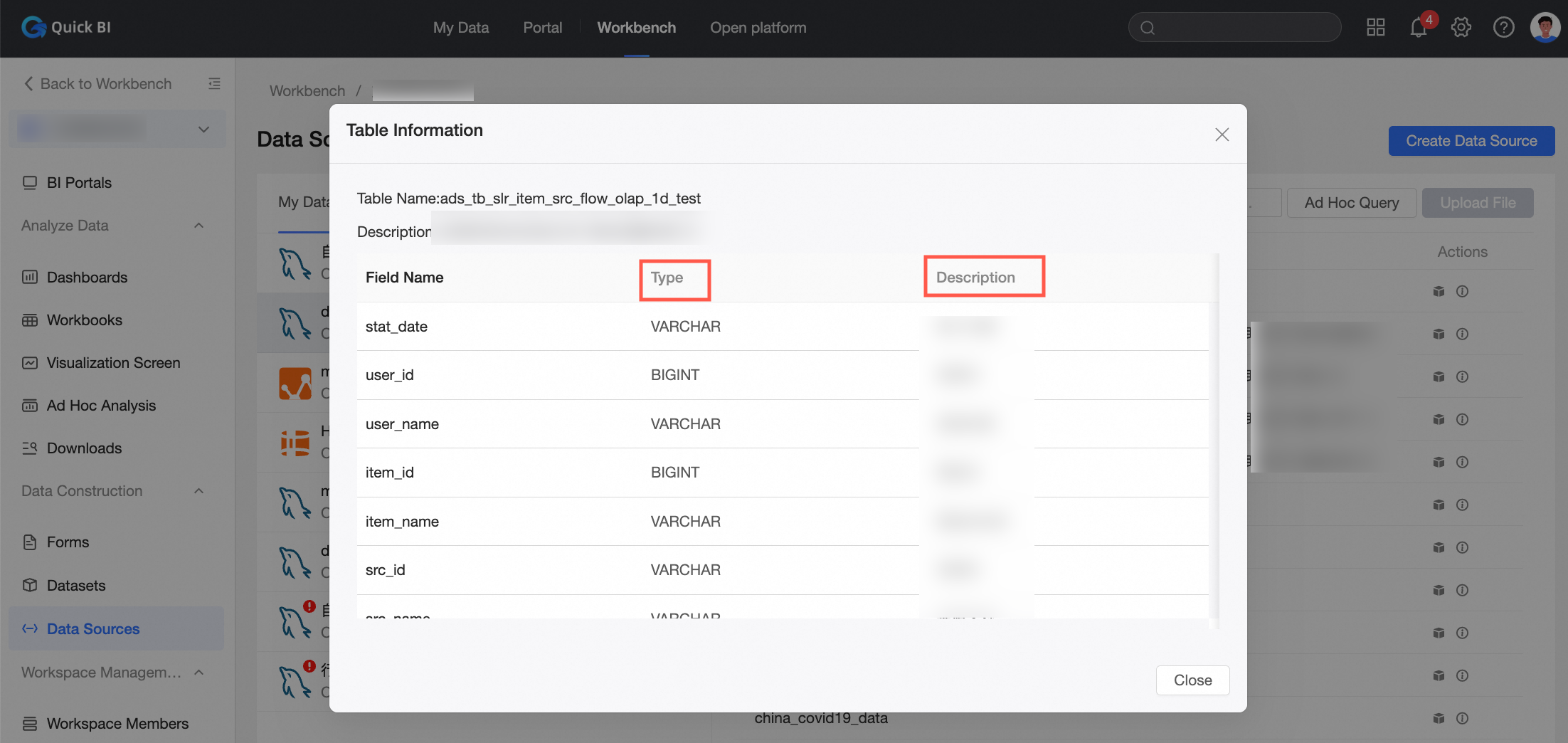
If you select Use Physical Field Names As Dimension And Measure Names, the field values from Field Name will be used as the names for dataset dimensions and measure fields.
If you select Use Field Comments As Dimension And Measure Names, the field values from Field Description will be used as the names for dataset dimensions and measure fields.
NoteThis configuration only takes effect when the database table includes Field Description.
Synchronization settings
You can select Automatically synchronize dataset field descriptions to data works.
This affects whether dataset field descriptions are synchronized to data works.

Click OK.
Modify a Workspace
Workspace management involves managing group spaces. Only workspace administrators can modify workspace information.
When modifying a workspace, to modify the workspace mode, please read the following content carefully.
Workspace mode is a new feature introduced in v4.1, mainly used to set the visibility scope of the works list. Therefore:
If you created a workspace in version 4.1 or later, you must select a workspace mode when creating it. When modifying workspace information, switching workspace modes may cause changes in work ownership or frequent changes in work visibility. Therefore, it is not recommended to switch workspace modes.
If you created a workspace before version 4.1, you did not need to select a workspace mode when creating it. When modifying workspace information, you can modify the workspace mode as needed.
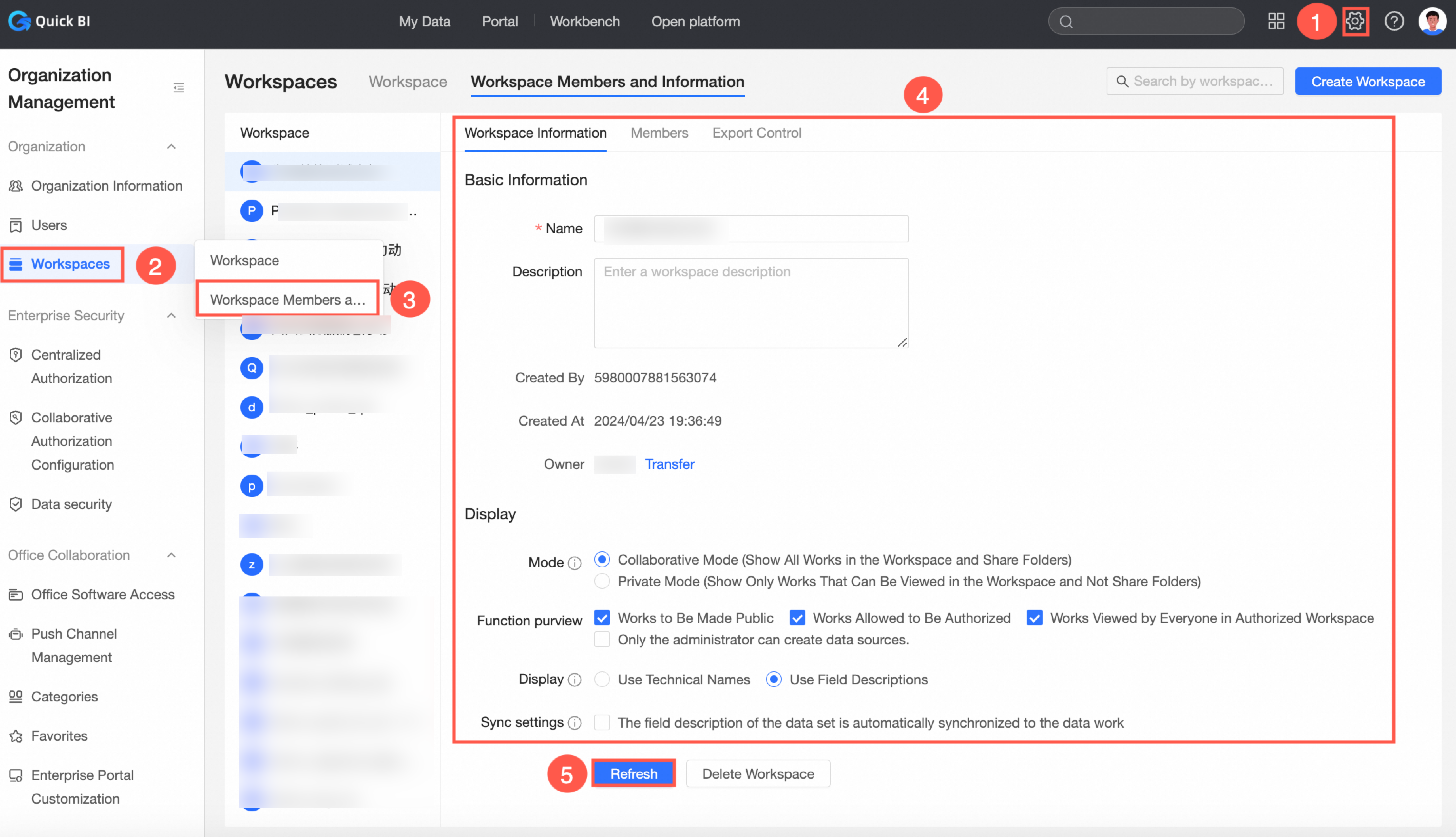
You can modify a workspace using either of the following methods:
Enter from the configuration management panel and modify the workspace configuration information.
Enter from the workbench and modify the workspace configuration information.
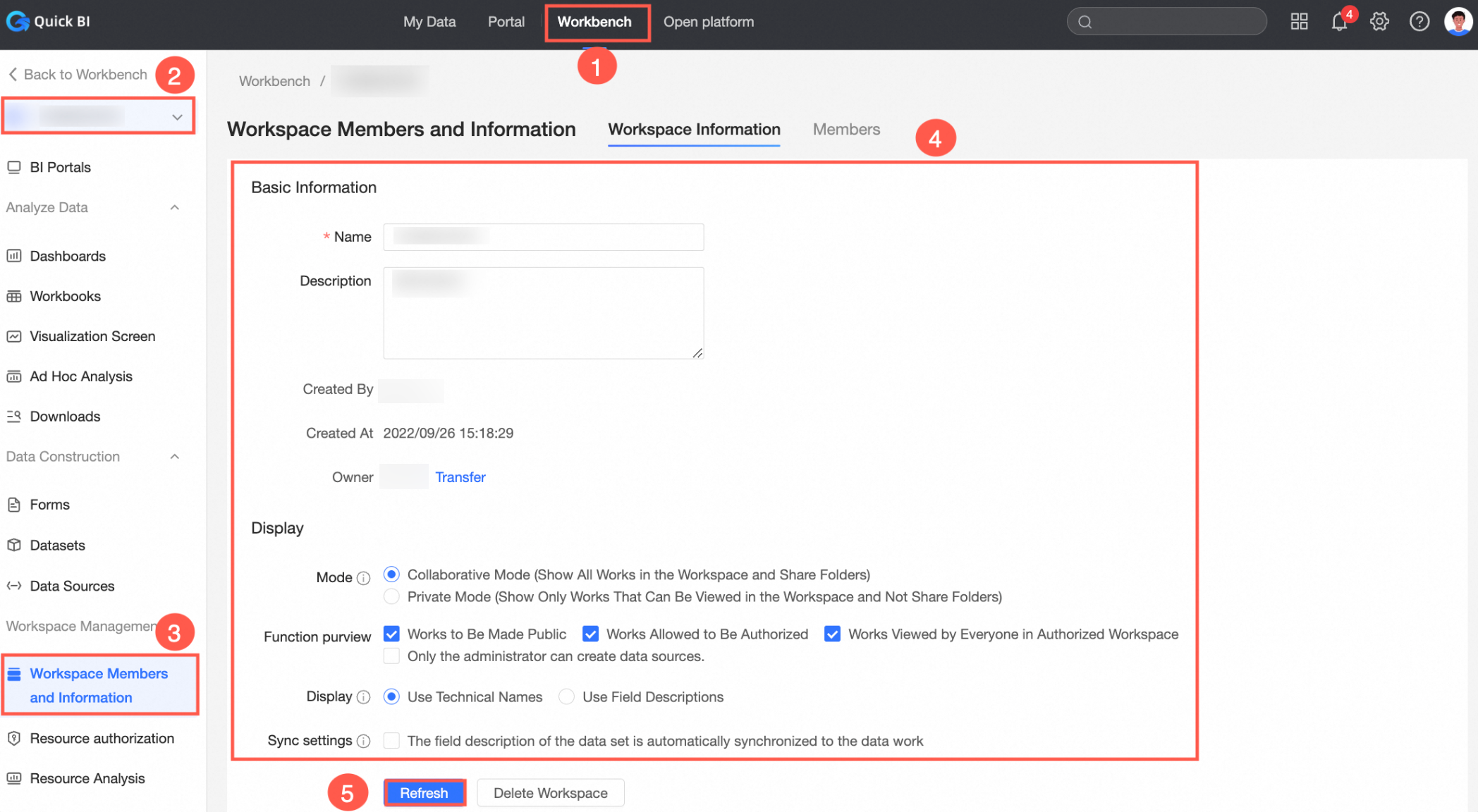
For parameter descriptions, see Interface parameter description.
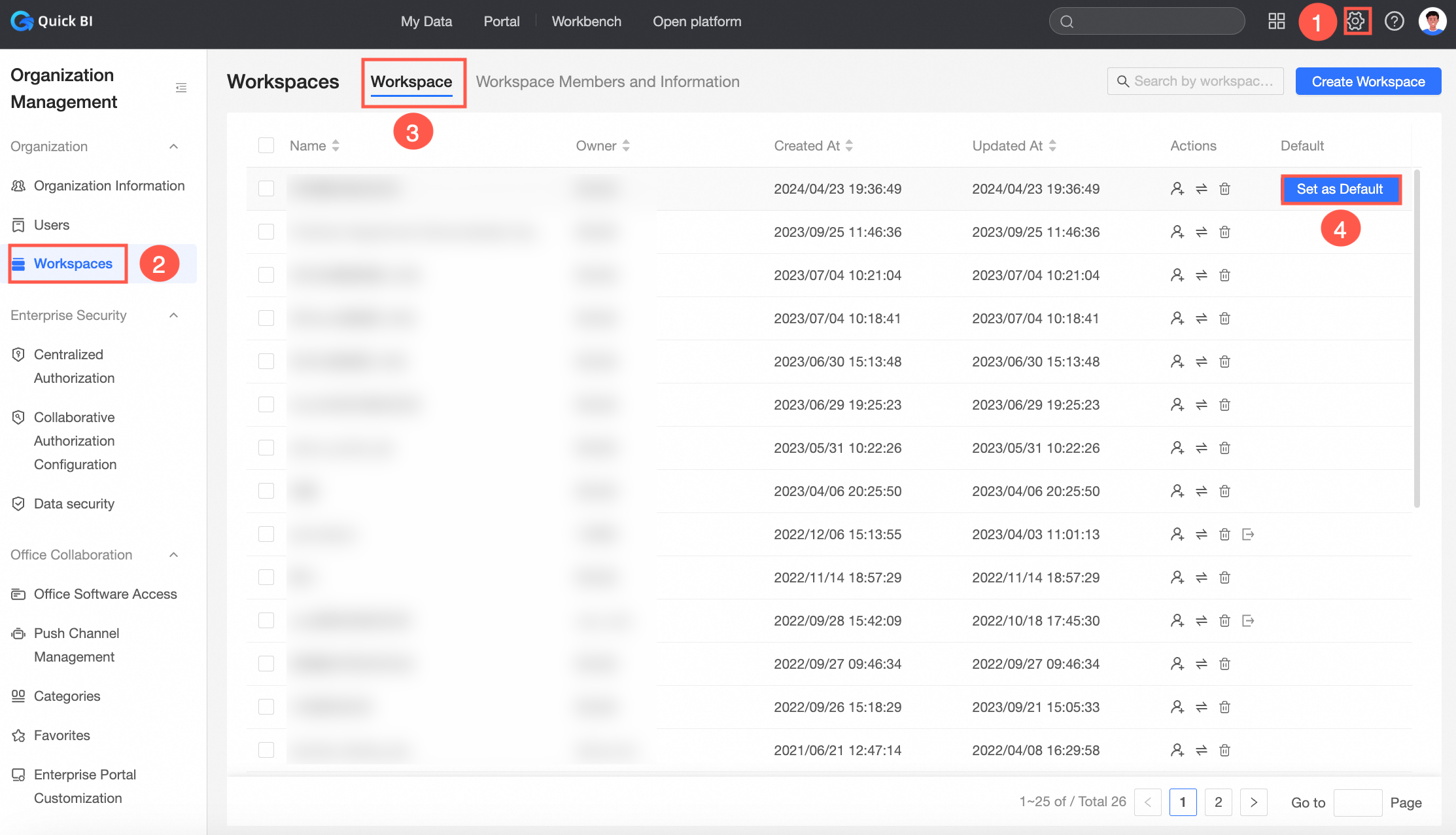
Set as Default Workspace
When a workspace is set as the default workspace, new members joining the organization will be automatically added to this workspace.
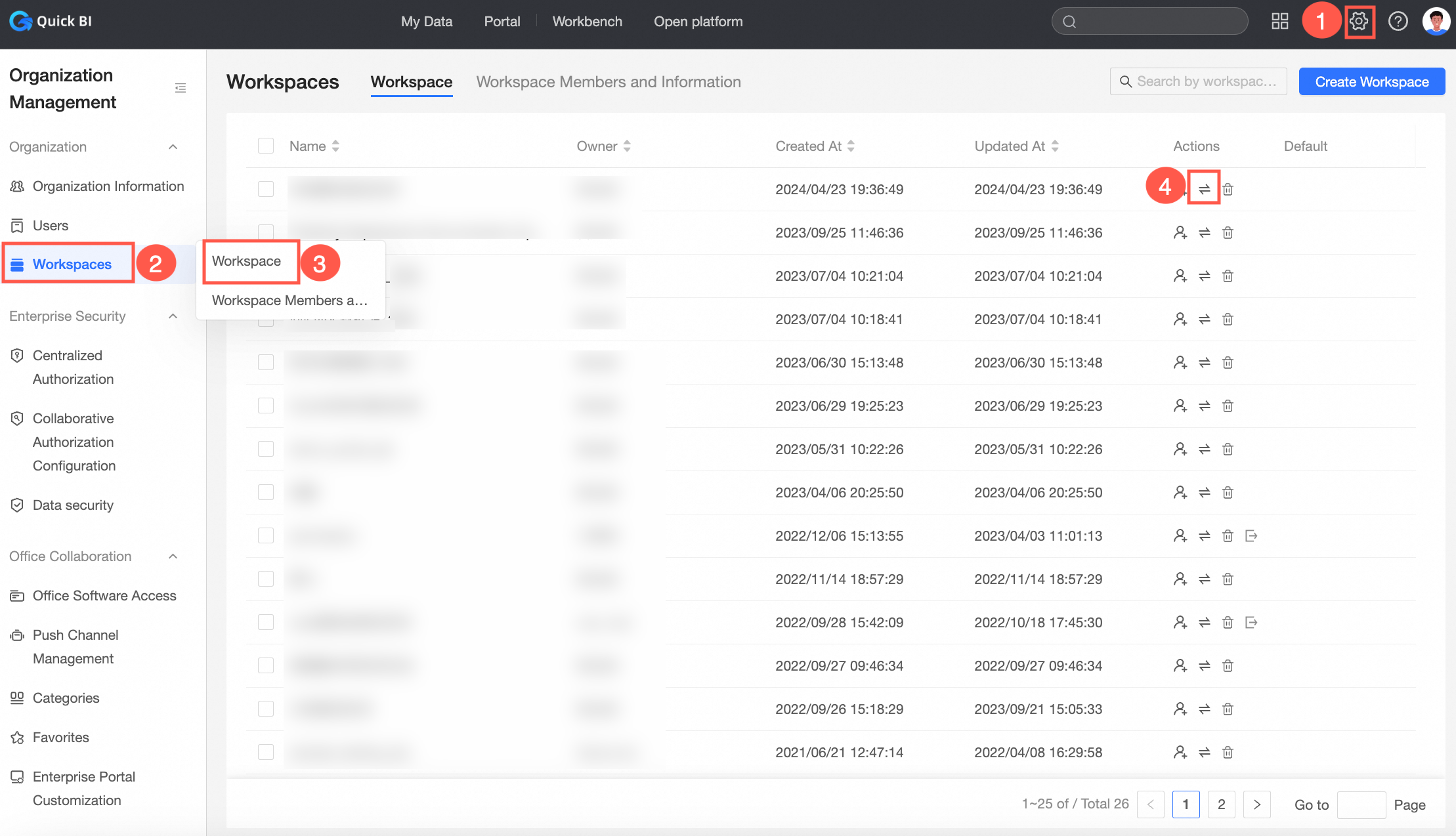
Transfer Workspace
If the creator of a workspace wants to leave the organization, they can transfer their workspace to another member in the organization. Any member in the Quick BI organization can become the recipient.
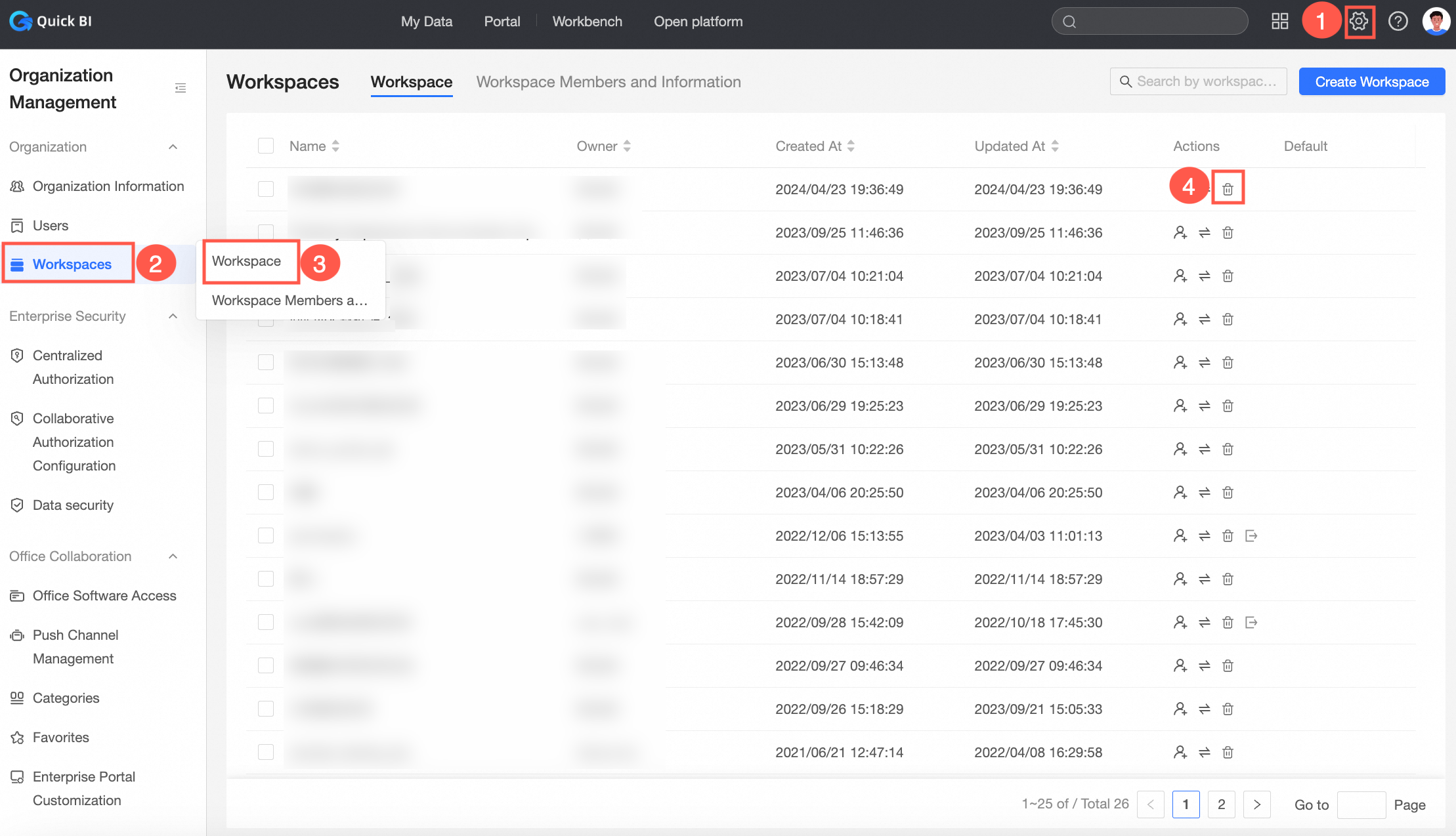
Delete a Workspace
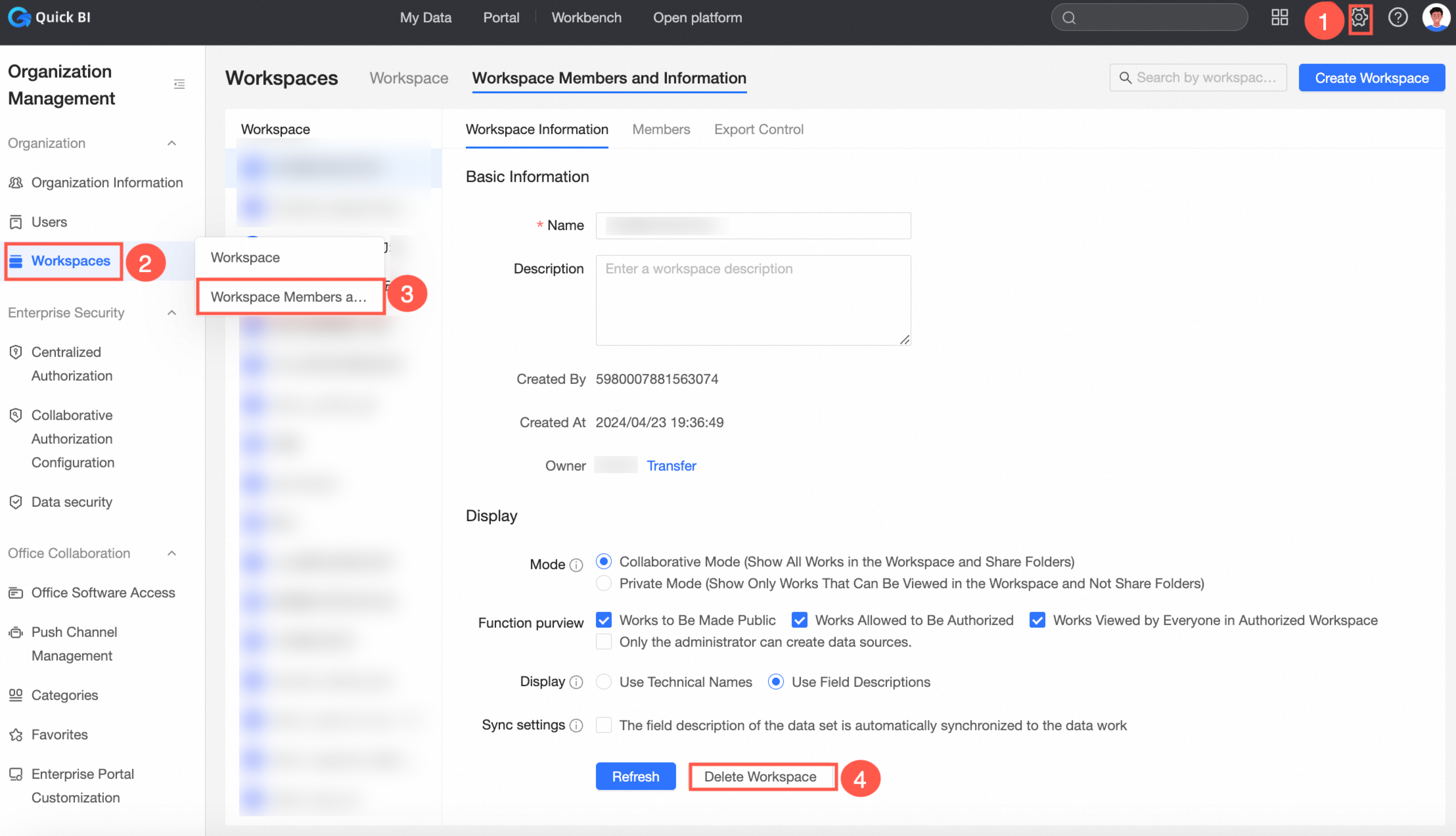
Only organization administrators can delete workspaces.
Delete a workspace from Configuration Panel -> Workspace Management -> Workspace.
Delete a workspace from Configuration Panel -> Workspace Management -> Workspace Members and Information.
Enter from the workbench and delete the workspace.

In Quick BI, users must join a workspace before they can create works. Therefore, after configuring the workspace, you need to add users to the workspace. For more information, see Manage workspace members.