An arc chart is a data visualization chart that uses arcs to represent relationships and distributions among data points, helping users better understand complex relation networks.
Prerequisites
You have created a dashboard. For more information, see Create a Dashboard.
Chart Overview
Scenarios
Arc charts are suitable for displaying and analyzing complex relation networks. They reveal patterns, change trends, and associations to help solve problems such as sales data analysis, financial market analysis, traffic network analysis, and Network Security analysis. They enable users to observe change trends between data more intuitively.
Benefits
Arc charts provide benefits such as visualizing complex relationships, highlighting key nodes, and discovering patterns and change trends. They deliver intuitive and effective data display.
Sample image
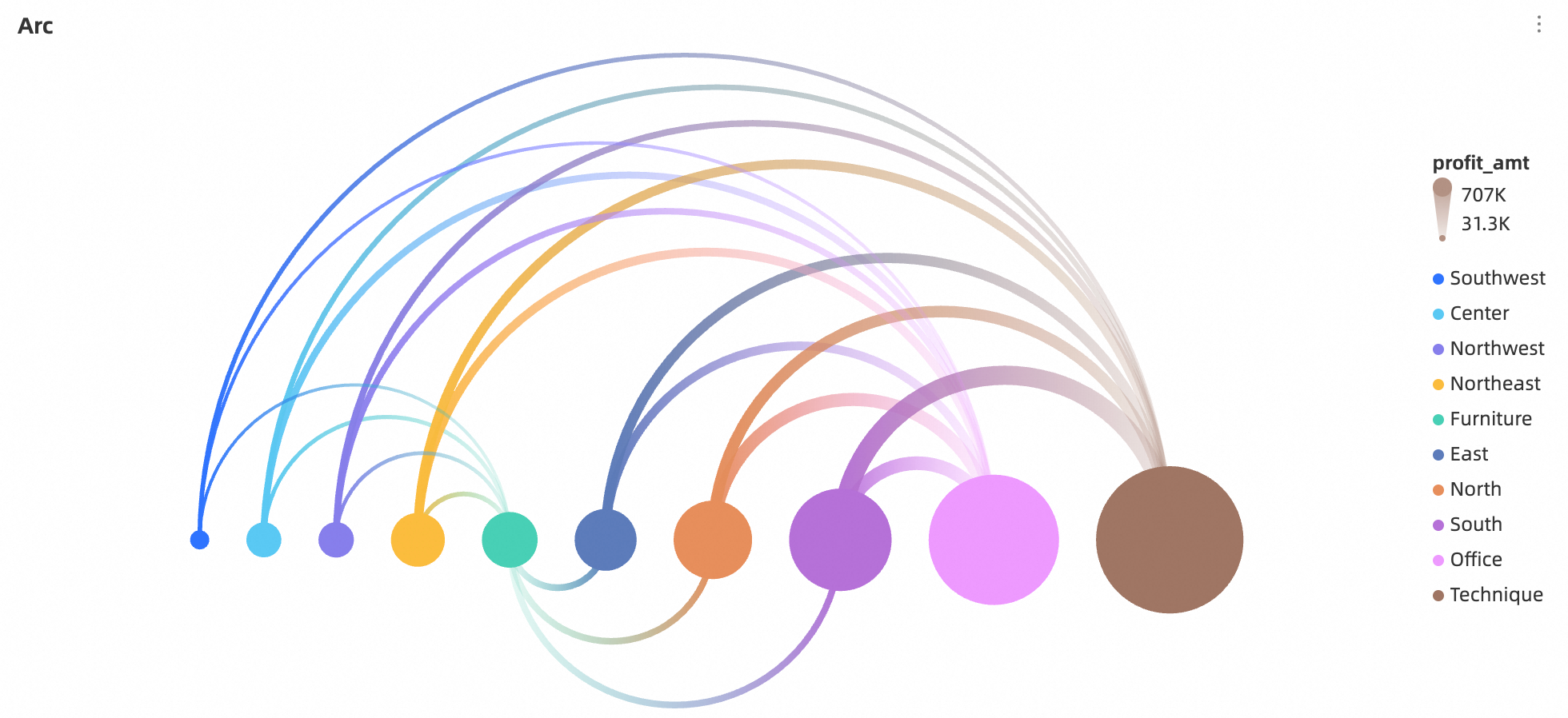
Limits
An arc chart consists of Source/Dimension, Target/Dimension, and Connection Value/Measure.
Source/Dimension and Target/Dimension are determined by the data’s source dimension. Select only one dimension, such as region or product type.
The Limit Value/Measure is determined by a single data measure, such as Total Sales by Region.
Chart Field Configuration
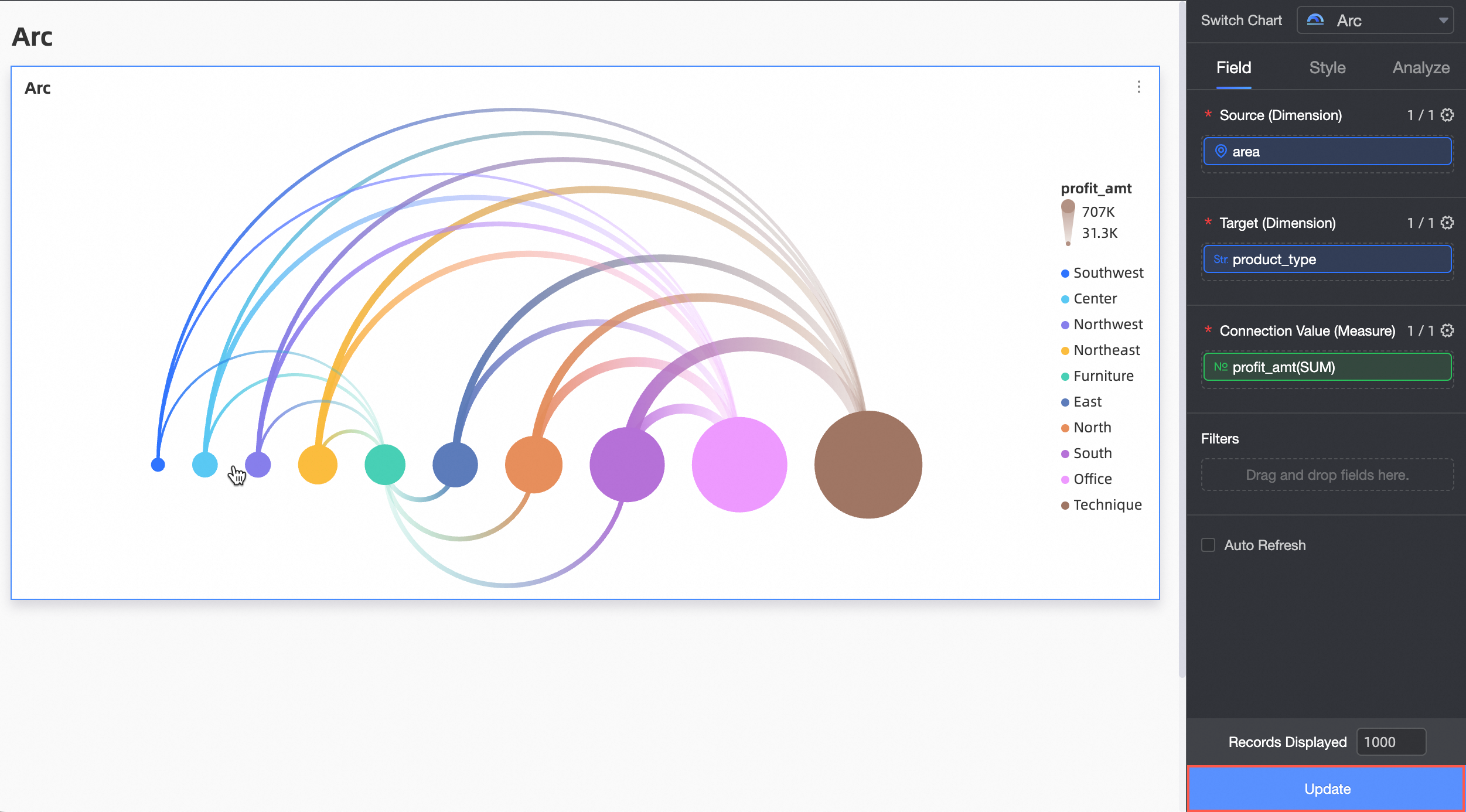
On the tab, select the required dimension and measure fields.
In the Source/Dimension column, select data by double-clicking or dragging.
In the Target/Dimension column, select the Target dimension data.
In the Connection Value/Measure column, select the measure data reflected in the connection value.
Click Update. The system automatically updates the chart.
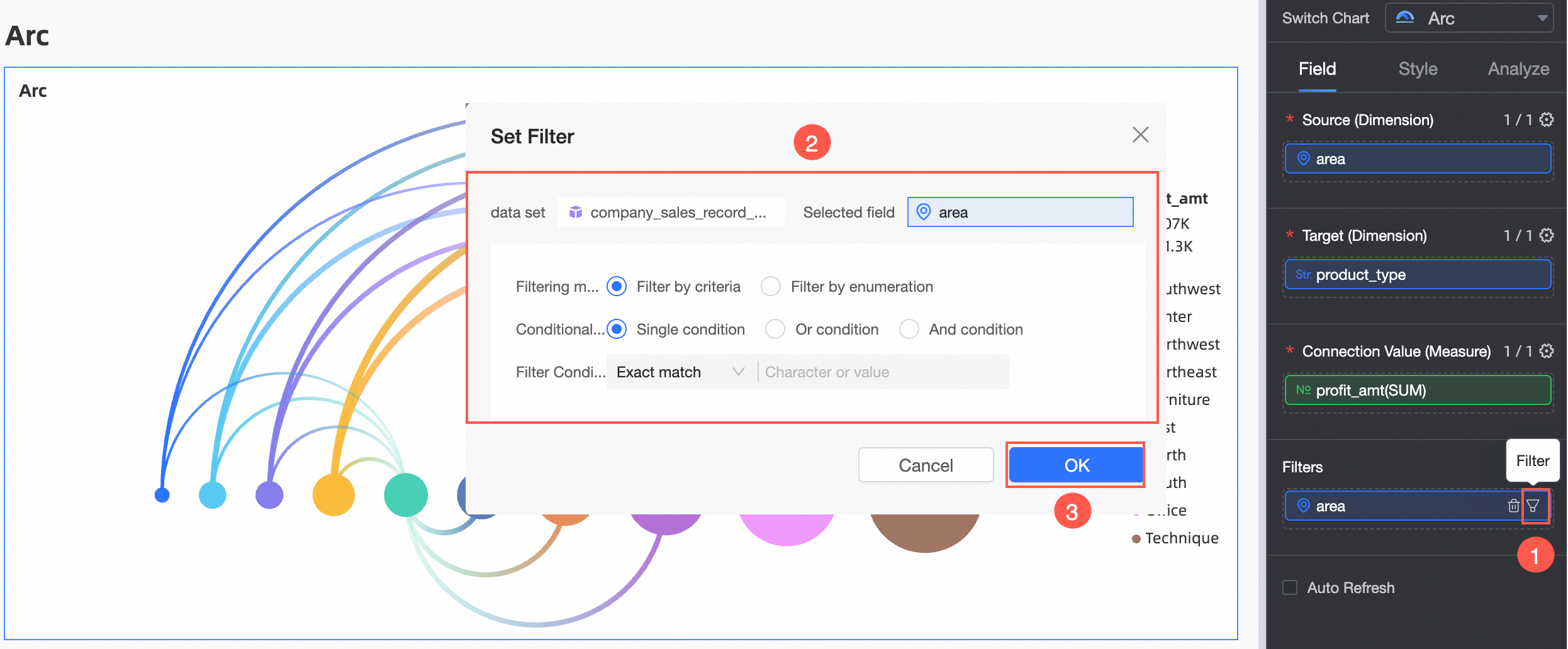
To view data for a specific region, set a filter to retrieve the required data.
Auto-refresh
After enabling this option, the system automatically refreshes the chart data. For example, select this option and set the duration to 5, with the unit set to minutes. The system then refreshes the chart data every 5 minutes.
Chart Style Configuration
This topic describes chart style configuration. For general chart style configuration, see Configure the Chart Title.
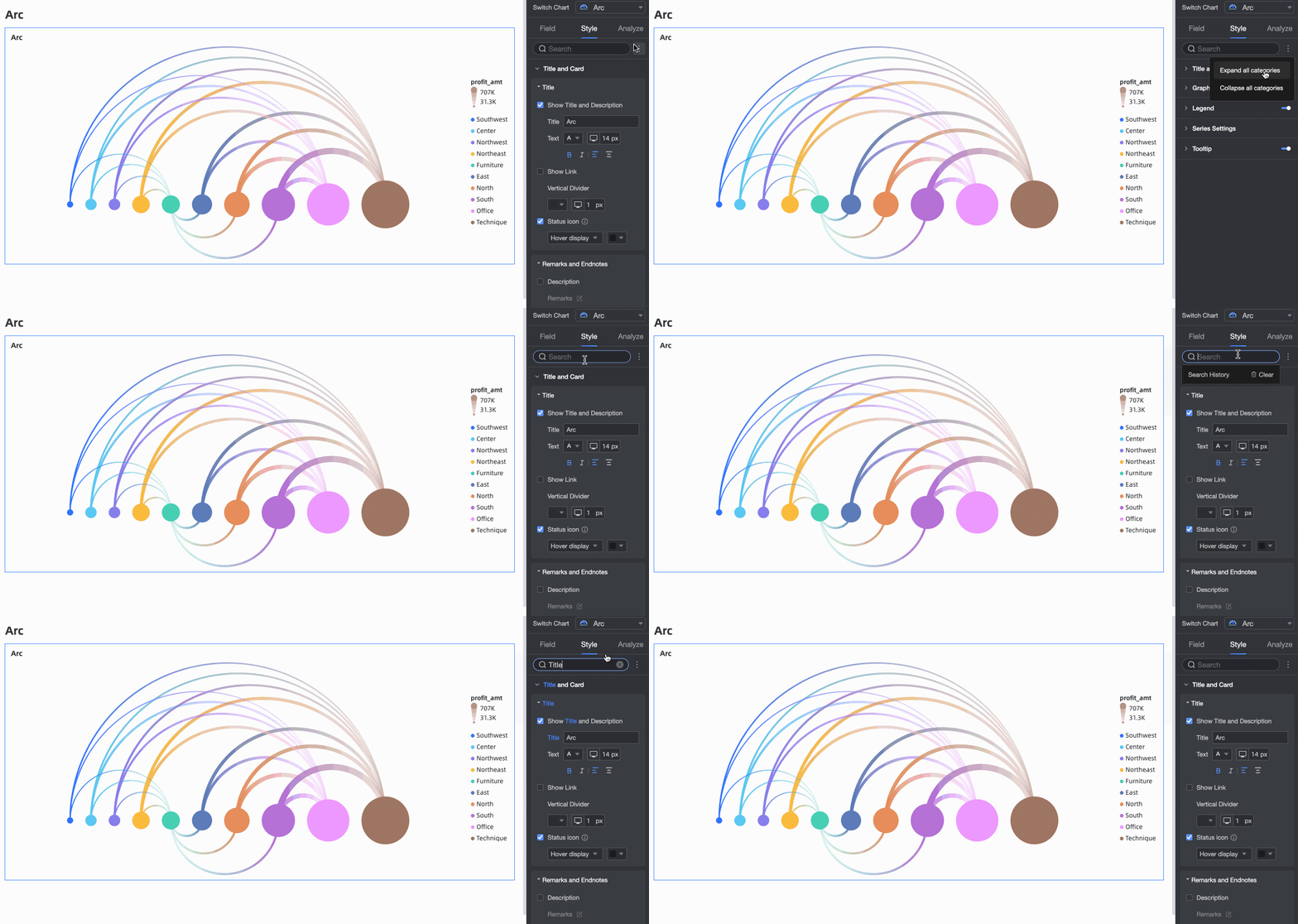
In the search box at the top of the configuration area, enter a keyword to quickly find and configure a configuration item. Also, click the  icon on the right to expand/collapse all categories.
Graphics
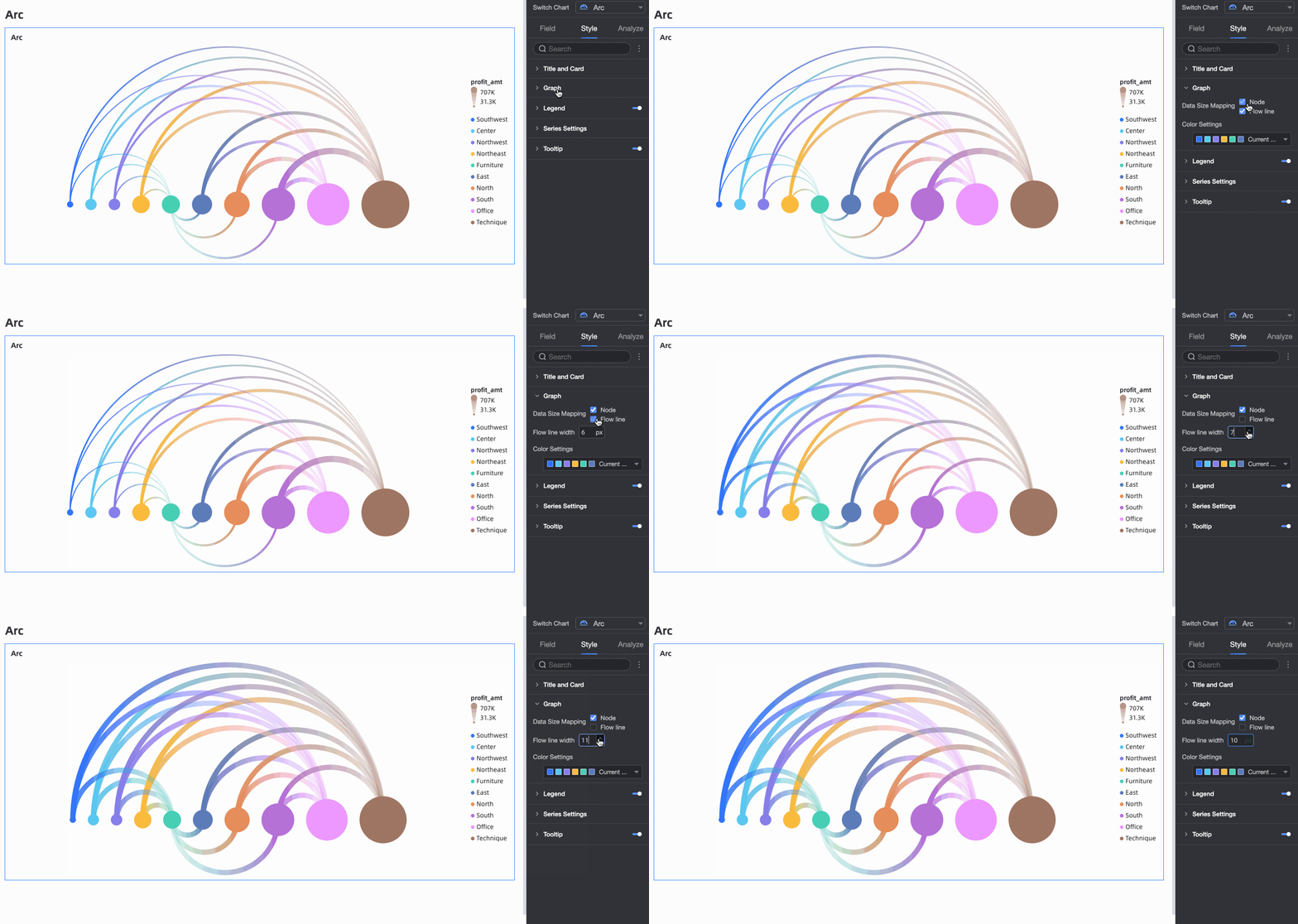
Customize configurations in the Graphics area.
Data size mapping supports two methods: multi-selecting nodes and flow lines. If you do not select the Flow Line option, customize the flow line width. The default value is 6 px, the peak value is 12 px, and the valley value is 2 px.
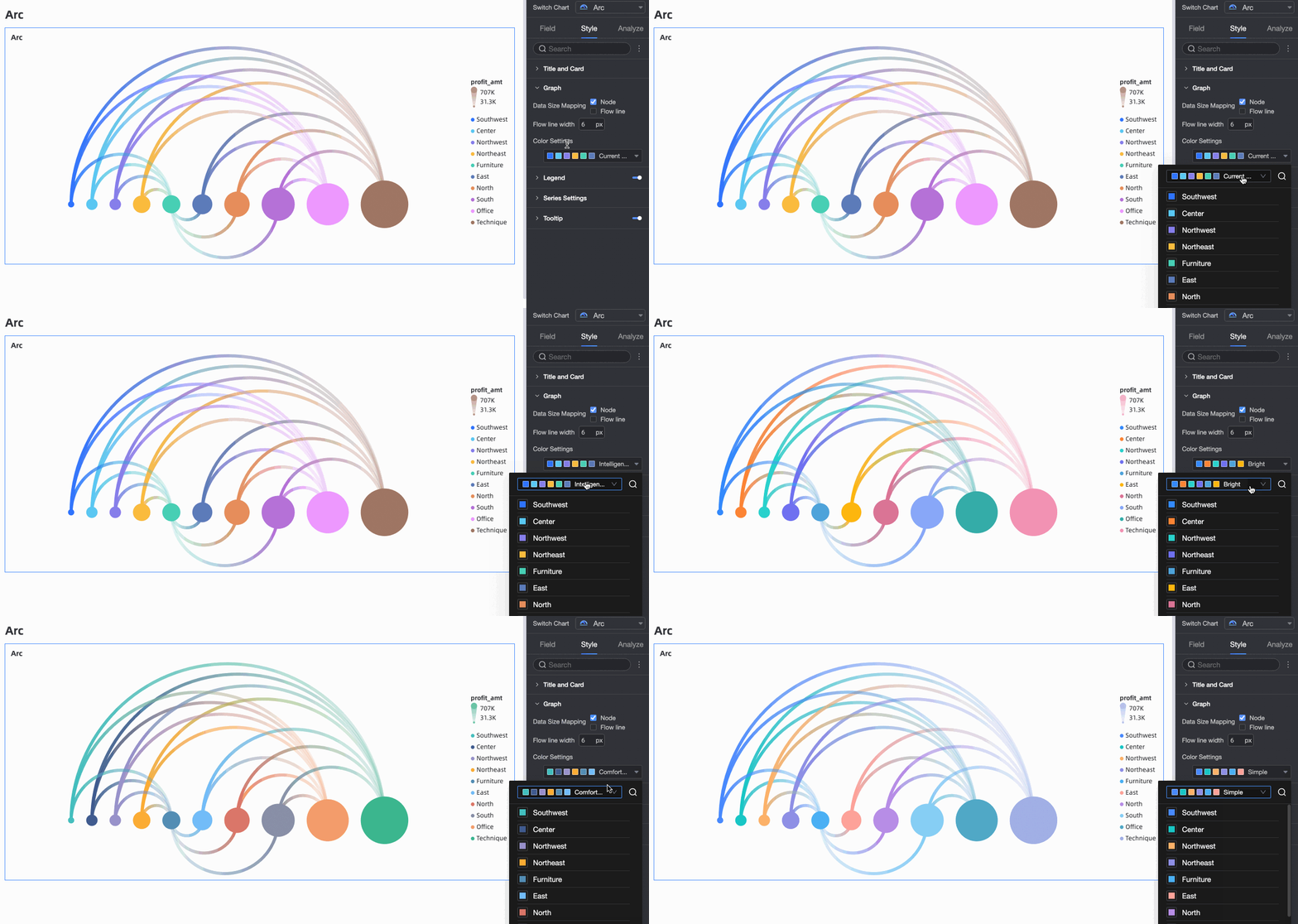
In Graphics, customize the color scheme as needed.
Legend
In Legend, click the  icon to enable the chart legend and set the legend style.
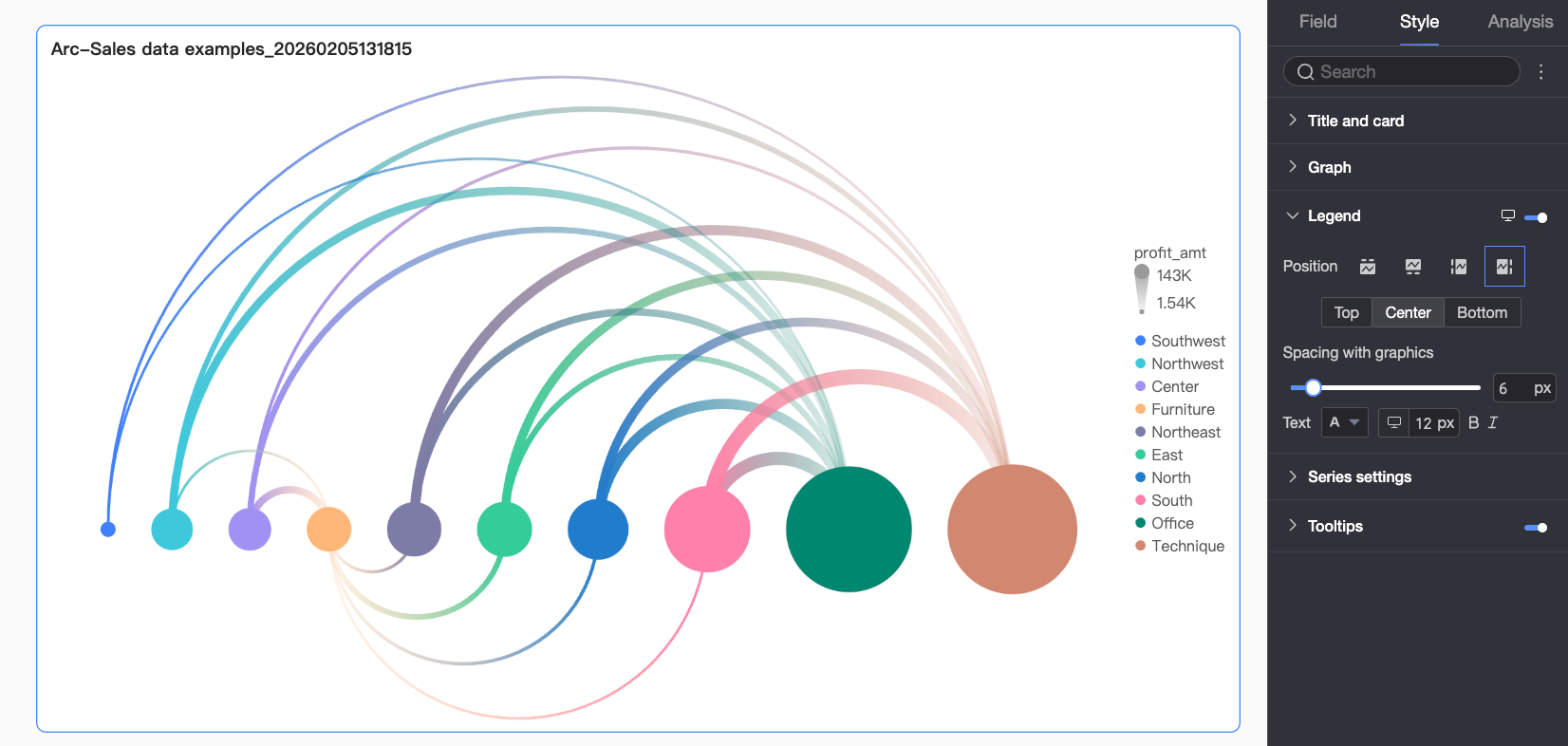
Chart Configuration Item | Configuration Item Description |
Position | Set the display position and alignment of the legend.
|
Text | Set the legend text style. You can set the font color, size, weight, and whether it is italic. |
Mobile Legend | Legend settings for PC and mobile are independent. Use the PC/Mobile switch button ( |
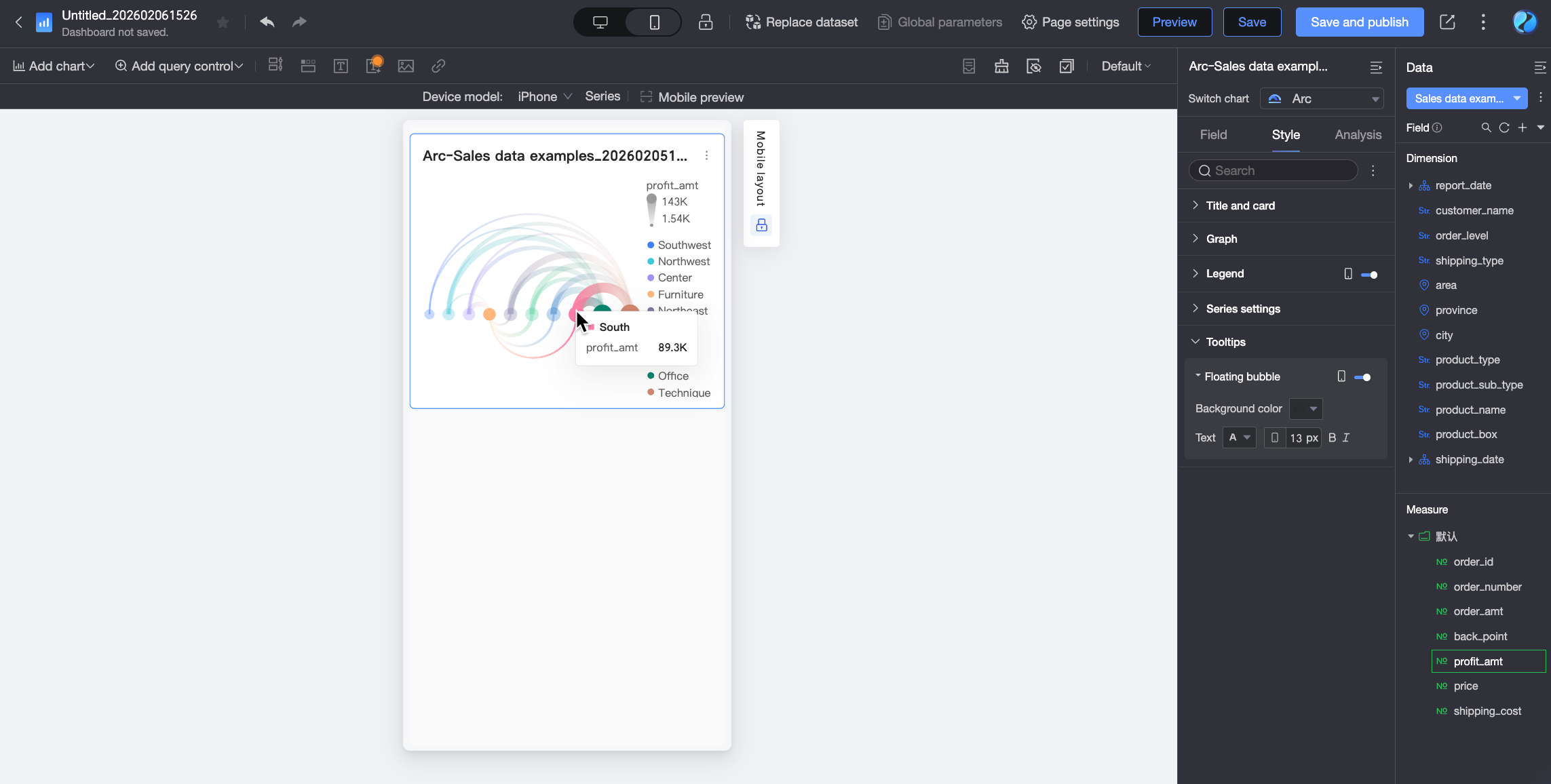
 ) at the top of the dashboard editing page to enter the mobile editing view. Set a separate legend for mobile. Customize the mobile legend's position and text style.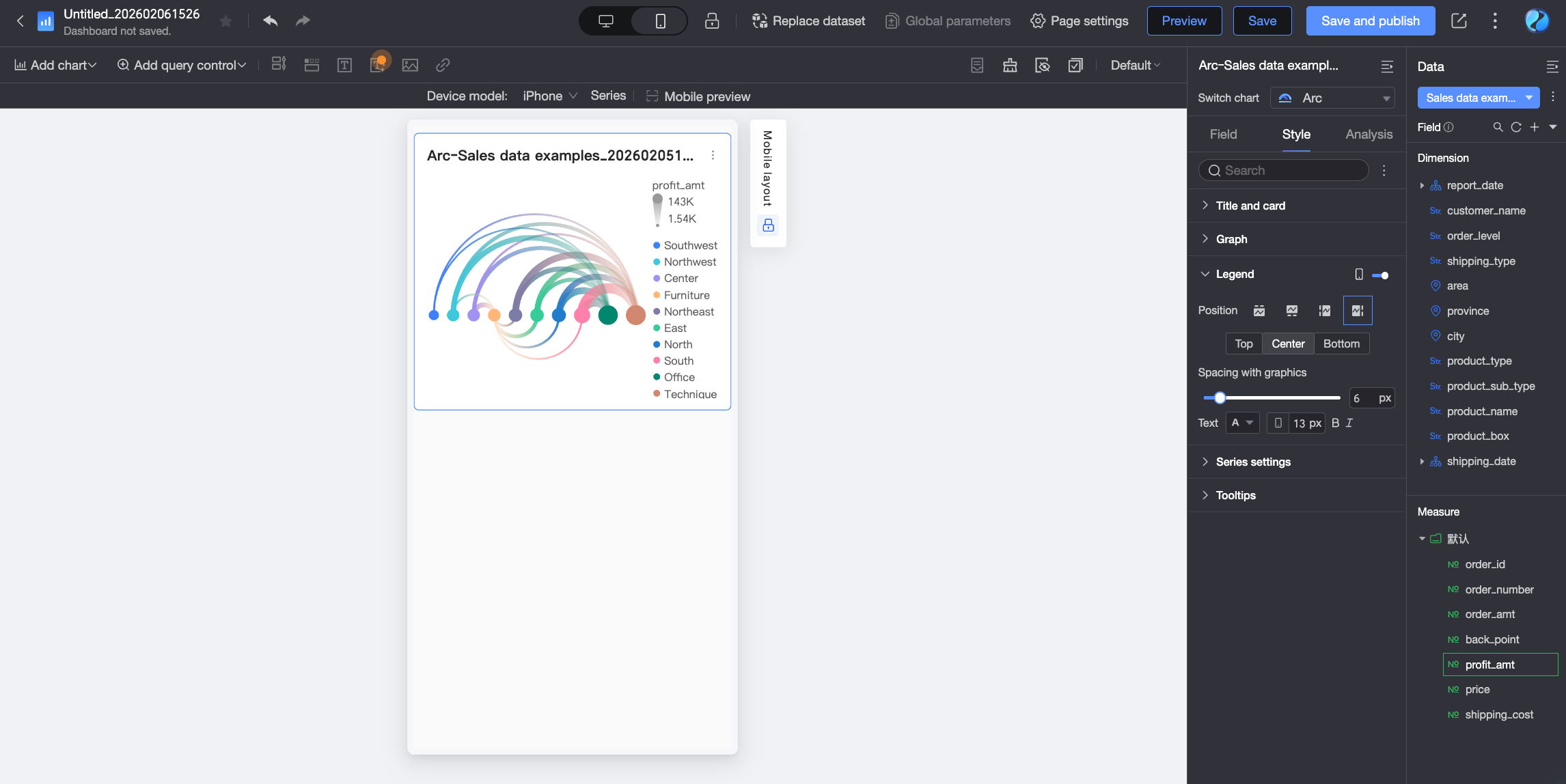
Series Settings
In Series Settings, set the series style.
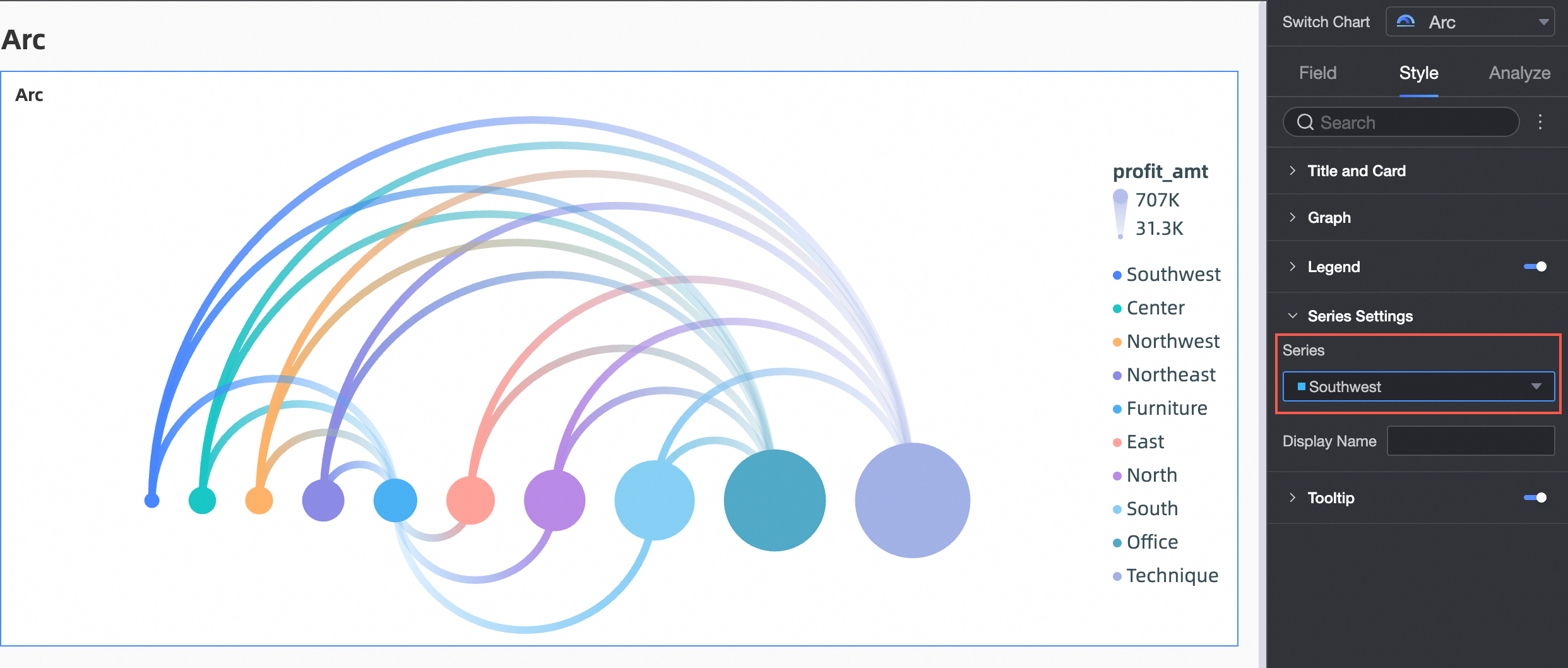
Chart Configuration Item | Description |
Select Series | Select a dimension or measure item as needed. |
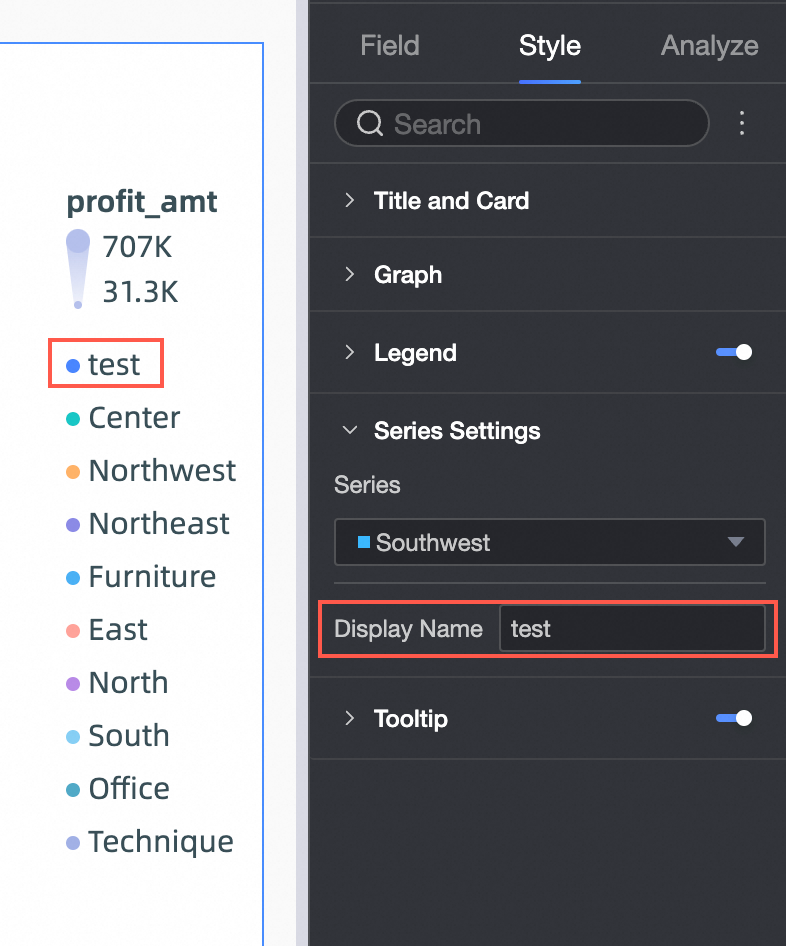
Alias | Set an alias for the series name. For example:
|
Tooltip
In Tooltip, click the icon to enable the tooltip and set the tooltip style.
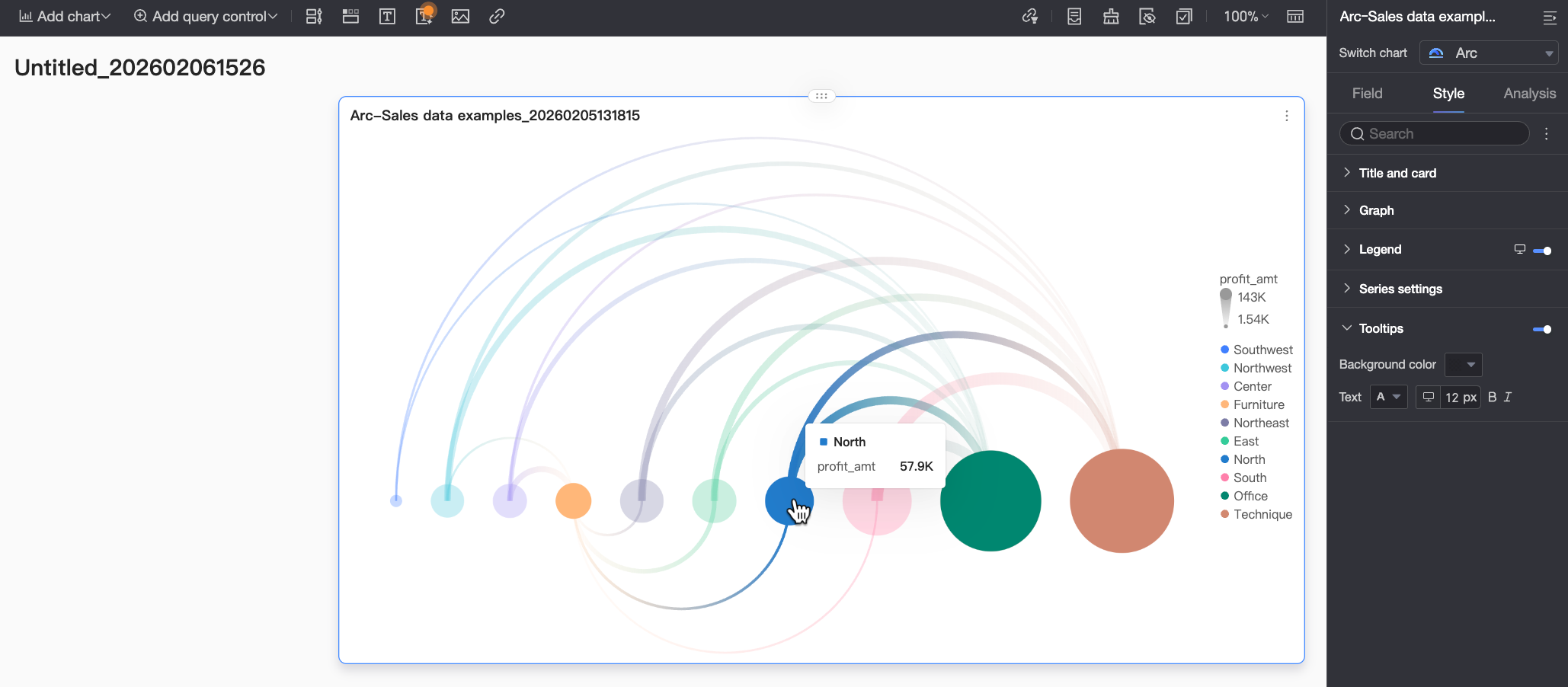
Chart Configuration Item | Configuration Item Description |
Background Color | Set the background fill color of the tooltip box. |
Text | Set the text style in the tooltip box. You can set the font color, size, weight, and whether it is italic. |
Mobile Tooltip | Tooltip switches for PC and mobile are independent. Use the PC/Mobile switch button ( |
What to do next
When others need to view a dashboard, you can share it with specific people. For more information, see Share a Dashboard.
When you need to create a complex, topic-based analysis with a navigation menu, you can integrate a dashboard that you have created into a BI portal. For more information, see Create a PC BI portal.