You can configure alert rules, alert metrics, and threshold values for OpenSearch Retrieval Engine Edition instances in an easy and quick manner. The system can send alert notifications by phone calls or text messages.
Default alert rules provided by OpenSearch Retrieval Engine Edition
OpenSearch Retrieval Engine Edition provides default alert rules, including multiple common alert rules. This way, you can create alert rules in an easy and quick manner.
The alert rules include the index change rate, the general query duration in Havenask, the memory usage of Query Result Searcher (QRS) workers, the CPU utilization of QRS workers, the memory usage of Searcher workers, the CPU utilization of Searcher workers, and the disk usage of Searcher workers. The alert rules are created for all clusters. You need to only add alert contacts and alert notification methods and enable the default alert rules.
Engine monitoring and alerting
Data switching-related alert rules
Item | Alert metric | Alert threshold | Notification interval |
Full delay | opensearch.ha3suez.searcher.index.full_delay_hours | You can configure the alert threshold for this metric based on your business requirements. | 5 minutes |
Batch delay | opensearch.ha3suez.searcher.index.batch_inc_delay_minutes | 15 minutes | 5 minutes |
Default alert rules
Item | Alert metric | Alert threshold | Notification interval |
Index change rate | opensearch.ha3suez.searcher.index.rate_of_change | WARNING:>20 CRITICAL:>20 | 5 minutes |
CPU utilization of Searcher workers | opensearch.ha3suez.searcher.proc_cpu | WARNING:>60 CRITICAL:>80 | 5 minutes |
General query duration in Havenask | opensearch.ha3suez.qrs.basic.qrssessionlatencynormal | WARNING:>400 CRITICAL:>800 | 5 minutes |
Disk usage of Searcher workers | opensearch.ha3suez.searcher.disk_use_ratio | WARNING:>80 CRITICAL:>90 | 5 minutes |
CPU utilization of QRS workers | opensearch.ha3suez.qrs.proc_cpu | WARNING:>60 CRITICAL:>80 | 5 minutes |
Memory usage of Searcher workers | opensearch.ha3suez.searcher.proc_mem_used_ratio | WARNING:>80 CRITICAL:>90 | 5 minutes |
Memory usage of QRS workers | opensearch.ha3suez.qrs.proc_mem_used_ratio | WARNING:>80 CRITICAL:>90 | 5 minutes |
For more information about metrics, see QRS metrics.
Enable default alert rules
1. On the Alert Rule Groups page, click Create Default Alert Rules. In the message that appears, click OK.

2. Find the created default alert rule and click Alert Rules in the Actions column.
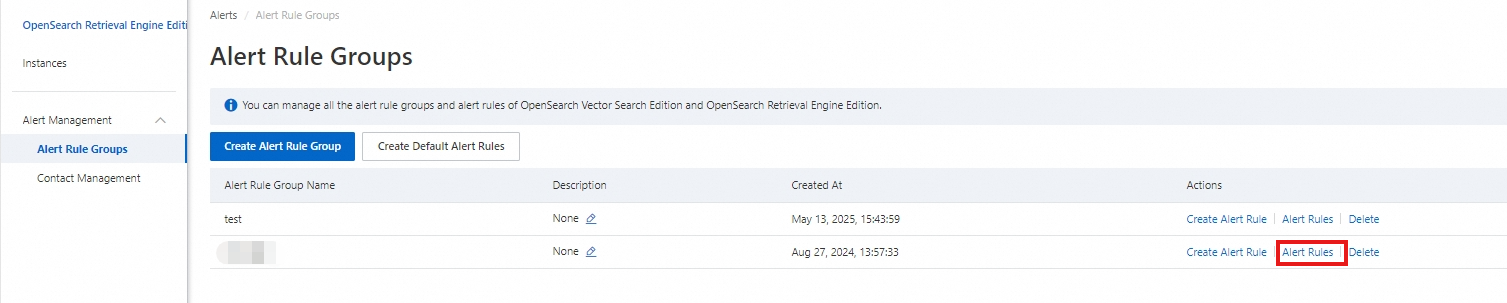
3. In the Alert Rules panel, click Enable.
You can also click Modify Alert Rule to modify the alert threshold, notification interval, alert contacts, and notification methods based on your business requirements.
Only one default alert rule group can be created for an OpenSearch Retrieval Engine Edition instance.
Customize an alert rule group
Create an alert rule group
1. Log on to the OpenSearch Retrieval Engine Edition console and choose Alert Management > Alert Rule Groups in the left-side navigation pane. On the page that appears, click Create Alert Rule Group.

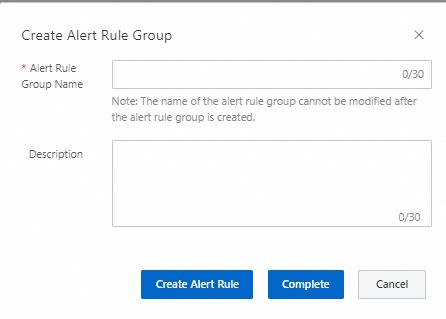
2. In the Create Alert Rule Group dialog box, configure the Alert Rule Group Name and Description parameters, and click Complete. You can also click Create Alert Rule. For more information about subsequent steps, see the Create an alert rule section of this topic.
Create an alert rule
1. On the Alert Rule Groups page, find the alert rule group that you want to manage and click Create Alert Rule in the Actions column.
2. In the Create Alert Rule panel, configure the following parameters: Alert Rule Name, Clusters, Monitoring Metric, Alert Threshold, Notification Interval, Alert Contacts, and Notification Method. If no contact is available, you must create a contact first. For more information, see Contact management. Then, confirm the configurations and click Create.
3. After an alert rule is created, click Enable in the Actions column of the alert rule. In the message that appears, click OK.
View alert rules
1. On the Alert Rule Groups page, find the alert group that you want to manage and click Alert Rules in the Actions column. On the panel that appears, you can view the alert rules of the alert group. You can create, modify, copy, delete, and disable alert rules. You can also specify a duration for which you want to disable an alert rule. After you configure the required parameters for the operation that you want to perform, click OK.
Delete an alert rule group
1. On the Alert Rule Groups page, find the alert rule group that you want to delete and click Delete in the Actions column. In the message that appears, click OK. (Note: If you delete an alert rule group, all alert rules in the alert rule group are also deleted. Proceed with caution.)