MaxCompute lets you modify the columns of existing tables. You can add columns, delete columns, or change column data types as needed.
Commands
The MaxCompute SQL commands for column operations are as follows:
Operation | Features | Role | Platform |
Add columns or comments to an existing non-partitioned or partitioned table. | Users with the Alter permission on the table | You can run the commands in this topic on the following platforms: | |
Delete columns from an existing non-partitioned or partitioned table. | |||
Change the data type of an existing column. | |||
Adjust the order of a specified column in a table. | |||
Change the name of a column in an existing non-partitioned or partitioned table. | |||
Change the comment of a column in an existing non-partitioned or partitioned table. | |||
Change the name and comment of a column in an existing non-partitioned or partitioned table simultaneously. | |||
Change the NOT NULL property of a non-partition key column. |
Scope
Schema evolution includes operations such as adding columns of complex data types, deleting columns, changing the column order, and changing column data types in an existing table. If you change the column order, add a new column and change the column order, or delete a column, the read and write behavior of the table changes. The following limits apply:
If the job type is MapReduce 1.0, Graph tasks cannot read from or write to the modified table.
For CUPID jobs, only the following Spark versions can read from the table. They cannot write to the table:
Spark-2.3.0-odps0.34.0
Spark-3.1.1-odps0.34.0
PAI jobs can read from the table, but cannot write to it.
For Hologres jobs, if you use a Hologres version earlier than 1.3, you cannot read from or write to the modified table when it is referenced as a foreign table.
If schema evolution occurs, CLONE TABLE is not supported.
If schema evolution occurs, an error is reported when you use Streaming Tunnel.
Add columns or comments
You can add columns or comments to an existing non-partitioned or partitioned table. Note the scope of schema evolution. MaxCompute supports adding columns of the STRUCT type, such as STRUCT<x: STRING, y: BIGINT> and MAP<STRING, STRUCT<x: DOUBLE, y: DOUBLE>>.
Parameter settings
To enable this feature, set the
setproject odps.schema.evolution.enable=true;parameter.Permissions: This is a project-level parameter. You must be the project owner or have the project-level Super_Administrator or Admin role. For more information, see Assign built-in management roles to a user.
Effective period: The parameter takes effect about 10 minutes after it is set.
Command format
ALTER TABLE <table_name>
  ADD COLUMNS [IF NOT EXISTS]
  (<col_name1> <type1> COMMENT ['<col_comment>']
  [, <col_name2> <type2> COMMENT '<col_comment>'...]
  );
Parameters
Parameter
Required
Description
table_name
Yes
The name of the table to which you want to add columns. You cannot specify the order of the new columns. They are added to the end of the table by default.
col_name
Yes
The name of the new column.
type
Yes
The data type of the new column.
col_comment
No
The comment for the new column.
Examples
Example 1: Add two columns to the sale_detail table.
ALTER TABLE sale_detail ADD COLUMNS IF NOT EXISTS(customer_name STRING, education BIGINT);Example 2: Add two columns with comments to the sale_detail table.
ALTER TABLE sale_detail ADD COLUMNS (customer_name STRING COMMENT 'Customer', education BIGINT COMMENT 'Education' );Example 3: Add a column of a complex data type to the sale_detail table.
ALTER TABLE sale_detail ADD COLUMNS (region_info struct<province:string, area:string>);Example 4: If you run the SQL statement to add an existing column, such as the ID column, to the sale_detail table, a success message is returned and the column is not added again.
-- The statement is successful, but the ID column is not repeatedly added.
ALTER TABLE sale_detail ADD COLUMNS IF NOT EXISTS(id bigint);
Example 5: Add a column to a Delta table.
CREATE TABLE delta_table_test (pk BIGINT NOT NULL PRIMARY KEY, val BIGINT)
  TBLPROPERTIES ("transactional"="true");

ALTER TABLE delta_table_test ADD COLUMNS (val2 bigint);
Delete columns
You can delete one or more specified columns from an existing non-partitioned or partitioned table. Note the scope of schema evolution.
Parameter settings
To enable this feature, set the
setproject odps.schema.evolution.enable=true;parameter.Permissions: This is a project-level parameter. You must be the project owner or have the project-level Super_Administrator or Admin role. For more information, see Assign built-in management roles to a user.
Effective period: The parameter takes effect about 10 minutes after it is set.
Command format
-- Delete a single column.
ALTER TABLE <table_name> DROP COLUMN <col_name>;

-- Delete multiple columns.
ALTER TABLE <table_name> DROP COLUMNS <col_name1>[, <col_name2>...];
Parameters
table_name: Required. The name of the table from which you want to delete columns.
col_name: Required. The name of the column to delete.
Example
-- Delete the customer_id column from the sale_detail table. Enter yes to confirm the deletion.
ALTER TABLE sale_detail DROP COLUMN customer_id;

-- Delete the customer_id column from the sale_detail table. Enter yes to confirm the deletion.
ALTER TABLE sale_detail DROP COLUMNS customer_id;

-- Delete the shop_name and customer_id columns from the sale_detail table. Enter yes to confirm the deletion.
ALTER TABLE sale_detail DROP COLUMNS shop_name, customer_id;
Change column data types
You can change the data type of an existing column. Note the scope of schema evolution.
Parameter settings
To enable this feature, set the
setproject odps.schema.evolution.enable=true;parameter.Permissions: This is a project-level parameter. You must be the project owner or have the project-level Super_Administrator or Admin role. For more information, see Assign built-in management roles to a user.
Effective period: The parameter takes effect about 10 minutes after it is set.
Command format
ALTER TABLE <table_name> CHANGE [COLUMN] <old_column_name> <new_column_name> <new_data_type>;Parameters
Parameter
Required
Description
table_name
Yes
The name of the table whose column data type you want to change.
old_column_name
Yes
The name of the column whose data type you want to change.
new_column_name
Yes
The name of the column after its data type is changed.
old_column_name can be the same as new_column_name, which means the column name is not changed. However, new_column_name cannot be the same as the name of any column other than old_column_name.
new_data_type
Yes
The new data type of the column.
Example
-- Change the data type of the id field in the sale_detail table from BIGINT to STRING.
ALTER TABLE sale_detail CHANGE COLUMN id id STRING;
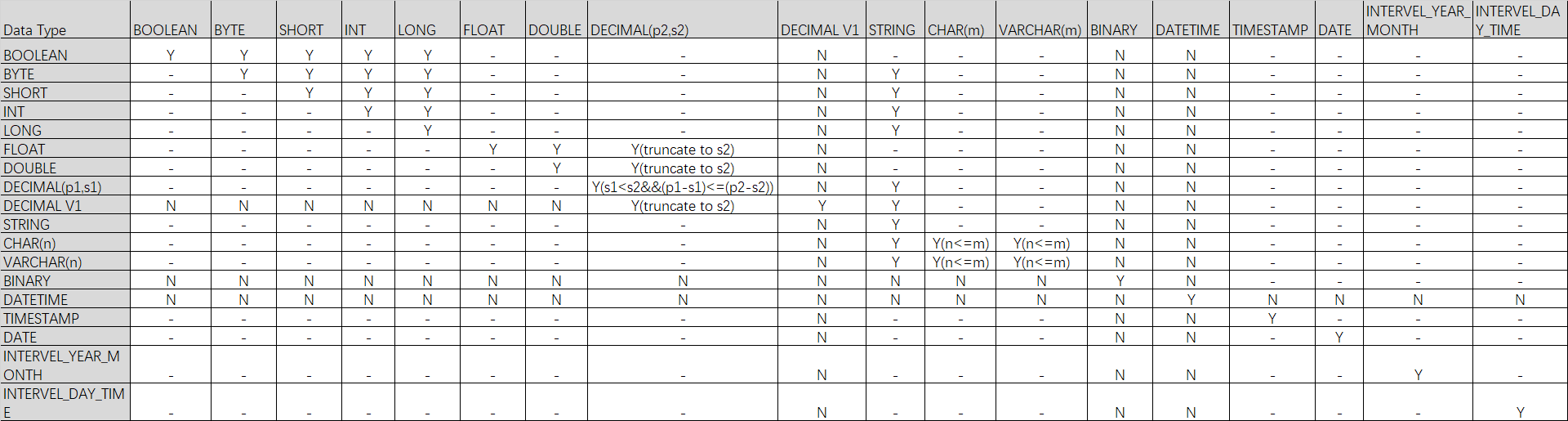
Data type conversion table
NoteY indicates that the conversion is supported. N indicates that the conversion is not supported. - indicates that the conversion is not applicable. Y() indicates that the conversion is supported if the condition in the parentheses is met.
Change the column order
You can change the column order in an existing non-partitioned or partitioned table. Note the scope of schema evolution.
Parameter settings
To enable this feature, set the
setproject odps.schema.evolution.enable=true;parameter.Permissions: This is a project-level parameter. You must be the project owner or have the project-level Super_Administrator or Admin role. For more information, see Assign built-in management roles to a user.
Effective period: The parameter takes effect about 10 minutes after it is set.
Command format
ALTER TABLE <table_name> CHANGE <old_column_name> <new_column_name> <column_type> AFTER <column_name>;Parameters
Parameter
Required
Description
table_name
Yes
The name of the table in which you want to change the column order.
old_column_name
Yes
The original name of the column whose order you want to change.
new_col_name
Yes
The new name of the column.
new_col_name can be the same as old_column_name, which means the column name is not modified. However, new_col_name cannot be the same as the name of any column other than old_column_name.
column_type
Yes
The original data type of the column. This cannot be changed.
column_name
Yes
Moves the column to be reordered after column_name.
Example
-- Change the name of the customer column in the sale_detail table to customer_id and move it after the total_price column.
ALTER TABLE sale_detail CHANGE customer customer_id STRING AFTER total_price;

-- Move the customer_id column in the sale_detail table after the total_price column without changing the column name.
ALTER TABLE sale_detail CHANGE customer_id customer_id STRING AFTER total_price;
Change a column name
You can change the name of a column in an existing non-partitioned or partitioned table.
Command format
ALTER TABLE <table_name> CHANGE COLUMN <old_col_name> RENAME TO <new_col_name>;Parameters
Parameter
Required
Description
table_name
Yes
The name of the table whose column name you want to change.
old_col_name
Yes
The name of the column to be renamed. The column must exist.
new_col_name
Yes
The new name for the column. The column name must be unique.
Example
-- Rename the customer_name column in the sale_detail table to customer.
ALTER TABLE sale_detail CHANGE COLUMN customer_name RENAME TO customer;
Change a column comment
You can change the comment of a column in an existing non-partitioned or partitioned table.
Syntax
ALTER TABLE <table_name> CHANGE COLUMN <col_name> COMMENT '<col_comment>';Parameters
Parameter
Required
Description
table_name
Yes
The name of the table whose column comment you want to change.
col_name
Yes
The name of the column whose comment you want to change. The column must exist.
col_comment
Yes
The new comment. The comment must be a valid string of no more than 1024 bytes. Otherwise, an error is reported.
Example
-- Change the comment of the customer column in the sale_detail0113 table.
ALTER TABLE sale_detail0113 CHANGE COLUMN customer COMMENT 'customer';
Change a column name and comment
You can change the name and comment of a column in a non-partitioned or partitioned table.
Command format
ALTER TABLE <table_name> CHANGE COLUMN <old_col_name> <new_col_name> <column_type> COMMENT '<col_comment>';Parameters
Parameter
Required
Description
table_name
Yes
The name of the table whose column name and comment you want to change.
old_col_name
Yes
The name of the column to be modified. The column must exist.
new_col_name
Yes
The new name for the column. The column name must be unique.
column_type
Yes
The data type of the column.
col_comment
Optional
The new comment. The content can be up to 1024 bytes in length.
Example
-- Change the name of the customer column in the sale_detail table to customer_newname and change its comment to 'customer'.
ALTER TABLE sale_detail CHANGE COLUMN customer customer_newname STRING COMMENT 'customer';
Change the NOT NULL property of a column
You can change the NOT NULL property of a non-partition key column in a table to allow NULL values.
After you allow NULL values for a column, you cannot revert this change to disallow NULL values. Proceed with caution.
You can run the
DESC EXTENDED table_name;command to view the value of theNullableproperty and determine whether the column allows NULL values:If
Nullableistrue, NULL values are allowed.If
Nullableisfalse, NULL values are not allowed.
Command format
ALTER TABLE <table_name> CHANGE COLUMN <old_col_name> NULL;Parameters
Parameter
Required
Description
table_name
Yes
The name of the table whose column NOT NULL property you want to change.
old_col_name
Yes
The name of the non-partition key column to be modified. The column must be an existing non-partition key column.
Example
-- Create a partitioned table in which the id column cannot be NULL.
CREATE TABLE null_test(id INT NOT NULL, name STRING) PARTITIONED BY (ds string);

-- View table properties.
DESC EXTENDED null_test;
-- The following result is returned:
+------------------------------------------------------------------------------------+
| Native Columns:                                                                    |
+------------------------------------------------------------------------------------+
| Field    | Type   | Label | ExtendedLabel | Nullable | DefaultValue | Comment      |
+------------------------------------------------------------------------------------+
| id       | int    |       |               | false    | NULL         |              |
| name     | string |       |               | true     | NULL         |              |
+------------------------------------------------------------------------------------+
| Partition Columns:                                                                 |
+------------------------------------------------------------------------------------+
| ds              | string     |                                                     |
+------------------------------------------------------------------------------------+

-- Allow the id column to be NULL.
ALTER TABLE null_test CHANGE COLUMN id NULL;
-- View table properties.
DESC EXTENDED null_test;
-- The following result is returned:
+------------------------------------------------------------------------------------+
| Native Columns:                                                                    |
+------------------------------------------------------------------------------------+
| Field    | Type   | Label | ExtendedLabel | Nullable | DefaultValue | Comment      |
+------------------------------------------------------------------------------------+
| id       | int    |       |               | true     | NULL         |              |
| name     | string |       |               | true     | NULL         |              |
+------------------------------------------------------------------------------------+
| Partition Columns:                                                                 |
+------------------------------------------------------------------------------------+
| ds              | string     |                                                     |
+------------------------------------------------------------------------------------+
References
For more information about table operation commands, see: