Use the OSS bucket inventory feature to accelerate backups of large-scale OSS data. For buckets with more than 100 million objects, using inventory files improves incremental backup performance.
Prerequisites
Before you begin, ensure that you have:
Activated Cloud Backup service (free activation). Using OSS backup incurs Cloud Backup storage fees and OSS request fees. For more information, see Billing of OSS backup.
An OSS bucket with Standard or Infrequent Access storage class. For more information, see Create a bucket.
(Optional) An existing OSS bucket inventory that meets the following conditions:
The inventory is current and enabled. The bucket prefix matches the Source Path value in the backup plan.
The inventory includes Object Size, Storage Class, Last Modified Date, and ETag fields.

For more information, see Bucket inventory.
Usage notes
Before creating a backup plan, review the following:
Permissions and roles
When you create your first backup plan or bind a backup policy, Cloud Backup automatically creates the service-linked role AliyunServiceRoleForHbrOssBackup. Grant the role when prompted.
Storage class support
Cloud Backup supports buckets and objects with Standard and Infrequent Access storage classes only. It does not support Archive, Cold Archive, or Deep Cold Archive storage classes.
Limitations
Cloud Backup does not support backing up or restoring object access control lists (ACLs).
Deleting early backup versions does not affect the integrity of remaining backup versions.
Billing
OSS backup incurs request fees. For more information, see OSS billing methods.
Backing up data from Infrequent Access buckets or objects incurs data retrieval fees based on the volume of retrieved data. For more information, see Data processing fees.
Inventory file management
Maintain OSS inventory files in the OSS console.
Cloud Backup uses the latest inventory file generated within the last seven days. OSS inventory generation takes time. Plan accordingly:
If no inventory file exists when a backup runs, the backup fails.
If an inventory file exists but hasn't been updated since the last backup, the backup fails.
Each backup uses only the most recently generated inventory file. Objects added after backup completion are included in the next backup cycle.
Set the backup interval greater than or equal to the inventory generation cycle. This ensures a new inventory file is available for each backup.
Set the first backup time after the inventory file is generated. Alternatively, click Run Now to run a backup manually after the inventory file is generated.
Free trial plans
The scheduled backup plan enabled when you create an OSS bucket is a 30-day free trial. The plan automatically disables upon expiration. Switch to a paid plan promptly.
ImportantFree trial plans have limitations. You cannot edit the source path or backup cycle. Each free trial plan uses a separate backup vault. You cannot change the backup vault after switching to a paid plan. If you plan to back up all data to the same backup vault, do not use a free trial plan.
Create a backup plan to periodically back up many OSS files
After you create a backup plan, the first backup job performs a full backup. Subsequent jobs perform incremental backups by default.
Create a backup plan:
Log on to the Cloud Backup console.
In the navigation pane on the left, choose .
In the top menu bar, select the region where the OSS bucket resides.
On the OSS Backup page, click Create Backup Plan.
In the Create Backup Plan panel, configure the following parameters, then click OK.
NoteFree backup plans are available for one month from the creation date. For example, a plan created on February 14, 2020 expires on March 14, 2020. OSS backup incurs request fees and manifest storage fees. For more information, see OSS billing methods.
Free trial plans have limitations. You cannot edit the source path or backup cycle. Each free trial plan uses a separate backup vault. You cannot change the backup vault after switching to a paid plan. If you plan to back up all data to the same backup vault, do not use a free trial plan.
This example uses a paid plan. Free plan configuration is similar.
Click Switch to Paid Plan, and then click OK in the dialog box.
Configure Basic Settings:
ImportantIn regions that support backup policies, backup plans must be created by attaching them to a policy. The attached policy governs the periodic backup of your OSS data.
In the navigation pane on the left of the console, click Policy Center to view the regions that support backup policies. For more information about how to create a backup policy, see Create a backup policy.
Parameter
Description
Source OSS Bucket
Select the OSS bucket to back up from the drop-down list. Cloud Backup automatically lists all buckets in the region under your account.
Source Path
Select a bucket directory to back up from the drop-down list. If you do not select a directory, the entire root directory is backed up by default.
Backup Policy
Select a backup policy from the drop-down list. Cloud Backup backs up data according to the policy settings. A backup policy includes backup vault encryption, backup interval, retention period, cross-region replication, and automatic data archiving.
If the default backup policy does not meet your requirements, click Create Backup Policy or Edit Policy to manage backup policies. For more information, see Policy center.
Performance Optimization
Use OSS Inventory
Enable OSS inventory for backup. For large-scale backups, set this to Select Inventory.
No: Backs up objects by traversing them. Not recommended for large-scale backups.
Select Inventory: Uses an existing OSS inventory file to improve incremental backup performance. Recommended for buckets with more than 100 million objects.
OSS Inventory Name
This parameter is required only when Use OSS Inventory is set to Select Inventory. From the OSS Inventory Name list, select a created OSS inventory.
Using the OSS bucket inventory feature incurs fees. For more information about the fees, see Bucket inventory billing.
The created OSS inventory file must meet the following conditions:
The inventory must be current and enabled. The bucket prefix must match the Source Path value in the backup plan.
The inventory file must include the Object size, storage class, last updated date, and ETag fields.
The inventory generation cycle must be less than or equal to the backup cycle. This ensures a new inventory file is available for each backup.
Delete inventory file after backup
Choose whether to delete inventory files after backup. This deletes files in the bucket. We recommend placing inventory files in a separate bucket or selecting Do Not Delete for manual management.
Do Not Delete: Does not delete inventory files. Use this option if other applications access the inventory files.
Delete Current: Deletes the inventory file used in the current backup job.
Delete All: Deletes all inventory files generated before this backup after completion. Use this option if no other applications access the inventory files.
The backup plan status is Running. Cloud Backup runs backup jobs at the specified start time and interval.
Verify backup completion
Cloud Backup automatically starts the backup job at the scheduled time.
NoteThe displayed backup progress is an estimate. The total data size may change as the scan progresses, so the final job status is the only definitive confirmation of completion.
On the Backup Jobs tab, if the Status of a backup job is Completed, the backup is successful.
View details about the backup job, such as Total Scan, Completed Backups, Written to Vault, and Backup Speed. For more information about these metrics, see the tooltips in the Cloud Backup console.
NoteFor backup jobs completed on or after June 1, 2025, statistics for both data volume and file count are displayed for Total Scanned at Source, Backup Completed, and Data Written to Vault. For backup jobs completed before this date, only data volume statistics are shown for these metrics.
The job list displays only the backup jobs from the last six months. To view older jobs, export them from the Audit Report page.

On the Backup Plans tab, click the
 icon next to the target bucket to view the backup records and information about the generated backup points in the Backup History section. Then OSS objects can be restored based on these historical backup points.
Troubleshooting
If a backup plan or backup job status is abnormal, use the following checklist to diagnose and resolve the issue.
Status of the backup job: Failed (The OSS bucket does not exist.)
The OSS bucket has been deleted.
If the OSS bucket was deleted as expected, ignore the backup job status. To avoid extra backup storage fees, click Storage Vaults in the left navigation pane, find the corresponding backup vault, and delete it.
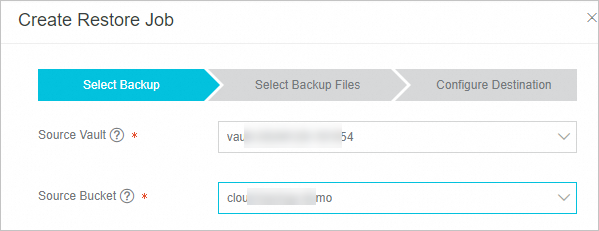
If the OSS bucket was deleted by mistake and you want to restore it, create an OSS bucket in the corresponding region. Use this bucket as the restore destination. For more information, see Create an OSS restore job.
Status of the backup job: Failed (No OSS inventory list is available. Please wait for the next backup when the latest inventory list is automatically detected and used.)
The OSS inventory file was not found in the specified directory (prefix). Check the following:
Verify that the bucket inventory is created in the OSS console.
Confirm the inventory is enabled and current.
Ensure the inventory prefix matches the backup plan prefix.
Check that the inventory includes required fields: Object Size, Storage Class, Last Modified Date, and ETag.
Verify the inventory generation cycle is less than or equal to the backup interval.
Backup plan Status: Suspended
The backup plan is paused. Cloud Backup no longer protects the OSS bucket. Resume the backup plan as soon as possible.
Browse and download backup files
Browse backup files
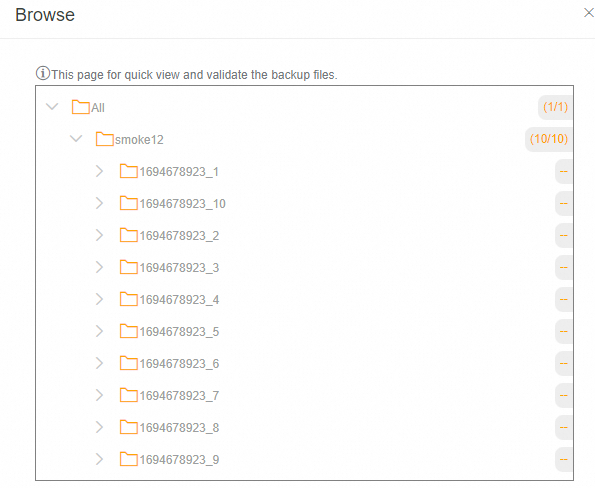
Use the Browse feature to view backed-up files.
On the Backup Plans tab, click the
 icon next to the target OSS bucket.
In the Backup History, find the backup point for the desired time and click Browse.
Download backup files
You cannot directly download backed-up files. Restore files to a temporary OSS path (free of charge), then download them from OSS.
Backup vault replication
To mitigate risks to business continuity from regional disasters or account management issues, Cloud Backup supports cross-region and cross-account replication for general backup vaults. Once configured, data from the source vault is automatically synchronized to a replication target vault. This ensures data consistency across both locations and enables on-demand, cross-region data recovery using the target vault.
For general backup vaults storing OSS objects, backup vault replication provides an effective solution for cross-region or cross-account disaster recovery. In addition, OSS backup offers a range of enterprise-grade features, including Cross-account backup, Automatic archiving, KMS-based encryption, and Immutable backup.
More operations
The following operations are available in the Actions column on the Backup Plans tab.
Operation | Description |
Backup History | View all backup records of the OSS bucket or the backup records in the last three months. |
Execute Immediately | Immediately run a backup plan. |
Edit | Modify an OSS backup plan that does not meet your requirements. |
Suspend Plan | Suspend a running backup plan. |
Resume Plan | Resume a suspended backup plan. |
Delete Plan | Delete a running backup plan. After you delete the backup plan, it no longer runs, but the backed-up data is retained. |
Alert Settings | If a backup fails or the connection to the server is lost, Cloud Backup sends alert notifications by default. For more information, see Configure an alert rule for on-premises file backup. |
Next steps
References
Cloud Backup provides resource plans for various backup scenarios. These plans offer price discounts. For more information, see Resource plan purchase guide.
Cloud Backup data synchronization supports synchronizing many OSS files from a source to a destination. For more information, see Data synchronization overview.