Digital watermarking embeds hidden digital information into audio and video files without affecting the visual quality or integrity of the video. This technology is used for copyright protection, leak tracing, and file verification. Digital watermarks are classified as copyright watermarks and tracing watermarks.
Use cases
Digital watermarks are visually imperceptible, secure, and reliable. They are widely used in the following scenarios:
Copyright watermarks
Copyright protection: You can add copyright information as a watermark to a video. You can later extract the watermark to identify the copyright owner.

Institution tracing: You can trace pirated content back to the institution that leaked it during copyright distribution. For example, a movie distributor sends copies of a film to several institutions. If the film is leaked and illegally distributed, the copyright holder can identify the source of the leak. This allows them to stop further distribution and hold the responsible parties accountable.

Tracing watermarks
User tracing: You can trace pirated content back to the user who leaked it during playback. For example, a common way videos are leaked is when end users download or record them. Tracing watermarks can identify the specific user responsible for the leak.

Features
Good visual effects: Digital watermarks are concealed and cannot be seen in videos and images. Videos that contain digital watermarks can be played as usual.
High security level: Video leakers can hardly cover or remove the concealed digital watermarks. The watermark information is encrypted in special formats, which makes it difficult to be modified or extracted by leakers.
High accuracy level: The encryption of watermark information ensures that the information extracted from digital watermarks is accurate and unique.
High robustness: Digital watermarks are robust. They persist regardless of different video piracy tricks, such as video compression, video rotation, resolution conversion, frame rate conversion, screen recording, recording and cropping, and video scaling.
Watermark information encryption: The watermark information is encrypted in special formats and is difficult to modify, which ensures its accuracy.
Billing
Digital watermarking is a paid feature of ApsaraVideo VOD. You are charged for generating and extracting digital watermarks. For more information, see 数字水印计费.
Limits
You can use the digital watermark feature only in the China (Shanghai) and China (Beijing) regions.
Some features of tracing watermarks, such as generating M3U8 video streams with tracing watermarks by calling the GetPlayInfo operation, are available only to users in a whitelist. To enable these features, submit a ticket.
When you create a video with a digital watermark, note the following limits:
Input
The video duration must be 6 minutes or longer.
The bitrate must be greater than 1000 Kbps.
The HLS format is not supported.
Output
Copyright watermarks support MP4, HLS, and FLV formats.
Tracing watermarks support only the HLS format.
When you extract a digital watermark from a video, note the following requirements for the input video:
The digital watermark extraction algorithm provides different levels of robustness based on the video duration. Robustness determines the resistance to factors such as compression bitrate and external recording. The motion and texture complexity of a video affect watermark robustness. The requirements in the following table apply to videos with relatively static content, such as online courses. For videos with fast motion, such as action movies, the bitrate must be higher than the recommended values in the table.
Video duration (minutes)
6 ≤ Duration < 10
10 ≤ Duration < 20
Duration ≥ 20
Recommended video bitrate (Kbps)
≥ 2000
≥ 1000
≥ 500
Support for extraction from externally recorded videos (recorded by phones, cameras, etc.)
The video is too short. Do not use externally recorded videos for extraction.
External recording severely damages watermarks. The bitrate of the externally recorded video used for extraction must be greater than 3000 Kbps.
Prerequisites
ApsaraVideo VOD is activated. For more information, see Activate ApsaraVideo VOD.
The RAM user or RAM role that you use has corresponding permissions to access ApsaraVideo VOD. We recommend that you use a RAM user or RAM role to perform operations to improve the security of your account and resources. For more information, see Create and grant permissions to a RAM user.
Use a copyright watermark
Make sure that you understand and meet the requirements in Limits for creating and extracting copyright watermarks. Otherwise, the operation may fail.
Step 1: Generate a video with a copyright watermark
Create a transcoding template group with copyright watermarking enabled.
You can create a transcoding template group with copyright watermarking enabled only in the ApsaraVideo VOD console.
Log on to the ApsaraVideo VOD console.
In the navigation pane on the left, choose Configuration Management > Media Processing > Transcoding Template Groups. Click Create Transcoding Template Group.
You can set Template Group Name.
On the left, in the Audio and Video Transcoding Template section, click Add Template. Configure the transcoding parameters and enable digital watermarking.
Set Encapsulation Format to HLS (.m3u8+ts), MP4 (.mp4), or FLV (.flv).
You can set Resolution to Set by Long and Short Sides or Set by Width and Height.
Watermark: Enable Watermark and set Type to Copyright Watermark.
For Watermark Text, enter the custom text. The text can contain up to 64 characters, including letters, digits, and Chinese characters. For example: Alibaba Cloud ApsaraVideo VOD copyright watermark.
Keep the default settings for other parameters or change them as needed. For more information about the parameters and configuration suggestions, see Transcoding templates.
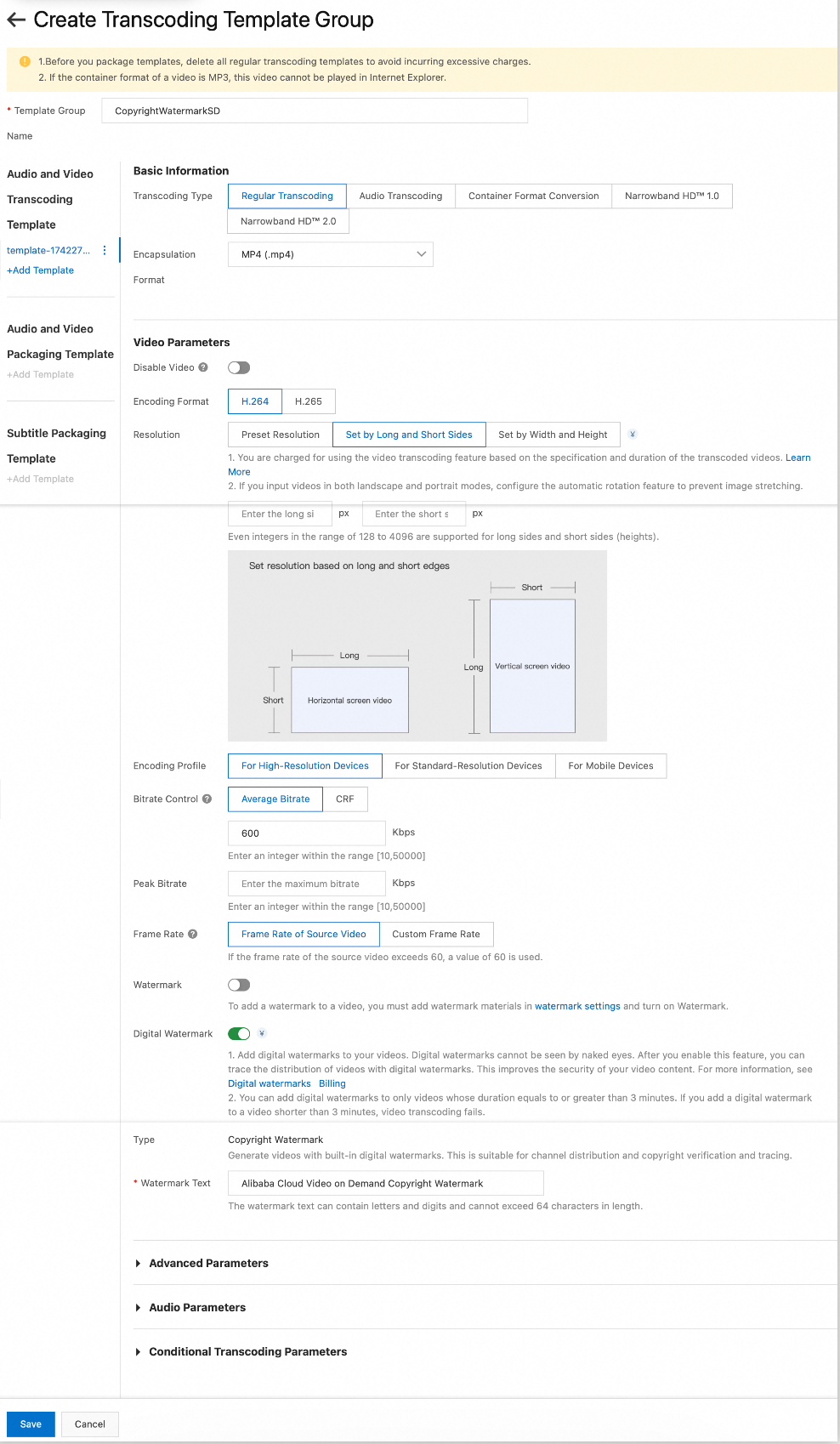
Click Save to create the transcoding template group.
After the transcoding template group is created, you can view the group and its ID on the Transcoding Template Groups page.
Transcode the video and add a copyright watermark.
Use the transcoding template group created in the previous step to transcode the video and add a copyright watermark. For more information, see Audio and video transcoding or Audio and video transcoding.
Step 2: Simulate the theft of the copyright watermarked video
Common methods of video theft include the following:
Direct distribution: Obtain the playback URL of the video with a copyright watermark and download the video to a local device.
Screen recording: While the video with a copyright watermark is playing, use a screen recording tool to record it.
External recording: While the video with a copyright watermark is playing, use a device such as a phone or camera to record it.
In the ApsaraVideo VOD console, go to the Audio/Video page in the media library to find the video that was transcoded with a copyright watermark as described in Step 1: Generate a video with a copyright watermark.
For the target video, click Manage in the Actions column.
Click the Video URL tab.
Steal the video in one of the following ways.
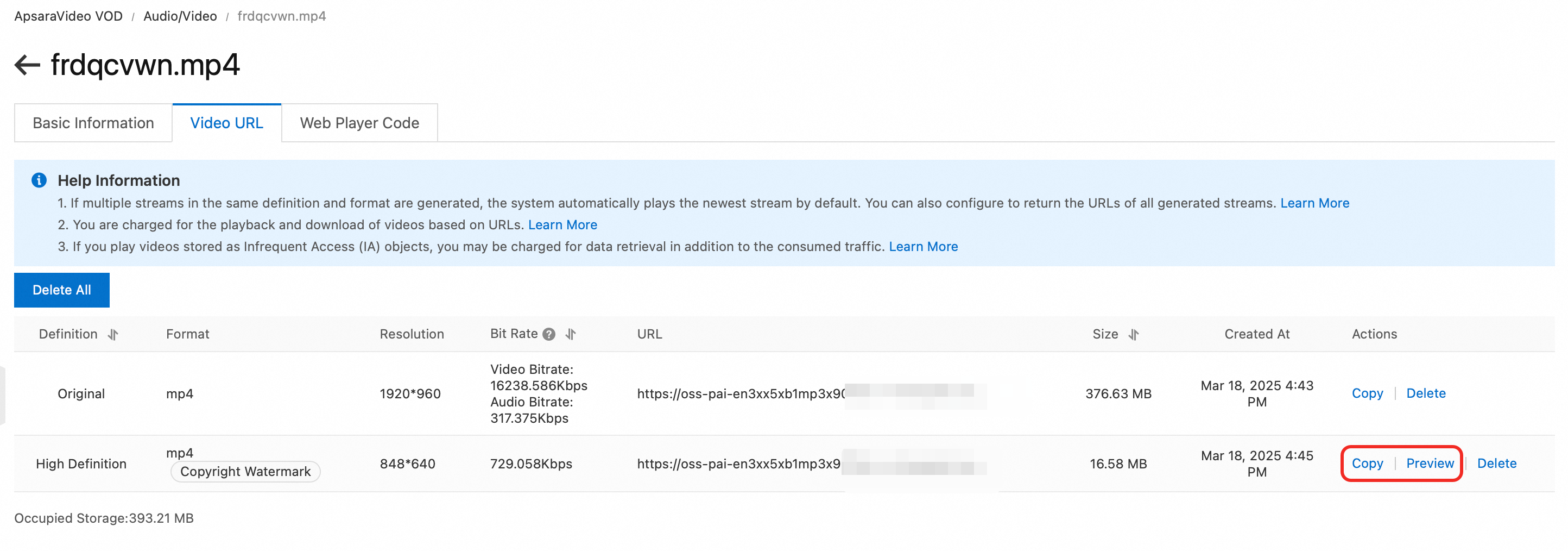
Direct distribution: Click Copy to copy the URL of the copyright watermarked video stream. Paste the URL in a browser to download the video locally.
Screen recording: Click Preview to view the video stream with the copyright watermark. While the video is playing, use a screen recording tool to record it.
External recording: Click Preview to view the video stream with the copyright watermark. While the video is playing, use a device such as a phone or camera to record it.
Step 3: Extract the copyright watermark from the stolen video
Upload the stolen video to ApsaraVideo VOD.
Upload the stolen video that you downloaded or recorded in Step 2: Simulate the theft of the video with a copyright watermark to ApsaraVideo VOD. Save the video ID.
NoteMake sure that the stolen video and the original video from Step 1: Generate a video with a copyright watermark are uploaded to the same ApsaraVideo VOD region. Otherwise, the copyright watermark cannot be extracted.
You cannot upload local M3U8 files using the ApsaraVideo VOD console. You can upload local M3U8 files using the ApsaraVideo VOD API or an SDK. For more information, see Upload local M3U8 files.
This section uses uploading an MP4 video in the ApsaraVideo VOD console as an example. For more information about upload methods, see Media upload.
Log on to the ApsaraVideo VOD console.
In the navigation pane on the left, go to Media Files > Audio/Video. Click Upload to open the Upload Media page.
Click Add Media and set the upload parameters.
You can set the upload process to No Transcoding to save time. For more information about supported formats and parameters, see Upload files using the ApsaraVideo VOD console.
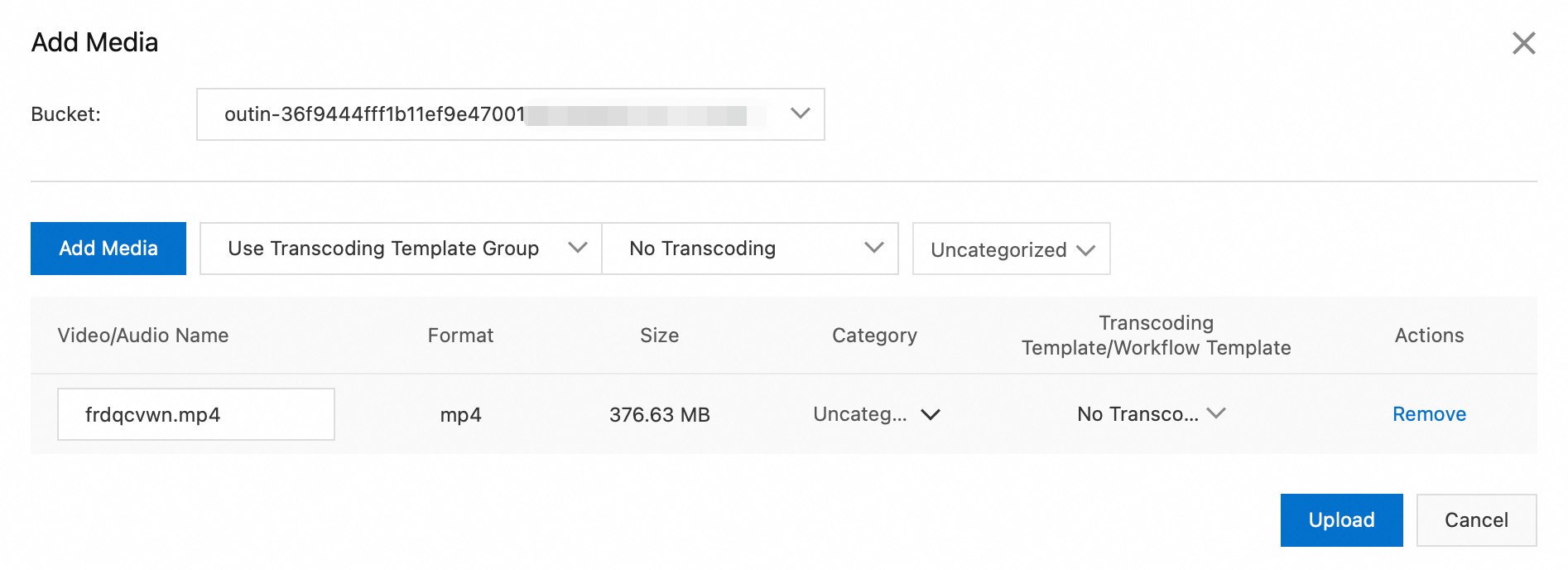
Click Upload.
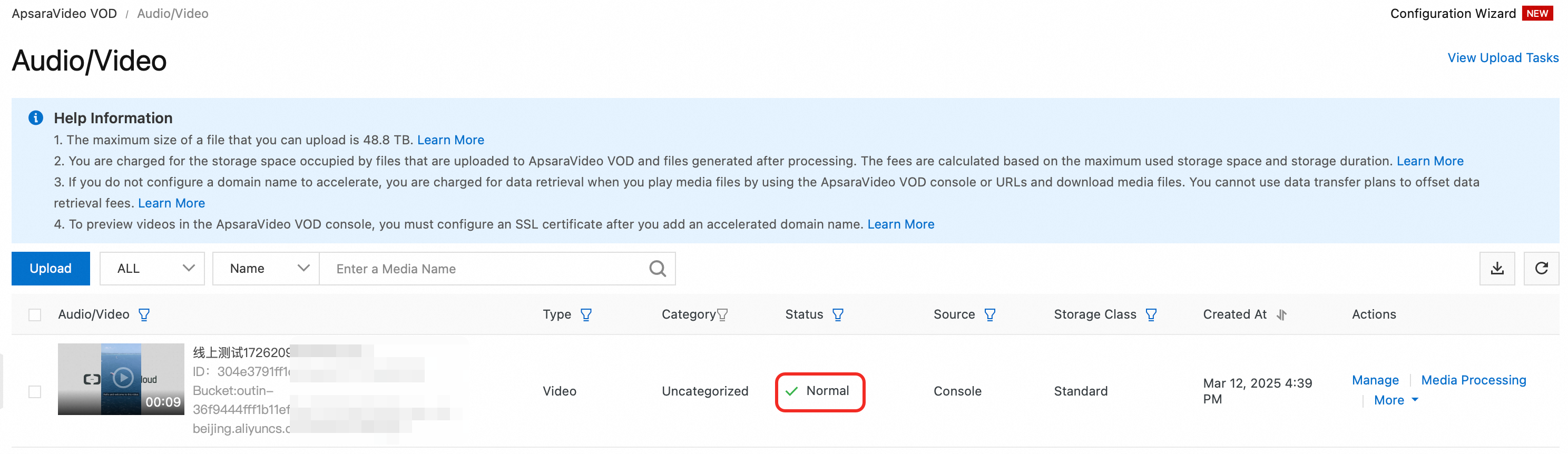
After the video is uploaded, you can view its video ID and status on the Audio/Video list page. A status of Normal indicates that the video has been successfully uploaded and is ready to use. If a different status is displayed, refer to Status of audio and video files for troubleshooting.
Extract the copyright watermark from the stolen video.
ImportantDigital watermark extraction tasks are billed based on the duration of the video being processed. To avoid extra costs, do not submit multiple extraction tasks for the same video.
Extract using the console
Log on to the ApsaraVideo VOD console.
In the navigation pane on the left, choose to go to the digital watermark page.
Submit a copyright watermark extraction task.
Configure the task parameters in the Digital Watermark Extraction Tool section.
Set Task Type to Submit Watermark Extraction Task.
Set Watermark Type to Copyright Watermark.
In the Video ID field, enter the ID of the stolen video that you uploaded in the previous step.
Click Submit.
After submitting the task, you can click Query Result in the dialog box to view its status. Wait for the task to complete before you proceed to the next step.
Query the extracted copyright watermark information.
NoteThe ApsaraVideo VOD console displays only the result of the most recent watermark extraction task for a video. To query the results of all historical extraction tasks for the video, call the GetDigitalWatermarkExtractResult operation.
In the Digital Watermark Extraction Tool section, you can configure the query parameters.
Set Task Type to Query Watermark Extraction Results.
Set Watermark Type to Copyright Watermark.
For Video ID, enter the ID of the stolen video that you uploaded in the previous step.
Click Submit.
If the copyright watermark fails to be extracted, see Why did the extraction of a digital watermark from a stolen video fail? for troubleshooting.
Extract using OpenAPI
Submit a copyright watermark extraction task.
Call the SubmitDigitalWatermarkExtractJob operation and set the following required parameters to start a copyright watermark extraction task.
Set the
MediaIdparameter to the video ID of the stolen video.Set the
ExtractTypeparameter toCopyrightMark.
Query the extracted copyright watermark information.
NoteAfter you submit the copyright watermark extraction task, wait for about 10 minutes before you query the extracted information.
Call the GetDigitalWatermarkExtractResult operation and set the following required parameters to query the extracted copyright watermark information.
Set the
MediaIdparameter to the video ID of the stolen video.Set the
ExtractTypeparameter toCopyrightMark.
If the copyright watermark is extracted successfully, the following response is returned:
{
  "RequestId": "974756D4-5CF9-54DA-BF21-62E0E12E0B81",
  "AiExtractResultList": [
    {
      "Status": "Success",
      "ModifyTime": "2024-06-12T11:14:46Z",
      "WaterMarkText": "Alibaba Cloud ApsaraVideo VOD copyright watermark",
      "CreateTime": "2024-06-12T11:14:25Z",
      "JobId": "90f6281bf3c1497eaee79c0842e5****"
    }
  ]
}
If the copyright watermark fails to be extracted, see Why did the extraction of a digital watermark from a stolen video fail? for troubleshooting.
Step 4: Compare the watermark information
Compare the extracted watermark text with the watermark text that you configured in the transcoding template group in Step 1. This comparison confirms the copyright ownership of the stolen video.
Tracing watermark usage
Make sure that you understand and meet the requirements in Limits for creating and extracting tracing watermarks. Otherwise, the operation may fail.
Step 1: Generate a video with a tracing watermark
Create a transcoding template group with tracing watermarking enabled.
You can create a transcoding template group with tracing watermarking enabled only in the ApsaraVideo VOD console.
Log on to the ApsaraVideo VOD console.
In the navigation pane on the left, choose Configuration Management > Media Processing > Transcoding Template Groups. Then, click Create Transcoding Template Group.
Set the Template Group Name.
In the Audio and Video Transcoding Template section in the left navigation pane, click Add Template. Then, configure the transcoding parameters and enable digital watermarking.
Set Encapsulation Format to HLS (.m3u8+ts).
For Resolution, select Set by Long and Short Sides or Set by Width and Height.
Watermark: Enable Watermark and select Tracing Watermark.
Keep the default settings for other parameters or change them as needed. For more information about the parameters and configuration suggestions, see Transcoding templates.
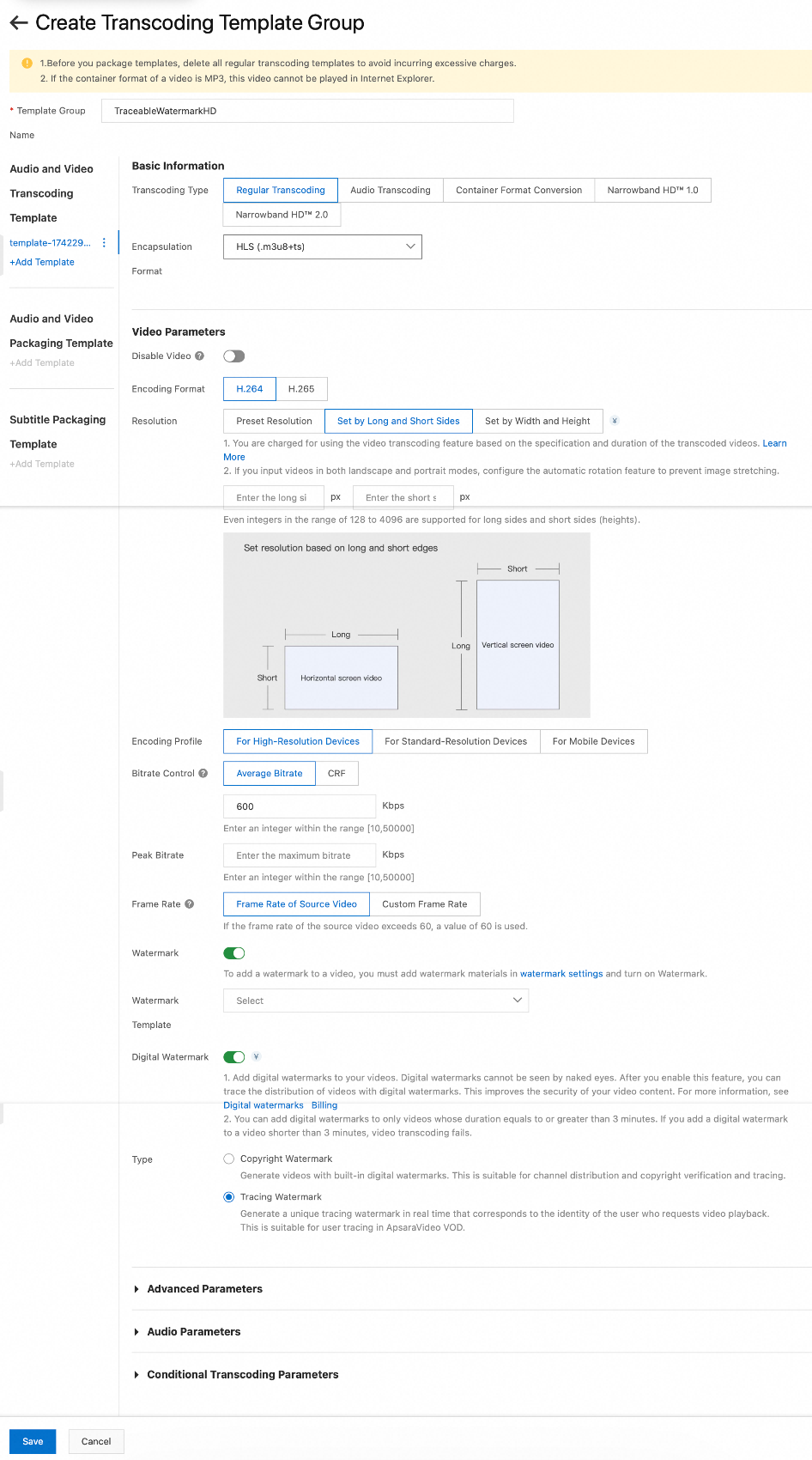
Click Save to create the transcoding template group.
After the transcoding template group is created, you can view the group and its ID on the Transcoding Template Groups page.
Transcode the video and add a tracing watermark.
Use the transcoding template group created in the previous step to transcode the video and add a tracing watermark. This generates tracing watermark A/B streams. For more information, see Audio and video transcoding.
Call the GetPlayInfo operation to request video playback and generate an M3U8 video with a tracing watermark.
When a user requests playback, a watermarked M3U8 video with a unique sequence is assembled based on the video ID of the generated A/B streams.
Call the GetPlayInfo operation and set the following required parameters to generate an M3U8 video with a tracing watermark.
Set the
VideoIdparameter to the ID of the video that was transcoded with a tracing watermark.Set the
Definitionparameter to the video definition. This must be the same as the definition that you configured for transcoding. You can view the definition in the tracing watermark transcoding template group.Set the
DigitalWatermarkTypeparameter toTraceMark.Set the
Traceparameter to the custom watermark text. Example: Tracing watermark-User B.You can leave the
ResultTypeparameter empty or set it to Single. You cannot set it toMultiple.
After the operation is called successfully, the returned
PlayURLis the playback URL of the video with a tracing watermark.
Step 2: Simulate the theft of the tracing watermarked video
Common methods of video theft include the following:
Direct distribution: Obtain the playback URL of the video with a tracing watermark and download the video to a local device.
Screen recording: While the video with a tracing watermark is playing, use a screen recording tool to record it.
External recording: While the video with a tracing watermark is playing, use a device such as a phone or camera to record it.
Obtain the playback URL of the video with a tracing watermark that was generated in Step 1: Generate a video with a tracing watermark. This is the
PlayURLreturned by the GetPlayInfo operation.Steal the video in one of the following ways.
Direct distribution: Copy the video playback URL to a browser to download the video locally.
Screen recording: Paste the video playback URL into the online demo of ApsaraVideo Player for playback. While the video is playing, use a screen recording tool to record it.
External recording: Paste the video playback URL into the online demo of ApsaraVideo Player for playback. While the video is playing, use a device such as a phone or camera to record it.
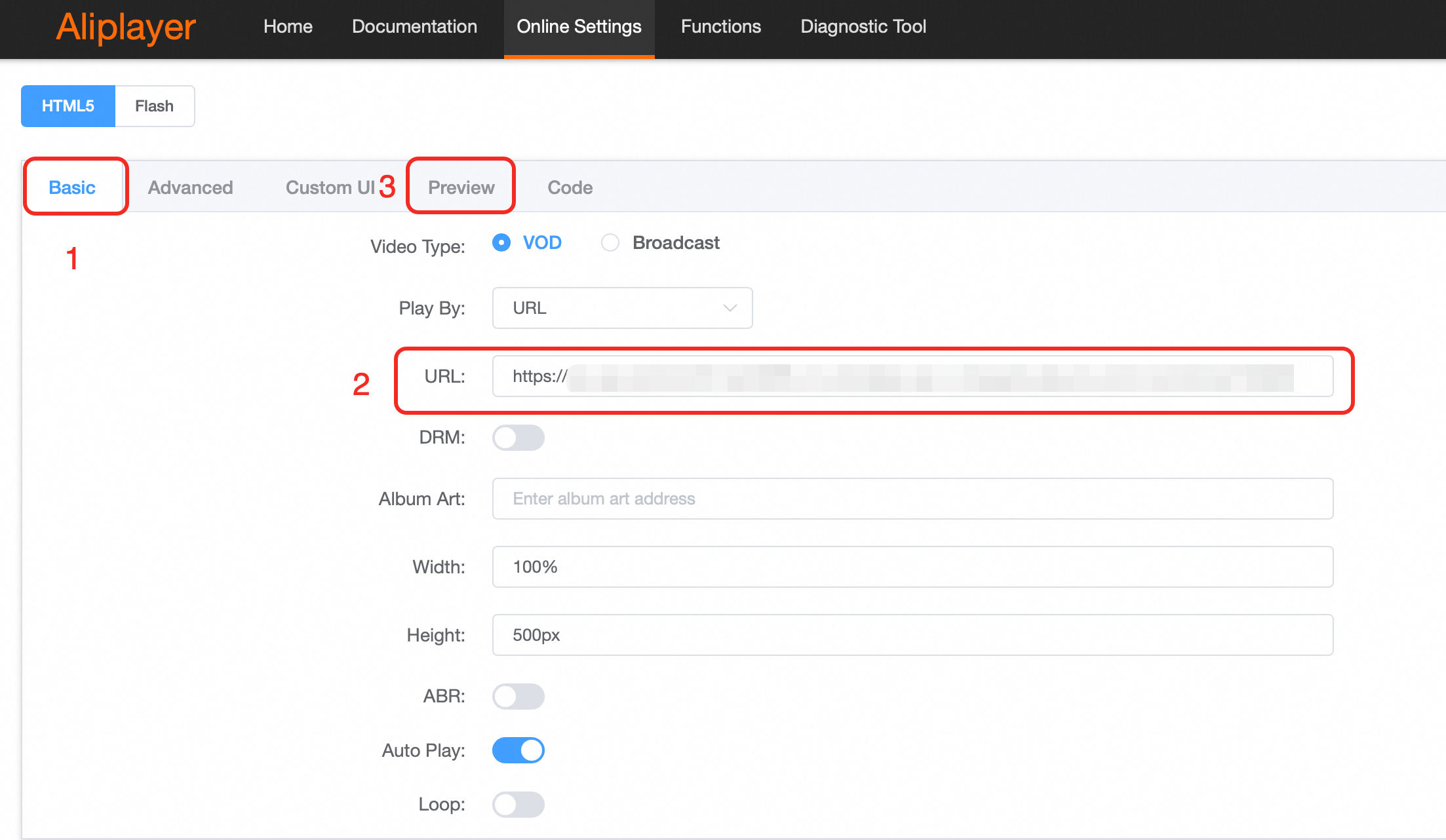
Step 3: Extract the tracing watermark from the stolen video
Upload the stolen video to ApsaraVideo VOD.
Upload the stolen video that you downloaded or recorded in Step 2: Simulate the theft of the video with a tracing watermark to ApsaraVideo VOD. Save the video ID.
NoteMake sure that the stolen video and the original video from Step 1: Generate a video with a tracing watermark are uploaded to the same ApsaraVideo VOD region. Otherwise, the tracing watermark cannot be extracted.
You cannot upload local M3U8 files using the ApsaraVideo VOD console. You can upload local M3U8 files using the ApsaraVideo VOD API or an SDK. For more information, see Upload local M3U8 files.
For more information about upload methods, see Media upload.
Log on to the ApsaraVideo VOD console.
In the navigation pane on the left, go to Media Files > Audio/Video. Click Upload to open the Upload Media page.
Click Add Media and set the upload parameters.
You can set the upload process to No Transcoding to save time. For more information about supported formats and parameters, see Upload files using the ApsaraVideo VOD console.
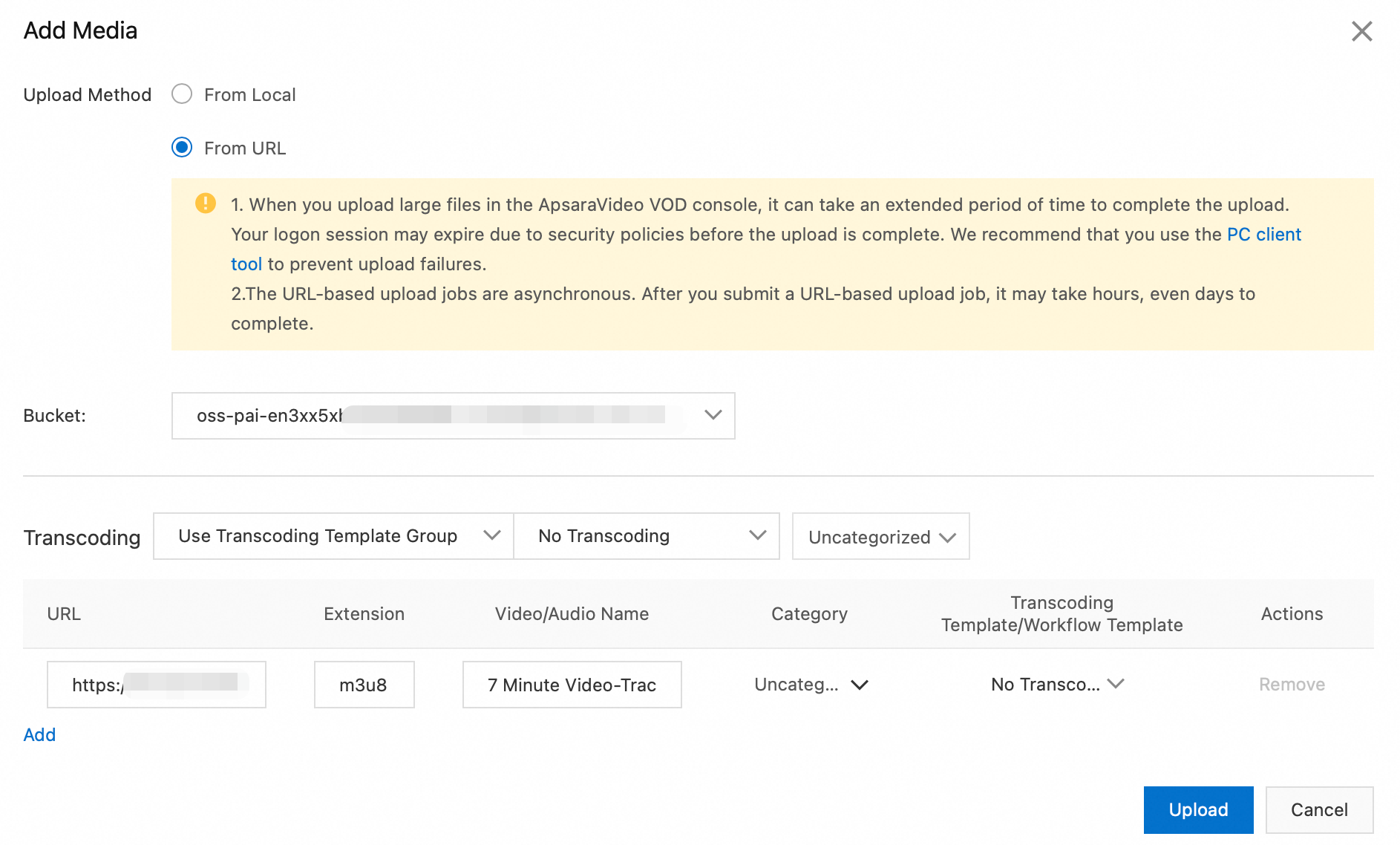
Click Upload.
After a video is uploaded, you can view its video ID and status on the Audio/Video list page. A status of Normal indicates that the video is uploaded and ready to use. If a different status is displayed, see Status of audio and video files for troubleshooting information.
Extract the tracing watermark from the stolen video.
ImportantDigital watermark extraction tasks are billed based on the duration of the video being processed. To avoid extra costs, do not submit multiple extraction tasks for the same video.
Extract using the console
Log on to the ApsaraVideo VOD console.
In the navigation pane on the left, choose to go to the digital watermark page.
Submit a tracing watermark extraction task.
In the Digital Watermark Extraction Tool section, configure the task parameters.
Set Task Type to Submit Watermark Extraction Task.
Set Watermark Type to Watermark-based User Tracing.
For Video ID, enter the ID of the stolen video that you uploaded in the previous step.
Click the Submit button.
After the task is submitted, you can click Query Result in the dialog box to view the task status. Wait for the task to complete before you proceed to the next step.
Query the extracted tracing watermark information.
NoteThe ApsaraVideo VOD console displays only the result of the most recent watermark extraction task for a video. To query the results of all historical extraction tasks for the video, call the GetDigitalWatermarkExtractResult operation.
In the Digital Watermark Extraction Tool section, you can configure the query parameters.
Set Task Type to Query Watermark Extraction Results.
Set Watermark Type to Watermark-based User Tracing.
For Video ID, enter the ID of the stolen video that you uploaded in the previous step.
Click Submit.
If the tracing watermark fails to be extracted, see Why did the extraction of a digital watermark from a stolen video fail? for troubleshooting.
Extract using OpenAPI
Submit a tracing watermark extraction task.
Call the SubmitDigitalWatermarkExtractJob operation and set the following required parameters to start a tracing watermark extraction task.
Set the
MediaIdparameter to the video ID of the stolen video.Set the
ExtractTypeparameter toTraceMark.
Query the extracted tracing watermark information.
NoteAfter you submit the tracing watermark extraction task, wait for about 10 minutes before you query the extracted information.
Call the GetDigitalWatermarkExtractResult operation and set the following required parameters to query the extracted tracing watermark information.
Set the
MediaIdparameter to the video ID of the stolen video.Set the
ExtractTypeparameter toTraceMark.
If the tracing watermark is extracted successfully, the following response is returned:
{
  "RequestId": "6D402250-3A4D-590D-A58A-8DD2711E099C",
  "AiExtractResultList": [
    {
      "Status": "Success",
      "ModifyTime": "2024-06-12T10:50:37Z",
      "WaterMarkText": "Tracing watermark-User B",
      "CreateTime": "2024-06-12T10:49:58Z",
      "JobId": "f1e12c4dec6a45e57ae52141****"
    }
  ]
}
If the tracing watermark fails to be extracted, see Why did the extraction of a digital watermark from a stolen video fail? for troubleshooting.
Step 4: Compare the watermark information
Compare the extracted watermark text with the watermark information passed in the Trace field when you called the GetPlayInfo operation in Step 1. This comparison identifies the user who leaked the stolen video.
FAQ
Why did the extraction of a digital watermark from a stolen video fail?
If the digital watermark extraction fails, check the following:
Confirm that the video you distribute for playback was successfully transcoded with a digital watermark.
After the digital watermark transcoding is complete, the generated video stream will have a Copyright Watermark or Tracing Watermark label on the Video URL page. To access the page, log on to the ApsaraVideo VOD console and choose .
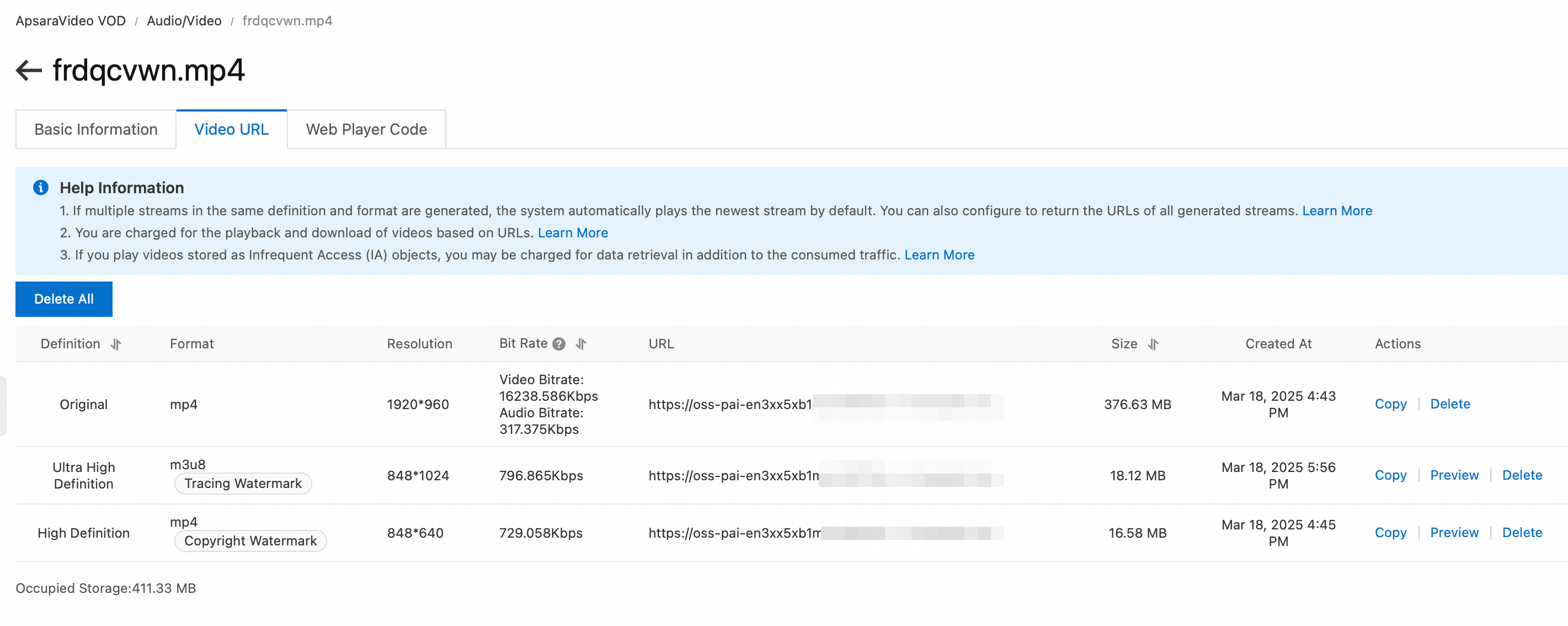
Confirm that the video URL used for distribution is for the video stream with a copyright or tracing watermark, not the source file or another transcoded output.
Confirm that the stolen video used for extraction is longer than 6 minutes and that its bitrate meets the requirements. For more information, see Limits.
Confirm that the watermark type you specified for extraction is correct.