Quick BI supports exporting reports, such as dashboards and workbooks. When the export feature is enabled at the organization level, workspace administrators can configure export settings for the current workspace to better customize export policies for different workspaces. For example, if a workspace contains sensitive data that should not be downloaded by anyone, you can disable the export feature for that workspace. This topic describes how to enable and configure the export feature.
Prerequisites
The export settings of a workspace are affected by the organization's export settings. You can define whether to disable the export feature for a specific workspace only when exports are enabled at the organization level. Otherwise, the export configuration in the workspace will be in a non-editable state (as shown in the figure below). Therefore, ensure that the relevant export configuration is enabled for the organization to which the current workspace belongs. For more information, see the referenced document.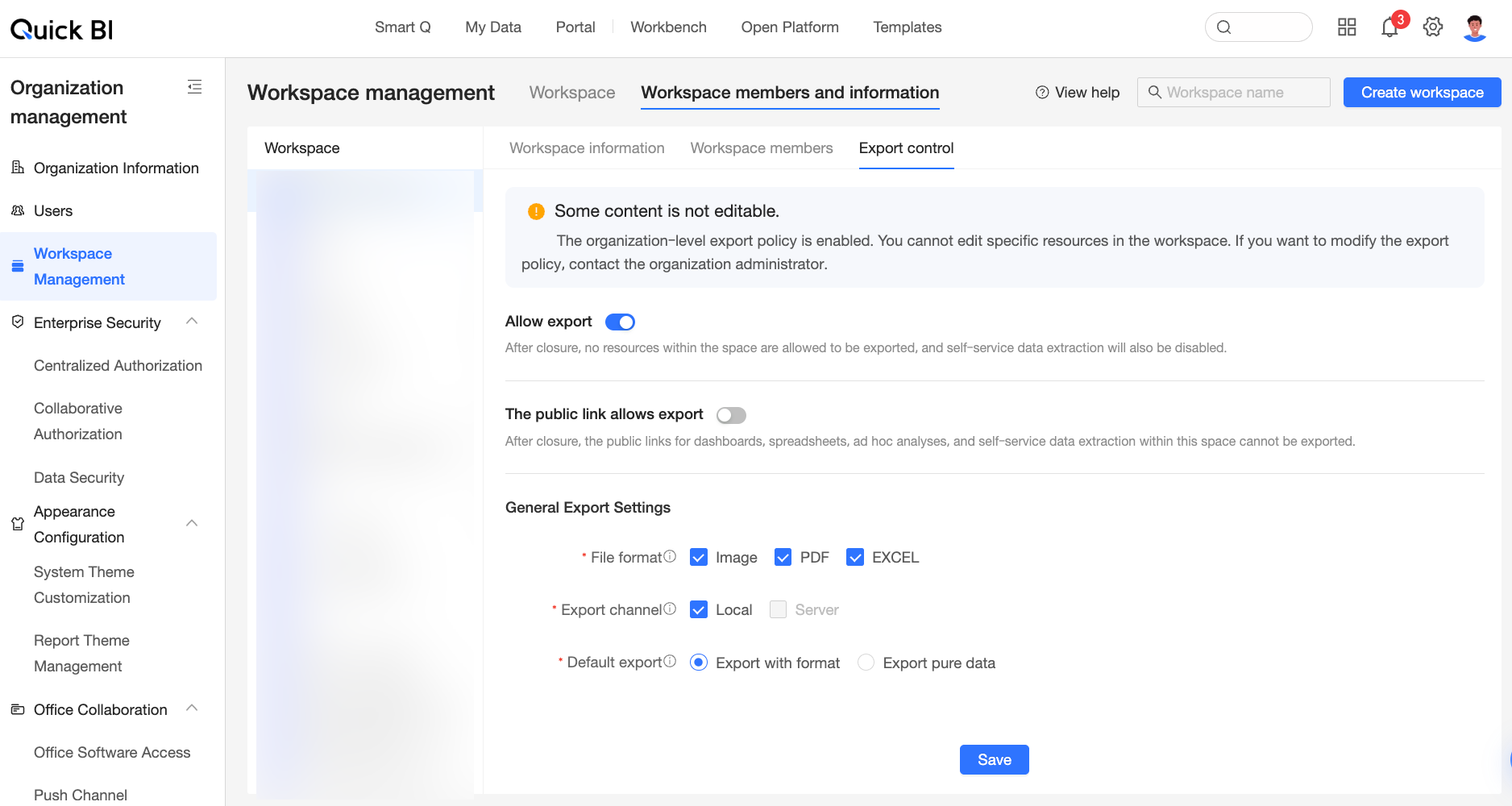
Procedure
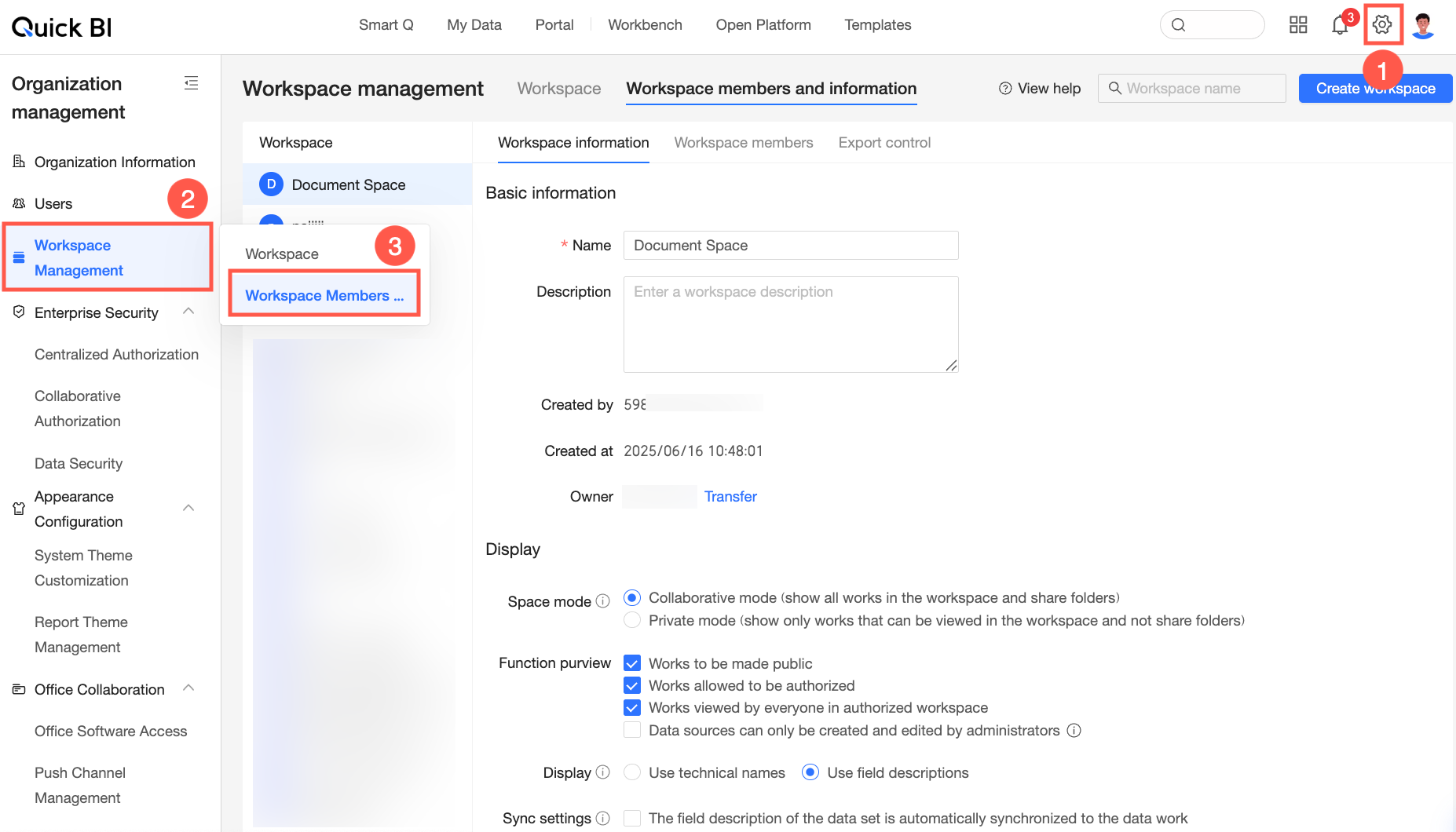
Navigate to the workspace management page from the Quick BI home page, following the instructions in the figure below.
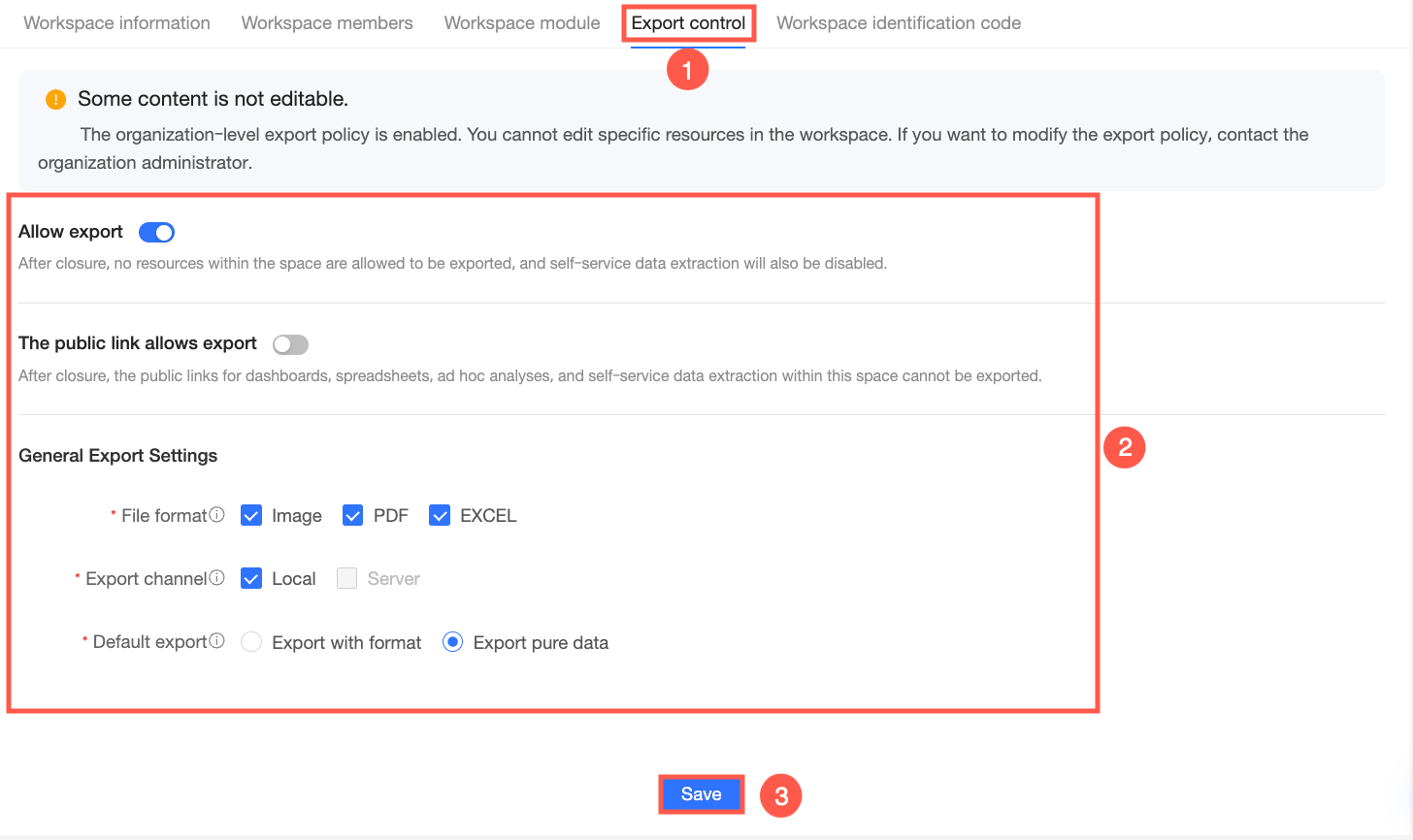
Click the Export Control tab and follow the instructions in the figure below to configure the export policy.
Parameter name
Description
Allow export
When the export switch is disabled, no reports can be exported within the space.
Allow export for public links
When the export switch is turned off, public links for dashboards, workbooks, ad hoc analysis, or Downloads cannot be exported.
Regular export settings
Export Format
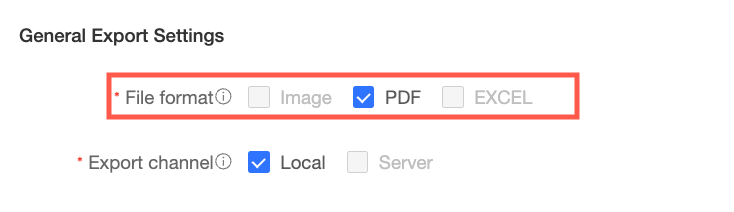
Select the file formats that can be chosen when exporting reports. The options available here are affected by the organization-level export control. For example, if only PDF is selected in the organization-level export control, then the current workspace will only support selecting PDF as the export format.
Export Channel
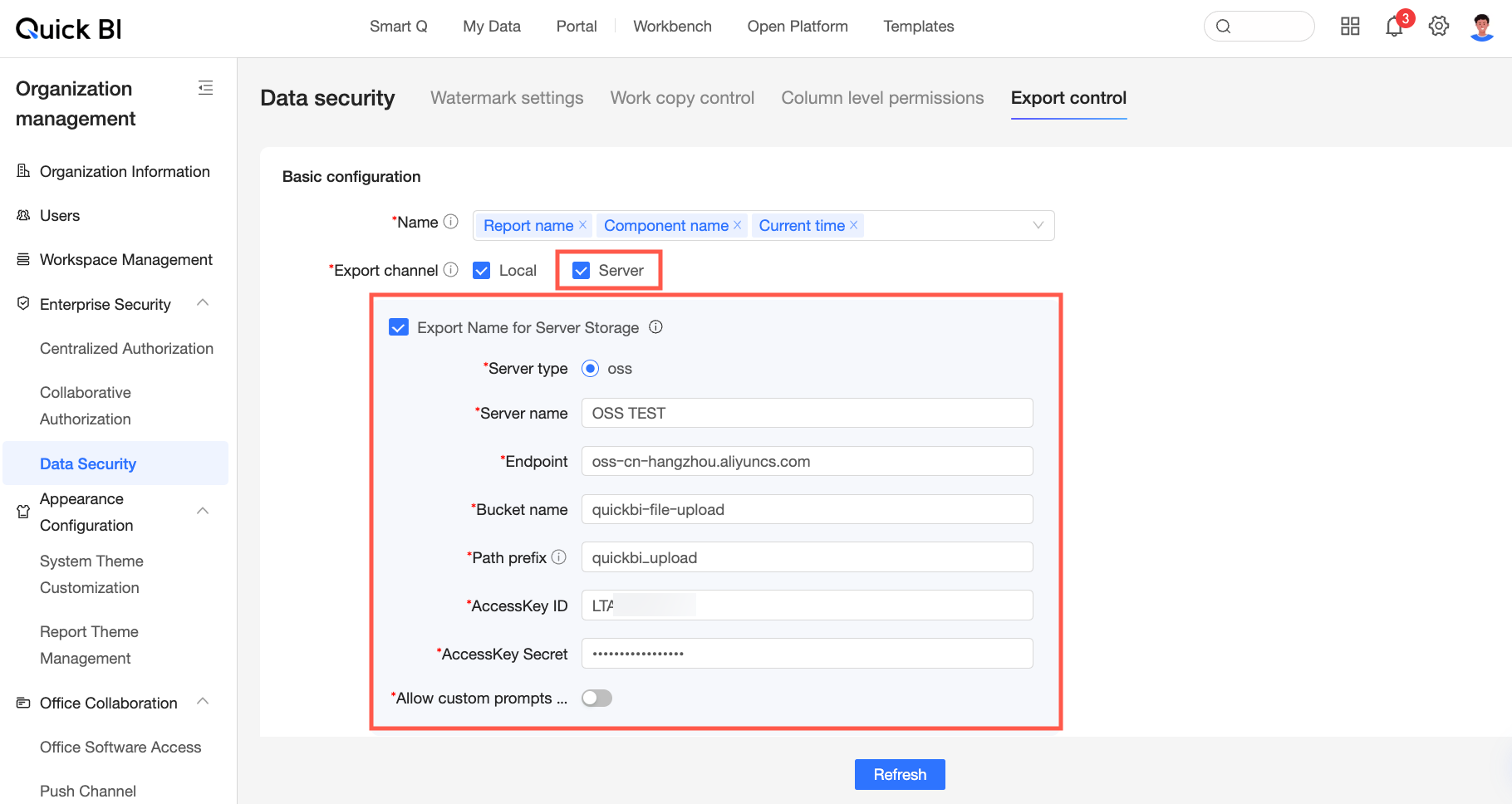
You can choose to export through the Server or Local, and both options can be selected simultaneously.
Local: Downloads the exported file directly to your local computer. This is suitable for personal use or small-scale collaboration scenarios, making it convenient to view and process exported files offline.
Server: Saves the exported file to a specified server location. This is suitable for enterprises with strict data security requirements that do not allow direct export of files to local computers. All exported content must first go to the file storage server and then be distributed according to user permissions.
When Server is selected, ensure that the server option is selected and properly configured in the organization-level export configuration.
Default Export Type
When Excel is selected in the Export format, you need to further choose whether the exported Excel file should include formatting.
When Formatted export is selected, the Excel file will include the data formats and styles from pivot tables and detail tables.
When Pure data export is selected, the Excel file will only contain plain text data.
NoteWhen exporting with different types, the amount of exported data is the same. The export time varies depending on the computer configuration or data volume. It is recommended to use Pure Data Export for exporting Excel files with more than 500,000 cells.