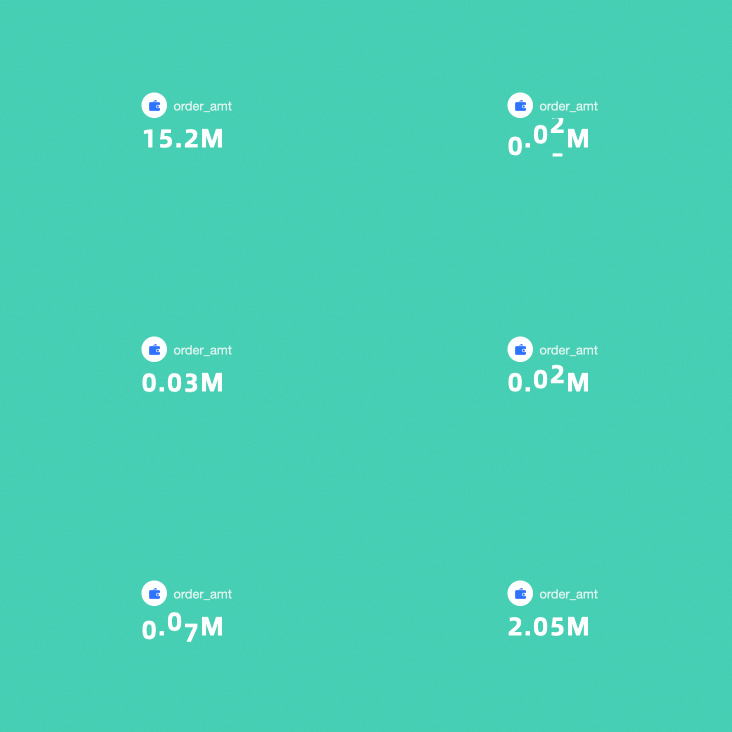
A ticker board is a visualization widget in Quick BI designed to dynamically display a single core KPI. It highlights a key business metric, using a dynamic flip effect on its value to draw attention and help users quickly assess operations and detect anomalies.
Chart Overview
Scenarios
Use it primarily to display a single metric that highlights enterprise or business performance. You can quickly identify operational anomalies by observing changes in the metric.
Benefits
Calculation: Configure advanced year-on-year and month-on-month calculations with one click.
Visualization: Display icon logos and customize backgrounds, font sizes, and colors.
Annotations: Customize text or metric annotations and define external link paths to enable data interaction with other systems.
Example Output
Limits
Prerequisite: You have created a dashboard. For more information, see Create a Dashboard.
It applies only to group spaces in the Premium Edition and Professional Edition.
When adding data to a ticker board, the display indicator/measure is determined by the data's measure. Select only one measure.
Configure Chart Data
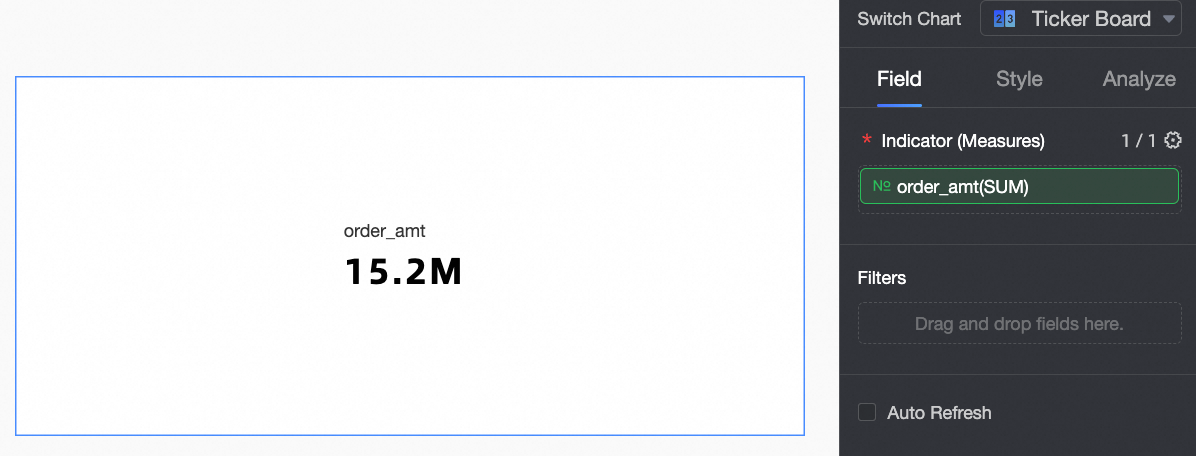
In the Measure list, find order amount and double-click or drag it to the Display Metrics/Measures area.
Click Update.
Configure Chart Styles
This section describes chart styling configuration. For general chart styling configuration, see Configure the Chart Title.
In the search box at the top of the configuration area, enter keywords to quickly find and configure configuration items. Click the  icon on the right to expand or collapse all categories.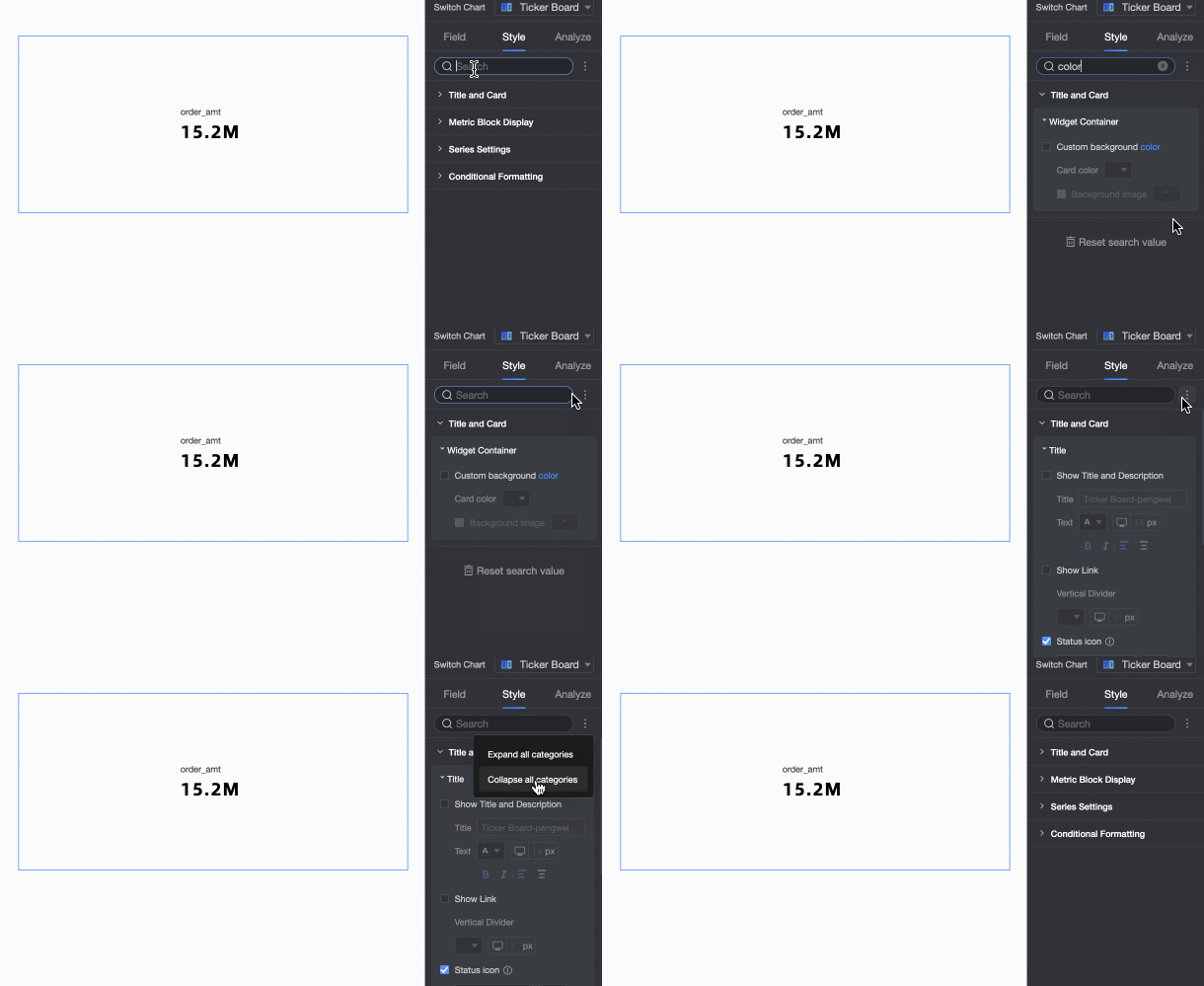
In Indicator Content, configure the display style of the indicator content.
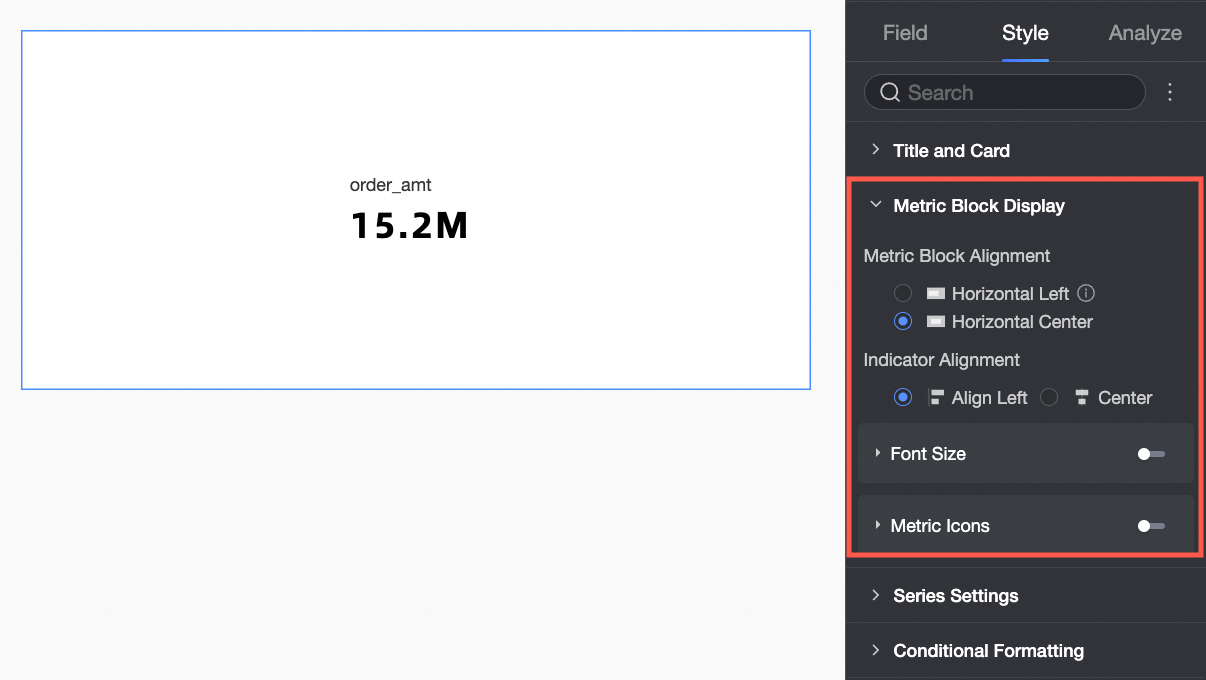
Chart Configuration Item
Description
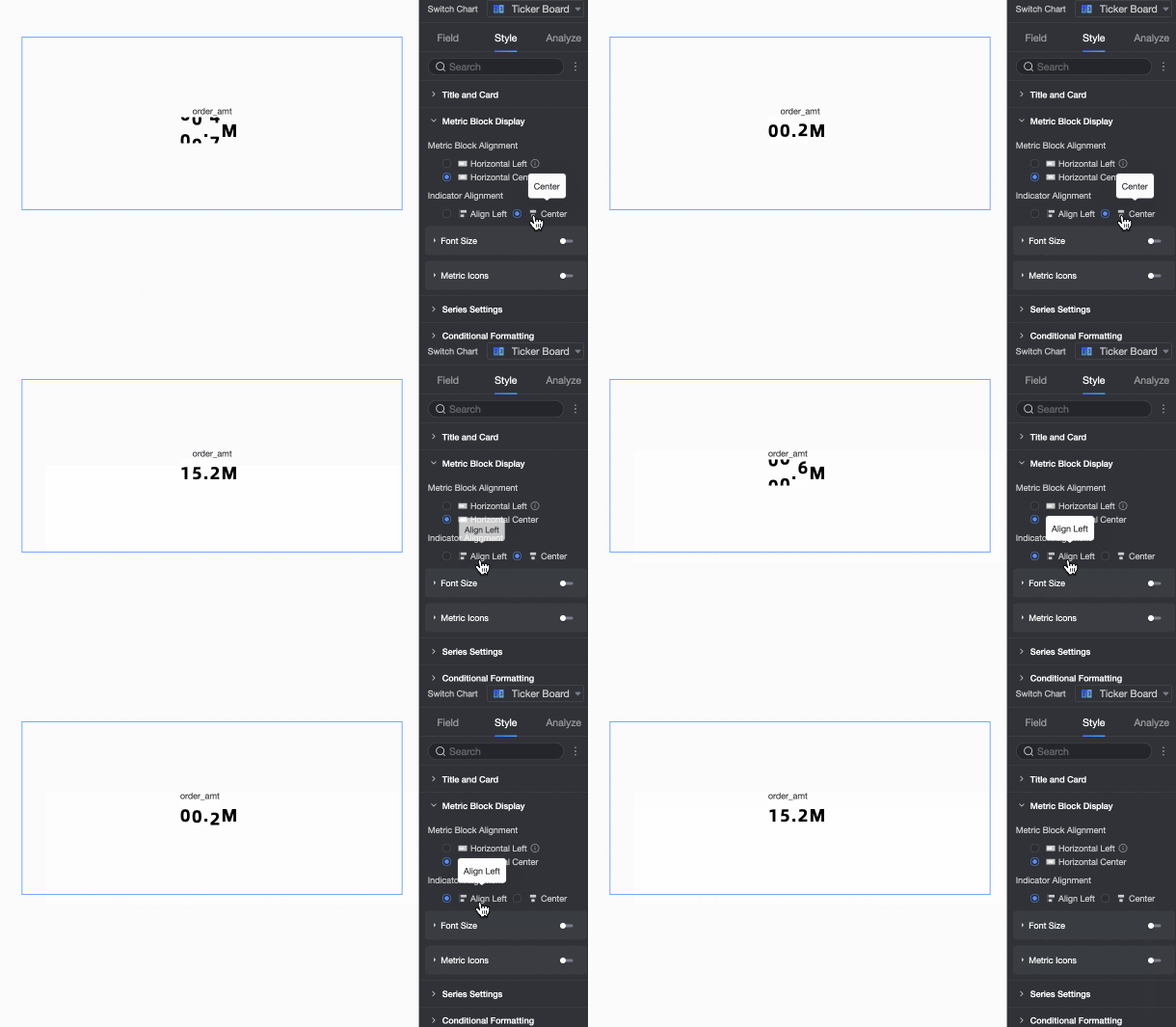
Position of Content in Indicator Block
Set to align left or center.
Alignment with Indicator
Set the position of the indicator name relative to the indicator value. Set to align left or align center.
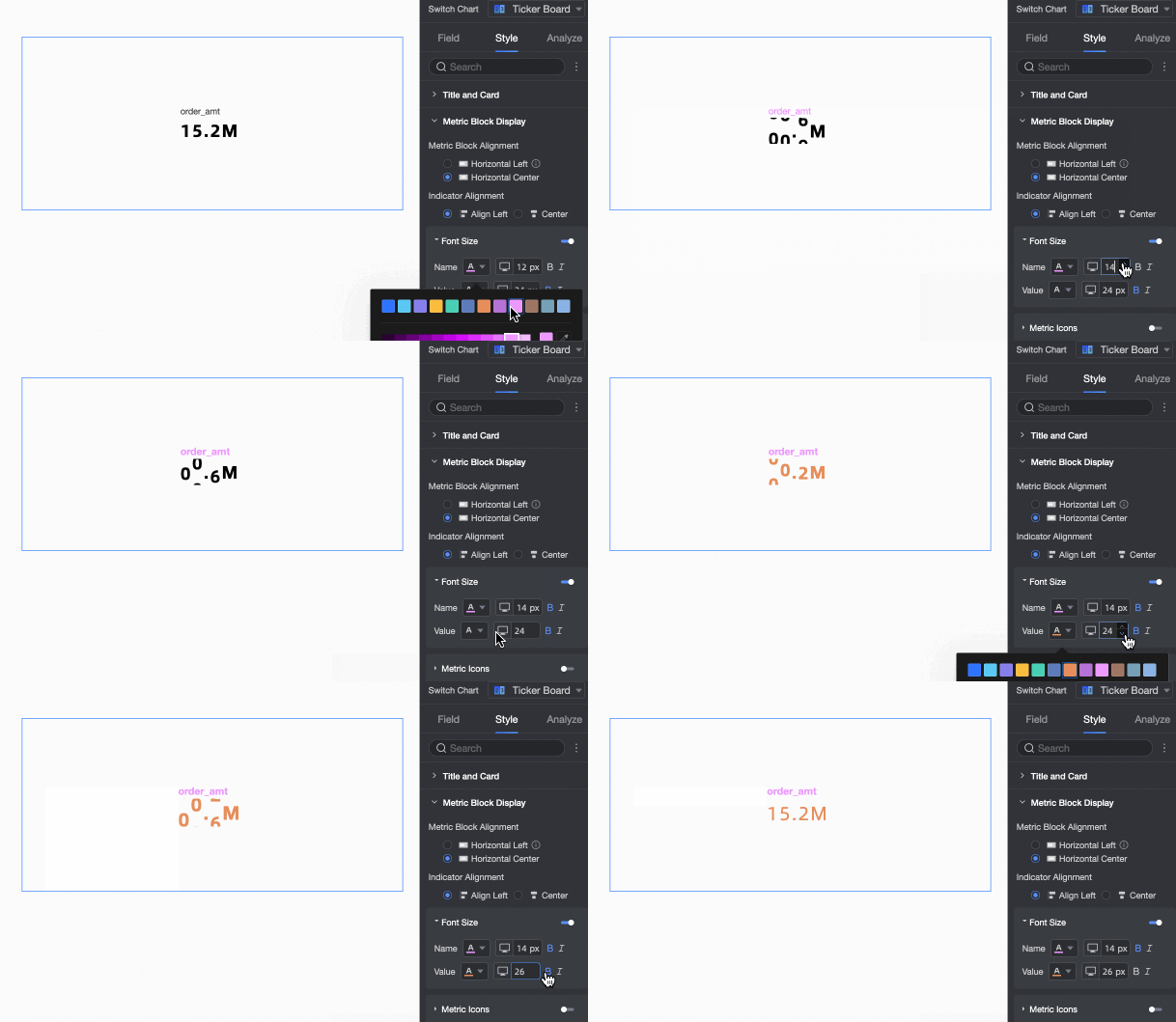
Font Size Settings
After enabling font size settings, customize the style of the indicator name and value fonts.
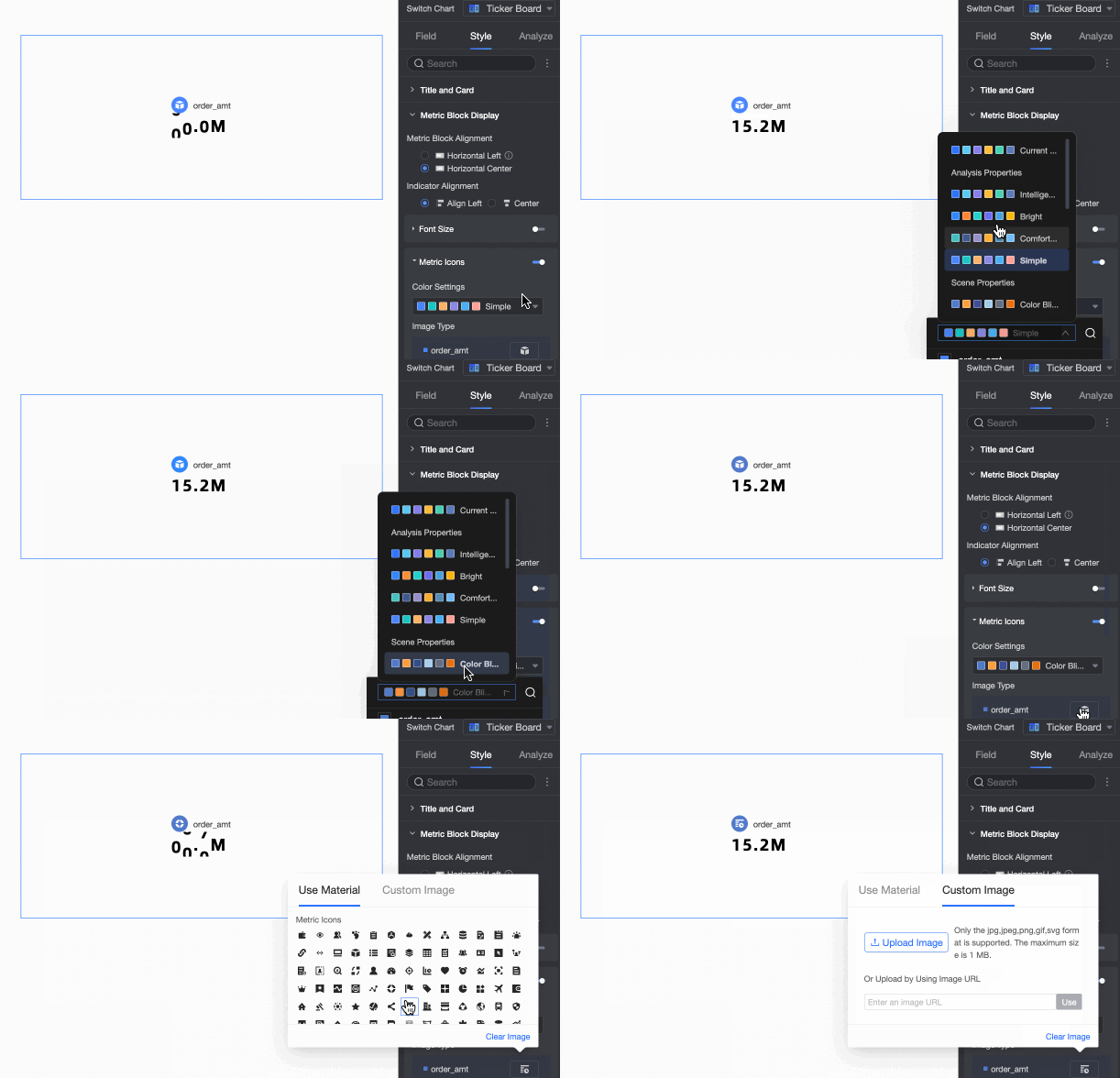
Indicator Decoration Icon
After enabling the indicator decoration icon, set the decoration icon before the indicator and its related styles.
Upload a local image file to customize the decoration icon.
NoteUpload images in JPG, JPEG, PNG, GIF, or SVG format. The image size must not exceed 1 MB.
In Series Settings, set Select Series and Indicator Data Value Prefix and Suffix.
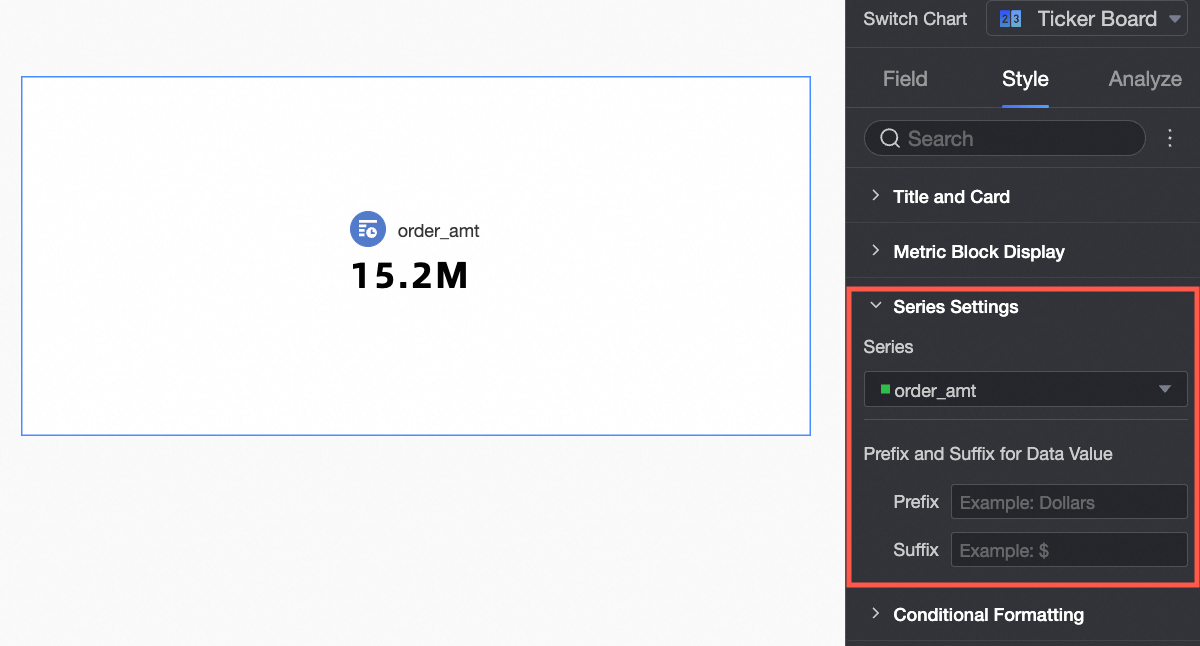
Chart Configuration Item
Configuration Item Descriptions
Select Series
Set the measure added to the Scorecard Indicator/Measure area.
Indicator Data Value Prefix and Suffix
Set the prefix and suffix for the indicator data value on the chart.
In Conditional Formatting, set the conditional formatting for measure data.
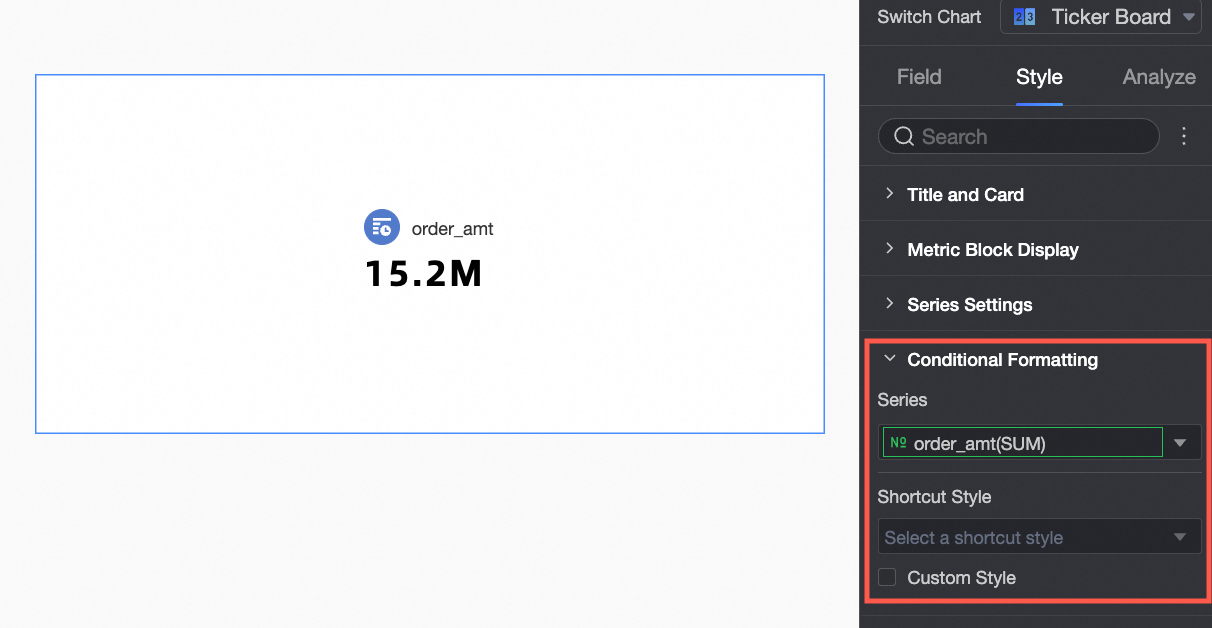
Chart Configuration Item
Description
Select Field
Select the measure field for conditional formatting. You can select any measure added to the Indicator/Measure area.
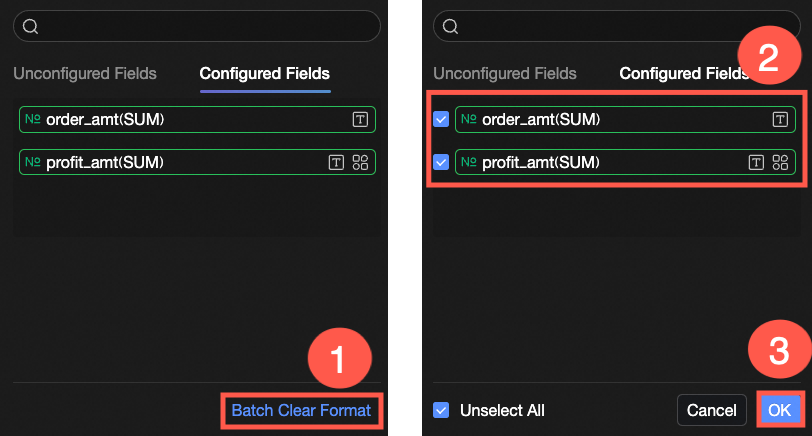
After configuring the styles, if you no longer need the conditional formatting, click Batch Purge Format in the lower-right corner of the field panel. Select the conditional formats to clear from the list, then click OK to purge them.
Quick Styles
From the system-provided styles, set the tag icon or font color for the current measure field.
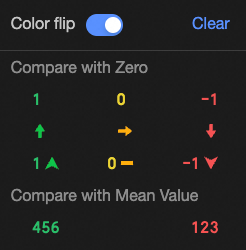
Comparison: Select compare with 0 or compare with mean.
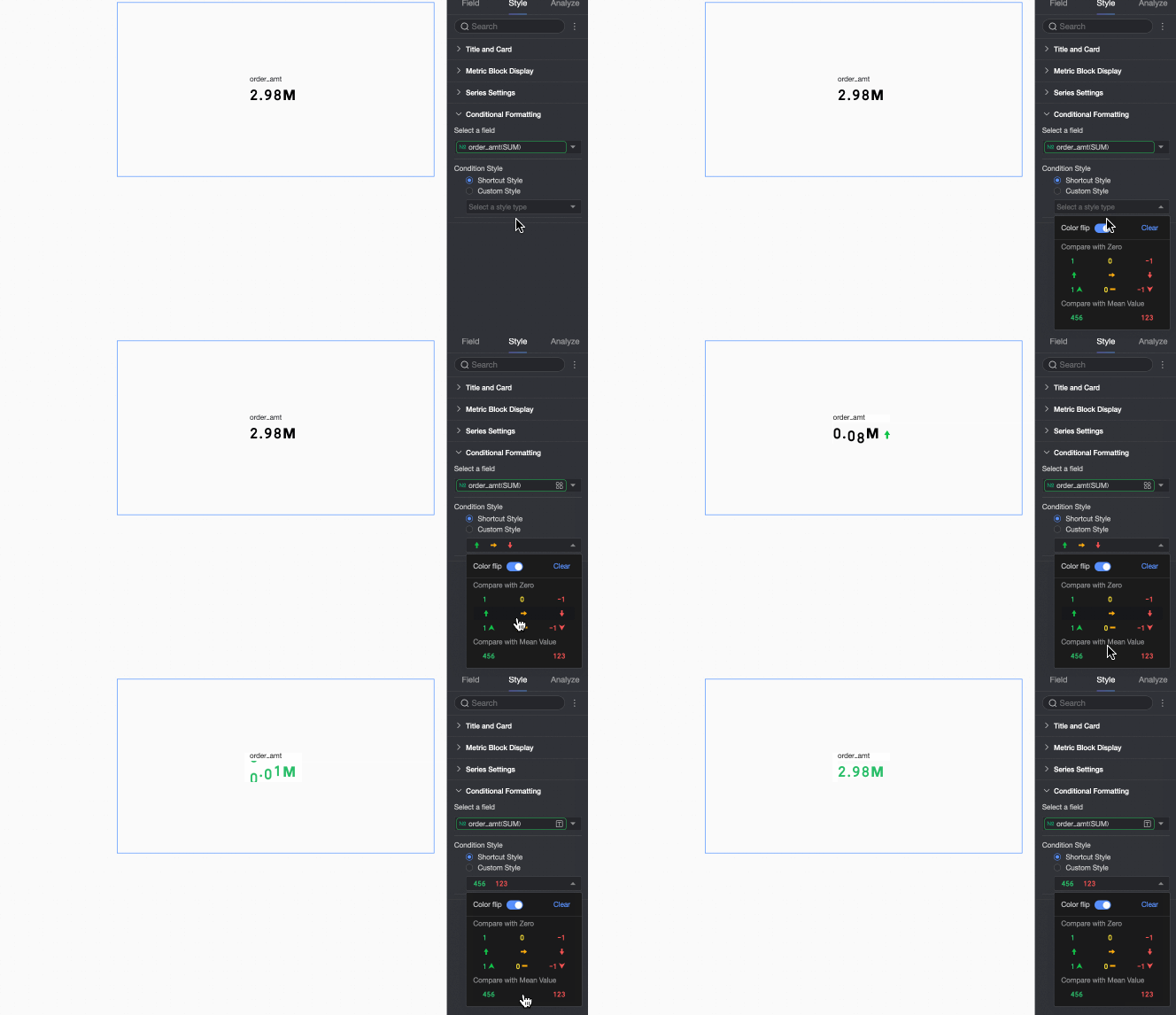
Color Flip: For example, when comparing with 0, values less than 0 are red, and values greater than 0 are green. After flipping, values less than 0 become green, and values greater than 0 become red.
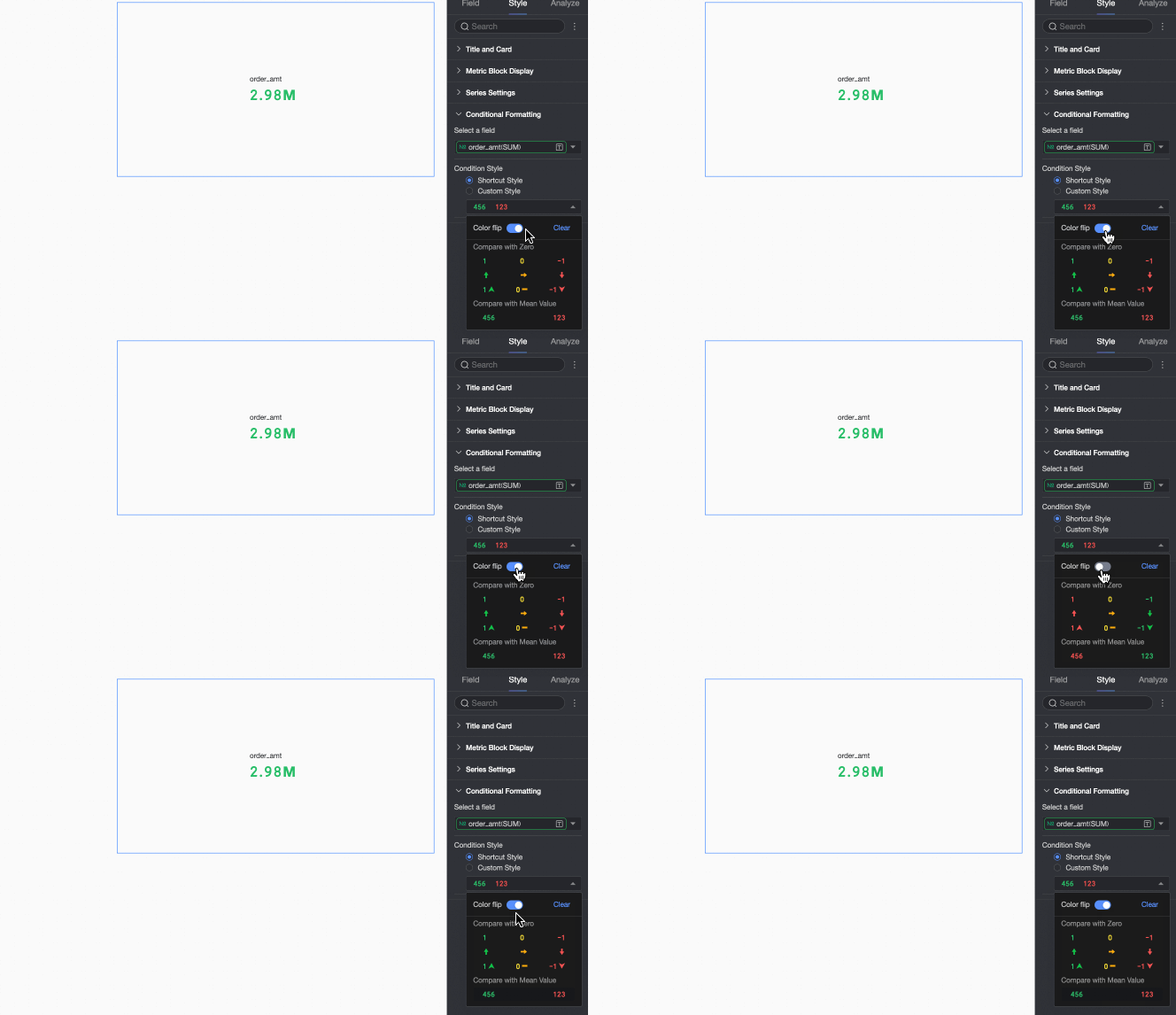
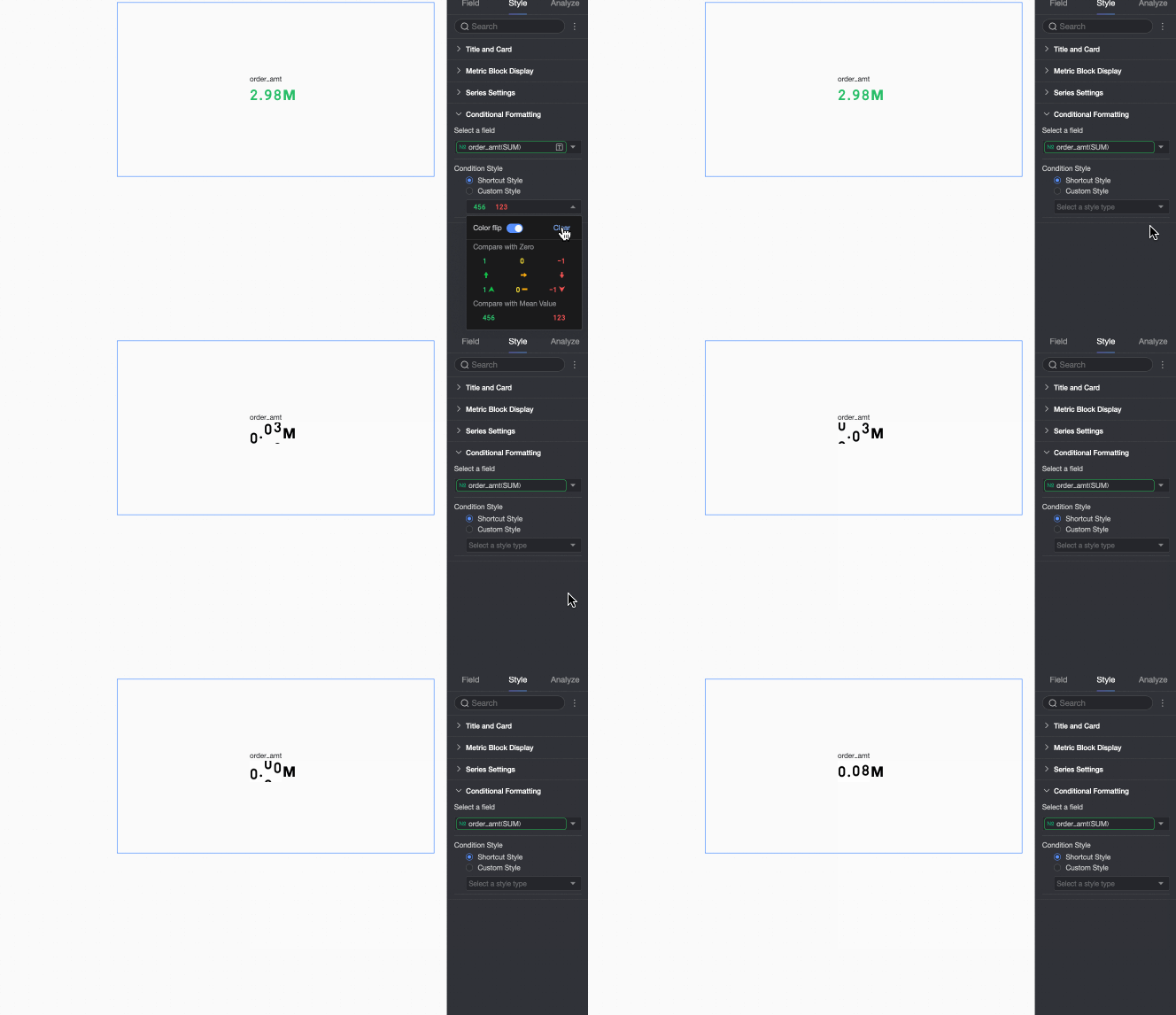
Clear: If you no longer need a quick style, click Clear to remove it.
Custom Styles
In addition to the system-provided quick styles, configure custom styles for the current measure field as needed.
Text: Configure rules to highlight the field value text color. This visually emphasizes key data in the chart.
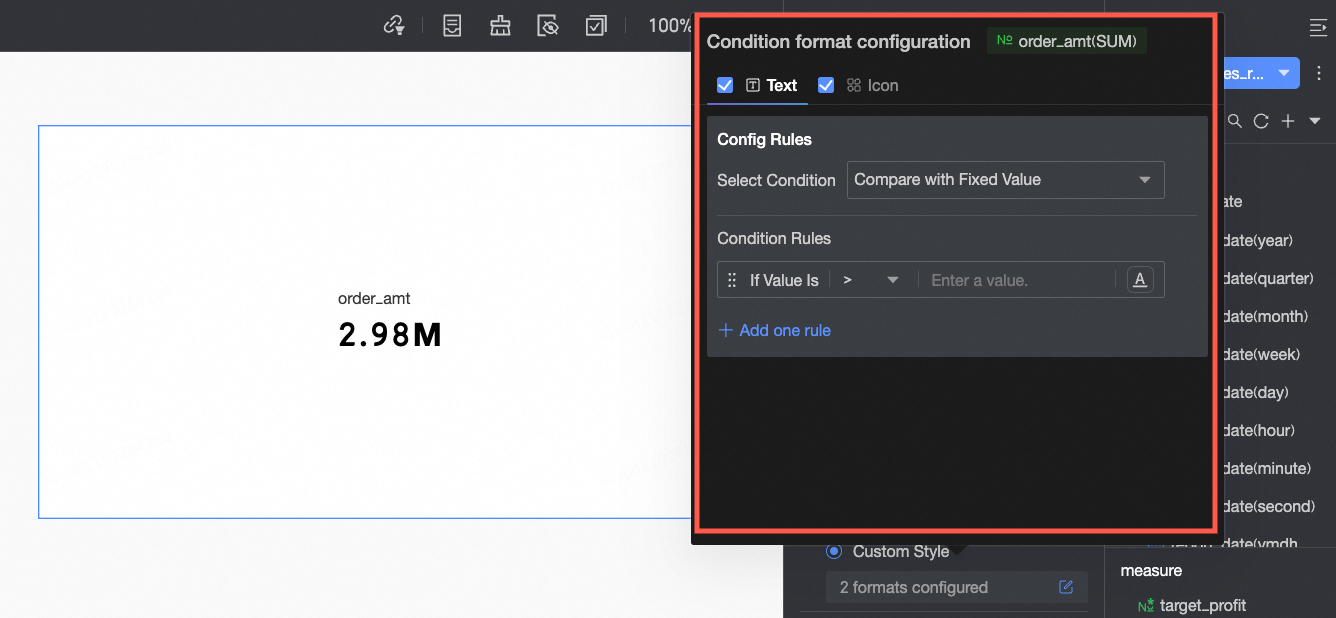 Configure the following information:
Condition Selection: Set the comparison baseline for conditional rules. Set to compare with static value or compare with dynamic field.
Conditional Rule: Set the specific logic for conditional rules. Also, set the display style for cell text when the rule is met. Set text color, bold, and italic.
Add Rule: Click to add a new rule.
Icon: Based on the numerical comparison, display a specific tag icon in the corresponding cell. This clearly shows the relationship between the current data and the target data.
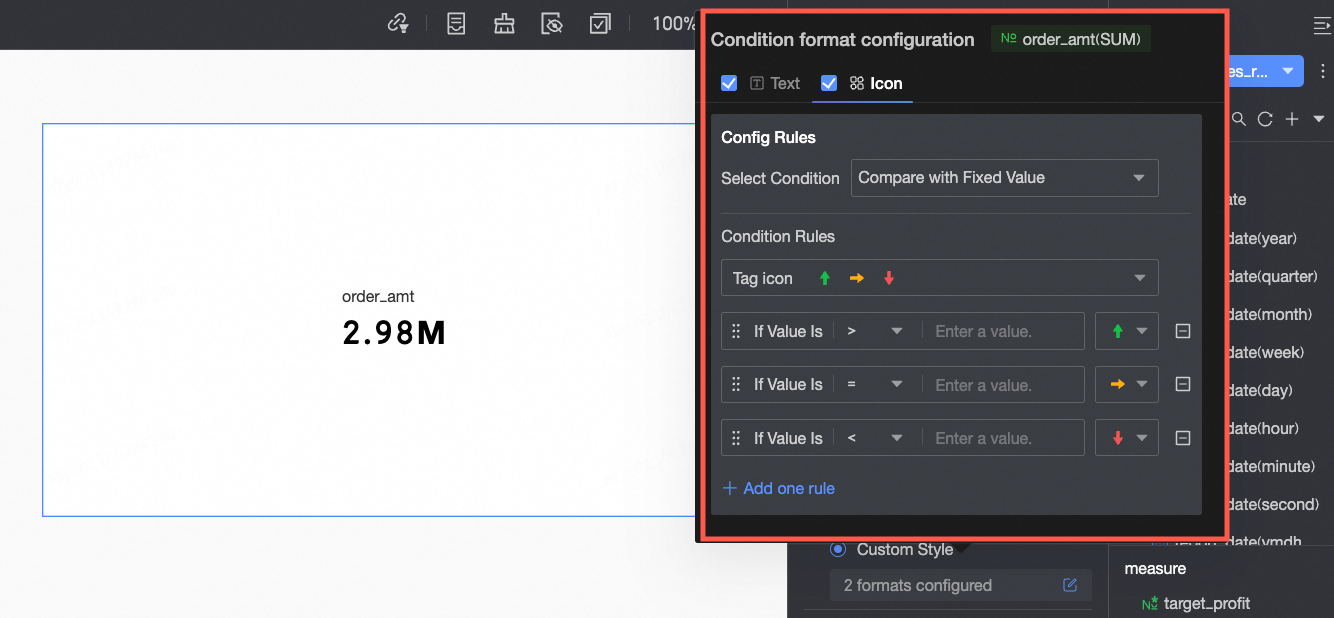 Configure the following information:
Condition Selection: Set the comparison baseline for conditional rules. Set to compare with static value or compare with dynamic field.
Conditional Rule: Click the Tag Icon selection box. Select an icon type from the system-provided icon styles as needed. Set the specific logic for the data condition corresponding to an icon. You can also select a tag icon for each comparison rule separately.
Add Rule: Click to add a new rule.
What to do next
When others need to view the dashboard, you can share it with specific people. For more information, see Share a Dashboard.
When you need to create complex navigation menus for thematic analysis, you can integrate the dashboard you created into the BI portal. For more information, see BI portal.
FAQ
1. What is the main difference between a ticker board and a scorecard?
Answer: The main difference is the number of metrics displayed. A ticker board displays only one core metric, highlighting this number with dynamic effects. A scorecard can display one or more metrics simultaneously and can also associate with a dimension for grouped display, such as showing sales and profit by region.
2. I want to use a ticker board to display "sales" and also see its month-on-month growth rate. Is this possible?
Answer: A ticker board can display only one measure field directly. If you want to show the month-on-month growth rate alongside sales, do not implement it within the same ticker board widget. Instead, pre-calculate the month-on-month growth rate as a new measure in your dataset. Then, use two ticker board widgets—one for sales and one for the month-on-month growth—or use a "scorecard" or "metric trends" widget that supports displaying primary and secondary metrics.
3. How do I make the numbers in a ticker board display in red when they exceed 1,000,000?
Answer: Achieve this by configuring conditional formatting. In Style > Conditional Formatting, go to the Text tab under Custom Styles, add a rule, and set the condition to "When [Your metric field] > 1000000". Then, set the text color to red.