Performance Testing Service (PTS) provides a quick-start workflow on the Overview page. You can go from URL configuration to real-time test results in four steps.
Prerequisites
Before you begin, make sure that you have:
A publicly accessible HTTP or HTTPS endpoint to test
Workflow
A quick stress test follows four steps:
Configure the target URL -- Specify the HTTP request method, URL, and optional parameters.
Debug the request -- Send a single request to verify connectivity and correctness.
Run the stress test -- Set the test duration and requests per second (RPS), then start the test.
Monitor real-time results -- View real-time stress testing data on the Executing Test page.
Step 1: Configure the target URL and request parameters
Log on to the PTS console.
On the Overview page, select a request method from the GET drop-down list, and enter the target URL in the text box.
ImportantThe URL must start with
http://orhttps://and be accessible over the Internet. Internal endpoints are not supported. The URL can include query parameters, for example,http://<domain-name>/<path>?key1=value1&key2=value2.(Optional) Configure additional request settings on the Request Parameter, Header, Body, or Output Parameters tabs. For details, see HTTP nodes.

Step 2: Debug the request
Click Send to issue a single request to the target URL. Verify that the response returns the expected status code and body before you proceed.

Step 3: Run the stress test
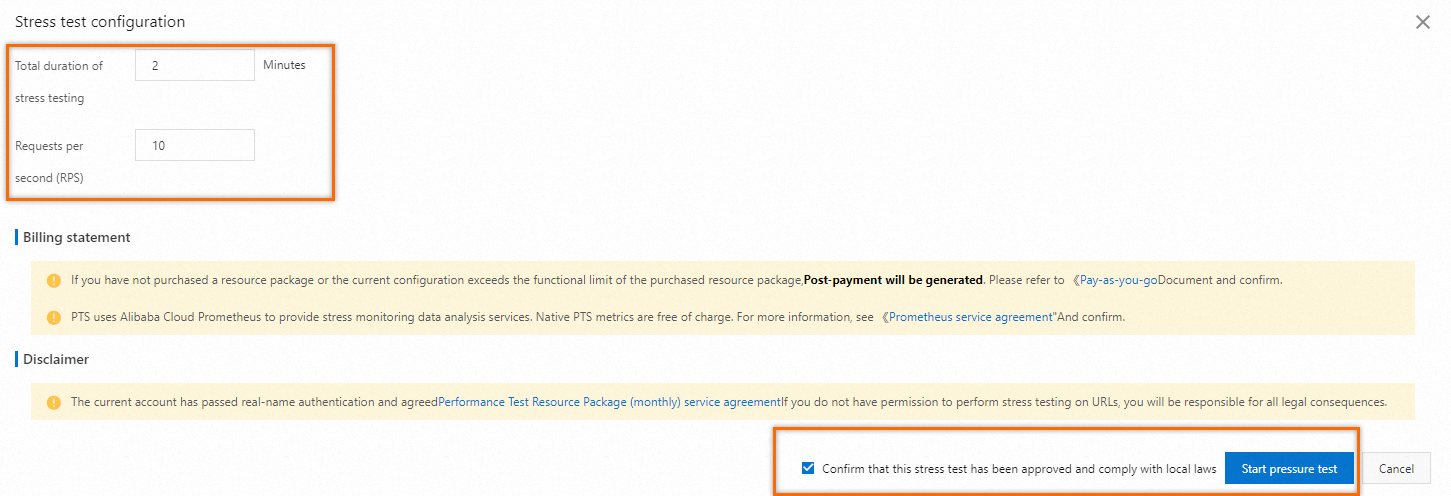
Click Test to open the configuration dialog box.
Set the following parameters:
Parameter Description Test Duration How long the stress test runs. Request per Second (RPS) The target number of requests per second. Click Start.
Step 4: Monitor real-time results
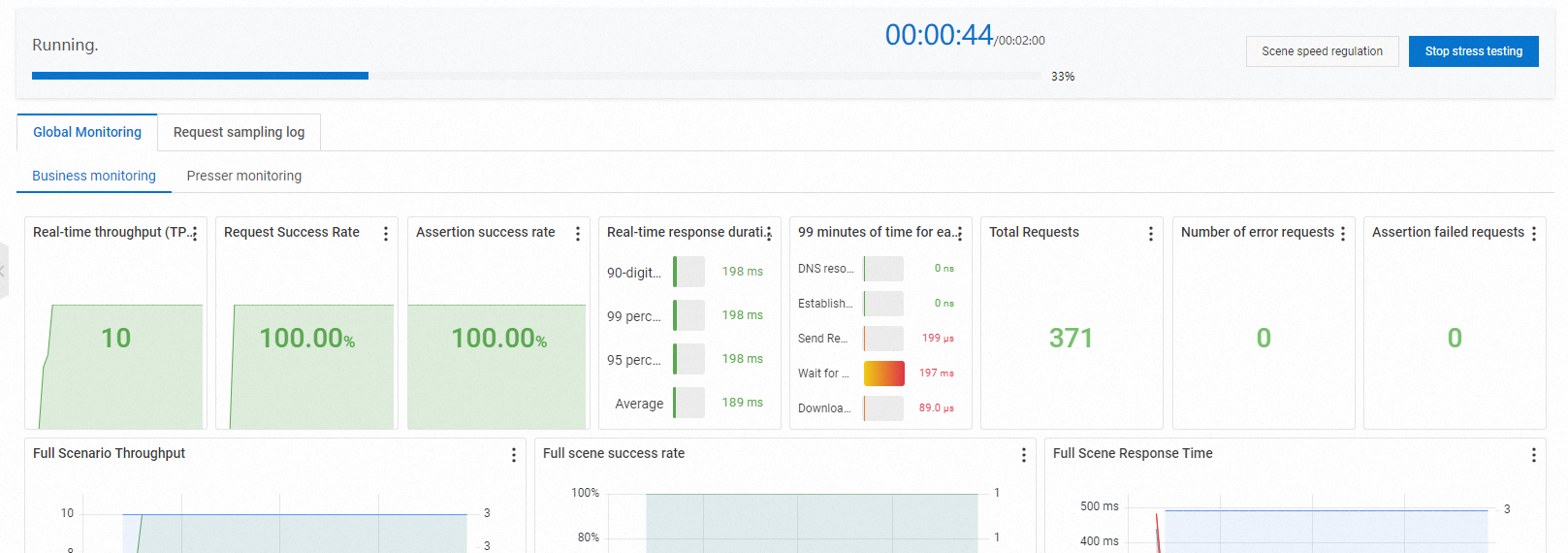
After the test starts, PTS redirects you to the Executing Test page where you can view real-time stress testing data.
Analyze stress testing results
After the test completes, PTS automatically collects the stress testing data and generates a stress testing report. The report includes the following sections:
Scenario metrics
Business details
Monitoring details
API sampling logs
For details, see View PTS stress testing reports.
What to do next
Add request parameters and headers -- Simulate realistic traffic by configuring custom headers, request bodies, and parameterized URLs. See HTTP nodes.
Analyze your test report -- Review the stress testing report for detailed performance insights. See View PTS stress testing reports.
Create a full test scenario -- Build multi-step test scenarios with multiple API calls for more realistic load simulations.