This topic describes how to download and install the latest Optimization Solver software development kit (SDK).
By downloading the SDK, you agree to the Optimization Solver Terms of Service.
1. Download the latest version
The application programming interfaces (APIs) in V0.x and V2.x are mostly different. When you use the SDK, refer to the API documentation for the corresponding version.
Latest version: V2.3.0. Release date: 2026-02-02.
V2.3.0 (Latest) | V0.25.1 | ||
Linux | linux64x86 | File: mindopt-install-linux64x86-2.3.0.sh | File: mindopt-install-linux64x86-0.25.1.sh |
linux64aarch | File: mindopt-install-linux64aarch-2.3.0.sh | File: mindopt-install-linux64aarch-0.25.1.sh | |
Windows | windows64 | File: mindopt-2.3.0.msi | File: mindopt-0.25.1.msi |
macOS | osx64x86 (Intel) | File: mindopt-install-osx64x86-2.3.0.sh | File: mindopt-install-osx64x86-0.25.1.sh |
osx64aarch (Apple Silicon) | File: mindopt-install-osx64aarch-2.3.0.sh | File: mindopt-install-osx64aarch-0.25.1.sh |
For changelogs and to download previous versions, see Download history.
The environment dependencies for the preceding packages are as follows:
Operating system | Requirements |
Windows | Windows 10 or later |
Linux | Glibc for x86_64 >= 2.14, for aarch64 >= 2.17 |
OSX | OSX for x86_64 >= 11.0, for arm64 >= 12.0 |
Programming language | Recommended compiler |
C | Visual Studio 2019 or later, GCC 4.9 or later, Clang++ |
C++ | Visual Studio 2019 or later, GCC 4.9 or later, Clang++ |
C# | .NET SDK 8.0 or later |
Python | 3.8, 3.9, 3.10, 3.11, 3.12, 3.13 |
Java | JDK 1.8 or later |
MATLAB | MATLAB 2021b or later |
The following sections describe how to install the SDK. You can also watch the videos in the Video overview.
2. Install the SDK (C, C++, C#, and MATLAB APIs)
Before installation, remove or back up previous versions. For more information, see 7. Uninstall and reinstall.
To install Java and Python, you must complete this step before installing the support described in the following sections.
Windows systems:
Double-click the installation file and follow the instructions.
To install for all users, run the installation package as an administrator. To do this, run Command Prompt as an administrator, switch to the folder that contains the installation package, and then run the package file.
Linux systems:
In the command line, run the following command and follow the instructions:
bash mindopt-install-linux64x86-2.3.0.shOr, for the ARM chip version:
bash mindopt-install-linux64aarch-2.3.0.shIf you install in a Docker container, add the following configuration to the Dockerfile:
# The admin user is used as an example.
RUN cd /home/admin/mindopt/ && \
    bash mindopt-install-linux64x86-2.3.0.sh --target /home/admin/mindopt && \
    rm -rf mindopt-install-linux64x86-2.3.0.sh

# Set the mindopt environment variables.
ENV MINDOPT_HOME /home/admin/mindopt/2.3.0
ENV PATH $MINDOPT_HOME/linux64-x86/bin:$PATH
ENV LD_LIBRARY_PATH $MINDOPT_HOME/linux64-x86/lib:$LD_LIBRARY_PATH
For Docker installations of V0.x.x, also add the following:
# The MDO_NATIVE_LIBRARY environment variable is required when you use the Java SDK. This is not needed for version 1.0.0 or later.
ENV MDO_NATIVE_LIBRARY $MINDOPT_HOME/linux64-x86/lib/libmindopt.so.0.25.1
macOS systems:
The process is the same as for Linux. In the command line, run the following command and follow the instructions:
bash mindopt-install-osx64x86-2.3.0.shOr, for the Apple Silicon chip version:
bash mindopt-install-osx64aarch-2.3.0.shAfter the solver is installed, the directory structure is as follows:
The
2.3.0root folder. The name indicates the software version you installed. You can install multiple versions in the mindopt directory. For example,0.25.1in the figure is a legacy version.The
osx64-x86subfolder. This folder contains executable files, dynamic-link libraries, and other related files. The folder name varies by operating system and architecture:win64-x86,linux64-x86,osx64-x86,linux64-aarch, orosx64-aarch. This helps you check if you installed the correct version.The
examplesfolder. Check this folder. It contains examples for multiple programming languages, modeling tools, and sample input data in thedatafolder to help you get started.The
docsfolder contains the Readme.txt file, the End-User License Agreement (EULA), and other documents.The
fl_client.inifile is the authentication file that you need to create. This is described later.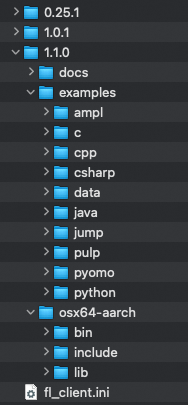
3. Check environment variables and run a test
The installation process configures the required environment variables. Verify that they are configured correctly. If you have multiple versions installed, you can switch between them by changing the version number in the environment variable.
Windows systems:
The installation adds the MINDOPT_HOME and Path environment variables automatically. You do not need to add them manually. If you install multiple versions, you can change the active version by modifying the MINDOPT_HOME variable. The following figure shows an example: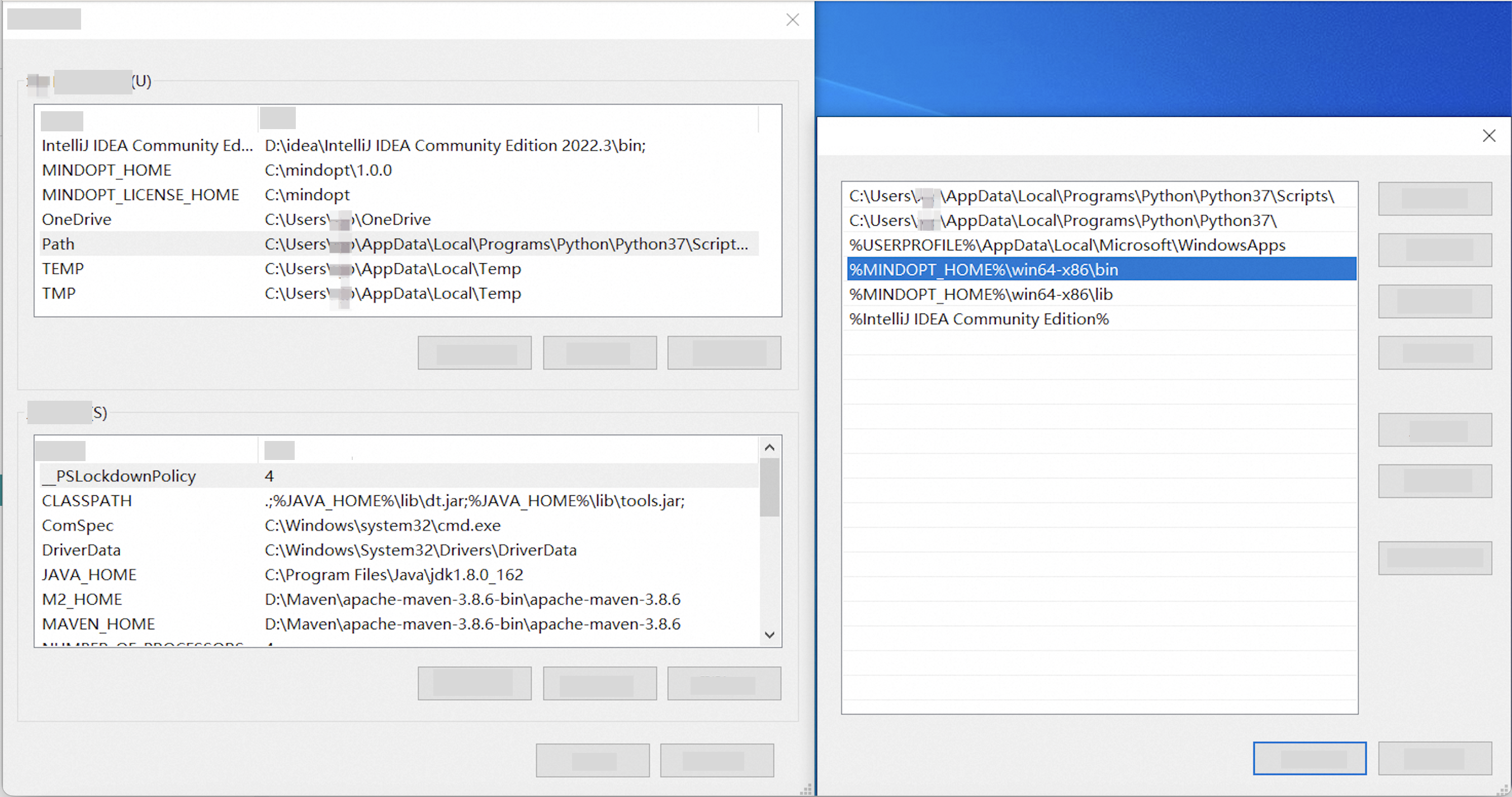
Linux and macOS systems:
The installation adds the command source ~/.mdo_profile to the ~/.bashrc and ~/.zshrc files. The changes take effect after you restart the terminal. If you install multiple versions, run nano ~/.mdo_profile to make changes.
Run the following commands to view the environment variables and apply them immediately:
cat ~/.mdo_profile
source ~/.mdo_profile
If you installed in a Docker container, you can use the export command to check the variables.
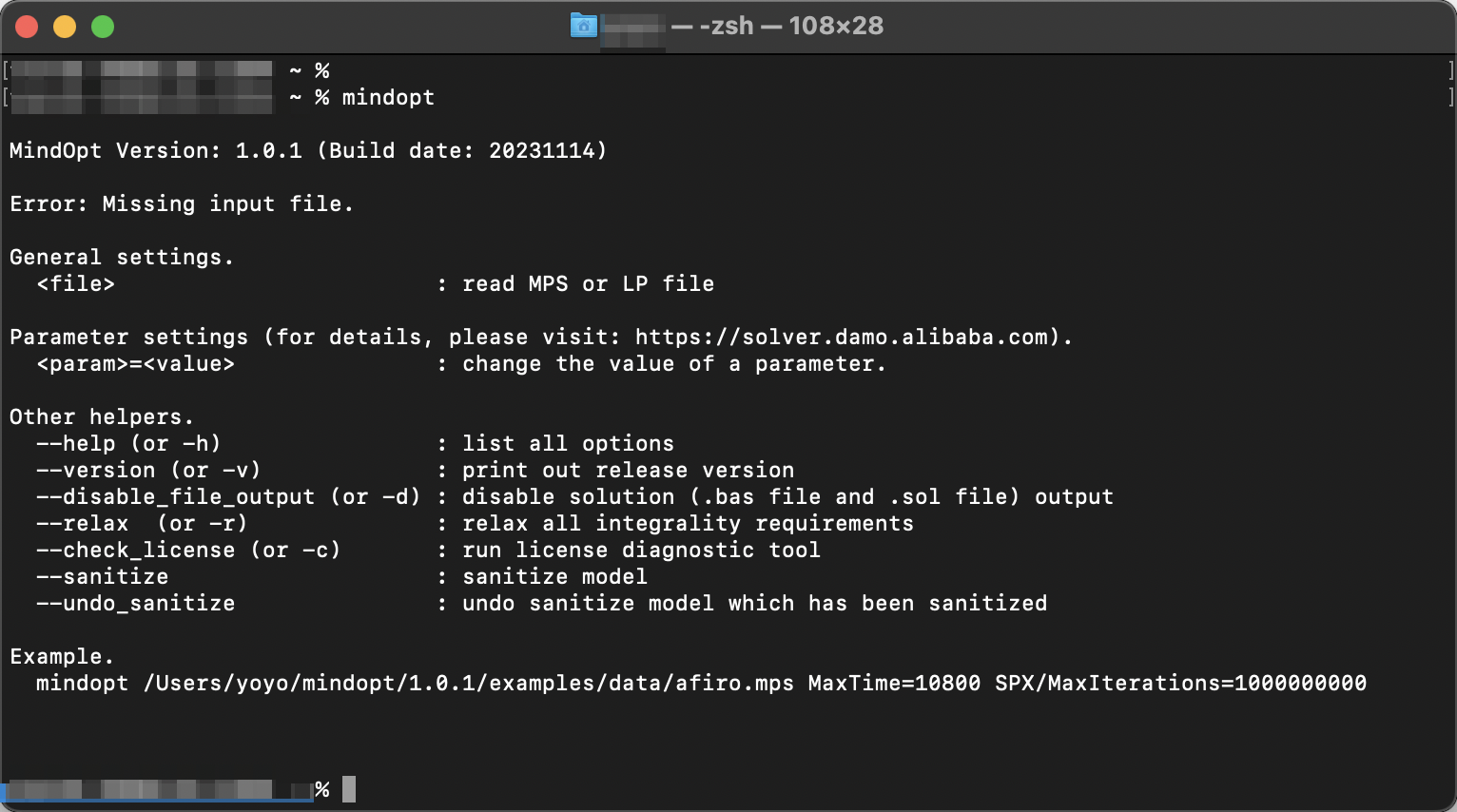
After you check the environment variables, run mindopt in the command line to verify the installation. The following figure shows an example:
Common solutions for runtime failures:
If the command fails, the cause is likely a permission issue. You can change the permissions of the executable file as follows:
Linux:
chmod u+x $MINDOPT_HOME/linux64-x86/bin/mindoptmacOS:
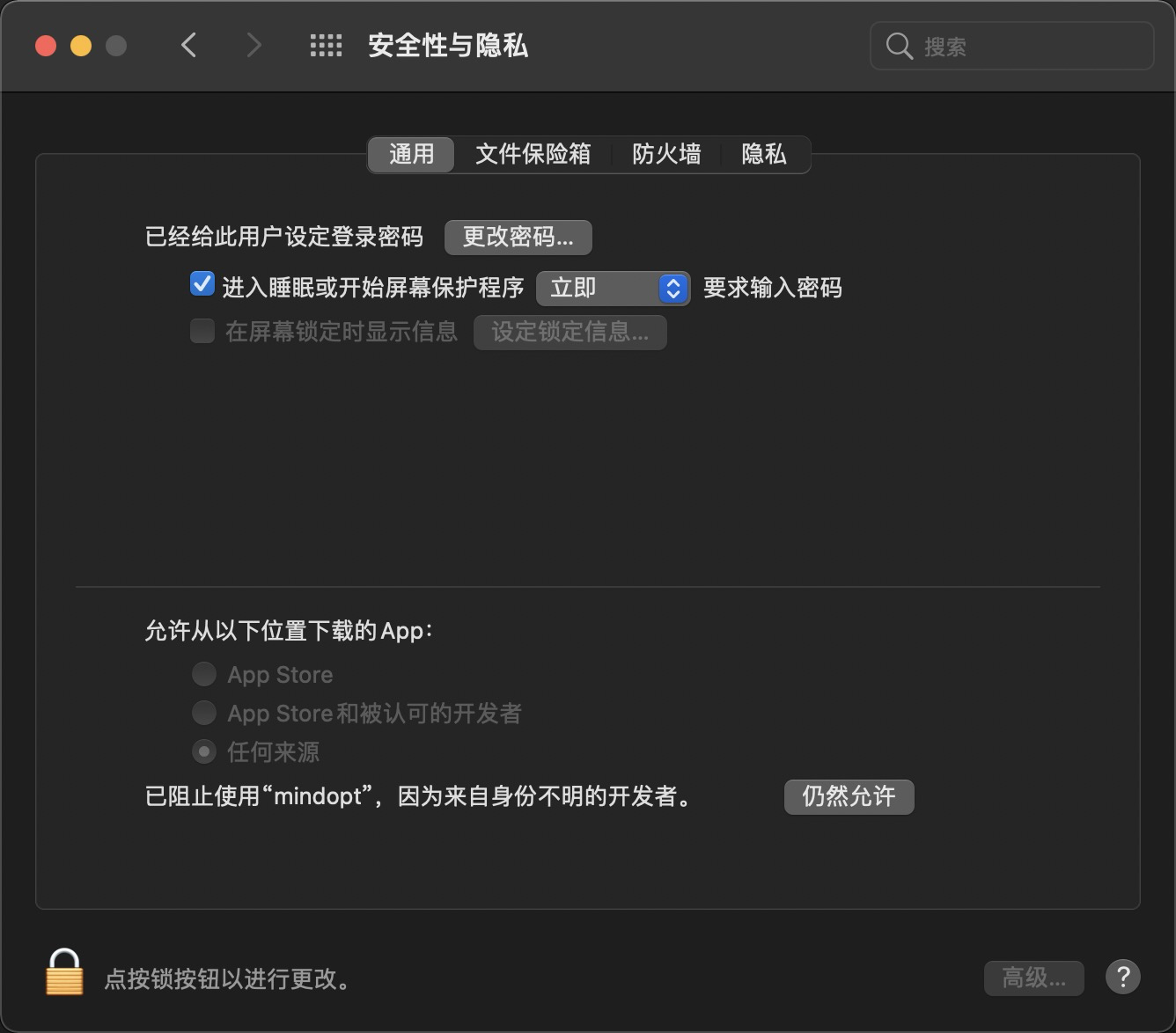
chmod u+x $MINDOPT_HOME/osx64-x86/bin/mindoptSome systems may prevent mindopt from running due to developer security checks. On macOS, for example, you can click Allow Anyway in Security & Privacy. For more information about other issues, see the Installation issues section in the FAQ.
4. Configure the authentication file
To use the solver, you must configure a license file. MindOpt supports two authentication methods:
1. Cloud authentication: If you are an Alibaba Cloud user, follow the instructions in 3. Configure an Alibaba Cloud account for authentication to obtain a license key and configure the
fl_client.inilicense file. Then, place this file in one of the recommended locations described below.This license is attached to your Alibaba Cloud account. The solver runs locally on your machine. An internet connection is required only for authentication. No other information is uploaded.
Benefits of this method:
You can request a license key yourself, and it is issued immediately.
One license key can be used on multiple computers.
You will receive a text message reminder before the license expires. You can then renew it on the console webpage without changing the license file.
2. Offline authentication: For offline use, MindOpt uses a
mindopt.licfile for local authentication. This file is attached to a machine ID.Starting from 2024, you can purchase a local authentication license that allows for offline, single-machine, and unlimited concurrent use from the console. For more information, see How to get the machine fingerprint for an offline fixed-machine license.
Note:
During authentication, the software first searches for the
mindopt.licfile and then thefl_client.inifile based on environment variable settings. It then validates the first file it finds.The names of the license files are fixed and cannot be changed.
Location of the authentication file:
(Recommended) Set the
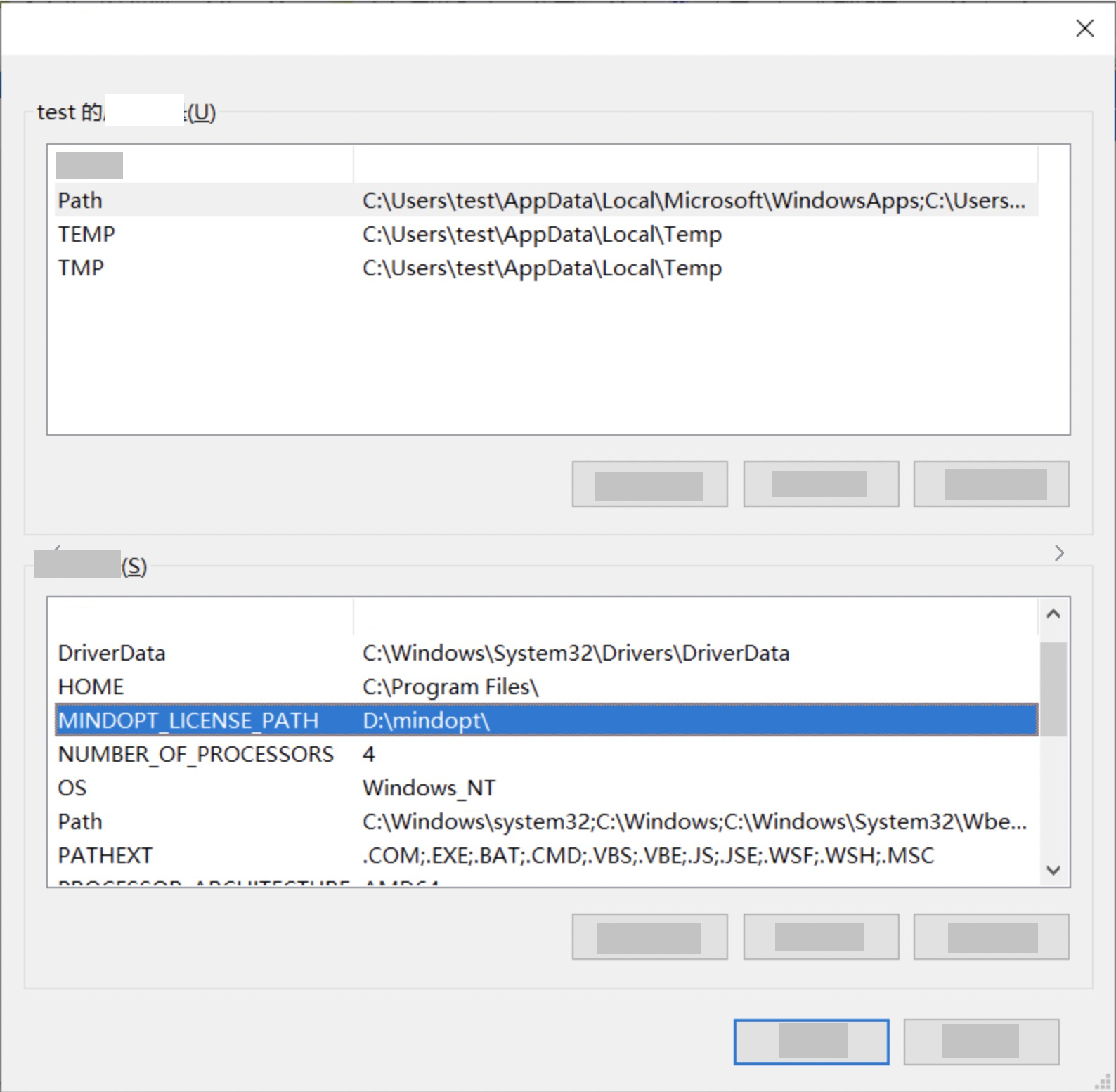
MINDOPT_LICENSE_PATHenvironment variable to define the location of the license file.
The following example shows how to add the environment variable on Linux and macOS systems. The method for modifying the environment variable file is described earlier.
export MINDOPT_LICENSE_PATH=$HOME/mindoptThe following figure shows an example for Windows. For more information, see License configuration.
If this environment variable is not set, MindOpt searches for the file in the
{user_root_directory}\mindoptfolder by default.For example, if the current user on Windows is Administrator, the path is
C:\Users\Administrator\mindopt\fl_client.ini.For example, on Linux, the path is
~/mindopt/fl_client.ini.
5. (Optional) Install Java support
V2.1 and later
Starting from version 2.1, you can add the Maven dependency directly to your pom.xml file. The following example is for the macOS Intel version:
<dependency>
  <groupId>com.alibaba.damo</groupId>
  <artifactId>mindoptj</artifactId>
  <version>2.1.0-SNAPSHOT</version>
  <classifier>osx-x64</classifier>
  <!-- macOS arm64  : osx-aarch -->
  <!-- linux arm64  : linux-aarch -->
  <!-- linux x86    : linux-x64 -->
  <!-- windows      : win-x64 -->
  <!-- all platforms: portable -->
  <type>jar</type>
</dependency>
The V1.0 method of using the built-in JAR package is still supported.
V1.0 and later
The installation package includes a built-in JAR file: <MDOHOME>/<VERSION>/<PLATFORM>/lib/mindoptj.jar. You do not need to add a Maven dependency.
To use it, add a reference to this file directly in your pom.xml file. The following example is for the macOS Intel version:
<dependency>
  <groupId>com.alibaba.damo</groupId>
  <artifactId>mindoptj</artifactId>
  <version>2.0.0</version>
  <scope>system</scope>
  <systemPath>${env.MINDOPT_HOME}/osx64-x86/lib/mindoptj.jar</systemPath>
</dependency>
V0.x.x
You do not need to install Java support separately. You can add the Maven dependency directly. Note: The basic installation in Step 2 is still required. The Java SDK depends on the dynamic-link library file of the solver.
<dependency>
  <groupId>com.alibaba.damo</groupId>
  <artifactId>mindoptj</artifactId>
  <version>[0.24.0, 1.0.0)</version>
</dependency>The Java SDK depends on the underlying C dependency libraries. Normally, after a full installation, the rpath-related environment variables are configured automatically. However, some IDEs, such as CLion, may block these variables at runtime. This causes errors when the program tries to find the dynamic libraries. You must specify these environment variables in the IDE. For example, in the CLion IDE on macOS, specify the following environment variable in Run/Debug Configurations:
DYLD_LIBRARY_PATH=<MDOHOME>/<VERSION>/<PLATFORM>/lib
6. (Optional) Install Python support
Starting from V0.24.1, if you only need the Python library, you can install it by running pip install mindoptpy. This package includes a specific license that is valid from 2023-01-01 to 2025-02-28.
This installation method only includes the Python library. To use the command line, C++, modeling languages, or other features, download and run the full installation package as described in this document.
After you install the Basic Edition package, go to the following path and run the command to install the Python SDK:
cd <MDOHOME>/<VERSION>/<PLATFORM>/lib/python
pip install .The SDK supports Python 3.6 or later. When you run the example code on Python 3.8 or later, you may receive an error that the mindoptpy module cannot be found. For solutions and more detailed installation instructions, see the User Guide.
Starting from version 2.1, Python 3.6 and 3.7 are no longer supported.
7. Uninstall and reinstall
Uninstall
Windows systems:
In Control Panel, go to Programs and Features, find the installed MindOpt version, and right-click to uninstall it. The software supports the installation of multiple versions in different directories. If you installed multiple versions, they appear as separate entries that you must uninstall one by one. The uninstallation process removes the MINDOPT_HOME and Path environment variables that were added automatically. If you installed the software as an administrator, the uninstaller may not have permission to modify the environment variables. In this case, you must remove the environment variables manually or run the uninstaller as an administrator.
Linux and macOS systems:
To uninstall the SDK, delete the following files and directories:
The installation directory, for example,
$HOME/mindopt, that was specified during installation.Remove the environment variable settings from files such as
~/.bashrcor~/.zshrc, and delete the~/.mdo_profilefile.
Uninstall Python APIs: You can use the `pip uninstall` command to uninstall components defined in the
setup.pyfile. For example:pip3 uninstall mindoptpy.
If you plan to install the SDK again later, do not delete the license files, or make sure to back them up. The default paths are $HOME/mindopt and C:\Users\Administrator\mindopt.
Running some of the example commands generates .bas and .sol result files. You can delete these files from the installation directory.
Reinstall
You can install multiple versions of the SDK at the same time in different folders. Set the environment variables for the version you want to use. You do not need to modify the license file.
Windows systems:
Double-click the .exe file to reinstall. The new environment variable settings overwrite the old ones. Because different versions are in different folders, you can change the active version by modifying the directory in the MINDOPT_HOME environment variable.
Linux and macOS systems:
Follow the installation steps described earlier to reinstall. Then, modify the environment variable settings in files such as ~/.bashrc or ~/.zshrc, or the referenced ~/.mdo_profile file.
After you reinstall, close and reopen the command prompt window for the new environment variables to take effect.
8. Use the solver
If you are a new user, you can follow the Quick example of problem-solving in the Quick Start document to get started. For more information, see the Solver User Manual.