You can develop a custom plugin to handle specific events at certain times, such as recording instrumentation when a user enters a page. After a plugin subscribes to an event, you can process the data from that event in the event handler.
About this task
The process of creating a custom plugin includes the following steps:
This topic uses the H5 container and offline package demo to show how to create a custom plugin that modifies the navigation bar when an H5 page loads.
Procedure
Create a plugin
The following code shows an example of the general format for a new plugin class:
#import <NebulaSDK/NBPluginBase.h>

@interface MPPlugin4TitleView : NBPluginBase

@end

@implementation MPPlugin4TitleView

- (void)pluginDidLoad
{
}

- (void)handleEvent:(PSDEvent *)event
{
   [super handleEvent:event];
}

- (int)priority
{
    return PSDPluginPriority_High +1;
}
Note the following points:
Naming: To be consistent with the naming of default plugins provided by the container, start the name with
XXPlugin4, whereXXis a custom prefix.Base class: All plugins must inherit from
NBPluginBase.Implement basic methods: In the
.mfile, you must override the following methods:- (void)pluginDidLoad: Required. This method is used to subscribe to H5 events. For a list of events, see theNBDefines.hheader file.- (void)handleEvent: Required. This method handles the logic after a subscribed event is triggered.- (**int**) priority: Required. Specifies the priority of the event, which must be set toPSDPluginPriority_High + 1.- (void)addJSApis: Optional. This method is used to register a JSAPI to communicate with the H5 page.
Listen for events
In the - (void)pluginDidLoad method, register listeners for the events you want to handle.
- (void)pluginDidLoad {
    self.scope = kPSDScope_Scene; // 1

    [self.target addEventListener:kNBEvent_Scene_NavigationItem_Left_Back_Create_After withListener:self useCapture:NO];
    // -- Modify the navigation bar style.
    [self.target addEventListener:kH5Event_Scene_NavigationBar_ChangeColor withListener:self useCapture:NO];

    [super pluginDidLoad];
}
The addEventListener method registers a listener for an event. The parameters are described as follows:
Name | Description |
scope | Sets the scope of the event. The supported scopes, from smallest to largest, are Scene, Session, and Service. |
event | Sets the event name. Event constants are defined in |
listener | Sets the event handler, which is the object that provides |
capture | Specifies whether to use the capture phase for event propagation. Typically, this is set to |
Set the plugin priority
To prevent your custom plugin from being overwritten, set a high priority for it.
- (int)priority
{
    return PSDPluginPriority_High +1;
}
Handle the listener
Finally, in the -handleEvent: method, implement the logic that runs after the subscribed event is triggered.
- (void)handleEvent:(NBNavigationTitleViewEvent *)event
{
    [super handleEvent:event];

    if ([kNBEvent_Scene_NavigationItem_Left_Back_Create_After isEqualToString:event.eventType]){
        // Modify the style based on the default back button.
        NSArray *leftBarButtonItems = event.context.currentViewController.navigationItem.leftBarButtonItems;
        if ([leftBarButtonItems count] == 1) {
            if (leftBarButtonItems[0] && [leftBarButtonItems[0] isKindOfClass:[AUBarButtonItem class]]) {
                // Modify the color of the back arrow and text based on the default back button.
                AUBarButtonItem *backItem = leftBarButtonItems[0];
                backItem.backButtonColor = [UIColor greenColor];
                backItem.titleColor = [UIColor colorFromHexString:@"#00ff00"];

                // Hide the back arrow.
                //                backItem.hideBackButtonImage = YES;

                // Hide the back text: Set the text to transparent but keep the clickable area of the back button.
                //                backItem.titleColor = [UIColor clearColor];
            }
        }
        [event preventDefault];
        [event stopPropagation];
    }else if([kH5Event_Scene_NavigationBar_ChangeColor isEqualToString:event.eventType]) {

        // Disable the default navigation bar style of the container.
        [event preventDefault];
        [event stopPropagation];
    }
}
Add a JSAPI
To define a custom JSAPI to interact with an H5 page, you can register it in the optional - (void)addJSApis method. For more information, see Custom JSAPIs > Register using code.
- (void)addJSApis
{
    [super addJSApis];
    // You can add custom JSAPIs related to TitleView here.
}
Register the plugin
After you create the plugin class, you must register the plugin in your custom Plist file. For more information, see Custom JSAPIs > Register a JSAPI.
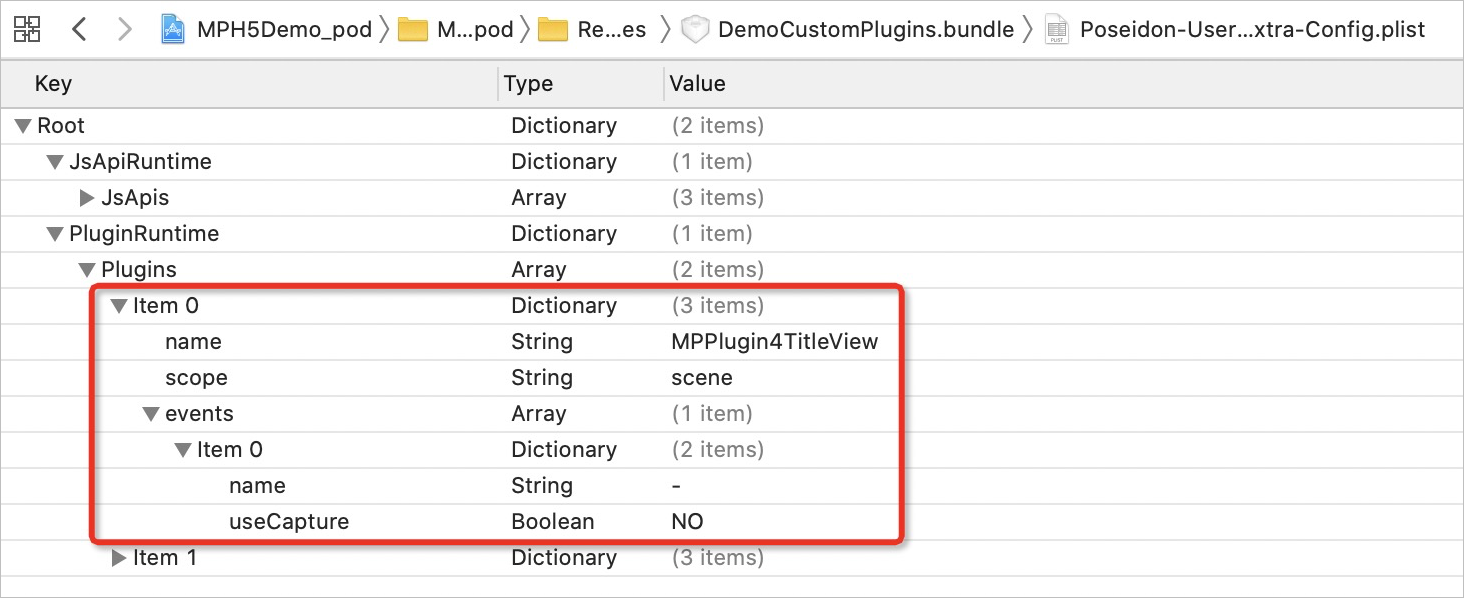
The registered plugin is a dictionary that contains the following three items:
Name | Description |
name | The name of the created plugin class. |
scope | The scope in which the plugin is effective. |
events | The names of the events to listen for. |
Use the plugin
In the
pluginDidLoadmethod, add a breakpoint to check whether the call stack is correct when the event is triggered.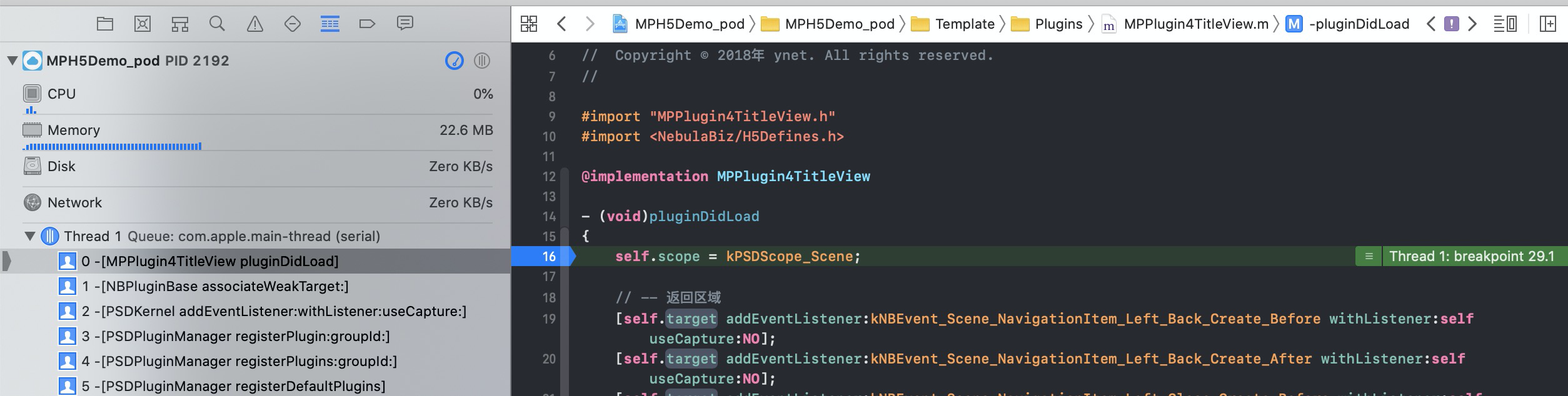
In the
handleEventmethod, add a breakpoint to check whether the subscribed event can be correctly triggered.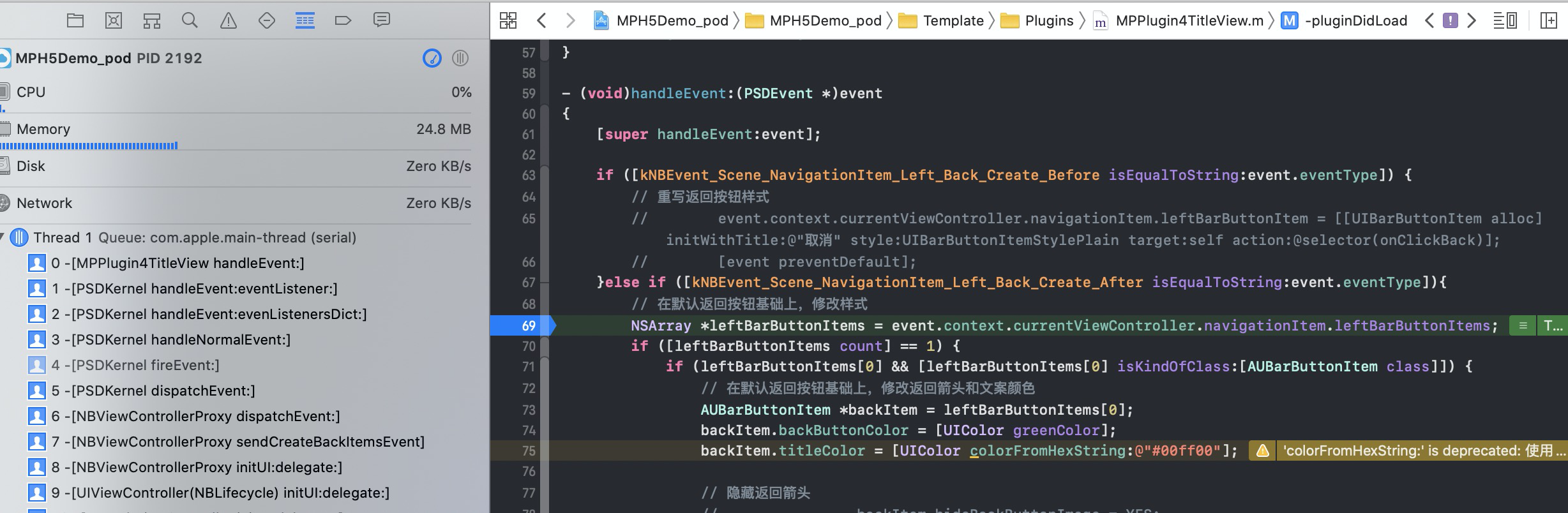
Check whether the custom navigation bar style on the HTML5 page takes effect.