This topic describes how to create, edit, or delete a schema in HoloWeb.
Prerequisites
You have logged on to an instance. For more information, see Log on to an instance.
New Pattern
Log on to the Hologres management console.
In the top navigation bar, select a region.
Click Go to HoloWeb to open the HoloWeb developer page.
-
On the HoloWeb development page, go to the Metadata Management page and find the Logged-on Instances list. Right-click the target database and select Log On to Database.
-
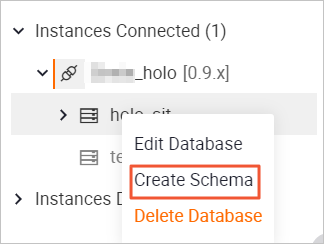
In the Log On to Database dialog box, click OK to log on. Then right-click the target database and select Create Schema.
-
Configure the Schema Name and click OK. The Instance Name and Database Name fields are pre-filled with the current instance and database names. You do not need to change them. The new schema appears in the list of logged-on databases.
Management pattern
You can refresh, edit, or delete a schema. You can also create internal tables, MaxCompute foreign tables, DLF foreign tables, or views in a schema.
-
On the HoloWeb development page, go to the Metadata Management page and find the Logged-on Instances list. This list shows all logged-on instances.
-
Click the target instance, and then click the target database. All created schemas are displayed.
NoteAfter you log on to a database, the system creates a schema named public by default.
-
Right-click the target schema to manage it.
You can perform the following operations:
-
Refresh
Refresh the schema to sync changes made to its contents.
-
Edit Schema
You can right-click the target schema and select Edit Schema. You can only modify the Schema Name.
-
Create Internal Table, Create MaxCompute External Table, Create DLF External Table
Right-click the target schema and select the type of table to create. Configure the parameters in the panel on the right. For more information about table configurations, see MaxCompute acceleration.
-
Create View
Right-click the target schema and select Create View. Configure parameters on the Create View page. For more information, see View.
-
Delete Schema
Right-click the target schema and select Delete Schema. Review the schema details and click OK to delete the schema.
-
References
You can also create, modify, and delete schemas using SQL statements. For more information, see: