In the Price List dialog box, you can view the price details of each resource. The detailed pricing information includes the billing method, original price, discount, and paid amount. You can also generate price inquiry reports.
Prerequisites
The application architecture has passed the resource verification.
Procedure
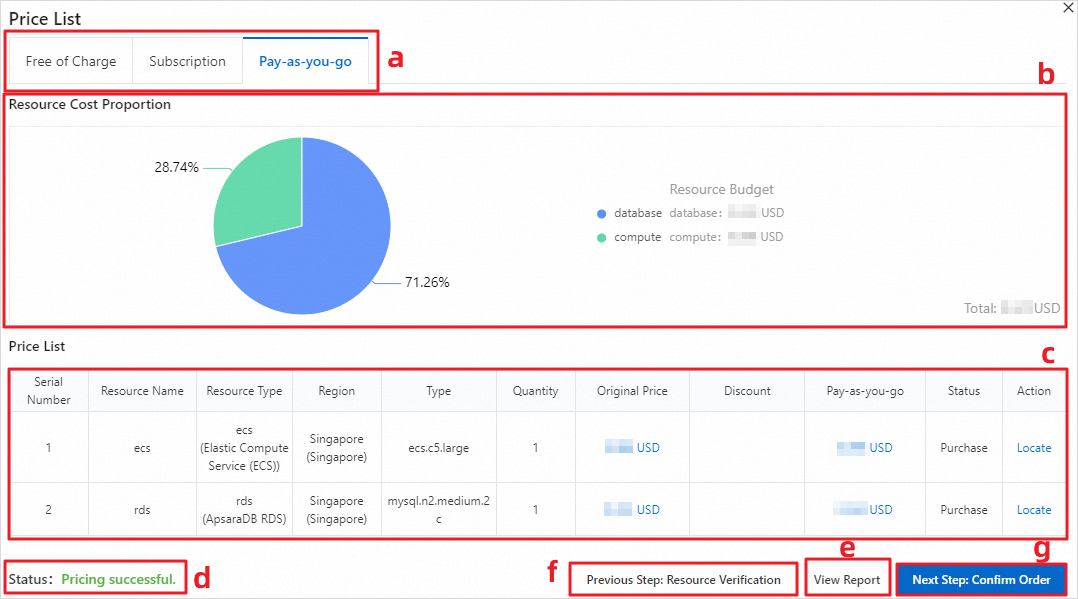
1. In the Resource Verification dialog box, click Next: Price List.  2. In the Price List dialog box, view the price details and cost proportions of each resource in the application.
Cloud resources in the application are classified into the following types based on their billing method: free-of-charge, subscription, and pay-as-you-go.
In the Resource Cost Proportion section, you can view the costs of different types of services that use a specific billing method and the cost proportions of each service.
In the Price List section, you can view the pricing details and the configuration information about resources, such as the region, type, and quantity. The discount information is displayed in this section if the service is discounted.
The pricing status of the application is displayed.
If the pricing status is successful, you can click View Report in the lower-right corner to view the cost analysis report of your application.
If you need to modify the configurations, click Previous Step: Resource Verification.
After you verify the resource configurations and pricing information, click Next Step: Confirm Order.
 Note
NoteThe real-time prices of services are displayed in the Price List section. The actual prices that are displayed shall prevail.