Service Connection manages and configures connections between pipelines and the external resources or services. Through Service Connection, pipelines can get encryption keys, certificates, or configuration information in a standardized way, thus avoiding issues caused by manual operations.
Applications
Service Connection is used in various scenarios, including but not limited to:
Connections to code repositories: Binding pipelines with Codeup completes RAM authorization, eliminating the need for hard-coded account passwords or additional authorization.
Connections to Packages: Binding pipelines with Packages completes RAM authorization.
Connections to image repositories: Binding pipelines with private image repositories completes
docker login.Connections to Kubernetes cluster : Binding pipelines with cluster credentials allows pipelines to call
kubectlfor rolling updates.
Service Connection types
Flow supports connections to the following services:
Category | Product |
Alibaba Cloud Services |
|
Code Services |
|
Other Services |
|
Create a service connection
In the Flow console, select Global Settings > Service Connection Management.
On the Service Connection Management page, click Create or New Service Connection.
Select a service connection type, and then click Next Step.
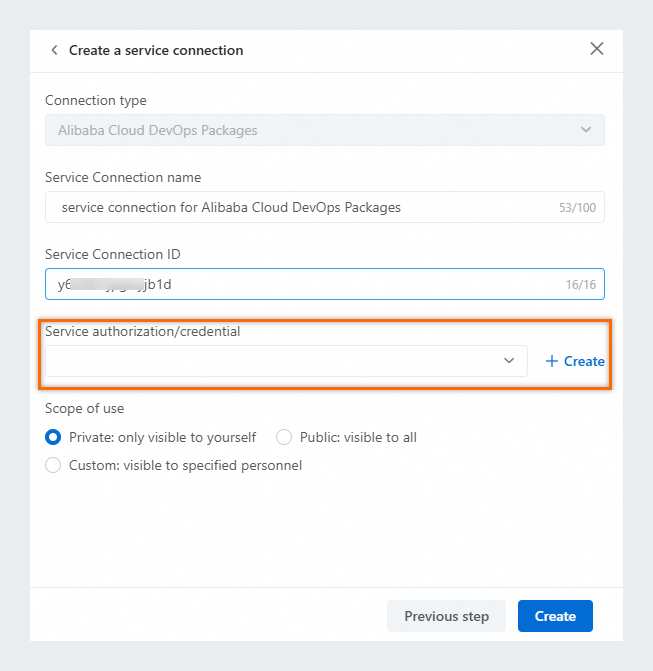
In the dialog box, configure the following options:
Service Connection name
Service Connection ID
Service authorization/certificate: Click Create to automatically generate one.
 Note
NoteIf you need to create a non-Alibaba Cloud service connection, enter the username, token or password to create a certificate.
If a service connection fails due to reasons like employee resignation, reconfigure the service authorization or certificate in the Service Connection, instead of updating each pipleline.
Scope of use: Set the access control for the service connection:
Private: only visible to yourself.
Public: visible to everyone.
Custom: visible to specified members.
Click Create.
Create a GitHub service connection
Flow can establish an authorized connection with GitHub code repositories through GitHub App. Follow these steps to create a GitHub service connection:
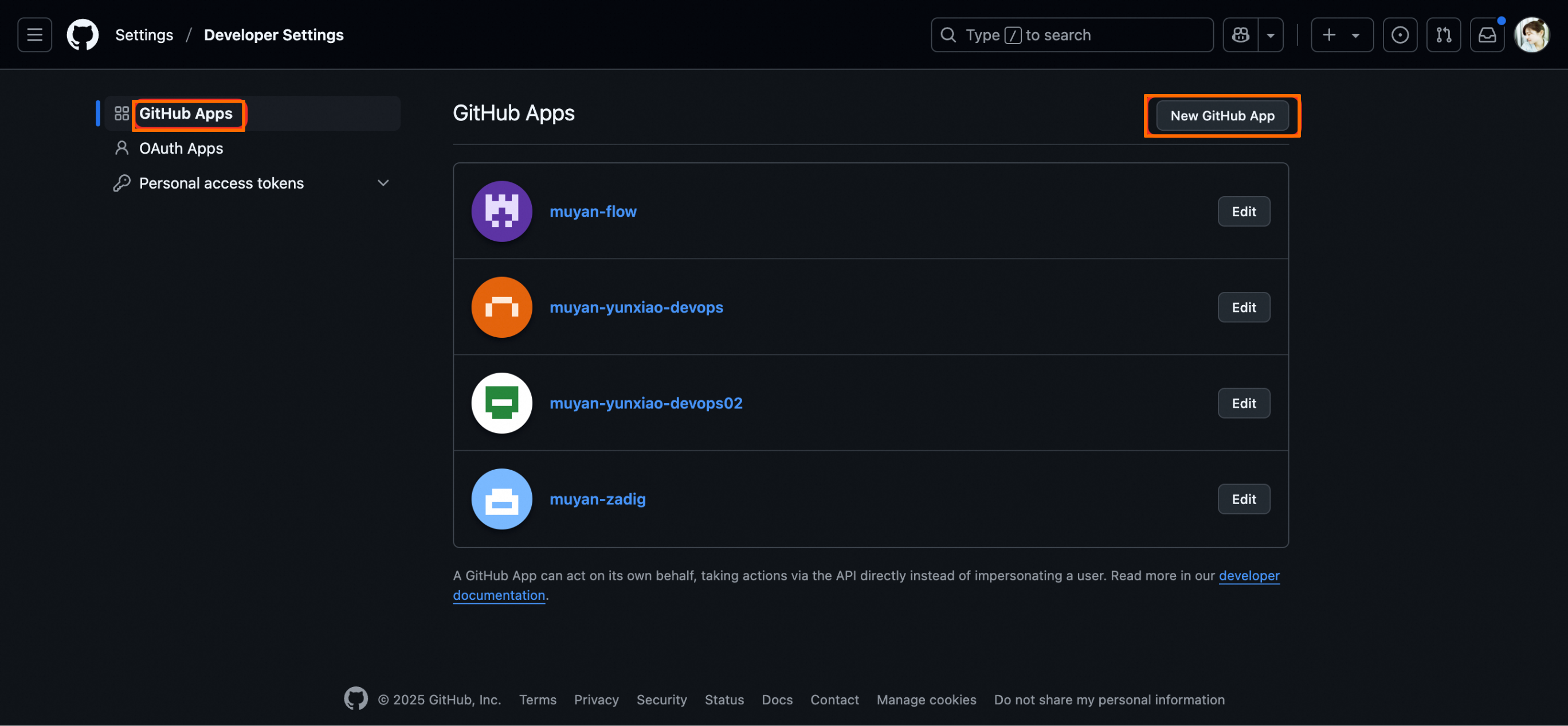
Go to GitHub and navigate to page, and then click New Github App.
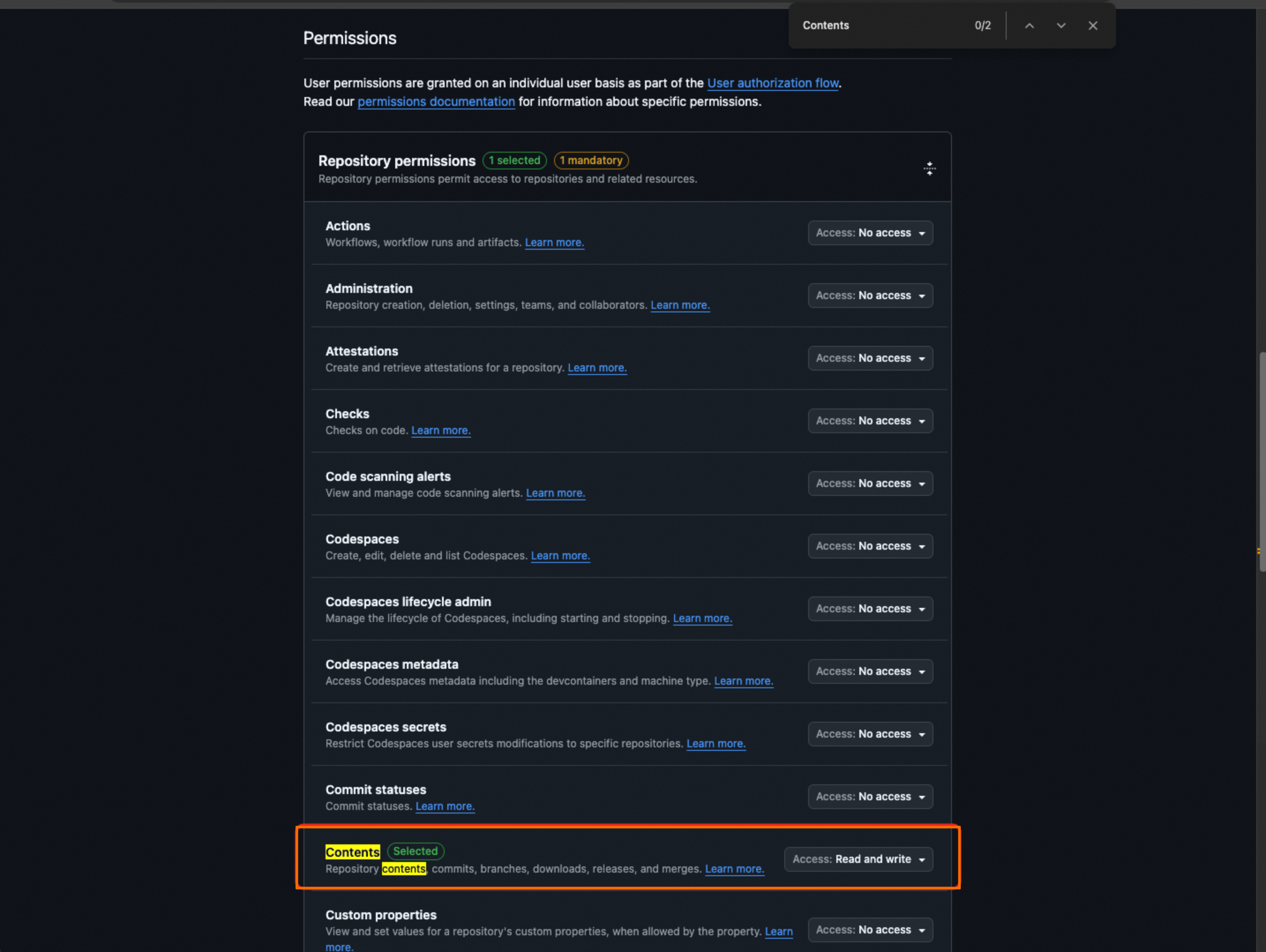
On the Register new GitHub App page, fill in the following information:
Github App Name
Homepage URL
Permissions: Enable Contents - Read and write permissions for the repository.
Click Create Github App to create the application.

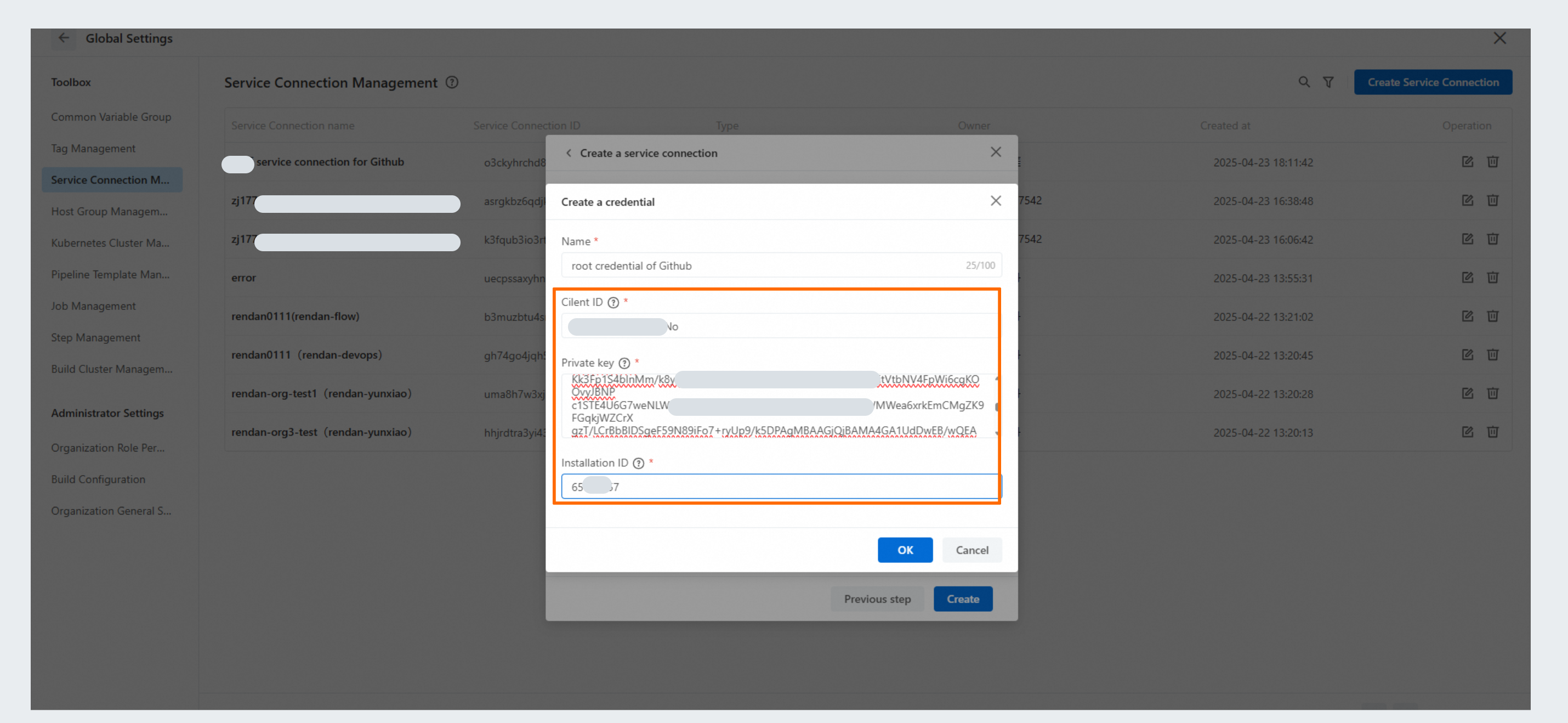
After the application is created, go to the General page to get the GitHub App's
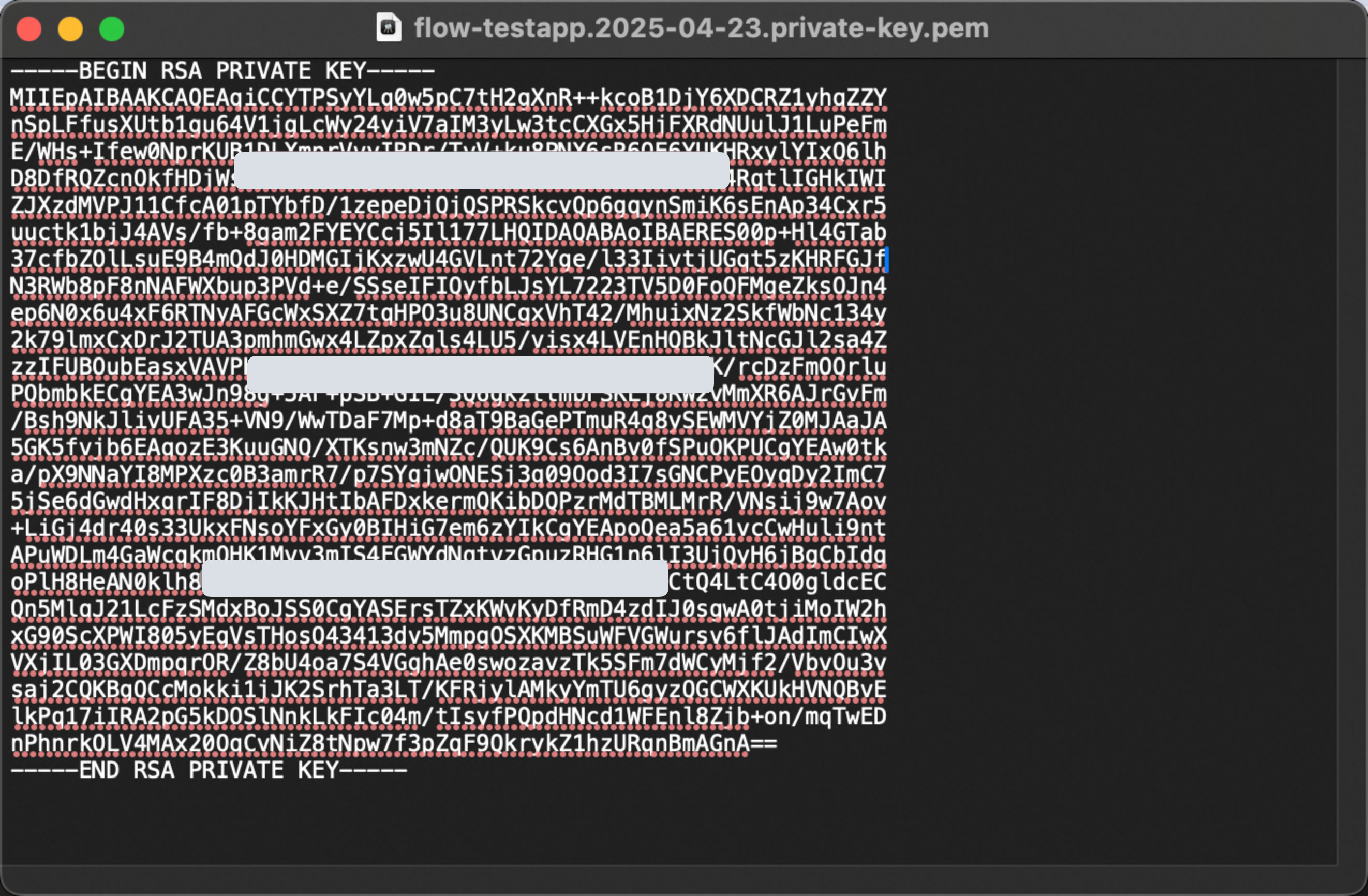
Client ID. Click Generate a private key to generate a file ending withprivate-key.pem. Save this file and keep it safe, as you will need it to establish an authorized connection with Flow.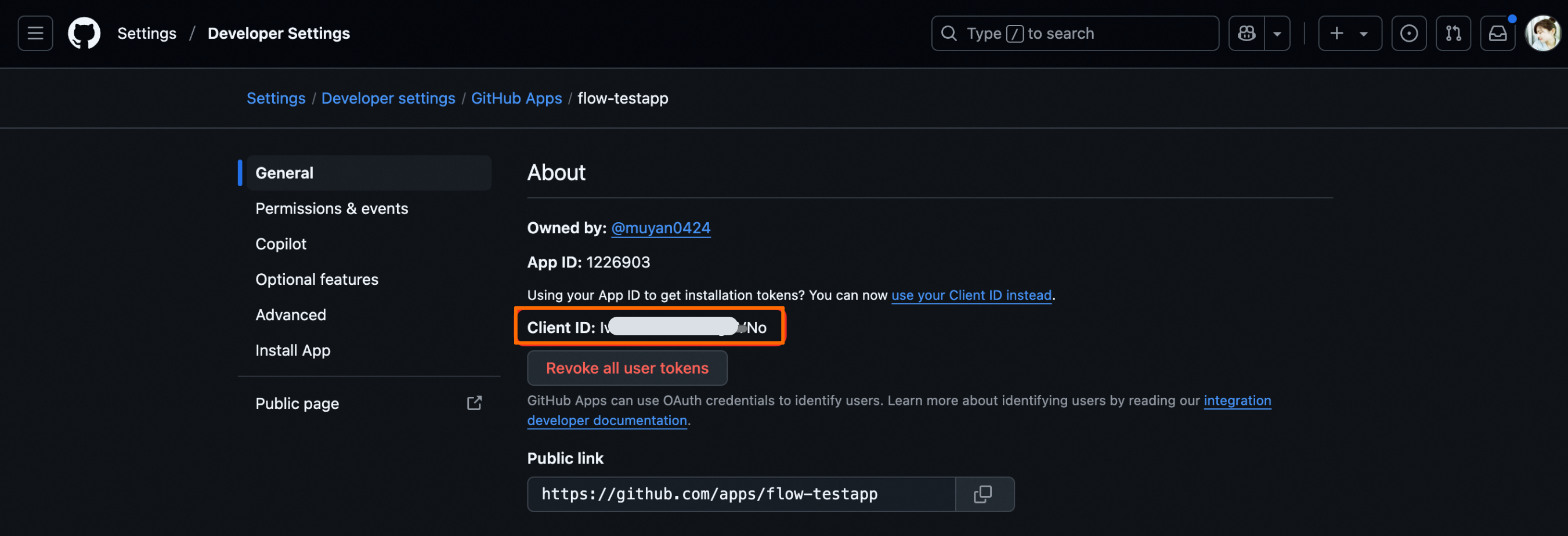

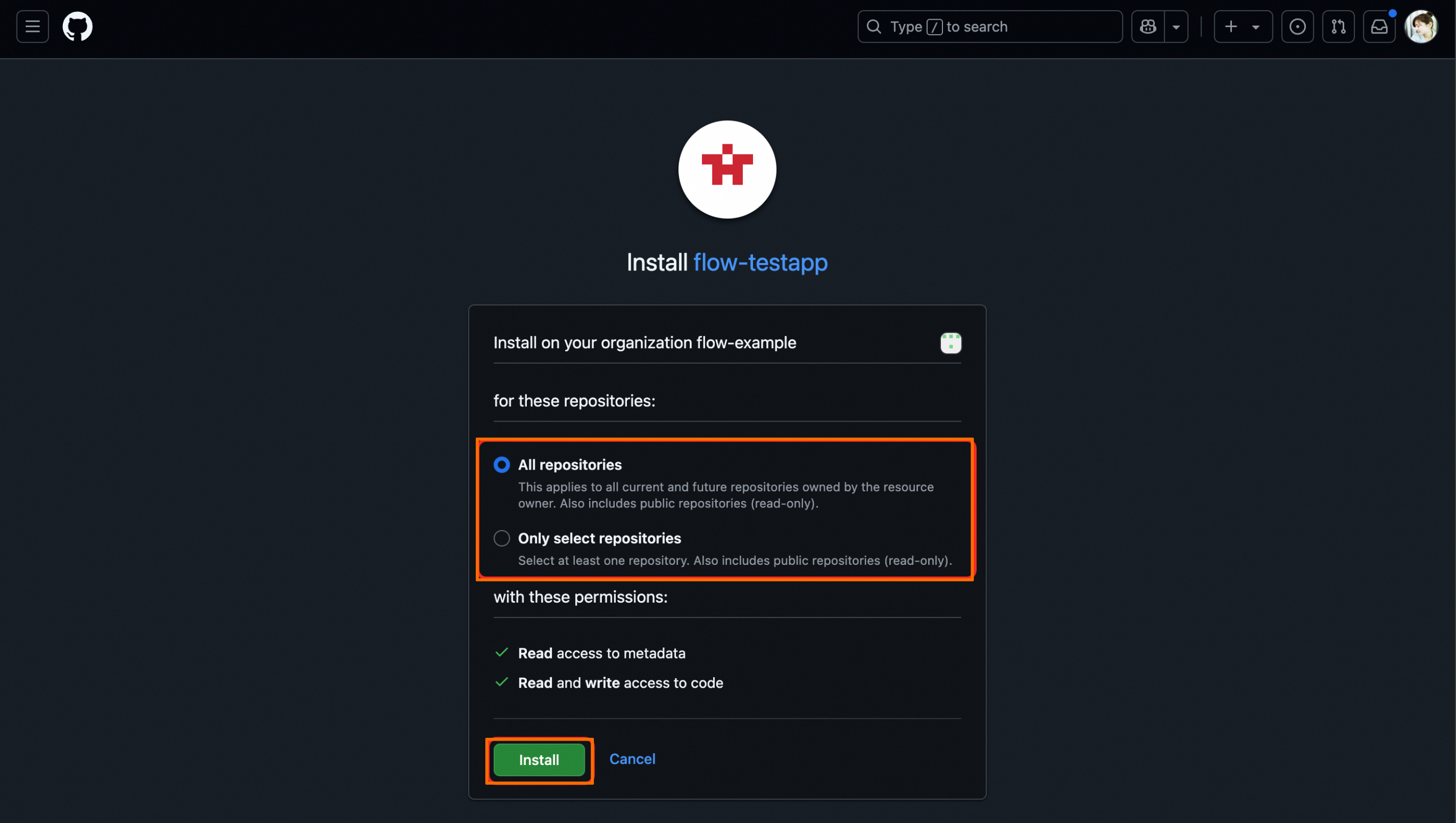
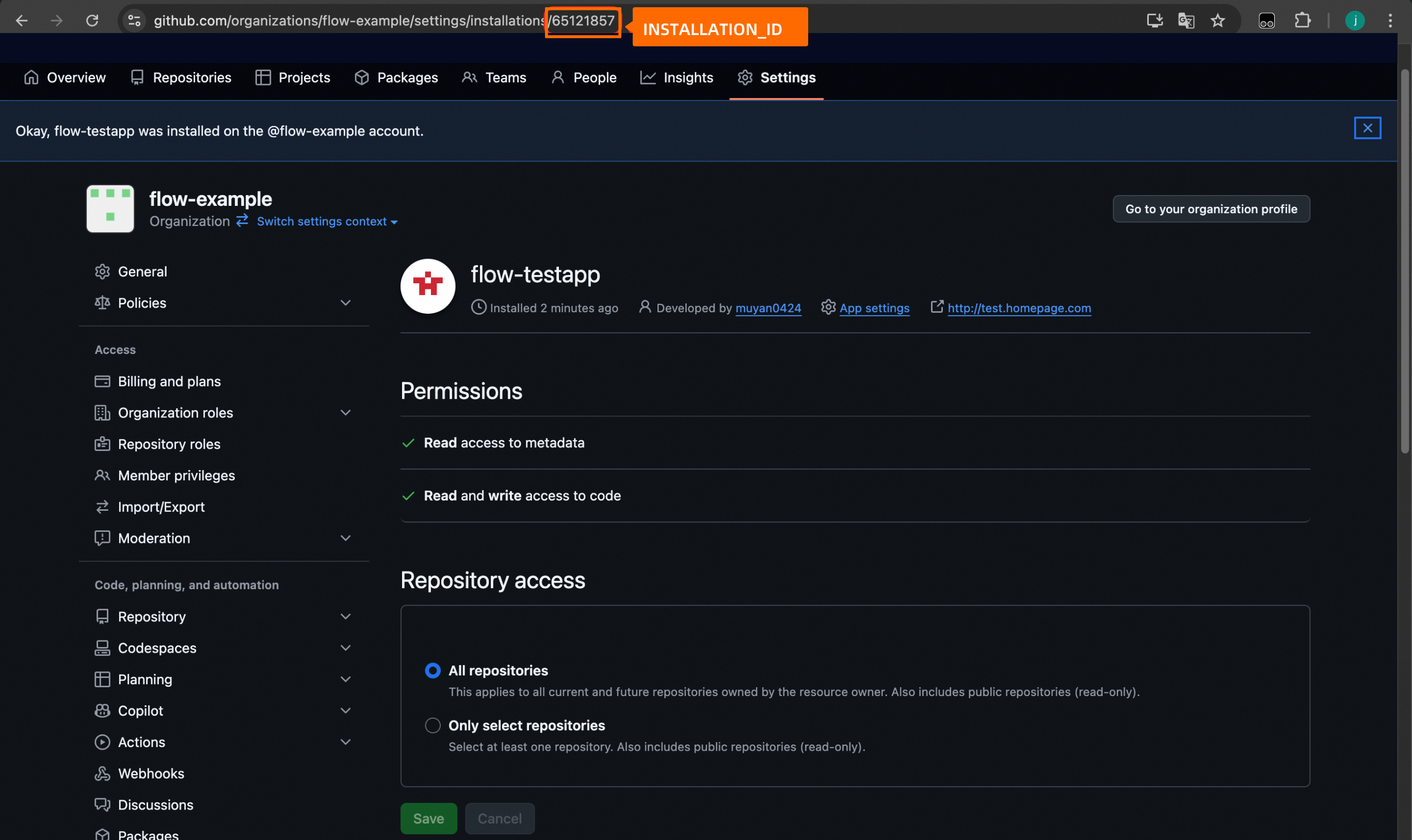
Go to the Install App page, choose an account to install the app on, configure the scope, and click Install. After installation, you will get the
INSTALLATION_IDfrom the account.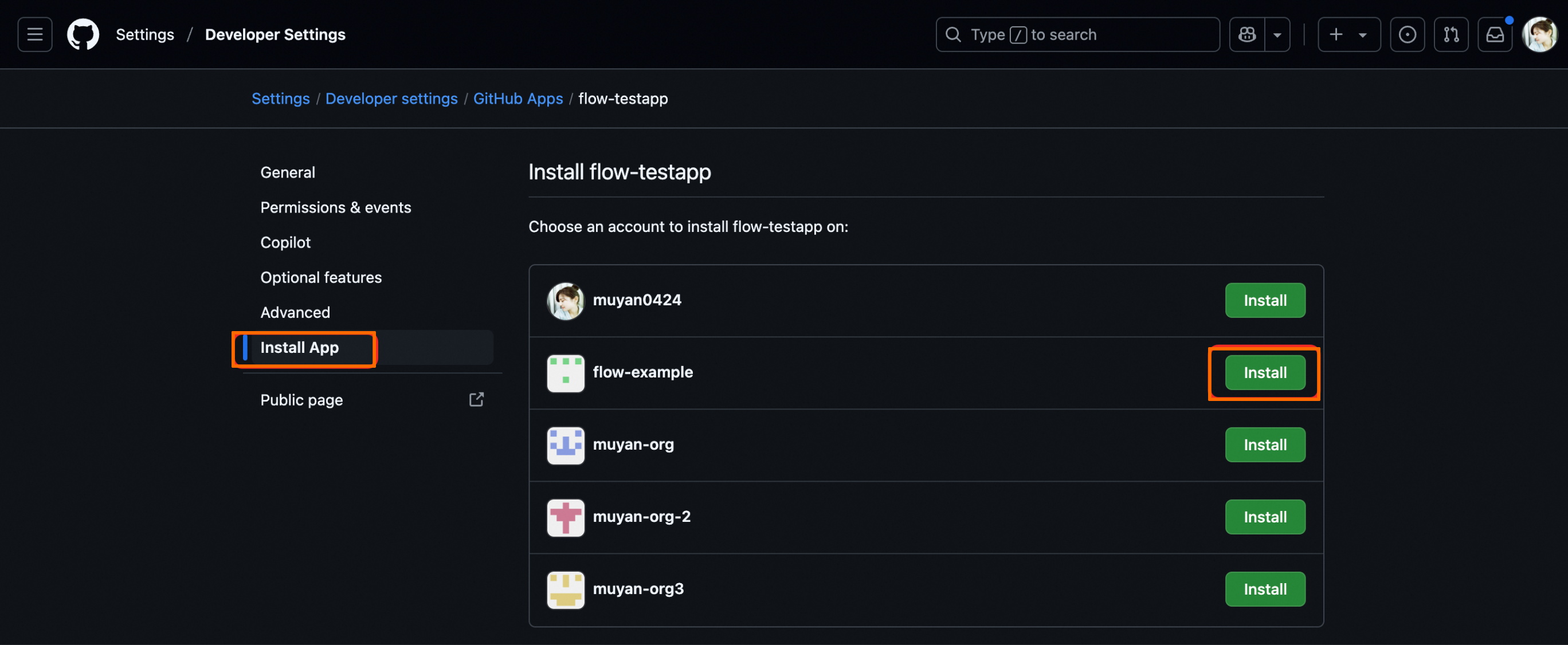
Go to Flow, navigate to page, click Create Service Connection, select GitHub, and create a new Service authorizaton/certificate.
Specify the name, enter the
Client ID,Private key, andInstallation IDobtained in the previous steps, and then click OK.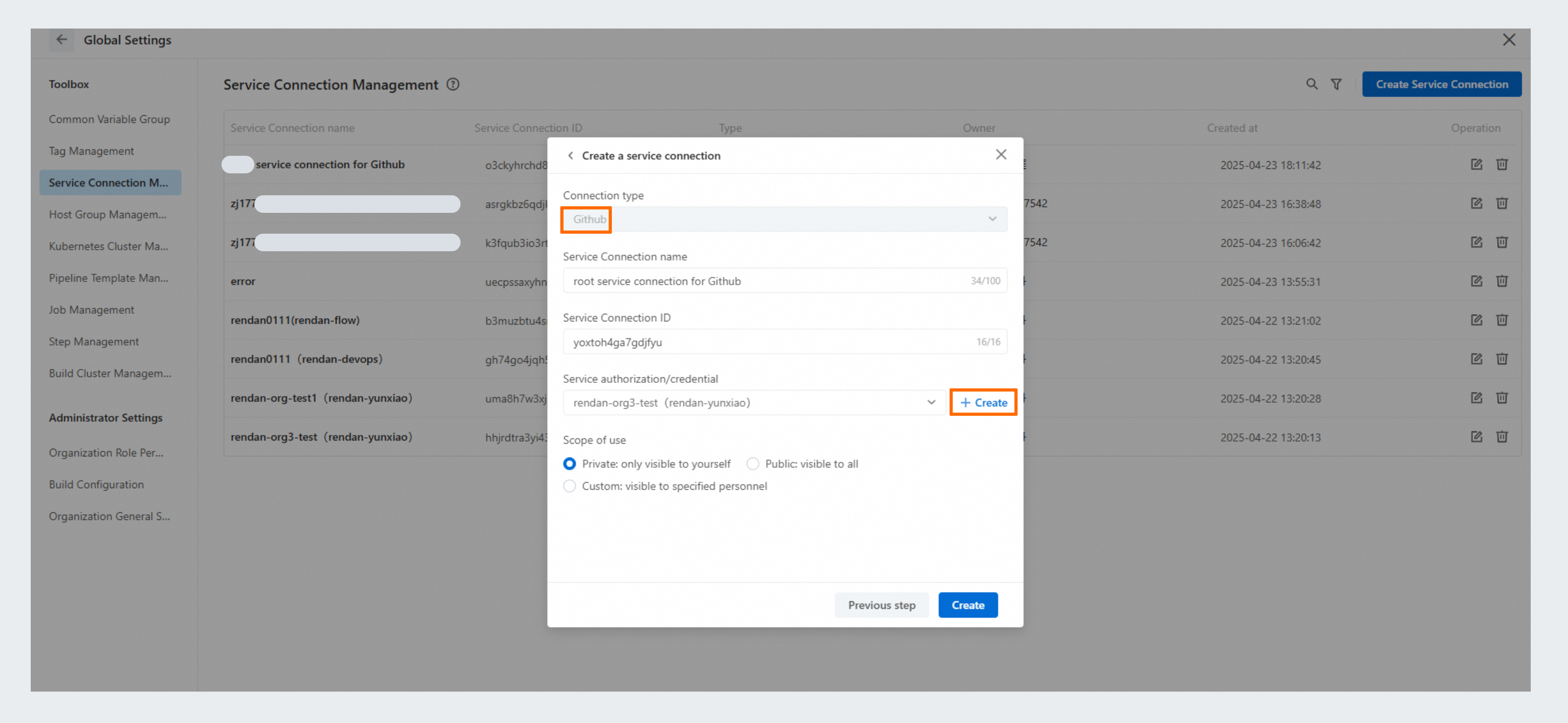
Create a pipeline, add a code source, and select the GitHub service connection created above. Then you will see the code repository and branches. Then the pipeline can operate on the code repository like cloning, merging, or deleting branches.
