After you upload or process media files, you can obtain media asset information using the console or an API. This topic describes how to obtain media asset information using the console, an API, and an SDK.
Scenario 1: Obtain and update using API
Media asset information is a collection of structured data that describes a media file. To meet the needs of different business scenarios, ApsaraVideo VOD categorizes media asset information into the following types. You can obtain and update each type independently using different APIs:
Information type | API for obtaining information | API for updating information | Scenarios |
Basic information | Obtain single audio/video information | Modify single audio/video information | Obtain basic media asset information (title, duration, status) for application display. Update media asset properties (title, description, thumbnail, category ID, tag) to improve content management. |
Source file information | Source file information is metadata extracted from the file itself and does not support updates. | Obtain the uploaded original file address and parameters. This is often used for archiving, secondary processing, or troubleshooting. | |
Playback information | Playback information does not support updates. However, transcode to transfer out new audio/video streams. Submit media transcoding job | Obtain the playback address (including authentication). This is core to video playback functionality. |
You can use server-side SDKs to call APIs to obtain and update media asset information. For more information, see VOD SDK user guide.
Scenario 2: Obtain and update using the console
The console provides an intuitive interface to view and manage detailed information for individual media assets. This method is suitable for daily operations management or quick verification during development.
Log on to the ApsaraVideo VOD console.
In the left navigation bar of the VOD console, select Media Files. Then click Audio/Video, Image, or Short Video Material to access the corresponding page.
Click Manage to view the details of the media asset.

The following section uses an audio/video file as an example:
Basic information
On the Basic Information tab, you can view or modify information such as the title, description, classification, tags, and thumbnail of the audio or video. After you finish editing the information, click Save.
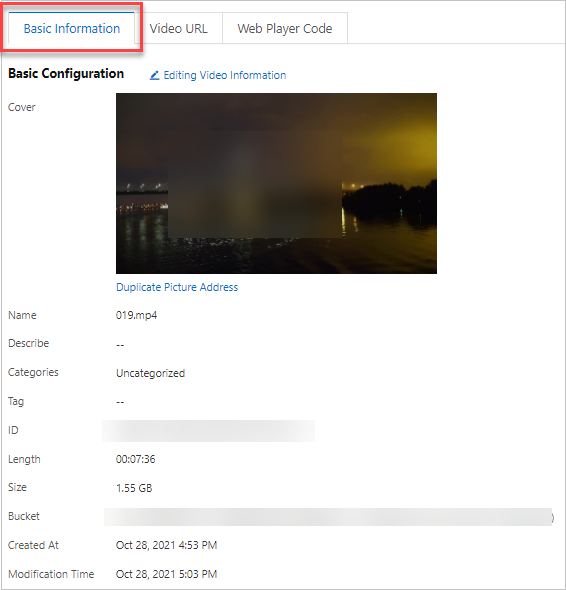
The following table describes the parameters.
Parameter | Description |
Cover | Upload an image or select a video snapshot to set it as the default video thumbnail. Note Upload a custom thumbnail. Only JPG or PNG format is supported, with a maximum size of 1 MB and a resolution not exceeding 1920 × 1080. |
Name | The name of the audio/video. It is visible in the player window during playback. The length must be 1 to 128 bytes. |
Description | The detailed description of the audio/video. The length must be 0 to 1024 bytes. |
Categories | Configure video categorization in categorization management. For more information, see Media asset categorization. |
Tag | Add multiple tags to each audio/video. Only Chinese characters, English letters, digits, and underscores are supported. Enter a comma, semicolon, or press Enter to complete a single tag entry. |
Video URL
On the Video URL tab, you can view the URLs of the source file and transcoded streams of different formats and definitions. The resolution and bitrate of each stream are also displayed.
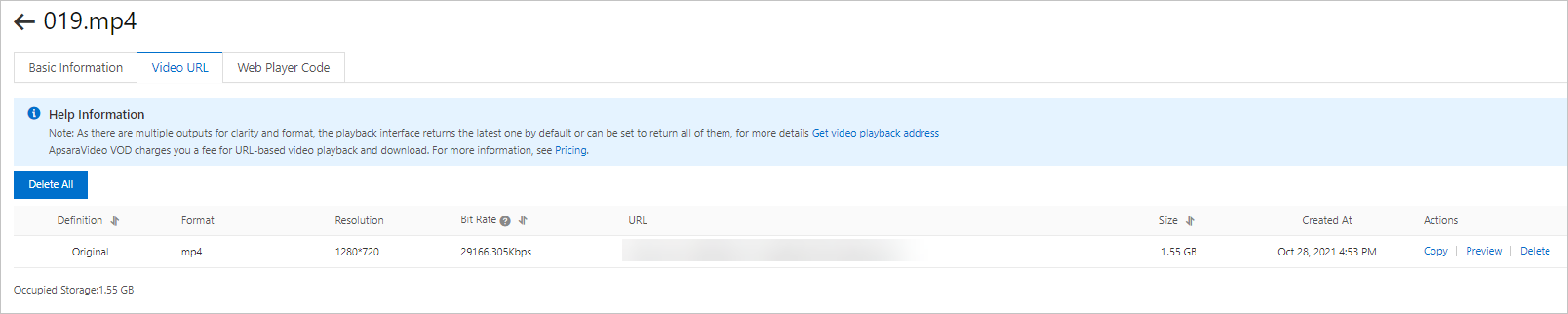
The following table describes the features.
Feature | Description |
Copy | Copy the playback address of the current definition to a browser or player for preview. |
Preview | Preview the video of the current definition directly in the console. |
Delete | Delete the video of the corresponding definition. |
Delete All | Purge all transcoded files (excluding original files). Once purged, files cannot be recovered. Use with caution. |
Web player code
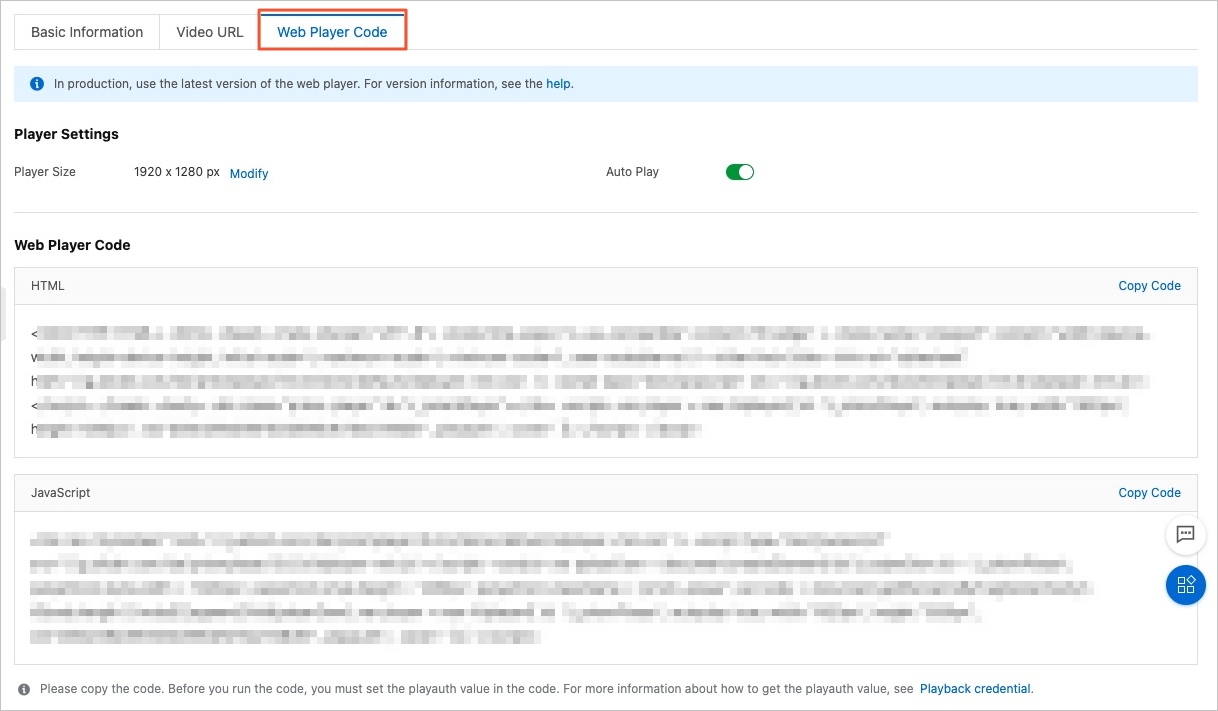
On the Web Player Code tab, you can obtain the HTML or JavaScript code for each video. You can also use the quick configuration tool to configure player parameters, such as the player size and autoplay settings. The tool automatically modifies the corresponding parameters in the code snippet to improve your development efficiency.
The Web Player Code tab is displayed only for video files.
We recommend that you use the latest version of the Web Player for integration. For more information, see Web player.