Terraform is an open source tool that allows you to preview, configure, and manage cloud resources in a secure and efficient manner. This topic describes how to use Terraform to create a Resource Access Management (RAM) user and a RAM user group, and then add the RAM user to the RAM user group.
You can run the sample code in this topic with a few clicks. For more information, visit Terraform Explorer.
Prerequisites
-
We recommend that you use a RAM user that has the minimum required permissions to perform the operations in this topic. This reduces the risk of leaking the AccessKey pair of your Alibaba Cloud account. For information about how to attach the policy that contains the minimum required permissions to the RAM user, see Create a RAM user and Grant permissions to a RAM user. In this example, the following policy is used:
{ "Version": "1", "Statement": [ { "Effect": "Allow", "Action": [ "ram:GetUser", "ram:ListGroupsForUser", "ram:ListUsers", "ram:ListUsersForGroup", "ram:CreateUser", "ram:RemoveUserFromGroup", "ram:ListGroups", "ram:GetGroup", "ram:CreateGroup", "ram:DeleteGroup", "ram:GetLoginProfile", "ram:CreateAccessKey", "ram:DeleteAccessKey", "ram:ListAccessKeys", "ram:DeleteLoginProfile", "ram:CreateLoginProfile", "ram:UpdateLoginProfile", "ram:DeleteUser", "ram:UpdateAccessKey", "ram:AddUserToGroup" ], "Resource": "*" }, { "Effect": "Allow", "Action": "ram:ListPoliciesForGroup", "Resource": "*" }, { "Effect": "Allow", "Action": "ram:AttachPolicyToGroup", "Resource": "*" } ] } -
Terraform is set up using one of the following methods:
Use Terraform in Terraform Explorer: Alibaba Cloud provides an online environment for Terraform. You can log on to this environment and start using Terraform without installing anything. This method is suitable for low-cost, efficient, and convenient use and debugging of Terraform.
Use Terraform in Cloud Shell: Cloud Shell comes with Terraform preinstalled and your identity credentials already configured. You can run Terraform commands directly in Cloud Shell. This method is suitable for low-cost, efficient, and convenient access to Terraform.
Install and configure Terraform on your on-premises machine: This method is suitable when network connections are unstable or you need a custom development environment.
Resources used
-
alicloud_ram_user: a RAM user.
-
alicloud_ram_login_profile: the console logon settings for the RAM user.
-
alicloud_ram_access_key: an AccessKey pair of the RAM user.
-
alicloud_ram_group: a RAM user group.
-
alicloud_ram_group_membership: adds the RAM user to the RAM user group.
Step 1: Create a RAM user
-
Create a working directory and a configuration file named main.tf in the directory. The following sample code creates a RAM user, sets a password for the RAM user, and creates an AccessKey pair for the RAM user. Copy the sample code into the main.tf file.
# The password of the RAM user. variable "password" { default = "Test@123456!" } # The name of the file that is used to store the AccessKey pair. variable "accesskey_txt_name" { default = "accesskey.txt" } resource "random_integer" "default" { min = 10000 max = 99999 } # The RAM user. resource "alicloud_ram_user" "user" { name = "tf_user_${random_integer.default.result}" } # The password of a RAM user. resource "alicloud_ram_login_profile" "profile" { user_name = alicloud_ram_user.user.name password = var.password } # The AccessKey pair of the RAM user. resource "alicloud_ram_access_key" "ak" { user_name = alicloud_ram_user.user.name secret_file = var.accesskey_txt_name }NoteIn a production environment, avoid hardcoding sensitive values such as passwords directly in your
.tffiles. Instead, use input variables without defaults and supply values throughterraform.tfvarsor environment variables. -
Run the following command to initialize the Terraform environment:
terraform initIf the following output appears, Terraform is initialized:
Terraform has been successfully initialized! You may now begin working with Terraform. Try running "terraform plan" to see any changes that are required for your infrastructure. All Terraform commands should now work. If you ever set or change modules or backend configuration for Terraform, rerun this command to reinitialize your working directory. If you forget, other commands will detect it and remind you to do so if necessary. -
Run the following command to apply the configuration:
terraform applyWhen prompted, enter
yesand press the Enter key. Wait for the command to complete. If the following output appears, the configuration has been successfully applied.ImportantAfter the configuration is successfully applied, a file that stores the AccessKey pair is generated in the current directory. Keep the AccessKey pair confidential.
You can apply this plan to save these new output values to the Terraform state, without changing any real infrastructure. Do you want to perform these actions? Terraform will perform the actions described above. Only 'yes' will be accepted to approve. Enter a value: yes Apply complete! Resources: 4 added, 0 changed, 0 destroyed. -
Verify the result.
You can use either of the following methods:
Run the terraform show command
Run the following command in the working directory to query the details of the RAM user that was created by using Terraform:
terraform show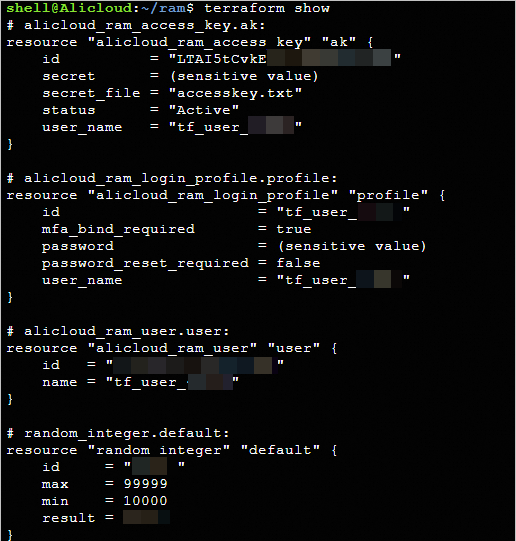
Log on to the RAM console
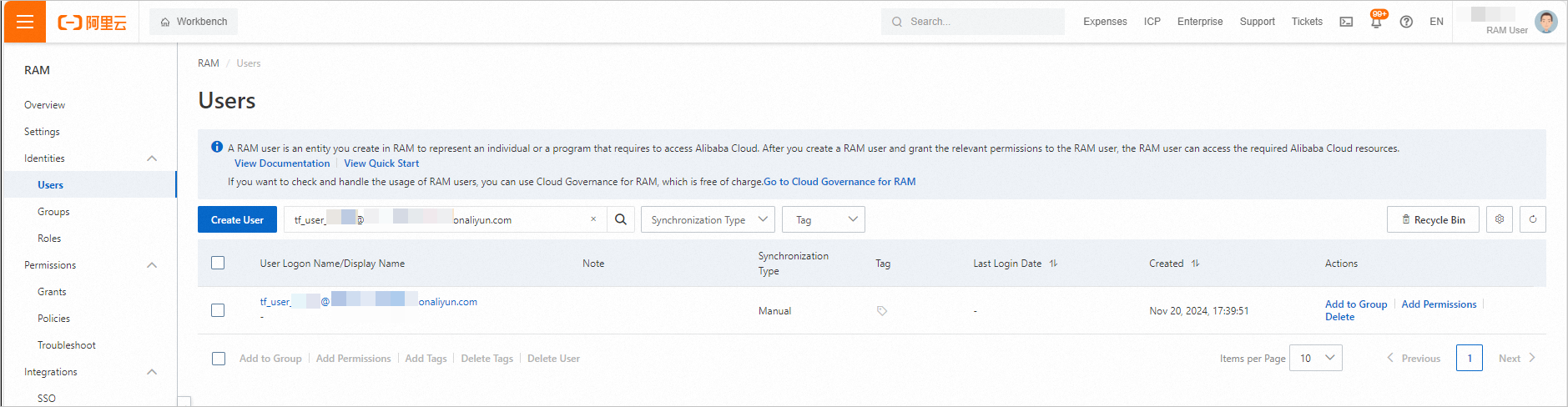
Log on to the RAM console. In the left-side navigation pane, choose . On the Users page, view the created RAM user.
Step 2: Create a RAM user group and add the RAM user to the RAM user group
-
Add the following content to the
main.tffile.# The RAM user group. resource "alicloud_ram_group" "group" { name = "test_ram_group_${random_integer.default.result}" force = true } # Add the RAM user to the RAM user group. resource "alicloud_ram_group_membership" "membership" { group_name = alicloud_ram_group.group.name user_names = [alicloud_ram_user.user.name] } -
Create an execution plan and preview the changes.
terraform plan -
Run the following command to apply the configuration:
terraform applyWhen prompted, enter
yesand press the Enter key. Wait for the command to complete. If the following output appears, the configuration has been successfully applied.Apply complete! Resources: 2 added, 0 changed, 0 destroyed. -
Verify the result.
You can use either of the following methods:
Run the terraform show command
Run the following command in the working directory to query the details of the RAM user group that was created by using Terraform:
terraform show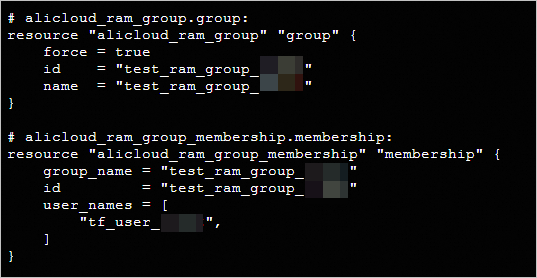
Log on to the RAM console
-
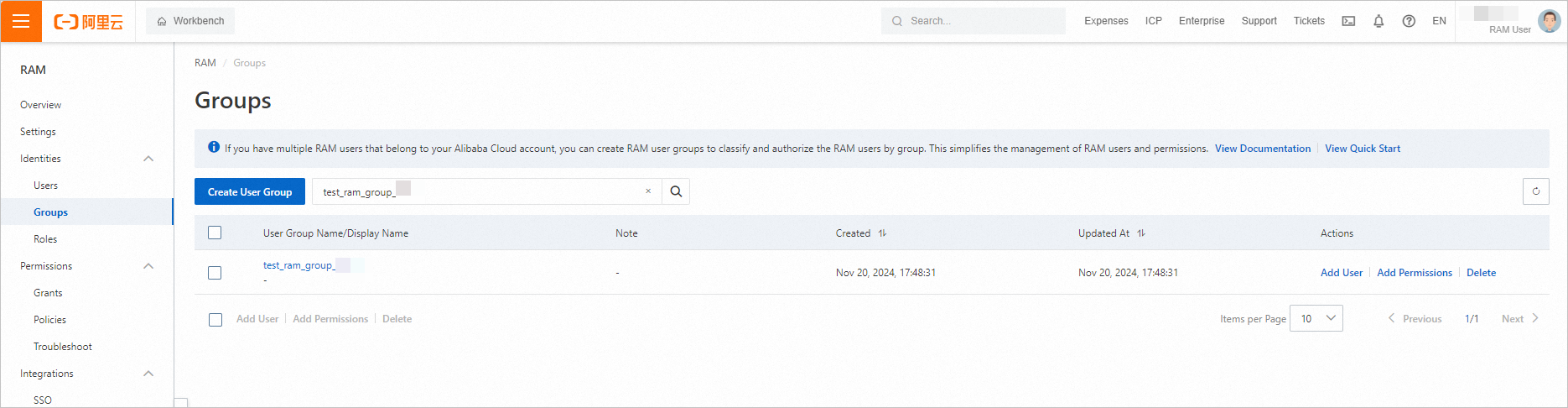
Log on to the RAM console. In the left-side navigation pane, choose . On the Groups page, view the created RAM user group.
-
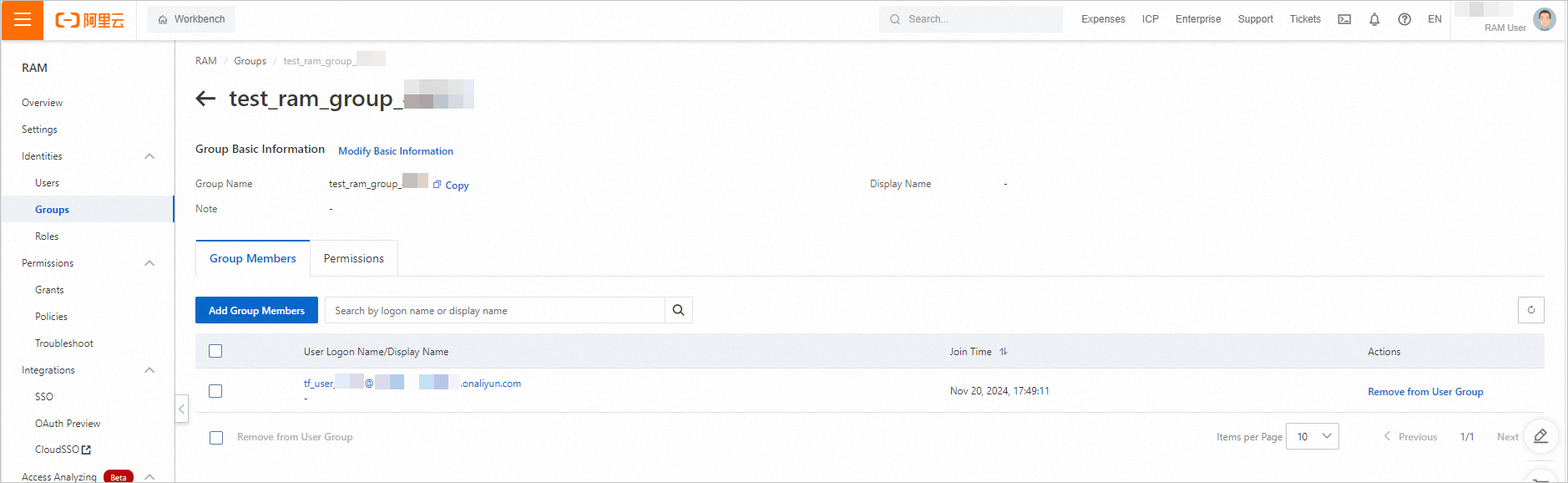
Click the name of the RAM user group to view the RAM users that are added to the RAM user group.
-
Release resources
If you no longer need the resources that were created or managed by using Terraform, run the following command to release them. For more information about the terraform destroy command, see Common commands.
terraform destroyExample
You can run the sample code in this topic with a few clicks. For more information, visit Terraform Explorer.
Sample code
If you want to view more complete examples, visit the directory of the corresponding service on the More Complete Examples page.