The project template provided by SuperApp allows you to directly compile and build WindVane miniapps. It helps developers quickly understand the miniapp code structure and focus on business logic development. This topic describes how to use the WindVane miniapp project template in Visual Studio Code.
Prerequisites
Ensure that the following tools are installed with their latest versions:
Initialize the Project Template
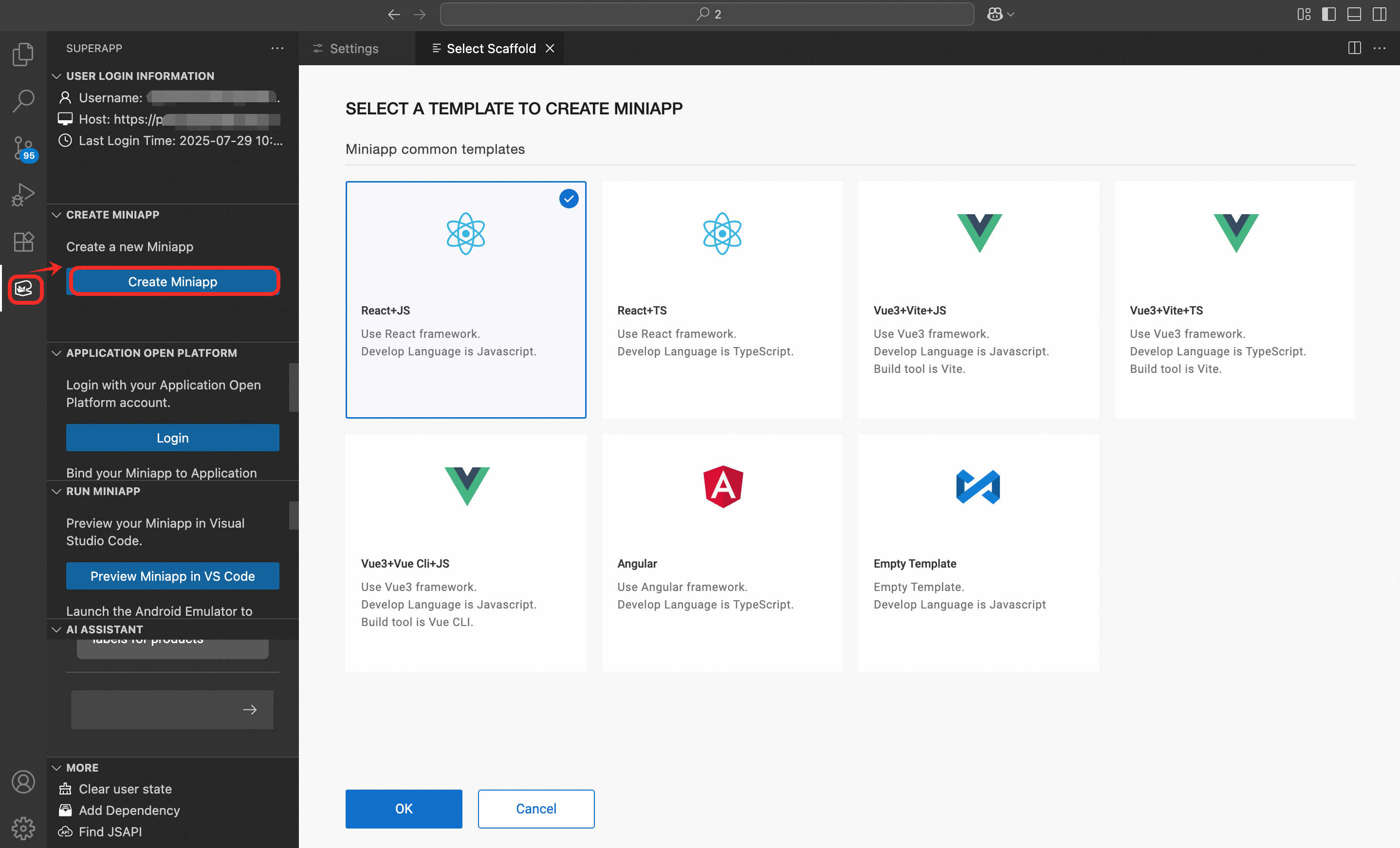
In the Visual Studio Code sidebar, click the
 SuperApp Miniapp Develop Tool extension icon.
Click Create Miniapp in the current window. A template selection page appears.
The VS Code extension for WindVane includes seven built-in templates that support major frontend frameworks, including React, Vue, and Angular, with two variants provided for each framework to suit different use cases. Additionally, a framework-agnostic template is available for standalone development without any framework dependency.
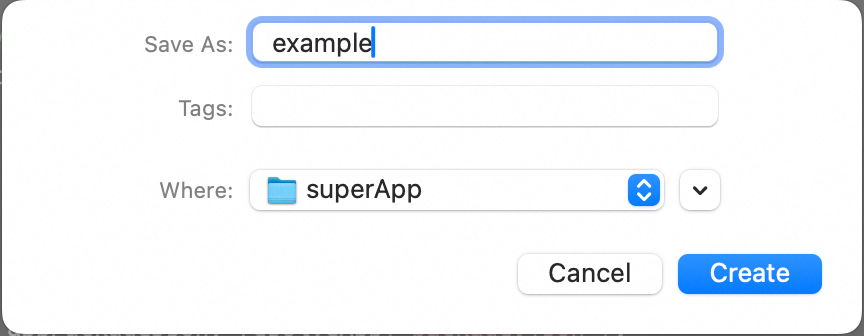
After selecting a template, the system displays a file save dialog (shown below for macOS).
Specify a custom app name and select the project storage directory.
Click Create to initialize the project.
Once initialization is complete, the extension automatically opens the generated project.
Install Project Dependencies
Run the
npm installcommand in the project root directory to install dependencies:
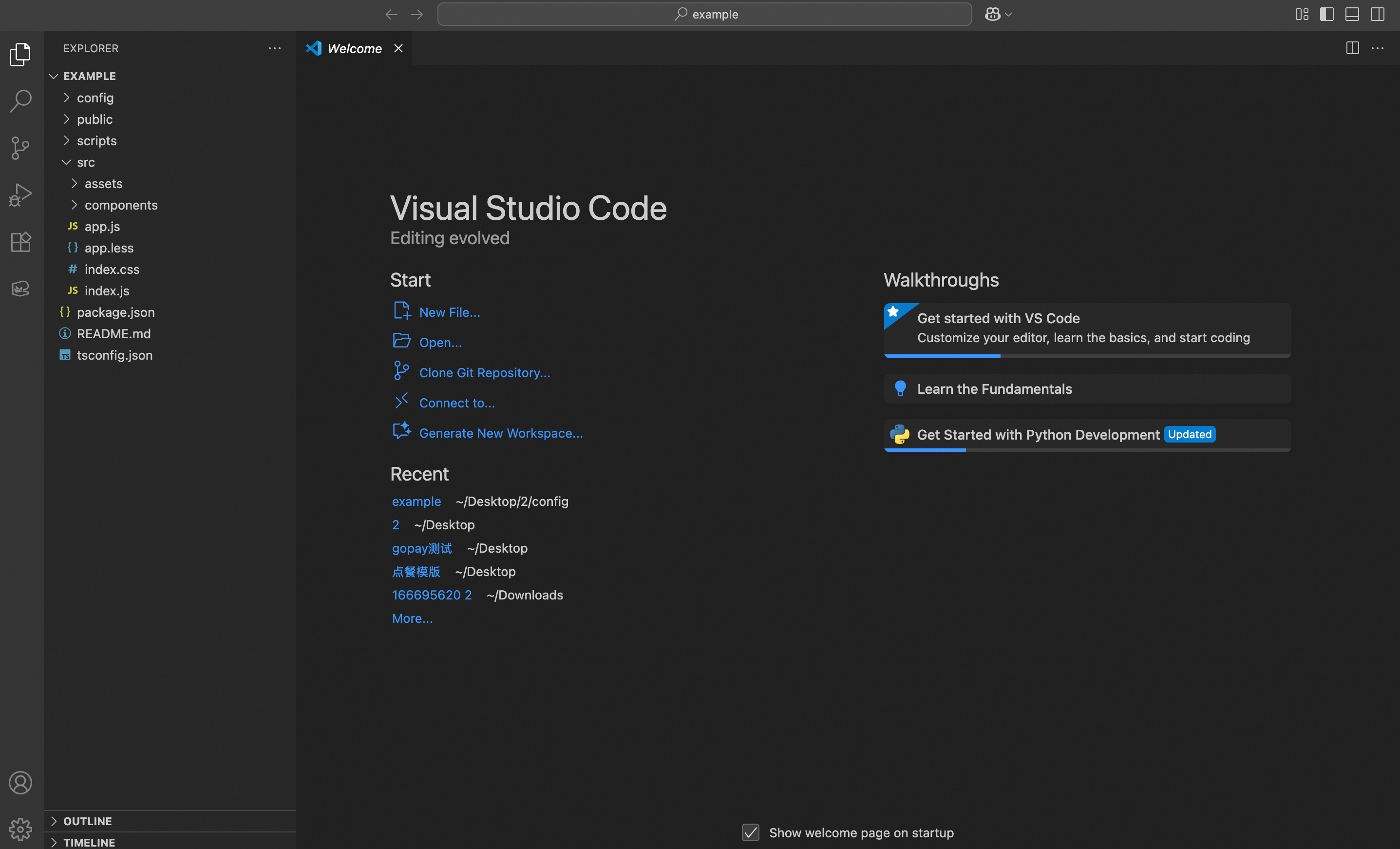
Project Directory Structure
publiccontains public resources of the project.scriptscontains the build scripts.srccontains source files of the project. It consists of the following subdirectories and files:assets: stores images such as the logo file.
components: stores component files.
index.js: the entry file for the project.
package.jsonis the configuration file of the project.node_modulescontains the project dependency modules loaded by the npm command.distis generated after the project is packaged by running thenpm run buildcommand.
Integrate JavaScript APIs
The VS Code extension for WindVane supports quick integration of JavaScript APIs through code snippets and IntelliSense.
For detailed information about available APIs, see JavaScript APIs.
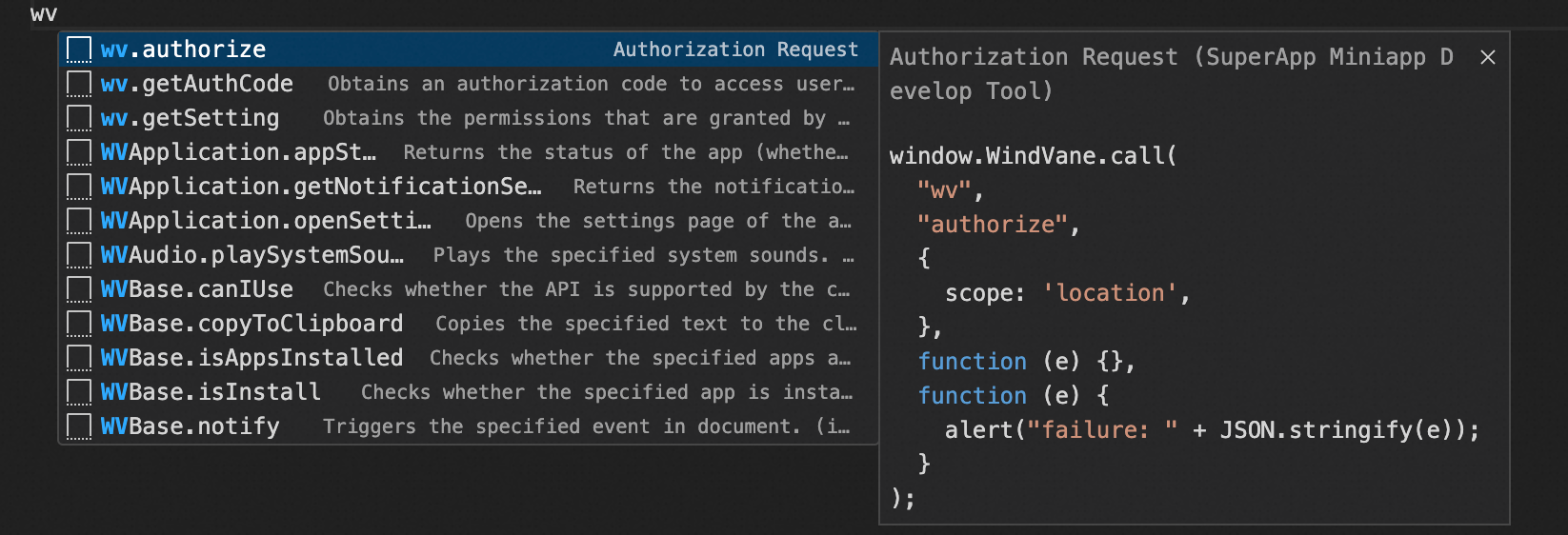
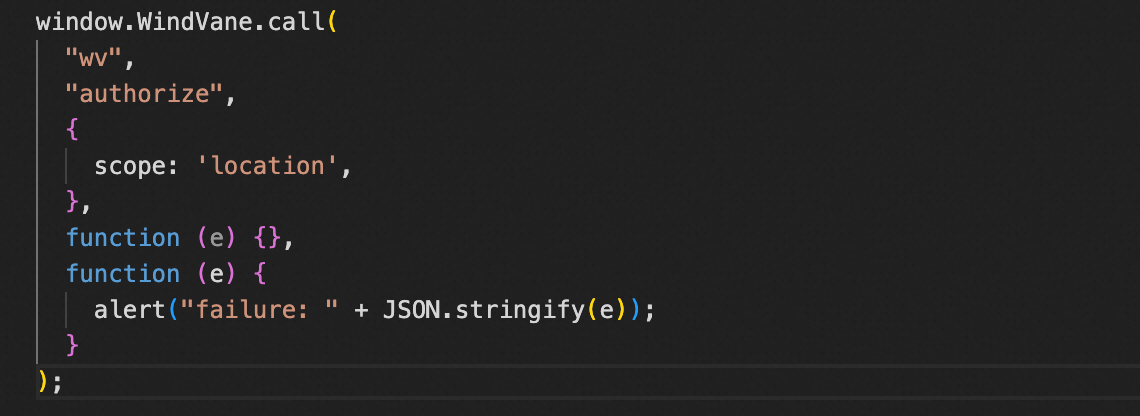
In the Visual Studio Code extension for WindVane, IntelliSense is available for code related to WindVane JavaScript APIs. When you type WV in a .js or .ts file, a list of relevant APIs will be displayed. Upon selecting a specific API, the corresponding code snippet is automatically inserted into your project, streamlining the integration process.