When an Application Load Balancer (ALB) forwards a request, the source IP address visible to the backend server is the IP address of the ALB instance. ALB can append the client's originating IP address to the X-Forwarded-For field in the HTTP request header. The backend server can then retrieve this IP address with a simple configuration.
The X-Forwarded-For field uses the following format:
X-Forwarded-For: <Client Originating IP Address, Proxy Server 1 IP, Proxy Server 2 IP, ...>Procedure
Step 1: Confirm that the listener is enabled to obtain client IP addresses using the X-Forwarded-For header
Log on to the ALB console and click the ID of the target instance to navigate to the Instance Details page.
On the Listener tab, click the ID of the target listener. On the Listener Details page, in the Basic Information section, confirm that Add HTTP Header is set to
Enable adding the X-Forwarded-For header to retrieve client IP addresses - Add.This option is enabled by default. If it is not enabled, click Modify Listener in the Basic Information section and then enable the option in the Advanced Settings section.
Step 2: Configure the backend server
Nginx server
This section uses Alibaba Cloud Linux 3.2104 and nginx/1.20.1 as an example. The actual commands and paths may vary depending on your environment.
Nginx uses the http_realip_module module to parse the X-Forwarded-For header and retrieve the client's originating IP address.
Confirm that the module is installed: Run
nginx -V 2>&1 | grep --color=auto http_realip_moduleon the server. If the output contains--with-http_realip_module, the module is installed.
Nginx installed using a package manager, such as
yumor `apt`, on mainstream Linux distributions usually includes this module by default. If the module is not installed, install or upgrade Nginx using a package manager.Modify the Nginx configuration file: Run
sudo nginx -tto find the path to the configuration file. The default path is usually/etc/nginx/nginx.conf.http { # Make sure that the log format includes $http_x_forwarded_for. This variable records the value of the X-Forwarded-For header. log_format main '$remote_addr - $remote_user [$time_local] "$request" ' '$status $body_bytes_sent "$http_referer" ' '"$http_user_agent" "$http_x_forwarded_for"'; # Make sure that the access log uses the preceding log format. access_log /var/log/nginx/access.log main; # ... }Reload the configuration: Run
sudo nginx -tto check the syntax of the configuration file. If the syntax is correct, runsudo nginx -s reloadto apply the changes.
Apache server
This section uses Alibaba Cloud Linux 3.2104 and Apache/2.4.37 as an example. The actual commands and paths may vary depending on your environment.
Apache uses the mod_remoteip module to parse the X-Forwarded-For header and retrieve the client's originating IP address.
Confirm that the module is installed: Run
httpd -M | grep remoteip_moduleon the server. If the output containsremoteip_module (shared), the module is installed.
Apache installed using a package manager, such as
yumor `apt`, on mainstream Linux distributions usually includes this module by default. If the module is not installed, install or upgrade Apache using a package manager.Modify the Apache configuration file: Run
httpd -Vto find the path to the configuration file. The default path is usually/etc/httpd/conf/httpd.conf.# ... <IfModule log_config_module> # ... # Make sure that the log format includes %{X-Forwarded-For}i. This variable records the value of the X-Forwarded-For header. LogFormat "%h %l %u %t \"%r\" %>s %b \"%{Referer}i\" \"%{User-Agent}i\" %{X-Forwarded-For}i" combined # ... # Make sure that the access log uses the preceding log format. CustomLog "logs/access_log" combined </IfModule> # ...Reload the configuration: Run
sudo systemctl restart httpdto apply the changes.
IIS server
This section uses Windows Server 2022 21H2 and IIS 10.0 as an example. The actual steps may vary depending on your environment.
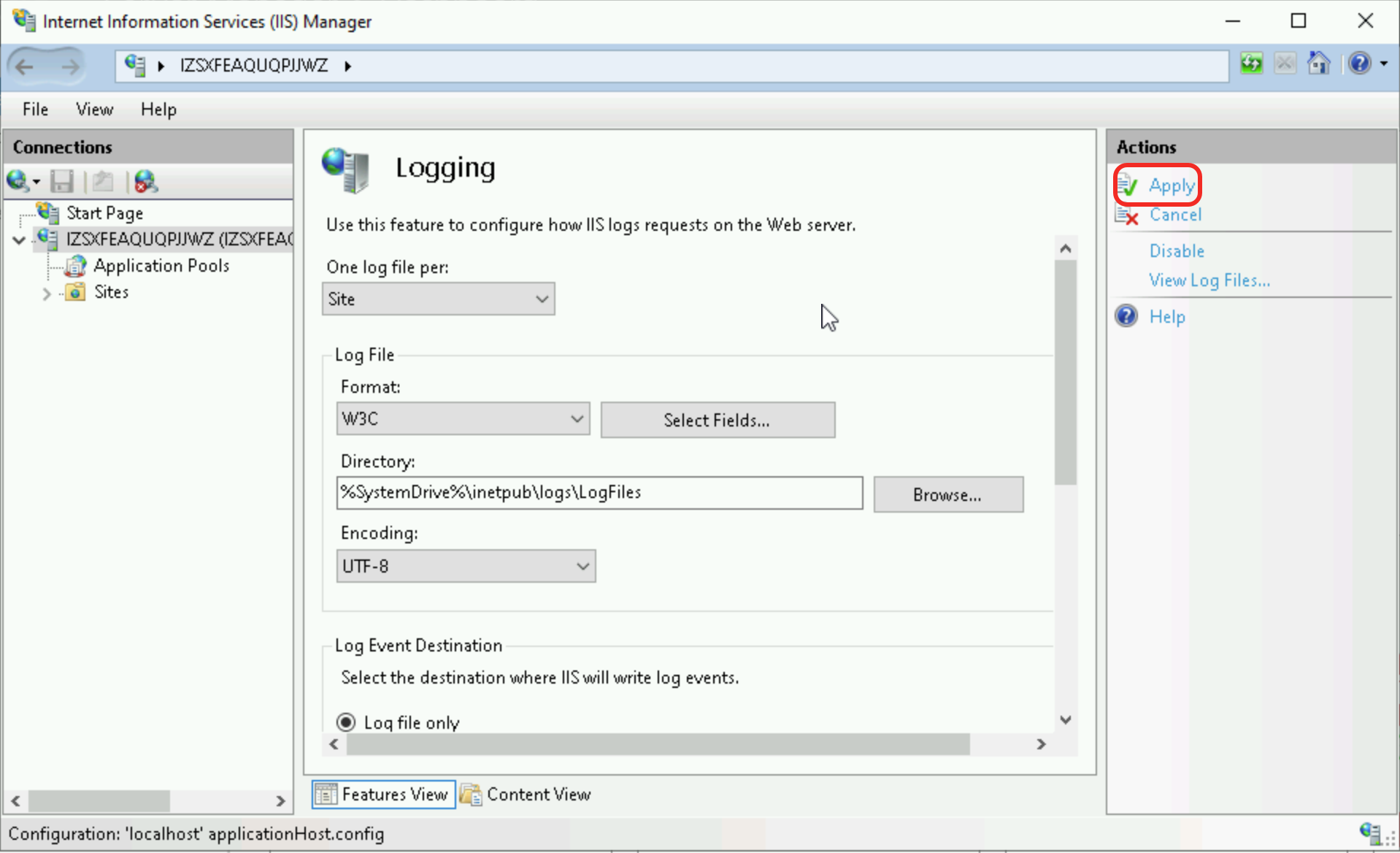
In IIS Manager, select the target server in the Connections pane on the left. Then, in the main panel, double-click the Logging feature.
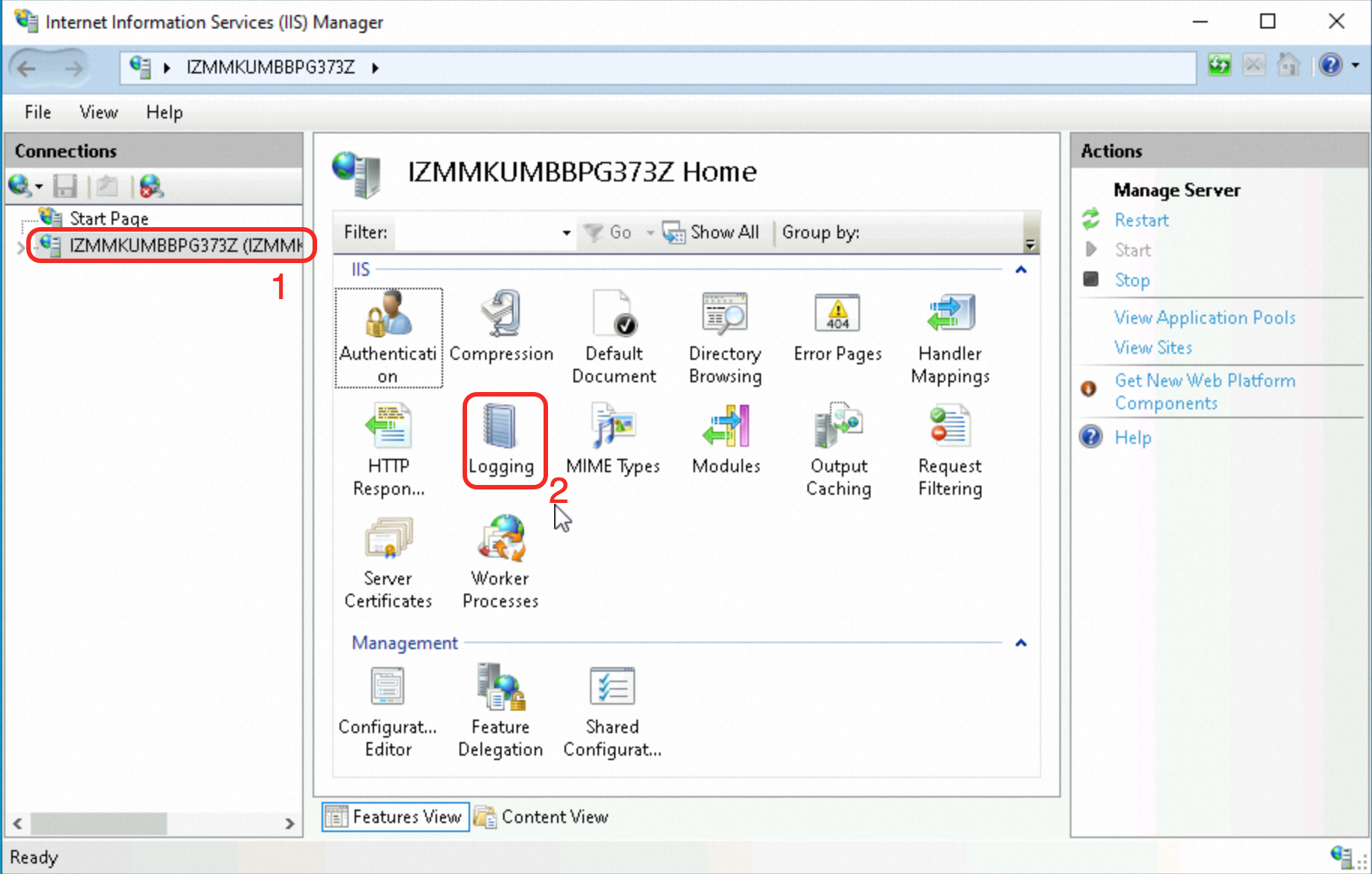
In the Log File section, click Select Fields.
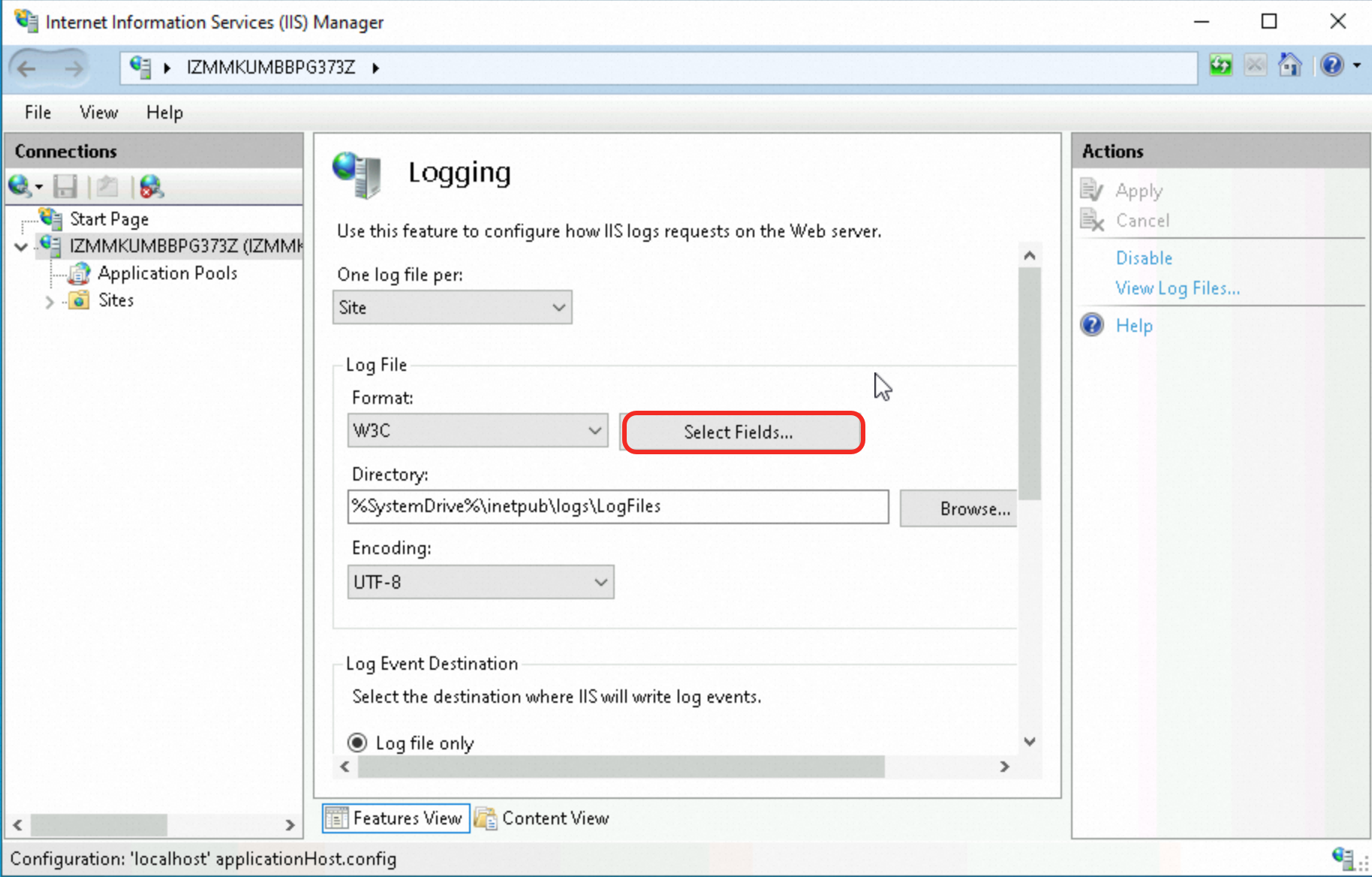
In the W3C Logging Fields dialog box, click Add Field. In the Add Custom Field dialog box, configure the field information and click OK.
For Field Name, enter
X-Forwarded-For.Source Type: The default value is
Request Header.For Source, enter
X-Forwarded-For.
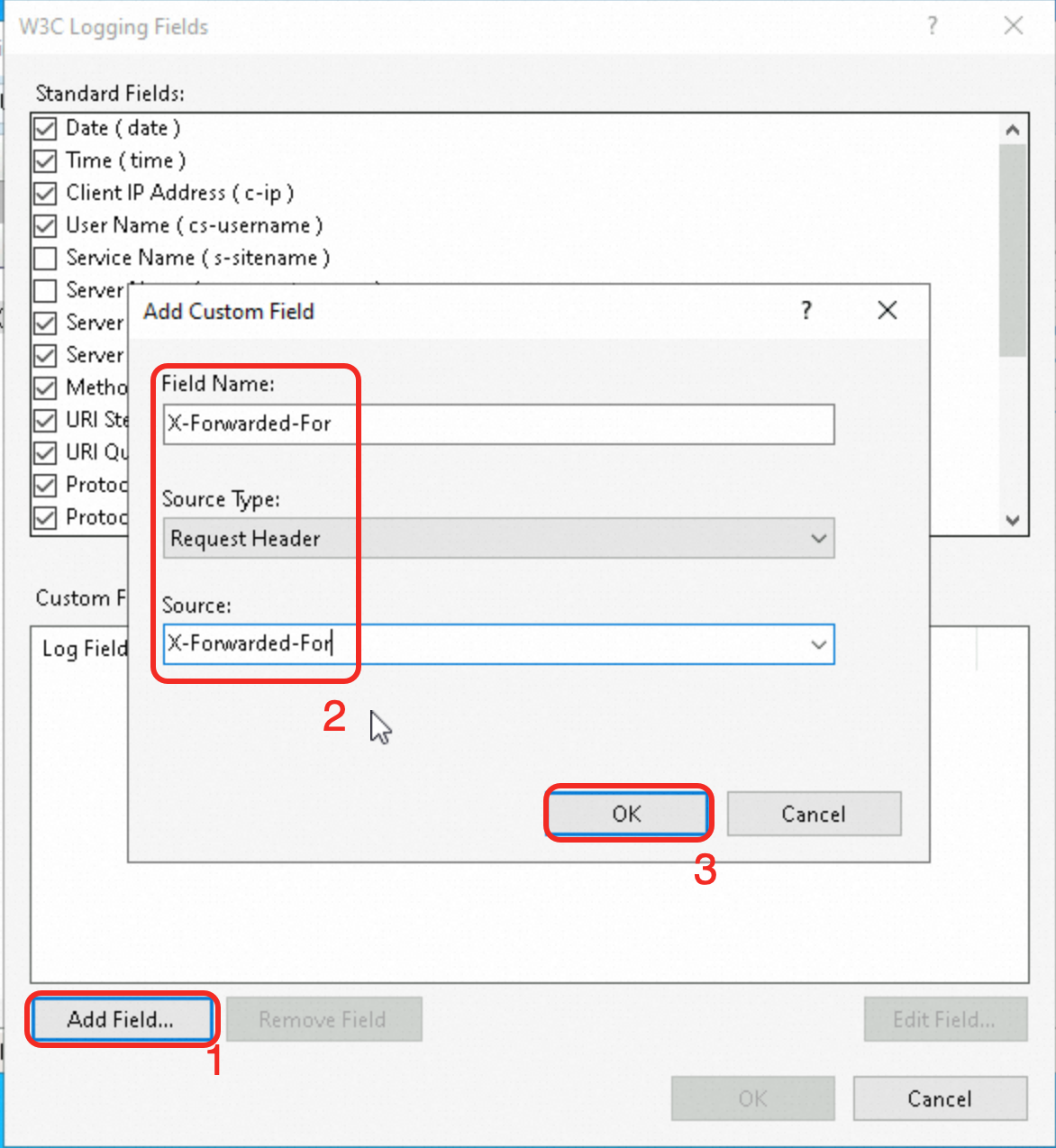
Confirm that the custom field has been added, and then click OK.
In the Actions pane on the right, click Apply.
Step 3: Verify that the backend server obtains the client's originating IP address
Check the access log of the backend web server to verify that it retrieves the client's originating IP address.
Nginx server
The default path to the Nginx access log is /var/log/nginx/access.log.
In each log record, the field that corresponds to the $http_x_forwarded_for variable is the client's originating IP address.

Apache server
The default path to the Apache access log is /var/log/httpd/access_log.
In each log record, the field that corresponds to the %{X-Forwarded-For}i variable is the client's originating IP address.

IIS server
The default path to the IIS access log is %SystemDrive%\inetpub\logs\LogFiles.
In each log record, the value that corresponds to the X-Forwarded-For field at the end of the record is the client's originating IP address.

Going live
Validate and filter the X-Forwarded-For header: On the backend server, validate and filter the X-Forwarded-For header to ensure that it is legitimate and trusted. You can check the format and IP address in the X-Forwarded-For header and reject illegal or suspicious values.
Use security policies: Use Alibaba Cloud security groups or other third-party security policies between the ALB instance and backend servers to restrict and filter malicious requests that target the X-Forwarded-For header.
Use TLS encryption: Use TLS encryption to protect communications, including the transmission of the X-Forwarded-For header. This reduces the risk of man-in-the-middle attacks and data tampering.
FAQ
Why do IP addresses that start with 100 frequently access the backend service?
Upgraded ALB instances: use private IP addresses (Local IP) from their vSwitch CIDR blocks to communicate with backend servers.
Legacy ALB instances: use the
100.64.0.0/10address range to communicate with backend servers. This is a CIDR block reserved by Alibaba Cloud and poses no security risks.
In addition to forwarding requests to backend servers, ALB also performs health checks on the backend servers. If you use legacy ALB instances, you will see many access requests from IP addresses that start with 100 in the access logs of the backend servers.
To ensure normal communication between the ALB instance and backend services, if security policies, such as Alibaba Cloud security groups or other third-party security policies, are configured for the access path, you must allow traffic from the vSwitch CIDR block of the ALB instance or the 100.64.0.0/10 address range.
How do I obtain the client's originating IP address when ALB is used with WAF, CDN, or GA?
If traffic is forwarded by Alibaba Cloud WAF, CDN, or Global Accelerator (GA) before it reaches the ALB instance, you can also retrieve the client's originating IP address from the X-Forwarded-For field. These products forward this field by default and require no additional configuration.
To prevent X-Forwarded-For spoofing, you can also use other HTTP request header fields to record the client's originating IP address:
Use the
Ali-Cdn-Real-Ipheader from Alibaba Cloud CDN. The architecture is Client > CDN > WAF > ALB > ECS.By default, CDN adds the
Ali-Cdn-Real-Iprequest header to origin fetch requests to pass the client's real IP address to the origin server.When you add your service to WAF, set the client IP address detection method to use the specified header
Ali-Cdn-Real-Ip.Configure the log variable on the backend Nginx server as
$http_Ali_Cdn_Real_Ip. You can then retrieve the client's originating IP address from this field.
You can use the Add Header action in an ALB listener's forwarding rule to add a custom HTTP header. The request flow for this action is Client > GA > ALB > ECS.
In the forwarding rule for an ALB listener, set the Action to Add Header. In this example, a header is added with the key
client-real-ipand the value is set to theSystem-defined variableClient IP Address.
Enable Retrieve Client IP on the listener and add the public IP address of the endpoint to the Trusted IP List.
Configure the log variable on the backend Nginx server as
$http_client_real_ip. You can then retrieve the client's originating IP address from this field.
How do I obtain the client's originating IP address when ALB is used in an ACK scenario?
For more information, see Obtain the IP address of a visitor.