If you have an anti-ransomware policy enabled for your server, you can create a restore job to recover encrypted data after a ransomware attack. This helps reduce data loss. This topic describes how to create a restore job, check the status of a restore job, and delete backup data.
Prerequisites
The
 icon in the Agent column on the Host page indicates that the Security Center client is running on the server.
You have created an anti-ransomware policy for the server, and the policy has successfully backed up data from the server before the ransomware attack. This means the server has data that can be recovered.
Log on to the Security Center console.
In the navigation pane on the left, choose . In the upper-left corner of the console, select your asset's region: Chinese MainlandChina or Outside Chinese Mainland.
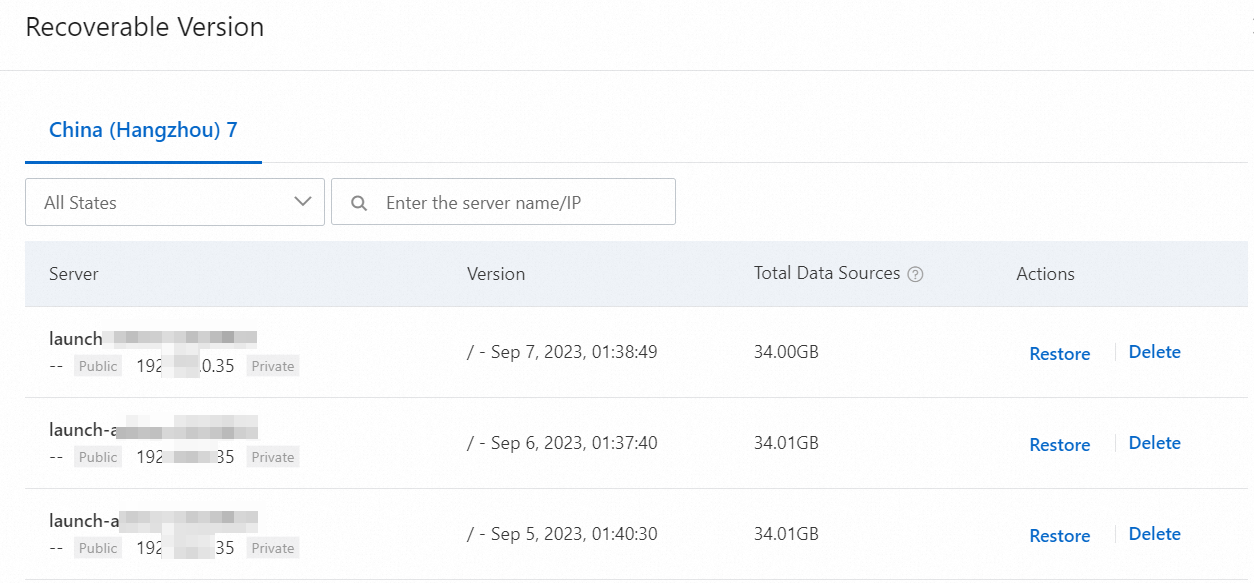
On the Anti-ransomware for Servers tab, above the list of mitigation policies, click the number under Recoverable Data Versions to open the Recoverable Data Versions panel.
In the search box above the backup data list, select the server region and enter the server name or IP address to find the backup data versions for the server.
Procedure
Log on to the Security Center console.
In the navigation pane on the left, choose . In the upper-left corner of the console, select the region of your asset:Chinese MainlandChina or Outside Chinese Mainland.
On the Anti-ransomware for Servers tab, find the server for which you want to create a restore job from the list of mitigation policies.
NoteYou can use the search box above the policy list to quickly find the server by policy name or server name.
Click the
 icon to expand the drop-down list. Find the target server and click Restore in the Actions column.
In the Create Restoration Task panel, select the version and files to restore, enter the destination folder, and select the target server.
Click OK.
After the restore job is created, a Restoration task created. message is displayed. You can then view the restored backup data on the target server.
Related operations
View a restore job
In the Proportion of Used Capacity section, click the number under Restoring/Restoration Records to open the Restoration Task panel. You can view details for each restore job, such as the execution status, the total number of restored files, and the number of failed files. If a restore job fails, you can view the failure reason. If a restore job fails because the destination folder does not exist, you must create a new restore job to recover the data.

Delete backup data
ImportantDeleted backup data cannot be restored. Proceed with caution.
The storage capacity is released within 24 to 72 hours. You can check the capacity later.
You cannot delete the latest version of recoverable data. To delete it, you must first uninstall the anti-ransomware client from the server and then remove the server from the policy.
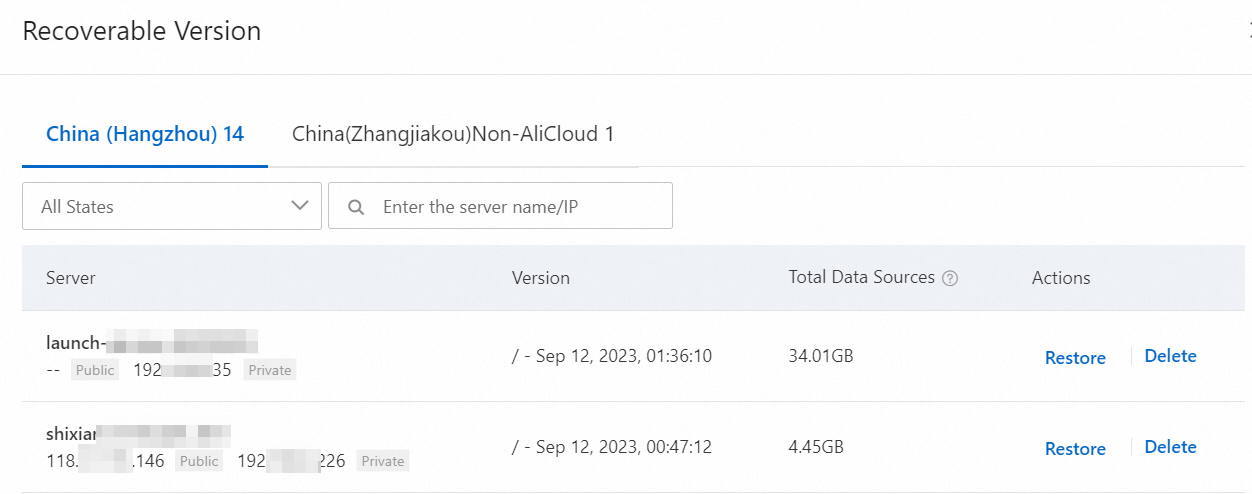
If you no longer need the backup data on a server, you can delete it. In the Proportion of Used Capacity section, click the number under Recoverable Data Versions to open the Recoverable Data Versions panel. Use the search box to find the backup data for the target server by its region, name, or IP address. In the list of backup versions for the server, find the version that you want to delete and click Delete in the Actions column. Deleting the backup data releases the corresponding anti-ransomware storage capacity.