You can import unmanaged cloud resources or cloud resources in other stacks to an existing Terraform stack for centralized management. This topic describes how to import an existing cloud resource to update a Terraform stack in the Resource Orchestration Service (ROS) console. In this example, an elastic IP Address (EIP) is imported.
Before you begin
Obtain the resource identifier property of the EIP that you want to manage.
In this example,
AllocationIdthat specifies the ID of the EIP is obtained. For more information, see Obtain a resource identifier property for resource import.Obtain the ID of the EIP.
Log on to the EIP console to obtain the ID of the EIP.
Procedure
Log on to the ROS console.
In the left-side navigation pane, click Stacks.
In the top navigation bar, select the region where the desired stack resides from the region drop-down list. In this example, China (Hangzhou) is selected.
On the Stacks page, find the desired stack and choose
 > Import Resources in the Actions column.
 In the Select Template step, set the Template Import Method parameter to Enter Template Content.
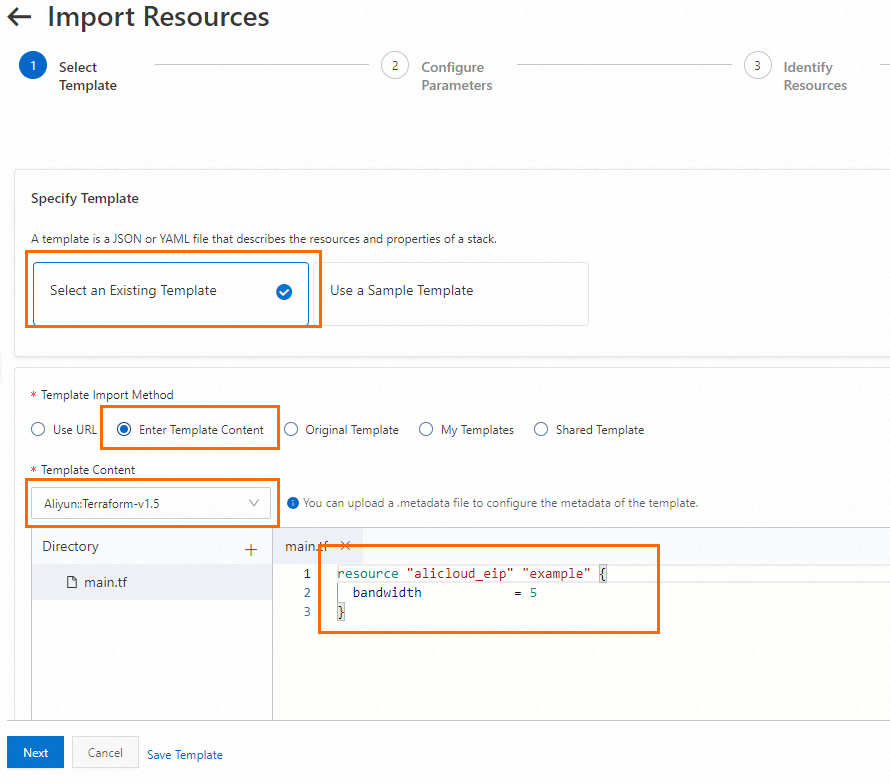
In the Template Content section, add the following code. For more information, see Structure of Terraform templates.
# Define an Alibaba Cloud EIP whose name is "example".
resource "alicloud_eip" "example" {
  # Specify the maximum outbound bandwidth of the EIP. Set the value to 5. Unit: Mbit/s.
  bandwidth = 5
}
In the Configure Parameters step, configure the Stack Name and Change Set Name parameters.
Configure parameters in the Configure Stack Settings section and click Next.
In this example, the default settings of the parameters are used. For more information, see Create a stack.
In the Identify Resources step, enter the resource identifier value, such as
eip-bp1s1yz3aja40j377****, and click Next.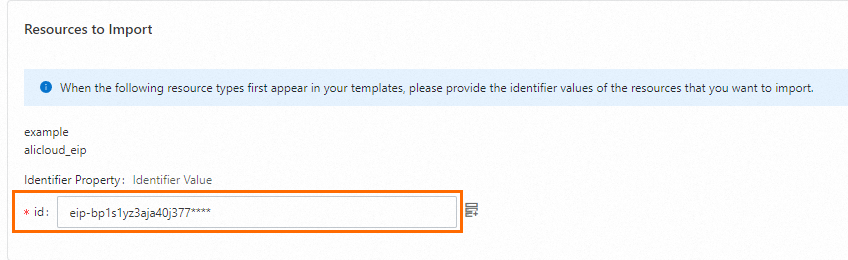
In the Compliance Precheck step, complete the compliance precheck and click Next.
For more information about the compliance precheck, see Create a stack.
In the Check and Confirm step, click Create Change Set.
On the Change Sets tab of the stack details page, find the change set and click Execute in the Actions column to start the resource import.
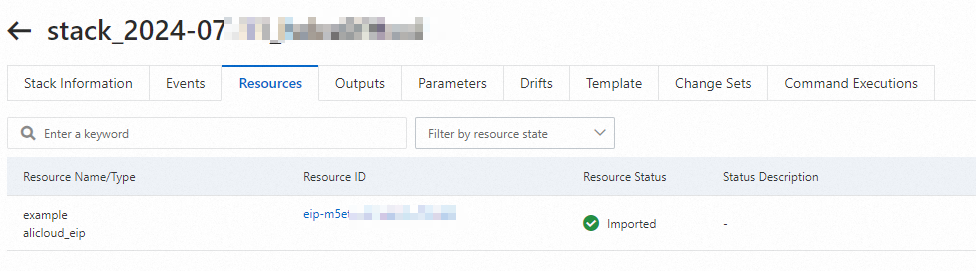
On the Resources tab of the stack details page, view the imported EIP.
References
For more information about the ROS features and resources supported by Terraform, see ROS features and resources supported by Terraform.