Binary log files record every data change on your ApsaraDB RDS for MySQL instance. They enable primary/secondary replication and data tracking. When the log backup feature is enabled, binary log files are uploaded to backup storage as log backup files, which support point-in-time data recovery. This topic describes how to view, delete, and configure retention policies for binary log files.
Binary log files vs. log backup files
|
|
Binary log files |
Log backup files |
|
Purpose |
Enable primary/secondary architecture and data tracking. |
Binary log files uploaded to backup storage in real time. Used to restore data to a specific point in time within the backup retention period. For more information, see Use the log backup feature. |
|
Enable/disable |
Always enabled. Cannot be disabled. |
Enable or disable based on your requirements. |
|
Billing |
No charge. |
The log backup feature is free of charge. A free quota on backup storage is provided. If the combined size of data backup files and log backup files exceeds the free quota, you are charged for the excess backup storage. See View and manage the size of backup files and Backup storage fees. |
|
Storage impact |
Consumes instance storage capacity. Check usage in the Usage Statistics section on the Basic Information page. |
Does not consume instance storage. Stored in separate, inaccessible backup storage. Check log size in the Usage Statistics section on the Basic Information page. |
Generation rules
A new binary log file is created based on the following rules:
| Edition | New file trigger |
|---|---|
| RDS Basic Edition, RDS Cluster Edition, or RDS High-availability Edition | Current file exceeds 512 MB or has been written to for more than 6 hours |
| RDS Enterprise Edition | Current file exceeds 512 MB |
A binary log file may be smaller than 512 MB if specific commands are run or the instance restarts. A file may exceed 512 MB if large transactions are running.
View binary log files
Binary log files are not visible in the ApsaraDB RDS console. To list them, run the following SQL statement:
SHOW BINARY LOGS;For details on downloading and parsing binary log files, see Remotely obtain and parse binary log files.
Investigate accidental data deletion
If data is accidentally deleted or a database goes missing and the SQL Explorer and Audit feature is disabled, analyze binary log files to identify the exact time of the deletion and restore from backups. For more information, see Use the SQL Explorer and Audit feature.
To investigate:
View total binary log size
Log on to the ApsaraDB RDS console and go to the Instances page. In the top navigation bar, select the region in which the RDS instance resides. Then, find the RDS instance and click the instance ID.
-
In the left-side navigation pane, click Monitoring and Alerts. On the Standard Monitoring tab, find the binary log file size metric.
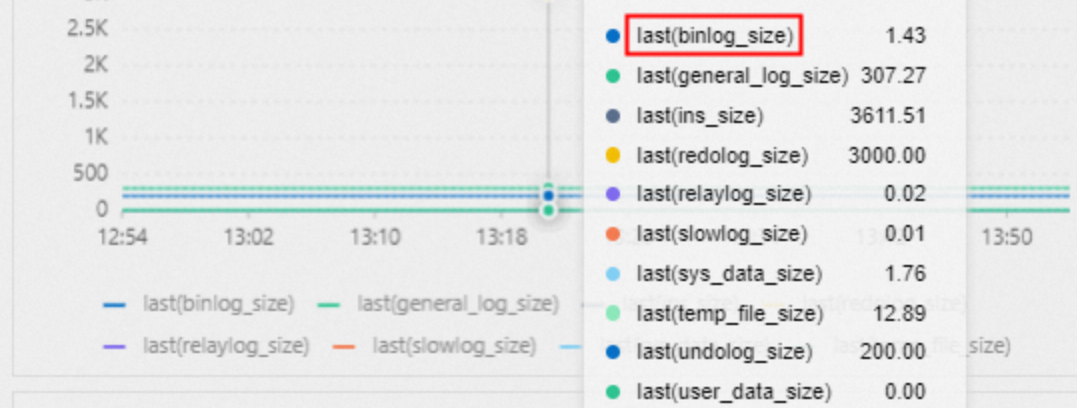
By default, the binary log file size on the primary RDS instance matches the size on the secondary RDS instance. The sizes may temporarily differ due to replication latency, Binlog dump thread latency, Data Transmission Service (DTS) data migration activity, or the secondary instance reading and applying log records.
Delete binary log files
Binary logging is always enabled and cannot be disabled. To reclaim storage, delete binary log files manually or through an automatic retention policy.
Key points:
-
Deleting binary log files releases the instance storage they occupied.
-
Deleting binary log files does not reduce the size of log backup files and does not affect point-in-time restoration, provided the log backup feature is enabled.
Configure automatic deletion (local log retention policy)
Log on to the ApsaraDB RDS console and go to the Instances page. In the top navigation bar, select the region in which the RDS instance resides. Then, find the RDS instance and click the instance ID.
-
In the left-side navigation pane, click Backup and Restoration.
-
On the Backup Strategy tab, click Edit in the Local Log Retention Policy section. Configure the following parameters:
Parameter
Default
Description
Retention Period
3 hours
Maximum time to keep binary log files. The system deletes files that exceed this age, provided they have been backed up by the log backup feature.
Maximum Storage Space Usage
30%
Maximum percentage of instance storage that binary log files can occupy. Formula: (binary log file size / storage capacity) x 100%. When exceeded, the system deletes the oldest files until usage drops below this threshold.
Maximum Files to Retain
60
Maximum number of binary log files to keep. When exceeded, the system deletes the oldest files until the count drops below this number.
Available Storage Space
--
When enabled, the system automatically deletes older binary log files if instance storage usage exceeds 80% or available storage drops below 5 GB. Deletion continues until usage is below 80% and available storage exceeds 5 GB.
Delete manually
Manual deletion is not supported for instances running RDS Basic Edition.
Log on to the ApsaraDB RDS console and go to the Instances page. In the top navigation bar, select the region in which the RDS instance resides. Then, find the RDS instance and click the instance ID.
-
In the left-side navigation pane, click Backup and Restoration.
-
Click Upload Binlogs. In the confirmation dialog, click OK.
This deletes all binary log files except the two most recent ones. Deletion takes effect after a short delay.
NoteThe system uploads binary log files to your Object Storage Service (OSS) bucket before deletion. The retention period for these uploaded files matches the log backup retention period configured on your instance.
-
(Optional) Verify deletion by connecting to your instance and running:
SHOW BINARY LOGS;For connection instructions, see Use DMS to log on to an ApsaraDB RDS for MySQL instance.
-
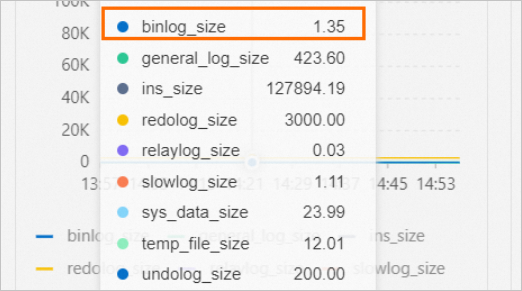
(Optional) Go to the Monitoring and Alerts page to confirm the binary log file size has decreased.
Troubleshoot: binary log files cannot be deleted
If binary log files cannot be deleted and the following warning appears on the Error Logs tab of the Logs page, a database client or change tracking task is reading the file. Stop the task before retrying deletion.
[Warning] file /home/mysql/data3001/mysql/mysql-bin.069435 was not purged because it was being read by thread number 17126285FAQ
How do I enable binary logging?
Binary logging is enabled by default on all ApsaraDB RDS for MySQL instances and cannot be disabled.
Why is the binary log size different on the primary and secondary instances?
The sizes are normally identical. Temporary differences may occur when the primary RDS instance replicates data to the secondary RDS instance at a latency, the Binlog dump thread dumps the binary log files at a latency, Data Transmission Service (DTS) is migrating data, or the secondary RDS instance is reading and applying log records.
Why are binary log files deleted immediately after generation?
This happens when instance storage usage exceeds 80% or available storage drops below 5 GB, and the Available Storage Space parameter in Local Log Retention Policy is enabled. To resolve this, increase the instance storage capacity or enable automatic storage expansion. See Change instance specifications or Configure automatic storage expansion.
Related topics
-
PurgeDBInstanceLog - Delete binary log files by using an API operation.
-
Use the automatic backup feature - Enable or disable the log backup feature through the console or the ModifyBackupPolicy API.
-
Restore full data - Restore data to any point in time within the log backup retention period.
-
Restore individual databases and tables - Restore specific databases or tables.
-
FAQ about storage capacity - Troubleshoot storage capacity issues.