This topic describes how to authorize a RAM user to manage ApsaraDB RDS instances by using Resource Access Management (RAM).
Prerequisites
A RAM user is created. For more information, see Create a RAM user.
If you want to use features related to performance optimization and diagnosis as a RAM user, you must grant the RAM user the AliyunHDMFullAccess permission in advance.
Background information
You can grant permissions to call API operations to RAM users. For example, if you grant a RAM user the permission to call the CreateDBInstance operation, the RAM user can create an RDS instance in the ApsaraDB RDS console.
The following procedure shows how to grant a RAM user the permission to check information about RDS instances. The procedures to grant other permissions to a RAM user are similar.
Procedure
Create a policy.
Log on to the RAM console.
In the left-side navigation pane, choose .
Click Create Policy.
Select Visual Editor or JSON.
Visual editor
Parameter
Description
Effect
Specify whether to grant the RAM user the permissions on an Alibaba Cloud service. Example: Allow.
Service
Select the Alibaba Cloud service on which you want to grant permissions to the RAM user. Example: ApsaraDB RDS.
Action
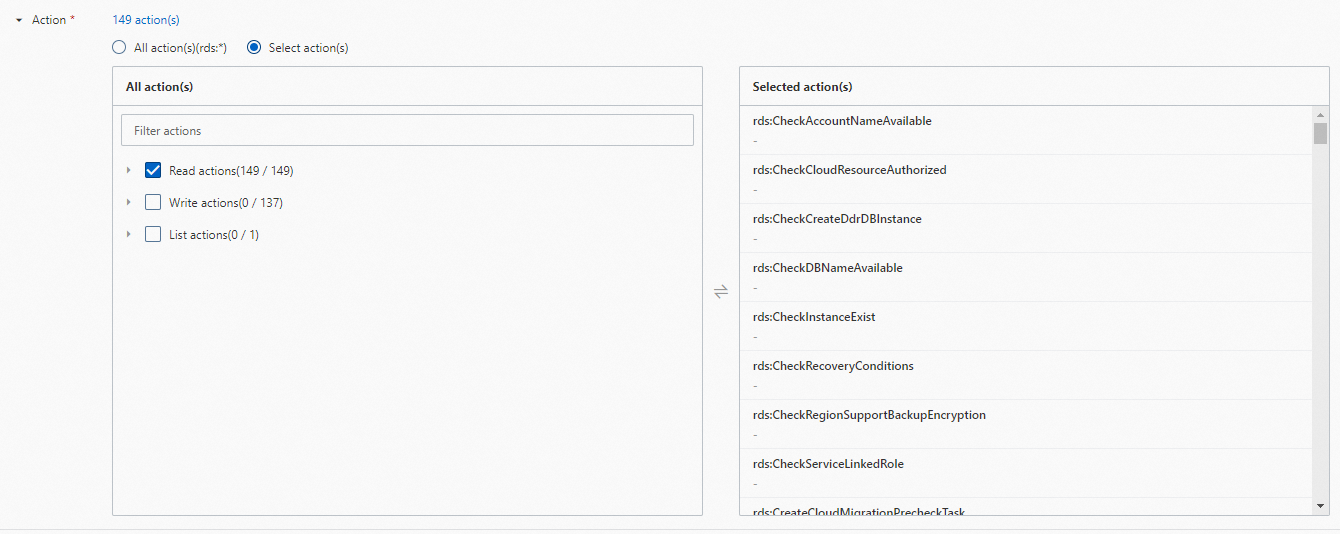
Select the actions on which you want to grant permissions to the RAM user. Valid values: All Action(s) or Select Action(s). If you select Select Action(s), you need to select the actions in the All Action(s) section and add them to the Selected Action(s) section.
We recommend that you select Read Actions in DescribeDBInstances. Otherwise, you cannot view the instance list.
ImportantIf the length of the policy document exceeds the limit because many actions are selected, submit a ticket to modify the length limit of the policy document.
For example, you can select all Read Actions.
Resource
Select the resources on which you want to grant permissions to the RAM user. Valid values: All Resource(s) or Specified Resource(s).
If you select Specified Resource(s), you need to add a resource based on the Alibaba Cloud Resource Name (ARN) format of the resource. To add a resource, click Add Source on the right of the ARN format. The following methods are available:
ImportantThe resource ARNs that are required for an action are tagged with Required. To ensure that the policy takes effect as expected, we recommend that you configure the resource ARNs that are tagged with Required.
For example,
acs:rds:*:{#accountId}:dbinstance/*is tagged with Required. If you do not configure this resource ARN, the RAM user cannot view instances in the instance list.acs:rds:{#regionId}:{#accountId}:dbinstance/{#dbinstanceId}(Required): matches resources by region, account, and instance ID.acs:rds:{#regionId}:{#accountId}:dbinstance/*: matches resources by region and account.acs:rds:*:{#accountId}:dbinstance/*(Required): matches resources by account.acs:rds:*:{#accountId}:dbinstance/{#dbinstanceId}(Required): matches resources by account and instance ID.
NoteRAM authorization supports multiple methods, such as ARN, resource group-based authorization, and tag-based authorization, to implement fine-grained management. For example, you can grant a RAM user the read-only permissions on a specified RDS instance. For more information, see Grant a RAM user the read-only permissions on an ApsaraDB RDS instance.
Condition
Specify the limits on the permissions that you want to grant to the RAM user. For example, you can limit the source IP addresses from which the RAM user can log on. For more information, see Basic elements of policies.
Script editor
Enter the following code snippet in the code editor:
{ "Version": "1", "Statement": [ { "Effect": "Allow", "Action": "rds:Describe*", "Resource": "*" } ] }NoteThe JSON mode is more efficient than the Visual Editor mode. For example, in JSON mode, you can enter
Describe*in the code editor to specify all API operations whose names start with Describe.Click OK. In the Create Policy dialog box, enter Policy Name and Description. After you confirm that the policy content is correct, click OK again.
Attach the custom policy to a RAM user.
In the left-side navigation pane, choose .
Find the RAM user. Then, click Actions in the Add Permissions column.
In the Policy section, click Custom Policy. Find and select the policy that you created.
Click Grant Permissions.
After completing these steps, you can log on to the ApsaraDB RDS console and check information about RDS instances using the credentials of the RAM user. You can also grant other permissions to a RAM user within your Alibaba Cloud account based on your business requirements.
For more information, see List of operations by function.
For more information, see Basic elements of policies.