This topic describes how to use Resource Access Management (RAM) to limit the methods of access to Alibaba Cloud resources. This ensures a higher level of data security.
Scenario
An enterprise has purchased multiple types of Alibaba Cloud resources. The resources include Elastic Compute Service (ECS) instances, ApsaraDB RDS instances, Server Load Balancer (SLB) instances, and Object Storage Service (OSS) buckets. To ensure business and data security, the enterprise requires RAM users to access Alibaba Cloud resources only over HTTPS.
To allow RAM users to access Alibaba Cloud resources only over HTTPS, create a custom policy and attach the policy to the RAM users.
Step 1: Create a custom policy
Log on to the RAM console as a RAM user who has administrative rights.
In the left-side navigation pane, choose .
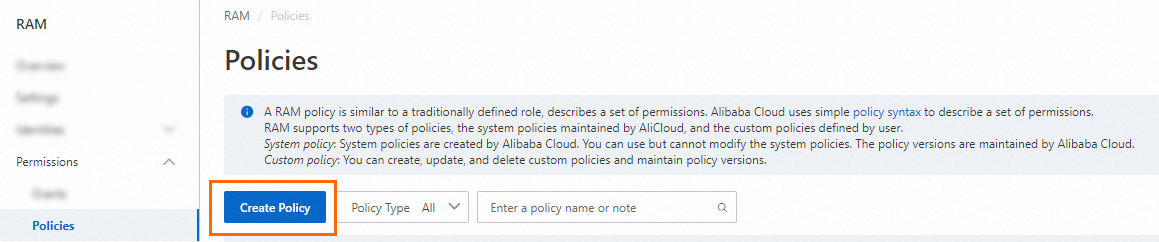
On the Policies page, click Create Policy.
On the Create Policy page, click the JSON tab.

Enter the policy document.
If the following policy is attached to a RAM user, the RAM user can access ECS instances only over HTTPS. In this case, the
acs:SecureTransportcondition key in theConditionelement is set totrue.{ "Statement": [ { "Action": "ecs:*", "Effect": "Allow", "Resource": "*", "Condition": { "Bool": { "acs:SecureTransport": "true" } } } ], "Version": "1" }NoteThe
Conditionelement applies only to the actions specified for the current policy. The valid values of theacs:SecureTransportparameter aretrueandfalse.Click Optimize in the upper part. In the Optimize message, click Perform to optimize the policy.
The system performs the following operations during the advanced optimization:
Split resources or conditions that are incompatible with actions.
Narrow down resources.
Deduplicate or merge policy statements.
On the Create Policy page, click OK.
In the Create Policy dialog box, configure the Policy Name and Description parameters and click OK.
Step 2: Create a RAM user
Console
Log on to the RAM console using your Alibaba Cloud account or as a RAM administrator (such as the
AliyunRAMFullAccesspolicy).In the left-side navigation pane, choose .
On the Users page, click Create User.
In the User Account Information section of the Create User page, configure the basic information for the user.
Logon Name (required): The logon name can contain letters, digits, periods (.), hyphens (-), and underscores (_). It can be up to 64 characters in length.
Display Name (optional): The display name can be up to 128 characters in length.
Tag (optional): Click the
 icon and enter a tag key and a tag value. Tags help you categorize and manage RAM users.
NoteClick Add User to create multiple RAM users at the same time.
In the Access Mode section, select an access mode based on the user type.
ImportantAs a security best practice, we recommend selecting only one access mode per user. This creates a clear separation between human users who require console access and applications that require programmatic access.
An AccessKey pair is a long-term credential for programmatic access. If an AccessKey pair is leaked, the security of all resources in your account is at risk. We recommend that you use Security Token Service (STS) tokens as temporary credentials to reduce the risk of credential leakage. For more information, see Securely use credentials for API access.
Console access
For human users, such as employees, select Console Access.
Set Logon Password: Choose one of the following password options:
Automatically Regenerate Default Password
Reset Custom Password: The custom password you set must meet the password complexity requirements.
For more information, see Configure a password policy.
Password Reset: Specifies whether the RAM user must reset the password at the next logon.
Enable MFA: By default, multi-factor authentication (MFA) is required for logon. To modify this setting, see Manage security settings. RAM users must bind an MFA device during their first logon. For more information, see Bind an MFA device.
Programmatic access
For applications or systems, select Using permanent AccessKey to access.
After you enable this option, the system automatically creates an AccessKey ID and an AccessKey secret for the RAM user.
ImportantThe AccessKey secret is displayed only once upon creation and cannot be retrieved later. This is your only opportunity to view and save the secret. You must copy and save it to a secure location immediately or click Download CSV File to download the file. If an AccessKey pair is leaked, it compromises the security of all resources in your account. For more information, see Create an AccessKey pair.
API
Create a RAM user for console access
Call GetDefaultDomain to obtain the default logon suffix for your account. The format is
<AccountAlias>.onaliyun.com.Call CreateUser to create a RAM user. The required parameters are as follows:
UserPrincipalName: The logon name of the RAM user. The format is<username>@<AccountAlias>.onaliyun.com.<username>is the name of the RAM user, and<AccountAlias>.onaliyun.comis the default logon suffix.DisplayName: The display name of the RAM user. It can be different from the<username>.
Call CreateLoginProfile to create a login profile for the user, which enables console access. The recommended settings for some parameters are as follows:
UserPrincipalName: The logon name of the RAM user that you created in the previous step.Password: Set a password that meets the password complexity requirements of your account. You can call GetPasswordPolicy to query the password policy for RAM users.MFABindRequired: We recommend that you require MFA for the RAM user. To do this, set this parameter totrue.Status: Specifies whether to enable password-based logon to the console. Keep the default valueActive.
Create a RAM user for programmatic access
Call GetDefaultDomain to obtain the default logon suffix for your account in the format
<AccountAlias>.onaliyun.com.Call CreateUser to create a RAM user. The required parameters are as follows:
UserPrincipalName: The logon name of the RAM user. The format is<username>@<AccountAlias>.onaliyun.com.<username>is the name of the RAM user, and<AccountAlias>.onaliyun.comis the default logon suffix.DisplayName: The display name of the RAM user. It can be different from the<username>.
Call CreateAccessKey to create an AccessKey pair. You only need to specify the
UserPrincipalNamefor the RAM user that you created in the previous step.ImportantThe
CreateAccessKeyAPI operation returns an AccessKey ID and an AccessKey secret. This is your only opportunity to view and save the secret. You must copy and save it to a secure location immediately. If an AccessKey pair is leaked, it compromises the security of all resources in your account. For more information, see Create an AccessKey.
Step 3: Attach the policy to the RAM user
Attach the policy that you created in Step 1 to the RAM user that you created in Step 2.
Log on to the RAM console as a RAM administrator.
In the left-side navigation pane, choose .
On the Users page, find the required RAM user, and click Add Permissions in the Actions column.

You can also select multiple RAM users and click Add Permissions in the lower part of the page to grant permissions to the RAM users at a time.
In the Grant Permission panel, grant permissions to the RAM user.
Configure the Resource Scope parameter.
Account: The authorization takes effect on the current Alibaba Cloud account.
Resource Group: The authorization takes effect on a specific resource group.
ImportantIf you select Resource Group for the Resource Scope parameter, make sure that the required cloud service supports resource groups. For more information, see Services that work with Resource Group. For more information about how to grant permissions on a resource group, see Use a resource group to restrict a RAM user to managing only specific ECS instances.
Configure the Principal parameter.
The principal is the RAM user to which you want to grant permissions. The current RAM user is automatically selected.
Configure the Policy parameter.
A policy contains a set of permissions. Policies can be classified into system policies and custom policies. You can select multiple policies at a time.
System policies: policies that are created by Alibaba Cloud. You can use but cannot modify these policies. Version updates of the policies are maintained by Alibaba Cloud. For more information, see Services that work with RAM.
NoteThe system automatically identifies high-risk system policies, such as AdministratorAccess and AliyunRAMFullAccess. We recommend that you do not grant unnecessary permissions by attaching high-risk policies.
Custom policies: You can manage and update custom policies based on your business requirements. You can create, update, and delete custom policies. For more information, see Create a custom policy.
Click OK.
Click Close.