Quick BI provides collaborative operation permissions on datasets, including Edit and Use permissions. This topic describes how to grant users collaborative operation permissions on datasets.
Background information
Organization administrators, permission administrators, workspace administrators, or resource owners (creators) can grant permissions. Note the following:
 indicates that the current user type requires authorization to perform this operation.
 indicates that the current user type cannot perform this operation and cannot be authorized.
Category | User type | Edit | Use |
Member in the workspace | Developer |
|
|
Analyst |
|
| |
Visitor |
|
| |
Member that is not in the workspace | Developer, analyst, or visitor |
|
|
Take note of the following points about collaborative operation permissions:
Edit permission: A developer to whom the permission administrator grants this permission can create, edit, replace, or delete a dataset.
Use permission: A developer to whom the permission administrator grants this permission can analyze data based on a dataset.
Entry point
After you log on to the Quick BI console, you can grant collaborative operation permissions on a specified dataset from the following entry points.
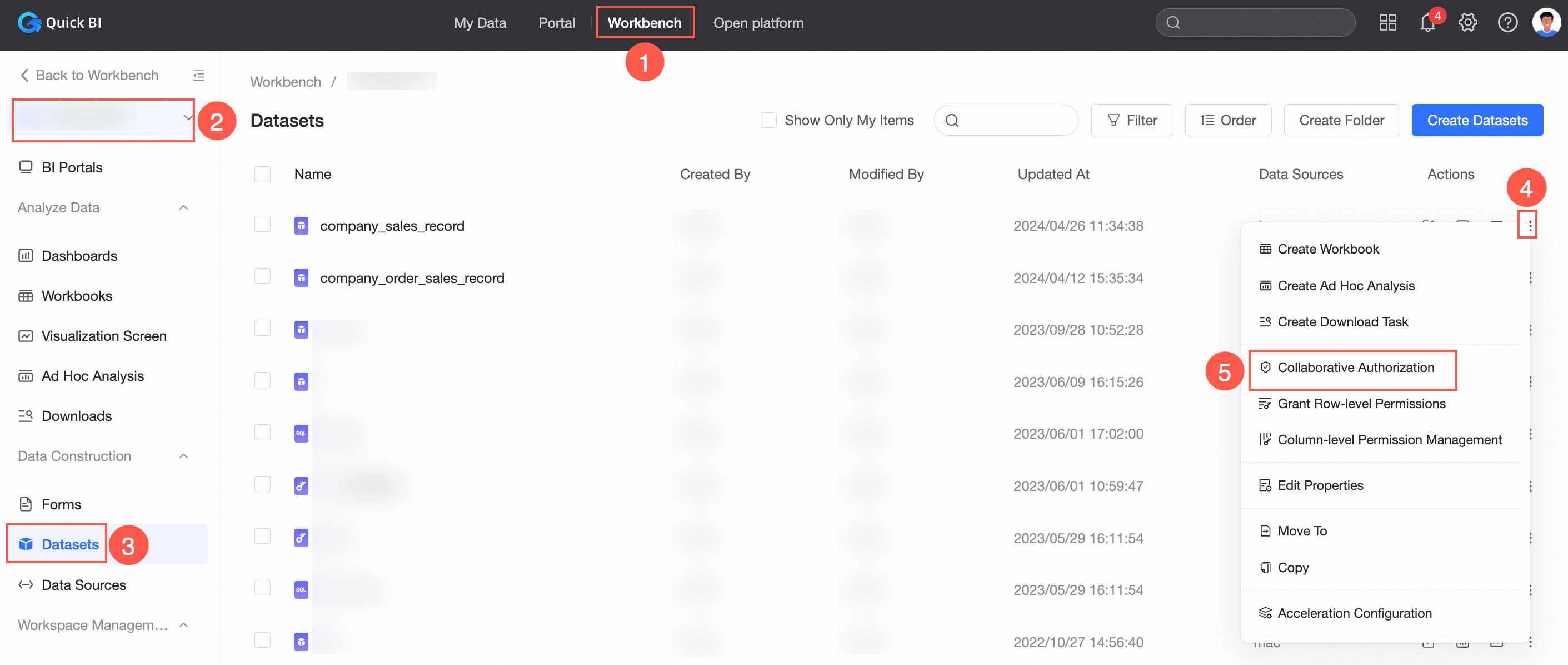
Entry point 1: In the dataset list of a workspace, you can grant collaborative operation permissions on a specified dataset.
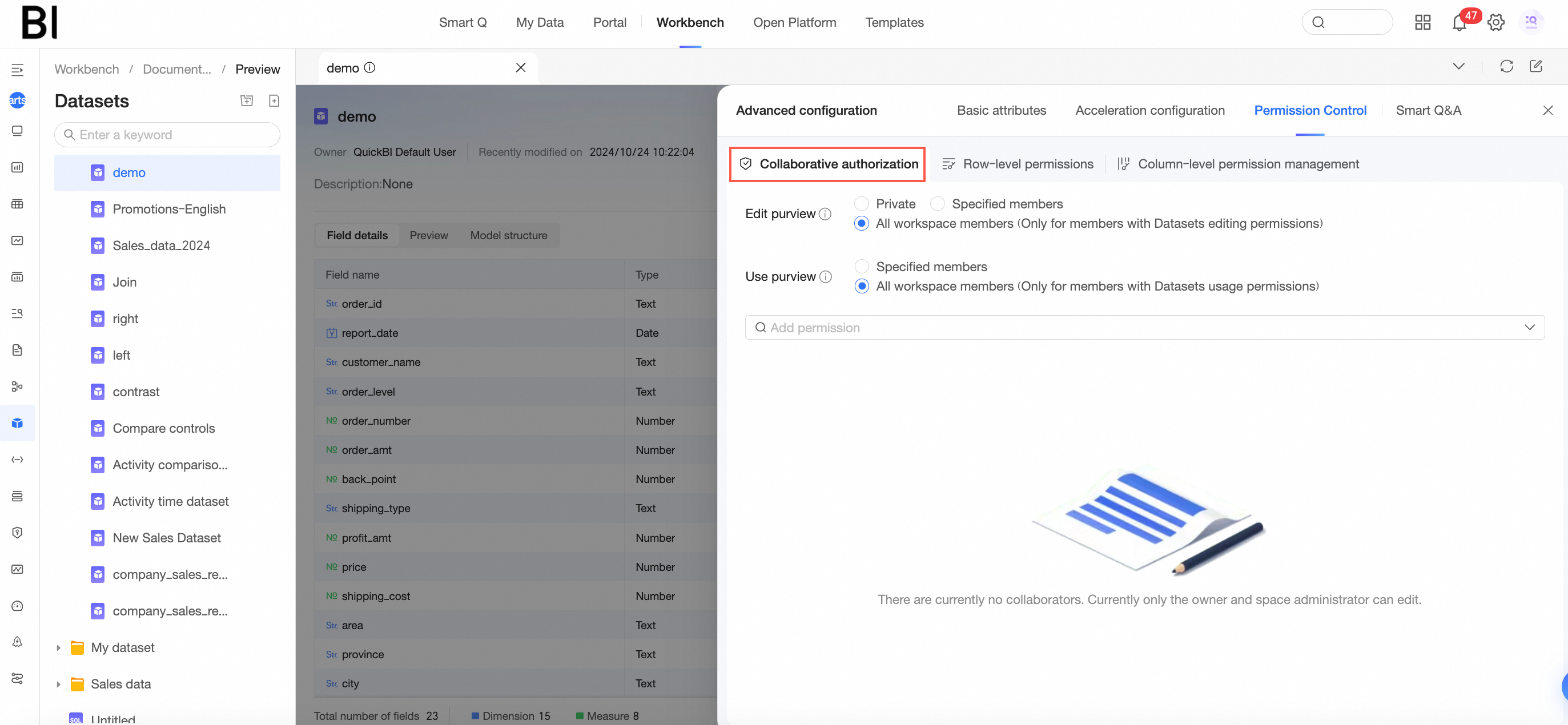
Entry point 2: When you create a dataset, you can grant collaborative operation permissions on the dataset.
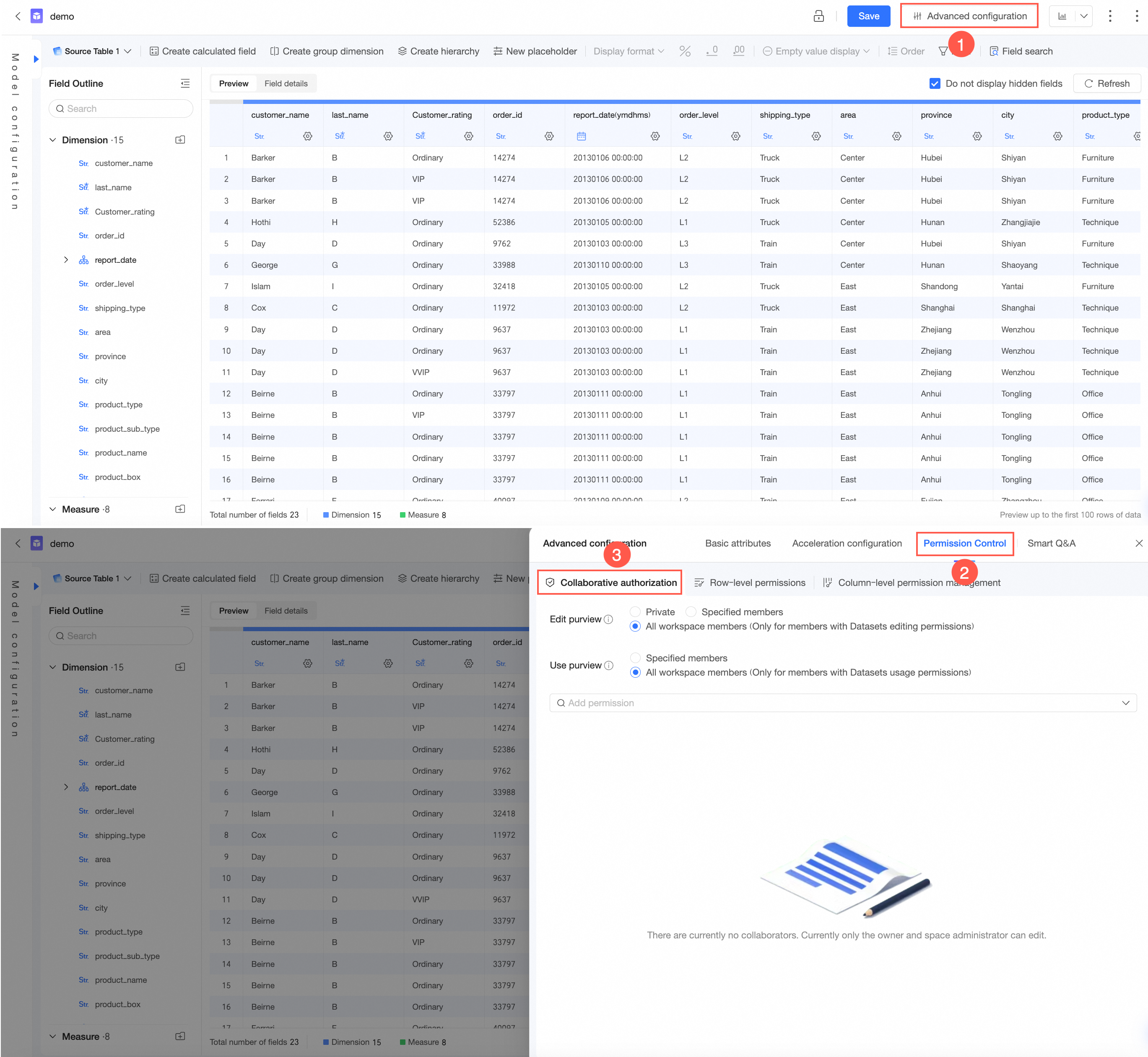
Entry point 3: On the Dataset Edit page, you can create a dataset and grant collaborative operation permissions on the dataset.
Grant a user the permissions to edit a specified dataset
You can grant a developer in the workspace the permissions to edit a dataset only when you select Specified Members or All Members In The Workspace (Only Members With Dataset Edit Permissions) for Editing Permission.
On the Collaborative Authorization page, select an editing permission property and grant the permissions.
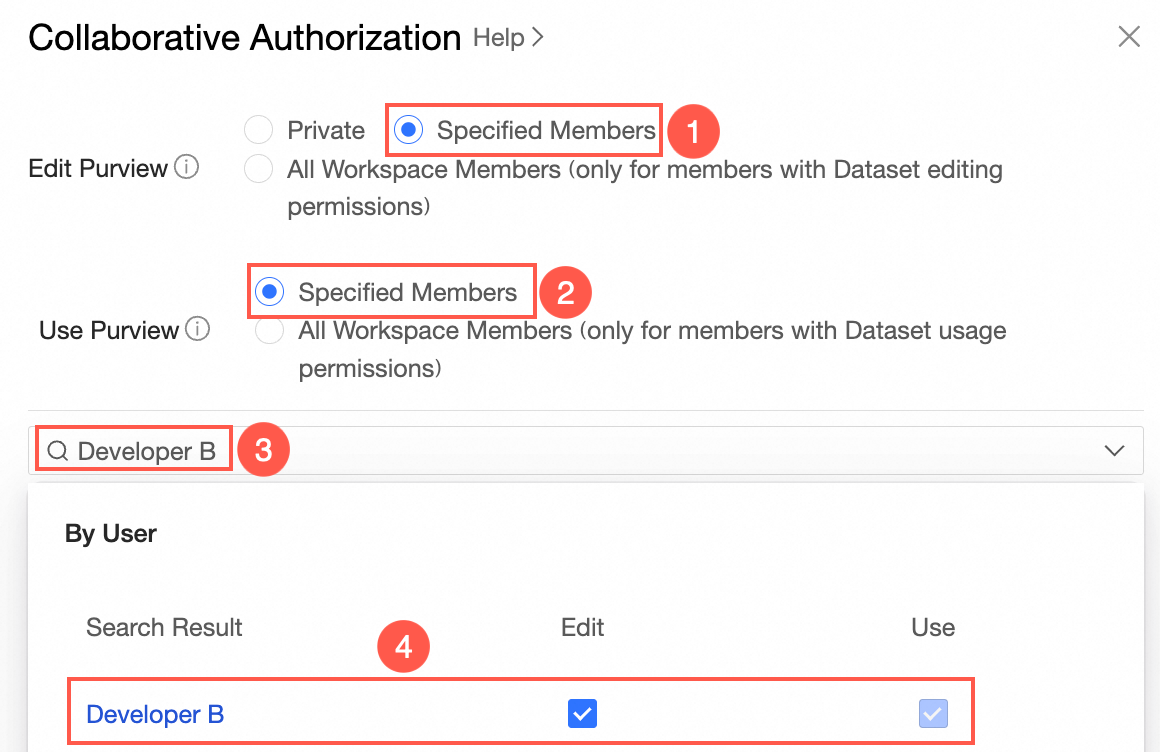
The following figure shows how to grant Developer B the Edit permission when Specified Developers is selected for Editing Permission.
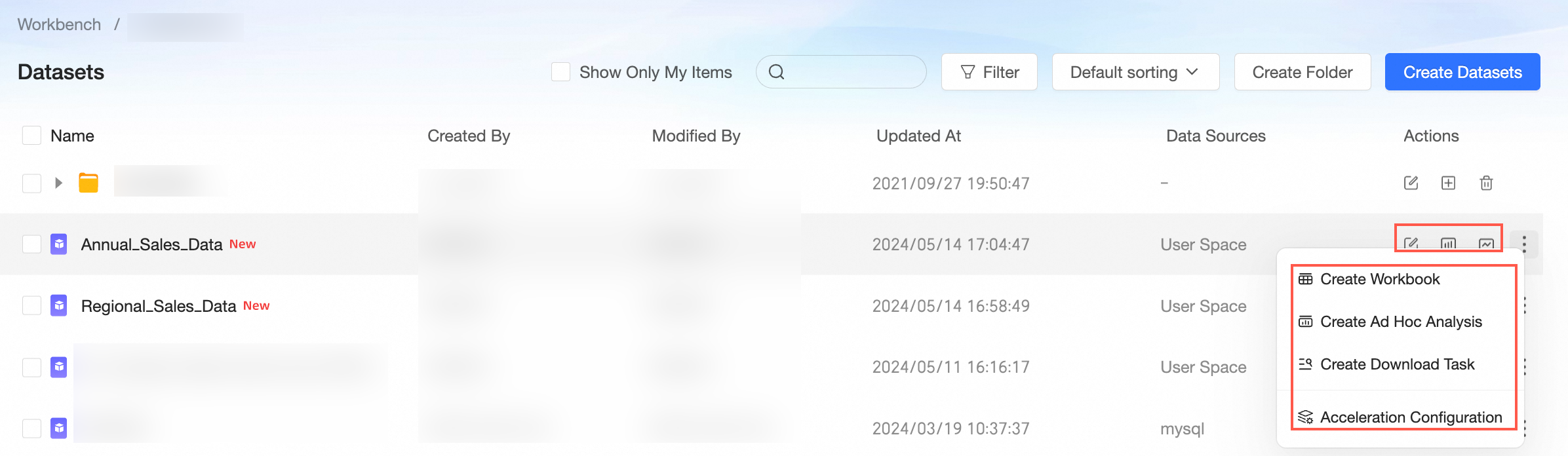
Log on to the Quick BI console as Developer B and access and edit the dataset.
Grant a user the permissions to use a specified dataset
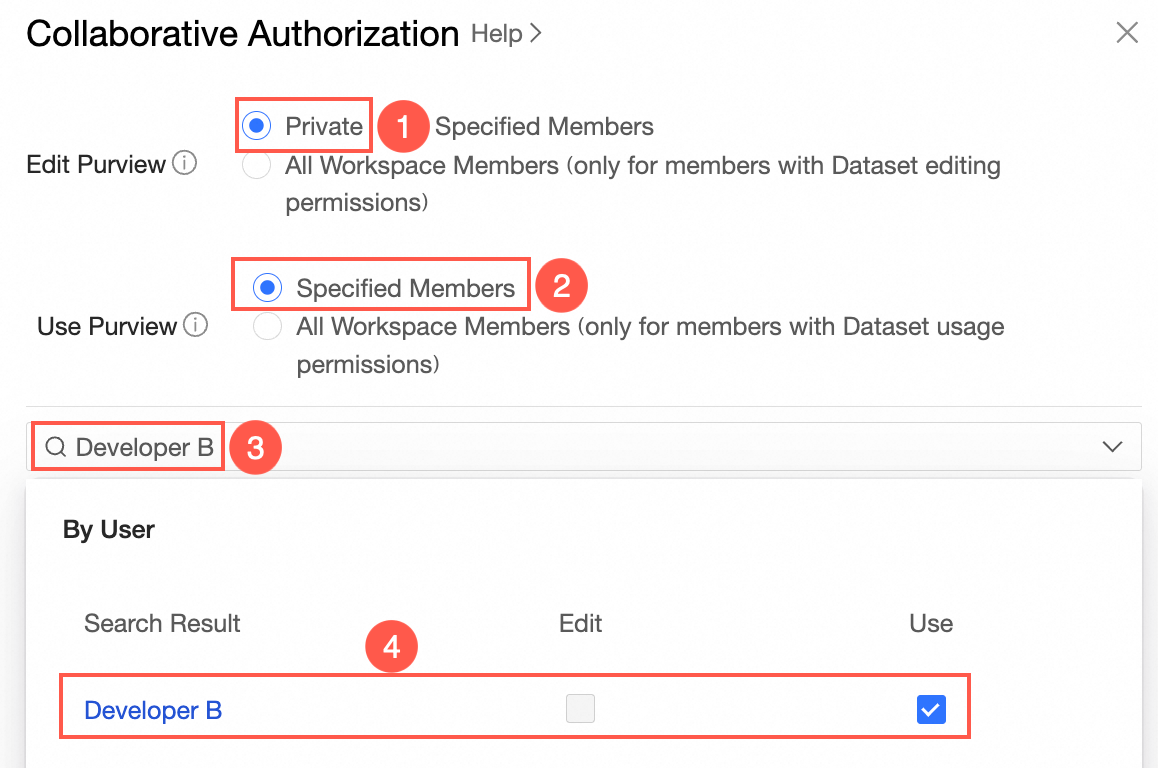
If Private is selected for Editing Permission, a developer can be granted the permissions to use a specified dataset. If a user is granted the Use permission on a specified dataset, the user can create dashboards, workbooks, and ad hoc queries based on the dataset.
On the Collaborative Authorization page, select an editing permission property and grant the permissions.
The following figure shows how to grant Developer B the Use permission when Private is selected for Editing Permission.
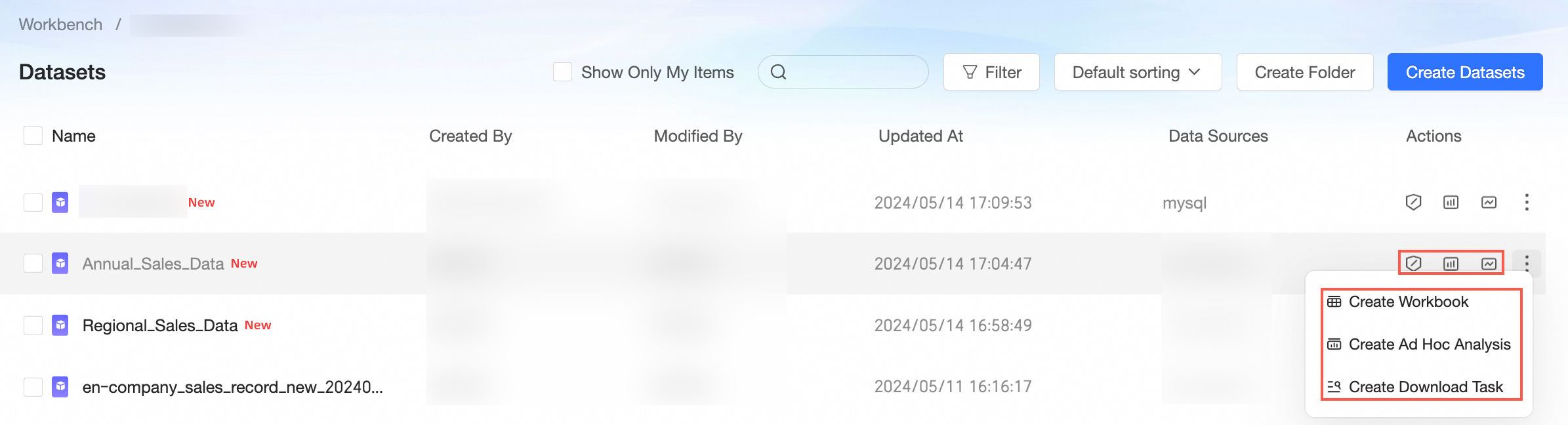
Log on to the Quick BI console as Developer B, access the dataset, and create dashboards, workbooks, or ad hoc queries based on the dataset for data analysis.
Apply for the permissions to use a dataset
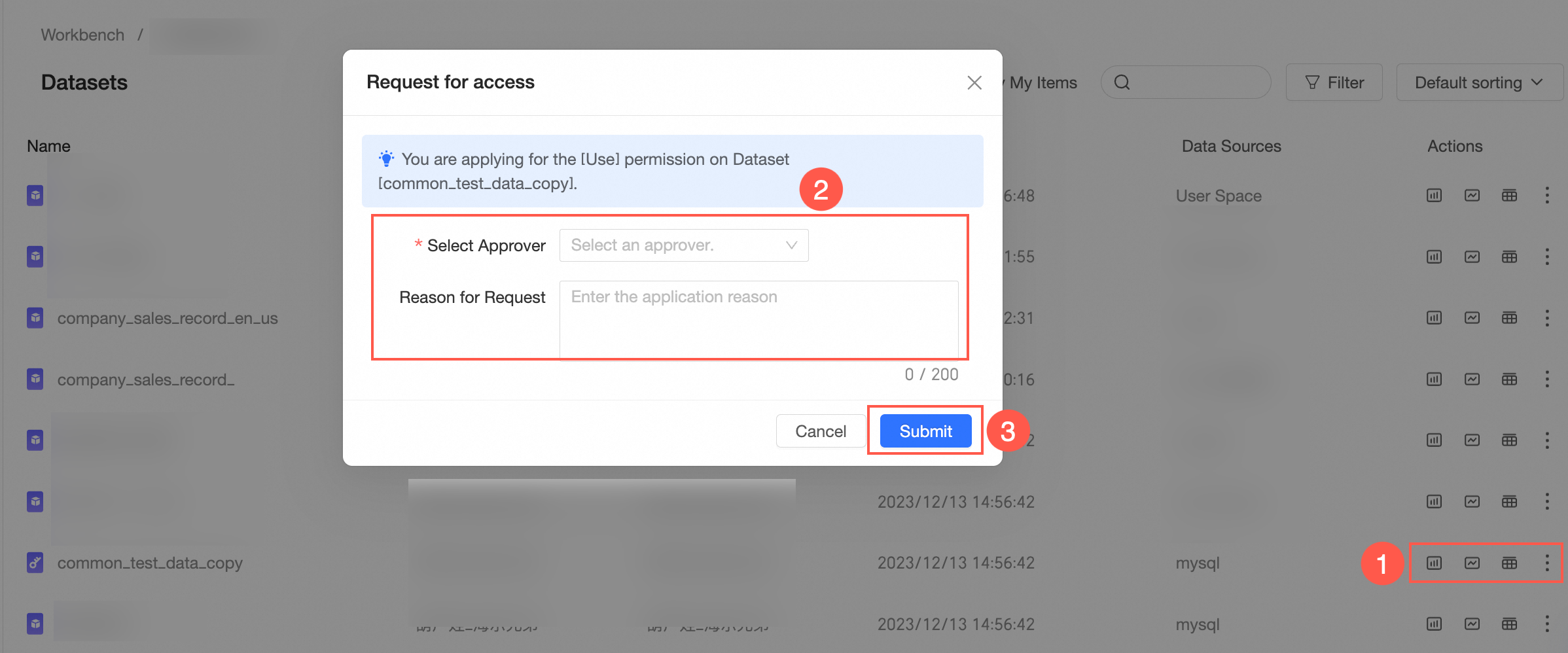
If you want to use a specified dataset, perform the steps that are shown in the following figure to apply for the Use permission on the dataset.