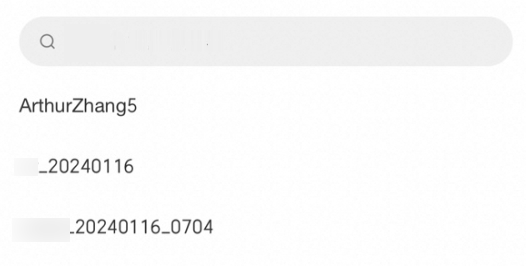
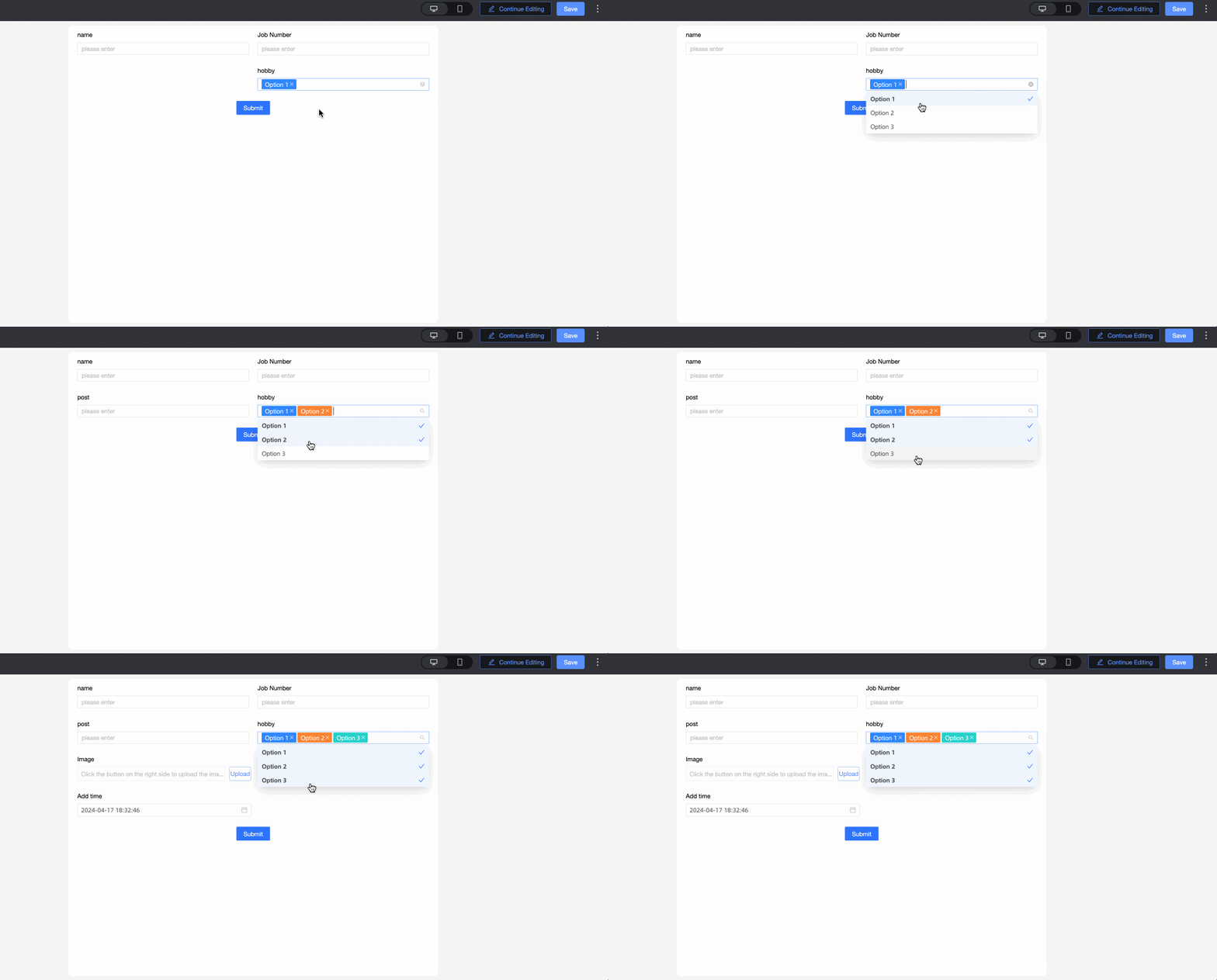
Multiple drop-down options are used as the basic control. You can select multiple data items from the drop-down list. This option is used in scenarios where multiple data items are available.
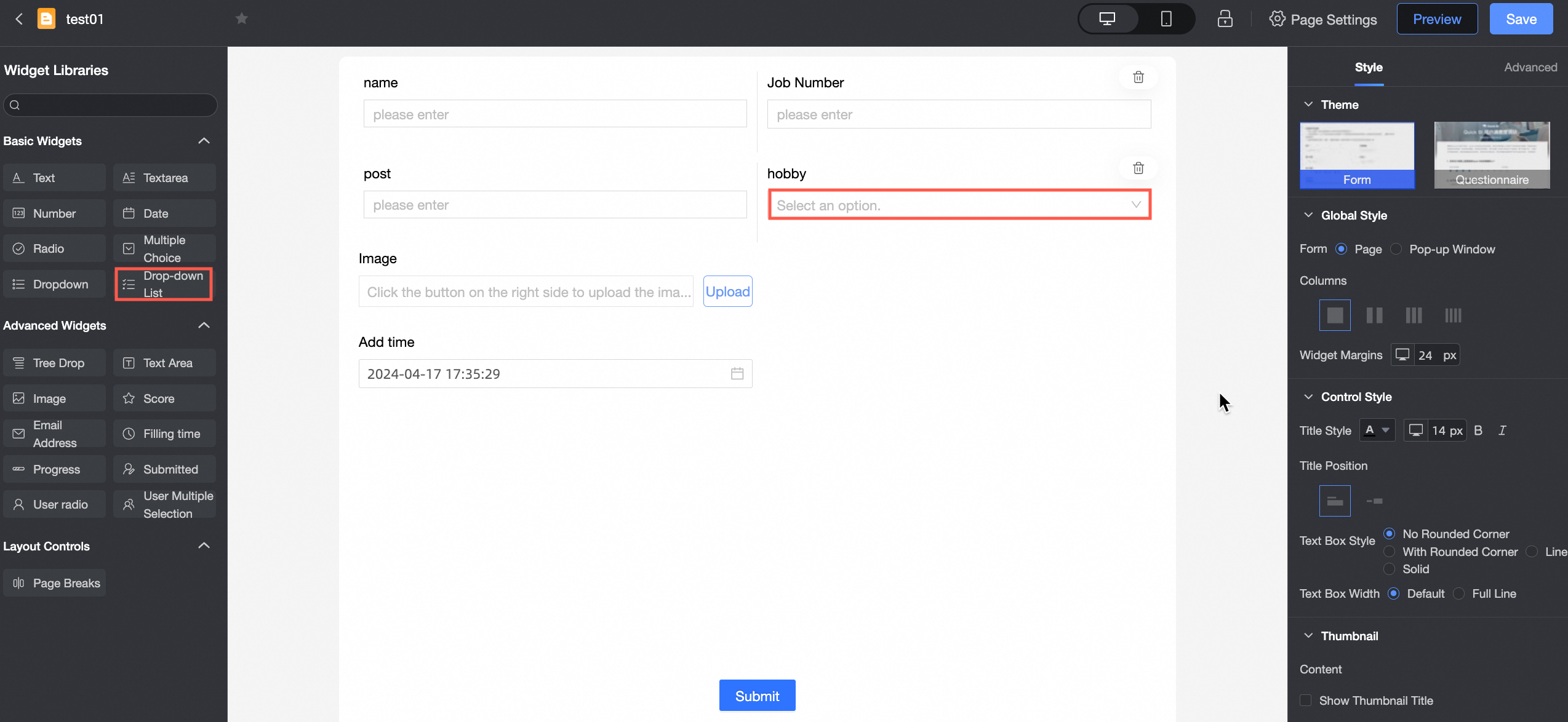
Scenarios
Multiple drop-down selections are often used in scenarios where multiple data options are required. Example: Product ID.
Renderings

Control configuration
Basic parameters
Parameter | Description |
| ① Display Title: Select whether to display the title of the drop-down multi-choice control. You can customize the display name as the column name of the data form. |
② Control type: After you select a control, you can replace the control type. The drop-down options can be replaced with other basic and advanced control types. | |
③ Table Field Name: the name of the corresponding field in the table created based on the data form. Note The field or table name must start with a letter and can contain letters, digits, and underscores (_). The name can be up to 40 characters in length. | |
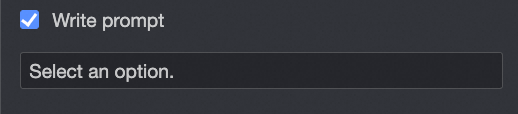
④ Prompt: Set Prompt. For example, Select Customer Type. | |
⑤ Description: the description of the custom control. | |
⑥ Description Information Location: Specify the location of the description information. The following options are available: Control Bottom, Title Right, and Title Below. | |
Default State: specifies the default state of the widget. The valid values are Normal, Read-only, and Hidden. |

Option
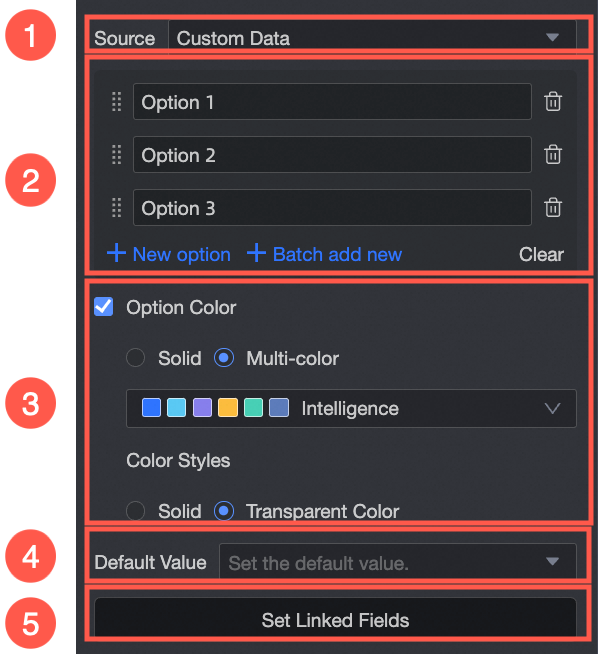
From: You can select Custom Data, Data Source, Dataset, or Organization Member.
Parameter | Description |
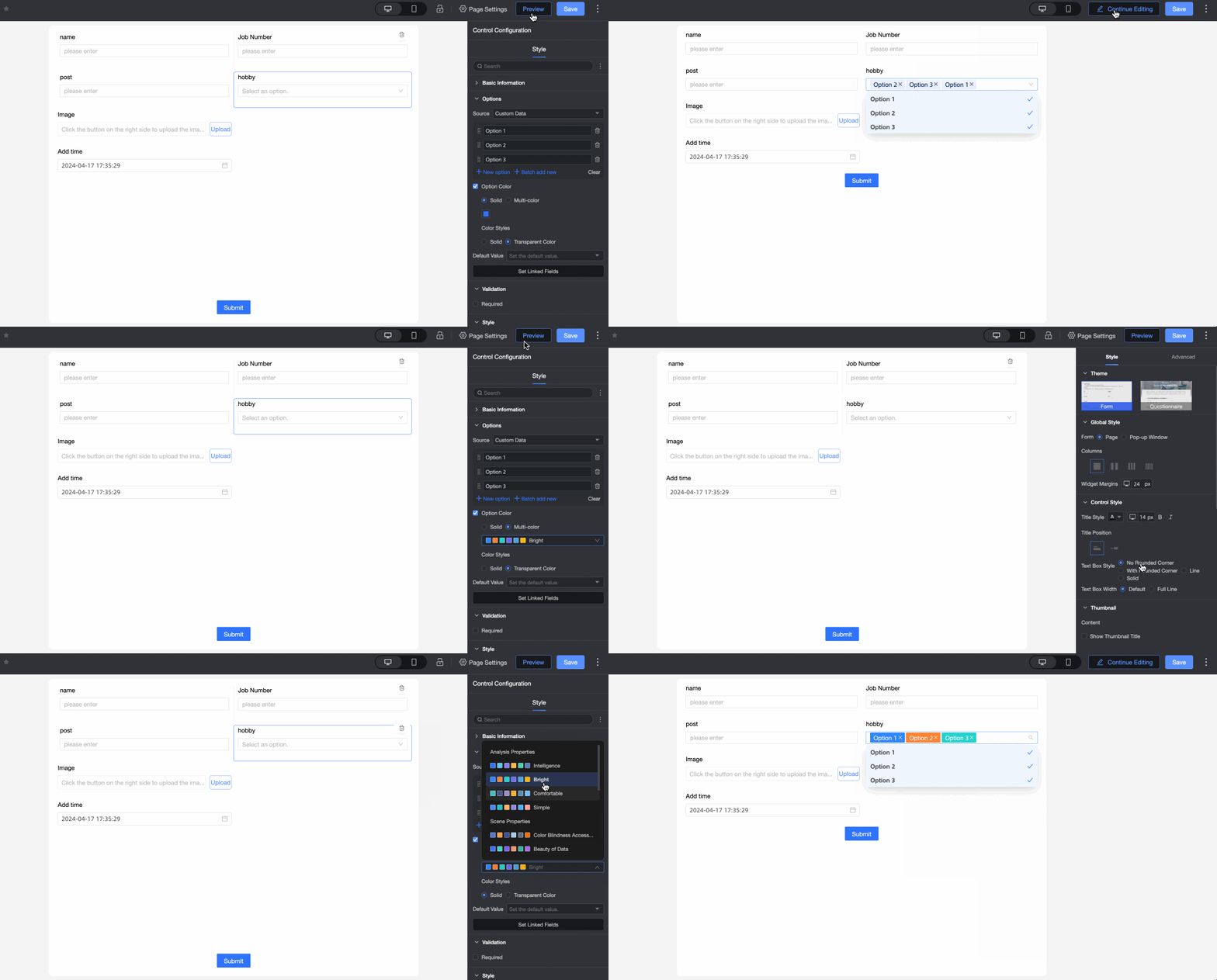
Select Custom Data from the Source drop-down list. | ① Source: After you select Custom Data, you can set Display Name and Correlation ID as required. |
② Option Name: You can add options, batch add options, edit option names, and delete options. | |
③ Color Options: You can select Monochrome or Multicolor from the drop-down list. You can also select Solid or Transmitted. | |
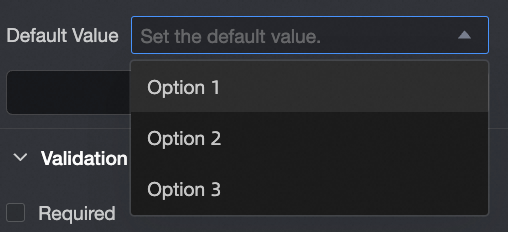
④ Default Value: Select a value based on the Options drop-down list.
| |
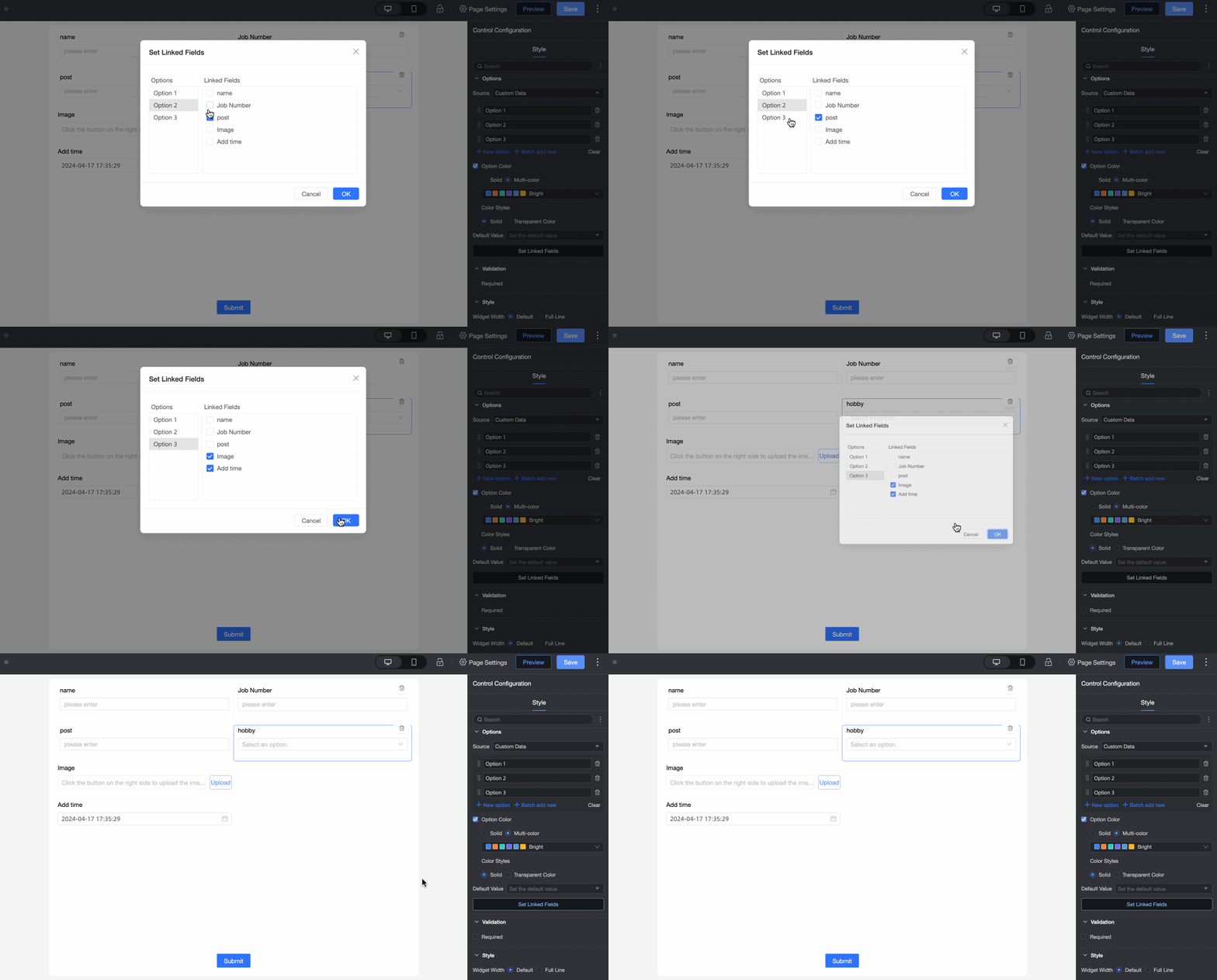
⑤ Associated option settings: If the current form has more than two single-choice, single-choice, or multiple-choice drop-down controls, you can configure the associated option settings. Note Only fields after the current field can be associated.
| |
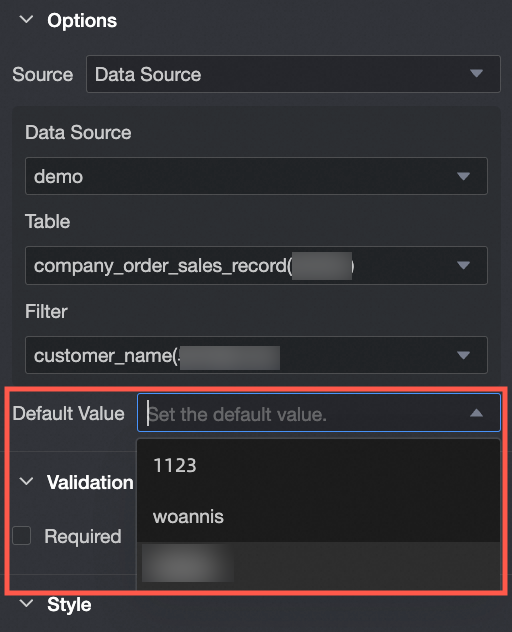
Select Data Source from the Source drop-down list.
| ① From: After you select Data Source, you can select the required options for the data table in the data source. |
② Data Source: Select a data source from the drop-down list. | |
③ Data Table: Select a data table from the drop-down list. | |
④ Data field: Select a data field from the drop-down list. | |
⑤ Default Value: Data Field Content.
| |
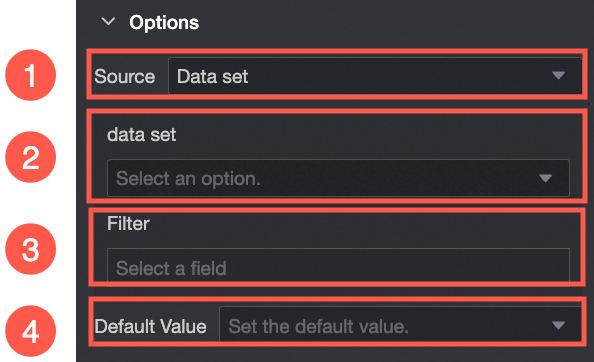
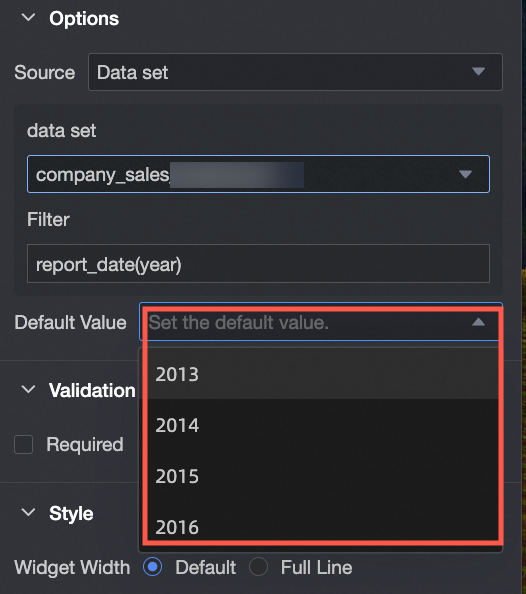
From Select Dataset | ① From Dataset: If you select Dataset, you can select Data Fields in the dataset. |
② Dataset: Select a dataset from the drop-down list. | |
③ Data Field: Select a data field from the drop-down list. | |
④ Default Value: Select a value based on the Data Field Content drop-down list. | |
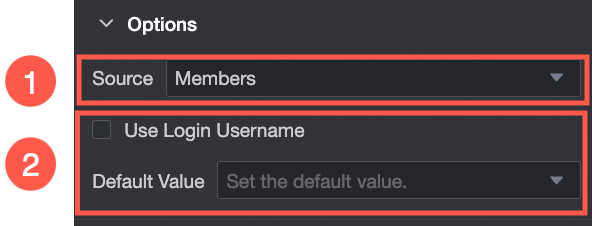
Select Organization Member from the Source drop-down list. | ① From Organization Member: If you select Organization Member, you can add the names of users in the same organization. |
② Default Value: Set the default value of the control. If you select Use Logon Username, the logon username of the current account is automatically entered. |

Validation
Parameter | Description |
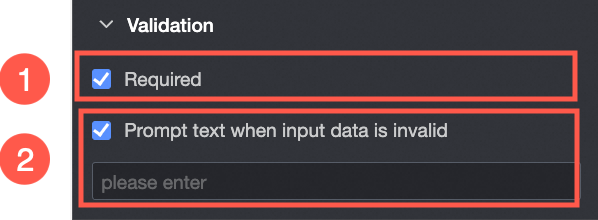
| ① Required: Select whether to set this configuration items. If you select this option, the control is set to Required. |
② Input data invalid prompt text: This configuration items takes effect only when a verification condition takes effect. For example, if Required is selected and no option value is specified, a custom error copy is displayed. |
Section
Parameter | Description |
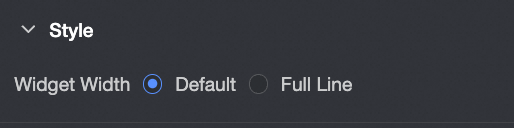
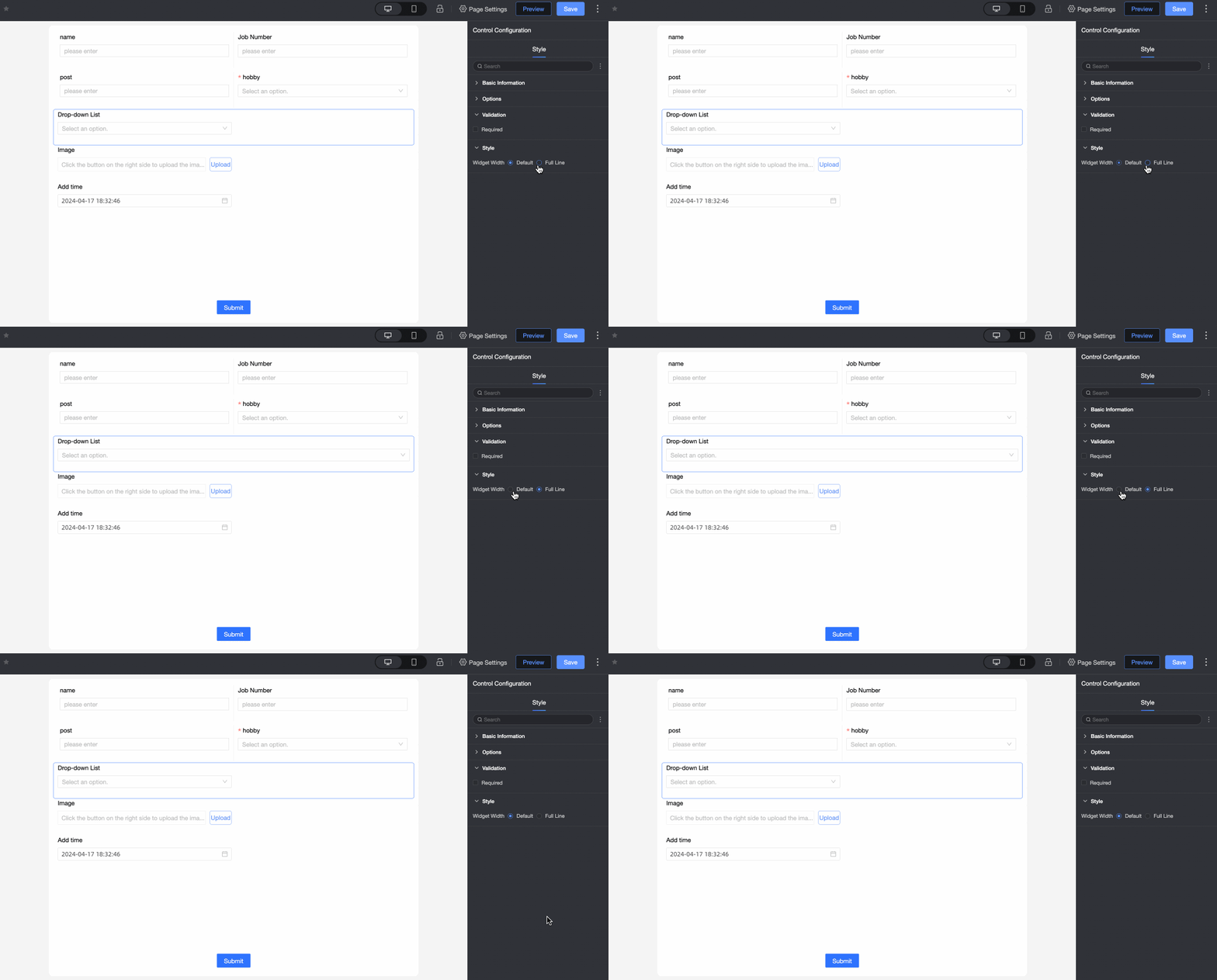
PC side | Widget Width: You can select Default or Whole Line. Note You can also manually drag the border of the widget to adjust the width.
|
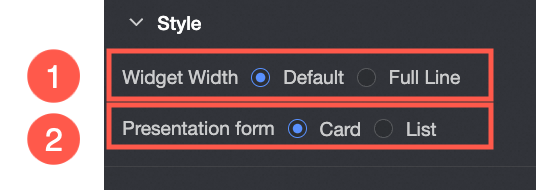
Mobile terminal | ① Control width: Consistent with PC-side functions. |
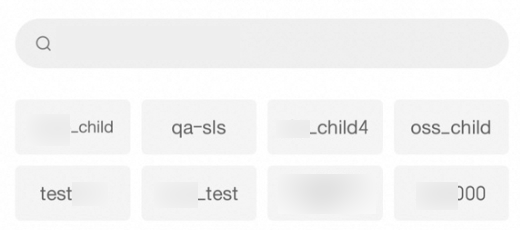
Display form: The list of options can be displayed in two formats: Card and List. Example of the card display effect:
List:
|