The source IP address is the IP address from which performance testing traffic originates. When a large number of requests are sent from a single IP address at high frequency, the target server's protection mechanisms may detect the traffic as abnormal and block it. You can increase the number of source IP addresses within the specified range based on the number of virtual users or RPS. Distributing the load across more IP addresses minimizes the risk of traffic blocking.
Why configure source IPs
By default, PTS assigns a limited number of IP addresses (one per load generator). Add more source IP addresses in the following situations:
-
Requests are blocked by security policies. When a large number of requests are sent from a single IP address at high frequency, the protection mechanism may recognize this behavior as abnormal and block the traffic. Adding more source IPs distributes requests across multiple addresses.
-
Load generator cluster load is high. Each load generator supports up to 500 concurrent virtual users. If your test scenario requires more concurrency, add more load generators (and therefore more source IPs) to distribute the workload.
How source IPs affect billing
PTS uses the Pay-as-you-go billing model. The number of source IP addresses directly affects your VUM (Virtual Users per Minute) consumption.
Additional IP addresses increase costs.
VUM formula:
VUM = Number of IP addresses × 500-
Number of IP addresses = Number of load generators. Each load generator supports up to 500 concurrent virtual users.
-
Billing calculates each IP at 500 virtual users, regardless of the actual concurrency on that load generator.
Worked example
Suppose your test scenario uses 4 source IP addresses (4 load generators), and the test runs for 10 minutes:
-
VUM per minute = 4 × 500 = 2,000
-
Total VUM = 2,000 × 10 = 20,000
Even if only 300 virtual users are active on each load generator, billing still counts 500 virtual users per IP.
Procedure
-
Log on to the PTS console, choose , and then click PTS.
-
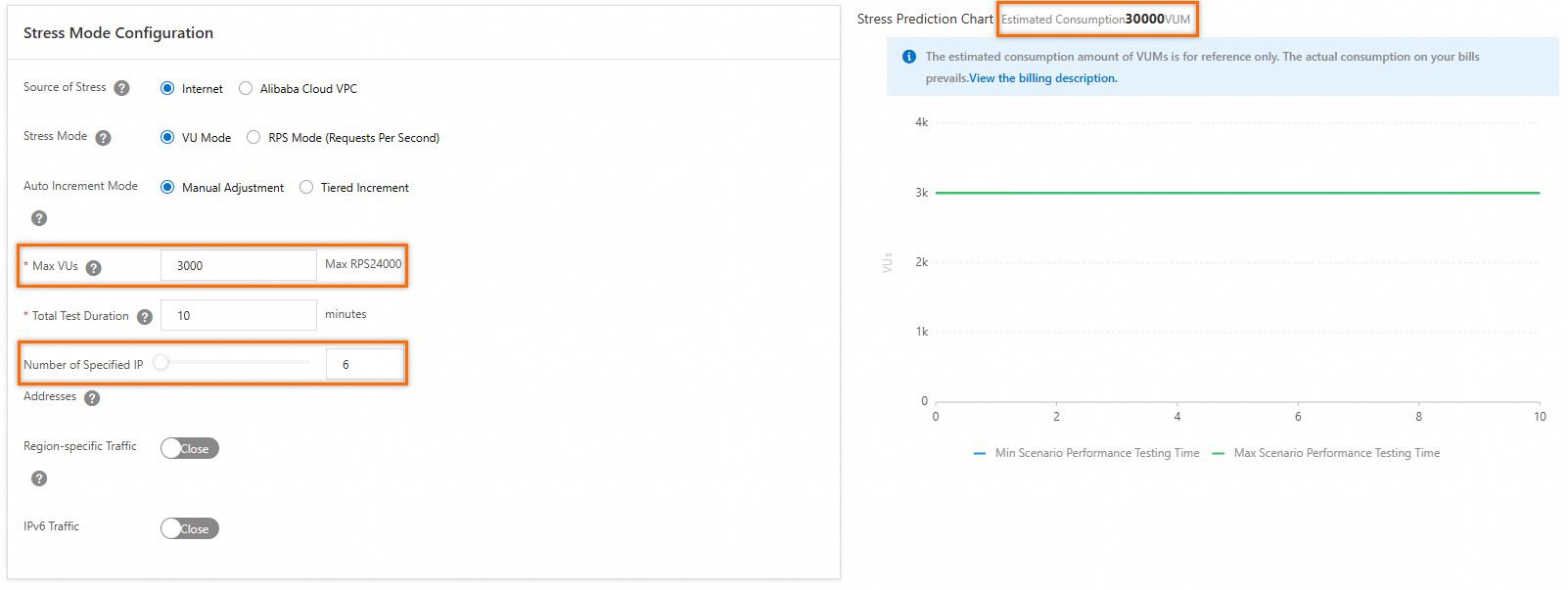
Set the number of IP addresses from which the testing traffic originates based on the number of virtual users or RPS. View the estimated VUM consumption in the figure on the right.
NoteIf your IP capacity is insufficient, submit a ticket to request an increase.
Troubleshooting
-
503 errors when testing through Server Load Balancer (SLB)
Check whether the Server Load Balancer (SLB) instance reaches or exceeds the specifications and bandwidth limits based on its billing method. If the SLB instance is at the outermost layer of the service architecture and the testing API uses HTTPS or has session persistence enabled, a 503 error may occur during stress testing. If no traffic or log appears at the backend, the 503 error may be caused by the limit of the SLB instance on the number of requests from a single IP address.
-
Traffic blocked by Anti-DDoS or WAF
If Anti-DDoS or Web Application Firewall (WAF) is enabled, traffic interception may occur. Take one of the following measures based on your business requirements:
Temporarily disable Anti-DDoS or WAF during performance testing. For more information, see FAQ Overview.
Add whitelists in the PTS console to prevent testing from being blocked. For more information, see What do I do if the stress testing traffic cannot access my web application due to security policies?
-
Traffic throttled by CDN or DCDN
If your application uses Content Delivery Network (CDN) or Dynamic Content Delivery Network (DCDN), submit a ticket when your business is reaching or exceeding the existing peak.
High load on load generator cluster
If the load generator cluster is under heavy loads and its resources such as the bandwidth, CPU, or memory are insufficient, increase the number of testing traffic source IP addresses.