Data tracking in Data Management (DMS) parses binary logs to locate data changes within a specific time window and export rollback scripts in batches as needed. Use this feature to generate rollback scripts and restore accidentally deleted or modified records in a PolarDB for MySQL database.
Prerequisites
Before you begin, make sure that:
-
Binary logging is enabled for the database
-
If the cluster control mode is Flexible Management or Stable Change in the DMS console, you have logged on to the cluster in the console
Limitations
-
Each data tracking ticket covers a maximum time range of 6 hours. To track changes over a longer period, submit multiple tickets.
-
This feature applies only when the amount of accidentally deleted or modified data is fewer than 100,000 records.
Step 1: Track and export rollback scripts
Submit a data tracking ticket to parse binary logs, review the change records, and export rollback scripts.
-
Log on to the new DMS console.
-
In the top navigation bar, click Database Development. In the left-side navigation pane, choose .
-
In the upper-right corner of the Data Tracking tab, click +Data Tracking.
-
On the Data Tracking Tickets page, configure the following parameters.
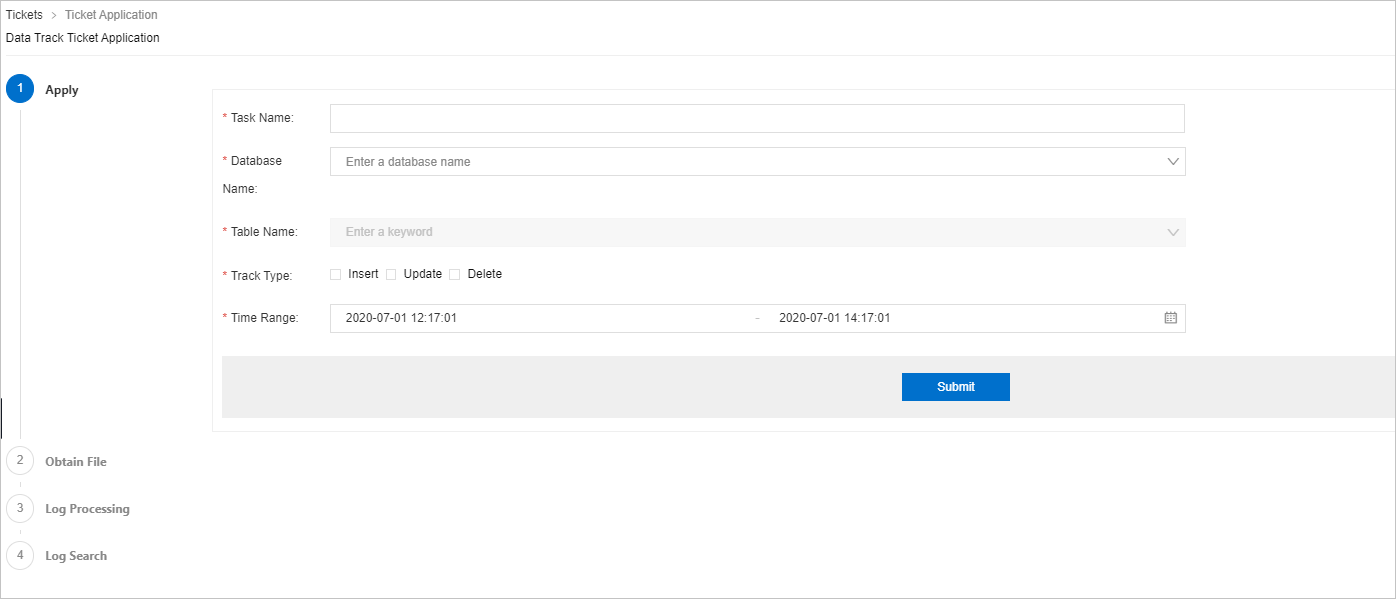
Parameter
Description
Task Name
Required. A descriptive name for the ticket.
Database Name
The database that contains the accidentally changed data.
Table Name
The table that contains the accidentally changed data.
Track Type
The type of data operation to track. Select one or more types as needed.
Time Range
The time range to search. Default: last 2 hours. Maximum: 6 hours per ticket. If the target time range exceeds 6 hours, submit multiple tickets. The earliest start time is the point when binary logs were first stored in the instance.
-
Click Submit. DMS retrieves the binary logs automatically.
After the logs are retrieved, the ticket moves to the Approval step.
NoteIf the binary logging feature is disabled or you have not logged on to the database, DMS cannot obtain the binary logs.
-
Wait for approval.
NoteBy default, the corresponding database administrator (DBA) approves data tracking tickets.
-
After approval, DMS downloads and parses the binary logs.
-
Select the change records to roll back and click Export Rollback Script.
Step 2: Run rollback scripts
Submit a data change ticket to run the exported rollback scripts against the target database.
-
In the top navigation bar, click Database Development. In the left-side navigation pane, choose .
-
On the Data Change Ticket Application page, configure the following parameters and click Submit.
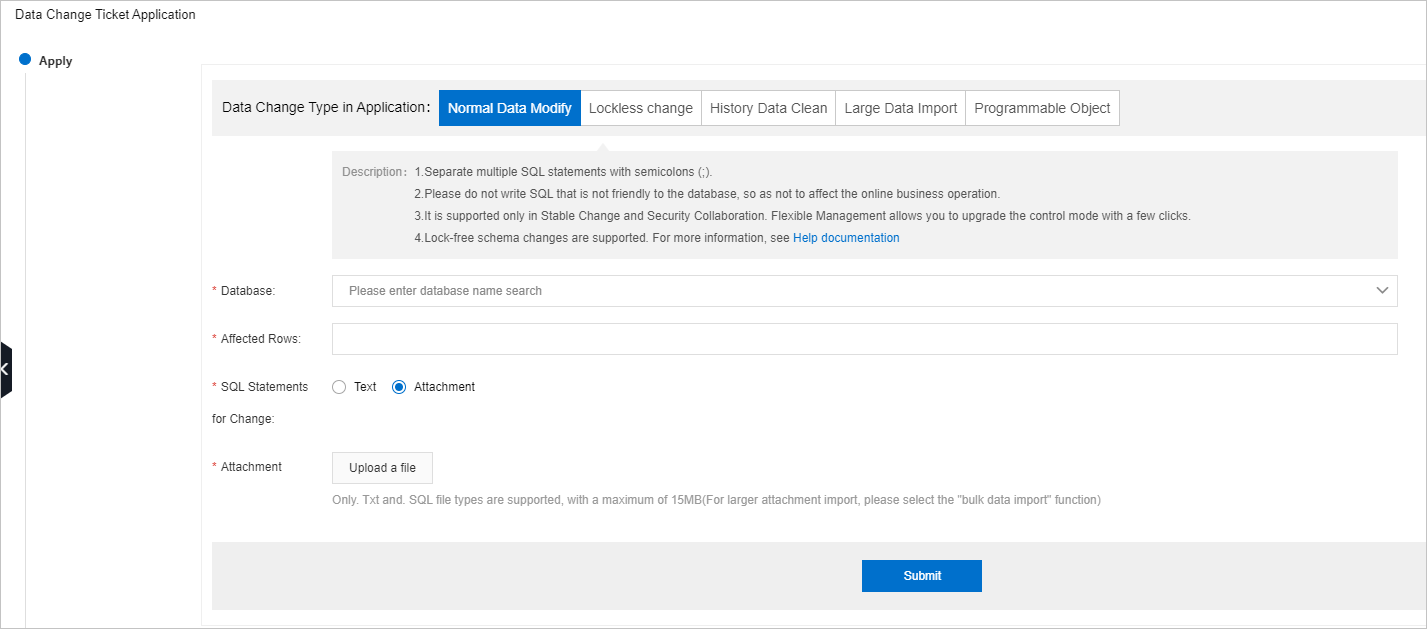
Table 1. Data change parameters
Parameter
Description
Database
The database to restore.
Affected Rows
Required. The estimated number of data rows that may be affected by the data clear operation. To obtain the actual number of affected rows, run a
COUNTquery on the SQLConsole tab.Change SQL
Select Attachments and upload the rollback scripts exported in Step 1.
-
Wait for DMS to validate the configuration.
-
Submit the ticket for approval. After approval, DMS generates a task.
NoteBy default, the corresponding DBA approves data change tickets.
-
Click Execute Change.