This topic describes the recycle bin feature of Drive and Photo Service. You can use the recycle bin feature in BasicUI provided by Drive and Photo Service. You can also call API operations of Drive and Photo Service to manage the files and folders in a recycle bin by referring to this topic.
Overview
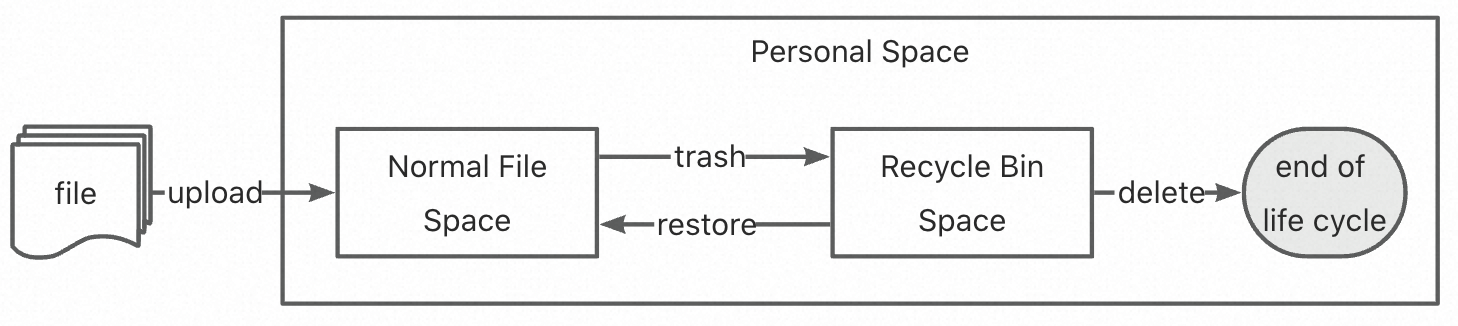
A recycle bin is a special space in an individual drive or an enterprise drive. After files and folders are moved to the recycle bin, you can query the files and folders by calling the ListRecyclebin operation. You cannot query the files and folders in the recycle bin by calling the SearchFile or ListFile operation.
You can restore the files and folders from the recycle bin. After the files and folders are restored, you can call the SearchFile or ListFile operation to query the restored files and folders.
Files and folders in the recycle bin occupy the drive space. After the files and folders are permanently deleted, the drive space that is occupied by the files and folders is released.
The following figure shows the recycle bin in an individual drive.
Operations and call examples
1. ListRecyclebin
You can call the ListRecyclebin operation to query a list of files and folders in the recycle bin of a drive. This operation supports paged queries. The return results are sorted in reverse chronological order. Based on the time when the files or folders are moved to the recycle bin, the files or folders are sorted from the most recent to the least recent.
Sample request
{
    "drive_id":"testDriveId"
}
Sample response
{
    "items": [{
        "name": "test_folder",
        "type": "folder",
        "status": "available",
        "parent_file_id": "xxxxxx",
        "drive_id": "1",
        "file_id": "testFileId",
        "domain_id": "testDomainId",
        "created_at": "2021-07-12T13:08:17.571Z",
        "updated_at": "2022-04-20T02:38:56.898Z",
        "trashed_at": "2022-04-20T02:38:56.898Z"
    }],
    "next_marker": ""
}
Note:
The drive_id parameter specifies the ID of the individual drive or enterprise drive in which the files and folders to be queried are stored.
If the results are returned by page, the next_marker response parameter indicates the pagination token that is used in the next request to retrieve a new page of results. You must specify the token that is obtained from the previous request as the value of the marker parameter of the next request. If no value is returned for the next_marker response parameter, the results of the last page are returned.
2. TrashFile
You can call the TrashFile operation to move a file or folder to the recycle bin.
Sample request
{
    "drive_id":"testDriveId",
    "file_id":"testFileId"
}
Sample response
{
    "domain_id":"testDomainId",
    "drive_id":"testDriveId",
    "file_id":"testFileId",
    "async_task_id":"testAsyncTaskId"
}
Note:
The file_id parameter specifies the ID of the file or folder to be moved to the recycle bin.
When you call the TrashFile operation to move a file to the recycle bin, the file is synchronously moved to the recycle bin and no value is returned for the async_task_id response parameter. When you call the TrashFile operation to move a folder to the recycle bin, an asynchronous task may be generated. If an asynchronous task is generated, a value is returned for the async_task_id response parameter. If a value is returned for the async_task_id response parameter after you call the TrashFile operation, you must call the GetAsyncTask operation and check the status of the asynchronous task based on the value of the status response parameter.
3. RestoreFile
You can call the RestoreFile operation to restore a file or folder from the recycle bin to the individual drive or enterprise drive.
Sample request
{
    "drive_id":"testDriveId",
    "file_id":"testFileId"
}
Sample response
{
    "domain_id":"testDomainId",
    "drive_id":"testDriveId",
    "file_id":"testFileId",
    "async_task_id":"testAsyncTaskId"
}
Note:
The file_id parameter specifies the ID of the file or folder to be restored.
If a value is returned for the async_task_id response parameter after you call the RestoreFile operation, you must call the GetAsyncTask operation and check the status of the asynchronous task based on the value of the status response parameter.
4. DeleteFile
You can call the DeleteFile operation to permanently delete a file or folder. The DeleteFile operation can be used to permanently delete a file or folder from the individual drive or enterprise drive or from the recycle bin. You cannot restore the files or folders that are permanently deleted. Proceed with caution.
Sample request
{
    "drive_id":"testDriveId",
    "file_id":"testFileId"
}
Sample response
{
    "domain_id":"testDomainId",
    "drive_id":"testDriveId",
    "file_id":"testFileId",
    "async_task_id":"testAsyncTaskId"
}
Note:
The file_id parameter specifies the ID of the file or folder to be permanently deleted.
If a value is returned for the async_task_id response parameter after you call the DeleteFile operation, you must call the GetAsyncTask operation and check the status of the asynchronous task based on the value of the status response parameter.
5. ClearRecyclebin
You can call the ClearRecyclebin operation to permanently delete all files and folders from the recycle bin. When you call this operation, an asynchronous task is generated. You cannot restore the files or folders that are permanently deleted. Proceed with caution.
Sample request
{
    "drive_id":"testDriveId"
}
Sample response
{
    "domain_id":"testDomainId",
    "drive_id":"testDriveId",
    "async_task_id":"testAsyncTaskId"
}
Note:
You can use the value of the async_task_id response parameter to call the GetAsyncTask operation, and check the status of the asynchronous task based on the value of the status response parameter.
6. GetAsyncTask
You can call the GetAsyncTask operation to view the status of an asynchronous task. If a value is returned for the async_task_id response parameter after you call the TrashFile, RestoreFile, or ClearRecyclebin operation, an asynchronous task is generated. You can use the value of the async_task_id response parameter to call the GetAsyncTask operation, and check the status of the asynchronous task based on the value of the status response parameter.
Sample request
{
    "async_task_id":"testAsyncTaskId"
}
Sample response
{
    "async_task_id": "testAsyncTaskId",
    "status": "Succeed"
}
Note:
To check the status of an asynchronous task that is generated when you manage the files and folders in a recycle bin, view the value of the status response parameter. Valid values of the status parameter:
Failed: The asynchronous task failed.
Running: The asynchronous task is in progress.
PartialSucceed: The asynchronous task is partially successful.
Succeed: The asynchronous task is successful.
FAQ
1. After I move a folder to the recycle bin, why does the SearchFile operation still return files in that folder?
When you call the TrashFile operation to move a folder to the recycle bin, an asynchronous task may be generated. A period of time is consumed to process the asynchronous task. After the asynchronous task is complete, the results that can be obtained by calling the SearchFile operation are updated.
2. Why is the drive space occupied by the files and folders in the recycle bin not released after I delete all files and folders from the recycle bin?
When you delete all files and folders from the recycle bin, an asynchronous task is generated to update the drive space. A period of time is consumed to process the asynchronous task. You can check the drive space after the asynchronous task is complete.