The Edge Clustering Coefficient is a metric used to measure the extent to which an edge in a network participates in triangle closures within its neighborhood. It is calculated by determining the proportion of triangles formed among the common neighbors of the two nodes connected by the edge. The coefficient helps understand the local clustering patterns and community structures within a network, and is widely used in areas such as social network analysis and community detection.
Configure the component
Method 1: Configure the component on the pipeline page
On the pipeline details page in Machine Learning Designer, add the Edge Clustering Coefficient component to the pipeline and configure the parameters described in the following table.
Tab | Parameter | Description |
Fields Setting | Start Vertex | The start vertex column in the edge table. |
End Vertex | The end vertex column in the edge table. | |
Tuning | Workers | The number of vertices for parallel job execution. The degree of parallelism and framework communication costs increase with the value of this parameter. |
Memory Size per Worker (MB) | The maximum size of memory that a single job can use. Unit: MB. Default value: 4096. If the size of used memory exceeds the value of this parameter, the | |
Data Split Size (MB) | The data split size. Unit: MB. Default value: 64. |
Method 2: Configure the component by using PAI commands
Configure the component parameters by using PAI commands. You can use the SQL Script component to call PAI commands. For more information, see Scenario 4: Execute PAI commands within the SQL script component.
PAI -name EdgeDensity
    -project algo_public
    -DinputEdgeTableName=EdgeDensity_func_test_edge
    -DfromVertexCol=flow_out_id
    -DtoVertexCol=flow_in_id
    -DoutputTableName=EdgeDensity_func_test_result;
Parameter | Required | Default value | Description |
inputEdgeTableName | Yes | No default value | The name of the input edge table. |
inputEdgeTablePartitions | No | Full table | The partitions in the input edge table. |
fromVertexCol | Yes | No default value | The start vertex column in the input edge table. |
toVertexCol | Yes | No default value | The end vertex column in the input edge table. |
outputTableName | Yes | No default value | The name of the output table. |
outputTablePartitions | No | No default value | The partitions in the output table. |
lifecycle | No | No default value | The lifecycle of the output table. |
workerNum | No | No default value | The number of vertices for parallel job execution. The degree of parallelism and framework communication costs increase with the value of this parameter. |
workerMem | No | 4096 | The maximum size of memory that a single job can use. Unit: MB. Default value: 4096. If the size of used memory exceeds the value of this parameter, the |
splitSize | No | 64 | The data split size. Unit: MB. |
Example
On the pipeline details page, add a SQL Script component to the pipeline and click the component. On the Parameters Setting tab, clear Use Script Mode and Whether the system adds a create table statement, and enter the following SQL statements in the SQL Script editor:
drop table if exists EdgeDensity_func_test_edge;
create table EdgeDensity_func_test_edge as
select * from
(
  select '1' as flow_out_id,'2' as flow_in_id
  union all
  select '1' as flow_out_id,'3' as flow_in_id
  union all
  select '1' as flow_out_id,'5' as flow_in_id
  union all
  select '1' as flow_out_id,'7' as flow_in_id
  union all
  select '2' as flow_out_id,'5' as flow_in_id
  union all
  select '2' as flow_out_id,'4' as flow_in_id
  union all
  select '2' as flow_out_id,'3' as flow_in_id
  union all
  select '3' as flow_out_id,'5' as flow_in_id
  union all
  select '3' as flow_out_id,'4' as flow_in_id
  union all
  select '4' as flow_out_id,'5' as flow_in_id
  union all
  select '4' as flow_out_id,'8' as flow_in_id
  union all
  select '5' as flow_out_id,'6' as flow_in_id
  union all
  select '5' as flow_out_id,'7' as flow_in_id
  union all
  select '5' as flow_out_id,'8' as flow_in_id
  union all
  select '7' as flow_out_id,'6' as flow_in_id
  union all
  select '6' as flow_out_id,'8' as flow_in_id
)tmp;
drop table if exists EdgeDensity_func_test_result;
create table EdgeDensity_func_test_result
(
  node1 string,
  node2 string,
  node1_edge_cnt bigint,
  node2_edge_cnt bigint,
  triangle_cnt bigint,
  density double
);
Data structure
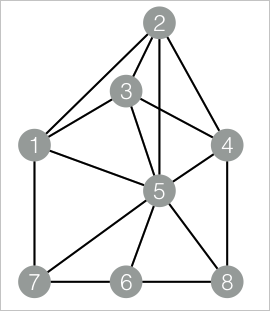
Add a SQL Script component to the pipeline and click the component. On the Parameters Setting tab, clear Use Script Mode and Whether the system adds a create table statement, and enter the following SQL statements in the SQL Script editor. Connect this component with the component added in Step 1.
drop table if exists ${o1};
PAI -name EdgeDensity
    -project algo_public
    -DinputEdgeTableName=EdgeDensity_func_test_edge
    -DfromVertexCol=flow_out_id
    -DtoVertexCol=flow_in_id
    -DoutputTableName=${o1};
In the upper-left corner of the canvas, click
 to run the pipeline.
After the pipeline is run, click the SQL Script component added in Step 2, and choose View Data > SQL Script Output to view the training results.
| node1 | node2 | node1_edge_cnt | node2_edge_cnt | triangle_cnt | density |
| ----- | ----- | -------------- | -------------- | ------------ | ------- |
| 3     | 1     | 4              | 4              | 2            | 0.5     |
| 5     | 1     | 7              | 4              | 3            | 0.75    |
| 7     | 1     | 3              | 4              | 1            | 0.33333 |
| 1     | 2     | 4              | 4              | 2            | 0.5     |
| 4     | 2     | 4              | 4              | 2            | 0.5     |
| 2     | 3     | 4              | 4              | 3            | 0.75    |
| 5     | 3     | 7              | 4              | 3            | 0.75    |
| 3     | 4     | 4              | 4              | 2            | 0.5     |
| 8     | 4     | 3              | 4              | 1            | 0.33333 |
| 2     | 5     | 4              | 7              | 3            | 0.75    |
| 4     | 5     | 4              | 7              | 3            | 0.75    |
| 7     | 5     | 3              | 7              | 2            | 0.66667 |
| 5     | 6     | 7              | 3              | 2            | 0.66667 |
| 8     | 6     | 3              | 3              | 1            | 0.33333 |
| 6     | 7     | 3              | 3              | 1            | 0.33333 |
| 5     | 8     | 7              | 3              | 2            | 0.66667 |