For a High-availability Edition instance, you can perform dual-zone deployment to implement cross-zone disaster recovery, which enables higher availability. If a zone fails, traffic can be switched to the other zone. You can purchase High-availability Edition instances or upgrade existing Standard Edition instances to High-availability Edition instances.
Comparison item | Standard Edition | High-availability Edition |
Disaster recovery | Workers are deployed in a single zone, and cross-zone disaster recovery is not supported. | Workers are deployed in two zones, and two clusters in the two zones are mutually backed up. In this case, cross-zone disaster recovery is supported, which enables higher availability. If a zone fails, traffic can be switched to the other zone. |
Number of Searcher workers | At least one Searcher worker is required, and Searcher workers are deployed in the only cluster of an instance. | At least two Searcher workers are required, and Searcher workers are evenly deployed in the two clusters of an instance. |
Number of Query Result Searcher (QRS) workers | You can configure no QRS workers. QRS workers are deployed in the only cluster of an instance. | At least two QRS workers are required, and QRS workers are evenly deployed in the two clusters of an instance. |
Create an instance
Log on to the OpenSearch console. In the upper-left corner, switch to OpenSearch Vector Search Edition. On the Instances page, click Create Instance.
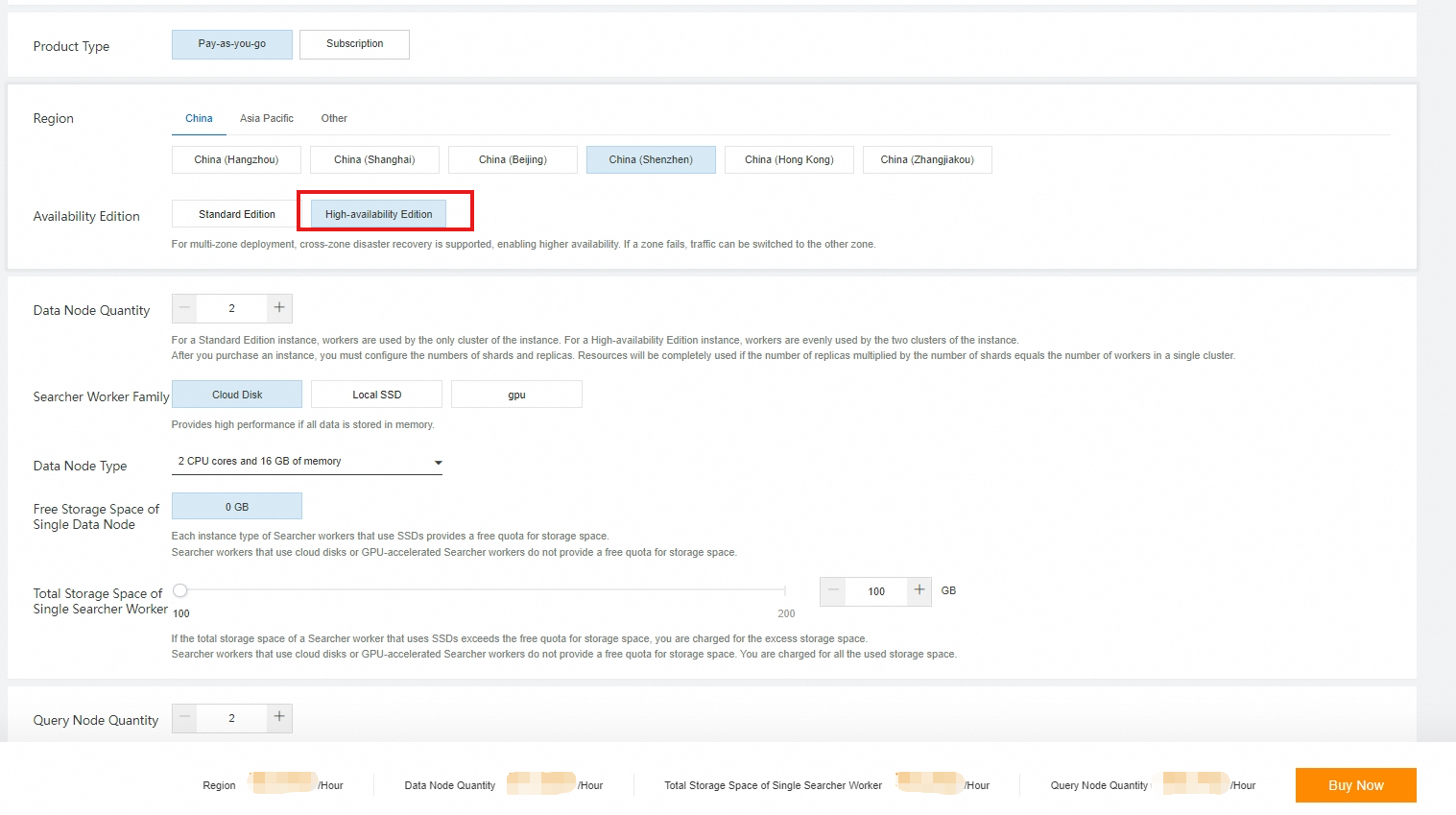
On the buy page, select Vector Search Edition for Service Edition and High-availability Edition for Availability Edition and configure the following parameters for the instance: Region and Zone, Searcher Workers, Searcher Worker Family, Searcher Worker Specifications, Total Storage Space of Single Searcher Worker, QRS Workers, QRS Worker Family, QRS Worker Specifications, VPC, vSwitch, Username, and Password. Then, click Buy Now. The username and password are used for permission verification in queries. We recommend that you do not specify your Alibaba Cloud account and password as the username and password.
 Note
NoteSpecify the numbers and specifications of QRS workers and Searcher workers to purchase based on your business requirements. After you select the specifications, the actual fee is automatically displayed on the buy page.
If you select High-availability Edition, at least two Searcher workers and two QRS workers are required.
You must specify the same virtual private cloud (VPC) and vSwitch as those of the Elastic Compute Service (ECS) instance that you use to access the OpenSearch Vector Search Edition instance. Otherwise, the {'errors':{'code':'403','message':'Forbidden'}} error message is reported when you access the OpenSearch Vector Search Edition instance.
A Searcher worker that uses local SSDs is provided with a free quota of 50 GB of storage space. You can purchase extra storage space for the Searcher worker in increments of 50 GB. For a Searcher worker that uses cloud disks, no free quota of storage space is provided and you can purchase storage space in increments of 50 GB.
On the Confirm Order page, confirm the configurations, read and agree to the terms of service, and then click Activate Now.
After you purchase the instance, click Console. On the Instances page, you can view the purchased instance.
Configure the instance. For more information, see Add a table.
Upgrade an instance
You can upgrade an existing Standard Edition instance to a High-availability Edition instance by using the Upgrade/Downgrade feature.
On the Instances page, find the instance that you want to upgrade and click Upgrade/Downgrade in the Actions column.
The following figure shows a Standard Edition instance that contains no QRS workers and one Searcher worker.

On the Upgrade/Downgrade page, set Availability Edition to High-availability Edition.
On the Instance Details page, choose Logs > Change History in the left-side navigation pane to view the upgrade progress.
NoteAfter the upgrade is complete, the status of QRS workers and Searcher workers changes to 100%. In this case, the service becomes available.
View cluster information
On the Instance Details page, you can view single-cluster worker resource information and cluster service status.
You can click Convert to Test Traffic or Convert to Production Traffic to convert traffic. After confirmation, the traffic status immediately changes.