During application development, you may need to change the environment configuration or work with multiple environments simultaneously. mPaaS provides tools that allow you to easily switch environments. You can do this in two ways:
Static environment switching
Dynamic environment switching
Static environment switching
Static environment switching involves manually replacing the default meta.config file in your project. You must then repackage the application to access the new environment.
Use this method only to update the environment configuration of the current application.
Use the mPaaS plugin to replace the
meta.configfile in the current project.Delete and reinstall the application for the new environment configuration to take effect.
Dynamic environment switching
Dynamic environment switching lets you change the application's environment configuration without repackaging the client. You can do this by changing the environment options in your phone's Settings.
Dynamic environment switching is suitable for development scenarios that involve multiple environments and require frequent switching.
The dynamic environment switching feature is only supported in Apsara Stack environments.
Because mPaaS uses a security signature verification mechanism, updating the environment configuration also modifies the Security Guard signature verification image, yw_1222.jpg. This results in two limitations for dynamic environment switching:
Dynamic environment switching is intended only for the development phase. Before you publish the application, you must delete the corresponding configurations.
In the mPaaS console, you must turn off the signature verification switch for network requests. Otherwise, requests will fail because the signature verification image information is incorrect.
Configure environment information
To enable dynamic environment switching, override the
enableSettingServicemethod in theMPaaSInterfacecategoryand set the return value to YES.@implementation MPaaSInterface (Portal) - (BOOL)enableSettingService { return YES; } @endDownload the Settings.bundle.zip environment configuration file and add it to your project.
Review the environment configuration information in
Settings.bundle:By default,
Settings.bundleprovides four environments that correspond to four configuration files: Debug, Sit, Release, and Custom.Debug, Sit, and Release are three preset environments. From the mPaaS console, download the configuration files for the environments you want to configure. Rename the files to Debug, Sit, or Release, and use them to replace the sample files in the original
Settings.bundle.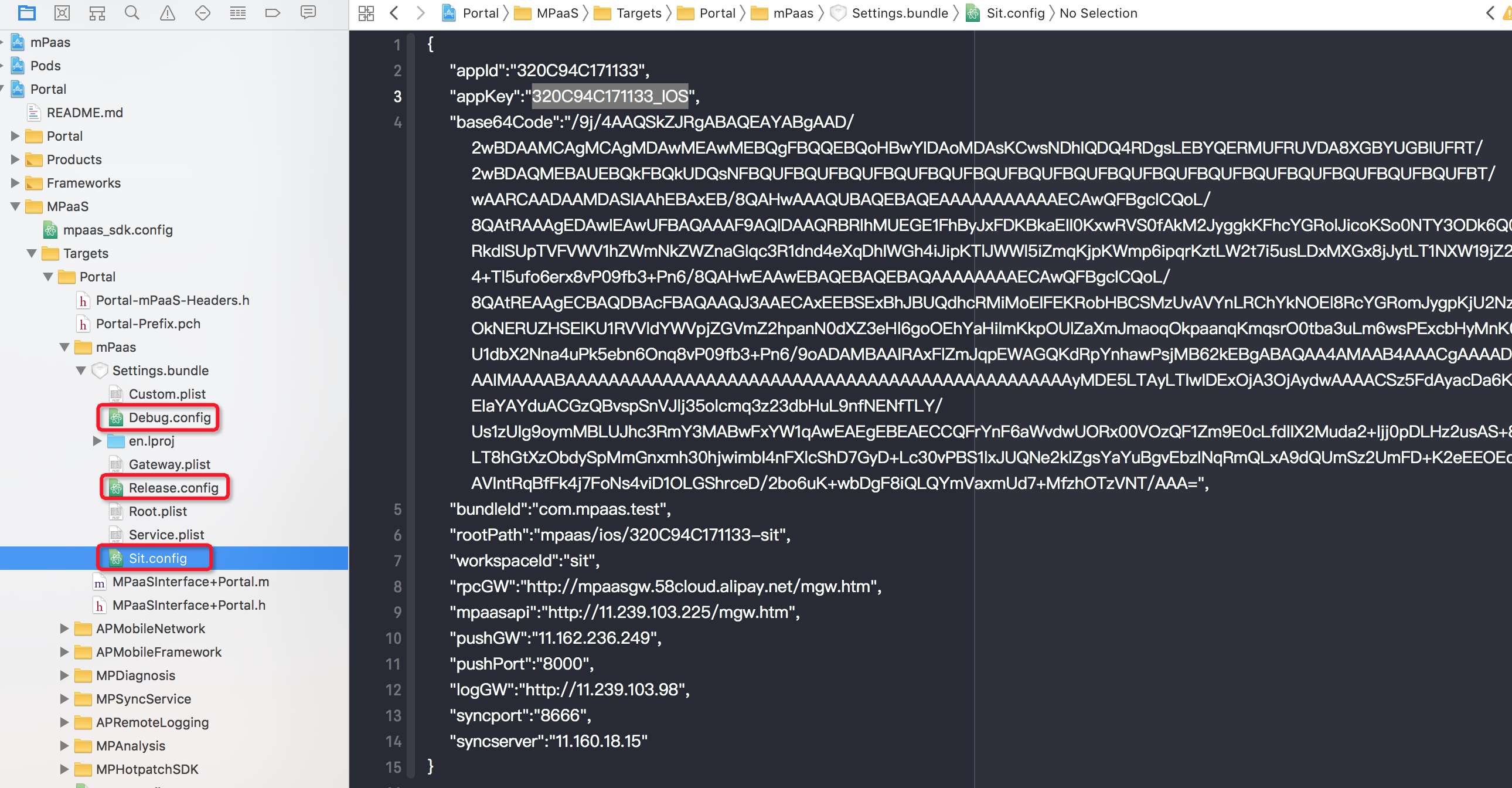
Use the Custom environment to configure the application's environment configuration directly in your phone's Settings without repackaging the client. Go to Settings > your application > Settings > Customizing and enter the values from the downloaded configuration file.
To preset more environments in addition to the default Debug, Sit, Release, and Custom environments, add items to
Settings.bundle/Service.plistand add the corresponding configuration files. The format is as follows:
Switch environments dynamically
After you add the `Settings.bundle` environment configuration file, its configuration information overwrites the default
meta.configfile in the project. The environment selected inSettings.bundletakes precedence. To view the currently selected environment, go to Settings > Current Application > Settings > Category. The Sit environment is selected by default.To switch to another environment, navigate to Phone Settings > Current Application > Settings > Category and select the desired environment. The change takes effect after a process restart.