The App object represents the top-level application. It is a constructor that creates an App instance, which is the miniapp itself. The App object manages all pages, global data, and provides lifecycle methods.
Introduction
The root directory of each miniapp generally includes three files:
app.acss: Application styles (optional)app.js: Application logicapp.json: Application configuration
The following is a simple app.json file:
{
  "pages": [
    "pages/index/index",
    "pages/logs/index"
  ],
  "window": {
    "defaultTitle": "Demo"
  }
}
This configuration specifies that the miniapp contains two pages and that the default title of the application window is Demo.
The App object provides four events where you can define hook methods:
onLaunch: The miniapp starts.onShow: The miniapp is switched to the foreground.onHide: The miniapp is switched to the background.onError: An error occurs in the miniapp.
The following is a simple app.js file:
App({
  onLaunch(options) {
    // Miniapp initialization
  },
  onShow(options) {
    // Miniapp is displayed
  },
  onHide() {
    // Miniapp is hidden
  },
  onError(msg) {
    console.log(msg)
  },
  globalData: {
    foo: true,
  }
})
App()
The App() function accepts an object parameter that you can use to configure the miniapp lifecycle and other settings.
Parameter description:
Property | Type | Description | Trigger condition |
onLaunch | Function | Listens for miniapp initialization. | Triggered when the miniapp initialization is complete. This is triggered only once globally. |
onShow | Function | Listens for when the miniapp is displayed. | Triggered when the miniapp starts or is switched from the background to the foreground. |
onHide | Function | Listens for when the miniapp is hidden. | Triggered when the miniapp is switched from the foreground to the background. |
onError | Function | Listens for miniapp errors. | Triggered when a JavaScript error occurs in the miniapp. |
Foreground and background definition: When a user taps the close button in the upper-left corner or presses the device's Home button to leave the mPaaS client, the miniapp is not immediately destroyed. Instead, it enters the background. When the user re-enters the mPaaS client or opens the miniapp again, it returns to the foreground.
A miniapp is destroyed only after it has been in the background for a certain period or if it consumes too many system resources.
Parameters of the onLaunch/onShow methods
Property | Type | Description |
query | Object | The query of the current miniapp. |
path | String | The page path of the current miniapp. |
To pass parameters at startup from native code:
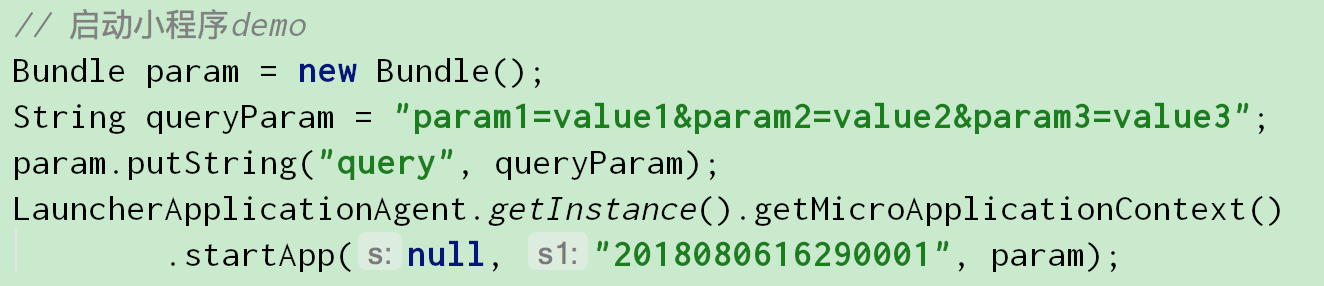
To pass parameters at startup from a URL, the
queryis parsed from thequeryfield of the startup parameters, and thepathis parsed from thepagefield. For example, for the following URL:alipays://platformapi/startapp?appId=1999&query=number%3D1&page=x%2Fy%2FzThe
queryparameter is parsed as follows:number%3D1 === encodeURIComponent('number=1')The
pathparameter is parsed as follows:x%2Fy%2Fz === encodeURIComponent('x/y/z')
When a user starts the miniapp for the first time, you can obtain this parameter from the onLaunch method. If the miniapp is in the background and is reopened using a schema, you can obtain the parameter from the onShow method.
App({
  onLaunch(options) {
    // First time opening
    // options.query == {number:1}
  },
  onShow(options) {
    // Reopened from the background by a scheme
    // options.query == {number:1}
  },
})
getApp()
The global getApp() function is provided to retrieve the miniapp instance. It is generally used in subpages to retrieve the top-level application instance.
var app = getApp()
console.log(app.globalData) // Get globalData
Note:
Call
App()only inapp.js, and call it only once.Do not call
getApp()in a function defined withinApp(). Usethisto access theappinstance.Do not call
<a href="https://docs.alipay.com/mini/framework/page#getcurrentpages">getCurrentPages()</a>inonLaunchbecause thepagehas not been generated yet.After retrieving an instance using
getApp(), do not call lifecycle functions privately.
You can set global data in App(). Subpages can retrieve the global application instance through the global getApp() function. For example:
// app.js
App({
  globalData: 1
})
// a.js
// localValue is valid only in a.js
var localValue = 'a'
// Create an app instance
var app = getApp()
// Get the global data and change it
app.globalData++// b.js
// localValue is valid only in b.js
var localValue = 'b'
// If a.js runs first, globalData returns 2
console.log(getApp().globalData)In the preceding code, both a.js and b.js declare the localValue variable. These variables do not affect each other because variables and functions declared in a script are valid only within that file.
app.json
The app.json file is used for global configuration. It determines page file paths, window appearance, network timeout settings, multi-tab settings, and more.
The following is a simple app.json file that includes some configuration options.
{
  "pages": [
    "pages/index/index",
    "pages/logs/index"
  ],
  "window": {
    "defaultTitle": "Demo"
  }
}
The app.json configuration items are as follows.
File | Type | Required | Description |
pages | String Array | Yes | Sets the page paths. |
window | Object | No | Sets the window appearance for default pages. |
tabBar | Object | No | Sets the appearance of the bottom tab bar. |
pages
The pages property is an array of strings that specifies the pages of the miniapp. Each item represents the path to a page. The first item in the array specifies the home page of the miniapp. To add or remove pages in the miniapp, you must modify the pages array.
You do not need to add the .js suffix to the page path. The framework automatically loads the .json, .js, .axml, and .acss files with the same name.
For example, if the development folder is:
pages/
pages/index/index.axml
pages/index/index.js
pages/index/index.acss
pages/logs/logs.axml
pages/logs/logs.js
app.js
app.json
app.acss
The app.json file must be written as follows.
{
  "pages":[
    "pages/index/index",
    "pages/logs/logs"
  ]
}
Note: If page is omitted, the home page is used by default.
window
The window property is used to set the status bar, navigation bar, title, and window background color for the miniapp.
Sub-properties include titleBarColor, defaultTitle, pullRefresh, and allowsBounceVertical.
File | Type | Required | Description |
titleBarColor | Decimal | No | Background color of the navigation bar. |
defaultTitle | String | No | Page title. |
pullRefresh | Boolean | No | Specifies whether to allow pull-to-refresh. Default: |
allowsBounceVertical | String(YES/NO) | No | Specifies whether the page can be pulled vertically beyond its content. Default: |
Example:
{
  "window":{
    "defaultTitle": "Alipay API Feature Demo"
  }
}
tabBar
If your miniapp is a multi-tab application where users can switch between pages using the tab bar at the bottom of the client window, you can use the tabBar configuration item to specify the appearance of the tab bar and the corresponding page to display when a tab is selected.
Note:
For pages reached by page navigation (
my.navigateTo) or page redirection (my.redirectTo), the bottom tab bar is not displayed, even if the page is defined in the tabBar configuration.The first page in
tabBarmust be the home page.
tabBar Configuration
File | Type | Required | Description |
textColor | HexColor | No | Text color. |
selectedColor | HexColor | No | Selected text color. |
backgroundColor | HexColor | No | Background color. |
items | Array | Yes | Configuration for each tab. |
Item configuration
file | Type | Required | Description |
pagePath | String | Yes | Sets the page path. |
name | String | Yes | Name. |
icon | String | No | Path of the normal icon. |
activeIcon | String | No | Path of the highlighted icon. |
The recommended size for an icon is 60 × 60 px. The system stretches or scales any input image non-proportionally to fit this size.
For example:
{
  "tabBar": {
    "textColor": "#dddddd",
    "selectedColor": "#49a9ee",
    "backgroundColor": "#ffffff",
    "items": [
      {
        "pagePath": "pages/index/index",
        "name": "Home"
      },
      {
        "pagePath": "pages/logs/logs",
        "name": "Logs"
      }
    ]
  }
}
Startup parameters
When you open a miniapp from native code, you can include the page and query parameters. Use the page parameter to specify the path to a specific page and the query parameter to pass in other parameters.
iOS code sample
NSDictionary *param = @{@"page":@"pages/card/index", @"query":@"own=1&sign=1&code=2452473"};
MPNebulaAdapterInterface startTinyAppWithId:@"1234567891234568" params:param];
Android code sample
Bundle param = new Bundle();
param.putString("page", "pages/card/index");
param.putString("query", "own=1&sign=1&code=2452473");
MPNebula.startApp("1234567891234568",param);