Hologres supports querying tables that contain spatial data using PostGIS spatial functions. This topic describes how to import local data into Hologres and use spatial functions to query the data.
Prerequisites
-
You have created a Hologres instance. For more information, see Purchase a Hologres instance.
-
You have created a database in your Hologres instance. For more information, see Create a database.
-
You have downloaded the sample data tables provided in this example. Use the following links to download the files:
Background information
PostGIS is a spatial extension for the PostgreSQL database. It provides spatial objects, spatial indexes, spatial functions, and spatial operators for information services.
This topic provides sample data tables that include spatial information such as longitude, latitude, coordinates, and distance. You can use HoloWeb in Hologres to create tables and import local data into the accommodations and zipcodes tables with one click. Then, use PostGIS spatial functions to query the spatial data in these tables.
Procedure overview
|
Procedure |
Description |
|
Create an accommodations table in your Hologres database to store accommodation locations (longitude and latitude), listing names, and other data. Create a zipcodes table to store Berlin postal code data. |
|
|
Use HoloWeb to import local data into the accommodations and zipcodes tables with one click. |
|
|
Use PostGIS spatial functions to query spatial data in the tables. |
Step 1: Create tables
Follow these steps to create the accommodations and zipcodes tables in your database.
-
Log on to the HoloWeb console SQL Editor page.
-
Click the
 icon below the SQL Editor tab to open the Ad-hoc Query window. In the toolbar of the query window, select the Instance Name and Database of the Hologres instance that you have created and logged on to.
 -
Load the PostGIS extension.
In the command editor, enter the following SQL command and click Run.
CREATE extension IF NOT EXISTS postgis; -- Load the PostGIS extension -
Create the accommodations table.
Run the following SQL statement to create the accommodations table for storing accommodation locations (longitude and latitude), listing names, and other data.
NoteAfter the table is created, click the
 icon to the right of Table Directory on the left side of the query window, then click to view the creation result. Alternatively, check the Operational Logs to see if the table was created successfully.
CREATE TABLE public.accommodations ( id INTEGER PRIMARY KEY, shape GEOMETRY, name VARCHAR(100), host_name VARCHAR(100), neighbourhood_group VARCHAR(100), neighbourhood VARCHAR(100), room_type VARCHAR(100), price SMALLINT, minimum_nights SMALLINT, number_of_reviews SMALLINT, last_review DATE, reviews_per_month NUMERIC(8,2), calculated_host_listings_count SMALLINT, availability_365 SMALLINT ); -
Create the zipcodes table.
Run the following SQL statement to create the zipcodes table for storing Berlin postal code data.
NoteAfter the table is created, click the
icon to the right of Table Directory on the left side of the query window, then click to view the creation result. Alternatively, check the Operational Logs to see if the table was created successfully.CREATE TABLE public.zipcode ( ogc_field INTEGER PRIMARY KEY NOT NULL, wkb_geometry GEOMETRY, gml_id VARCHAR(256), spatial_name VARCHAR(256), spatial_alias VARCHAR(256), spatial_type VARCHAR(256) );
Step 2: Import test data
After creating the tables, use the Import On-premises File feature in HoloWeb to import data into the accommodations and zipcodes tables.
-
In the HoloWeb console, click Data Solutions at the top.
-
On the Data Solutions page, click Import On-premises File on the left. On the right side of the page, click New Data Import.
-
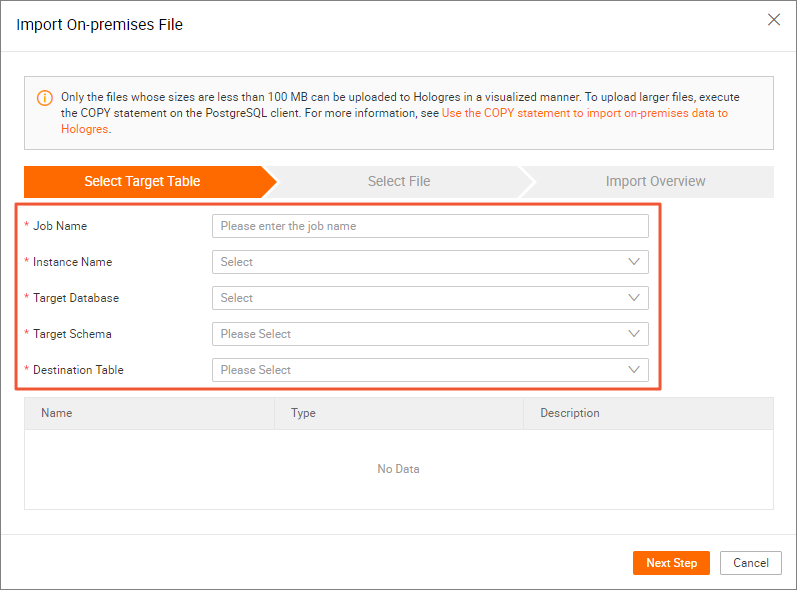
Select the table to upload data to.
In the Import On-premises File dialog box, enter a job name and select your instance, database, and table (accommodations or zipcodes). Click Next.
-
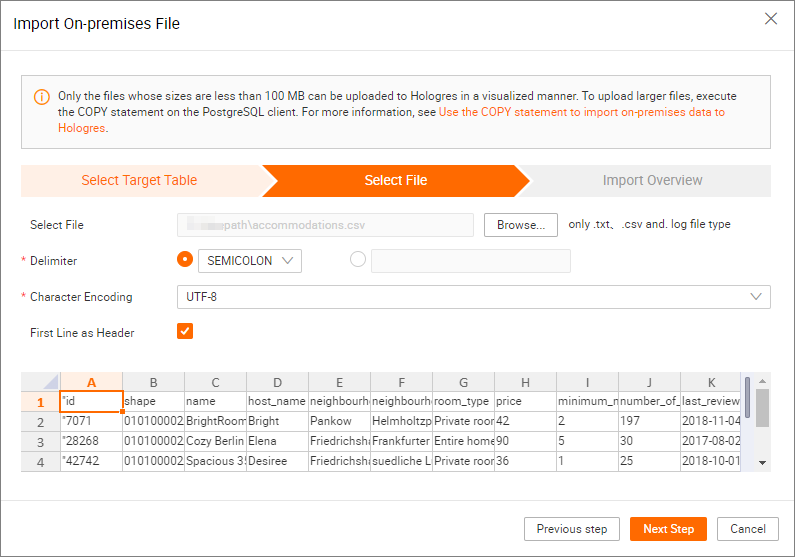
Select the data file and format.
On the Upload File tab, configure the following settings and click Next.
Parameter
Parameter descriptions
Select file
Click Browse to upload the data file. Only files with .txt, .csv, or .log extensions are supported. Use the accommodations and zipcodes data tables provided in the prerequisites.
Select separator
Select the data separator. In this example, select semicolon.
NoteYou can also click the options next to the separator field to use a custom separator based on your data.
Source character set
In this example, select UTF-8.
First row as header
By default, this option is not selected. If the first row of your data file contains headers, select this option.
-
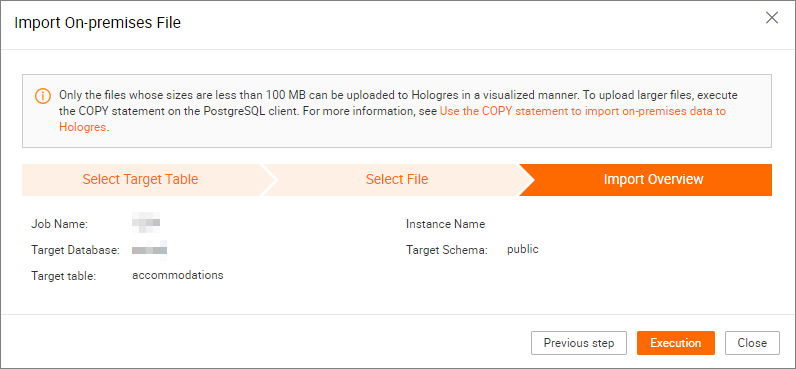
Confirm the data import information.
On the Import Overview tab, verify that the information is correct, then click Upload.
-
View the data import result.
After execution, the system displays whether the import succeeded. If it failed, the system shows the reason. Fix the issue and reimport the data.
You can also run the following code in the SQL Editor to check the number of records and view table contents.
-
Check the number of records
The accommodations table contains 22,248 records. The zipcodes table contains 190 records.
SELECT COUNT(*) FROM accommodations; -- Query the number of records in the accommodations table SELECT COUNT(*) FROM zipcode; -- Query the number of records in the zipcode table -
View table contents
SELECT * FROM accommodations; -- Query records in the accommodations table
SELECT * FROM zipcode; -- Query records in the zipcode table
-
Step 3: Query data using spatial functions
After successfully creating and importing data into the tables, use spatial functions to query spatial data as needed. The following examples show common query operations. For syntax details of spatial functions, see Spatial functions.
-
Query the number of records in the accommodations table where SRID is 4326.
-
Code example:
SELECT COUNT(*) FROM public.accommodations WHERE ST_SRID(shape) = 4326; -
Result:
 count
-------
 22248
(1 row)
-
-
Use WKT format to query geometry objects with specific attributes. Verify that the postal code data is also stored in WGS 84, which uses SRID 4326.
NoteSpatial data must use the same spatial reference system to be interoperable.
-
Code example:
SELECT ogc_field ,spatial_name ,spatial_type ,ST_SRID(wkb_geometry) ,ST_AsText(wkb_geometry) FROM public.zipcode ORDER BY spatial_name ; -
Result:
ogc_field  spatial_name  spatial_type  st_srid  st_astext
---------------------------------------------------------------
0           10115        Polygon        4326     POLYGON((...))
4           10117        Polygon        4326     POLYGON((...))
8           10119        Polygon        4326     POLYGON((...))
...
(190 rows returned)
-
-
Use GeoJSON format to query the polygon for Berlin Mitte (postal code 10117), its dimension, and the number of points in the polygon.
-
Code example:
SELECT ogc_field ,spatial_name ,ST_AsGeoJSON(wkb_geometry) ,ST_Dimension(wkb_geometry) ,ST_NPoints(wkb_geometry) FROM public.zipcode WHERE spatial_name = '10117' ; -
Result:
ogc_field  spatial_name  spatial_type                                   st_dimension  st_npoint
-----------------------------------------------------------------------------------------------
4           10117         {"type":"Polygon", "coordinates":[[[...]]]}    2             331
-
-
Query the number of accommodations within 500 meters of the Brandenburg Gate (SRID 4326).
-
Code example:
SELECT COUNT(*) FROM public.accommodations WHERE ST_DistanceSphere(shape, ST_GeomFromText('POINT(13.377704 52.516431)', 4326)) < 500 ; -
Result:
 count
-------
    29
(1 row)
-
-
Get an approximate location of the Brandenburg Gate from nearby accommodations.
-
Code example:
WITH poi(loc) AS ( SELECT st_astext(shape) FROM accommodations WHERE name LIKE '%brandenburg gate%' ) SELECT COUNT(*) FROM accommodations a ,poi p WHERE ST_DistanceSphere(a.shape, ST_GeomFromText(p.loc, 4326)) < 500 ; -
Result:
 count
-------
    60
(1 row)
-
-
Query detailed information about all accommodations near the Brandenburg Gate, sorted by price in descending order.
-
Code example:
SELECT name ,price ,ST_AsText(shape) FROM public.accommodations WHERE ST_DistanceSphere(shape, ST_GeomFromText('POINT(13.377704 52.516431)', 4326)) < 500 ORDER BY price DESC ; -
Result:
                        name                        | price |                st_astext
----------------------------------------------------+-------+------------------------------------------
 DUPLEX APARTMENT/PENTHOUSE in 5* LOCATION! 7583    |   300 | POINT(13.3826510209548 52.5159819722552)
 DUPLEX-PENTHOUSE IN FIRST LOCATION! 7582           |   300 | POINT(13.3799997083855 52.5135918444834)
 Luxury Apartment in Berlin Mitte with View         |   259 | POINT(13.3835653528534 52.516360156825)
 BIG APT 4 BLNCTY-CNTR 43-H6                        |   240 | POINT(13.3800222998777 52.5134224506894)
 BIG APARTMENT-PRIME LOCATION-BEST PRICE! B0303     |   240 | POINT(13.379745196599 52.5162648947249)
 BIG APARTMENT IN BRILLIANT LOCATION-CTY CENTRE B53 |   240 | POINT(13.381383105167 52.5157082721072)
 SONYCENTER: lux apartment - 3room/2bath. WIFI      |   235 | POINT(13.3743158954191 52.5125308432819)
 CENTRE APARTMENT FOR 6 | 8853                      |   220 | POINT(13.3819039478615 52.5134866767369)
 BIG APARTMENT FOR 6 - BEST LOCATION 8863           |   209 | POINT(13.3830430841658 52.5147824286783)
 3 ROOMS ONE AMAZING EXPERIENCE! 8762               |   190 | POINT(13.3819898503053 52.5144190764637)
 AAA LOCATION IN THE CENTRE H681                    |   170 | POINT(13.3821787206534 52.5129769242004)
 H672 Nice Apartment in CENTRAL LOCATION!           |   170 | POINT(13.3803137710339 52.5132386929089)
 "Best View -best location!"                        |   170 | POINT(13.3799551247135 52.5147888483851)
 H652 Best Location for 4!                          |   170 | POINT(13.3805705422409 52.5143845784482)
 H651 FIT´s for Four in a 5* Location!              |   150 | POINT(13.3822063502184 52.5134994650996)
 NEXT TO ATTRACTIONS! H252                          |   110 | POINT(13.3823616629115 52.5136258446666)
 CTY Centre Students Home| G4                       |   101 | POINT(13.3808081476226 52.5130957830586)
 Room for two with private shower / WC              |    99 | POINT(13.3786877948382 52.5208018292043)
 StudentsHome CityCentre Mitte 91-0703              |    95 | POINT(13.3810390515141 52.5142363781923)
 FIRST LOCATION - FAIR PRICE K621                   |    80 | POINT(13.3823909855061 52.5131554670458)
 LONG STAY FOR EXPATS/STUDENTS- CITY CENTRE | K921  |    75 | POINT(13.380320945399 52.512364557598)
 Nice4Students! City Centre 8732                    |    68 | POINT(13.3810147526683 52.5136623602892)
 Comfy Room in the heart of Berlin                  |    59 | POINT(13.3813167311819 52.5127345388756)
 FO(U)R STUDENTS HOME-Best centre Location!         |    57 | POINT(13.380850032042 52.5131726958513)
 Berlin Center Brandenburg Gate !!!                 |    55 | POINT(13.3849641540689 52.5163902851474)
 !!! BERLIN CENTER BRANDENBURG GATE                 |    55 | POINT(13.379997730927 52.5127577639174)
 Superb Double Bedroom in Central Berlin            |    52 | POINT(13.3792991992688 52.5156572293422)
 OMG! That’s so Berlin!                            |    49 | POINT(13.3754883007165 52.5153487677272)
 Apartment in Berlin's old city center              |    49 | POINT(13.3821761577766 52.514037240604)
(29 rows)
-
-
Query the most expensive accommodation and its postal code.
-
Code example:
SELECT a.price ,a.name ,ST_AsText(a.shape) ,z.spatial_name ,ST_AsText(z.wkb_geometry) FROM accommodations a ,zipcode z WHERE price = 9000 AND ST_Within(a.shape, z.wkb_geometry) ; -
Result:
price   name                                 st_astext                                  spatial_name      st_astext
-------------------------------------------------------------------------------------------------------------------------------------------------
9000    Ueber den Dächern Berlins Zentrum    POINT(13.334436985013 52.4979779501538)    10777             POLYGON((13.3318284987227 52.4956021172799,...
-
-
Identify hot spots of accommodations listed on SoBerlin. Group hot spots by postal code and sort by supply.
-
Code example:
SELECT z.spatial_name AS zip ,COUNT(*) AS numAccommodations FROM public.accommodations a ,public.zipcode z WHERE ST_Within(a.shape, z.wkb_geometry) GROUP BY zip ORDER BY numAccommodations DESC ; -
Result:
zip      numaccommodations
----------------------------
10245    872
10247    832
10437    733
10115    664
...
(187 rows returned)
-