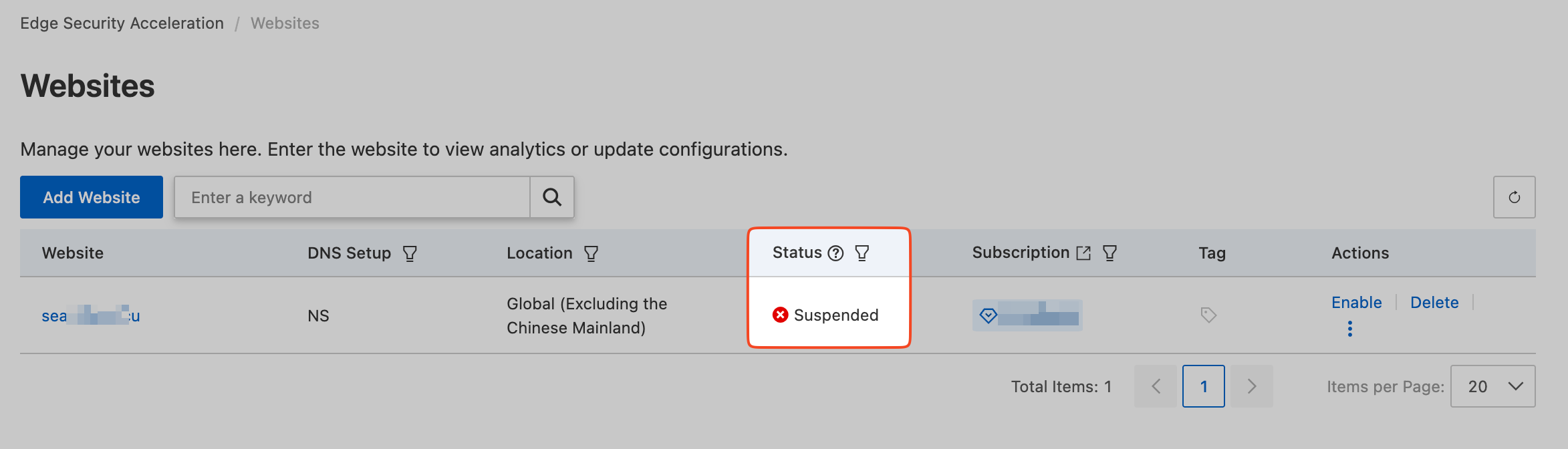
The usage cap feature helps you manage site resources and prevent high pay-as-you-go bills from unexpected traffic spikes. This feature may affect service continuity and must be used with caution.
Enable usage cap
The detection latency for usage caps is about 10 to 15 minutes.
In the ESA console, choose Websites. In the Website column, click the target site.
In the navigation pane on the left, choose Usage Cap.
On the Usage Cap page, click Create Rule. Enter a Rule Name, and set the match conditions and Statistical Cycle.
Every 5 Minutes: The statistical period is a 5-minute time window.
Every Hour: The statistical period is a 1-hour time window.
Every Day: The statistical period is a calendar day, from 00:00 to 23:59 on the current day.
Every Month: The statistical period is a calendar month (from the first day to the last day of the current month).
Select an action and click OK.
Disable Website: If traffic reaches the configured threshold, the site is disabled and its status changes to suspended. As a result, acceleration, security, and computing services become unavailable. This action affects your online business and must be used with caution. To ensure your site run as expected, set a higher threshold than your planned usage.
Delete DNS Records: If traffic reaches the configured threshold, this action deletes a specific subdomain record. Choose this option if you want to avoid taking the site offline.
WarningDeleting a subdomain record is irreversible. The system cannot restore a deleted record. You must manually add the record and its configuration again. Use this feature with caution.
Manage usage cap
In the ESA console, choose Websites. In the Website column, click the target site.
In the navigation pane on the left, choose Usage Cap.
On the Usage Cap page, you can Edit, Disable, Enable, or Delete a rule.
NoteYou can create up to five rules for each site. Each rule can be enabled or disabled. A disabled rule is not in effect.
Configuration example
Use case
To control business costs, a blog website needs to set a monthly traffic cap of 50 GB for its official primary site.
Steps
In the ESA console, choose Websites. In the Website column, click the target site.
In the navigation pane on the left, choose Usage Cap.
On the Usage Cap page, click Create Rule, and create a rule as follows:
Rule Name:
my_ruleMetrics:
Site Traffic Greater than 50 GBStatistical Cycle:
MonthlyAction:
Disable Site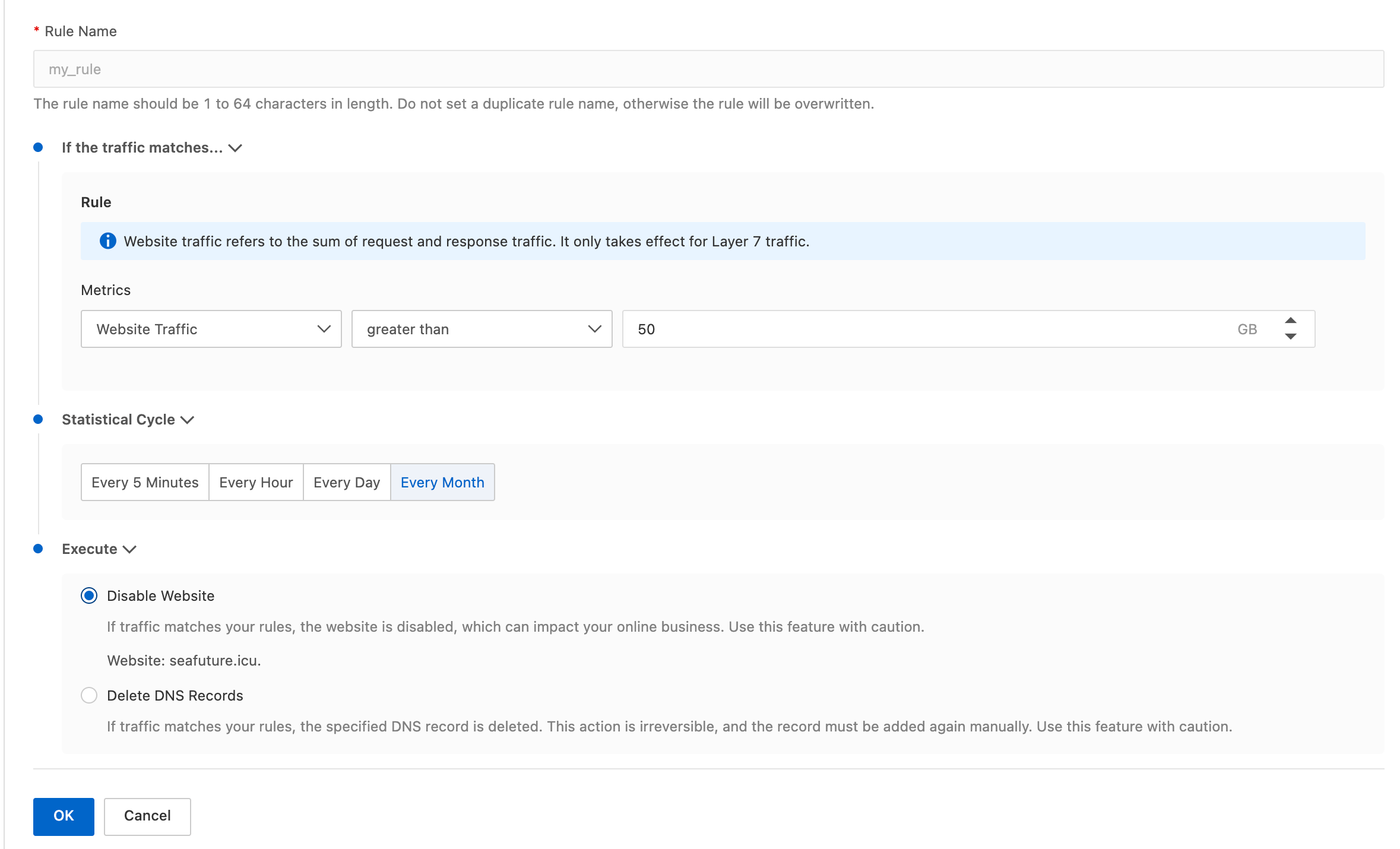
Result
If the monthly traffic exceeds 50 GB, the site will be disabled.