When you update a Spring Cloud or Dubbo microservices application deployed in an Elastic Compute Service (ECS) cluster, a canary release lets you validate the new version on a small subset of instances before rolling it out to all instances. This limits the blast radius of a faulty release and gives you a controlled verification window.
A canary release in Enterprise Distributed Application Service (EDAS) follows this flow:
Deploy the new version to one instance group (the canary group).
Route traffic to the canary group based on content matching rules or a traffic ratio.
Verify that the canary group handles traffic correctly.
Roll out the new version to the remaining instance groups in batches.
Supported application types
| Application type | Canary release support | Notes |
|---|---|---|
| Dubbo | Supported | No restrictions. |
| Spring Cloud | Supported with restrictions | Do not use canary release if the application configures features through Deployment.Metadata.Name or Deployment.Metadata.Uid. Native application features may behave abnormally after the release. |
| High-Speed Service Framework (HSF) | Not supported | -- |
| Ingress | Limited | If a Server Load Balancer (SLB) instance directly forwards traffic to an ingress application, the SLB traffic forwarding policy does not follow the canary release policy. See the workaround below. |
Ingress application workaround: To use canary release with an ingress application, create a client application and a server application with multiple replicas. Implement canary release for the server application, and associate the SLB instance with the client application to handle service access.
Prerequisites
Before you begin, make sure that you have:
An application with at least two instance groups that contain instances. To create instance groups and add ECS instances, see Manage an instance group in an ECS cluster in the EDAS console
Start a canary release
Log on to the EDAS console.
In the left-side navigation pane, choose Application Management > Applications.
In the top navigation bar, select a region. In the upper part of the Applications page, select a microservices namespace from the Microservices Namespace drop-down list. Click the name of the application.
In the upper-right corner of the Basic Information page, click Deploy Application.
On the Select Deployment Mode page, find the Canary Release (Phased) section and click Start Deployment.
On the Canary Release (Phased) page, configure the following settings and click OK.
Upload the deployment package of the new application version.
In the Release Policy section, configure the release policy parameters.
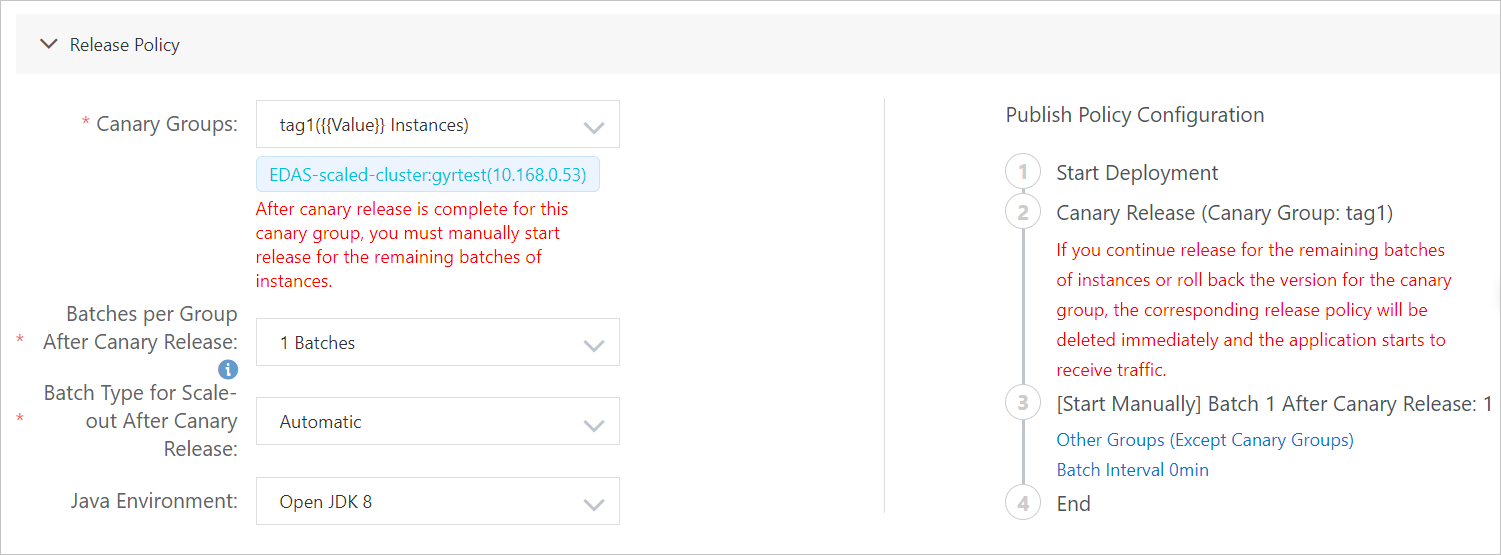
The Publish Policy Configuration section displays a preview of the canary release flow based on your settings.
Parameter
Description
Canary Groups
The instance group to which the new version is deployed first.
Batches per Group After Canary Release
The number of batches for deploying the new version to the remaining groups after the canary group finishes. When all groups are selected, each group is deployed in the specified number of batches. If the number of instances in a group is less than the batch count, the deployment uses the actual instance count. When a specific group is selected, only that group is deployed in the specified number of batches.
Batch Type for Scale-out After Canary Release
Required when Batches per Group After Canary Release is 2 or more. Automatic: The system deploys each batch at a set interval. Specify Wait Time Before Next Batch (Do Not Wait, 1 Minutes, 2 Minutes, 3 Minutes, 4 Minutes, or 5 Minutes). Manual: Manually trigger each subsequent batch.
Java Environment
The runtime environment for the application.
Configure canary release rules. EDAS supports two rule types:
Canary release by content
Click Add Policy. In the Add a canary release by content policy panel, click + Create Inbound Traffic Rule to create a traffic routing rule. You can create multiple inbound traffic rules.
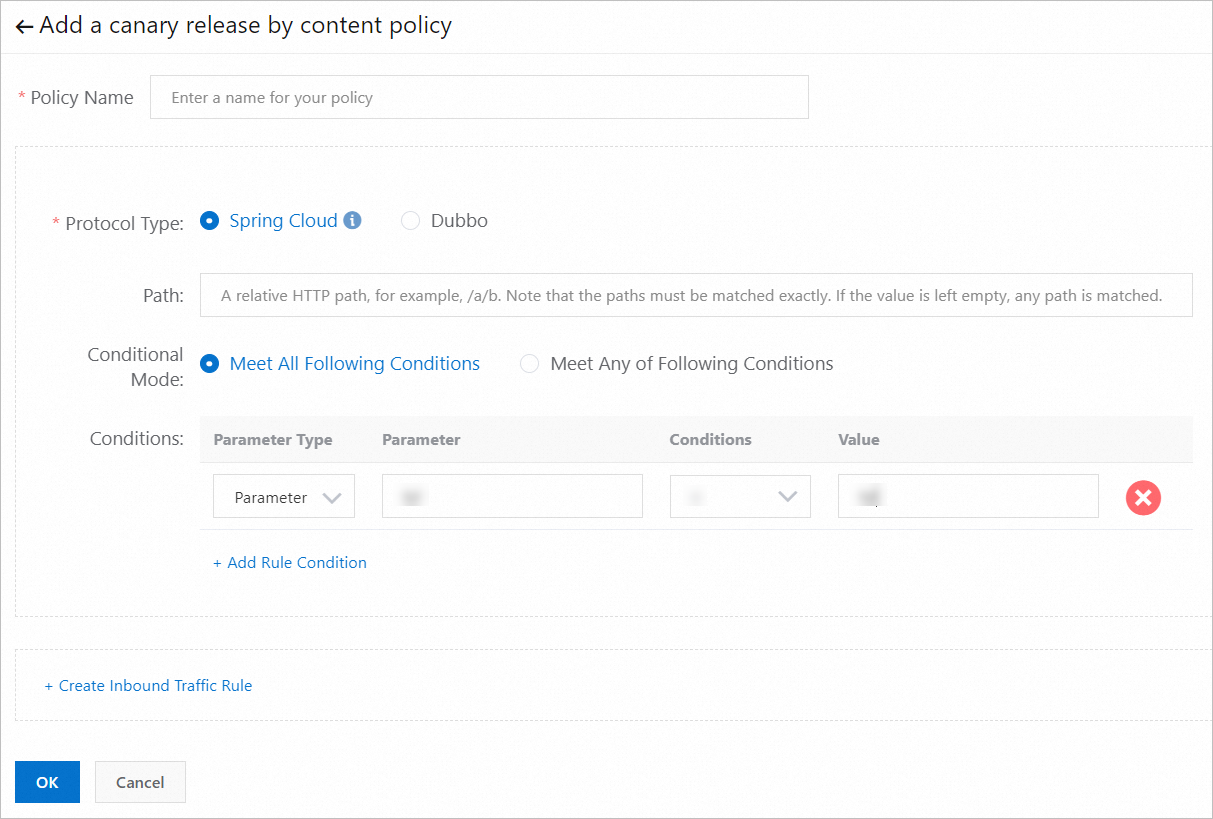
Parameter
Description
Protocol Type
The protocol used by the application. Spring Cloud: Requires the Path parameter. Dubbo: Requires the Select Service and Method parameters.
Conditional Mode
How conditions are evaluated. Meet All Following Conditions: All conditions must match (AND logic). Meet Any of Following Conditions: Any condition can match (OR logic).
Conditions
The matching conditions for traffic routing. Spring Cloud: Cookie, Header, and Parameter. Dubbo: Parameter and Expression for Getting Parameter Values.
Canary release by ratio
Set the Traffic Ratio parameter to specify the percentage of traffic routed to the canary group.
After the canary release starts, the new version is deployed to the canary group. Monitor deployment progress on the Change Details page.
Verify that traffic is distributed as expected. For details, see Monitor canary traffic.
After verification, click Start Next Batch on the Change Details page to proceed with the remaining phased deployment.
Roll back a canary release
If an issue occurs during verification, click Stop Change in the upper-right corner of the Change Details page.
After the change stops, the following message appears on the Basic Information tab: The application is in the canary release state and this change has been stopped. Please roll back the application before you perform other operations.
Roll back the application before you perform any other deployment operations.
Verify the release result
After the canary release completes:
On the Basic Information tab, confirm that Deployment Package shows the new version.
On the Instance Information tab, confirm that all instances are in the Normal state.