After a sensitive data detection scan is complete, you can view the results in Data Security Center. Results are available for database instances, OSS Buckets, SLS Projects, and specific data objects, such as data tables, files, or data stored within a 5-minute interval. This topic describes how to view the sensitive data detection results for database instances, data objects, and files.
View detection results for a database instance
Follow these steps to view the sensitive data detection results for a database instance.
Log on to the Data Security Center console.
In the navigation pane on the left, select .
On the Asset Type tab, click a data type to view the sensitive data detection results for all its database instances that are connected to Data Security Center.
NoteYou can view sensitive data detection results by different dimensions on the Asset Type and Data Domain tabs. This topic uses the Asset Type tab as an example. Alternatively, you can select a data domain on the Data Domain tab to view the detection results for asset instances within that domain.
Sensitivity level
Description
N/A
No sensitive information included in the current identification template is detected.
S1
Non-sensitive data. In most cases, the disclosure of this type of data does not cause harm. Examples: provinces, cities, and product names.
S2
Moderately sensitive data. This type of data is not suitable for disclosure. The disclosure of this type of data causes low-level harm. Examples: names and addresses.
S3
Highly sensitive data. This type of data has a high sensitivity level. The disclosure of a small amount of this type of data causes serious harm. Examples: identity documents, account passwords, and database information.
S4
Core confidential data. This type of data must not be disclosed under any circumstances. Examples: genes, fingerprints, and iris information.

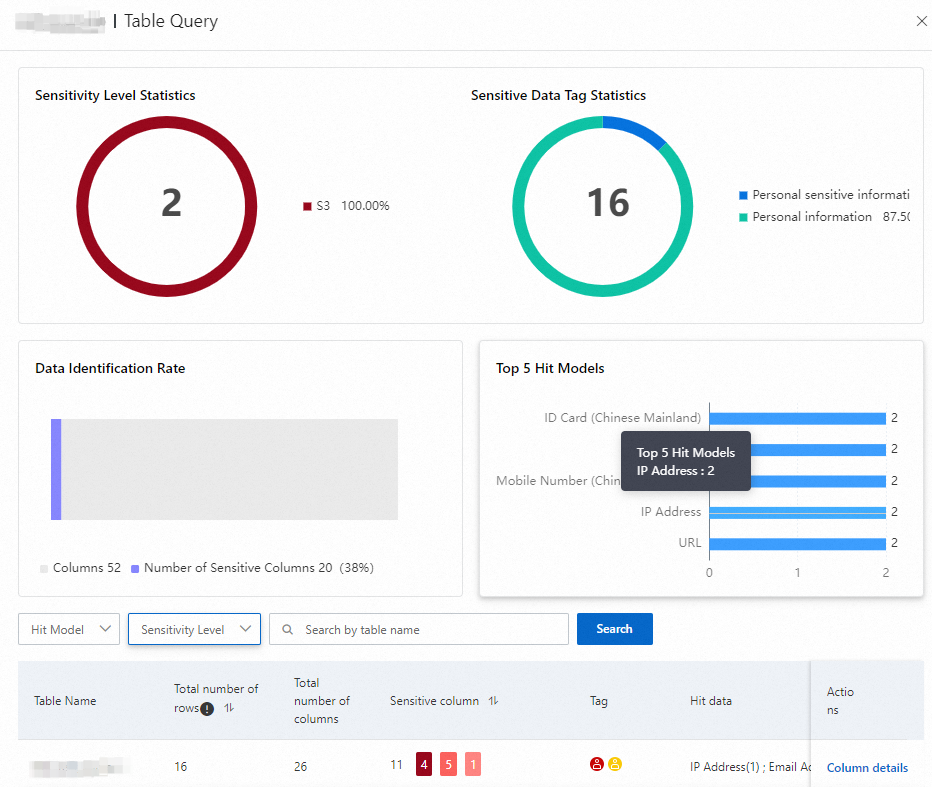
To view the details of sensitive data in a data asset instance, click Table Details (for structured data and big data), Details (for unstructured data in SLS), or File Details (for unstructured data in OSS) in the Actions column.
In the details panel that appears on the right, you can view the sensitive data statistics, as shown in the following figure.
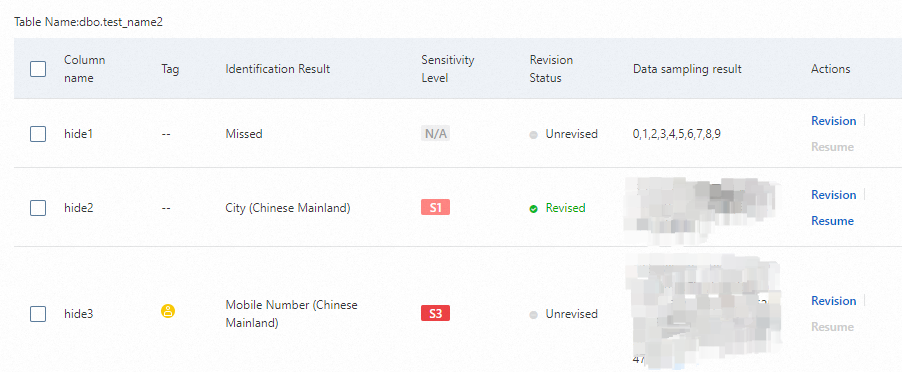
In the sensitive data list, click Column details (for structured data and big data) or Hit details (for unstructured data) in the Actions column to view the details of the rules that were hit for each data column.
If Revision is available in the Actions column, you can correct the sensitive data detection results.
View detection results for an OSS Bucket
Follow these steps to view the sensitive data detection results for an OSS Bucket.
Log on to the Data Security Center console.
In the navigation pane on the left, choose .
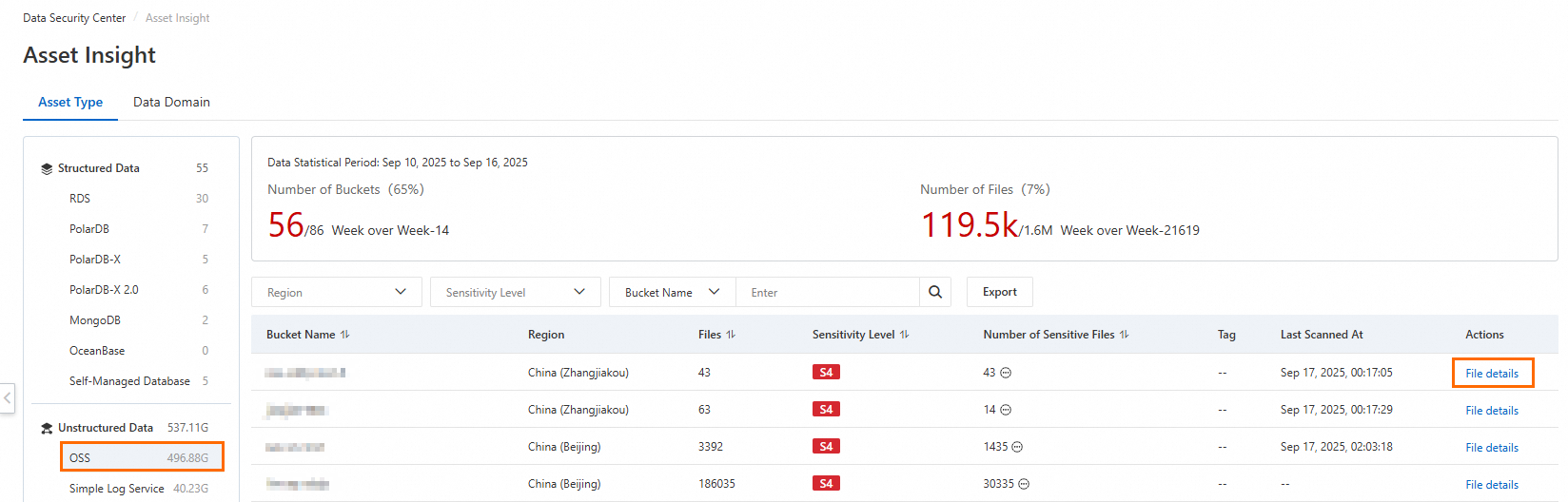
On the Asset Type tab, click in the left-side pane to view the sensitive data detection results for all OSS Buckets connected to Data Security Center. For information about the sensitivity levels, see the following table.
Sensitivity level
Description
N/A
No sensitive information included in the current identification template is detected.
S1
Non-sensitive data. In most cases, the disclosure of this type of data does not cause harm. Examples: provinces, cities, and product names.
S2
Moderately sensitive data. This type of data is not suitable for disclosure. The disclosure of this type of data causes low-level harm. Examples: names and addresses.
S3
Highly sensitive data. This type of data has a high sensitivity level. The disclosure of a small amount of this type of data causes serious harm. Examples: identity documents, account passwords, and database information.
S4
Core confidential data. This type of data must not be disclosed under any circumstances. Examples: genes, fingerprints, and iris information.
In the Actions column of the target bucket, click File details.
In the OSS object query panel, you can view the sensitive data statistics, as shown in the following figure.
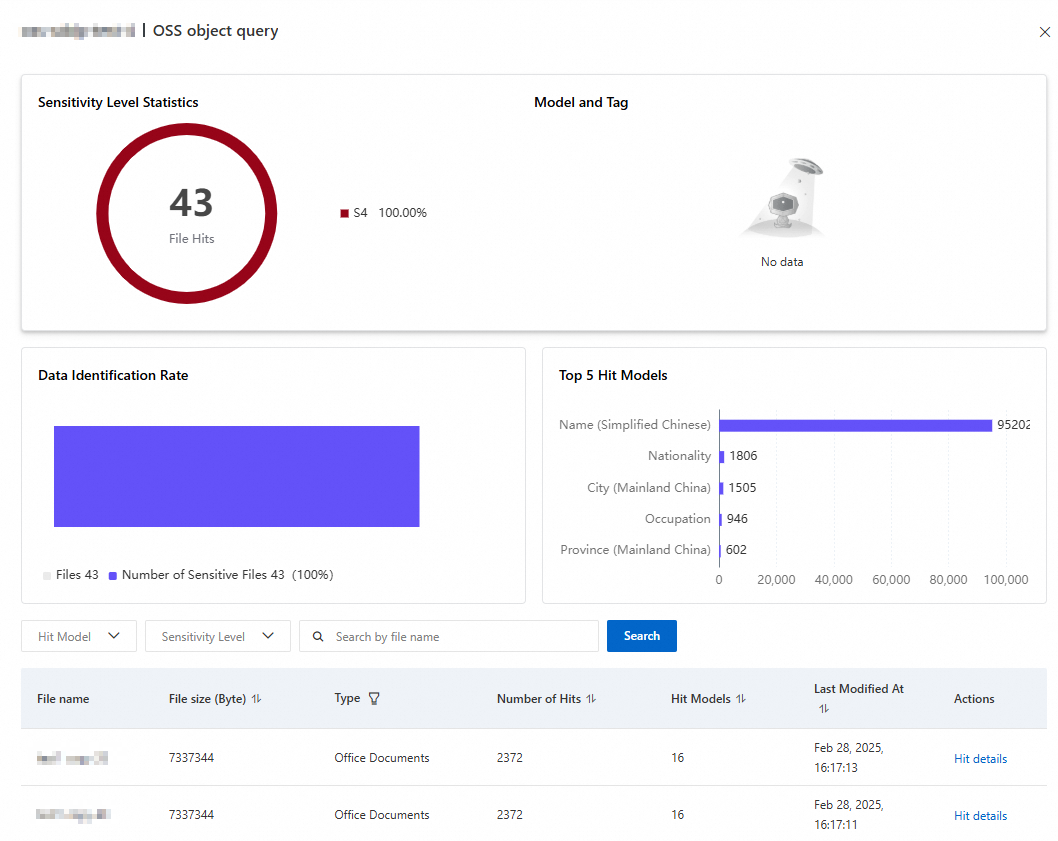
In the Actions column of the sensitive file, click Hit details. In the Hit query panel, you can view details about the sensitive information in the file, such as the Hit Model, Sensitivity Level, Number of Hits, and Data sampling result.
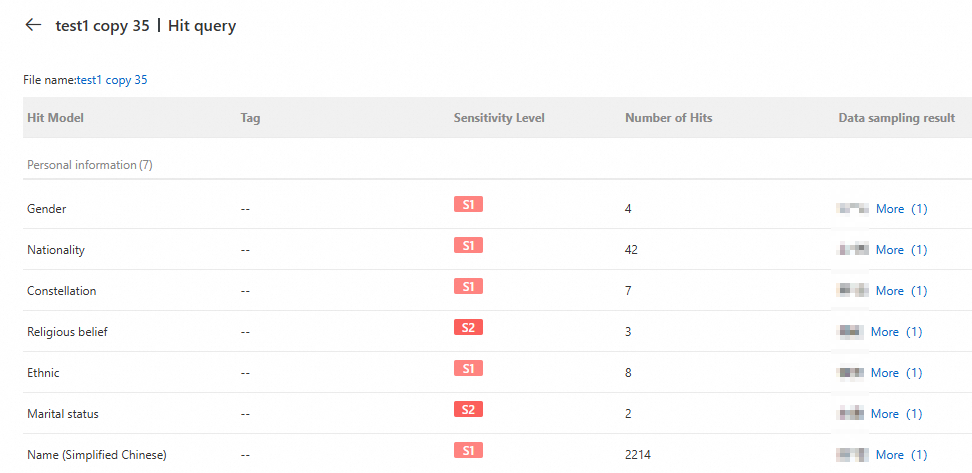
Click the File name above the list to go to the OSS console and view the file details.
NoteThe path that you are redirected to when you click the file name is the file path that Data Security Center obtained during the scan. If the file was moved, this path may be incorrect. You can rerun the detection task on the tab.
View detection results for SLS
You can perform the following steps to follow the sensitive data detection results for an OSS bucket.
Log on to the Data Security Center console.
In the navigation pane on the left, choose .
On the Asset Type tab, click in the left-side pane to view the sensitive data detection results for all SLS projects connected to Data Security Center. For information about the sensitivity levels, see the following table.
Sensitivity level
Description
N/A
No sensitive information included in the current identification template is detected.
S1
Non-sensitive data. In most cases, the disclosure of this type of data does not cause harm. Examples: provinces, cities, and product names.
S2
Moderately sensitive data. This type of data is not suitable for disclosure. The disclosure of this type of data causes low-level harm. Examples: names and addresses.
S3
Highly sensitive data. This type of data has a high sensitivity level. The disclosure of a small amount of this type of data causes serious harm. Examples: identity documents, account passwords, and database information.
S4
Core confidential data. This type of data must not be disclosed under any circumstances. Examples: genes, fingerprints, and iris information.
In the Actions column of the target Logstore, click Details.
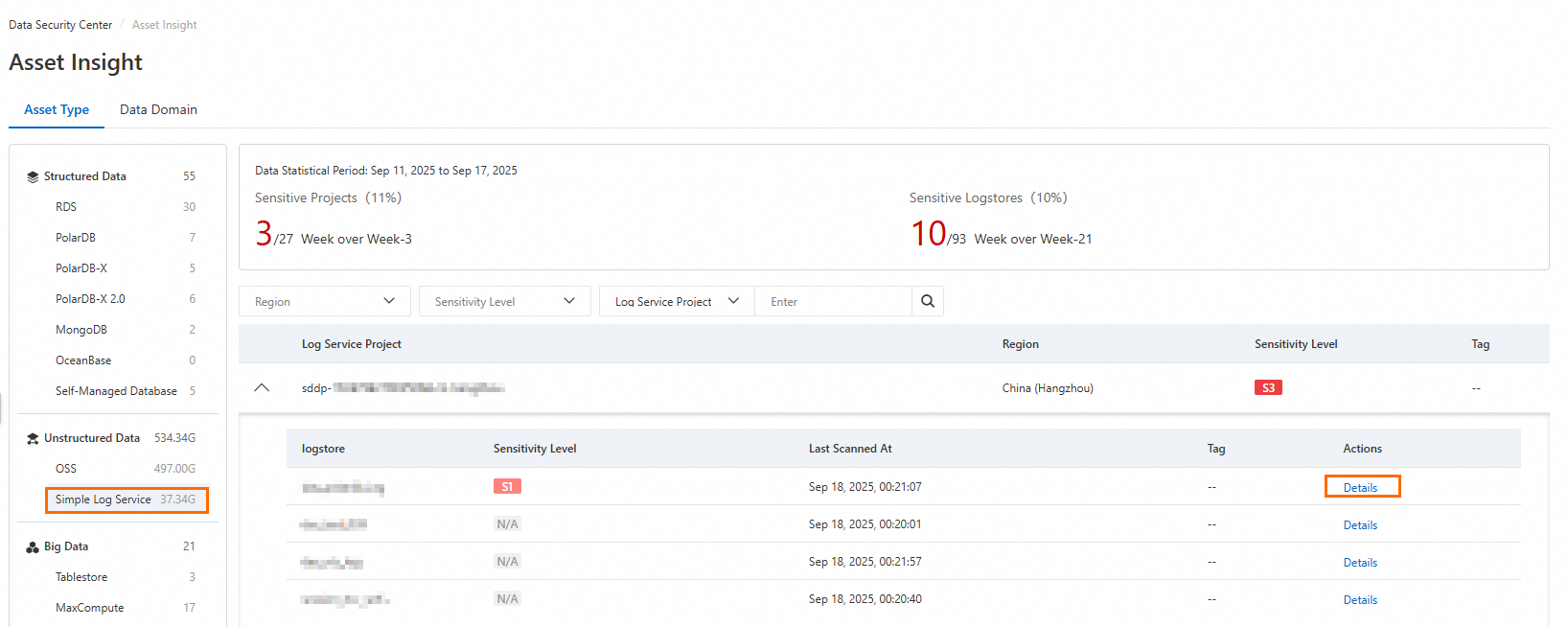
In the Simple Log Service Object Query panel, you can view the sensitive data statistics, as shown in the following figure.
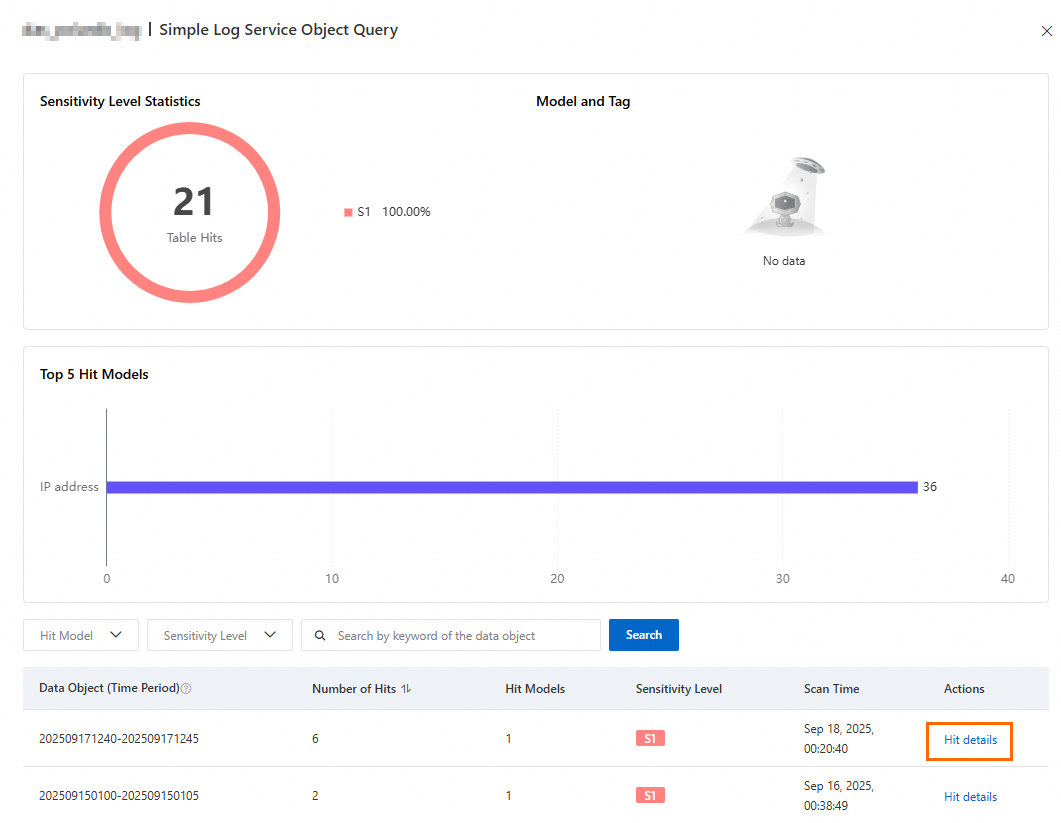
In the Actions column of the data object, click Hit details to view information such as the Hit Model, Sensitivity Level, Number of Hits, and Data sampling result.
Click a result in the Data sampling result column to go to the corresponding Logstore in SLS and filter logs based on the result.
Simple Log Service limits
The following limits apply when you query logs in SLS based on sampling results:
Field index
Index not created: If an index has not been created, an error is reported when you attempt to filter logs based on sampling results.
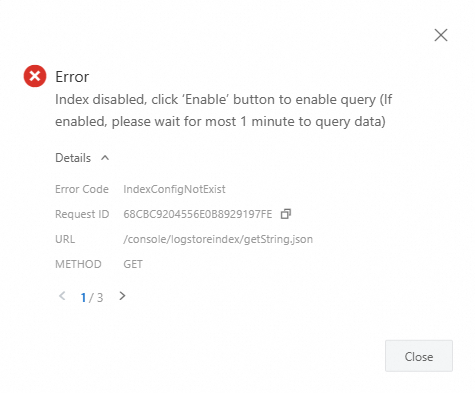
Click Enable Index in the upper-right corner of the page. In the Query and Analysis panel, you can configure the index, tokenizers, and other settings. For more information, see Create an index.
Index created: If an index has been created but does not cover the fields to be retrieved, the query may return no results. You must adjust the field configuration of the index to include the required fields.
Account permissions: If you use a Resource Access Management (RAM) user, make sure that the user has the read-only permission for Simple Log Service (AliyunLogReadOnlyAccess).