Tablestore Stream Reader allows you to export incremental data from Tablestore. This topic describes how to configure a synchronization task by using Tablestore Stream Reader.
Background information
Unlike the readers that are used to read full data, Tablestore Stream Reader supports only the multi-version mode. If you use Tablestore Stream Reader to read incremental data, you cannot specify the columns from which you want to read data. Incremental data can be considered as operation logs that include data and operation information. For more information, see Tablestore Stream data source.
When you use Tablestore Stream Reader to configure a synchronization task, take note of the following points:
If the task is scheduled to run by day, the task reads the data that is generated during the last 24 hours, but does not read the data that is generated in the last 5 minutes. We recommend that you schedule the task by hour.
The end time that you specify cannot be later than the current system time. Therefore, the end time must be at least 5 minutes earlier than the scheduled time to run the task.
When the task is scheduled to run by day, the data that is read may be incomplete.
The task cannot be scheduled to run by week or month.
The period of time from the start time to the end time must include the time when operations are performed on the desired Tablestore table. For example, you inserted two data records into a Tablestore table at 16:20:00 on October 19, 2017. You can set the start time to 20171019161000 and the end time to 20171019162600.
Add a data source
Go to the Data Integration page.
Log on to the DataWorks console. In the top navigation bar, select the desired region. In the left-side navigation pane, choose . On the page that appears, select the desired workspace from the drop-down list and click Go to Data Integration.
In the left-side navigation pane of the Data Integration page, click Data Source. The Data Source page appears.
Click Add Data Source.
In the Add Data Source dialog box, click Tablestore.
In the Add OTS Data Source dialog box, configure the parameters.
Parameter
Description
Data Source Name
The name of the data source. The name can contain only letters, digits, and underscores (_) and must start with a letter.
Data Source Description
The description of the data source. The description cannot exceed 80 characters in length.
Endpoint
The endpoint of Tablestore.
Tablestore Instance Name
The name of the Tablestore instance.
AccessKey ID
The AccessKey ID of the Alibaba Cloud account that you use to connect to the Tablestore instance. You can copy the AccessKey ID on the AccessKey Pair page.
AccessKey Secret
The AccessKey secret of the Alibaba Cloud account that you use to connect to the Tablestore instance.
Find the resource group that you want to use and click Test Network Connectivity in the Connection Status (Production Environment) column.
If the connectivity test is successful, click Complete.
Configure the batch synchronization task by using the codeless UI
Go to the DataStudio page.
Log on to the DataWorks console. In the top navigation bar, select the desired region. In the left-side navigation pane, choose . On the page that appears, select the desired workspace from the drop-down list and click Go to Data Development.
On the DataStudio page, find the desired workflow and click the name of the workflow. Right-click Data Integration and choose .
In the Create Node dialog box, configure the Name and Path parameters and click Confirm.
Select Tablestore Stream for Source and MaxCompute(ODPS) for Destination, select a resource group that you want to use to run the synchronization task, and then test the connectivity.
Configure the source and destination.
Category
Parameter
Description
Source
Table
The name of the table from which you want to read incremental data. You must make sure that the Stream feature is enabled for the table. You can enable the Stream feature for a table when you create the table.
Start time
The start time of the incremental data, in milliseconds. The start time is the left boundary of the left-closed, right-open time range of the incremental data. Configure this parameter in the yyyymmddhh24miss format.
End time
The end time of the incremental data, in milliseconds. The end time is the right boundary of the left-closed, right-open time range of the incremental data. Configure this parameter in the yyyymmddhh24miss format.
Status table
The name of the table that Tablestore Stream Reader uses to store status records.
Maximum number of retries
The maximum number of retries for each request to read incremental data from Tablestore. Default value: 30.
Export timing information
Specifies whether to read time series information. The time series information includes the time when data is written.
Destination
Table
The table to which you want to write data.
Partition information
The table to which data will be written is a non-partitioned table. No partition key column is displayed.
Write Mode
Clear up existing data before writing (Insert Overwrite): All data in the table or partition is deleted before data import. This rule is equivalent to the
INSERT OVERWRITEstatement.Keep existing data before writing (Insert Into): No data is deleted before data import. New data is always appended. This rule is equivalent to the
INSERT INTOstatement.
Write by Converting Empty Strings into Null
Specifies whether to convert empty strings to null. Default value: No.
Configure field mappings.
Fields in the source table on the left have a one-to-one mapping with fields in the destination table on the right. You can click Add a row to add a field. To remove a field, move the pointer over the field and click the Remove icon.
Configure channel control policies.
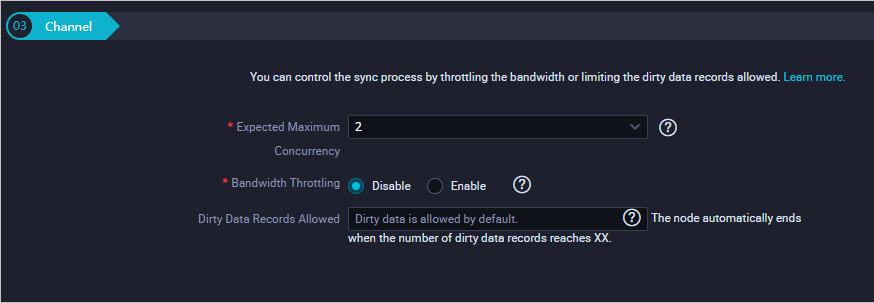
Click the Save icon in the top toolbar.
Click the Run icon in the top toolbar. You must configure custom parameters before you run the synchronization task.
Configure a synchronization task by using the code editor
To configure the synchronization task by using the code editor, click the Conversion script icon in the top toolbar and click OK in the message that appears. The code editor appears.
Configure the synchronization task based on your business requirements. Sample code:
{
  "type": "job",
  "version": "1.0",
  "configuration": {
    "reader": {
      "plugin": "Tablestore",
      "parameter": {
        "datasource": "Tablestore",// The name of the data source. Use the name of the data source that you have added.
        "dataTable": "person",// The name of the table from which the incremental data is exported. You must make sure that the Stream feature is enabled for the table. You can enable the Stream feature for a table when you create the table.
        "startTimeString": "${startTime}",// The start time (included) in milliseconds of the incremental data. Configure this parameter in the yyyymmddhh24miss format.
        "endTimeString": "${endTime}",// The end time (excluded) in milliseconds of the incremental data.
        "statusTable": "TableStoreStreamReaderStatusTable",// The name of the table that is used to store status records.
        "maxRetries": 30,// The maximum number of retries for each request.
        "isExportSequenceInfo": false,
      }
    },
    "writer": {
      "plugin": "odps",
      "parameter": {
        "datasource":"odps_first", // The name of the data source.
        "table": "person",// The name of the destination table.
        "truncate": true,
        "partition": "pt=${bdp.system.bizdate}",// The partition information.
        "column": [// The names of the columns to which you want to write data.
          "id",
          "colname",
          "version",
          "colvalue",
          "optype",
          "sequenceinfo"
        ]
      }
    },
    "setting": {
      "speed": {
        "mbps": 7,// The maximum transmission rate. Unit: MB/s.
        "concurrent": 7// The maximum number of parallel threads.
      }
    }
  }
}
You can configure the start time and end time by using one of the following methods:
"startTimeString": "${startTime}": the start time (included) in milliseconds of the incremental data. The format must be yyyymmddhh24miss."endTimeString": "${endTime}": the end time (excluded) in milliseconds of the incremental data. The format must be yyyymmddhh24miss.: the start time (included) in milliseconds of the incremental data.Tablestore Stream Reader searches for the status records in the table that is specified by the statusTable parameter based on the time that is specified by the startTimestampMillis parameter. Then, Tablestore Stream Reader reads data from this point in time.
If Tablestore Stream Reader cannot find status records of this point in time in the table that is specified by the statusTable parameter, Tablestore Stream Reader reads incremental data that is retained by the system from the first entry, and skips the data that is written earlier than the time that is specified by the startTimestampMillis parameter.
"endTimestampMillis":" ": the end time (excluded) in milliseconds of the incremental data.Tablestore Stream Reader reads data from the time that is specified by the startTimestampMillis parameter and stops when it reads the first entry that is written later than or equal to the time that is specified by the endTimestampMillis parameter.
When Tablestore Stream Reader reads all the incremental data, the reading process ends even if the time that is specified by the endTimestampMillis parameter has not arrived.
If the isExportSequenceInfo parameter is set to true ("isExportSequenceInfo": true), the system exports an extra column for time series information. The time series information contains the time when data is written. The default value is false, which indicates that no time series information is exported.