This topic describes how to connect DataWorks to a data source, using a MySQL database deployed on an Alibaba Cloud Elastic Compute Service (ECS) Instance as an example.
Use cases
Use this solution if your data source meets the following condition:
The data source is deployed on an Alibaba Cloud ECS instance.
How it works
Same account and region
If the ECS instance where the data source is deployed and the DataWorks workspace are in the same account and region, you can use a VPC (private network) connection. You can deploy the resource group of the DataWorks workspace and the ECS instance in the same VPC to enable network communication.
Different accounts or regions
If the ECS instance where the data source is deployed and the DataWorks workspace are in different accounts or in the same account but different regions, you can use a VPC (private network) connection. You can use a network connectivity tool, such as CEN or a VPC peering connection, to connect the VPC of the DataWorks resource group to the VPC of the ECS instance. This enables network communication.
Same account and region
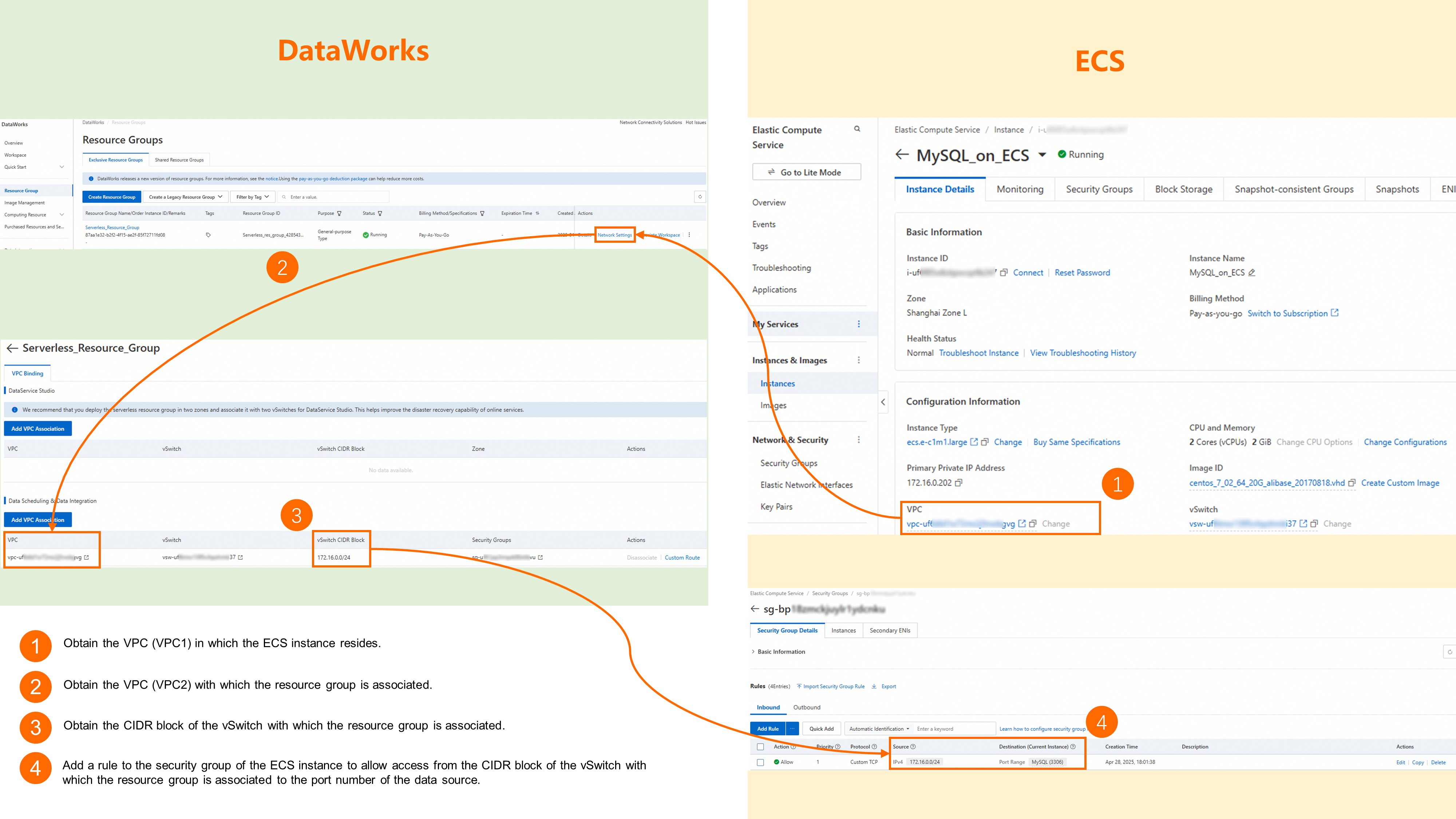
Same account, different regions
Different accounts
Prerequisites
You have deployed a data source supported by DataWorks on an ECS Instance.
Billing
Charges vary depending on the networking product you choose. For more information, see the billing details for Cloud Enterprise Network (CEN) or Peering Connection.
If you use a Peering Connection, no fees are charged when the ECS Instance and the DataWorks resource group are in different accounts but in the same region.
Network configuration
The following section outlines the general configuration process to help you understand the core logic. For a detailed walkthrough, refer to the Configuration example section of this topic.
Step 1: Obtain basic information
Same account and region
Data source side
VPC and vSwitch information of the ECS Instance:
Go to the ECS console. In the top navigation bar, select the region where your target ECS Instance is located.
In the left-side navigation pane, choose . Find the ECS Instance where the MySQL database is deployed and click the Instance name to go to the Instance Details page.
In the Configuration Information section, find the VPC (named
VPC 1in this example) and vSwitch information.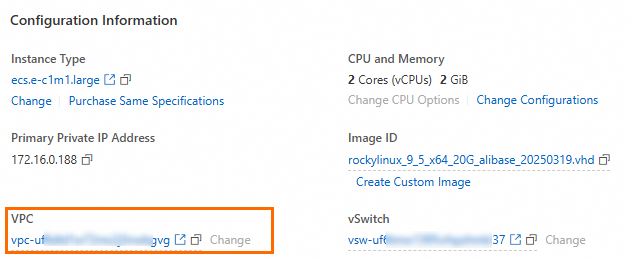
DataWorks side
VPC and vSwitch information of the bound resource group:
Go to the Resource Groups page in the DataWorks console. Find the target resource group and click Network Settings in the Actions column.
In the corresponding feature module, view the bound VPC and vSwitch information.
For example, if you need to connect a MySQL database on an ECS Instance to DataWorks for data synchronization, view the corresponding VPC (named
VPC 2in this example) and vSwitch information under Data Scheduling & Data Integration.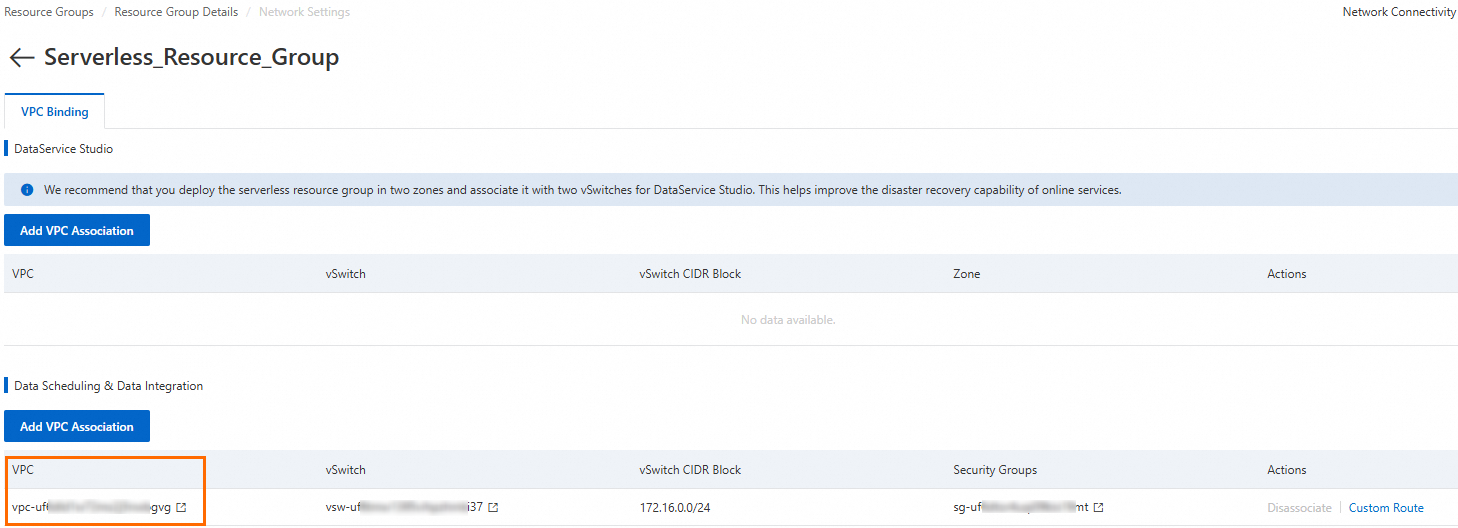
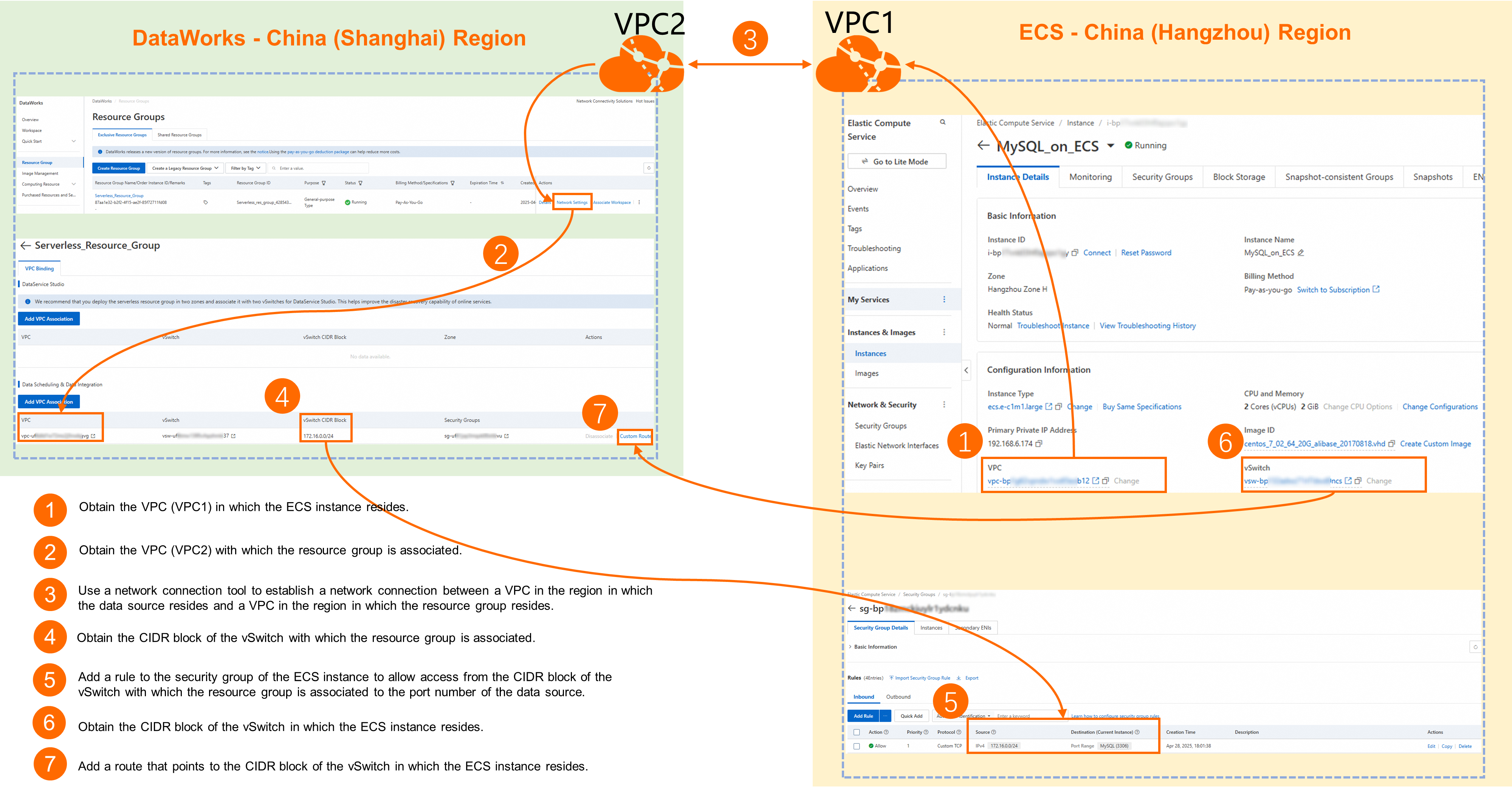
Same account, different regions
Data source side
Region information: An ECS Instance in the China (Hangzhou) region is used as an example.
VPC and vSwitch information of the ECS Instance:
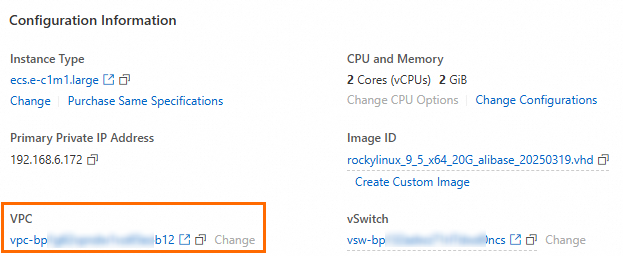
Go to the ECS console. In the top navigation bar, select the region where your target ECS Instance is located.
In the left-side navigation pane, choose . Find the ECS Instance where the MySQL database is deployed and click the Instance name to go to the Instance Details page.
In the Configuration Information section, find the VPC and vSwitch information.
DataWorks side
Region information: A DataWorks workspace and resource group in the China (Shanghai) region are used as an example.
VPC and vSwitch information of the bound resource group:
Go to the Resource Groups page in the DataWorks console. Find the target resource group and click Network Settings in the Actions column.
In the corresponding feature module, view the bound VPC and vSwitch information.
For example, if you need to connect an ECS-based MySQL Instance to DataWorks for data synchronization, view the corresponding VPC and vSwitch information under Data Scheduling & Data Integration.
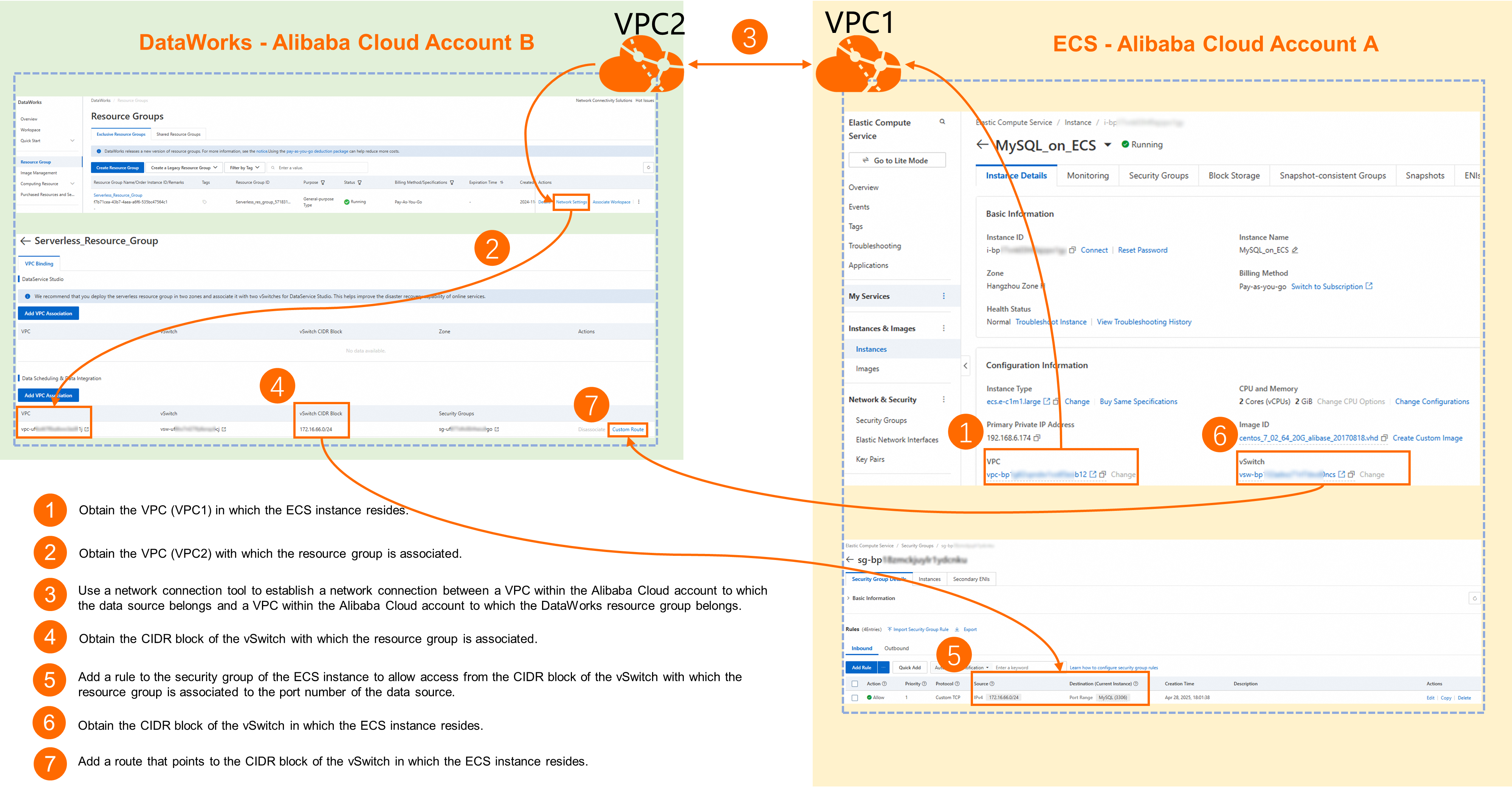
Different accounts
Data source side
Account information: Account A is used as an example.
Region information: An ECS Instance in the China (Hangzhou) region is used as an example.
VPC and vSwitch information of the ECS Instance:
Go to the ECS console. In the top navigation bar, select the region where your target ECS Instance is located.
In the left-side navigation pane, choose . Find the ECS Instance where the MySQL database is deployed and click the Instance name to go to the Instance Details page.
In the Configuration Information section, find the VPC and vSwitch information.
DataWorks side
Account information: Account B is used as an example.
Region information: A DataWorks workspace and resource group in the China (Shanghai) region are used as an example.
VPC and vSwitch CIDR block information of the bound resource group:
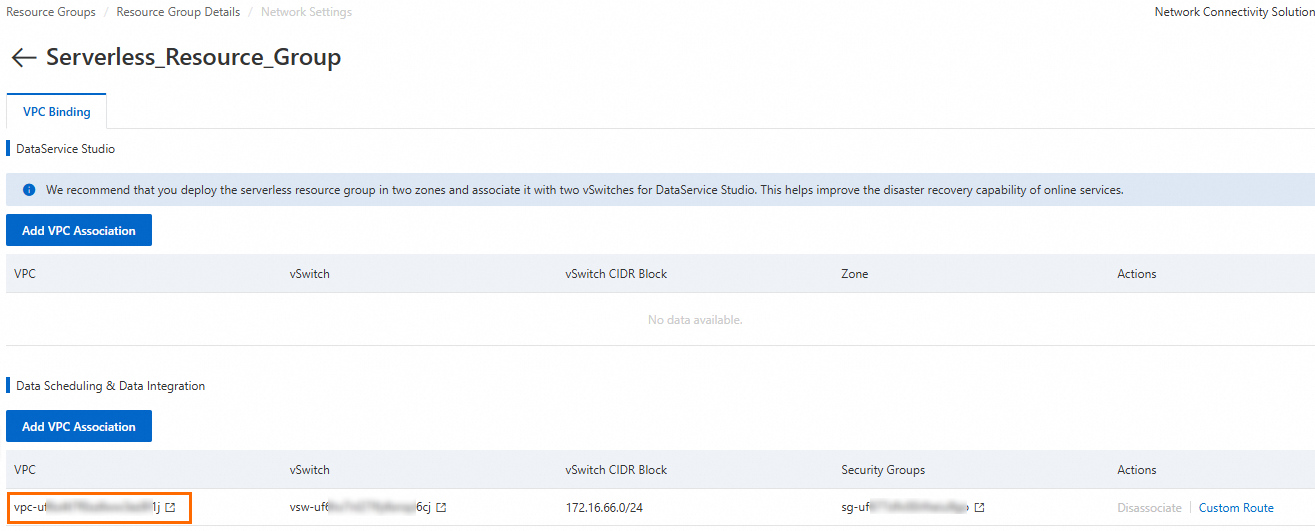
Go to the Resource Groups page in the DataWorks console. Find the target resource group and click Network Settings in the Actions column.
In the corresponding feature module, view the bound VPC and vSwitch information.
For example, if you need to connect an ECS-based MySQL Instance to DataWorks for data synchronization, view the corresponding VPC and vSwitch information under Data Scheduling & Data Integration.
Step 2: Establish network connectivity
Same account and region
If
VPC 1andVPC 2are the same, the ECS Instance and the DataWorks resource group are in the same VPC and are connected by default.If
VPC 1andVPC 2are different, go to the Network Settings page of the DataWorks resource group and click Add VPC Association to bindVPC 1to the resource group, which places the DataWorks resource group and the ECS Instance in the same VPC.
Same account, different regions
CEN: Best for complex enterprise network environments and connecting multiple VPCs. For configuration details, see Connect VPCs across regions.
VPC Peering Connection: Best for connecting pairs of VPCs. For configuration details, see Use a VPC Peering Connection to connect VPCs.
If you encounter issues while establishing the network connection, submit a ticket to contact technical support for the relevant cloud product.
Different accounts
CEN: Best for complex enterprise network environments and connecting multiple VPCs. For configuration details, see Connect VPCs across accounts.
VPC Peering Connection: Best for connecting pairs of VPCs. For configuration details, see Use a VPC Peering Connection to connect VPCs.
If you encounter issues while establishing the network connection, submit a ticket to contact technical support for the relevant cloud product.
Step 3: Add a resource group route
For cross-account or cross-region scenarios, you must add a route in the DataWorks resource group that points to the CIDR block of the ECS Instance's vSwitch.
Go to the Resource Groups page in the DataWorks console. Find the target resource group and click Network Settings in the Actions column.
In the corresponding feature module, find the bound VPC and click Custom Route in the Actions column.
Click Add Route. For Connection Method, select CIDR Block. For
Destination CIDR Block , enter the CIDR block of the ECS Instance's vSwitch.
Step 4: Enable remote database access
To allow users to connect remotely using an IP address and port, you may need to enable remote access in your database's configuration file. Configuration methods vary by database. For specific instructions, refer to your database's official documentation.
Example:Step 5: Configure the ECS security group
- Alibaba Cloud ECS provides firewall capabilities through Security Groups. You must open the database port in the ECS Instance's Security Group and grant access to the vSwitch CIDR block of the DataWorks resource group. This allows the resource group to access services deployed on the ECS Instance.
Click the Security Groups tab. Click the name of the Security Group to go to the
In the Access Rule section, click
- Quick Add
Port Range: Enter the port used by the database on the ECS Instance. For example, MySQL requires port 3306 to be open.
Verify the network connection
Log on to the DataWorks console. In the top navigation bar, select the desired region. In the left-side navigation pane, choose . On the page that appears, select the desired workspace from the drop-down list and click Go to Data Integration.
In the left-side navigation pane, click Data source. On the Data Sources page, click Add Data Source.
In the resource group list at the bottom of the page, select the resource group that is connected to the data source and click Test Network Connectivity.
 Note
NoteIf the connectivity test shows Connection failed, you can use the Self-service Troubleshoot tool to resolve the issue. If the connection still fails, submit a ticket for assistance.
Configuration example
Assume a MySQL database is deployed on an ECS Instance in the China (Hangzhou) region in Account A. DataWorks is activated in the China (Shanghai) region in Account B. The following steps show how to configure the network connection.
1. Basic information
Parameter | Data source | DataWorks resource group |
Account | Account A | Account B |
Region | China (Hangzhou) | China (Shanghai) |
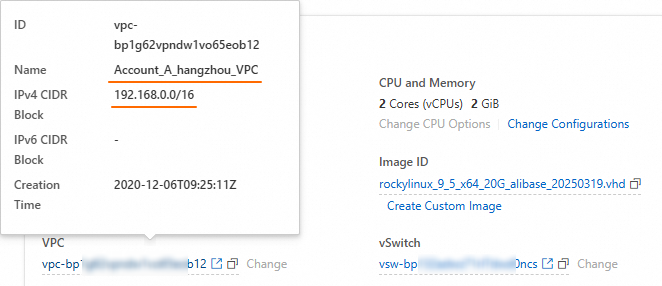
VPC |
ECS basic information page:
|
Resource group Network Settings page:
|
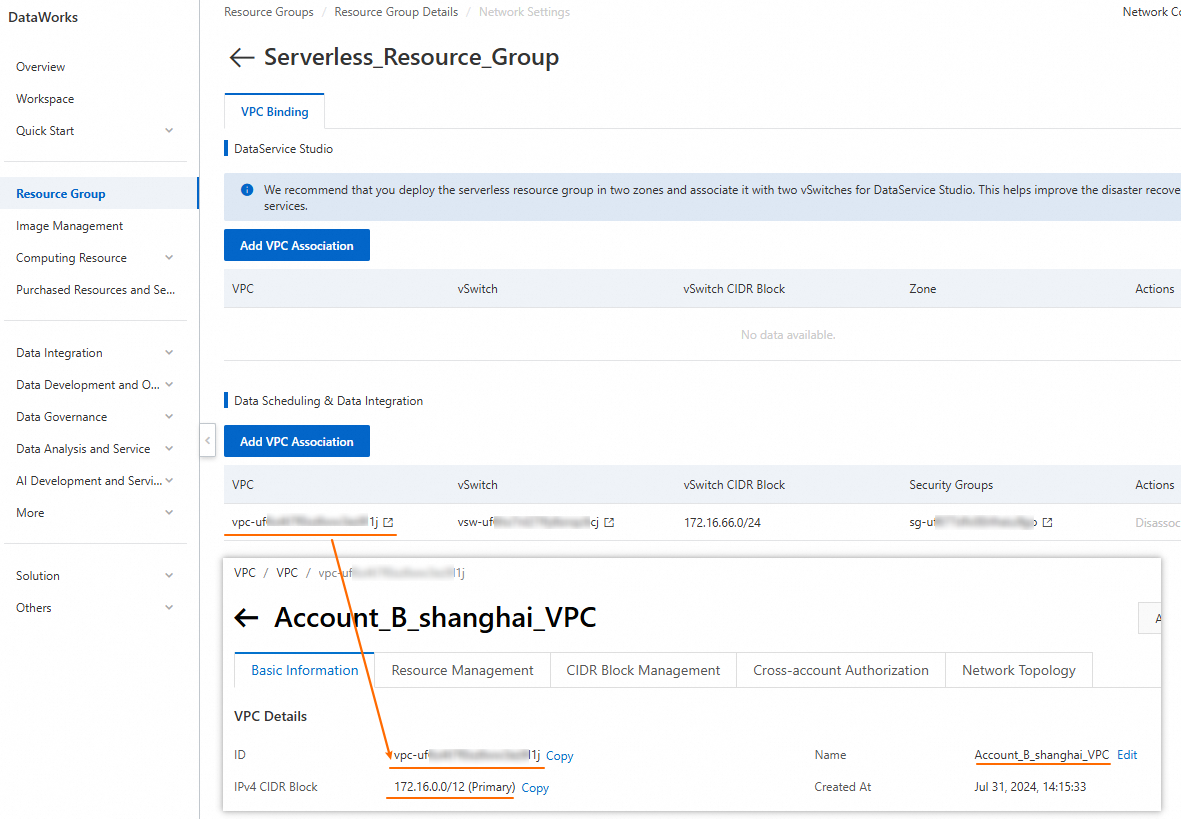
2. Establish network connectivity
This example uses a VPC Peering Connection to connect the ECS Instance and DataWorks.
If you encounter issues while establishing the network connection, submit a ticket to contact technical support for the relevant cloud product.
Log on to Account A. Go to the VPC Peering Connection page of the VPC console. In the top navigation bar, select the China (Hangzhou) region, then click Create Peering Connection and configure the parameters.
The following table describes the key parameters for this example. Keep the default values for other parameters.
Parameter
Configuration
Peering Connection Name
Enter a custom name. In this example, it is set to
Account_A to Account_B.Requester VPC Instance
The VPC of the ECS Instance in Account A. In this example,
Account_A_hangzhou_VPCis selected.Accepter Account Type
In this example,
Cross-accountis selected.Accepter UID
Enter the UID of Account B.
Accepter Region Type
In this example,
Cross-regionis selected.Accepter Region
The region of the DataWorks workspace and resource group under Account B. Select
China (Shanghai).Accepter VPC
Manually enter the VPC ID of the DataWorks resource group's VPC under Account B (
Account_B_shanghai_VPC).Click OK. The peering connection is configured and you are automatically taken to its details page. The status of the connection is now Peering Accepting.
Log on to Account B. Go to the VPC Peering Connection page of the VPC console. In the top navigation bar, select the China (Shanghai) region. You will see a peering connection record matching the one created in Account A. Click Accept in the Actions column. After you accept the request, the connection status changes to Activated.
Click Configure Route under Accepter VPC. In the Configure Route dialog box, enter a custom Name for the route entry, and set the Destination CIDR Block to the VPC CIDR block of the requester (the ECS Instance). In this example, it is
192.168.0.0/16.
Log on to Account A. Go to the VPC Peering Connection page of the VPC console. In the top navigation bar, select the China (Hangzhou) region and find the peering connection you created.
Click Configure Route under Requester VPC Instance. In the Configure Route dialog box, enter a custom Name for the route entry, and set the Destination CIDR Block to the VPC CIDR block of the accepter (the DataWorks resource group). In this example, it is
172.16.0.0/12.
3. Add a resource group route
Log on to Account B. Go to the Resource Groups page in the DataWorks console. Find the target resource group and click Network Settings in the Actions column.
In the corresponding feature module, find the bound VPC and click Custom Route in the Actions column.
Click Add Route. For Connection Method, select CIDR Block. For Destination CIDR Block, enter the CIDR block of the ECS Instance's vSwitch (in this example,
192.168.6.0/24).
4. Enable remote MySQL access
Connect to the ECS Instance where the MySQL database is deployed and enable remote access for the database.
The following commands are for MySQL 8.0 deployed in a Linux environment. Adapt them for other operating systems and MySQL versions.
Find the location of the
my.cnfconfiguration file. By default, it is usually located at/etc/my.cnf.find / -name my.cnfUse the
vim /etc/my.cnfcommand to edit the configuration file. Replace the path with the actual path found in the previous step.At the end of the file, press
iand add the following configuration under[mysqld]:bind-address=0.0.0.0Press
Esc, then enter:wq!to save and exit.Run the
systemctl restart mysqldcommand to restart the service.Create a user for the DataWorks remote connection.
Use the
mysql -u root -pcommand to log in to the database as an administrator.Create a user and set a password.
-- "dataworks_user" is the username. You can customize it.
-- "%" allows access from any IP address. You can specify an IP for fine-grained control.
-- "StrongPassword123!" is the user password. You can customize it.
CREATE USER 'dataworks_user'@'%' IDENTIFIED BY 'StrongPassword123!';
Grant database privileges to the user.
-- Run either of the following commands.

-- Grant all privileges to the user (use with caution).
GRANT ALL PRIVILEGES ON *.* TO 'dataworks_user'@'%' WITH GRANT OPTION;

-- Grant privileges on a specific database (for example, mydatabase) to the user.
GRANT ALL PRIVILEGES ON mydatabase.* TO 'dataworks_user'@'%' WITH GRANT OPTION;
Run the
FLUSH PRIVILEGES;command to refresh privileges, then exit the database (exit).Verify the remote connection.
mysql -u dataworks_user -h <Primary private IP of ECS> -p
5. Configure the ECS security group
Log on to Account A. Go to the ECS console and in the top navigation bar, select the China (Hangzhou) region.
In the left-side navigation pane, choose . Find the ECS Instance where the MySQL database is deployed and click the Instance name to go to the Instance Details page.
Click the Security Groups tab. Click the name of the Security Group to go to the Security Group Details page.
In the Access Rule section, click Quick Add and configure the following key parameters. Keep the default values for other parameters.
Authorization Object: Enter the CIDR block of the DataWorks resource group's vSwitch (in this example,
172.16.66.0/24).Port Range: Enter the port used by the database on the ECS Instance (in this example,
3306).
6. Test the connection
Log on to Account B.
Log on to the DataWorks console. In the top navigation bar, select the desired region. In the left-side navigation pane, choose . On the page that appears, select the desired workspace from the drop-down list and click Go to Data Integration.
In the left-side navigation pane, click Data source to go to the Data Sources page, then click Add Data Source.
Select MySQL as the data source type and configure its connection parameters.
For Configuration Mode, select Connection String Mode.
For Host IP Address, enter the private IP address of the ECS Instance (in this example,
192.168.6.172).Set Port to
3306.For Database Name, enter the name of an existing database.
For Username and Password, use the
dataworks_usercredentials created in the 4. Enable remote MySQL access step.
In the Connection Configuration section, click Test Network Connectivity for the resource group bound to the workspace. Verify that the result is passed.
NoteIf the connectivity test Fails, you can use the Connectivity Diagnosis Tool to troubleshoot the issue. If you still cannot connect the Resource Group to the data source, submit a ticket for assistance.
Related documents
For frequently asked questions about network connectivity, see Resource group operations and network connectivity.