Toolbar management is an important component of the canvas editor, providing two practical features: Filter Settings and layer search. These features allow users to quickly adjust visual styles and precisely locate layers. This topic describes the procedures for using these features.
Preparations
Prerequisites
You have created a visualization application.
Access the canvas editor
Before performing toolbar management operations, access the canvas editor by following these steps:
Access the DataV console.
On the Projects page, hover your mouse over the target application and click Edit to access the canvas editor page.
Filter Settings
The filter settings feature in the toolbar supports multi-dimensional color adjustments for visualization widgets, including fine-grained settings for core parameters such as Hue Rotate, Saturation, Brightness, Contrast, and Opacity, helping you quickly customize visual effects.
On the canvas editor page, click the
 icon in the upper-left corner of the editor page. The Toolbar opens.
In the upper-left corner of the canvas, turn on the Filter Settings switch.
When you turn on the Filter Settings switch for the first time, you can directly access the Filter Settings panel. After you exit by clicking a blank area, you need to click the Filter Settings text to access the Filter Settings panel again.
When the Filter Settings switch is turned off, the configuration items in the Filter Settings panel can only be viewed but not modified.
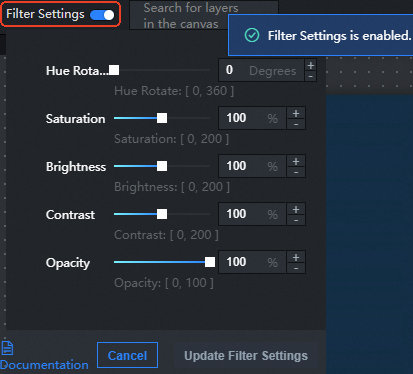
In the Filter Settings panel, modify the widget's Hue Rotate, Saturation, Brightness, Contrast, and Opacity.
You can preview the filter effects on the widget in real-time during the modification process.
After you complete the modifications, click Update Filter Settings to apply the Filter Settings effects to the widget.
In the initial state, the Update Filter Settings button is disabled by default (grayed out and not clickable). The button becomes active when you modify any filter parameter.
Layer search
The layer search feature in the DataV toolbar allows you to quickly retrieve and precisely locate any layer widget in your visualization application, helping users efficiently manage multi-level elements in complex canvases.
On the canvas editor page, click the
icon in the upper-left corner of the editor page. The Toolbar opens.In the search bar at the top of the canvas, you can quickly retrieve widgets in the canvas by entering or selecting a layer name. After you select the target layer, the system automatically locates and selects the widget, allowing you to quickly adjust the widget style and configure data.
NoteThe search feature supports fuzzy matching based on layer name keywords.