To enable data flow between a CPFS for Lingjun file system and an Object Storage Service (OSS) bucket, you must first create a data flow. This topic describes how to create and manage data flows for CPFS for Lingjun in the NAS console.
Prerequisites
To prevent data conflicts when multiple data flows export data to the same OSS bucket, enable versioning for the OSS bucket. For more information, see Introduction to versioning.
Limits
CPFS for Lingjun V2.4.0 and later support dataflows within the same account. CPFS for Lingjun V2.6.0 and later support dataflows across accounts.
A maximum of 10 dataflows can be created for a CPFS for Lingjun file system.
A file path in a CPFS for Lingjun file system can be associated with only one OSS bucket.
You cannot create dataflows between a CPFS for Lingjun file system and an OSS bucket that resides in another region.
For more information about data flow limits, see Limits.
Create a same-account data flow
Log on to the NAS console.
In the left-side navigation pane, choose File System > File System List.
In the top navigation bar, select a region.
On the File System List page, click the name of the file system.
On the file system product page, click Dataflow.
On the Dataflow tab, click Create Dataflow.
In the Create Dataflow dialog box, configure the following parameters.
Parameter
Description
CPFS File System Path
Specify the path for the data flow to OSS.
Limits:
The path must be 1 to 1,023 characters in length.
The path must start and end with a forward slash (/).
OSS Bucket
Associate the source OSS bucket with the path of the CPFS for Lingjun file system.
Select Select a bucket in the current account, then choose the name of the target OSS Bucket from the dropdown list.
OSS Object Prefix
The path in the source OSS bucket.
Limits:
The length must be between 1 and 1023 characters.
The path must start and end with a forward slash (/).
The prefix must already exist in the OSS bucket.
OSS Bucket SSL
Specify whether to use HTTPS to access OSS.
OSS Bucket Tag
You can create a data flow only after you add the tag
cpfs-dataflow: trueto the OSS bucket. Do not delete or modify this tag while the data flow is in use. Otherwise, the CPFS for Lingjun data flow cannot access the data in the bucket.Go to the target bucket. In the navigation pane on the left, select , and then click Create Tag. Enter
cpfs-dataflowas the tag key andtrueas the tag value, as shown in the following figure. Click Save to complete the tag configuration. Then, return to the CPFS console to continue creating the data flow.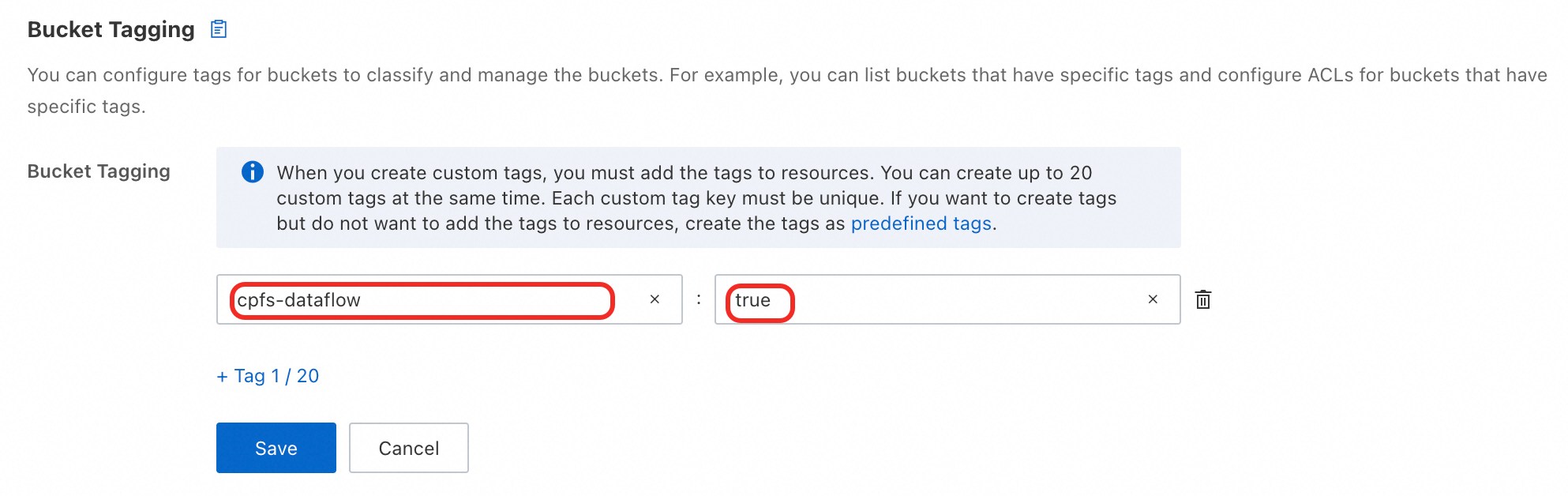
SLR Authorization
When creating a data flow for the first time, you must agree to authorize the service-linked role that allows CPFS to access Object Storage Service (OSS) service resources. For more information, see Service-linked roles.
Click OK.
The system verifies the information that you entered. This process takes 1 to 2 minutes. The window automatically closes after the verification is complete. Do not close the window manually.
Create a cross-account data flow
If you want to move data from a source OSS bucket that belongs to Account B to a CPFS for Lingjun file system that belongs to Account A, you must first log on to Account B to grant permissions to the AliyunNasCrossAccountDataFlowDefaultRole role. You must also add the user ID (UID) of Account A to the trust policy of the role. Then log on to Account A to create a cross-account data flow and data import or export tasks.
This topic uses a data flow between a CPFS for Lingjun file system that belongs to Alibaba Cloud Account A and an OSS bucket that belongs to Account B as an example.
Procedure
Grant permissions to the account that owns the source OSS bucket.
Use Account B to log on to the NAS console.
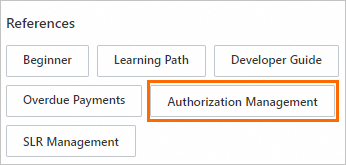
On the Overview page, in the References section, click Authorization Management.
In the Authorization Management panel, click Authorize Now in the Cross-account Authorization on Data Flows section.
Click Authorize.
Return to the Authorization Management panel of the NAS console. In the Cross-account Authorization on Data Flows section, click View Details to open the details page of the AliyunNasCrossAccountDataFlowDefaultRole.
On the Trust Policy tab, click Edit Trust Policy.
Change the value of the
Servicefield to theAlibaba Cloud account@nas.aliyuncs.comformat.For example, if the UID of Alibaba Cloud Account A is
178321033379****, changenas.aliyuncs.comin theServicefield to178321033379****@nas.aliyuncs.com. This allows the data flow service that belongs to Alibaba Cloud Account A (178321033379****@nas.aliyuncs.com) to assume the role.{ "Statement": [ { "Action": "sts:AssumeRole", "Effect": "Allow", "Principal": { "Service": [ "178321033379****@nas.aliyuncs.com" ] } } ], "Version": "1" }
Create a cross-account data flow.
Use Account A to log on to the NAS console.
In the left-side navigation pane, choose File System > File System List.
In the top navigation bar, select a region.
On the File System List page, click the name of the file system.
On the file system product page, click Dataflow.
On the Dataflow tab, click Create Dataflow.
In the Create Dataflow dialog box, configure the following parameters.
Parameter
Description
CPFS File System Path
Specify the path for the data flow to OSS.
Limits:
The length must be between 1 and 1023 characters.
The path must start and end with a forward slash (/).
OSS Bucket
Associate the source OSS bucket with the path of the CPFS for Lingjun file system.
Select Specify a bucket in another account, then enter the UID of the account where the source OSS Bucket is located in the Account ID box, and enter the name of the target source OSS Bucket in the Bucket Name box.
OSS Object Prefix
The path in the source OSS bucket.
Limits:
The length must be from 1 to 1023 characters.
The path must start and end with a forward slash (/).
The prefix must already exist in the OSS bucket.
OSS Bucket SSL
Specify whether to use HTTPS to access OSS.
Click OK.
The system verifies the information that you entered. This process takes 1 to 2 minutes. The window automatically closes after the verification is complete. Do not close the window manually.
Related operations
View existing data flows, modify data flow configurations, and delete data flows in the console.
Operation | Description | Steps |
View a data flow | View created data flows and create data flow tasks for a specific data flow. | On the Dataflow tab, query the configuration information of a specified data flow. |
Modify a data flow | You can modify only the description of a data flow. |
|
Delete a data flow | After you delete a data flow, all tasks of the data flow are purged and data cannot be synchronized. Important You cannot delete a data flow if streaming jobs or batch jobs are running. |
|
Next step
After you create a data flow, you must create data import or export tasks to transfer data between the CPFS for Lingjun file system and the OSS bucket. For more information, see Create tasks.