ApsaraDB for ClickHouse provides the zero-ETL feature to synchronize data from an RDS for MySQL instance to an ApsaraDB for ClickHouse cluster. This feature eliminates the need to create, maintain, or pay for data synchronization pipelines, which reduces data transmission and operations and maintenance (O&M) costs.
Overview
In the era of big data, enterprises must use extract, transform, and load (ETL) tools to efficiently manage and use large amounts of business data distributed across different systems and platforms.
ETL is a process that extracts data from upstream business systems, transforms and cleanses the data, and then loads the data into a data warehouse. This process integrates distributed upstream data into a destination data warehouse for further computing and analysis to make effective business decisions.
Traditional ETL processes often face the following challenges:
Increased resource costs: Different data sources may require different ETL tools. Building ETL pipelines incurs additional resource costs.
Increased system complexity: You must maintain ETL tools, which increases O&M complexity and prevents you from focusing on business application development.
Reduced data timeliness: Some ETL processes involve periodic batch updates. In scenarios that require near-real-time data, analysis results cannot be generated quickly.
To address these challenges, Alibaba Cloud ApsaraDB provides the zero-ETL feature. This feature helps you quickly build a data synchronization pipeline between a business system that uses online transactional processing (TP) databases and a data warehouse that uses online analytical processing (OLAP) databases. The feature automatically extracts, transforms, cleanses, and loads data from the business system to the data warehouse. This lets you manage data synchronization in a single solution, integrating transaction processing with data analytics and letting you focus on your data analytics business.
Benefits
Simple and easy to use: You do not need to create or maintain complex data pipelines for ETL operations. You can simply select the source instance and destination cluster to automatically create a real-time data synchronization pipeline. This reduces the challenges of building and managing data pipelines and lets you focus on application development.
Zero cost: Zero-ETL pipelines are free of charge. You can analyze upstream data in your data warehouse at no cost.
Multi-source aggregation: You can use a zero-ETL pipeline to synchronize data from multiple instances to a single ApsaraDB for ClickHouse cluster in real time. This helps you build a global analytics perspective.
NoteIf you synchronize data from multiple instances to a single ApsaraDB for ClickHouse cluster, make sure that the synchronization objects in different tasks do not overlap.
Supported pipeline
RDS for MySQL to ClickHouse
Billing
Zero-ETL synchronization pipelines are free of charge.
Prerequisites
The ApsaraDB for ClickHouse cluster and the RDS for MySQL instance reside in the same region.
Database accounts are created for the source RDS for MySQL instance and the destination cluster. For more information, see Create an account for an ApsaraDB RDS for MySQL instance and Create an account for an ApsaraDB for ClickHouse cluster.
Limits
Type | Description |
RDS for MySQL limits |
|
Other limits | The DATETIME data in the source ApsaraDB RDS for MySQL instance must be in the time ranges supported by the destination ApsaraDB for ClickHouse cluster. Otherwise, data inconsistency between the source and destination databases occurs. For more information, see the Time range section of this topic. |
Usage notes
Notes on creating zero-ETL pipelines
If the number of zero-ETL tasks created for an ApsaraDB for ClickHouse cluster reaches the upper limit, you cannot create new zero-ETL tasks. You can create additional data synchronization tasks in the DTS console or delete zero-ETL tasks that you no longer need. The maximum number of zero-ETL tasks that you can create for an ApsaraDB for ClickHouse cluster is determined as follows:
For an Enterprise Edition cluster, the maximum number of zero-ETL tasks is calculated using the formula
(Lower ClickHouse Compute Unit (CCU) limit of the cluster / 8). The result is rounded up to the nearest integer. For example, if a cluster has a lower CCU limit of 22 and an upper limit of 36, the calculation is22 / 8 = 2.75. This result is rounded up to 3. Therefore, you can create a maximum of three zero-ETL tasks.For a Community Edition cluster, the maximum number of zero-ETL tasks is calculated using the formula
(Total number of cluster cores / 8), and the result is rounded up to the nearest integer. For example, if a cluster has two nodes and each node has 8 cores and 32 GB of memory, the total number of CPU cores is8 * 2 = 16. The calculation result is16 / 8 = 2. Therefore, you can create a maximum of two zero-ETL tasks.
Notes on sync tasks
If the DDL statements that are executed on the source ApsaraDB RDS for MySQL instance do not comply with the standard MySQL syntax, a synchronization task may fail or data may be lost.
Up to 256 databases can be synchronized to an ApsaraDB for ClickHouse cluster.
The names of the databases, tables, and columns to be synchronized must comply with the naming conventions of ApsaraDB for ClickHouse. For more information, see Limits on object naming conventions.
If you select one or more tables instead of an entire database as the objects to be synchronized, do not use tools such as pt-online-schema-change to perform DDL operations on the tables during data synchronization. Otherwise, data may fail to be synchronized.
Before you synchronize data, evaluate the impact of data synchronization on the performance of the source and destination databases. We recommend that you synchronize data during off-peak hours. During full data synchronization, DTS uses read and write resources of the source and destination databases. This may increase the loads on the database servers.
During schema synchronization, the zero-ETL feature adds the _sign, _is_deleted, and _version fields to the destination table.
If the destination database is a Community-Compatible Edition cluster of ApsaraDB for ClickHouse, the zero-ETL task creates a local table and a distributed table in the destination database.
The name of the distributed table is the same as the name of the source table.
The local table name is
<distributed table name>+_local.
Data type mappings
The data types supported by ApsaraDB RDS for MySQL instances and ApsaraDB for ClickHouse clusters do not have one-to-one correspondence. During initial schema synchronization, DTS establishes mappings between source fields and destination fields based on the data types supported by the destination database. For more information, see Data type mappings for schema synchronization.
Preparations
Create a service-linked role and grant the required management permissions to a Resource Access Management (RAM) user.
Create the AliyunServiceRoleForClickHouseZeroETL service-linked role.
NoteWhen you click an item in the Database Instance ID drop-down list during task creation and configuration, a pop-up error message prompts you to create the service-linked role AliyunServiceRoleForClickHouseZeroETL. You do not need to create this role manually because the system creates it automatically.
Grant management permissions to a RAM user.
To allow a RAM user to create zero-ETL tasks, you must grant the RAM user the following permissions. For more information, see Grant permissions to a RAM user.
Permissions on the source RDS for MySQL instance: AliyunRDSFullAccess.
Permissions on the destination ClickHouse instance: AliyunClickHouseFullAccess.
Permissions for DTS: The custom policy script for DTS is as follows. For more information about how to create a custom policy, see Create a custom permission policy.
{
    "Version": "1",
    "Statement": [
        {
            "Action": "dts:*",
            "Resource": "*",
            "Effect": "Allow"
        },
        {
            "Action": "ram:PassRole",
            "Resource": "*",
            "Effect": "Allow",
            "Condition": {
                "StringEquals": {
                    "acs:Service": "dts.aliyuncs.com"
                }
            }
        }
    ]
}
Synchronize data
Step 1: Go to the zero-ETL page
Log on to the ApsaraDB for ClickHouse console.
In the upper-left corner of the page, select the region of the target cluster.
On the Cluster List page, select List of Community Edition Instances, and click the target cluster ID.
On the Cluster Information page, in the navigation pane on the left, click Zero-ETL (Seamless Integration) to go to the Zero-ETL page.
Step 2: Create and start a Zero-ETL task
On the Zero-ETL page, click Create Zero-ETL Task to go to the Create Zero-ETL Task page.
Enter a Task Name, and complete the following configurations.
Configure the source and destination databases.
Configure the source and destination databases based on the following parameters. After you complete the configurations, click Test Connectivity and Proceed.
Source database
Parameters
Description
Database Type
Only RDS for MySQL is supported.
Access Method
Only Alibaba Cloud Instance is supported.
Instance Region
Select the region of the source instance.
RDS Instance ID
The ID of the RDS for MySQL instance.
Database Account
The database account of the RDS for MySQL instance.
Database Password
The password of the database account for the RDS for MySQL instance.
Encryption
Select Non-encrypted or SSL-encrypted based on your requirements. If you select SSL-encrypted, you must first enable the SSL encryption feature for the RDS for MySQL instance. For more information, see Use a cloud certificate to quickly enable SSL link encryption.
Destination database
Parameters
Description
Database Type
ClickHouse
Connection Type
Only Cloud Instance is supported.
Instance Region
The region of the destination cluster.
Cluster ID
The ID of the destination cluster.
Cluster Type
The cluster type. Valid values are Community Edition and Enterprise Edition.
Database Account
The database account of the destination cluster.
Database Password
The password of the database account for the destination cluster.
Configure the zero-ETL task.
In the Source Objects section, select the objects that you want to synchronize, click the
 icon to move the objects to the Selected Objects section, and then click Next: Configure Database and Table Fields.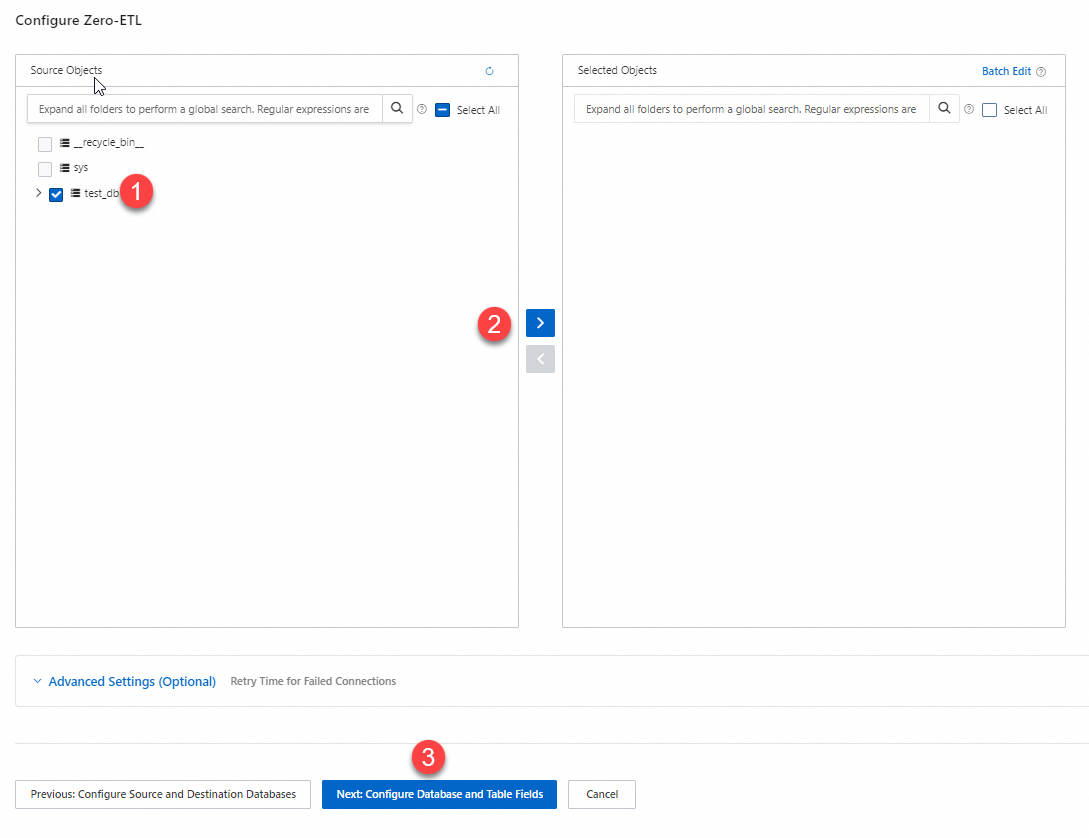
Configure database and table fields.
On the Configurations for Databases, Tables, and Columns page, configure the Type, Primary Key Column, Sort Key, Distribution Key, and Partition Key for the tables that you want to synchronize to the destination database.
NoteBy default, only the information about undefined tables is displayed. You can set Definition Status to All and then make modifications.
Primary Key Column and Sort Key can be composite keys. This lets you select multiple fields from the corresponding drop-down lists for the Primary Key Column or Sort Key. You must select one or more columns from the Primary Key Column to use as the Partition Key. You can select only one field for the Distribution Key. For more information about primary key columns, sort keys, and partition keys, see CREATE TABLE.
The Partition Key is optional. However, if you set it, you must select a non-empty field. Otherwise, the sync task fails.
Save the task.
After you configure the database and table fields, click Next: Save Task Settings and Precheck.
NoteAfter this operation, the task is saved regardless of whether the precheck passes.
Precheck and start the task.
When Success Rate is 100%, click Start to start the zero-ETL task.
On the zero-ETL page, you can view the ID/Name, Source/Destination, and Status of the target zero-ETL task.
If the precheck fails, adjust the source and destination databases based on the failure information. On the zero-ETL page, find the task, modify it, and run the precheck again. After the precheck succeeds, start the task.
Monitor Zero-ETL tasks
You can use one of the following methods to monitor zero-ETL tasks. We recommend that you configure alerts or subscribe to events to obtain task information promptly. If a task is abnormal, you can combine these methods with active viewing to troubleshoot the task.
Monitoring method | Advantage | Disadvantage | Operation |
Active viewing | You can view all aspects of the task status, such as replication performance, synchronization details, and task logs. | You do not receive automatic notifications to handle issues when a zero-ETL task is abnormal. | |
Alerting and monitoring | Based on alert rules, the monitoring system automatically sends alert notifications. This helps you promptly receive abnormal monitoring data and handle it quickly. | You can only monitor the synchronization latency (in milliseconds) of zero-ETL tasks. | Configure a synchronization latency alert for a zero-ETL task in the CloudMonitor console |
Event subscription | When a system event of a zero-ETL task meets the alert conditions, CloudMonitor automatically sends an alert notification. This lets you promptly understand the task's abnormal and recovery status and take appropriate measures. | You can only monitor the failure and recovery of zero-ETL tasks. | Subscribe to events related to a Zero-ETL task in the Cloud Monitor console |
Monitor a task in the ApsaraDB for ClickHouse console
Log on to the ApsaraDB for ClickHouse console.
In the upper-left corner of the page, select the region of the target cluster.
On the Cluster List page, click the List of Community Edition Instances tab and click the ID of the cluster that you want to manage.
In the navigation pane on the left, click Zero-ETL (Seamless Integration).
On the Zero-ETL page, click Task Details in the Actions column of the target task.
On the task details page, you can view and monitor all information about the task.
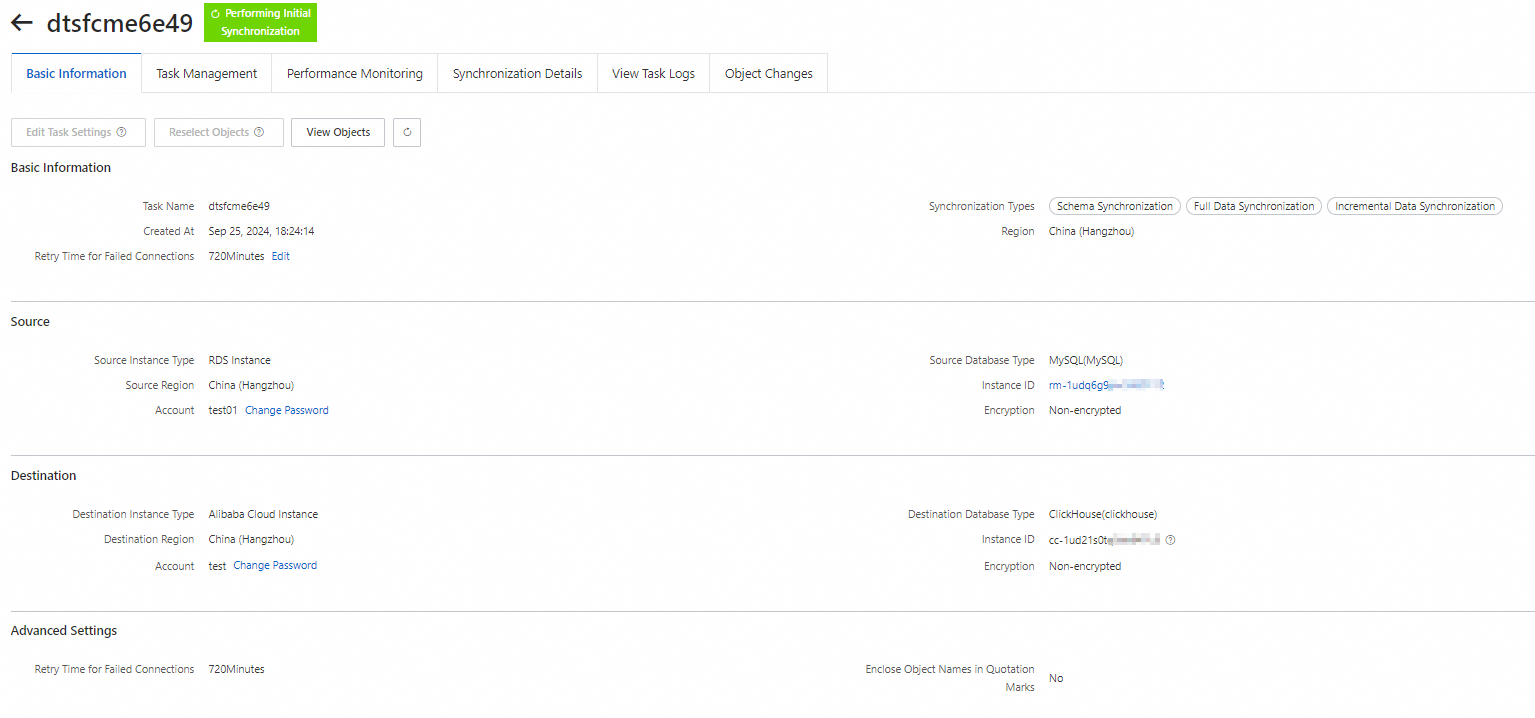
Monitor synchronization latency alerts in CloudMonitor
You can use CloudMonitor to create alert rules to monitor zero-ETL latency. When a monitored metric meets the alert conditions, the monitoring system automatically sends an alert notification. This helps you promptly receive abnormal monitoring data and handle it quickly.
Step 1: Create a synchronization latency alert
For more information about how to create a latency alert for a zero-ETL task, see Create an alert rule. When you create the alert, make sure that you specify the following parameters correctly.
Parameter | Description |
Product | Set this to Clickhouse - ZeroETL Latency. |
Monitoring Metrics | Set this to Synchronization Latency. |
Step 2: View the cluster latency
Log on to the CloudMonitor console.
In the ClickHouse - ZeroETL Latency list, click Monitoring Charts in the Actions column of the target cluster to view the synchronization latency of the cluster.
Subscribe to events related to a Zero-ETL task in CloudMonitor
To monitor the recovery and failure of zero-ETL tasks and receive timely notifications, subscribe to the relevant events.
For more information about how to subscribe to zero-ETL events, see Manage event subscriptions. When you create an event subscription policy, make sure that you specify the following parameters properly.
Event to subscribe to | Parameter | Description |
Zero-ETL task failure | Subscription Type | Set this to System Event. |
Product | Set this to ApsaraDB Clickhouse. | |
Event Type | Set this to Abnormal. | |
Event Name | Always select ZeroETL task abnormal. | |
Zero-ETL task recovery | Subscription Type | Set this to System Event. |
Product | Set this to ApsaraDB Clickhouse. | |
Event Type | Set this to Restore. | |
Event Name | Set this to ZeroETLTaskRestore. |
FAQ
Q: Why is the data size in the destination database larger than the data size in the source database after you use the zero-ETL feature to synchronize data to ApsaraDB for ClickHouse?
Cause: When you run an `UPDATE` or `DELETE` operation on the source database, ClickHouse writes a new record to the destination database. It marks these operations using the `_sign`, `_is_deleted`, and `_version` fields. Therefore, the data volume in the destination database is larger than in the source database.
Solution: When querying, use the _sign or is_deleted condition to filter out deleted data (depending on the version), and add final after the table name to remove duplicates. For more information, see Fields.
Q: After you use zero-ETL to synchronize data to ApsaraDB for ClickHouse, why do tables with names that contain _local appear in the destination database?
If the destination database is a Community-Compatible Edition cluster of ApsaraDB for ClickHouse, the zero-ETL task creates a local table and a distributed table in the destination database.
The name of the distributed table is the same as the name of the source table.
The local table name is
<distributed table name>+_local.