Application Load Balancer (ALB) distributes HTTP, HTTPS, and QUIC traffic across backend servers at the application layer. Auto Scaling monitors the (ALB) QPS per Backend Server metric and automatically adds or removes backend servers when the metric crosses a threshold you define. For more information about ALB, see What is ALB?
The metric is calculated as follows:
QPS per backend server = Total client requests received by ALB per second / Total number of ECS instances or elastic container instances in ALB backend server groupsThis metric applies to Layer-7 listeners only.
Scale-out: When QPS per backend server >= your upper threshold, Auto Scaling adds backend servers to reduce load per server.
Scale-in: When QPS per backend server < your lower threshold, Auto Scaling removes backend servers to reduce costs.
Use cases
ALB receives client requests centrally and distributes them to backend ECS instances or elastic container instances.
Traffic surges require agile scale-out to maintain response times and stability.
Low-traffic periods benefit from automatic scale-in to remove idle backend servers and reduce costs.
Prerequisites
RAM user permissions to view and manage ALB resources. For more information, see Grant permissions to a RAM user.
At least one virtual private cloud (VPC) and one vSwitch. For more information, see Create a VPC with an IPv4 CIDR block.
Step 1: Configure an ALB instance
Create an ALB instance
Create an ALB instance with the following parameters. For detailed steps, see Create and manage an ALB instance.
Parameter | Description | Example |
Instance Name | Name for the ALB instance. | alb-qps-instance |
VPC | VPC for the ALB instance. | vpc-test\*\*\*\*-001 |
Zone | Zones and vSwitches. | Zones: Hangzhou Zone G and Hangzhou Zone H. vSwitches: vsw-test003 and vsw-test002. |
ALB supports cross-zone deployment. Select at least two zones to ensure high availability.
Create a server group
Create a server group with the following parameters. For detailed steps, see Create and manage server groups.
Parameter | Description | Example |
Server Group Type | Server group type. Server specifies that the group contains elastic container instances. | Server |
Server Group Name | Name for the server group. | alb-qps-servergroup |
VPC | Must match the VPC of the ALB instance. Only servers in this VPC can be added. | vpc-test\*\*\*\*-001 |
Configure a listener
In the left-side navigation pane, choose ALB > Instances.
On the Instances page, find the ALB instance named lb-qps-instance and click Create Listener in the Actions column.
In the Configure Listener step of the Configure Server Load Balancer wizard, set Listener Port to 80, keep the default values for other parameters, and click Next.
NoteYou can specify a different port number for the Listener Port parameter based on your business requirements. This example uses port 80.
In the Select Server Group step of the Configure Server Load Balancer wizard, select Server Type below the Server Group field, select the server group named alb-qps-servergroup, and click Next.
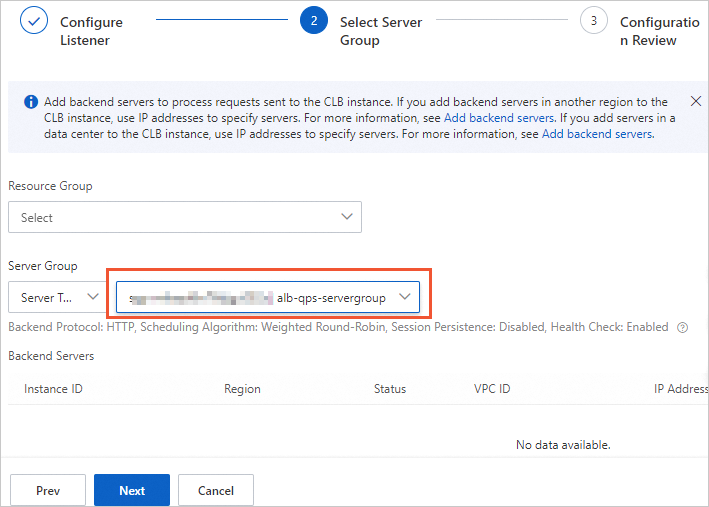
In the Configuration Review step, confirm the settings and click Submit. In the confirmation message, click OK.
Obtain the ALB elastic IP addresses
After you complete the listener configuration, click the Instance Details tab to obtain the elastic IP addresses (EIPs) of the ALB instance.
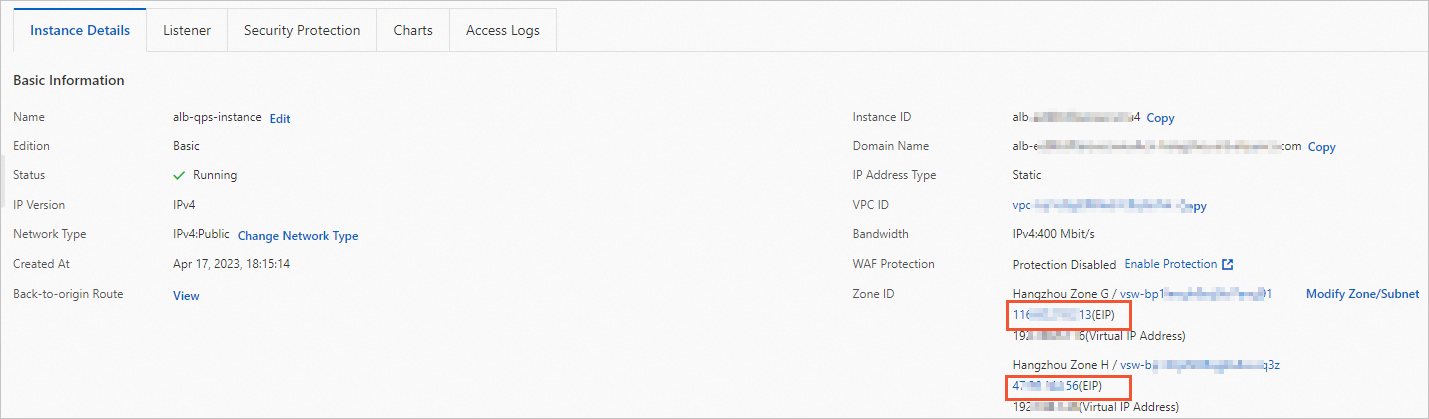
Step 2: Create a scaling group
This step creates a scaling group of the Elastic Container Instance (ECI) type. The steps to create an ECS-type scaling group differ slightly. Refer to the console for the applicable parameters.
Create the scaling group
Set the following parameters for the scaling group. For detailed steps, see Create scaling groups.
Parameter | Description | Example |
Scaling Group Name | Name for the scaling group. | alb-qps-scalinggroup |
Type | Instance type for computing power. | ECI |
Instance Configuration Source | How Auto Scaling creates instances. | Create from Scratch |
Minimum Number of Instances | Auto Scaling creates instances until this number is reached if the count drops below it. | 1 |
Maximum Number of Instances | Auto Scaling removes instances until this number is reached if the count exceeds it. | 5 |
VPC | Must match the VPC of the ALB instance. | vpc-test\*\*\*\*-001 |
vSwitch | Select the vSwitches used by the ALB instance. | vsw-test003 and vsw-test002 |
Associate ALB and NLB Server Groups | Select the ALB server group created in Step 1 and enter the port. | Server group: sgp-\*\*\*\*/alb-qps-servergroup. Port: 80. |
Create and enable a scaling configuration
Set the following parameters for the scaling configuration. For detailed steps, see Create a scaling configuration of the Elastic Container Instance type.
Parameter | Description | Example |
Container Group Configurations | Container group specifications (vCPUs and memory). | vCPU: 2 vCPUs. Memory: 4 GiB. |
Container Configurations | Container image and image tag. | Container image: registry-vpc.cn-hangzhou.aliyuncs.com/eci_open/nginx. Image tag: latest. |
Enable the scaling group
Enable the scaling group. For detailed steps, see Enable or disable scaling groups.
In this example, Minimum Number of Instances is set to 1. Auto Scaling automatically creates one elastic container instance when you enable the scaling group.
Verify the scaling group
Check the status of the elastic container instance and confirm the container runs as expected.
Access the EIP of the ALB instance created in Step 1 to verify that
nginxresponds correctly.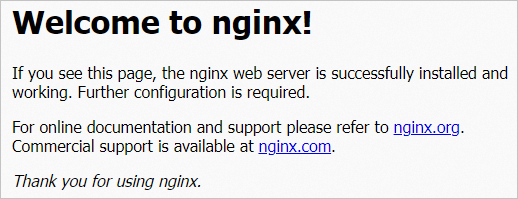
Step 3: Create event-triggered tasks
Create scaling rules
-
Log on to the Auto Scaling console.
Create two scaling rules. For more information, see Configure scaling rules.
Add1: A scale-out rule that adds one elastic container instance.
Reduce1: A scale-in rule that removes one elastic container instance.
Create event-triggered tasks
On the Scaling Groups page, find the scaling group named alb-qps-scalinggroup and click Details in the Actions column.
Choose Scaling Rules and Tasks > Event-triggered Tasks > Event-triggered Tasks (System) and click Create Event-triggered Task.
Create two event-triggered tasks. For more information, see Manage event-triggered tasks.
Alarm1 (scale-out)
Select the (ALB) QPS per Backend Server metric.
Set the alert trigger condition to Average(Average) >= 100 Count/s.
Associate with the Add1 scaling rule.
NoteQPS per backend server = Total QPS / Total number of elastic container instances
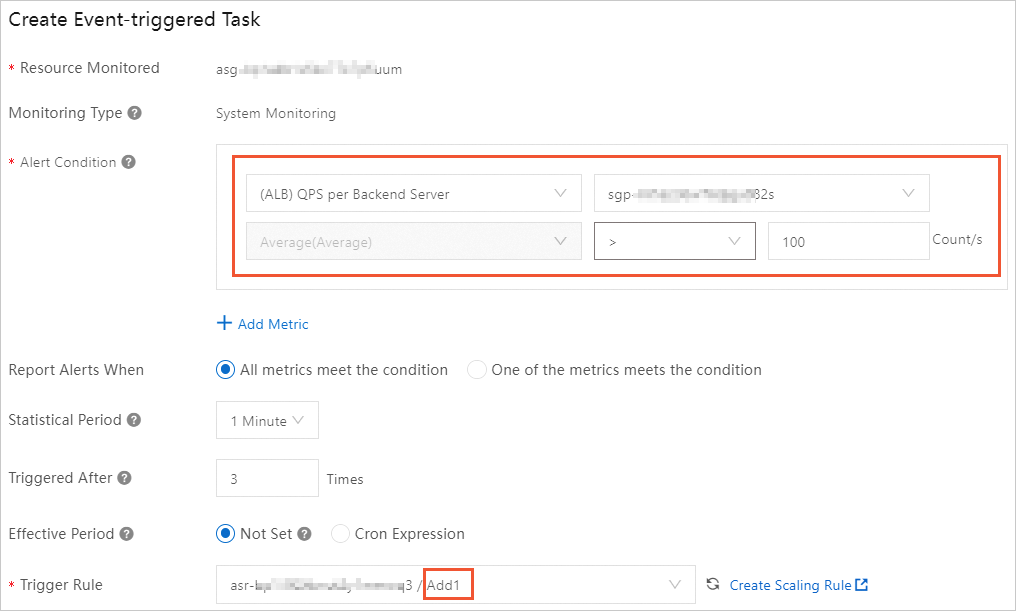
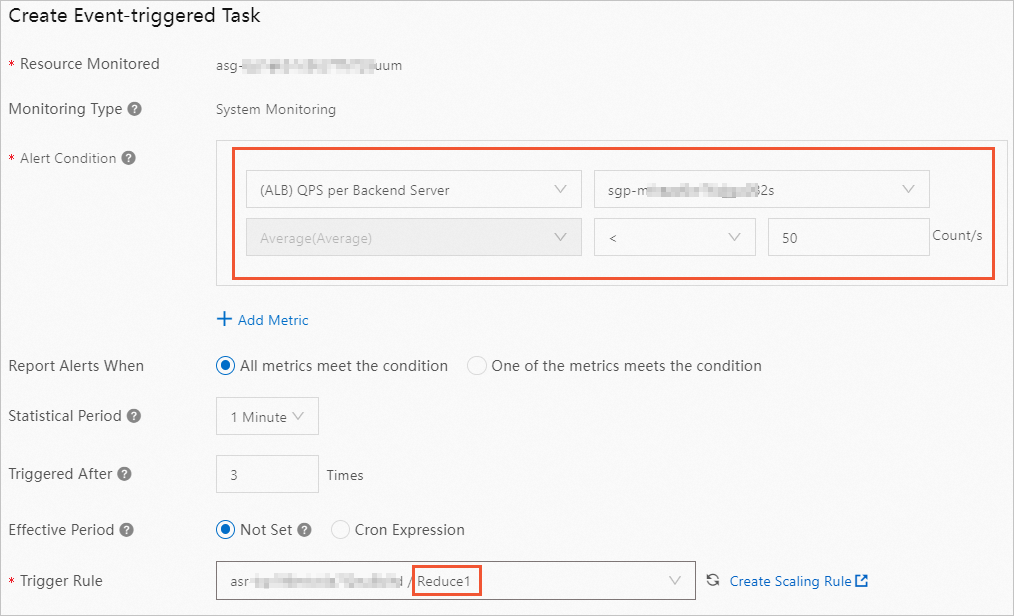
Alarm2 (scale-in)
Select the (ALB) QPS per Backend Server metric.
Set the alert trigger condition to Average(Average) < 50 Count/s.
Associate with the Reduce1 scaling rule.
Verify the scaling behavior
Use a stress testing tool such as Apache JMeter, ApacheBench, or wrk to test the EIP of the ALB instance created in Step 1. Simulate a scenario where QPS reaches 500.
During the test, observe the following behavior on the Monitoring tab of the Auto Scaling console:
When QPS per backend server exceeds the alert threshold (100 Count/s), the scale-out event-triggered task fires and adds elastic container instances.
As each new instance is added, workloads distribute across more servers, which reduces the QPS per backend server value.
When QPS per backend server drops below the scale-in threshold (50 Count/s), the scale-in task fires and removes excess instances.