Logstash can forward log and event data to an ApsaraMQ for Kafka instance over the Internet using SASL_SSL authentication. This guide walks you through endpoint retrieval, topic creation, Logstash configuration, and message verification.
Prerequisites
Before you begin, make sure you have:
An ApsaraMQ for Kafka instance (Internet and VPC type), purchased and deployed. See Purchase and deploy an Internet- and VPC-connected instance
Logstash installed. See Download Logstash
Java Development Kit (JDK) 8 installed. See Download JDK 8
Step 1: Get the endpoint and credentials
Logstash connects to ApsaraMQ for Kafka through an SSL endpoint. Retrieve the endpoint and SASL credentials from the console.
Log on to the ApsaraMQ for Kafka console.
In the Resource Distribution section of the Overview page, select the region where your instance resides.
On the Instances page, click the name of the target instance.
On the Instance Details page, collect the following:
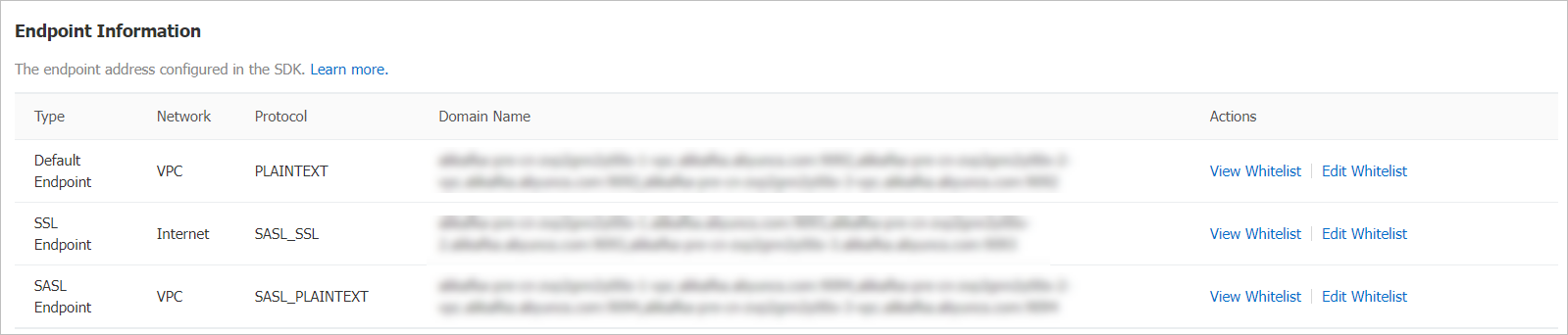
Endpoint Information section: Copy the SSL endpoint (port 9093).
Configuration Information section: Note the Username and Password.
For details on endpoint types, see Comparison among endpoints.
Step 2: Create a topic
Create a topic to receive the messages that Logstash sends.
Log on to the ApsaraMQ for Kafka console.
In the Resource Distribution section of the Overview page, select the region where your instance resides.
ImportantCreate topics in the same region as your Elastic Compute Service (ECS) instance. Topics cannot be used across regions. For example, if your producers and consumers run on an ECS instance in the China (Beijing) region, create the topic in China (Beijing) as well.
On the Instances page, click the name of the target instance.
In the left-side navigation pane, click Topics.
On the Topics page, click Create Topic.
In the Create Topic panel, configure the topic properties and click OK. After the topic is created, it appears on the Topics page.
Parameter Description Example Name The topic name. demo Description A brief description of the topic. demo test Partitions The number of partitions. 12 Storage Engine The storage engine type. Only configurable on Professional Edition instances. Standard Edition defaults to Cloud Storage.
- Cloud Storage: Uses Alibaba Cloud disks with 3 distributed replicas. Low latency, high performance, long durability, and high reliability. Required for Standard (High Write) instances.
- Local Storage: Uses the in-sync replicas (ISR) algorithm from open source Apache Kafka with 3 distributed replicas.Cloud Storage Message Type The message ordering behavior.
- Normal Message: Messages with the same key go to the same partition in send order. Order may not be preserved during broker failures. Auto-selected when Storage Engine is Cloud Storage.
- Partitionally Ordered Message: Messages with the same key go to the same partition in send order. Order is preserved during broker failures, but affected partitions are unavailable until restored. Auto-selected when Storage Engine is Local Storage.Normal Message Log Cleanup Policy Only configurable when Storage Engine is Local Storage (Professional Edition).
- Delete: Default policy. Retains messages up to the maximum retention period. Deletes the oldest messages when storage exceeds 85%.
- Compact: Retains only the latest value for each key. You can use log-compacted topics only in specific cloud-native components, such as Kafka Connect and Confluent Schema Registry. For more information, see aliware-kafka-demos.Compact Tag Optional tags to attach to the topic. demo
Step 3: Configure and run Logstash
Set up the SSL certificate, SASL credentials, and Logstash output configuration on your server, then send a test message.
Download the SSL certificate
Switch to the Logstash bin directory and download the truststore certificate:
cd <logstash-install-dir>/bin
wget -O kafka.client.truststore.jks https://github.com/AliwareMQ/aliware-kafka-demos/raw/master/kafka-log-stash-demo/vpc-ssl/mix.4096.client.truststore.jks
Create the JAAS configuration file
Create a file named jaas.conf in the Logstash bin directory with the following content:
KafkaClient {
  org.apache.kafka.common.security.plain.PlainLoginModule required
  username="<your-username>"
  password="<your-password>";
};
Replace the placeholders with your actual values:
| Placeholder | Description | Example |
|---|---|---|
<your-username> | The Username from the Configuration Information section. | alikafka_pre-cn-v0h1\*\*\* |
<your-password> | The Password from the Configuration Information section. | GQiSmqbQVe3b9hdKLDcIlkrBK6\*\*\* |
The jaas_path setting is JVM-wide. If you run multiple Kafka outputs in a single Logstash instance and need different credentials for each, use the inline sasl_jaas_config parameter instead. See the Kafka output plugin reference for details.
Create the Logstash output configuration file
Create a file named output.conf in the Logstash bin directory with the following content:
input {
    stdin {}
}

output {
    stdout { codec => json }
    kafka {
        bootstrap_servers => "<your-endpoint>"
        topic_id => "<your-topic>"
        security_protocol => "SASL_SSL"
        sasl_mechanism => "PLAIN"
        jaas_path => "<logstash-install-dir>/bin/jaas.conf"
        ssl_truststore_password => "KafkaOnsClient"
        ssl_truststore_location => "<logstash-install-dir>/bin/kafka.client.truststore.jks"
        ssl_endpoint_identification_algorithm => ""
    }
}
Replace these placeholders with your actual values:
| Placeholder | Description | Example |
|---|---|---|
<your-endpoint> | The SSL endpoint (port 9093) from the Endpoint Information section. | alikafka-pre-cn-zv\*\*\*\*\*-1.alikafka.aliyuncs.com:9093,alikafka-pre-cn-zv\*\*\*\*\*-2.alikafka.aliyuncs.com:9093,alikafka-pre-cn-zv\*\*\*\*\*-3.alikafka.aliyuncs.com:9093 |
<your-topic> | The name of the topic created in Step 2. | logstash_test |
<logstash-install-dir> | The absolute path to your Logstash installation directory. | /home/logstash-7.6.2 |
The remaining parameters use fixed values. Do not change them:
| Parameter | Fixed value | Description |
|---|---|---|
security_protocol | SASL_SSL | The security protocol for Internet connections. |
sasl_mechanism | PLAIN | The SASL authentication mechanism. |
ssl_truststore_password | KafkaOnsClient | The password for the truststore certificate. |
ssl_endpoint_identification_algorithm | "" (empty string) | Required for Logstash 6.x and later. Disables hostname verification. |
Send a test message
Start Logstash with the output configuration:
./logstash -f output.confAfter Logstash starts, type
testand press Enter. Thestdoutoutput displays the message locally as JSON, while thekafkaoutput sends it to your ApsaraMQ for Kafka instance.
Verify the result
Confirm that messages reached your ApsaraMQ for Kafka instance by checking partition status and querying messages in the console.
Check partition status
Log on to the ApsaraMQ for Kafka console.
In the Resource Distribution section of the Overview page, select the region where your instance resides.
On the Instances page, click the name of the target instance.
In the left-side navigation pane, click Topics.
Click the topic name, then click the Partition Status tab on the Topic Details page.
Parameter Description Partition ID The partition ID. Minimum Offset The earliest offset in the partition. Maximum Offset The latest offset in the partition. Messages The total number of messages in the partition. Last Updated At The time when the most recent message was stored. 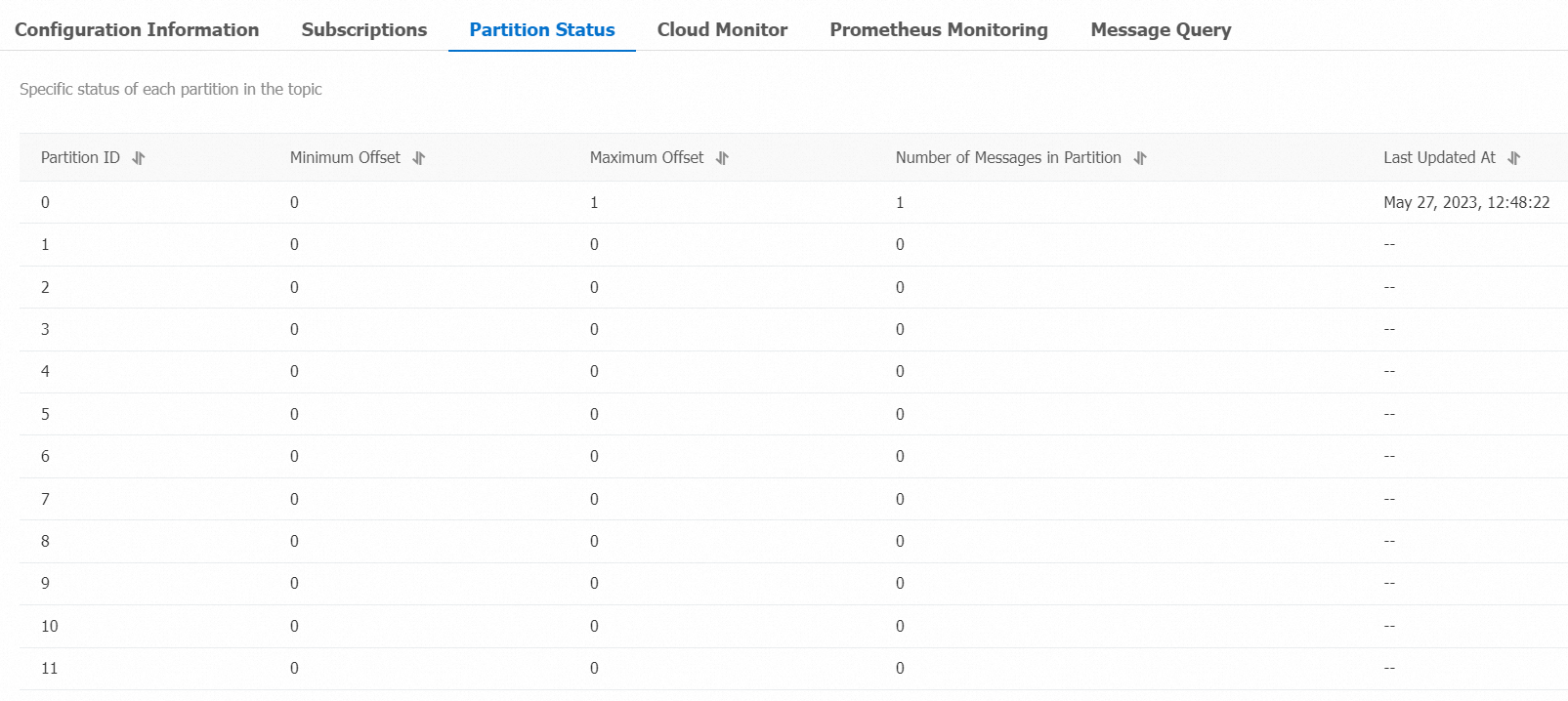
Query a message by offset
Log on to the ApsaraMQ for Kafka console.
In the Resource Distribution section of the Overview page, select the region where your instance resides.
On the Instances page, click the name of the target instance.
In the left-side navigation pane, click Message Query.
From the Search Method drop-down list, select Search by offset.
Select a topic from the Topic drop-down list, select a partition from the Partition drop-down list, enter an offset value in the Offset field, and click Search. The console returns all messages with offsets greater than or equal to the specified value. For example, setting Partition to
5and Offset to5returns all messages from partition 5 with offsets 5 and above.Parameter Description Partition The partition where the message is stored. Offset The message offset within the partition. Key The message key, displayed as a string. Value The message body, displayed as a string. Created At The timestamp when the message was sent. If you specified a value for the ProducerRecordtimestamp field, the specified value is displayed. If you did not specify a value, the local system time when the message was sent is displayed. If the timestamp field is set to0or an invalid value, the time is displayed in1970/x/x x:x:xformat. Clients on ApsaraMQ for Kafka version 0.9 or earlier cannot set this field.Actions Download Key: Download the message key. Download Value: Download the message body. The console displays up to 1 KB per message. Download the message to view content beyond 1 KB. A maximum of 10 MB of messages can be downloaded at a time.
References
Kafka output plugin -- Full parameter reference for the Logstash Kafka output plugin.